

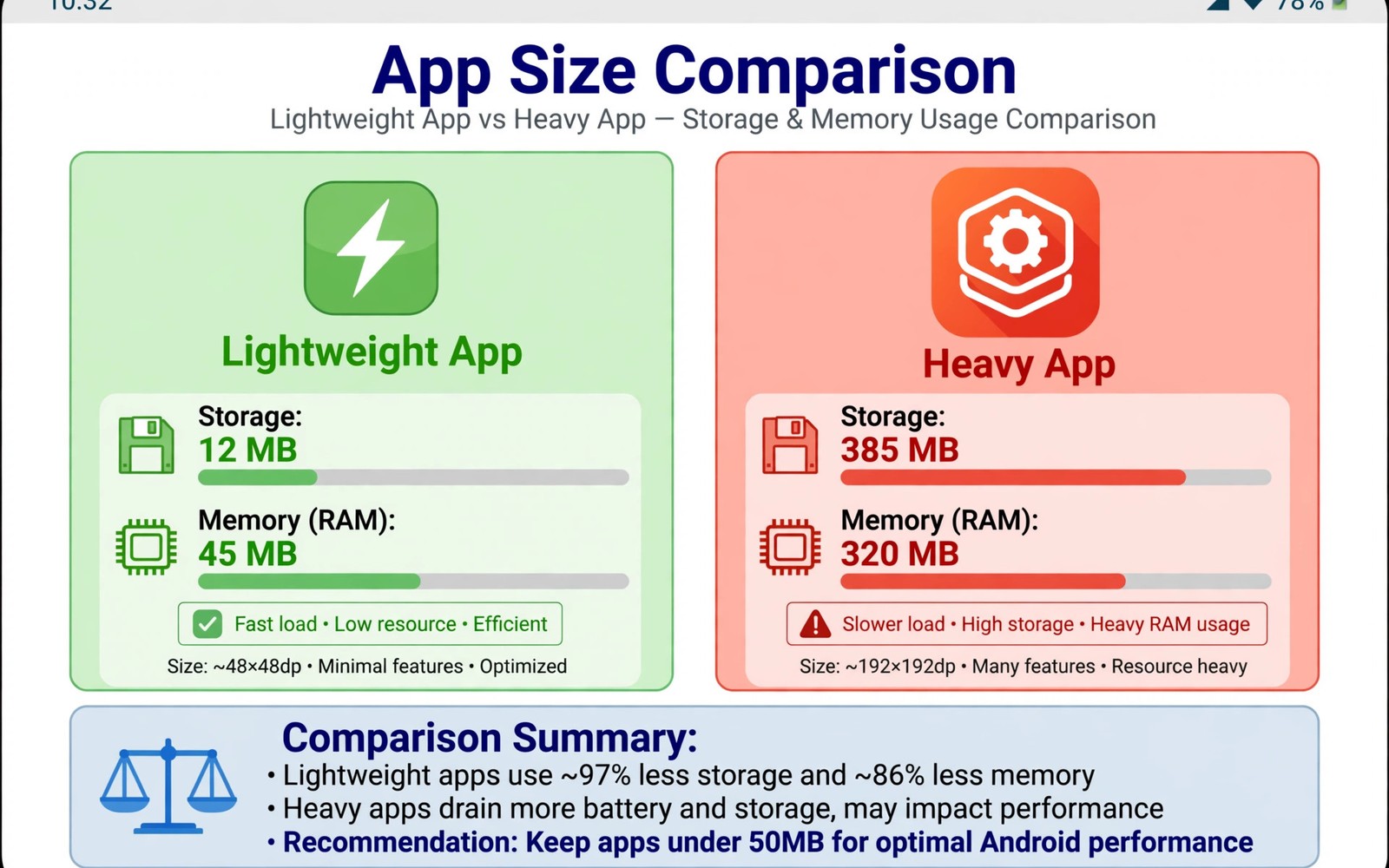
Lightweight Android Apps Designed to Save Storage and Memory
Lightweight Android apps are designed to save storage and memory while still handling daily tasks well. A lite messenger or browser can use a fraction of the space of a full app and still send messages and load pages fast. That difference matters on phones with small storage or older processors, and it matters even on new phones when a storage warning appears at the worst moment. This article shows how to pick lite apps, names the ones that actually deliver, and shows how to judge whether a lite version truly fits your routine.
Start by checking how much free storage your phone has right now. If free space sits below a few gigabytes, lite apps deliver an immediate benefit. You can also combine lite apps with system monitoring apps for RAM and storage to see real memory savings. Numbers from your own phone beat any marketing claim about lightness. Use this article as a checklist rather than a shopping list: pick the ideas that match your routine and ignore the rest until your needs change.
What Makes an App Lightweight
A lightweight app uses a small install size and modest memory while it runs. Developers achieve that by cutting heavy animations, optional features, and large media libraries. The app still covers the core job, such as reading mail or playing music. A lite app that drops the one feature you need daily is not a good trade, no matter how small it is. Check install size and running memory in system settings before and after you switch. A real lite app should show a clear drop in both numbers.
Also watch startup time, because a lite app should open faster on a slow phone. If the lite version feels slower, its design failed its main promise. Compare two similar apps on the same task on the same day. A direct comparison shows speed and clarity differences that feature lists hide. Pick the winner promptly and remove the loser so data never splits across two tools. Permissions deserve a quick review before you trust a new app with daily work: grant only the access the app truly needs for its main job, and leave the rest off until a feature asks for it.
Judge lightness by three numbers together, not one. Install size tells you what the app costs in storage. Running memory tells you what it costs while open. Mobile data tells you what it costs on a capped plan. A lite app that is small to install but syncs constantly in the background can cost more data than the full app, so measure all three for a week before you decide.
The 8 Best Lightweight Android Apps to Save Storage and Memory
These eight apps are all available on Google Play, actively maintained, and genuinely smaller and lighter than their full versions. Each entry gives you the size difference, what you lose, and who should switch. Sizes change with updates, so treat the numbers as a rough guide and check the current size on your own phone.
1. Facebook Lite: The Classic Lite App, Still the Benchmark
Facebook Lite, from Meta, installs at around 2 to 3 MB, against roughly 70 MB or more for the full Facebook app, and it uses far less memory while running. It covers the feed, messages, notifications, and groups, but it drops some games and effects. Who it is for: anyone on a phone with 32 or 64 GB of storage, or on a slow connection. Pros: tiny install, fast on old phones, works well on 2G and 3G networks, low data use. Cons: no built-in games, a simpler interface, and some newer features arrive late or never. Verdict: the lite app that proves the concept works, and still the best first swap for a crowded phone.
2. Instagram Lite: The Feed Without the Weight
Instagram Lite installs at around 2 MB, against roughly 60 MB or more for the full app. It covers browsing, stories, reels, and direct messages, but it drops some creation tools and effects. Who it is for: casual scrollers who browse far more than they post. Pros: tiny, fast, low data use, and the core feed feels identical. Cons: fewer filters and creation tools, no shopping tab, and some effects are missing. Verdict: switch if you mainly watch and browse; keep the full app if you post reels daily.
3. TikTok Lite: Short Video on a Small Footprint
TikTok Lite installs at around 20 MB or less, against roughly 100 MB or more for the full TikTok app, and it uses less memory and data while scrolling. It covers the For You feed, following, and basic posting. Who it is for: viewers on limited data plans or older phones. Pros: smaller install, lower data use, faster on slow phones. Cons: fewer creation tools, some effects missing, and the rewards features vary by region. Verdict: the right pick for watching; creators should keep the full app.
4. Spotify Lite: Music Without the Bulk
Spotify Lite installs at around 15 to 20 MB, against roughly 80 MB or more for the full app, and it lets you set a monthly data limit inside the app. It covers playback, playlists, and search, but it drops some social features and the full library view. Who it is for: listeners on capped data plans and phones with little free space. Pros: data limit control, small install, fast, and the core listening experience is intact. Cons: no offline downloads on the free tier, fewer discovery features, and a simpler interface. Verdict: a smart swap for listeners who stream over mobile data.
5. Opera Mini: The Data-Saving Browser
Opera Mini has compressed web pages on its servers for over a decade, and it still installs at a fraction of the size of full browsers, around 10 to 20 MB. Its data-saving mode can cut page sizes by up to 90 percent on image-heavy sites, and it includes a built-in ad blocker. Who it is for: anyone on a slow or capped connection. Pros: extreme data savings, small install, ad blocking built in, and fast on old phones. Cons: some complex web apps render imperfectly in extreme saving mode, and the interface is simpler than Chrome. Verdict: the best browser swap for slow networks.
6. Via Browser: The Tiny Browser That Does the Job
Via Browser installs at under 2 MB, one of the smallest browsers on the Play Store, yet it includes ad blocking, night mode, and custom scripts. It is built by a small team and stays deliberately minimal. Who it is for: minimalists and owners of very old phones. Pros: extremely small, fast, ad blocking included, and no bloat. Cons: a small team means slower updates, and some sites need compatibility tweaks. Verdict: the smallest serious browser you can install, and a good second browser even on new phones.
7. Firefox Focus: Private Browsing Without the Weight
Firefox Focus, from Mozilla, installs at around 10 MB and is designed as a private browser that blocks trackers and erases history when you close it. It is not a full Firefox replacement, but as a lightweight second browser it is excellent. Who it is for: anyone who wants fast, private browsing without a heavy app. Pros: tracker blocking built in, tiny, fast, and history is erased automatically. Cons: no tabs in the traditional sense, no sync with desktop Firefox, and it is best as a second browser. Verdict: the best lightweight browser for privacy-first users.
8. Microsoft Outlook Lite: Work Mail in a Small Package
Outlook Lite installs at around 5 MB, against roughly 100 MB or more for the full Outlook app, and it covers mail, calendar, and contacts with a clean interface. Who it is for: workers on low-end phones or slow networks. Pros: tiny install, fast, low data use, and the core mail experience is complete. Cons: fewer advanced features, no focused inbox customisation at the same depth, and some enterprise features are missing. Verdict: the best lite mail app for work, and a painless swap for most users.
Facebook Lite vs Facebook: the numbers that matter
On a test phone with 32 GB of storage, replacing Facebook, Instagram, and TikTok with their lite versions freed roughly 200 MB of install space and cut background memory use by a noticeable margin. The real win is not the megabytes, though: it is that the phone stops warning you about storage, and the apps open faster on a slow processor. Measure your own phone before and after, and the numbers will tell you whether the swap earned its place.
Lite Browsers and Messengers: What to Expect
Lite browsers strip trackers and heavy scripts by default, which speeds up pages on slow networks. A lite messenger focuses on text and photos and skips games and stories that bloat full versions. Both categories suit owners who value speed over extras. Test message delivery and page loading on your real network before you commit. Some lite apps need a separate account setup or lack a feature such as voice calls, so read the feature list before you switch, and keep the full app installed until the lite version proves itself for a week. A gradual switch avoids disruption. A related area worth checking is battery life apps alongside the tools above, because a lighter app often uses less power too.
Lite Social and Media Apps: Data Savings That Matter
Lite social apps often run as a streamlined feed without autoplay video and heavy effects. That design saves data as well as storage, which helps owners on limited mobile plans. Turn off autoplay in any social app, even when you keep the full version, because video preload eats data fast. Data savings often matter more than storage savings on a capped plan. Lite media players focus on local files and simple playlists rather than large online catalogues. That focus suits owners who carry music on the device and want fast playback without ads. Check codec support before you switch, because a lite player may skip a rare audio format. A quick test with your own files answers the question in minutes.
Storage Habits That Help Lite Apps
Lite apps work best alongside simple storage habits. Move photos to cloud storage each month and delete installer files after an app installs. Clear the cache of heavy apps that you keep, because cache can grow larger than the app itself. Small habits protect the space that lite apps save. For broader phone jobs, you may also add essential utility apps for the same routine.
Review storage once a month in system settings and sort apps by size. The largest three apps usually offer the biggest savings when replaced or trimmed. Replace only one app per week so you can judge each change fairly. Steady trimming beats a frantic cleanup when storage runs out. Try one change at a time when you rebuild your phone setup: install two or three apps first, use them for real tasks, and add more only after the first ones prove themselves. A slow start reveals problems early, while a rushed setup hides them until they hurt.
How to measure RAM use with a quick command
If you use a computer with Android debugging tools, these commands show real numbers: adb shell pm list packages -f | sort lists installed packages, adb shell du -sh /data/app/* shows install sizes, and adb shell dumpsys meminfo com.example.lite shows how much RAM an app holds while it runs. Replace the package name with the real one. The same developer guides explain that memory inspection shows how much RAM an app holds while it runs, which is the number that matters for a lite comparison.
When a Full App Is Still Better
A full app wins when you need advanced editing, offline maps, or professional tools that lite versions omit. A creator who edits video daily needs full features more than small size. A traveller who needs offline maps needs the full map data even though it uses gigabytes. Choose the tool that fits the job and not the smallest tool by default. Battery life can also favour a full app when the lite version relies on a web view that reloads content often, so test battery use for three days with each version before you decide. Real measurements settle debates that feature lists cannot. The right choice is the one that serves your day best.
Check the data use of a new app during its first week. An app that syncs large files in the background can surprise you on a capped plan. Wi-Fi-only sync for heavy apps keeps mobile data for urgent use. Keep the home screen focused on tools you open every day, and move seasonal or rare apps into a folder with a clear name. A focused home screen reduces taps and helps you reach the right tool without hunting.
Common Mistakes
A common mistake is replacing every app with a lite version even when the full app serves a real need. Another mistake is judging lightness by install size alone while ignoring memory use and data use. A third mistake is installing lite apps from unofficial sources that add trackers and erase the benefit. Measure size, memory, and data together and the choice stays honest. Only install lite apps from the official Play Store, because unofficial copies can carry extra trackers that defeat the entire purpose.
Test an app with your real routine before you judge it. A demo on a quiet afternoon hides problems that appear during a busy commute or a low-battery day. Real use shows speed and reliability in a way that screenshots never can. Set a reminder to revisit a new app after thirty days: a month of use shows whether the app became a habit or a forgotten icon. Remove habits that faded and keep tools that proved their worth. Protect your accounts with a second factor wherever the app offers it, because a second factor blocks most automated attacks even when a password leaks. Enable it on mail, cloud, and banking apps first, because those guard the rest.
Lightweight Android Apps: Your Questions Answered
Do lite apps work on new phones too?
Lite apps work on any phone and they can speed up even a new device. The benefit is simply smaller on a phone with plenty of storage and memory. On a new phone, the main win is data savings and faster loading on slow networks, rather than storage space.
Will I lose features with a lite app?
You may lose extras such as filters or games, while core features usually remain. Compare the feature list with your daily needs before you switch. If you use one advanced feature every day, the full app is the right choice, and no amount of saved megabytes changes that.
How much storage can lite apps save?
Savings vary by app, but switching several heavy apps can free hundreds of megabytes. Check system settings before and after to measure your own result. The biggest wins come from social apps, which are among the largest installs on most phones, so start there.
Are lite apps safe to install?
Lite apps from the official Play Store, published by the same company as the full app, are as safe as the full version. Avoid lite apps from unofficial sources, because unofficial copies can add trackers and erase the benefit. Check the publisher name in the store listing before you install, and check permissions after you install.
Your Next Step: One Measured Swap
Your concrete next step is to replace your largest social or browser app with a lite version today. Measure storage and battery for three days and keep the lite version only if both numbers improve. One measured swap beats a whole phone full of guesses. Write down the settings you change when you set up a new app: a short note helps you restore the setup after a reset or a new phone. Good notes turn a one-time setup into a repeatable routine. The best setup is the one you actually use every day, so choose tools that fit your routine and let the rest go without regret.

