

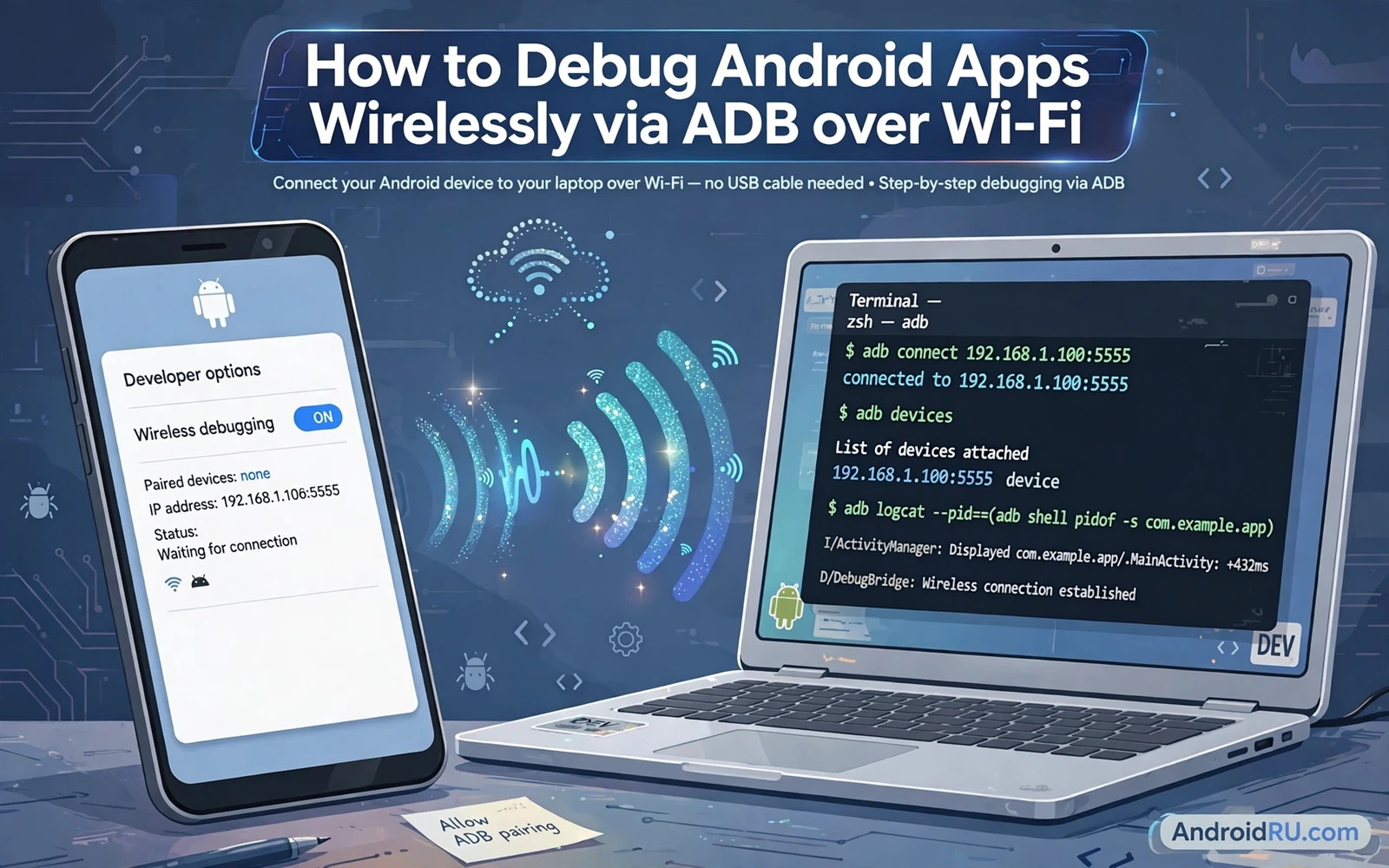
A cable ties a phone to a desk and gets in the way during motion testing and TV testing and car testing. Wireless debugging removes that cable while keeping the full power of Android Debug Bridge. You can install builds and read logs and run shell commands over Wi-Fi. The setup takes a few minutes once you understand pairing and connection as two separate steps. This guide walks through both steps and the safety rules that matter on shared networks.
Wireless debugging works best on a trusted private network. A home network or an office network that you control is a good choice. A public café network is a poor choice because other devices on that network could reach the debugging port. Never leave wireless debugging enabled on a phone that you carry into untrusted networks. Turn it off when the session ends. Treat the debugging port as an open door to the device and guard it accordingly.
You need a phone with developer options enabled and a computer with current platform tools. Both devices must join the same Wi-Fi network for the simple pairing flow. Newer system versions support QR pairing and a six digit pairing code. Older versions use a TCP port command after an initial cable connection. This guide covers the modern pairing flow first and the older flow as a fallback. Check the system version on the phone before you start so you follow the right path.
adb pair 192.168.1.50:37123
# enter the six digit code shown on the phone
adb connect 192.168.1.50:38345
adb devices
adb logcat -d | head -n 100
Enable developer options safely
Open system settings and find the build number in the device information screen. Tap the build number repeatedly until the system confirms developer options. Open developer options and enable USB debugging. The name still says USB even though the same switch gates wireless debugging on many devices. Read any warning dialog carefully before confirming. Developer options expose powerful controls that a careless change could misuse.
Open the wireless debugging entry inside developer options. The screen shows the device IP address and port and a pairing option. Keep this screen open during pairing because the pairing code changes and the device must stay discoverable. Do not share a screenshot of this screen in a public channel. The address and port in the screenshot could help an attacker on the same network target the device.
If the wireless debugging entry is missing then the device or system version may not support it. Some vendor builds hide the entry or rename it. Update platform tools and check for a system update. As a fallback use the older TCP method described later in this guide. Do not install a random tool that promises wireless debugging without explaining how it opens the port. A tool that opens debugging silently is a security risk.
Pair with a code
On the computer open a terminal and confirm that the ADB tool runs. Use the pair command with the address and port shown on the phone pairing screen. The phone shows a six digit code during pairing. Enter that code in the terminal when prompted. Pairing creates a trusted relationship between the computer and the phone. Connection uses a different address and port after pairing succeeds. Confusing pairing and connection is the most common setup mistake.
After pairing succeeds use the connect command with the main wireless debugging address and port from the phone screen. List devices to confirm the phone appears as connected. The device name in the list should match the phone you paired. If an unknown device appears then disconnect at once and review the network. Never accept a pairing prompt that you did not initiate. A prompt on a shared network may come from another person testing the same feature.
Run a simple command to confirm the session works. Read a short logcat output or list installed packages for the test app. Install a debug build to confirm install speed over Wi-Fi. Large builds transfer slower over Wi-Fi than over a cable. That slowdown is normal and rarely matters for iterative testing. If installs fail repeatedly then check signal strength and move closer to the access point before blaming the tool.
The older TCP fallback
Older devices may lack the modern pairing screen. Connect the phone by cable once and enable TCP mode on a chosen port. Disconnect the cable and connect over Wi-Fi using the phone IP address and the chosen port. This flow trusts any computer that knows the address and port because no pairing code protects it. Use it only on a trusted network and only for a short session. Disable TCP mode when the session ends by restarting the debugging service or rebooting the phone.
The older flow also fails when the phone IP address changes. Routers assign new addresses after a lease expires or after a reboot. Check the current IP address on the phone before each connection attempt. A stale address leads to a connection timeout that looks like a tool failure. Reserve an address for the test phone in the router when you debug daily. A stable address removes a daily source of friction.
Performance profiling over Wi-Fi works the same as profiling over a cable once the connection is live. Readers who profile while debugging wirelessly can pair this setup with the piece on testing app performance with profiler tools and record traces without tethering the phone to the desk. Motion based tests benefit most because the phone can move freely during the recording.
Daily wireless workflow
Start each session by confirming the phone and the computer share the same network. Open the wireless debugging screen and check the connection status. Reconnect when the phone slept or changed networks. Phones may drop the debugging connection to save power. A dropped connection during a log capture loses the tail of the log. Start log capture again after reconnecting and note the gap in your test notes.
Use wireless debugging for install and log and shell work. Keep cable debugging for tasks that need high throughput such as large system images or recovery work. Use a cable when Wi-Fi is unstable or when the test involves network switching. Wireless debugging itself uses Wi-Fi so testing a Wi-Fi handover while connected over Wi-Fi will break the session. Plan handover tests with a cable or with on device logging instead.
Disconnect cleanly at the end of the session. Run the disconnect command for the device address and turn off wireless debugging on the phone when you no longer need it. A phone left in debugging mode on a shared network stays exposed. Make disconnect part of the shutdown routine in the same way that closing a test app is part of the routine. A short checklist on the team wiki helps new testers remember the step.
Fix connection problems
A pairing failure often means the devices are on different networks or different bands of the same network. Some routers isolate clients from each other for guest safety. Client isolation blocks pairing even when both devices show the same network name. Move both devices to the main network or disable isolation for the test network. Check the router settings when pairing fails repeatedly on one network but works on another.
A firewall on the computer can block the ADB port. Allow the ADB tool through the firewall or test with the firewall paused briefly on a trusted network. Restore the firewall rule after testing. A missing platform tools update can also break pairing with newer system versions. Update platform tools before reporting a device bug. Many pairing issues disappear after an update on either side.
Memory and state problems can look like connection problems during long sessions. A leak that grows during a long debug run can slow the app and confuse the test. Readers who see a slowdown that survives a reconnect can continue with the piece on finding and fixing Android memory leaks and check whether the app itself is the cause. Separate tool problems from app problems before changing the setup.
Security rules to keep
Treat wireless debugging as a temporary session and not a permanent device state. Enable it for the task and disable it after the task. Never enable it on a phone that holds banking apps and sensitive work data unless the test truly requires that phone. Prefer a dedicated test device for wireless debugging. A test device limits the damage if a session is ever exposed on a shared network.
Rotate trust when a computer changes hands. Forget paired computers on the phone after a shared workstation session. Remove old pairings during device cleanup. A pairing that lingers after a contractor leaves is an unnecessary risk. Review the paired list when you review other device permissions. Small reviews like this keep a powerful feature safe over time.
Orientation and state testing also benefit from a free phone. Readers who test rotation without a cable can continue with the piece on handling orientation changes without a reload and rotate the device naturally while logs stream over Wi-Fi. Wireless debugging turns a desk bound test into a realistic movement test. That realism catches bugs that a cable bound test would miss.
Team debugging over Wi-Fi
A team that shares test devices needs rules for wireless debugging. One computer paired at a time avoids confusion about which session owns the device. Label test phones with their current pairing status on a small card or a shared sheet. A phone left paired to a former tester machine should be unpaired during cleanup. Shared device hygiene prevents a tester from debugging the wrong phone.
Log capture over Wi-Fi needs a naming habit. Name each log file with the device and the build and the test name and the date. A log named logcat final tells nothing a week later. A log named with device and build and test tells the full story at a glance. Store logs beside the test report so a future reader can match log to finding without asking the original tester.
Wi-Fi debugging changes how motion tests run. A tester can walk with the phone while logs stream to a laptop on the same network. That freedom reveals bugs tied to movement such as sensor handling and handover behaviour. Plan motion tests with a route and a checklist rather than random walking. A planned route produces repeatable logs. Random walking produces anecdotes.
Security review should cover the team workflow once per quarter. List paired computers per test device and remove stale pairings. Confirm that test devices hold no production accounts. Confirm that wireless debugging turns off at day end. A quarterly review takes minutes and keeps a powerful feature from becoming a permanent exposure.

