

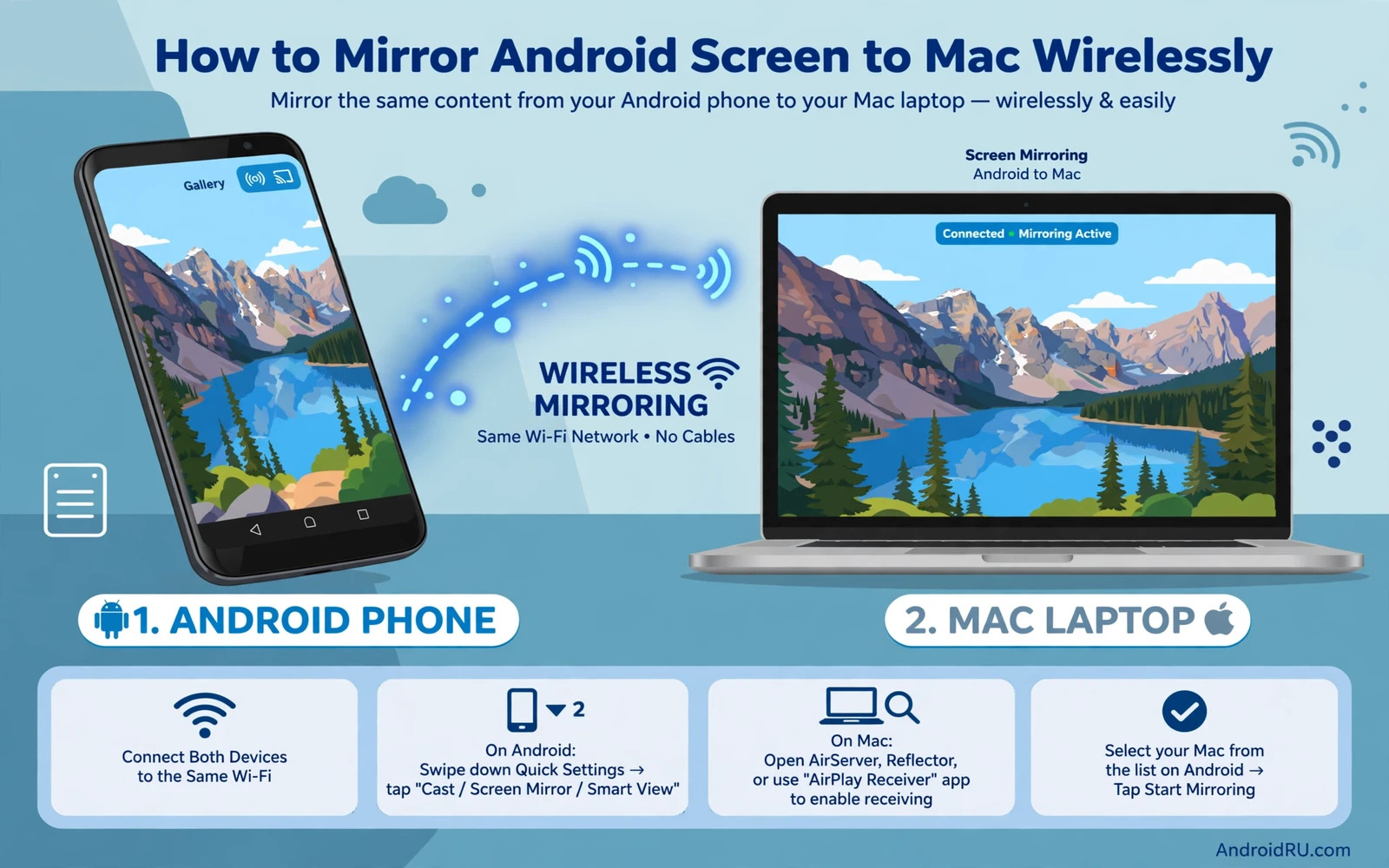
Why Mirror Android To A Mac
Mirroring puts your Android screen on a larger Mac display without cables. It suits presentations and video calls and app demos and watching content with others. It also suits developers who want to show a phone screen during a meeting. Wireless mirroring keeps the desk tidy and lets you move the phone freely. The trade-off is latency. A wireless mirror will always lag slightly behind the phone. For video and slides that lag is harmless. For fast games it can feel sluggish.
Android and Mac do not share a single built-in mirroring standard. Android phones often support Miracast or Chromecast. Mac computers do not act as a Miracast receiver out of the box. That gap is why a receiver app on the Mac is the usual solution. The app makes the Mac appear as a cast target. Once the app runs the phone can find the Mac on the same Wi-Fi network. Understanding that gap prevents wasted time searching Mac settings for a receiver that does not exist.
Prepare Both Devices On The Same Network
Connect the phone and the Mac to the same Wi-Fi network. A single network name matters because some routers split bands into separate networks. If the phone sits on one band and the Mac sits on another then discovery can fail. Use the same band when possible. A 5 GHz network usually gives smoother mirroring than a crowded 2.4 GHz network. Move closer to the router for the first test so signal strength is not a variable.
Turn off any VPN on both devices for the test. A VPN can hide devices from each other on the local network. Also check that the Mac firewall allows the receiver app. The first launch of a receiver app often triggers a firewall prompt. Allow the connection on private networks. Without that permission the phone may see the Mac but fail to connect. Note the firewall choice because a denied prompt is a common silent cause of failure.
Install A Receiver App On The Mac
Choose a reputable receiver app from the Mac App Store or the developer site. Look for an app that supports the cast method your phone uses such as Google Cast or Miracast or AirPlay style receiving. Read recent reviews and check that the app is actively updated. A receiver app that has not been updated for years may fail on newer macOS versions. Install the app and open it and leave its window visible. The window usually shows the Mac name that the phone will look for.
Some receiver apps offer a free trial with a watermark or a time limit. Test with the trial before you pay. Check video smoothness and audio sync and connection stability during the trial. A receiver that stutters on your network will not improve after payment. Compare two receivers if the first one lags badly. Network conditions affect every receiver but app quality still varies. Pick the receiver that stays stable on your actual Wi-Fi rather than the one with the longest feature list.
Cast From The Phone Step By Step
On the phone open Settings and then Connected devices and then Cast or open the quick settings panel and tap Cast or Screen Cast. The label varies by brand. The phone will scan for targets on the network. Tap the Mac name shown by the receiver app. Accept any prompt on the Mac. The phone screen should appear in the receiver window within a few seconds. If the scan finds nothing then restart the receiver app and rescan.
Once connected test touch and sound. Audio may play through the Mac or stay on the phone depending on the receiver and the app. Check the receiver settings for an audio output option. Some apps keep video smooth by lowering resolution. If text looks soft then look for a quality setting and raise it while the network is strong. Lower the quality again if stutter returns. A stable lower resolution beats a stuttering high resolution for most uses.
Mirror For Presentations And Calls
For a presentation open the slides on the phone before you cast so the audience sees a clean start. Lock the phone orientation to landscape if the slides are wide. Turn on Do Not Disturb so private notifications do not appear on the big screen. Hide sensitive widgets from the home screen before the meeting. A mirrored screen shows everything including incoming message previews unless you silence them first.
For video calls mirror the call app and keep the phone near you so its microphone picks up your voice clearly. The Mac speakers can play the call audio but the phone microphone usually stays the input. Test a short call with a friend before an important meeting. Readers who use the phone as a camera will also value the guide to using an Android phone as a PC webcam because it covers the camera side of the same meeting setup. Mirroring plus a good camera feed makes a phone a strong meeting tool.
Fix Lag Stutter And Drops
Lag usually comes from Wi-Fi congestion. Move closer to the router and close heavy downloads on both devices. A video stream on the Mac or a cloud backup on the phone can steal bandwidth from the mirror. Pause those tasks during mirroring. Switch the router band to 5 GHz if the devices support it. Restart the router if the whole network feels slow. A fresh router session often clears congestion that builds over days.
Drops often come from power saving. Keep the phone screen awake during mirroring and keep the phone charging if the session is long. A phone that sleeps can drop the cast. Also keep the receiver app in the foreground on the Mac. A receiver hidden behind heavy apps may lose priority. If drops persist then try a different receiver app. A single bad receiver can look like a network fault. Testing a second receiver isolates the cause quickly.
Consider A Wired Option When Wireless Fails
Wireless mirroring is convenient but not always the best tool. A USB connection with a mirroring tool can give lower latency and a sharper image. Wired mirroring suits gaming and detailed design work. It needs a cable and sometimes a small tool on the Mac. The setup takes longer but the result is steadier. Keep a cable ready for important presentations even if you normally mirror wirelessly. A backup plan prevents an awkward failure in front of an audience.
Some docks and hubs also support video output from phones that offer desktop modes. Check whether your phone supports video over USB. If it does then a hub can drive a monitor directly without mirroring software. That path is closer to a desktop experience than a mirror. For a broader screen sharing comparison the guide to casting Android to a TV or PC monitor explains the TV side where built-in receivers are far more common. The Mac case needs a receiver app but the core ideas match.
Keep Mirroring Smooth Long Term
Keep the receiver app updated and keep macOS updated. Updates fix discovery bugs that break casting after a system change. Keep the phone and the Mac on the same trusted network and avoid public Wi-Fi for mirroring. Public networks often block device discovery entirely. A home or office network gives a far better result. Save the receiver settings once you find a stable combination so you can restore them after an update resets them.
Wireless mirroring from Android to Mac is a solved problem once the receiver gap is understood. Same network plus a good receiver plus a calm Wi-Fi environment gives a stable mirror. Test before important use and keep a wired backup for critical moments. With those habits your phone screen can fill a Mac display whenever you need the extra space.
Audio And Video Sync
Audio sync is the first thing to check after a mirror connects. Play a video with clear speech and watch whether lips match sound. A small delay is normal for wireless mirroring. A large delay ruins video watching. Lower the mirror resolution if delay grows. A lower resolution needs less bandwidth and often restores sync. Close other network hungry apps on the Mac during video mirroring.
Some receiver apps offer an audio delay setting. Adjust it in small steps while a talking video plays. A delay setting can align sound that arrives early or late. Note the setting that works on your network because it may differ at home and at the office. A saved setting per network removes repeated tuning. Good sync makes a mirrored video feel like a native Mac video.
Mirror With Privacy In Mind
A mirrored screen shows notifications to everyone watching the Mac display. Turn on Do Not Disturb before mirroring in a shared room. Hide message previews on the lock screen and in banners during the session. Close private tabs and apps before connecting. A mirror session is a public display of a private device. Treat it that way from the start.
End the mirror session deliberately when you finish. Do not just walk away with the phone still casting. Disconnect from the phone cast menu and confirm the receiver window closes. A forgotten session keeps showing your screen to the Mac. A deliberate disconnect is a small habit that prevents an embarrassing leak. Privacy during mirroring is mostly about endings rather than beginnings.
Use Mirroring For App Demos
App demos benefit from mirroring because the audience sees exactly what your fingers do. Move slowly during a demo so the mirror keeps up. Pause after each major action so the audience can absorb the screen. Narrate what you are about to tap before you tap it. That narration compensates for mirror lag because the audience hears the plan before the delayed image arrives.
For a demo keep the phone charged and the Mac on a stable network. A demo that drops mid-flow loses the audience. Test the full demo flow once before the real session. That rehearsal reveals laggy screens and tiny text that needs a larger font. Readers building a full desk setup can also read the guide to transferring files between Android and PC because a demo often needs files moved as well as screens shared. Mirror plus file transfer together make a complete presentation toolkit.
A Practical Checklist For Stable Mirroring
Run this checklist before any important mirror session. Connect both devices to the same Wi-Fi network and confirm the network name matches on both. Open the receiver app on the Mac and confirm it shows the Mac name clearly. Turn off VPN on both devices and allow the receiver through the Mac firewall. Lock the phone orientation if the content is landscape and turn on Do Not Disturb so private notifications stay hidden. Test a short video for audio sync before the audience arrives. A five minute checklist prevents a public failure that no troubleshooting can fix gracefully once people are watching.
During the session watch for the early signs of trouble. A rising audio delay signals network congestion. A softening image signals a bandwidth drop. A frozen frame signals a receiver struggling under load. Respond early by lowering resolution or pausing a background download on either device. Early response keeps a small wobble from becoming a full drop. Keep the phone charging during long sessions because a low battery phone may throttle the cast service. Keep the Mac receiver window in the foreground so the system gives it priority. Attention during the session is as important as preparation before it.
After the session disconnect deliberately from the phone cast menu and confirm the receiver window closes on the Mac. Review what worked and what lagged. Note the network and the receiver settings that gave the best result. Save those settings for the next session. A short post-session note turns each mirror into a better next mirror. Over time the checklist becomes habit and the habit becomes a reliable mirror that you trust for presentations and calls and demos without a second thought.

