

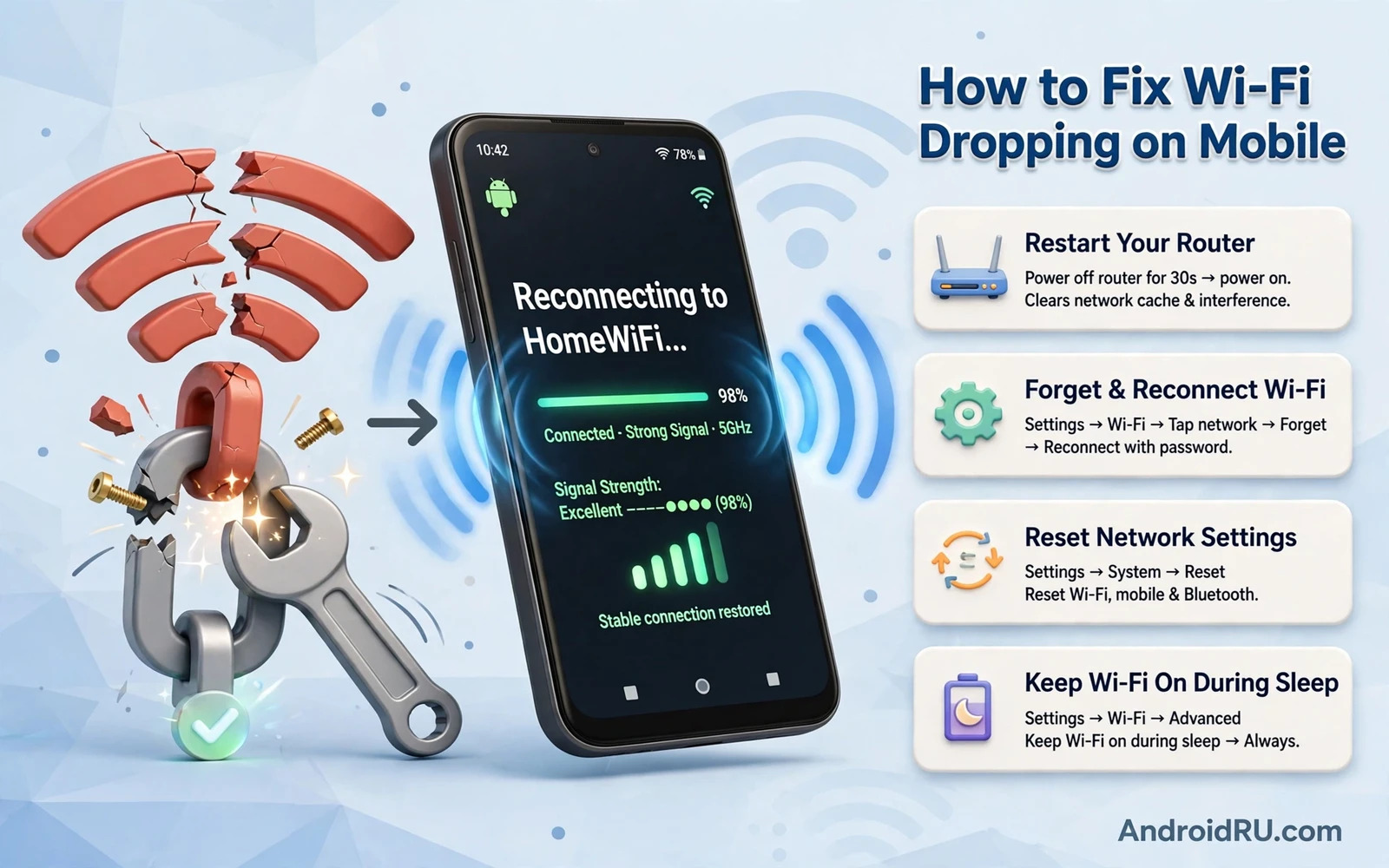
What Wi-Fi Dropping Looks Like
Wi-Fi dropping means the phone disconnects from Wi-Fi repeatedly or switches to mobile data without warning. The Wi-Fi icon may disappear and reappear. Pages may stop loading and then load again. Video calls may freeze during a drop. Downloads may stall during a drop. A single drop during a router restart is normal. Repeated drops during normal use are not normal. Note the pattern of drops. Drops in one room point to coverage. Drops everywhere point to phone or router settings. Drops on one network only point to that network. Pattern reading guides the fix.
Check whether other devices drop on the same network. Other devices dropping together point to the router or the internet service. Only your phone dropping points to the phone. Check the time pattern too. Drops at the same time daily may point to router scheduling or interference from a nearby device. Drops during movement between rooms point to roaming between access points. Drops while stationary point to settings or interference or power saving. A pattern note taken over a day beats a guess made in a moment.
Check mobile data behaviour during drops. A phone that switches to mobile data during a Wi-Fi drop can consume mobile data silently. Turn off auto switch to mobile data during testing when data limits matter. A clear Wi-Fi only test shows drops without mobile data masking them. Note whether the phone reconnects automatically after a drop. Automatic reconnection points to a brief interruption. Manual reconnection need points to a setting or authentication problem. Reconnection behaviour is a useful clue.
Quick Phone Fixes First
Toggle Wi-Fi off and on once. This simple toggle clears a stale connection state. Wait a few seconds between off and on. Let the phone reconnect fully before you test. Toggle airplane mode on and off when Wi-Fi toggle alone fails. Airplane mode resets all radios at once. Turn airplane mode off after ten seconds and let Wi-Fi reconnect. A radio reset fixes many transient drops. Do not toggle repeatedly in quick succession. One clean toggle is a valid test. Repeated toggling adds no new information.
Restart the phone when toggles fail. A restart clears stuck network services and frees locks on connection state. Test Wi-Fi for an hour after restart before you change deeper settings. A drop free hour after restart points to a temporary service fault. Drops returning after restart point to a persistent setting or hardware cause. Restart is a safe first step that costs little time. Use it before network forget and router changes.
Forget the network and reconnect when toggles and restart fail. Open Settings and then Wi-Fi. Tap the network name and choose Forget. Reconnect by entering the password again. Forgetting clears saved settings for that network including a corrupted password entry or a wrong security setting. Re-entering the password fresh removes doubt about saved credentials. Note the password before you forget the network. Forgetting without the password creates a new problem. Keep the password ready.
Router And Coverage Fixes
Move closer to the router as a test. A phone that stays connected near the router but drops far away faces a coverage problem. Walls and floors weaken Wi-Fi signals. Metal objects and large appliances also weaken signals. Move the router to a central open location when possible. Raise the router above furniture level. Keep the router away from microwave ovens and thick metal cabinets. Small placement changes can improve coverage noticeably. Coverage fixes beat settings changes when distance is the cause.
Restart the router once when drops affect multiple devices. Power the router off for thirty seconds and on again. Wait for lights to settle before testing. A router restart clears congested state and stale client entries. Check router firmware through the router admin page when drops persist. A firmware update can fix known Wi-Fi stability issues. Follow router maker guidance for firmware updates. Do not interrupt power during a firmware update. Interruption can damage router software.
Check Wi-Fi band settings when drops persist. Modern routers offer two bands. One band reaches farther through walls. The other band offers faster speeds at short range. A phone that roams aggressively between bands can drop during band switches. Connect to the farther reaching band manually for stability testing. A stable slower connection beats a fast connection that drops. Lock the phone to one band for a day as a test. Band stability results guide a longer term choice.
Phone Settings That Cause Drops
Power saving settings can drop Wi-Fi to save battery. Open Settings and then Battery and check battery saver behaviour. Some phones turn off Wi-Fi during sleep to save power. That behaviour looks like dropping when the phone wakes and reconnects slowly. Turn off Wi-Fi power saving or keep Wi-Fi on during sleep in settings when stability matters more than a small battery saving. Test for a day with the setting changed. A drop free day after the change confirms power saving as the cause.
Wi-Fi scanning settings can also disturb connections. Scanning searches for new networks constantly. That search can interrupt an active connection on some phones. Turn off Wi-Fi scanning in location settings when you do not need constant network discovery. Keep scanning on only when an app truly needs it for location. A scanning off test is quick and reversible. Note the setting before you change it so you can restore it later if needed.
VPN and security apps can interrupt Wi-Fi during reconnection. Pause VPN for a test day when drops persist. A drop free day without VPN points to VPN server or setting. Try a different VPN server later. Do not disable security permanently for a Wi-Fi fix. A test pause gives a clear answer. Restore security after the test. A VPN that drops with Wi-Fi may need a reconnect setting change rather than permanent removal.
Randomised MAC address settings can cause drops on networks with MAC filtering. Some networks allow only known device addresses. A phone that randomises its address on each connection may fail the filter intermittently. Open Wi-Fi settings for the network and check the privacy setting. Use device MAC for a trusted home network when filtering is in use. Use randomised MAC for public networks where privacy matters more. Match the privacy setting to the network trust level. A mismatch can look like random dropping.
Interference And Roaming Problems
Interference comes from neighbouring networks and from household devices. Many networks on the same channel compete for airtime. A router set to automatic channel selection usually finds a cleaner channel. Restarting the router can trigger a channel rescan. Check neighbouring network density in Wi-Fi settings when available. A crowded channel explains drops that worsen in evenings when neighbours use networks heavily. Channel changes help crowded environments more than phone settings do.
Roaming between access points causes drops in large homes and offices. A phone may cling to a distant access point even when a nearer one exists. That clinging causes weak signal drops. A phone may also switch access points too often and drop during each switch. Mesh systems handle roaming better than separate access points with the same name but no coordination. Check mesh settings when roaming drops persist. A mesh handover threshold change can stabilise roaming. Roaming problems need network side fixes more than phone side fixes.
Bluetooth interference can affect Wi-Fi on some phones because both share radio spectrum. Test Wi-Fi stability with Bluetooth off for a day. A drop free day without Bluetooth points to interference or to a shared radio fault. Keep Bluetooth off only as a test. Restore Bluetooth after the test and note the result. A persistent Bluetooth related drop may need a phone update or a service check. Interference tests isolate radio interaction from settings faults.
Connectivity Fixes Beyond Wi-Fi
Wi-Fi drops sometimes accompany other connectivity faults. A phone that drops Wi-Fi and also fails Bluetooth pairing faces a broader radio problem. A phone that drops Wi-Fi only faces a Wi-Fi specific problem. Note the scope of connectivity trouble. Broad trouble points to system services or hardware. Narrow trouble points to Wi-Fi settings or router. Scope reading prevents a Wi-Fi only fix attempt for a broad radio fault. Broad faults need a different diagnostic path.
Bluetooth pairing failures share some diagnostic steps with Wi-Fi drops. Both involve radio settings and power saving and interference. Both benefit from toggle tests and restart tests and forget and reconnect tests. The shared steps make a combined connectivity check efficient. When Wi-Fi drops and Bluetooth pairing both fail the phone radio system deserves attention as a whole. A system update or a service check may be needed when both radios misbehave together.
Learning the Bluetooth side helps complete the connectivity picture. A guide that explains how to fix Bluetooth pairing failures on Android accessories covers forget and reconnect steps and interference checks that mirror Wi-Fi steps. Those shared techniques reinforce each other. A user who masters one radio fix can apply the same method to the other radio. Radio troubleshooting is a transferable skill across connection types.
Mobile data drops share diagnostic logic with Wi-Fi drops too. A phone that cannot hold mobile data may have a SIM or carrier setting fault. A phone that cannot hold Wi-Fi may have a router or phone Wi-Fi fault. Comparing the two behaviours narrows the fault to one radio or to the whole connectivity system. When both radios drop the system or hardware is suspect. When only Wi-Fi drops the Wi-Fi path is suspect. Comparison is a powerful diagnostic tool.
A mobile data fault guide covers SIM checks and carrier settings and network mode checks that do not apply to Wi-Fi directly. Those checks still help by ruling out a system wide fault. When mobile data holds steady while Wi-Fi drops the fault is Wi-Fi specific. That conclusion focuses effort on router and Wi-Fi settings. Working through how to fix a mobile data not working error on Android as a comparison test gives that focus. A comparison test is not wasted effort even when the target fault is Wi-Fi only. It rules out a larger cause.
Hotspot And Shared Connection Checks
Hotspot use can reveal Wi-Fi radio health. A phone that drops Wi-Fi as a client but works well as a hotspot shows a client side setting fault rather than a dead radio. A phone that fails both as client and as hotspot faces a broader radio fault. Test hotspot behaviour when client drops persist. Connect a laptop to the phone hotspot and check stability for an hour. Stable hotspot output points to client settings. Unstable hotspot output points to radio or system fault. Hotspot testing adds a useful data point.
Hotspot configuration also affects client behaviour indirectly. A hotspot left on can compete with Wi-Fi client mode on some phones. Turn off hotspot when testing client Wi-Fi stability. A forgotten hotspot can cause confusing drops. Check the hotspot toggle before a long Wi-Fi test. A clean test environment with hotspot off and Bluetooth off isolates Wi-Fi behaviour. Isolation makes results trustworthy. Add other radios back one at a time after Wi-Fi stabilises.
Using a phone as a hotspot for a laptop is a common daily task. That task depends on stable phone radios in both directions. A phone that serves a stable hotspot but drops as a Wi-Fi client still needs a client fix. The hotspot success does not excuse the client fault. It only narrows the fault location. Learning how to use an Android phone as a Wi-Fi hotspot for a laptop correctly includes hotspot settings that can interfere with client mode when left on. Check those settings during a client drop investigation. A hotspot left on by mistake is an easy fix once noticed.
System Updates And Reset As Last Steps
Check for a system update when drops persist after settings and router fixes. A system update can fix Wi-Fi driver bugs. Install updates on a stable connection and on power. A failed update download on a dropping connection creates a loop. Use mobile data or a stable nearby network for the update download when home Wi-Fi drops constantly. An update that fixes Wi-Fi is worth a temporary alternative connection. Note the update version and the drop pattern before and after update for comparison.
Reset network settings as a stronger step before any full reset. Network settings reset clears saved Wi-Fi networks and Bluetooth pairings and mobile settings. It does not delete photos or apps. You will need to reconnect to Wi-Fi networks afterwards. Note passwords before a network reset. A network reset clears corrupted network state that forget and reconnect for one network cannot reach. Test Wi-Fi for a day after network reset before judging the result. A day of stability confirms a network state fix.
Factory reset is a last resort for persistent Wi-Fi drops. A factory reset deletes data and should follow full backup. Test the phone clean after reset before restoring apps. A clean phone that holds Wi-Fi points to a restored app or setting. A clean phone that still drops points to hardware or router. Do not reset for a router problem. A router problem will survive any phone reset. Confirm router health with other devices before a phone reset. Other devices holding Wi-Fi steady is strong evidence against a router cause.
Frequently Asked Questions
Why does Wi-Fi drop only at night. Night drops can reflect router scheduling or neighbour interference or power saving during sleep. Check router schedules. Check Wi-Fi during sleep settings on the phone. Test with power saving off for a night. A pattern tied to sleep settings points to the phone. A pattern tied to a time schedule points to the router.
Should I use a Wi-Fi extender for drops far from the router. An extender can help coverage drops. Place the extender halfway between router and dead zone. A poorly placed extender can create roaming drops. Test stability after extender placement for a day. A mesh system often handles roaming better than a single extender in larger homes. Choose extender or mesh by home size and by roaming behaviour.
Does a case cause Wi-Fi drops. A thick metal case can weaken signals slightly. A plastic case has little effect. Remove the case as a test when drops persist near the router. A drop free test without a case points to case interference. Most cases do not cause drops. Case testing is quick and free so it belongs in the checklist despite being a rare cause.
Why does my phone switch to mobile data during Wi-Fi drops. Auto switch moves traffic to mobile data when Wi-Fi becomes unusable. That switch keeps apps working during a drop. It can also hide drops and consume mobile data. Turn off auto switch during testing to see true Wi-Fi behaviour. Turn it back on after fixing when seamless switching matters more than data saving.
When should I seek service for Wi-Fi drops. Seek service when drops persist on many networks after network reset and system update and clean testing. Seek service when Wi-Fi fails completely or when Bluetooth also fails. Seek service after physical damage. A service check is appropriate when software and router fixes stop helping. Describe the pattern and the networks tested to service for faster diagnosis.

