

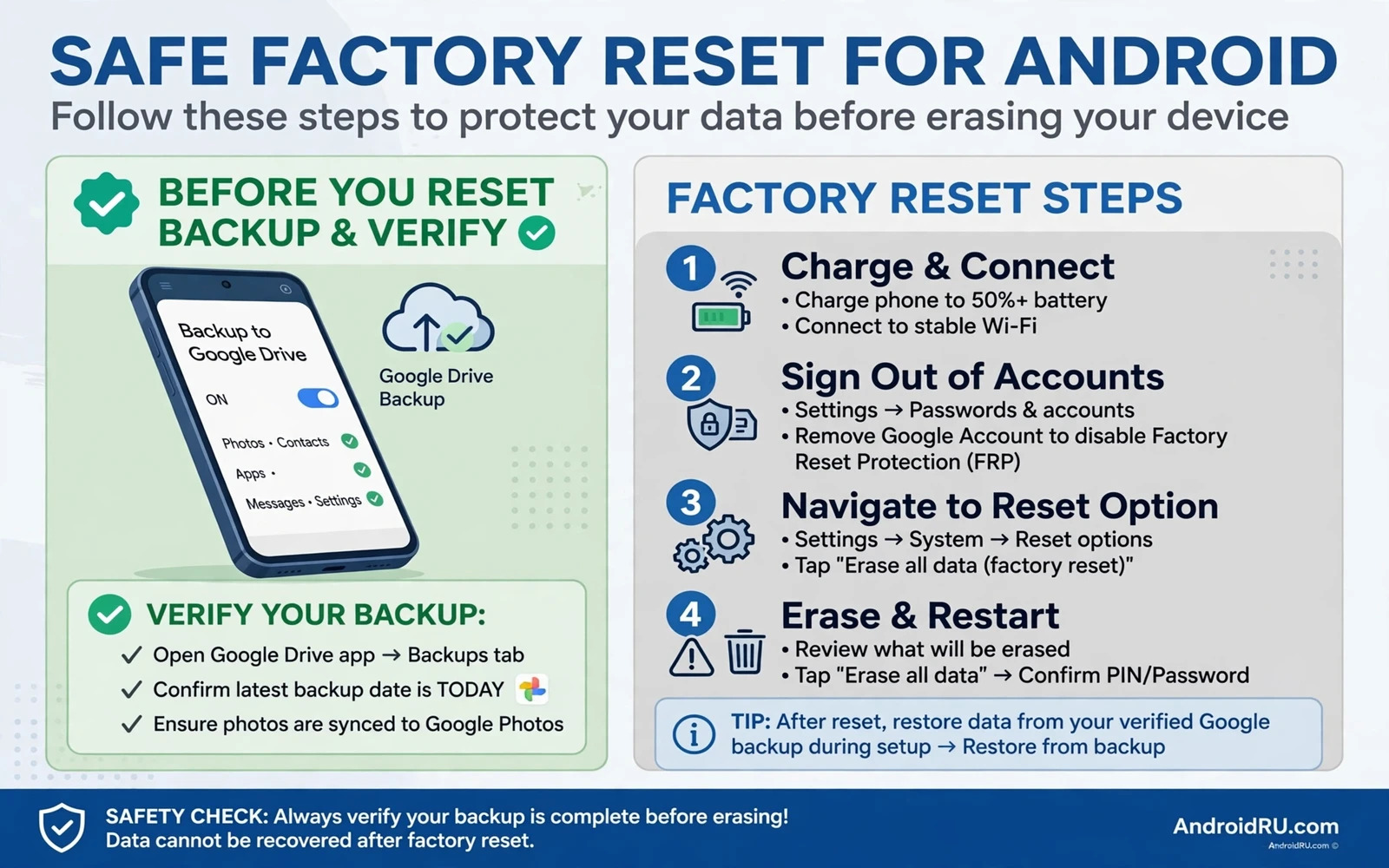
Why A Safe Reset Needs A Plan
A factory reset erases personal data and installed apps and returns the phone to its out of box software state. That erasure is permanent when no backup exists. A safe reset is a reset with a verified backup and a verified account sign in and a clear reason. Reasons for a reset include selling the phone and fixing persistent software faults and starting fresh after major issues. A reset is not a first fix for a minor app problem. Try app fixes and cache fixes and restart fixes first. A reset is a strong tool for strong reasons.
Plan the reset in stages. Backup stage comes first. Verification stage comes second. Reset stage comes third. Restore stage comes fourth. Skipping backup or verification turns a routine reset into a data loss event. Rushing the restore stage can also cause confusion when accounts fail to sync. A staged plan takes longer on the day but it protects years of photos and contacts and messages. Treat the plan as part of the reset not as optional preparation.
Note the reason for the reset in a short note. A selling reset needs account removal and encryption checks. A troubleshooting reset needs a test period before restoring everything. A fresh start reset needs a list of apps to reinstall selectively. Different reasons need different steps after the reset. A reason note keeps the post reset steps focused. Without a reason note users often restore every problem app immediately and recreate the fault they tried to fix.
Back Up Everything That Matters
Turn on the built in Android backup in Settings. Confirm that backup includes apps and settings and call history where supported. Check the last backup time. Trigger a manual backup and wait for it to finish. A backup that shows an old time is not a current backup. Note the Google account used for backup. You must sign in with the same account after reset to restore that backup. A different account will not see the old backup. Account consistency is essential for restore.
Back up photos separately from the system backup. Open the photos app and confirm sync status. Check that recent photos show as backed up. Copy photos to a computer as a second copy for the most important albums. A computer copy protects against a cloud sync error. Check photo counts on the phone and in the cloud account. A count mismatch signals photos that have not synced yet. Wait for sync to finish before reset. Photos are the data users miss most after a reset.
Back up contacts through account sync. Open Contacts and confirm the account that holds contacts. Export contacts to a file on a computer as a safety copy. A file export protects against a sync account mistake. Back up messages through the built in backup or through the messaging app backup feature where available. Note that some chat histories need their own in app backup. Run those in app backups separately. Do not assume system backup covers every chat app automatically.
Back up documents and downloads by hand. Copy Documents and Download folders to a computer. Check for files inside app folders that system backup may not cover. Voice recordings and scanner app files often live in app folders. Open each important app and check its backup or export option. Export data that has no automatic backup. A manual folder copy catches files that automated backup misses. Keep the computer folder until restore verification finishes.
Prepare Accounts And Security Locks
Note every account signed in on the phone. Mail accounts and social accounts and banking apps and work accounts all need sign in again after reset. Note passwords in a password manager before reset. Do not rely on memory for rarely used accounts. A password manager that syncs across devices preserves logins during a reset. Set up the password manager on another device before reset when possible. Test that the manager opens correctly from the other device.
Remove screen lock complications before reset when selling the phone. A phone with an active lock and an active account lock can block a new owner. Sign out of the Google account before a selling reset when maker guidance requires it. This step disables factory reset protection for the next owner. For your own troubleshooting reset keep the account signed in until after reset so restore works smoothly. Selling and troubleshooting need opposite account handling. Follow the path that matches your reason.
Disable device encryption concerns by understanding that modern Android phones encrypt data by default. A factory reset on an encrypted phone makes old data unreadable without the key. That property protects a sold phone. It does not replace account sign out for a sale. Sign out plus reset is the safe selling combination. For your own reset encryption does not change backup needs. Backup still matters because reset destroys the key and the data together.
Turn off Find My Device tracking only when selling and only after backup. Find My Device can help locate a phone during troubleshooting. Removing the device from the account before a sale prevents the new owner from seeing your device in your account list. Keep Find My Device on during your own troubleshooting reset. A lost phone during a reset period is rare but tracking helps when it happens. Match the tracking choice to the reset reason.
Perform The Reset Step By Step
Open Settings and then System and then Reset options. Choose Erase all data. Read the warning screen fully. The warning lists what will be erased. Confirm that backup finished before you tap Erase. Enter the screen lock when asked. Confirm the erase when prompted a second time. The phone will restart and erase data. Erasing takes several minutes. Do not interrupt power during erasing. Plug the phone into power when battery is low. A stable power supply protects the erase process.
Wait for the phone to reboot to the welcome setup screen. The welcome screen signals a completed reset. Do not panic when setup looks like a brand new phone. That appearance is the goal of a reset. Follow setup prompts. Connect to Wi-Fi. Sign in with the same Google account used for backup when this is your own phone. Choose Restore when setup offers a backup restore. Select the most recent backup. Let restore finish before you install many new apps. Restore order matters for a clean result.
Test the phone before restoring everything when the reset aimed to fix a fault. Use the phone for a day with only essential apps. Check whether the original fault returns. A fault that stays away during a clean test points to an app or setting that caused it. Restore apps selectively after the test. Install essential apps first. Add other apps gradually over days. A gradual restore isolates a problem app when the fault returns. A full instant restore can recreate the fault immediately and waste the reset.
Restore Data And Verify Each Type
Restore photos first and check counts. Open the gallery and compare the count with the pre reset count. Check the oldest and newest photos. Restore contacts and search for five frequent contacts. Restore messages and check recent chats. Restore notes and check the longest note. Open each daily app and confirm sign in works. Verification after restore mirrors verification before reset. A restore is not complete when the progress bar finishes. A restore is complete when daily tasks work.
Restore files from the computer copy for folders that system backup missed. Copy Documents and Download folders back to the phone. Open samples to confirm they open correctly. Restore chat backups inside each chat app separately. Open each chat app and choose Restore when prompted. Do not skip a restore prompt inside an app. Skipping can make the backup hard to reach later. Restore app data app by app rather than assuming one system restore covers every app.
System backup restores apps and settings quickly but a dedicated backup guide explains the restore order in more detail so reviewing how to backup and restore Android data safely and fully before reset day helps you avoid a restore gap for chats and files that system backup alone may miss.
Reinstall apps selectively when the reset aimed for a fresh start. Install only apps you use weekly. Skip apps you installed once and never opened. A fresh start is a chance to reduce clutter. A smaller app set runs faster and uses less storage. Note apps you skip in case you need one later. The store keeps a library of previously installed apps. You can reinstall a skipped app later without buying it again when the original purchase remains on your account.
Reset Before Selling Or Giving Away
A selling reset needs extra steps beyond a normal reset. Back up your data first as usual. Sign out of all accounts on the phone. Remove the Google account to disable factory reset protection for the new owner. Remove SIM and memory card when the phone uses them. Erase the phone through Settings. After reset do not sign in again during a quick test. A signed in test can reactivate account locks. Power off the phone after reset verification. Hand over the phone powered off with no account attached.
Check external storage separately. A memory card may hold photos even after a phone reset. Remove the card and erase it separately when you include it in the sale. When you keep the card remove it before handing over the phone. A forgotten card can leak personal photos to a new owner. Check the SIM tray as well. A forgotten SIM can leak account access. Physical checks matter as much as software reset for a sale.
Verify the reset by booting to the welcome screen without signing in. The welcome screen should show no personal data. Do not set up the phone for the buyer with your account. Let the buyer complete setup with their own account. A buyer setup with your account creates account confusion and security risk. A clean welcome screen is the correct handover state. Power off at that screen for delivery.
Data Transfer As Part Of Reset Planning
Reset planning overlaps with transfer planning. A reset before a switch needs the same backup discipline as a transfer. Files move to a new phone or to a computer before reset. Contacts move through accounts. Photos move through cloud or computer copies. A reset without a transfer plan loses data that a transfer plan would have saved. Treat reset and transfer as one planning exercise when both happen together. Backup first covers both goals at once.
When you move to a new phone first transfer data and verify the new phone fully. Only then reset the old phone. That order protects you during the gap between devices. A new phone that looks ready but misses a folder can still recover from the old phone when the old phone remains intact. Resetting the old phone too early removes that safety net. Patience between transfer and reset is a feature of a safe plan not a delay.
The transfer step itself deserves its own careful guide when the switch crosses platforms. A phone to phone tool handles bulk data but manual folders need attention. The habits for checking counts and opening samples apply to both transfer and reset verification. When the move crosses from iPhone to Android the transfer guide for that direction explains account paths and chat backups in detail. Working through how to transfer data from iPhone to Android step by step before a reset ensures the new phone holds the data before the old phone is wiped. Transfer first and reset second is the only safe order.
Files between Android and a PC also form part of reset safety. A PC copy is an independent backup that survives a phone reset completely. Cloud backup can fail silently. A PC copy can be checked file by file. Keeping a PC copy during a reset adds a verification layer that cloud alone cannot provide. The PC path is especially valuable for large photo libraries and document folders. When you understand how to transfer files between Android and PC over cable or wireless you can create that independent copy quickly before any reset. A PC copy plus a cloud backup together give strong protection.
Account backup alone is not a substitute for a PC copy when data lives in app folders. System backup covers many items but app specific files can slip through. A PC folder copy catches those files. Combine both backup types before reset. System backup restores settings and apps quickly. PC copy restores files that system backup missed. Together they cover the full data picture. A reset plan that uses only one backup type leaves a gap.
When Reset Does Not Fix The Problem
A reset that does not fix a fault points to hardware or to a restored app or setting. Test the phone clean before restoring apps when a fault persists after reset. A clean test that shows the fault points to hardware. A clean test that hides the fault points to a restored item. Restore items gradually to find the culprit. Note the item that brings the fault back. Remove that item and keep the phone clean otherwise. Gradual restore is a diagnostic tool not just a setup choice.
Hardware faults that survive a reset need service. Battery faults and screen faults and radio faults do not change with software resets. A reset cannot fix a swollen battery. A reset cannot fix a broken antenna. Seek authorized service when a clean phone still shows the fault. Describe the reset and the clean test to service. A clear clean test result helps service skip software advice and focus on hardware diagnosis. Clear evidence speeds service.
Do not repeat resets many times for the same fault. Repeated resets without a change in method add no new information. One careful reset with a clean test gives a clear answer. Multiple resets with full instant restores repeat the same mistake. Change the method between attempts. Test clean longer. Restore gradually. Seek service when the pattern stays clear. Repetition without method change wastes time and risks backup confusion.
Frequently Asked Questions
Will a factory reset remove a virus. A reset removes most app level malware because it erases installed apps and data. A reset does not guarantee removal of deep system level compromise. A reset also does not protect a phone that reinstalls the same malicious app from a backup immediately. Restore selectively after a malware reset. Avoid restoring the suspect app. Run a security scan after restore. A careful selective restore matters more than the reset alone.
Can data be recovered after a factory reset. Recovery after reset is difficult on modern encrypted phones. Encryption keys are destroyed during reset. That destruction makes old data unreadable in practice. Do not rely on recovery after reset. Rely on backup before reset. A backup is the only reliable recovery path. Treat reset as permanent from the moment you confirm it.
Should I reset before a system update. No. A reset before an update is unnecessary in most cases. Install the update normally. Reset only when a specific fault persists after update and after simpler fixes. An update alone rarely needs a clean slate. A reset for every update wastes time and risks data loss for no benefit.
Will reset fix slow performance. A reset can fix slow performance caused by app clutter and stale settings. A reset will not fix slow performance caused by low storage after restore or by a failing battery or by weak signal. Address storage and battery and signal causes alongside any reset plan. A reset plus a full clutter restore recreates the original slowness quickly.
How do I reset when I forgot the screen lock. A locked phone needs maker specific recovery steps. Those steps vary by model and by account lock status. Factory reset protection may still require the original Google account after reset. Keep account credentials safe before any lock situation. Contact maker support with proof of ownership when locked out. Do not use unofficial unlock tools that promise bypass. Unofficial tools can damage the phone and compromise security.

