

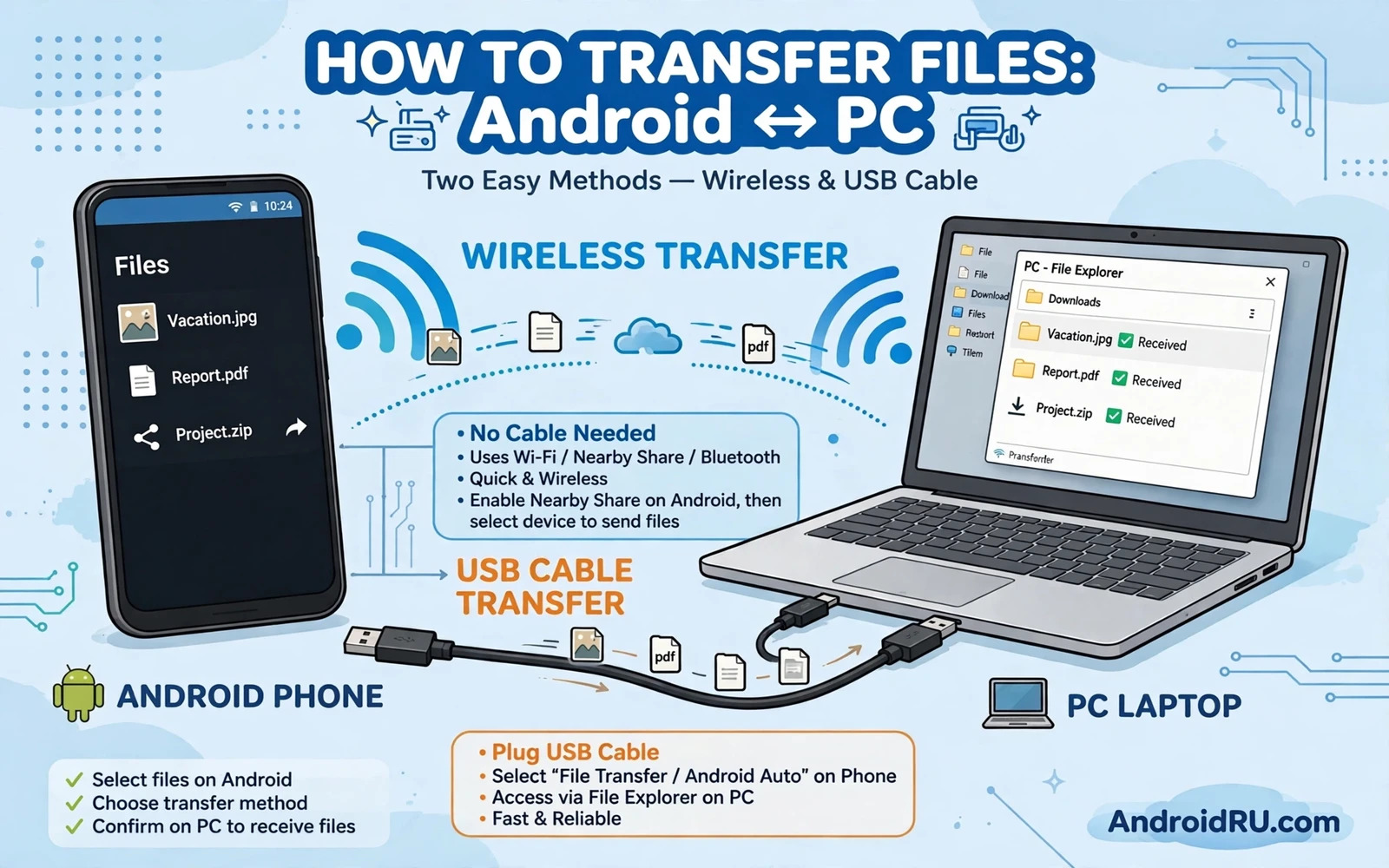
Choose Wireless Or USB For Each Job
File transfer between Android and PC offers two main paths. USB cable transfer is fast and reliable for large files. Wireless transfer is convenient for small files and for frequent small moves. Choose USB for large video folders and for full photo libraries. Choose wireless for a few documents or a few photos when a cable is not nearby. Both paths need the same care with file checking. A transfer is not complete when the progress bar finishes. A transfer is complete when files open correctly on the destination device. Keep the source files until you verify the copies.
USB transfer needs a data cable. Some cables charge only and carry no data. Test a cable with a small file first when unsure. A data cable will show the phone on the computer. A charge only cable will charge the phone but show nothing on the computer. Use the cable that came with the phone when possible. A good quality third party data cable also works. Avoid very long cheap cables for large transfers. Signal loss on a poor cable can corrupt large files silently. A short reliable cable is worth keeping for transfers.
Wireless transfer needs a shared network or a direct wireless link. A shared Wi-Fi network works well at home. A direct link works when no router is available. Wireless speed depends on signal strength and on network traffic. A crowded network slows wireless transfer. Move closer to the router for large wireless transfers. Close other large downloads during a wireless transfer. Wireless convenience costs speed and stability compared with USB. Accept that trade when you choose wireless for large jobs.
USB Transfer Step By Step
Connect the phone to the PC with a data cable. Unlock the phone. A notification should appear about USB options. Tap the notification and choose File transfer. The option may be named File transfer or Transfer files or MTP on different phones. Do not choose Charging only when you want to move files. Charging only blocks file access by design. If no notification appears then check the cable and try another USB port on the PC. Try a different cable when a second port also fails. A cable or port fault is more common than a phone fault at this stage.
Open the phone on the PC file manager. Browse to the folder that holds your files. Photos usually live in a DCIM folder. Downloads live in a Download folder. Documents may live in Documents or in app folders. Copy files to a PC folder rather than moving them first. Copying leaves the original on the phone as a backup until verification finishes. Moving deletes the original during transfer. A failed move can lose files. Copy first and delete the original later only after verification. This copy first rule protects every large transfer.
Wait for the transfer to finish fully before you disconnect the cable. Watch the progress dialog on the PC. Do not unplug during a large copy. Use the safe eject option on the PC when available. Safe eject flushes pending writes to the phone storage. An abrupt unplug can leave a file half written. A half written file may look complete by name but fail to open. After eject check a few copied files by opening them on the PC. Open a photo and zoom in. Open a document and scroll through it. Play a few seconds of a video. Sample checks catch corruption early.
Transfer from PC to phone follows the same copy first logic in reverse. Copy files from the PC folder into the phone folder. Choose the right phone folder for the file type. Photos copied into DCIM appear in the gallery after a media scan. Music copied into Music appears in music apps after a scan. Restart the phone or trigger a media scan when new files do not appear immediately. Some phones need a short time to index new media. Waiting a few minutes often solves a missing file mystery without any extra action.
Wireless Transfer Options
Wireless transfer through a shared folder works well for frequent moves. Set up a shared folder on the PC and access it from the phone file manager. The phone and PC must be on the same network for this path. Enter the PC credentials when the phone asks. Copy files in either direction through the shared folder. Shared folders suit users who move files daily. Setup takes time once but daily use becomes quick. Keep shared folder permissions limited to your home network. Do not expose a shared folder to a public network.
Wireless transfer through a browser link works for occasional moves. Some phone tools create a local web address for transfer. Open that address in the PC browser on the same network. Upload or download files through the browser page. This path needs no PC software install. It works well for a handful of files. It works less well for very large folders because browser uploads can stall. Use USB for very large folders when browser transfer stalls repeatedly. A stalled browser upload is a sign to switch paths not a sign to retry forever.
Cloud storage offers a third wireless path. Upload files from the phone to a cloud account. Download the same files on the PC. Cloud transfer works across networks and across locations. It does not require the phone and PC to share a network. Upload speed depends on internet speed. Large libraries take a long time through cloud upload. Cloud storage also counts against your storage quota. Use cloud transfer for files you also want backed up. Use local wireless or USB for large files you only want moved not backed up.
Move Photos Videos And Documents Safely
Photos need quality checks after any transfer path. Open a few transferred photos at full size. Look at detail and colour. A wireless path that compresses photos will show soft detail when zoomed. A USB path normally preserves full quality. A cloud path may preserve full quality or may store a smaller version depending on account settings. Check account settings before a large photo move through cloud. Full quality settings matter for photos you plan to print or edit later. A compressed copy cannot regain lost detail.
Videos need storage checks before transfer. Check the total size of the video folder on the phone. Check free space on the PC before you start. A video folder can exceed PC free space quickly. Move videos in batches when space is tight. Start with the most important videos. Verify each batch by playing samples. Delete phone originals only after the PC batch verifies. Batch discipline prevents a transfer that fills the PC drive halfway and leaves the rest unmoved.
Documents need format checks after transfer. Open a few documents on the PC to confirm they open correctly. Text files and PDF files usually transfer cleanly. Files tied to a single phone app may need an export step first. Export such files to a standard format on the phone before transfer. A standard format opens on PC without the original app. Note file names with special characters. Some characters change during transfer across systems. Rename files with simple names before transfer when the original names contain unusual symbols.
Transfer From iPhone To Android Via PC
A PC can act as a bridge between iPhone and Android. Copy iPhone files to the PC first. Then copy PC files to the Android phone. This bridge path helps when a direct phone to phone tool skips folders. It also gives you a backup copy on the PC during the switch. Copy in batches and verify each batch. Keep the PC folder until the Android phone is fully checked. A PC bridge turns a risky direct move into two safer moves with a checkpoint in the middle.
The bridge path also helps when you switch platforms for the first time. A direct transfer tool handles contacts and photos well but may skip documents and downloads. The PC bridge catches those skipped folders. Check the iPhone folders on the PC for documents and downloads and voice memos. Copy each folder that matters. The extra manual step takes time but it prevents silent data loss. Silent loss happens when a tool reports success while skipping a folder you assumed it covered.
Platform switches involve more than files. Contacts and messages and app data follow account paths and app backup paths. Files are only one part of a switch. A full switch guide covers account sync and chat backup and app sign in alongside file moves. When you plan a platform switch it helps to work through how to transfer data from iPhone to Android step by step before you start moving files. That broader guide puts the PC bridge in context. Files move through the bridge while contacts move through accounts and chats move through app backups. Each data type needs its own path.
Troubleshoot USB Problems
When the PC does not show the phone check the basics in order. Check the cable for data support. Check the USB port on the PC. Check the USB notification on the phone. Check that the phone is unlocked. Check that File transfer is selected. Restart both devices once after checking these items. A restart clears a stuck USB state on either side. Try another PC when possible to isolate the fault. A phone that appears on a second PC points to the first PC. A phone that appears nowhere points to cable or phone.
Driver problems can block USB transfer on some PCs. The PC may need a driver update for the phone maker. Check the PC device manager for a warning icon next to the phone entry. Update the driver through the PC system update or through the maker tool. Do not download drivers from random sites. Random driver downloads can carry unwanted software. Use the PC maker or phone maker official update path. A driver fix is a PC side fix. It does not require changing phone settings beyond the USB mode.
USB debugging is not needed for normal file transfer. Do not enable developer options just to move files. Developer options add risk when misused. Normal file transfer mode suffices for photos and documents and music. Enable USB debugging only when a developer task truly requires it and you understand the risks. For everyday transfer keep developer options off. A simple transfer should stay simple.
Troubleshoot Wireless Problems
Wireless transfer fails most often from network mismatch. Confirm both devices share the same network name. A phone on a guest network and a PC on the main network may not see each other. Move both devices to the same network. Confirm the PC firewall allows local sharing when you use a shared folder. A firewall can block local discovery while internet still works. Temporarily test with the firewall rule for local sharing enabled. Restore normal firewall settings after the test when the transfer finishes.
Weak signal slows wireless transfer and can cause timeouts. Move closer to the router. Reduce network traffic from other devices during the transfer. Transfer large files over USB when wireless signal stays weak. A weak wireless transfer that stalls repeatedly wastes more time than a quick USB copy. Switch paths early when wireless stalls twice. Path switching is a valid fix not a failure. Each path suits different conditions.
Cloud transfer stalls point to upload limits or quota limits. Check cloud storage quota before a large upload. Check upload speed during the transfer. Pause other uploads during a large transfer. Split a large library into smaller batches for cloud upload. Smaller batches resume more easily after an interruption. A single huge upload that fails near the end wastes the whole attempt. Batches protect progress.
Security And Privacy During Transfer
Transfer security matters when files contain personal data. Use a trusted home network for wireless transfer. Avoid public Wi-Fi for sensitive file moves. Public networks expose traffic to other users on the same network. Use USB for sensitive files when no trusted network is available. USB transfer stays local between phone and PC. It does not cross a shared network. Local transfer is the safest path for private documents and personal photos.
Check shared folder permissions after wireless transfer. Remove sharing when the transfer finishes if you no longer need daily sharing. A forgotten shared folder stays open to the network. Close browser transfer sessions after use. Sign out of cloud accounts on shared PCs after download. These cleanup steps take a minute. They prevent later access to your files through a forgotten open path. Transfer cleanup is part of transfer safety.
When a transfer forms part of a phone switch the old phone should stay intact until the new phone verifies and only then should a wipe happen so the steps to factory reset an Android phone safely without losing data belong after verification and never before it.
A backup on the PC plus a cloud backup gives stronger protection and the full restore process for Android data is worth knowing before you delete any original so review how to backup and restore Android data safely and fully while both copies still exist.
Back up transferred files after verification. A PC copy becomes a backup when you keep it. Store important files in two places. A phone copy plus a PC copy protects against loss on either device. A cloud copy adds a third place for the most important files. Two copies are the minimum for files you cannot recreate. Photos of family events and important documents deserve at least two copies at all times.
Frequently Asked Questions
Why does my PC charge the phone but not show files. The cable may be charge only. The USB mode may be set to charging only. Change the USB mode to File transfer from the phone notification. Try a data cable and another port when the notification does not appear. Charge only behaviour is a common cable clue not a phone failure.
Can I transfer files without any cable or internet. Yes with a direct wireless link or with a removable card when the phone supports it. A direct link creates a local connection without a router. A removable card moves files physically between devices that accept the same card type. Both paths work offline. Direct links suit small transfers. Cards suit large transfers when both devices accept the card.
Will wireless transfer reduce photo quality. Local wireless transfer normally preserves full quality. Cloud transfer quality depends on account settings. Check settings before a cloud photo move. Use USB or local wireless for full quality when cloud settings compress uploads. Quality loss comes from cloud settings not from wireless transfer itself.
How do I move files from PC to phone quickly. Use USB for large moves. Copy files into the correct phone folder. Wait for the copy to finish and eject safely. Use wireless for small moves when a cable is not handy. Choose the path by file size and by urgency. Large and urgent means USB. Small and casual means wireless.
What should I do when a transferred file will not open. Copy the file again from the source. Check the file size on both devices. A size mismatch signals an incomplete copy. Try the other transfer path when a repeat copy also fails. A file that fails on both paths may be damaged at the source. Check the source file by opening it on the original device before you try again.

