

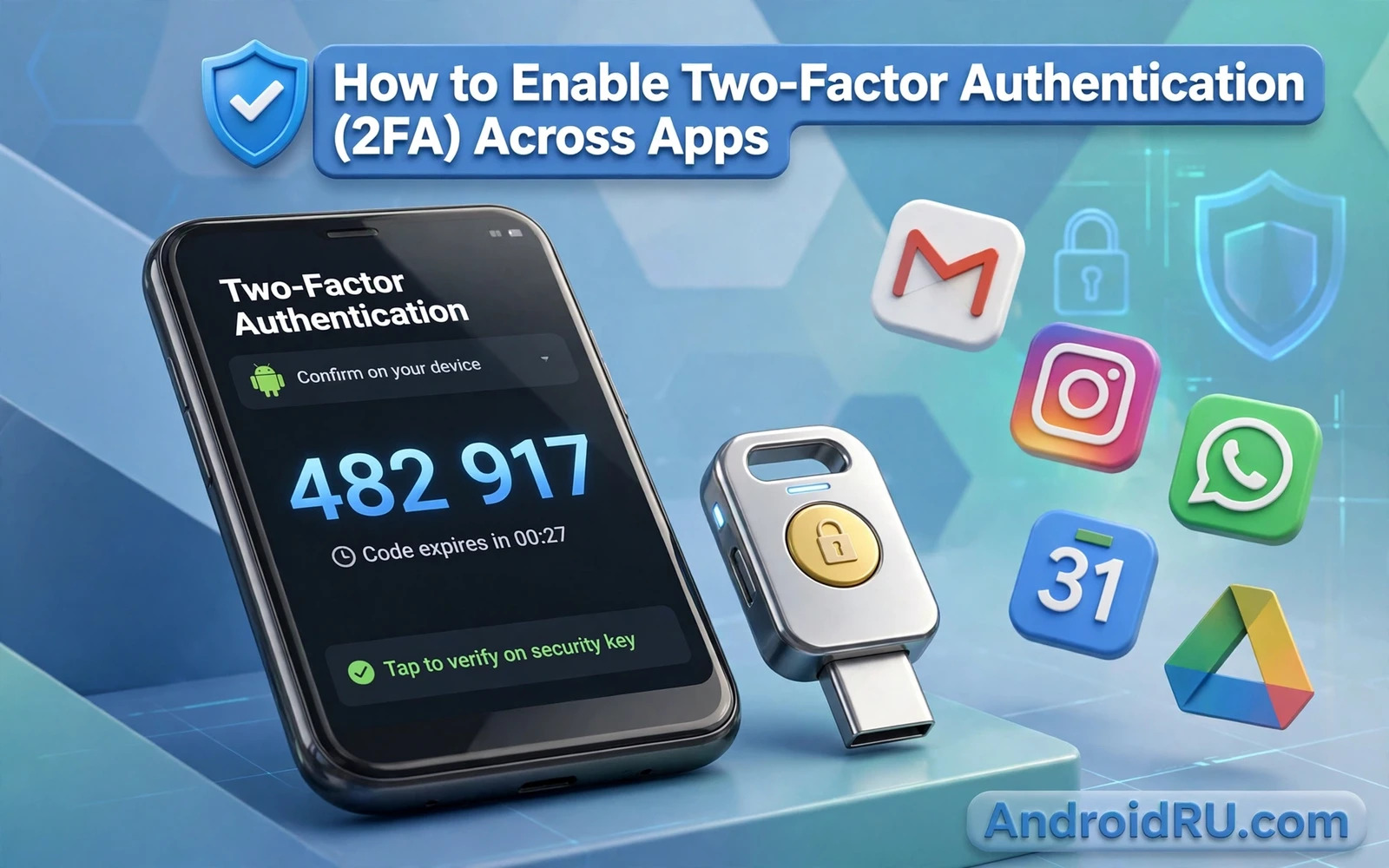
Two factor authentication adds a second proof of identity beyond a password. A password is something you know and a second factor is something you have such as a phone or a security key or an authenticator app. An attacker who steals a password still cannot enter an account protected by a second factor unless they also steal that second proof. That simple addition blocks most account takeover attempts that start with a leaked password or a phishing page. Enabling two factor authentication across your important apps is therefore one of the highest value security steps you can take on Android.
Start with the accounts that would cause the most harm if taken over. Email comes first because email can reset passwords for many other services. Banking and payment apps come next because they guard money directly. Cloud storage and social accounts follow because they hold private files and identity. Work accounts deserve early attention because a work breach can affect colleagues and clients as well. Rank your accounts by harm rather than by ease and enable protection in that order so that the most dangerous gaps close first.
Choose The Second Factor That Fits Each Account
Authenticator apps generate time based codes on your phone and they work without a mobile signal which makes them reliable while travelling. Install a reputable authenticator app and add each account by scanning its setup code or by entering its secret manually. The authenticator will then show a code that changes regularly and that code becomes the second factor at login. Keep the authenticator on a device you control and protect that device with a strong lock screen because the authenticator itself becomes a key to many accounts.
Security keys offer stronger protection than codes because a key proves identity through hardware that phishing pages cannot easily copy. A key plugs into a phone through USB or connects through wireless technology depending on the model and the phone. Register the key with each account that supports hardware keys and test a login with the key before relying on it. Keep a second key as a backup in a safe place because a single key can be lost or damaged. Hardware keys cost more than authenticator apps but they provide the strongest defence against phishing.
Text message codes are better than no second factor but they are weaker than authenticator apps and security keys. A message code can be intercepted through SIM swapping and other telecom attacks that do not affect authenticator codes. Use message codes only for accounts that offer no stronger option and replace them with an authenticator or a key whenever the account adds support. A weak second factor still raises the barrier for an attacker but it should never be treated as equal to a strong second factor when a better option exists.
Enable Protection App By App Without Getting Locked Out
Open security settings inside each app or inside the account website for that service and look for two step verification or two factor authentication. Follow the setup flow for your chosen method and verify the method with a test login before closing the setup screen. A test login proves that the second factor works and it also proves that you can complete a login with the new method. Skipping that test risks discovering a setup mistake at the worst possible moment when you urgently need access.
Backup codes are the safety net that prevents a lost phone from becoming a lost account. During setup most services offer a set of one time backup codes that work when your normal second factor is unavailable. Save those codes in a secure place apart from your phone such as a locked password manager or a printed copy stored safely at home. Never store backup codes in plain notes on the same phone that holds the authenticator because a stolen phone would then carry both the lock and its spare key. Treat backup codes like spare house keys and guard them accordingly.
Work through accounts in batches rather than trying to enable everything in one sitting. Enable protection for email and banking first and test those logins carefully. Then move to cloud and social accounts and finally to shopping and entertainment accounts. A batch approach keeps the task manageable and it also lets you learn the setup flow on important accounts before applying it to less critical ones. Record which accounts now use two factor authentication in a private checklist so that future reviews can spot gaps quickly.
A password manager can simplify this whole process because it can store passwords and sometimes second factor codes in one protected vault. Learning how password managers compare with passkeys on Android helps you decide whether a manager or a passkey approach fits your habits best. Passkeys can replace passwords entirely for supported services and they resist phishing by design. A manager plus authenticator codes plus passkeys where available gives you a modern authentication toolkit rather than a single fragile password habit.
Handle A Lost Phone And A Changed Device
Losing a phone that holds an authenticator app is stressful but it should not mean losing every account. Backup codes provide immediate access to the most important accounts while you set up a new device. Cloud backup for authenticator secrets can help when it is encrypted and protected by strong authentication itself. Transfer authenticator accounts to a new phone before wiping the old phone whenever possible. When a phone is lost rather than replaced then use backup codes and recovery options promptly and revoke sessions for the lost device in account settings.
Changing phones deserves a planned transfer window. Set up the authenticator on the new phone while the old phone still works and verify each account on the new device before removing it from the old device. Test logins for email and banking on the new phone first because those accounts unlock recovery for others. Keep the old phone available until the transfer is complete and only then wipe it for sale or recycling. A rushed transfer that wipes the old phone early can lock you out of accounts that had no backup codes saved.
Family and team accounts need shared planning because a second factor tied to one person can block others who legitimately need access. Discuss who holds backup codes for shared accounts and where those codes live. For work accounts follow company policy on authenticator use and key registration rather than inventing a personal workaround. Shared planning prevents a security improvement for one person from becoming an access crisis for a team. Good authentication protects accounts without creating single points of failure.
Public network safety also improves when strong authentication is in place. A login captured on an open network still faces a second factor barrier. A companion habit is learning how securing an Android phone on public Wi-Fi networks works so that network protection and account protection reinforce each other. Neither layer alone is perfect. Together they force an attacker to defeat an encrypted tunnel and a second factor rather than merely stealing a password in transit.
Review And Maintain Authentication Over Time
Review authentication settings every few months and look for accounts that still rely on a password alone. New services you adopted recently may have been set up quickly without a second factor. Old services may have added stronger options since you last checked. A periodic review catches those gaps before an attacker does. Remove old devices and old authenticator entries for accounts you no longer use because stale entries increase the attack surface without any benefit.
Be wary of prompts that ask for a second factor code outside a login you initiated. A code request that arrives unexpectedly may be part of a phishing attempt or a fatigue attack that tries to wear you down until you approve. Never share a code with a caller or a support agent because a legitimate service will never ask for a code in that way. When an unexpected code arrives then check account activity and change the password from the official app if anything looks unfamiliar. Vigilance about codes is as important as enabling them in the first place.
Two factor authentication is not a reason to reuse weak passwords. A strong unique password plus a second factor is far stronger than a weak password plus a second factor. Use a password manager to generate and store unique passwords for each account so that a breach of one service does not expose others. That combination of unique passwords and second factors and backup codes forms a complete account defence. Enable it today for email and banking and then expand it app by app until every important account carries that second proof of identity.
Resist Code Requests And Fatigue Attacks
An attacker who has your password may trigger repeated second factor prompts in the hope that you will approve one out of annoyance. That tactic is called fatigue and it works by wearing down attention rather than by breaking technology. Never approve a prompt that you did not initiate and never share a code with someone who calls and claims to need it urgently. When unexpected prompts arrive then open the official app yourself and check recent activity and change the password from a trusted network. A single unexpected prompt is a warning. Repeated unexpected prompts are evidence of an active attack that deserves immediate action.
Phishing remains the most common way that a second factor is bypassed because an attacker can trick a user into entering a code on a fake page in real time. Awareness of that trick matters as much as the technology itself. A useful companion habit is understanding how phishing scams target mobile users through fake messages and links that create urgency. That awareness teaches you to pause before entering any code and to navigate to the official app yourself instead of following a link. A second factor entered only inside an official app that you opened yourself is far safer than a code typed into a page reached through a message.
Store backup codes for your most important accounts in a password manager vault that is itself protected by a strong master password and a second factor. That vault becomes a single protected place for codes that would otherwise scatter across paper and notes and screenshots. Review the vault quarterly and replace any code set that has been partly used so that a full fresh set is always available. A well maintained code vault turns a lost phone from a crisis into a manageable recovery task.

