

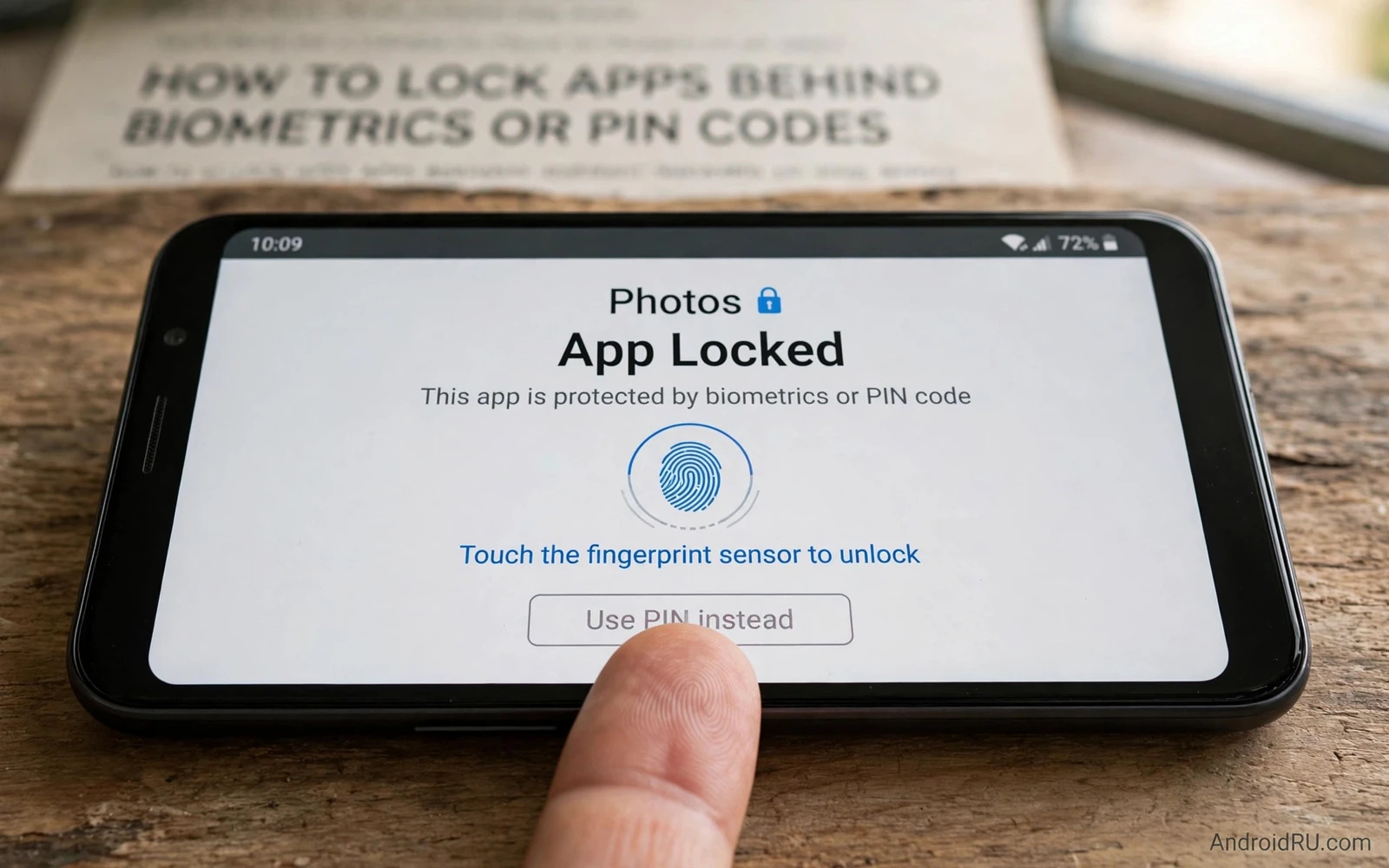
A phone lock protects the whole device but it does not protect individual apps once the phone is unlocked. Friends and family and colleagues may borrow an unlocked phone for a call or a photo and then wander into messages or banking or private notes. App locking adds a second gate that opens only for you. That gate can use fingerprint or face recognition or a PIN code separate from the main lock. This guide explains how to set it up with built-in tools first and how to judge third-party options when built-in tools are missing.
Start by deciding which apps truly need a second lock because locking everything creates friction that leads to disabling the protection entirely. Banking and payment apps top most lists followed by messaging and email and photo galleries and note apps holding personal documents. Work apps holding company data deserve locks too especially on a phone used for both personal and professional life. Locking a small set of sensitive apps gives strong protection with minimal daily annoyance. You can expand the set later once the habit feels natural.
Use Built-In App Locking First
Many Android phones include app locking inside security settings or inside a dedicated security app provided by the manufacturer. Open security settings and search for app lock or app pinning terminology because names vary by brand. Enable the feature and choose which apps to protect and select fingerprint or face unlock where offered. Test each protected app immediately by opening it and confirming that it asks for authentication. Built-in locking is preferable because it runs with system privileges and does not require granting broad access to another app.
Some manufacturers place app locking inside a secure folder or private space feature rather than a simple lock list. A secure folder creates a separate area with its own apps and files and its own authentication. That separation suits users who want stronger isolation for work or sensitive media. Explore the secure folder option if your phone offers it and decide whether a simple lock or a separate space fits your needs better. Either built-in path avoids the permission risks that come with third-party lockers. Prefer the system solution whenever it exists on your device.
Use Individual App Settings Where Available
Many sensitive apps include their own lock setting independent of system features. Banking apps often offer fingerprint unlock on launch. Messaging apps may offer a lock with a delay option so the app locks after a period of inactivity. Note and gallery apps may offer locked folders for selected items rather than locking the whole app. Enable these in-app locks for your most sensitive apps even when a system lock also exists because two independent gates increase resilience. Check each app settings menu for biometric or passcode options under privacy or security headings.
In-app locks vary in strength so read what each one actually protects. Some locks only hide content previews while leaving the app list visible. Others require authentication before any content appears. A lock that merely blurs previews still helps against casual glances but it does not stop a determined borrower from opening the app. Combine in-app locks with system locks for banking and messaging where both exist. Layering is not paranoia when the cost is a single fingerprint touch and the benefit is protection of money and private conversations.
Judge Third-Party Lockers Carefully
Third-party lockers fill the gap on phones without built-in locking but they demand significant trust. A locker must observe which app opens in order to intercept it and that observation power can be abused. Research the developer and read recent reviews and check how long the app has existed and whether its privacy policy explains data handling clearly. Avoid lockers that request contacts or location or storage access because locking apps does not require those permissions. Avoid lockers that show intrusive ads inside the lock screen because ad-supported lockers often monetise attention in ways that undermine privacy.
Install only one locker and test it thoroughly before relying on it. Open protected apps and unprotected apps and confirm the behaviour matches expectations. Check battery usage after a day because a poorly built locker can drain power through constant monitoring. Check whether the locker survives a restart and whether it can be bypassed by uninstalling it from settings. A locker that is easy to bypass from settings still deters casual access but it will not stop a knowledgeable person. Understand that limit and pair the locker with a strong device lock and sensible permissions.
Choose Biometrics PIN Or Pattern Wisely
Biometrics offer speed and convenience because a fingerprint touch unlocks in under a second. Face recognition offers similar speed on phones with reliable face hardware. A PIN code offers independence from biometric hardware and works when hands are wet or when face recognition fails in poor light. A pattern offers speed but it leaves smudge traces and it is easier for a watcher to memorise. For app locking a PIN of six digits or more beats a short four-digit code against guessing. For maximum convenience with strong protection enable biometrics with a strong PIN as fallback.
Use a different PIN for app locking than for the device lock where the system allows separate codes. A single code that unlocks both layers is less effective if someone watches you enter it once. Change app lock codes after sharing them temporarily with a trusted person. Avoid birthdays and repeated digits and simple sequences that guessing attacks try first. The best code is one you can remember reliably without writing it on the phone itself. Test the fallback path after setup so a biometric failure does not lock you out of your own banking app at an urgent moment.
Hidden Storage And Locked Folders
Locking an app protects its interface but files inside shared storage may remain accessible through file managers or gallery apps. Locked folders inside gallery apps move selected photos and videos into a protected area that requires authentication. Use locked folders for sensitive images rather than relying only on a gallery lock. Check whether locked folder items still appear in cloud backups or shared albums because backup behaviour varies by app. Move truly private media into the locked folder and confirm from another app that the files no longer appear in general browsing.
Hidden storage features that merely rename files or hide icons offer weak protection and should not be trusted for sensitive data. True protection encrypts or isolates the files behind authentication. Read the feature description carefully and test it by opening a file manager and searching for the hidden files. If files remain visible to other apps then the feature is cosmetic. Combine locked folders with permission control and the reasoning for deciding which app permissions to grant or deny helps ensure file apps cannot quietly read protected content. Storage protection and app locking work as partners rather than substitutes.
Recovery When A Lock Fails
Locks occasionally fail through forgotten codes or biometric changes after injury or device repair. Prepare recovery before failure by linking the locker or secure folder to your account where the feature offers account recovery. Note the recovery steps in a safe place outside the phone. Some built-in locks allow reset through device credentials while third-party lockers may require uninstall and data loss for protected apps. Knowing the recovery path in advance prevents panic and prevents destructive guesses that could erase data.
If biometrics stop working after a fingerprint change then use the PIN fallback rather than repeatedly attempting biometrics until lockout. If a third-party locker malfunctions then boot into safe mode where third-party apps do not run and uninstall the locker from there. Back up data protected by locks regularly because a lock failure combined with missing backup can mean permanent loss. The broader protection plan in essential security settings for Android users includes backups for exactly this reason. Locks protect access and backups protect against lock failures themselves.
Daily Habits For App Locking
App locking works best when it becomes invisible in daily use. Enable biometric unlock for locked apps so authentication takes a fraction of a second. Set an appropriate relock delay where offered so an app does not demand authentication every time you switch away for a second. A short delay balances convenience and protection for messaging while banking deserves immediate relock on every exit. Review the locked app list monthly and add newly installed sensitive apps promptly. Remove locks from apps you no longer consider sensitive to keep friction low.
Explain app locks to family members who borrow the phone so they understand the boundary without feeling distrusted. A simple explanation that banking and work apps stay locked protects relationships as well as data. Avoid sharing app lock codes casually because a shared code quickly becomes a known code. Change codes after any temporary sharing. App locking is a social tool as much as a technical one because it lets you share a device generously while keeping private areas private. That balance is the real value of a well-chosen second lock.
An app lock is only as strong as the credential behind it. Choosing between a memorised code and a biometric prompt for sensitive apps mirrors the wider choice between passwords and newer sign-in methods for accounts. Pick the method you will use consistently under stress because a lock that feels awkward at an urgent moment will be bypassed or disabled. Consistency beats theoretical strength when daily use decides the outcome.
- Lock banking and messaging and gallery and notes first.
- Prefer built-in locking or secure folders over third-party lockers.
- Enable in-app locks where sensitive apps offer them.
- Use biometrics with a strong separate PIN as fallback.
- Move sensitive media into true locked folders and test visibility.
- Prepare account recovery and backups before a lock failure occurs.

