

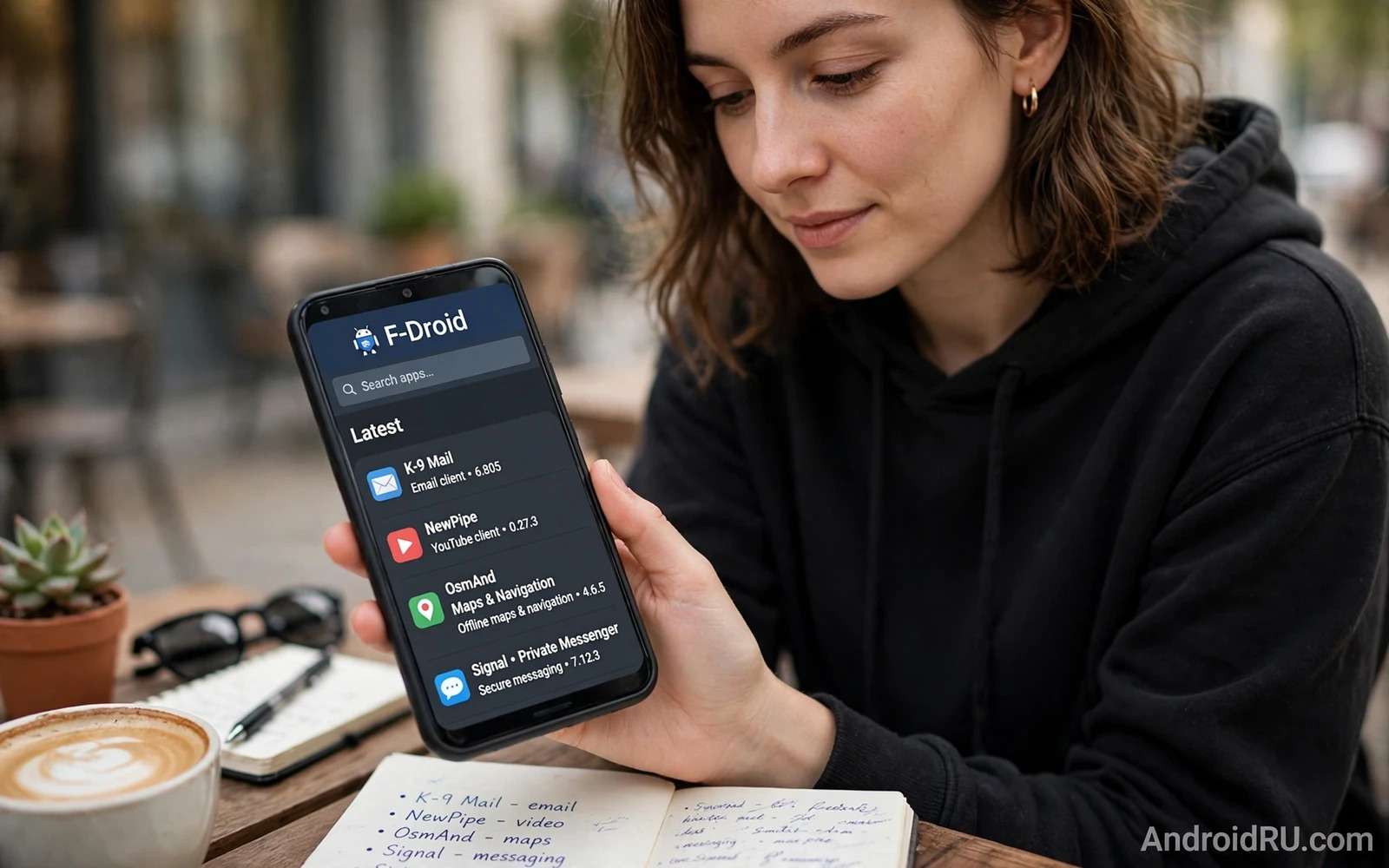
Best Open-Source Android Apps Available on F-Droid
Most Android phones ship with one app catalogue, and that catalogue decides what you see first, what you pay for, and how much of your behaviour gets tracked. F-Droid takes a different route. It is a free catalogue of open-source Android apps, built from public source code, with no accounts, no ads, and no tracking baked into the catalogue itself. I first installed it years ago on a spare phone because I wanted a note app that did not ask for an account, and I stayed because the catalogue kept solving small daily problems in ways the big catalogue never did.
This guide answers a simple question: which open-source apps on F-Droid are actually worth installing in 2026? I picked eight apps I have used for weeks at a time, covering video, podcasts, media playback, passwords, two-factor codes, maps, notes, and file sync. Each one gets a plain verdict, including what it does badly. Readers who want the background first can read the open source foundation behind Android before choosing anything, since it explains why Android can have a second catalogue at all.
One honest note before the list: F-Droid is not a clone of the big catalogue with the same apps minus the price tag. Some apps you love will not be there, and a few open-source favourites look plain next to their commercial rivals. The trade-off is real, and it is the whole point. You give up some polish and some convenience, and in return you get apps whose code anyone can read, whose updates come from the developers themselves, and whose business model is not your attention. If that trade sounds right, the eight apps below are a strong place to start.
What F-Droid Is and How Its Catalogue Works
F-Droid is a catalogue and an installer in one app. You install the F-Droid client, browse or search its catalogue, and install apps from it the same way you would from any other catalogue. Behind the scenes, though, the process is very different. F-Droid takes the public source code of each app, builds the app itself on its own servers, and signs the result with its own key. That means the app you download matches the code that anyone can inspect, which is a stronger guarantee than a promise on a product page.
The catalogue is curated by a small team and a community of contributors. Every app listed must be free and open-source software, which means its source code is published under a licence that lets anyone use, study, change, and share it. Developers submit their apps, the F-Droid team checks the build, and the app appears in the catalogue with its version history, its permissions, and any known anti-features listed in plain view. An anti-feature is a behaviour you might object to, such as showing ads, depending on a non-free service, or tracking you, and F-Droid labels it instead of hiding it.
That said, F-Droid is not a guarantee that an app is perfect. Open code means anyone can read it, but it does not mean someone has read it this week. Popular apps get plenty of eyes; a small app with a handful of users may not. Treat the catalogue as a trustworthy starting point, not as a stamp that removes the need for your own judgement. Check the last update date, read the permissions, and look at the issue tracker if an app will hold anything sensitive.
How F-Droid Builds Apps From Source
When a developer publishes a new version, F-Droid pulls the tagged source code, builds it in a clean environment, and publishes the resulting package. This matters because a build from source removes one classic trick: shipping a clean-looking source tree while distributing a binary that does something else. If the build is reproducible, anyone with the same tools can rebuild the same package and compare the result byte for byte. Not every app in the catalogue has a reproducible build yet, but the catalogue marks those that do, and the share grows every year.
In practice, this build model also changes how updates arrive. Updates depend on F-Droid finishing its build, so a new version can take a few days to appear after the developer releases it. That delay is annoying when a bug fix is urgent, and it is worth knowing before you rely on an F-Droid app for something time-sensitive. The upside is that the same delay applies to a bad release, and the F-Droid team can hold a broken build before it reaches your phone.
What Free and Open-Source Means for Your Daily Use
Free here means free as in freedom, not just free as in price. You can keep using an app after its developer moves on, because someone else can pick up the code. You can fork an app that drops a feature you rely on. You can read exactly what an app does with your data instead of guessing from a privacy policy written by lawyers. These are not abstract benefits. I have kept using an old note app for two years after its original developer stopped updating it, because a community fork kept it alive.
The practical effect on your phone is a catalogue where the apps are smaller, quieter, and less demanding. Most F-Droid apps have no ads, no in-app purchases, and no account system. They ask for fewer permissions, they run less code in the background, and they tend to respect your battery. The cost is that some of them look plain, some lack a feature you take for granted elsewhere, and a few have documentation written for developers rather than for ordinary users.
Reproducible Builds Explained in Plain Words
A reproducible build is a promise that the app on your phone is exactly the app described by its public source code. The build server records every tool and setting it used, so an independent person can repeat the build and get an identical file. If the two files differ, something changed between the source and the package, and that difference is worth investigating. Look for the reproducible build badge on an app page when you care about verification, and treat its absence as a reason to be a little more careful, not as a reason to panic.
Anti-Features Labels Worth Reading Before You Install
Every F-Droid app page lists its anti-features near the bottom, and reading them takes ten seconds. Common labels include ads, tracking, non-free network services, and non-free add-ons. An app can be open-source and still show ads or still talk to a proprietary service, and the label tells you so before you install. I skip apps with a tracking label when a similar app without one exists, and I accept a non-free network service label when the service itself is the point, as with a maps app that fetches map tiles from a server.
How I Picked the Apps on This List
I set four rules before choosing. First, the app had to be genuinely useful every week, not just interesting in theory. Second, it had to have a real release within the past year, because an abandoned app is a security risk no matter how good its idea was. Third, it had to be fully usable without an account or a paid tier. Fourth, it had to do something better than the mainstream alternative in at least one honest way, whether that is privacy, offline use, battery life, or control over your own data.
I also tested each app on a mid-range phone running a recent Android version, with a normal set of daily apps already installed, because a catalogue full of lightweight apps is only useful if they behave on ordinary hardware. Battery use, storage growth, and background behaviour were all part of the test. An app that drains a battery in the background does not earn a place here, no matter how clever it is.
- Public source code that anyone can inspect and rebuild.
- No trackers in the app itself, and no ads in the interface.
- A real update within the past year, with a visible changelog.
- Works fully without an account and without a paid tier.
- Solves one daily job clearly, and explains its own settings in plain words.
The list below is ordered by how often I open each app, starting with the one I use every day. Your order will differ, and that is fine. Pick two, use them for a week, and only then add a third. A catalogue is a toolbox, not a race, and the apps that survive your first week are the ones that belong on your home screen.
8 Best Open-Source Android Apps on F-Droid in 2026
This is the core of the guide: eight named apps, each with its own job, its own audience, and its own flaws. I have used every one of them for at least a month of daily use, and the verdicts below come from that use, not from the catalogue descriptions. If you only have time for two, take NewPipe and KeePassDX. If you want the full privacy setup, add Aegis and Syncthing. The rest fill the gaps in media, maps, and notes.
1. NewPipe — Private Video Watching Without an Account
NewPipe is a lightweight YouTube client that plays videos without a Google account, without ads, and without the tracking that comes with the official app. It fetches video pages directly, shows subscriptions that live only on your device, and supports background play, pop-up play, and downloads for offline watching. The interface is plain and fast, and it works well on older phones that struggle with the official app.
It suits anyone who watches a lot of video and wants fewer distractions, and it is a natural fit for a second phone or a tablet used for media. Parents also like it, because there is no recommendation feed pulling a child toward the next video. On my own phone, NewPipe is the app I open most after the browser, and it has replaced the official YouTube app entirely for viewing.
Pros: no account needed, no ads, background and pop-up play, subscriptions stored locally, very light on battery and storage. Cons: no official account sync, so your subscriptions stay on one device; it can break for a day when YouTube changes its page layout; no casting to a television. Verdict: the best first install on this list for most people, and the app most likely to change how you watch video every day.
2. AntennaPod — A Podcast Player That Respects Your Time
AntennaPod is a full podcast player with subscriptions, episode queues, variable speed, sleep timers, and automatic downloads over Wi-Fi. It imports your subscriptions from an OPML file, so moving from another player takes minutes, and it keeps your listening history on your device. The queue system is its strongest feature: you build a list of episodes once, and the player works through it without asking you to choose again.
It is for anyone who listens to podcasts while walking, driving, or working, and who is tired of a player that pushes shows you never asked for. The design is calm, the settings are clearly labelled, and the app never asks you to create an account. I tested it with a dozen shows and a queue of forty episodes, and it handled the lot without stuttering or losing my place.
Pros: excellent queue management, OPML import, variable speed and sleep timer, no account, no ads. Cons: no cloud sync between devices, episode search is weaker than in the big commercial players, and the design looks plain next to a polished rival. Verdict: a strong pick for daily listeners who want control over their queue and nothing else competing for their attention.
3. VLC for Android — The Media Player That Opens Anything
VLC for Android plays almost any audio or video file you throw at it, from common formats to the odd codec that other players refuse. It handles local files, network streams, and subtitles, and it includes an equaliser, playback speed control, and a simple media library. It is the same VLC you may already know from a computer, rebuilt for a phone screen.
This is the app for anyone who keeps video files on their phone, watches content downloaded from a computer, or receives files in formats that the default player cannot open. It is also handy for audiobooks and long recordings, thanks to its playback speed and resume support. I keep it as the default player for every video file on my phone, and it has never refused a file I gave it.
Pros: plays nearly every format, no ads, subtitle support, network streaming, reliable resume. Cons: the library view can feel cluttered with a large collection, the interface is functional rather than beautiful, and it is heavier than a minimal player. Verdict: install it once and forget about format problems for good.
4. KeePassDX — A Password Vault That Lives on Your Device
KeePassDX is a password manager built around the KeePass database format. It stores your passwords in an encrypted file that you control, and it never sends that file to a server unless you choose to sync it yourself. It supports fingerprint entry, auto-fill through Android’s autofill service, and the standard KeePass formats, so a database made on a computer opens on your phone without conversion.
It suits anyone who wants a password manager without a subscription and without trusting a company with their vault. That includes people who keep the database on their own cloud storage or on a USB stick. The first setup takes ten minutes, most of it choosing a strong master password and saving a backup of the database file somewhere safe. After that, daily use is quick: open, verify with a fingerprint, copy or auto-fill, done.
Pros: encrypted local vault, no subscription, no account, works with desktop KeePass, fingerprint entry. Cons: you are responsible for backing up the database file, syncing between devices needs a separate step, and the interface is plain. Verdict: the strongest privacy choice on this list, and the one that rewards ten careful minutes of setup with years of quiet use.
5. Aegis Authenticator — Two-Factor Codes Without a Cloud Account
Aegis Authenticator generates two-factor codes for your accounts and stores them in an encrypted vault on your phone. It supports the standard TOTP and HOTP codes used by most sites, imports from other authenticator apps, and lets you organise entries into groups. The vault is protected by a password or a fingerprint, and you can export an encrypted backup to keep somewhere safe.
It is for anyone who has turned on two-factor authentication and wants a code generator that does not tie them to one company. Aegis is the app I recommend to friends first, because two-factor codes protect every account you own, and this app does the job without an account of its own. Set it up once, back up the vault, and it quietly protects your email, your banking, and your social accounts.
Pros: encrypted vault, no account, easy import from other apps, groups and custom icons, encrypted backup export. Cons: no built-in cloud sync, losing the vault backup means losing your codes, and setup needs care the first time. Verdict: a small app with an outsized effect on your security, and a must-install if you use two-factor codes anywhere.
6. OsmAnd — Offline Maps for Walking, Driving, and Travel
OsmAnd is a navigation and maps app built on OpenStreetMap data, and its standout feature is offline maps. You download the map of a region or a country once, and then you can navigate, search, and plan routes without any mobile data. It supports car, bicycle, and walking profiles, shows points of interest, and records tracks for hikes and rides.
It suits travellers, hikers, cyclists, and anyone who drives through areas with weak signal. It is also useful at home as a second opinion when your main maps app insists on a route you know is wrong. The free version on F-Droid includes more map downloads than the version in the big catalogue, which is one more reason to get it here. I used it on a trip through a rural area with no signal at all, and it navigated the whole way from the maps I had downloaded the night before.
Pros: full offline maps, many navigation profiles, no account, built on open map data. Cons: the interface has a learning curve, map downloads take time and storage, and live traffic is limited. Verdict: the best offline maps app on Android, and essential if you travel anywhere with unreliable signal.
7. Joplin — Notes and To-Dos That Sync on Your Terms
Joplin is a note-taking app with Markdown support, notebooks, tags, to-do lists, and optional sync to a server or storage service you choose. Notes are stored as plain files, so you can export them and leave at any time without losing your work. It also has a web clipper on the desktop, which makes it a good companion for research and long reading lists.
It is for students, writers, and anyone whose notes have grown into a second brain. If your current notes app locks your writing into its own format, Joplin is the exit. Readers building a study system can pair it with mind mapping apps for planning and study for the planning stage, then keep the finished notes in Joplin where they stay searchable. I moved several years of notes into it, and the search across notebooks is fast enough that I stopped keeping a separate index.
Pros: plain-text notes you own, notebooks and tags, sync to a service you choose, desktop app and web clipper. Cons: sync setup takes a few minutes, the mobile editor is simpler than the desktop one, and there is no real-time collaboration. Verdict: the best open-source notes app on F-Droid, and a solid home for anyone leaving a locked-in notes service.
8. Syncthing — File Sync Between Your Devices, No Server Needed
Syncthing synchronises folders directly between your devices, with no central server in the middle. You pick a folder on your phone, pair it with your computer or another phone, and the files stay in step over your local network or the internet, encrypted in transit. It is the open-source answer to the cloud folder, except the cloud is your own hardware.
It suits anyone who wants photos, documents, or backups to move between devices without handing them to a company. Photographers moving shots from a phone to a computer, writers syncing drafts, and families sharing a photo folder all benefit. Setup involves pairing devices with a code, which takes a few minutes the first time, and then the sync runs quietly in the background. I use it to keep a folder of scanned documents in step between my phone and my laptop, and it has never lost a file.
Pros: no central server, encrypted transfers, works over local Wi-Fi, version history for changed files. Cons: setup needs a few minutes of patience, it uses battery while syncing large folders, and there is no web interface for quick access. Verdict: the most powerful app on this list, and the one that most completely removes a cloud service from your daily routine.
How to Install F-Droid and Your First App Safely
Installing F-Droid takes about five minutes, and most of that time is reading screens rather than tapping buttons. The only hard rule is the source: get the F-Droid client from its official site, f-droid.org, and nowhere else. A copy from a random link or a third-party mirror may be altered, and the whole point of this catalogue is that you can verify what you install. The official site offers the client as a direct download, and its address is easy to check before you tap anything.
- Open your browser and go to the official F-Droid site, then download the F-Droid client package.
- Open the downloaded file and allow installs from your browser when Android asks, then install the client.
- Open F-Droid, let the catalogue finish its first update, and search for one app by name.
- Open the app page, read the permissions and the last update date, then tap Install.
- Open the app, grant only the permissions it needs for its core job, and test it for a day.
After the first app works, repeat the same calm process for the next one. Resist the urge to install ten apps in one sitting, because you will not know which one is misbehaving if something goes wrong. One app a day for a week gives you eight solid installs and a clear sense of what each one does. That pace also gives each app time to show its battery behaviour, which is hard to judge in the first hour.
Allowing Installs From F-Droid in Android Settings
Android blocks installs from outside its own catalogue by default, and it asks you to allow them per app rather than globally. When you install the F-Droid client, Android will ask whether your browser may install unknown apps. Allow it for the browser only, and only for this one install. Later, when F-Droid installs apps for you, Android will ask the same question about F-Droid itself. Allow it there too. This per-app permission model is a real protection, because a single careless allow does not open the door for every app on your phone.
Checking the App Version Before You Install
Every app page in F-Droid shows its version history, with dates, so you can see at a glance whether the app is alive. A version from the past few months is a good sign. A version from two years ago is a warning, especially for an app that handles passwords, messages, or money. Also check the suggested version at the top of the page against the version history below it, and read the changelog entry for the latest release when the app will hold anything important.
Privacy, Permissions, and Battery After Installing
The first week with a new app is when you learn what it really does, so treat that week as a test. Open Android Settings, then Apps, then the app you installed, and look at the permissions it holds. A podcast player needs storage and network, not your contacts. A maps app needs location while you navigate, not all the time. A password vault needs autofill, not your microphone. If a permission does not match the job, remove it and see whether the app still works. Most of the time it will.
Battery use is the second thing to watch. A well-built open-source app should barely register in the battery screen after a normal day. If a new app appears near the top of that list, open its settings and look for a background sync interval, a location mode, or a refresh timer you can lengthen. Syncthing, for example, can be set to sync only on Wi-Fi, and OsmAnd can be set to use location only while navigating. Small settings like these are the difference between an app that lasts all day and one that does not.
Storage is the third check, and it matters most for maps and media apps. OsmAnd maps for a whole country can take a gigabyte or more, and AntennaPod will fill storage quickly if automatic downloads are set too generously. Open each app once a week during the first month and delete what you no longer need. A lean phone is a fast phone, and the apps on this list are all small enough that a little housekeeping keeps them that way.
When F-Droid Is Not the Right Choice
Honesty matters here, because F-Droid is not the answer for everything. Banking apps, government apps, and many work apps are not open-source and will never appear in the catalogue, so you will keep the big catalogue installed for those. The same goes for games: a few good open-source games exist, but most of the games you play will come from elsewhere. Readers who love classic games can look at retro gaming emulators for Android for a different corner of the same hobby, since emulators and open-source apps share the same spirit of keeping old software alive.
There are also jobs where a commercial app is simply better. A professional photo editor, a collaborative office suite, or a messaging app your whole family already uses may have no open-source equal yet. That is not a failure of the catalogue; it is a fact of life. The practical approach is a mix: open-source apps where they are strong, which is most daily jobs, and mainstream apps where they are genuinely needed. A phone with both catalogues is a phone that gives you a choice, and choice is the point.
Productivity is one area where the mix works well. Joplin and Syncthing cover notes and files, and readers who want a broader setup can compare them with essential productivity apps for daily work to see which mainstream tools are worth keeping alongside the open ones. Keep the apps that earn their place, whether they come from F-Droid or not, and delete the ones that do not. The catalogue is a tool, not a tribe.
Frequently Asked Questions About F-Droid Apps
Is F-Droid safe to install on my phone?
Yes, when you get it from its official site and use it with normal care. F-Droid builds apps from public source code, labels anti-features on every app page, and shows you the permissions and version history before you install. The risks are the same as with any catalogue: an abandoned app can have unfixed bugs, and a careless install can grant permissions an app does not need. Check the last update date, read the permissions, and keep your system updates on, and F-Droid is as safe as any other way of installing software.
Can I use F-Droid alongside the Play catalogue?
Yes, and most people do. The two catalogues live side by side on the same phone, and you can install some apps from one and some from the other. One thing to avoid is installing the same app from both catalogues, because the two copies are signed with different keys and Android will refuse the second install. Pick one source per app and stay with it. If you switch sources later, uninstall the app first, back up its data, and then install from the new source.
Why do some F-Droid apps update more slowly than others?
F-Droid builds each update itself from the developer’s source code, and that build takes time. A popular app may appear within a day or two, while a less common one can take a week. The build queue, the complexity of the app, and whether the build is reproducible all affect the wait. If an update is urgent, check the developer’s own release page for the new version, but weigh that against the verification you get by waiting for the F-Droid build.
Do open-source apps on F-Droid really have no ads or tracking?
Most of them have neither, but not all of them, and the catalogue is honest about the exceptions. Every app page lists anti-features, so an app that shows ads or talks to a non-free service carries a visible label. The eight apps in this guide have no ads and no tracking in the app itself, which is one reason they made the list. Read the label before you install anything else, and you will not be surprised later.
Final Verdict: Start With Two Apps This Week
The best way to begin is small. Install F-Droid from its official site today, then add NewPipe and KeePassDX, and use them for a week before adding anything else. NewPipe will change how you watch video, and KeePassDX will change how you think about passwords. After that week, add Aegis for your two-factor codes and AntennaPod for your podcasts. The rest of the list can wait until you have a real need for it, because an app installed for a real need is an app you will actually keep.
Open-source apps reward patience in a way that commercial apps rarely do. They do not shout for your attention, they do not push you toward a subscription, and they do not change their interface every month to chase a trend. They simply do their job, quietly, for as long as you need them. Give the eight apps in this guide a fair week of daily use, keep the ones that help, and delete the ones that do not. Your phone will be calmer, your data will stay closer to home, and you will know exactly what each app on your screen is doing.

