

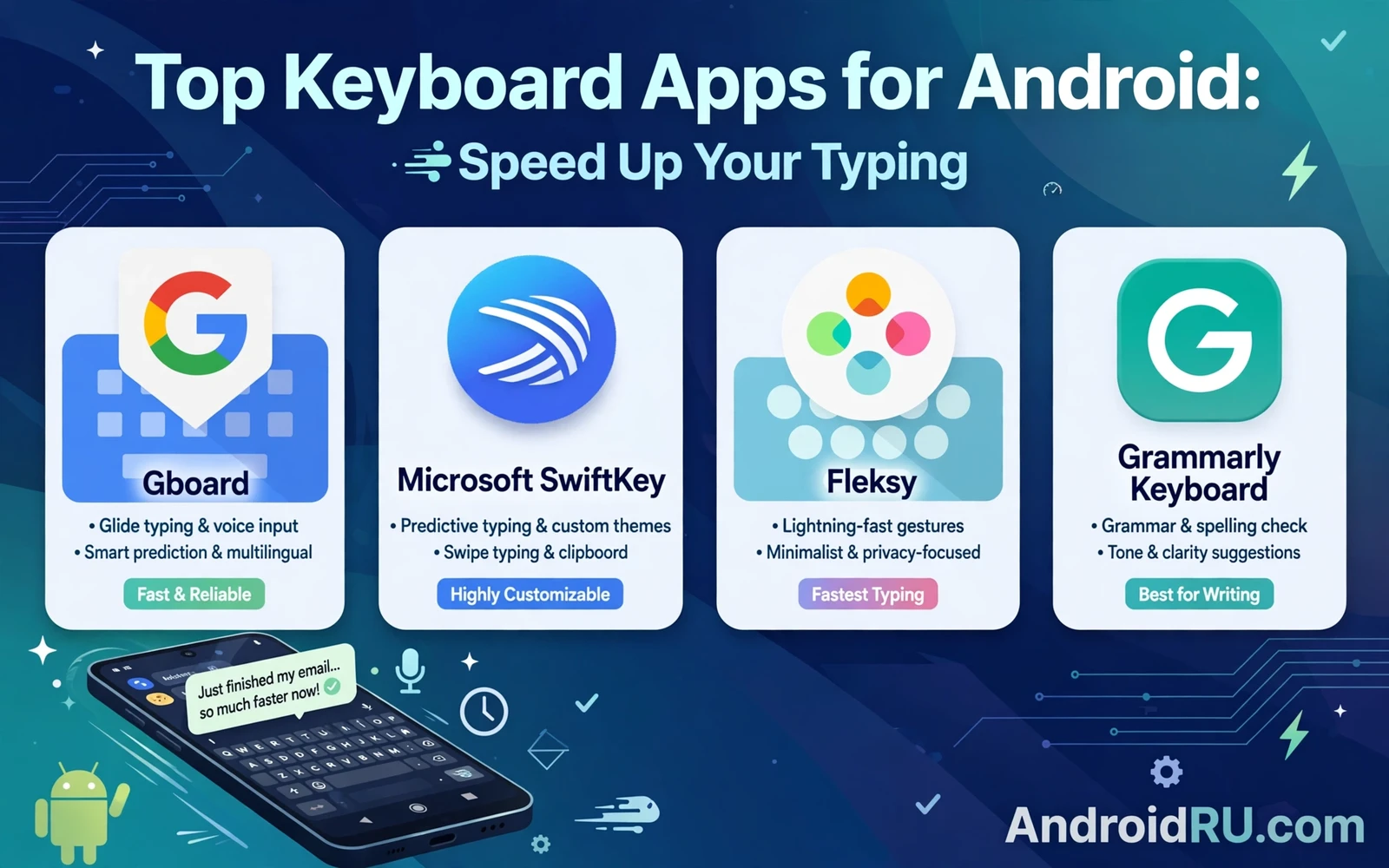
Typing on a phone can feel slow when the keyboard fights your fingers. A good keyboard app changes that feeling fast. It learns your words. It fixes small slips. It keeps the layout steady while you write. The result is less backspacing and less frustration. This guide explains how to pick a keyboard that truly speeds up your typing on Android.
Speed starts with comfort. Your thumbs should reach every key without strain. Your eyes should find letters without hunting. Your fingers should glide or tap in a rhythm that feels natural. A keyboard that matches your hand size and your grip will always beat a keyboard with more features. Test a new keyboard for a full day before you judge it. Short tests hide the small annoyances that slow you down later.
Prediction is the second source of speed. A strong prediction engine suggests the next word before you type it. A weak engine suggests words that you never use. The difference shows up in every message. Look for a keyboard that learns from your own writing style. Look for one that handles names and slang and short phrases well. Turn off prediction types that distract you. A clean suggestion bar helps you type faster than a crowded one.
Swiping And Tapping And Voice Input
Swipe typing suits many people because one continuous motion can form a whole word. It works best on a larger screen. It works best when you keep a steady pace. It can fail when you swipe too fast across similar letters. Practice with short words first. Then move to longer words. Your accuracy will rise as your muscle memory grows.
Tap typing suits people who prefer precision. It gives you a clear press for every letter. It pairs well with a compact layout. It pairs well with strong autocorrect. Tap typing can feel slower at first. It often wins for passwords and for technical terms. Try both styles in the same keyboard before you settle on one style. Many keyboards let you switch styles without changing apps.
Voice input is a third path to speed. It helps when your hands are busy. It helps for long messages. It helps for notes that you would rather speak than type. Voice input still needs a quick edit pass. Check names and numbers after dictation. Use voice input for drafts and use the keyboard for final edits. That mix gives you speed without losing control.
One handed mode matters more than most people expect. A smaller keyboard that shifts to one side can cut thumb strain on a large phone. A floating keyboard can sit where your thumb rests. A split layout can help on a tablet. When you test a keyboard then try it while walking and while holding a bag. Real life typing happens in awkward positions. A keyboard that only works at a desk will slow you down on the street.
Layouts Themes And Personal Fit
Layout choice shapes your speed every day. A standard layout feels familiar. A compact layout gives your thumbs less distance to travel. A tall layout gives each key more room. A number row on top saves a mode switch for passwords and dates. A dedicated row for symbols can help if you write code or math. Choose a layout that matches the text that you write most often.
Themes are not only about looks. A clear contrast between keys and letters reduces errors. A dark theme can feel calmer at night. A light theme can feel clearer in bright rooms. A theme that matches your launcher can make the whole phone feel coherent. Readers who enjoy changing the look of a phone often pair a new keyboard with a new launcher look. A fresh home screen setup can start with custom launchers that change how the home screen feels and a keyboard theme that matches that style.
Key size and key spacing deserve a careful test. Larger keys reduce mistaps. Wider spacing reduces accidental presses on nearby letters. A keyboard that lets you resize the whole board gives you control. Resize in small steps. Test each size with a real message. A size that looks good in a screenshot can still feel cramped in daily use.
Haptic feedback can help or hurt speed. A light vibration confirms each press. A strong vibration can feel slow. A sound click can help some people and distract others. Turn feedback down if it breaks your rhythm. Turn it up only if it helps you trust each press. Speed grows from confidence. Feedback should build confidence rather than noise.
Language Support And Multilingual Typing
Multilingual typing is a daily need for many Android users. A good keyboard switches languages without a menu dive. It can detect the language from your first letters. It can keep separate dictionaries for each language. It can suggest words in the right language without mixing them. Test language switching with a bilingual message. A keyboard that forces a long press for every switch will slow you down.
Special characters matter for names and places. A long press menu should show the accents that you need. A symbols page should stay in a logical order. A clipboard history can save repeated phrases and addresses. A personal dictionary can store names that autocorrect would otherwise change. Add your frequent names early. That one setup step prevents many later corrections.
Privacy settings deserve attention before you trust a keyboard with your words. A keyboard sees everything that you type. Check what data stays on the device. Check what data syncs to an account. Turn off cloud learning if you prefer local learning only. Review permissions in system settings. A fast keyboard is not worth a privacy trade that you did not choose.
Practice That Builds Real Speed
Speed grows from small habits. Type the same common phrases until they feel automatic. Use text shortcuts for addresses and greetings and signatures. Let prediction finish words that you type often. Correct a wrong prediction right away so the engine learns faster. Keep your keyboard layout stable for a few weeks. Frequent layout changes reset your muscle memory.
Writing notes is a great practice ground for a new keyboard. Notes are low pressure. Notes let you test prediction and shortcuts and symbols. A note app that syncs across devices gives you more chances to practice. Many fast typists sharpen their skills while capturing ideas on the go with note taking apps that sync across devices because short frequent notes build rhythm faster than rare long essays.
Measure progress by feel rather than by a single test. Notice how often you backspace. Notice how often you pause to find a key. Notice how tired your thumbs feel after a long chat. Those signals tell you more than a one minute speed test. A keyboard that feels calm after a long day is a keyboard that fits you.
Try a new icon style and a new keyboard together when you want a fresh phone feel. Visual change can renew your interest in practice. A matching set of icons can make the keyboard and the home screen feel like one design. That sense of coherence can motivate you to keep practicing. You can explore that visual side through icon packs that revamp the Android home screen look while you keep your keyboard layout unchanged for speed.
Common Mistakes And Smart Fixes
One common mistake is chasing every feature at once. Stickers and themes and translation tools can crowd the keyboard. A crowded keyboard hides the keys that you need. Turn off panels that you rarely use. Keep one extra panel that you truly need. Speed comes from a clear board rather than a busy board.
Another mistake is keeping autocorrect at full strength for every app. Strong autocorrect helps in chats. It can harm passwords and code and names. Learn how your keyboard handles different apps. Some keyboards let you tune correction per app. Others let you pause correction with a quick toggle. Use that control when precision matters more than speed.
A third mistake is ignoring updates to your personal dictionary. Add new words when they appear in your life. Remove words that you never use. A clean dictionary gives cleaner predictions. A stale dictionary suggests old words for new topics. Spend a few minutes each month on dictionary care. That small habit keeps predictions sharp.
Finally test your keyboard after a system update. Updates can reset a default keyboard. Updates can change permissions. Updates can change layout settings. Check your default keyboard after each update. Check your theme and your dictionary. A quick check prevents a slow surprise on a busy morning.
The fastest keyboard is the one that disappears into your writing. It should feel like an extension of your hands. It should predict without nagging. It should correct without changing your meaning. It should stay stable while your ideas flow. Pick a keyboard with that calm quality. Then practice with it daily. Speed will follow comfort and comfort will follow a careful choice.
Testing A Keyboard Like A Daily Tool
Test a keyboard in the apps that you use most. Test it in a chat app. Test it in an email app. Test it in a notes app. Each app reveals a different weakness. A chat test reveals prediction quality. An email test reveals formal word handling. A notes test reveals symbol access. A keyboard that passes all three tests deserves a longer trial.
Test typing while standing and while sitting. Test typing with one hand and with two hands. Test typing in bright light and in dim light. Real conditions differ from a quiet desk test. A keyboard that survives real conditions will serve you well for months. A keyboard that only works in ideal conditions will disappoint fast.
Check how the keyboard handles numbers and symbols. Passwords need numbers. Dates need slashes. Messages need emoji. A keyboard that hides symbols behind many taps will slow you down. A keyboard with a clear symbols page will keep your flow. Test a password and a date and a symbol heavy message before you commit.
Review autocorrect behavior over a week. Note words that it changes wrongly. Add those words to the dictionary. Remove words that it suggests wrongly. A week of small corrections can transform prediction quality. A keyboard left untuned will repeat the same errors forever.
Consider accessibility features even if you do not need them today. Larger keys help on tired days. High contrast helps in glare. Voice input helps when hands are full. A keyboard with strong accessibility options adapts to changing needs. That adaptability is a long term strength.
Finally keep a backup keyboard installed but inactive. A backup helps when an update breaks your main keyboard. A backup helps when a new phone needs a quick setup. A backup costs little storage. It can rescue a busy day when your main tool fails unexpectedly.
Keyboard Care Over Time
Revisit keyboard settings after a few months of use. Your writing topics change. Your hand comfort changes. Your favorite phrases change. A settings review keeps prediction aligned with current life. A stale setup slowly loses the speed that it once gave.
Try a new layout element only when the current layout feels limiting. A new number row can help if you type dates often. A new symbols shortcut can help if you type code often. Add one element at a time. Test it for a week. Keep it only if it clearly helps.
Keep the keyboard app updated. Updates can improve prediction. Updates can fix layout bugs. Updates can add language support. Read update notes briefly before updating. An update that changes a favorite feature deserves a quick settings check after install.
Share keyboard tips with friends who struggle with typing. Show them swipe typing. Show them text shortcuts. Show them one handed mode. A short demo can transform a friend daily typing experience. Shared tips also remind you of features that you forgot to use.

