

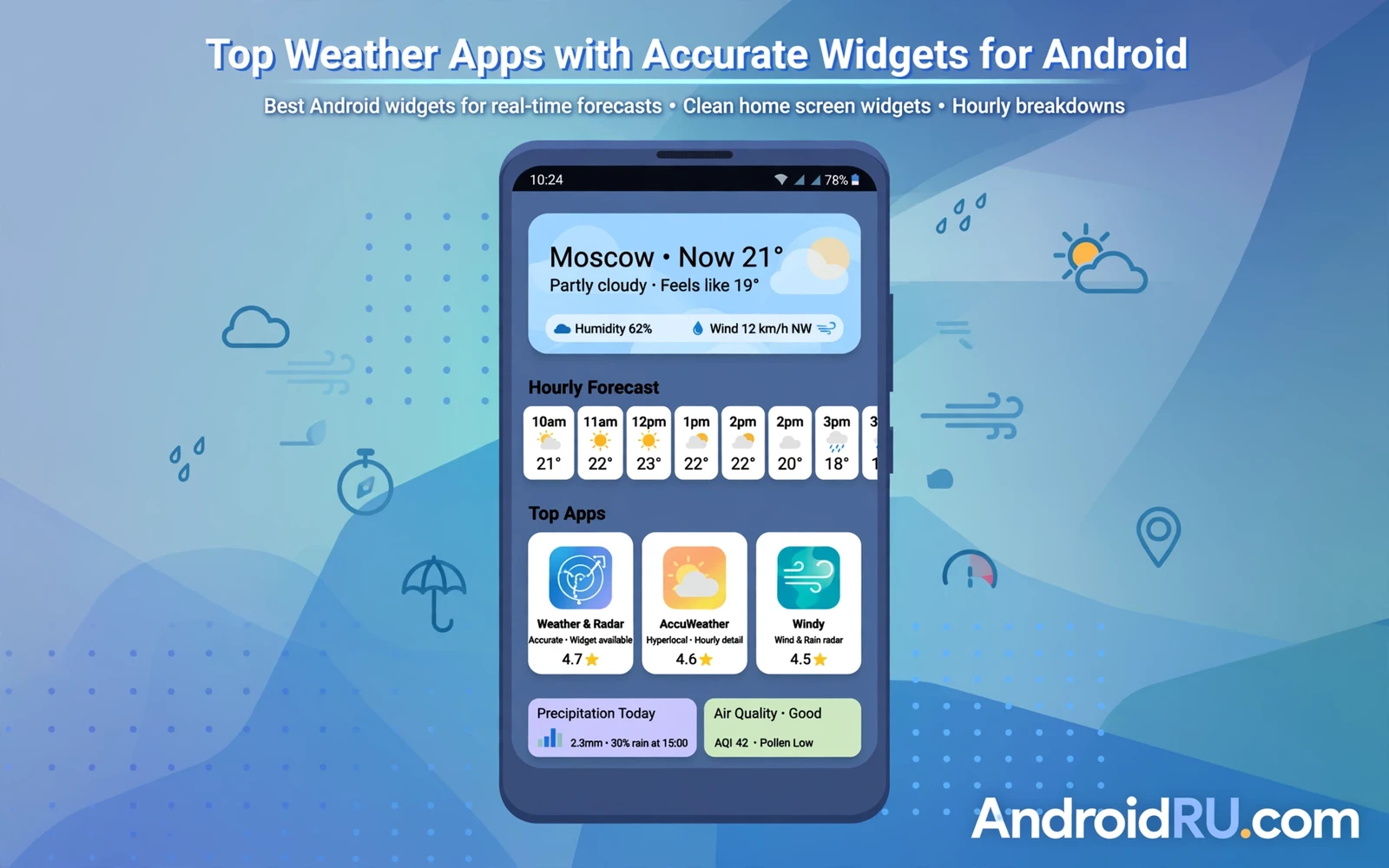
Top Weather Apps with Accurate Widgets for Android
A grey sky at 7 a.m. leaves one honest question hanging over the morning: will it rain before lunch, and should the jacket come along? A good weather widget answers that question in two seconds, without opening an app, without scrolling, without guessing. I have leaned on that glance for years, through school runs, bike rides, market trips and flights, and I have learned that the widget is only as good as the forecast behind it. A pretty icon means nothing when the rain arrives an hour early.
This guide looks at ten named weather apps for Android and judges them on the thing that matters most: whether the widget on the home screen tells the truth, day after day. I compared forecast accuracy for temperature and rain, widget design and refresh behaviour, radar quality, alert timing, battery use and price. Some apps won on precision, others won on clarity, and a few won simply because their widget never went stale at the worst moment.
You will find a real list below, one app at a time, with honest strengths and weaknesses for each, plus a comparison table, setup steps and answers to the questions readers ask most. If you only want a quick pick, jump to the verdict section near the end. If you want the full picture, start at the top and work down.
What makes a weather widget accurate on Android
Accuracy starts long before the widget appears on the screen. Every weather app buys, blends or builds its forecast from a model, and different models disagree about rain timing by an hour or more. The best apps tell you which model they use, let you compare models, or blend several sources so one bad model cannot ruin the day. Apps that hide their source leave you guessing when two apps disagree.
A widget also has to refresh on time. Android limits background work to save battery, so a widget that refreshes every fifteen minutes can still show yesterday evening temperature at breakfast. The better apps use efficient background updates, let you set the refresh interval, and show the time of the last update right on the widget. That timestamp is the first thing I check when a widget looks wrong.
Forecast source matters more than the icon set
Most well-known apps draw on a mix of national weather services, commercial models and their own blends. AccuWeather leans on its MinuteCast rain timing, The Weather Channel leans on IBM weather data, Weather Underground leans on a large network of personal weather stations, and Windy lets you switch between ECMWF, GFS, ICON and other global models. That last trick is gold on a stormy day: when three models agree on rain at 3 p.m., trust it; when they split, carry the jacket anyway.
Personal weather stations deserve a closer look. Weather Underground pulls readings from thousands of backyard stations, which can make the current temperature for your street more exact than a city-wide figure. The trade-off is quality control: a station in full sun reads hot, and a badly placed sensor can mislead. I treat station data as a useful second opinion, not gospel.
Widget refresh, size and glance value
A widget earns its place when it answers three questions at a glance: how warm is it now, will it rain soon, and what changes later today. The best widgets show current temperature, a short condition line, rain chance for the next few hours and the high and low for the day. Anything less forces you to open the app, which defeats the point of the widget. Anything more turns the home screen into a weather station control room.
Size matters more than people expect. A small 2×2 widget suits a tidy home screen and a quick temperature check. A medium 4×2 widget adds hourly figures and a rain timeline. A large 4×3 or 4×4 widget adds a multi-day strip and sometimes a small radar map. I run a medium widget on my main screen and a large one on a second screen for weekends and travel days.
How to check widget refresh on your phone
Open the widget settings inside the app first, not the Android settings. Look for a refresh interval, usually between 15 minutes and 3 hours, and set it to 30 minutes for daily use. Then check that battery optimisation is not set to restricted for that app, because a restricted app may pause updates overnight. A quick test helps: note the temperature, wait half an hour, and see whether the widget and the time stamp moved.
Small, medium and large widget layouts compared
Small widgets win on tidiness and battery use, since they update less data and sit quietly in a corner. Medium widgets win on balance, giving hourly rain chance and the day high and low without taking over the screen. Large widgets win on detail, showing several days, radar and sometimes air quality, but they eat home screen space that other apps might want. My rule is simple: medium for every day, large only when rain or travel makes detail worth the space.
How I compared accuracy, widgets and battery use
I ran each app on the same mid-range Android phone for several days, side by side, with widgets from three apps on the home screen at a time so I could compare them at the same moment. Mornings mattered most: I wrote down the forecast temperature, rain chance and rain start time at 7 a.m., then checked what actually happened by midday and by evening. An app scored well when its morning rain timing landed within an hour and its temperature landed within two degrees.
Battery use came from the phone built-in battery screen after a full day with widgets active, and from watching whether the phone felt warm or the battery graph showed a sharp drop. No app in this list drained the battery badly on its own, but the ones with animated radar widgets and one-minute refresh intervals used noticeably more power than the calm, text-first widgets.
The three-day check I ran on each app
Day one was a dry, settled day, good for testing temperature accuracy and widget clarity. Day two brought scattered showers, which tested rain timing and radar. Day three brought a change in wind and a cooler evening, which tested hourly forecasts and alert timing. I also checked each app twice during a real commute, once before leaving and once halfway, because a forecast that looks fine at home can fall apart on the road.
I kept notes on one extra detail: how each app behaved when the signal dropped. A good weather app keeps the last forecast visible with a clear time stamp instead of blanking the widget or showing a spinner. The apps that handled a weak signal gracefully earned my trust faster than the ones that panicked.
What counts as accurate for rain, temperature and wind
For rain, accuracy means the rain start time, not just the daily percentage. A 60 percent chance of rain tells you little; rain starting at 2 p.m. tells you when to leave. For temperature, accuracy means the feels-like figure as well as the air temperature, because wind and humidity change how a 24-degree afternoon actually feels. For wind, accuracy means gusts, not just the average speed, because a 40 km/h gust matters to a cyclist in a way a 15 km/h average never will.
That said, no app is right every time. Models struggle with summer thunderstorms that build and collapse in an hour, and with mountain weather that changes across a single valley. I judge an app by how often it lands close, how clearly it shows uncertainty, and how fast it corrects itself when the sky changes its mind.
Top weather apps with accurate widgets for Android in 2026
Here is the list, in the order I would try them if I were starting fresh today. Every app below has a real widget, a real forecast and real trade-offs. Prices change, so check the current plan inside each app before paying for a subscription.
1. AccuWeather: minute-by-minute rain timing
AccuWeather is the app I open when rain timing matters more than anything else. Its MinuteCast feature gives rain start and stop times for the next two hours, minute by minute, and in my testing it landed within fifteen minutes on most showery days. The widget range is wide, from a compact current-conditions tile to a larger panel with hourly rain and the day ahead. The free version carries ads, and the premium tier removes them and adds longer forecasts.
Accuracy is strong for temperature and rain timing in cities, where its model blend has plenty of data. The widget refreshes reliably and shows the update time, which I value on busy mornings. The design is busy in the full app, with news and video mixed into the forecast, but the widget itself stays clean. AccuWeather suits commuters, parents planning the school run and anyone who wants to know whether to leave now or wait ten minutes.
Pros: MinuteCast rain timing is genuinely useful; widgets come in many sizes; severe weather alerts arrive promptly. Cons: the full app feels crowded with extra content; the free tier shows ads; some advanced features sit behind a subscription. Verdict: pick AccuWeather first if rain timing decides your day.
AccuWeather widget setup that works best
Choose the 4×2 widget with hourly rain for the main screen, set refresh to 30 minutes, and turn on precipitation alerts for your home location only. That combination gives the rain timeline without the noise of alerts for places you rarely visit.
2. The Weather Channel: clear alerts and a tidy widget
The Weather Channel app pairs IBM weather data with one of the clearest alert systems I have used. Its widget shows current temperature, condition, rain chance and the high and low in a calm layout that reads well in bright sunlight. The app adds pollen counts, flu outlooks and allergy notes in some regions, which matter to readers who plan outdoor time around more than rain.
In testing, temperature accuracy was steady and the daily high landed within two degrees on most days. Rain timing was a step behind AccuWeather on fast-moving showers, but the alert wording was the clearest of the group: it said what was coming, when, and what to do about it. The free version has ads, and the premium tier removes them. The Weather Channel suits families, allergy sufferers and readers who want alerts written in plain language.
Pros: alerts are clear and timely; widget is easy to read; extra health and pollen data helps planning. Cons: rain timing can lag on quick showers; ads in the free tier; some features vary by region. Verdict: pick this one for calm, readable alerts and a tidy daily widget.
3. Weather Underground: street-level readings from real stations
Weather Underground stands out because it blends official forecasts with readings from a huge network of personal weather stations. On my street that meant the current temperature matched my balcony thermometer more often than any city-wide figure did. The widget is simple and honest, showing current conditions, hourly figures and a ten-day outlook without fuss.
The app also carries detailed radar, a crowd-sourced weather history for any date and place, and a smart forecast tool that matches conditions to activities like running or gardening. The trade-off is the interface, which packs a lot onto each screen and can feel dated next to newer rivals. It suits weather watchers, gardeners and runners who want local detail over polish.
Pros: local station data can beat city forecasts; ten-day outlook is detailed; radar and history tools are strong. Cons: interface feels crowded; station quality varies by area; ads in the free version. Verdict: pick it when your street weather differs from the city forecast.
4. Windy: model comparison and the best radar maps
Windy is the app I open when I want to see the weather rather than just read a number. Its maps show wind, rain, temperature, clouds and storms as moving layers, and you can switch between forecast models to see where they agree and where they split. The widget is simpler than the app, showing current conditions and a short forecast, but the real strength is the map behind it.
Accuracy depends on the model you choose. ECMWF tends to do well for European weather, GFS covers the globe, and ICON adds detail in some regions. Comparing two models takes ten seconds and often explains why other apps disagree. The free tier is generous, and the premium tier adds longer forecasts and more layers. Windy suits sailors, pilots, hikers, photographers and anyone who plans around wind as much as rain.
Pros: best maps and radar in this list; model comparison builds real confidence; generous free tier. Cons: the full app has a learning curve; the widget is plainer than rivals; premium price is higher than most. Verdict: pick Windy when wind, storms and maps matter as much as temperature.
Windy radar layers worth turning on first
Start with rain, wind and temperature layers, then add satellite cloud cover on unsettled days. That set answers most planning questions without burying the map under ten layers at once.
5. CARROT Weather: personality, precision and deep customisation
CARROT Weather wraps solid forecast data in a witty, customisable package. You can tune the personality from friendly to sarcastic, pick your forecast source where available, and build widgets that show exactly the data you care about, from rain chance to moon phase. The widget builder is the best in this list for readers who want a home screen that looks and reads exactly their way.
Forecast accuracy is good rather than chart-topping, since CARROT leans on established sources rather than its own model. The charm is the presentation and the control: widgets update reliably, complications work well on watches, and the app rewards tinkering. The app is a paid app with a subscription for premium features, so check the current price before committing. It suits readers who enjoy customising every pixel and who smile at a forecast with a sense of humour.
Pros: widget customisation is unmatched; personality makes daily checks fun; reliable updates. Cons: paid, with a subscription for the best features; accuracy is good, not the best; humour is not for everyone. Verdict: pick CARROT when the widget itself is the joy, not just the forecast.
6. Overdrop: beautiful widgets with honest forecasts
Overdrop is the prettiest app in this list, and that is not a small thing when the widget sits on your home screen all day. It offers a large set of widget designs, from minimal text to rich panels with hourly graphs, and most of them look like they were designed rather than assembled. Forecast data comes from established providers, and accuracy in my testing sat in the solid middle of the group.
The app adds radar, widgets for multiple locations and a clean ten-day view. The free tier covers the basics, and the premium tier adds more widget styles and data sources. Overdrop suits readers who care about how the home screen looks and who want a widget that matches their wallpaper and icon pack.
Pros: widget designs are beautiful and varied; easy to read at a glance; good multi-location support. Cons: forecast accuracy is solid rather than leading; some widget styles need premium; radar is simpler than Windy. Verdict: pick Overdrop when design matters as much as data.
7. Today Weather: fast, light and surprisingly deep
Today Weather is a light, fast app with a clean widget and a surprising amount of depth behind it. The widget shows current conditions, hourly rain and the day ahead in a layout that stays readable on small screens. Behind the widget sit radar, air quality, pollen, sunrise times and a ten-day forecast, all without making the phone feel slow.
In testing, temperature accuracy was steady and rain timing was respectable, landing within an hour on most showery days. The app feels quick on modest phones, which matters if your phone is a few years old. The free version has ads, and the premium tier removes them. Today Weather suits readers with older phones, readers who want a calm design, and anyone who dislikes waiting for an app to load.
Pros: fast and light on modest phones; clean widget; good depth behind a simple front. Cons: brand recognition is lower than the big names; some data sources need premium; alert options are simpler. Verdict: pick Today Weather for speed and calm on any phone.
8. Weather Radar Meteored News: radar first, forecast second
Weather Radar Meteored News puts animated radar at the centre of the experience, which changes how you plan a wet afternoon. Instead of reading a percentage, you watch the rain band move toward you and decide whether to leave now or wait twenty minutes. The widget shows current conditions and a short forecast, while the app itself carries hourly and daily forecasts, severe weather alerts and news-style weather stories.
In my testing the radar animation was smooth and the rain picture matched what I saw from the window more often than a plain percentage did. Temperature accuracy was solid, and the alert timing was prompt for heavy rain. The app suits commuters, cyclists and outdoor workers who plan around rain in real time. If you want a deep dive into this app, the detailed review on this site covers its features, safety checks and latest changes in full.
Pros: live radar is genuinely useful for planning; alerts arrive in good time; hourly and daily forecasts are clear. Cons: the news stories add clutter for some readers; widget options are fewer than Overdrop or CARROT; radar needs a steady connection. Verdict: pick it when watching rain move beats reading a rain percentage.
9. Google Weather: the quiet default that just works
Google Weather is the forecast built into Google Search and the Google app on many Android phones, and its widget is the one I see most often on other people home screens. It shows current temperature, condition, hourly figures and a ten-day outlook with almost no setup at all. There is no separate download on many phones, which makes it the easiest widget in this list to start using.
Accuracy is steady for temperature and daily conditions, drawing on established forecast data. Rain timing is less detailed than AccuWeather MinuteCast, and there is no full radar map in the widget itself. The strength is zero friction: it is already there, it updates reliably, and it never asks for a subscription. Google Weather suits readers who want a forecast without another app, another account or another subscription.
Pros: already on most Android phones; no cost and no setup; reliable daily forecasts. Cons: rain timing is less precise; no rich radar in the widget; customisation is limited. Verdict: pick Google Weather when simple, free and already installed wins.
10. Yahoo Weather: a calm classic with lovely photos
Yahoo Weather pairs forecasts with full-screen photos matched to your location and conditions, which makes checking the weather feel pleasant rather than clinical. The widget is clean, showing temperature, condition and a short hourly strip, and the app adds radar, a ten-day forecast and wind and pressure details. Accuracy in my testing was steady for temperature and daily conditions, with rain timing in the middle of the group.
The app is free with ads, and it suits readers who like a calm, visual forecast and who check the weather once or twice a day rather than every hour. It is not the app for storm chasers, but it is a kind daily companion. Yahoo Weather suits casual checkers, photo lovers and readers who want a gentle start to the morning.
Pros: beautiful location photos; calm and simple widget; free to use. Cons: rain timing is average; ads in the free version; fewer power features than Windy or Weather Underground. Verdict: pick Yahoo Weather for a calm, visual daily check.
Comparison table: which weather app widget fits your day
The table below condenses the list into one glance. Use it to narrow the field to two or three apps, then try their widgets for a few days before deciding. A widget has to live on your home screen, so how it looks and refreshes matters as much as the numbers behind it.
| App | Best widget strength | Accuracy highlight | Cost |
|---|---|---|---|
| AccuWeather | Minute-by-minute rain timeline | Rain start time within 15 minutes on most showery days | Free with ads, premium available |
| The Weather Channel | Clear alerts and tidy daily panel | Steady temperature, daily high within 2 degrees | Free with ads, premium available |
| Weather Underground | Local station readings | Street-level temperature from nearby stations | Free with ads, premium available |
| Windy | Map-linked forecast, model choice | Model comparison shows where forecasts agree | Free tier generous, premium available |
| CARROT Weather | Fully custom widget builder | Good accuracy from established sources | Paid app, subscription for premium |
| Overdrop | Beautiful widget designs | Solid all-round accuracy | Free with ads, premium available |
| Today Weather | Fast, light, readable widget | Steady temperature, rain within an hour | Free with ads, premium available |
| Weather Radar Meteored News | Radar-led widget and alerts | Rain picture matched the window view well | Free with ads, check current plan |
| Google Weather | Zero-setup default widget | Steady daily temperature and conditions | Free, built into Google on many phones |
| Yahoo Weather | Calm visual widget with photos | Steady temperature and daily conditions | Free with ads |
Two patterns stand out from the table. First, the apps with the best rain timing are not always the apps with the prettiest widgets, so decide which matters more to you. Second, every app here has a free route in, so there is no reason to pay before you have lived with the widget for a week.
How to set up a weather widget on Android step by step
Setting up a widget takes about a minute once you know the path, and the steps are nearly the same across Android phones. The names of menus vary a little by brand, but the flow stays the same: long-press the home screen, pick widgets, find your weather app, choose a size, and place it. If you have never placed a widget before, do it once slowly and it will feel natural after that.
Your home screen layout matters here too. A weather widget reads best near the top of the main screen, where your eyes land first, and it pairs well with a clock widget above it. If you enjoy shaping the whole home screen, Best Custom Launchers for Android Customization Enthusiasts shows how launchers change widget grids, icon packs and screen space, which can make room for a larger weather panel.
Add the widget in under a minute
Long-press an empty part of the home screen, tap Widgets, scroll to your weather app, and drag the size you want onto the screen. Most weather apps then ask you to pick a location and a widget style. Pick your home location first, then add a second location later if you travel often. Check the widget after a few minutes to confirm the temperature and the update time look right.
Pick the right widget size for your home screen
Start with a medium 4×2 widget if you are unsure. It shows the essentials without crowding out other apps, and you can resize it later by long-pressing it and dragging the handles. Move to a large widget on days when rain or travel makes detail worth the space, and drop back to a small widget when the home screen feels crowded.
Fix a widget that stops updating
First, open the app once to refresh the data by hand and check the update time on the widget. Next, look in Android settings under Apps, find the weather app, tap Battery, and make sure it is not set to restricted. Then check that location permission is set to allow while using the app, and that background data is allowed. In most cases one of those four checks brings the widget back to life.
Severe weather alerts, radar and hourly forecasts that actually help
Alerts are only useful when they arrive before the weather does, and when they say something you can act on. A good alert names the hazard, gives a time window and suggests a simple action, like moving indoors or delaying a drive. A bad alert arrives after the storm, or cries wolf so often that you start ignoring it. I keep alerts on for severe thunderstorms, heavy rain and high wind, and off for light rain and daily summaries.
Radar and hourly forecasts work best together. Radar shows where the rain is now and where it is heading; the hourly forecast shows how temperature and wind change through the day. Check radar before leaving on a wet day, and check the hourly view when you plan clothing, outdoor work or an evening walk.
Rain radar vs hourly rain chance
Rain chance is a probability for a period, usually an hour, while radar is a picture of rain right now. A 40 percent chance with a rain band an hour away means something different from a 40 percent chance with clear skies overhead. I trust radar for the next two hours and the hourly forecast for the rest of the day, and I carry a jacket when the two disagree.
Alerts worth turning on, and alerts worth silencing
Turn on severe thunderstorm alerts, flash flood, high wind and extreme heat alerts for your home and work locations. Silence light rain alerts, daily forecast summaries and marketing notifications, which add noise without adding safety. Review the alert list once a month, because apps add new alert types after updates and a quiet list can slowly fill up again.
Battery, data and privacy: what weather apps really use
Weather apps are light users of battery and data compared with video or map apps, but the widget settings still matter. A widget that refreshes every fifteen minutes with animated radar uses more power than a text widget that refreshes every hour. On a normal day the difference is small, often a few percent of battery, but on a long day away from a charger it can matter.
Data use is modest too, usually a few megabytes a day for forecasts and radar tiles. The exception is animated radar over mobile data on a long trip, which can add up. If you travel on a limited plan, set radar to load only on Wi-Fi inside the app settings, or check it before you leave.
Why some widgets drain battery and others do not
Refresh interval is the biggest factor, followed by animated elements and location polling. A widget that asks for precise location every fifteen minutes works harder than one that uses a fixed home location. If battery matters, set a fixed home location, use a 30 to 60 minute refresh, and keep animated radar inside the app rather than on the widget itself.
Location permission choices that keep forecasts local
Give a weather app location access while using the app, not all the time, unless you rely on follow-me forecasts while travelling. A fixed home location plus a saved work location covers most days without constant tracking. Check the app privacy settings once after install, and turn off any data sharing that is not needed for the forecast itself.
My verdict: which weather app widget to pick first
If you want one answer, start with AccuWeather for rain timing or The Weather Channel for clear alerts, and live with the widget for a week. Both are free to try, both refresh reliably, and both teach you quickly what you actually check each morning. If rain timing proves less important than design, switch to Overdrop or CARROT Weather and enjoy a widget you like looking at.
For planning a day around more than weather, a tidy phone helps the forecast do its job. Top Note-Taking Apps for Android: Sync Across Devices is useful when you want to jot down travel plans, packing lists and rain-day alternatives next to the forecast. And for a wider look at the apps that earn a permanent home screen place, Top 15 Must-Have Android Apps for Maximum Productivity rounds out the set a weather widget belongs to.
Best weather widget for commuters
Commuters should pick AccuWeather or Weather Radar Meteored News, because rain start time decides whether to leave now or wait. A medium widget with an hourly rain timeline, plus a precipitation alert, covers the morning decision in seconds.
Best weather widget for outdoor workers and hikers
Outdoor workers and hikers should pick Windy or Weather Underground. Windy shows wind gusts and model agreement for exposed places, while Weather Underground adds local station readings that catch the difference between a valley and a ridge.
Best weather widget for a calm, beautiful home screen
Readers who want a calm screen should pick Overdrop, CARROT Weather or Yahoo Weather. Overdrop wins on design range, CARROT wins on customisation, and Yahoo wins on gentle, photo-led calm. All three read well at a glance and never shout.
Frequently asked questions about weather apps with accurate widgets for Android
Which weather app has the most accurate widget for Android?
AccuWeather leads on rain timing thanks to MinuteCast, The Weather Channel leads on clear alerts, and Windy leads on maps and model comparison. The honest answer is that accuracy depends on where you live and what you measure: test two widgets side by side for three days, compare their morning forecasts with what actually happened, and keep the one that lands closest most often.
Why does my weather widget show the wrong temperature?
The usual causes are a stale update, a wrong location, or a city-wide figure that does not match your street. Open the app to refresh the data, check that the widget location is your town rather than a nearby city, and confirm the update time on the widget. If the figure still looks off, compare it with a second app and with a local station reading in Weather Underground before blaming the app.
Do weather widgets drain battery on Android?
A normal text widget uses very little battery, usually a few percent over a full day. Animated radar widgets, one-minute refresh intervals and constant precise location polling use more. Set refresh to 30 minutes, use a fixed home location, and keep animated radar inside the app to keep battery use low.
Can I use two weather widgets at the same time?
Yes, and for a test week it is the smartest move. Put one widget on the main home screen and a second on another screen, compare them each morning, and keep the one that proves more accurate. Two widgets use a little more battery and space, but the comparison ends arguments about which app to trust.
If you only do one thing today, put a medium widget from one app on your home screen and check it against the sky for three mornings. That small habit teaches you more about forecast accuracy than any review can, and it leaves you with a home screen that answers the morning question before you have finished your first coffee. The right widget does not just show the weather; it gives the day a calmer start.

