

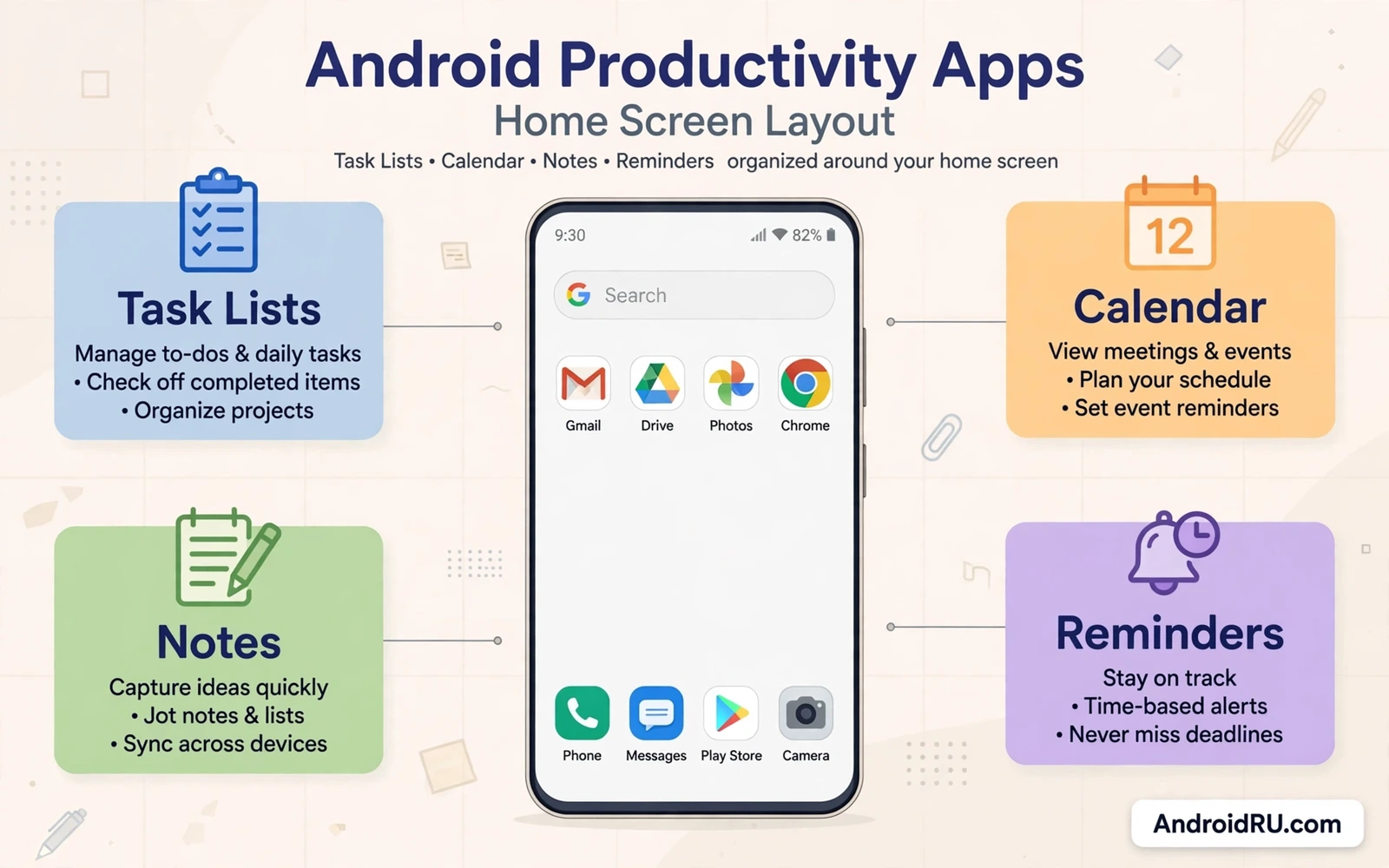
Maximum productivity on Android starts with a small set of tools that you open every day and trust with real work. A task manager holds the plan for the day. A notes app captures ideas before they disappear. A calendar app protects time for deep work and meetings. A cloud sync service keeps the same files ready on the phone and on a computer. When these four tools work together the phone stops being a source of distraction and becomes a reliable workbench that travels with you everywhere.
The mistake most people make is installing too many productivity apps at once and using none of them well. Every new app adds a learning curve and a new inbox to check. Every new app asks for notifications that compete for attention during focused work. A better approach is to choose one app for each job and to use it for two full weeks before judging it. If an app still feels slow or confusing after two weeks of daily use then replace it with a simpler option. If an app quietly supports your routine without demanding attention then keep it and stop searching for replacements.
Start by listing the work you actually do on your phone during a normal week. You may answer messages and plan tasks and read documents and track expenses and capture quick notes. You may also schedule calls and set reminders and share files with colleagues. Each repeated job deserves one dedicated app. Jobs that happen once a month do not need a permanent app on the home screen. Put rare tools in a folder and keep daily tools on the first home screen where your thumb can reach them without hunting through pages of icons.
How To Choose Tools That Fit Your Routine
A good productivity app must open fast and show the next action without extra taps. The home view should reveal today tasks and overdue tasks and the next calendar event at a glance. Search should find any note or task in seconds even when the collection grows large. Offline access matters because work does not stop when the network drops in a tunnel or on a flight. Sync should resume quietly in the background when the connection returns and it should never create duplicate tasks or conflicting copies of the same note.
Check the pricing model before you build a habit around an app. A free tier may limit the number of projects or devices or storage space in ways that only appear after months of use. A subscription may unlock sync and collaboration and larger uploads that a free tier blocks. A one-time purchase may cover the core app while advanced sync stays behind a separate plan. Compare the yearly cost against the time the app saves each week. An app that saves thirty minutes every week is worth more than a cheaper app that wastes time with slow sync and confusing menus.
Privacy deserves the same attention as speed when you choose work tools. A notes app may hold passwords and project plans and personal journals. A task app may hold client names and deadlines and private meeting notes. Read the permission list before installing and remove permissions that do not match the job of the app. Turn off analytics sharing when the setting exists. Keep sensitive notes in an app that supports device lock and encrypted backup. A tool that protects your data earns a place in daily work while a tool that leaks data does not deserve your trust.
Building A Daily Workflow That Holds
A strong morning routine takes five minutes and prevents hours of reactive work later. Open the task list and pick three priorities for the day. Open the calendar and check for conflicts before accepting new meetings. Clear the notification tray of anything that does not need action today. Move small tasks that take under two minutes into a single batch and finish them before opening social feeds. This short ritual gives the day a clear shape and it keeps urgent requests from pushing important work to the evening.
Batch similar work into blocks instead of switching apps every few minutes. Answer messages in two or three sessions per day rather than reacting to every alert as it arrives. Write notes and drafts in one focused block with notifications silenced. Review files and approvals in a separate block when your energy for detail work is highest. Switching between messaging and writing and planning drains attention even when each switch feels small. A phone that supports focus modes can silence nonessential apps during a block while still allowing calls from important contacts to break through.
A workflow that pairs a task list with top AI apps for Android that boost daily work stays flexible when priorities shift in the middle of a busy afternoon. The assistant can draft a summary while you review the source material. The assistant can turn a rough voice note into a structured task list. The human still decides what matters and what can wait. That division keeps automation useful without letting it quietly rewrite your priorities.
Notes And Files Without The Mess
Notes fail when they live in five different apps with no clear rule for where each kind of note belongs. Decide one home for quick capture and one home for long reference material. Quick capture can be a single inbox note that you sort at the end of the day. Reference material can live in folders organized by project or by client or by topic. Tagging helps when a note belongs to more than one project. Search helps when you remember a phrase but not the folder. A weekly ten minute cleanup keeps the system honest and prevents a growing pile of unsorted notes.
File handling on a phone needs the same discipline as notes. Give every project a folder with a clear name and a consistent naming pattern for documents. Download files into the project folder instead of leaving them in a general download folder where they mix with installers and images. Delete duplicates before syncing so the cloud copy stays clean. A file manager that supports batch selection and fast search makes this cleanup painless. When storage runs low the phone and the sync service both slow down and exports may fail at the worst moment.
When documents pile up across downloads and cloud folders then best file managers for Android in free and pro versions help you sort rename and move files in batches without opening each file one by one. Batch moves turn a messy download folder into a clean project archive in minutes. A clean archive also makes backup faster because the sync service uploads changed files only instead of scanning thousands of stray files every time.
Focus Widgets And Home Screen Order
The home screen is a productivity tool in itself and it deserves deliberate design. Place the task list and calendar and notes apps where they are visible without swiping. Add a widget that shows the next three tasks and the next calendar event so the plan is visible before any app opens. Move entertainment apps and shopping apps to a second screen or into a folder. Move social apps off the first screen so opening the phone does not start with a feed. A home screen that shows work first makes it easier to act on intention instead of reacting to the loudest icon.
Widgets save taps only when they show actionable information. A calendar widget should show times and titles and locations for upcoming events. A task widget should allow checking off a task without opening the full app. A notes widget should open a new note instantly for quick capture. A weather widget or news widget may look pleasant but it adds distraction to a work screen. Remove any widget that you never tap during a week of normal use. A clean screen with three useful widgets beats a crowded screen with twelve decorative widgets.
Changing the layout around work widgets becomes easier once best custom launchers for Android customization enthusiasts give you control over grid size and icon labels and gesture shortcuts. A larger grid fits more widgets on one screen without shrinking text to an unreadable size. A swipe gesture can open the notes inbox instantly. A hidden dock can hold secondary tools out of sight until needed. The launcher is not decoration here. The launcher is the frame that decides how fast work tools open.
Common Pitfalls And How To Avoid Them
Notification overload is the most common productivity failure on Android. Every app wants permission to alert you and every alert trains the brain to check the phone constantly. Audit notifications once a month and turn off alerts for apps that only promote content. Keep alerts for messages from people and for calendar reminders and for tasks with a real deadline. Silence the rest during work blocks. A phone that alerts rarely but accurately is easier to trust than a phone that buzzes every few minutes for nothing urgent.
Sync conflicts are the second common failure and they usually come from editing the same note on two devices at once. Wait for sync to finish before switching devices when you edit an important document. Keep one device as the editing device for a given session. Check for duplicate copies after a long offline period. Merge duplicates promptly instead of letting two versions drift apart for weeks. A short sync habit prevents the painful moment when two versions of a plan disagree and nobody knows which one is current.
The third failure is tool churn where a new app replaces a working system every few weeks. Each switch costs setup time and migration time and retraining time. Each switch also risks losing notes or tasks that do not export cleanly. Stay with a working system for at least a month before judging it. Judge the system by completed work and missed deadlines rather than by how modern the interface looks. A plain app that you use daily beats a beautiful app that you abandon after a week.
Productivity on Android is not about owning every app on a top list. Productivity is about a small trusted set of tools and a routine that you repeat without thinking. Choose one app per job and learn it deeply. Protect focus time with notification rules and a clean home screen. Keep notes and files organized with simple folders and weekly cleanup. Review the system once a month and change only the part that clearly fails. That steady approach turns a phone into a calm work companion instead of a noisy pocket office.
- Pick one app for each repeated job and nothing more
- Place daily tools and widgets on the first home screen
- Run a five minute morning review of tasks and calendar
- Batch messages into two or three sessions per day
- Audit notifications once a month and silence promoters
- Clean notes and downloads once a week
- Wait for sync before editing the same file elsewhere
- Judge a tool after two weeks of daily use

