

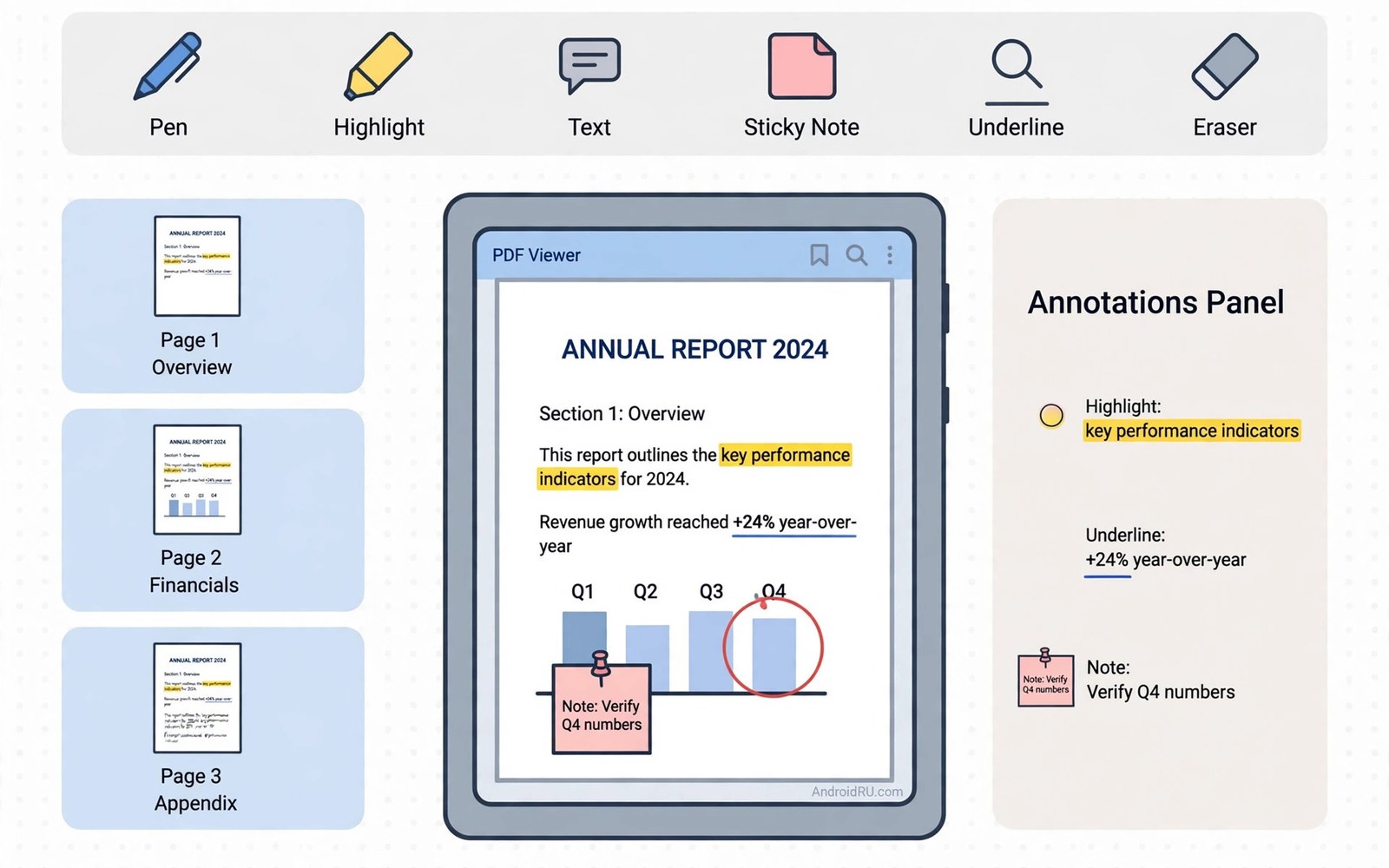
Top PDF readers and editor apps for Android power users must handle large files and annotations and signatures without slowing down. A basic reader shows pages well enough for a short memo. A power tool must also search text and highlight passages and fill forms and export a clean copy.
Many readers look identical until a 500 page report or a scanned contract arrives. Search speed and annotation export and form support separate serious tools from simple viewers at that point. The right test uses your own largest documents rather than a tiny sample file.
Start by listing the PDF jobs you actually do on your phone. Reading and highlighting and signing and form filling each need different strengths. A reader that excels at one job may struggle with another and that gap matters on deadline days. A closer look at document scanning apps can help you compare daily tools before you commit to one setup.
What matters most
Text search must work inside large documents and across bookmarks and annotations. A search that scans slowly or misses scanned pages will waste time during research. Test search on your longest PDF and note how many seconds a common term takes to find.
Annotation tools need highlights and notes and freehand ink that export with the file. An annotation that lives only inside one app will vanish when you send the file to a colleague. Check export by opening the annotated file in a second reader on another device.
Form filling and signing need fields that save correctly and a signature that stays attached. A form that looks filled on your phone but prints blank on a computer has failed. Test a filled form by printing or opening it on a computer before you rely on it.
How to choose the right setup
Students often need split view and note export and fast search across textbooks. Office users often need redaction and signing and cloud storage links for shared reports. Casual readers need a clean night mode and a simple library far more than editing tools.
File size handling matters because a phone can choke on a PDF with hundreds of high resolution pages. A power reader should offer page caching and a low memory mode for huge files. Close other apps before a long reading session on a phone with limited RAM.
Cloud links help when a document changes often and many people read it. A local copy helps when signal is poor or the document is sensitive. Choose the storage model that matches each document rather than forcing every file into one cloud folder.
A practical daily routine
Start a reading session by opening the table of contents and setting bookmarks for key sections. Bookmarks turn a long PDF into a set of short jumps during later review. A document without bookmarks feels twice as long on a phone screen. A related look at time-tracking apps can show how a second tool fits the same workday without adding clutter.
Highlight only passages you will quote or act on and add a short note to each highlight. A page covered in highlights helps nobody during revision. A few strong highlights with clear notes make a document searchable by your own thinking.
Export annotated copies with a clear file name that includes the date and the version. A name like contract draft 12 May tells a colleague exactly which copy to use. Vague names cause confusion when many versions circulate by email.
Costs and privacy and limits
Free PDF readers often limit editing and signing and cloud sync to a paid tier. Reading and basic highlighting may stay free while advanced tools need a subscription. Pay only for the editing feature that you use weekly rather than for a bundle you rarely open.
PDF files can hold contracts and medical forms and financial reports that deserve care. Check whether the app uploads files to a server for editing or keeps edits local on the device. Local editing suits sensitive documents far better than cloud conversion.
Large PDF libraries can fill phone storage quickly when each file holds scanned images. A reader with cloud links and offline control lets you keep key files local and the rest in the cloud. Review storage monthly and delete duplicate annotated copies.
A useful example
A quick metadata check tells you whether a large PDF will behave well on a phone. The script below runs a standard PDF info tool and prints page count and file details. Use the same check before you open a huge report on a small screen.
import subprocess
result = subprocess.run(["pdfinfo", "report.pdf"], capture_output=True, text=True)
print(result.stdout)
print(result.stderr)
This document inspection pattern follows the approach described in the official documentation for command line tools that read PDF metadata. The same documentation explains how a metadata check reveals page count and file size before editing.
What to check after a week
After a week check search speed and annotation export on your largest real document. A tool that passes a small sample may still fail on a 500 page report. Real documents reveal memory use and scroll lag that samples hide.
After a week check a signed form on a computer to confirm the signature and fields survived. A signature that only shows inside one app is not a reliable signature. A cross device check protects you before a deadline depends on the file. A practical look at tablet workstation setup can help you judge whether your current setup still earns its place on your phone.
After a week check battery and storage after long reading sessions. A reader that drains battery fast or caches huge files may need settings changes. Lower render quality for draft reading and raise it only for final review.
Deeper checks for careful users
Scanned PDFs need text recognition before search and copy can work. A reader that offers recognition can turn a scanned contract into searchable text. Recognition quality varies by scan quality and by language so test it on your own scans.
Redaction must remove text fully rather than covering it with a black box. A fake redaction can leak hidden text when the file is copied or inspected. Use a tool that proves redaction by testing the exported file in a text search.
Split view and tab support help when you compare two documents on a tablet. A phone screen makes split view cramped for long reading but useful for short checks. Use a tablet for comparison work and a phone for quick reference.
Making the choice stick
A PDF habit sticks when the current document opens in one tap from the home screen. Place a shortcut for the active report on the home screen during a project. A shortcut that opens the right page saves searching through a library each time. A library search for every session will discourage reading on busy days. Remove the shortcut when the project ends so the home screen stays focused.
A reading workflow needs a clear path from highlight to note to action. Highlight a passage and add a short note in your own words at once. A highlight without a note often loses meaning within a week. A note in your own words proves understanding and it makes later review far faster. Review highlights weekly and turn the best notes into tasks or quotes.
Large PDFs need a reading plan rather than a hope to finish them in one sitting. Break a 500 page report into sections with bookmarks and a target per day. A daily target of one section keeps progress visible and steady. A vague plan to read the whole report will stall after the first busy day. Track sections read each evening to keep momentum honest.
Form filling on a phone needs a final check on a larger screen before submission. Fill the form on the phone for speed and review it on a tablet or computer for accuracy. A small screen can hide a missed field or a wrong value in a long form. A larger review catches errors while they are still easy to fix. Submit only after the larger review passes.
A PDF library earns trust when duplicates are removed and versions are named clearly. Keep one final annotated copy per document and archive older drafts separately. A library with five versions of one report will confuse every later reader. A clear version name with a date prevents most of that confusion. Review the library monthly and delete drafts that nobody needs.
A PDF tool earns a permanent place when it handles your largest file without lag or crash. Test the tool with a real 500 page file on your own phone before committing. A tool that passes a small sample may still fail on a large report. A real file test reveals memory and scroll problems early. Keep the tool that passes real files rather than the tool with the prettiest demo.
A week of practice
Day one of practice should open your largest real PDF and test search and scrolling. Search for a common term and note the time to first result. A fast search on a large file will build trust at once. A slow search on a large file shows a memory or rendering problem. Note scroll smoothness as well because lag will discourage long reading.
Day three of practice should annotate a real document with highlights and notes. Export the annotated file and open it on a second device. A clean export proves annotations will serve team work. An export that loses notes shows an app specific problem. Fix the export path before annotating an important document.
Day five of practice should fill and sign a real form on the phone. Open the filled form on a computer and check every field and signature. A form that survives a computer check is ready for deadline use. A form that fails on a computer needs a different app or a different method. Never submit a form that has not passed a computer check.
Day seven of practice should review the week and count documents read and annotated and shared successfully. A week with clean results on all three tasks proves the tool. A week with a failed export or signature needs a fix before the next deadline. Decide on evidence and keep the reader that passed real documents.
Common mistakes
Most PDF problems come from trusting one app without a cross device test. The list below names the mistakes that cause the most trouble.
- Trusting annotations that never leave the app that created them.
- Signing a form without checking it on a computer first.
- Highlighting whole pages instead of passages you will use again.
- Storing sensitive PDFs in a cloud folder without checking upload rules.
- Judging a reader with a tiny sample instead of a large real document.
- Keeping duplicate annotated copies with vague file names.
Each mistake above is easy to avoid with one cross device check per week. A PDF workflow that survives a second device will survive a deadline. Keep the reader that passes real documents rather than the reader with the longest feature list.
Frequently asked questions
Can Android PDF apps edit documents fully?
Many Android PDF apps edit text and annotations and forms well for everyday work. Complex layout edits still feel easier on a computer. Use a phone for review and signing and a computer for heavy layout changes.
Do PDF annotations transfer to other apps?
Annotations transfer well when they are saved as standard PDF comments and highlights. App specific notes may stay inside one app and vanish on export. Test export with a second reader before you rely on annotations.
Are free PDF readers safe for sensitive documents?
Free readers vary in whether edits happen locally or on a server. Local editing suits sensitive documents better than cloud conversion. Check storage and upload behaviour before opening contracts or medical forms.
Conclusion and next step
A power PDF tool earns its place by searching fast and annotating cleanly and exporting reliably. Simple reading needs far less and a heavy editor can slow a casual reader down. Match the tool to the documents you actually open each week.
Your concrete next step is to test two readers with your largest PDF and one signed form this week. Keep the reader that passes search and export and signature checks on a second device. Delete the other reader and keep your document workflow simple.

