

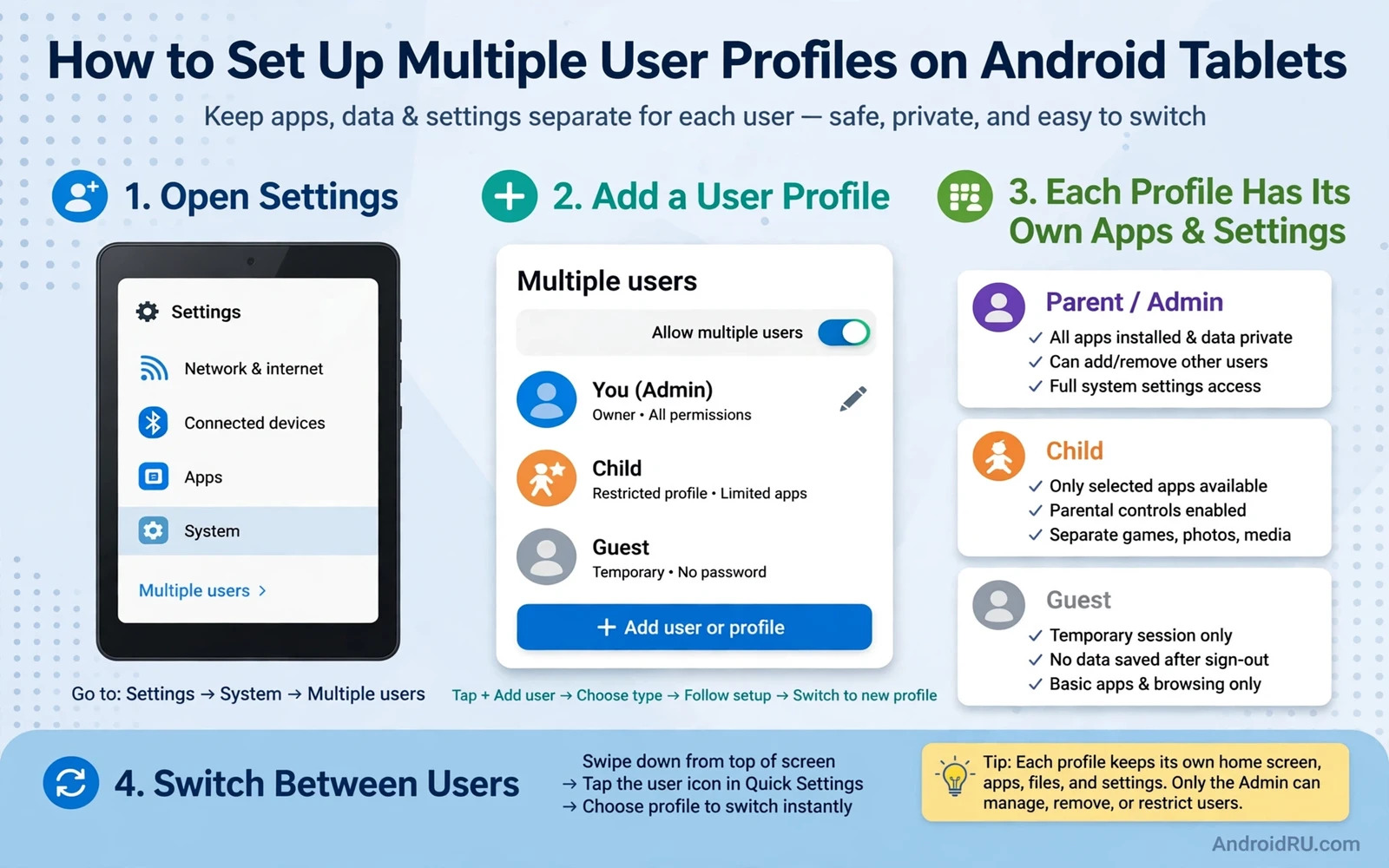
Why Multiple Profiles Help On A Tablet
A tablet often serves a whole household. One person reads news while another plays games while a child watches videos. A single profile mixes every app and every setting and every file together. Multiple user profiles give each person a separate space. Each profile has its own apps and settings and files. Switching profiles keeps work and play and family use apart without buying several tablets.
Profiles also protect privacy. A guest profile can offer a clean tablet without access to your messages or photos. A child profile can carry restrictions that an adult profile does not need. A work profile can hold job apps apart from personal apps. The tablet stays shared hardware with private spaces inside. That balance is the core benefit of profiles.
Check Whether Your Tablet Supports Profiles
Open Settings and then System and then Multiple users. If that entry exists then your tablet supports profiles. Some tablets hide it under Users or Accounts instead. If no such entry exists then the maker may have disabled profiles on that model. Budget tablets sometimes disable the feature. A tablet that lacks the entry cannot add profiles through normal settings. Do not use risky hacks to force profiles on a tablet that lacks support.
Note the difference between users and managed profiles. A full user profile is a separate space with its own setup. A managed or restricted profile is a limited space controlled by the owner. Tablets usually offer full users plus a guest option. Phones often offer fewer options. This guide focuses on tablets because they are the shared devices where profiles shine.
Add A New User Step By Step
Open Settings and then System and then Multiple users and tap Add user. The tablet may ask for a name and a photo for the new profile. Choose a clear name so switching is easy. Confirm the addition and wait while the tablet creates the profile. Creation takes a short while because the tablet builds a fresh app set and storage space. Do not interrupt the process.
Switch to the new profile from the quick settings panel or from the lock screen user icon. The first switch opens a setup flow similar to a new device. Connect to Wi-Fi and sign in with the Google account for that person if they have one. A child account needs a family setup flow instead of a normal sign-in. Follow the prompts carefully because the account choice shapes app access and restrictions later.
Set Up Apps For Each Profile
Each profile installs its own apps. An app installed in one profile does not automatically appear in another. Open the Play Store inside the new profile and install the apps that person needs. Shared apps such as a browser or a video app can be installed in several profiles independently. Storage use grows with each profile because each holds its own app data. Check storage after adding profiles on a tablet with small storage.
The owner profile can control which apps a restricted profile may use in some setups. Open the profile settings and review the app list. Disable apps that do not belong in that space. A child profile benefits from a short approved list. An adult guest profile benefits from a clean basic set. Keep each profile focused. A profile with every app installed loses the separation benefit.
Manage Privacy Between Profiles
Profiles keep files separate by design. Photos in one profile do not appear in another. Messages in one profile stay in that profile. That separation is a privacy feature but it is not encryption against a determined owner with full device access. The owner profile can remove other profiles and their data. Treat profiles as everyday privacy not as a vault against the device owner.
Lock each profile with its own PIN or pattern where the tablet allows it. A lock prevents a casual switcher from opening another person space. Teach household members to lock the tablet when they finish. A profile switch from the lock screen without a lock on the target profile defeats the separation. Locks make the separation real in daily use.
Use Guest Mode For Visitors
Guest mode is a temporary profile that resets after use. Open the user switcher and tap Guest. The guest gets a clean space without your apps or files. When the guest finishes switch back to your profile and choose to remove guest data if the tablet asks. Guest mode suits visitors and short loans. It avoids creating a permanent profile for a one-time use.
Guest mode is also useful for testing. A setting or app that behaves oddly in your profile can be tested in guest mode. If it works in guest mode then your profile data or settings may be the cause. If it fails in guest mode too then the fault is system-wide. That test is quick and it avoids changing your main profile during diagnosis.
Switch Quickly And Manage Storage
Switch profiles from the quick settings user icon or from the lock screen. Switching takes a few seconds while the tablet loads the other space. Running apps in the background profile may pause. Save work before switching if an app holds unsaved data. A switch is not a logout. Your profile stays intact and resumes where you left it.
Monitor storage as profiles multiply. Open Settings and then Storage in the owner profile to see per-profile use. Remove profiles that are no longer needed. Removing a profile deletes its apps and files permanently so back up anything important first. A tablet with three active profiles and a large game in each can fill storage fast. Prune profiles like you prune apps.
Keep Shared Tablet Life Smooth
Agree simple house rules for the shared tablet. Each person uses their own profile. Guests use guest mode. No one installs apps in another profile. Charging and updates stay an owner job. Clear rules prevent profile sprawl and accidental data mixing. A shared tablet with clear profiles feels like several personal tablets in one body.
Profiles reward a little setup time with daily calm. Separate spaces and separate apps and separate locks keep household sharing pleasant. For a larger screen accessory the guide to USB-C hubs for expanding tablet connectivity shows how a hub can turn a shared tablet into a shared workstation. Profiles plus a hub make one tablet serve a whole household well.
Restricted Profiles For Children
A restricted profile for a child needs more than a separate user. It needs app approval and content limits and time awareness. Approve a short list of apps that suit the child age. Remove browsers and stores from the restricted space if the child should not install freely. Review the approved list together with the child so limits feel explained rather than imposed. Explained limits earn cooperation.
Time limits work best as a routine rather than a punishment. Agree tablet times in advance and set expectations before handing the tablet over. A profile switch at the agreed time ends the session cleanly. A sudden confiscation mid-game creates conflict. Routine plus profile switching makes sharing a tablet calmer for everyone.
Work Profile Separation
A work profile on a shared tablet keeps job apps and job files apart from personal use. Sign into the work profile with the work account only. Install only job apps there. A work profile that also holds games and social apps loses its separation benefit. Discipline about what lives where is the whole point of profiles.
Switching between work and personal profiles should be a conscious act. Finish a work task and save it before switching to personal use. A saved task survives the switch. An unsaved task may not. That save-before-switch habit protects work data on a shared device. It also marks a mental boundary between work time and personal time.
Profile Maintenance Routine
Review profiles every few months. Remove profiles for people who no longer use the tablet. Update apps inside each active profile because an unused profile can fall behind on security updates. Check storage per profile and prune large games that no one plays. A maintenance routine keeps a shared tablet fast and tidy.
Back up important data from each profile separately. A backup made in one profile does not necessarily cover another profile. Open backup settings inside each profile and confirm its status. For a workstation angle the guide to USB-C hubs for expanding tablet connectivity and the guide to one-handed mode on large screens complement profiles with hardware and comfort. Profiles plus hub plus comfort settings make one tablet serve many people well.
A Practical Checklist For Shared Tablets
Set up a shared tablet with a checklist that prevents later confusion. Confirm the tablet supports multiple users in settings. Create one profile per regular user with a clear name. Set a lock for each profile. Install only the apps each profile needs. Enable guest mode knowledge for visitors. Check storage after creating profiles because each profile consumes space. Agree house rules about profile use and app installs. A checklist setup takes an hour and it prevents months of mixed files and accidental deletions that a single shared profile invites.
Maintain profiles with a monthly routine. Remove profiles for people who no longer use the tablet and back up their data first. Update apps inside each active profile. Review approved apps in restricted profiles. Check storage per profile and prune large unused games. Confirm backup status inside each profile separately because one profile backup does not cover another. A monthly routine keeps a shared tablet fast and private and tidy. Neglect lets profiles sprawl until storage fills and privacy blurs.
Handle profile switching with care in daily use. Save work before switching because background apps may pause. Lock the tablet when finished so the next person starts from the lock screen user picker. Teach every user to switch to their own profile rather than borrowing another. A switching habit is the human half of profile separation. Software provides the walls and habits keep the doors closed. Walls plus habits together make sharing a tablet genuinely pleasant rather than merely possible.

