

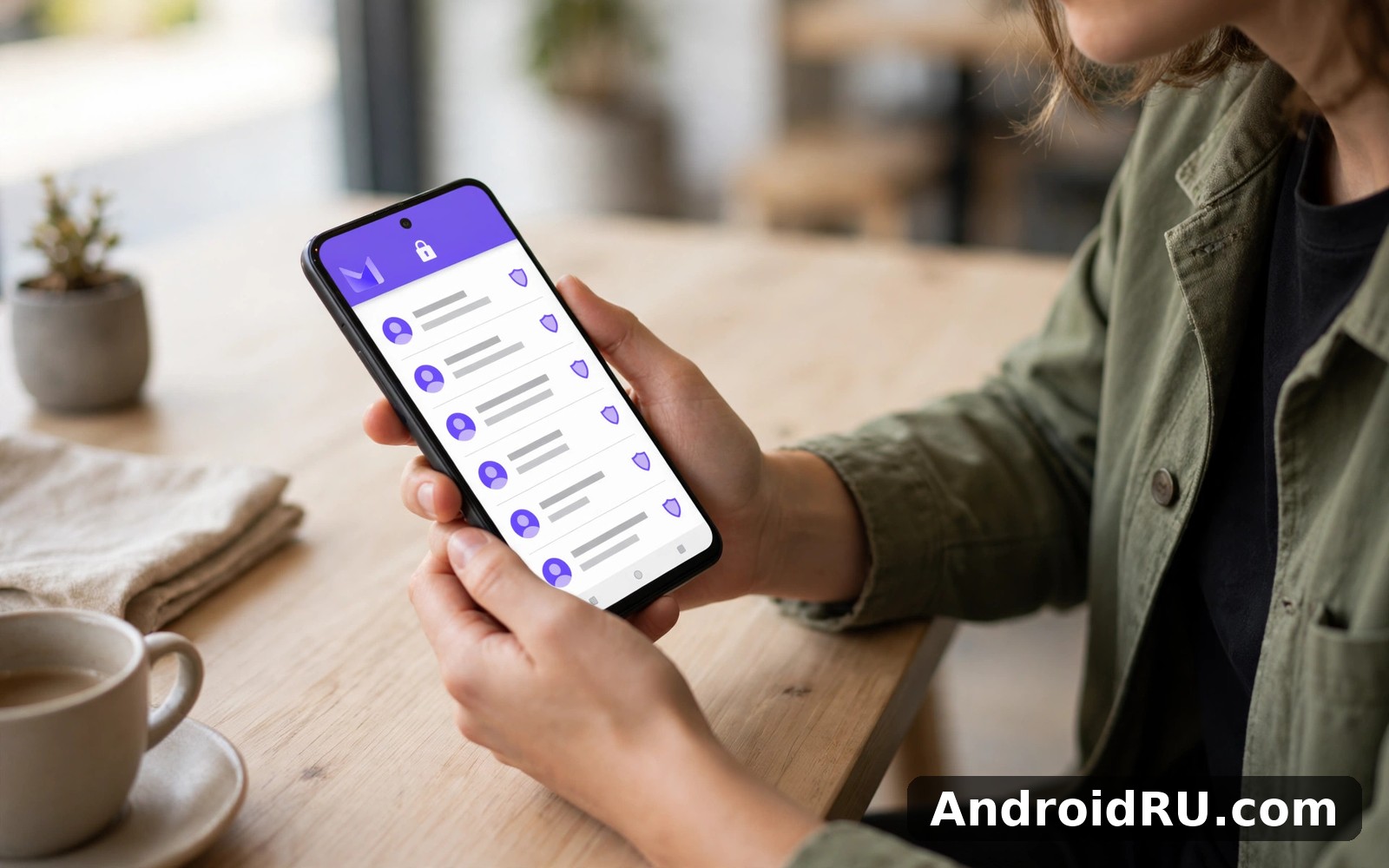
Download APK Proton Mail Encrypted Email Latest Updates, Feature Changes & App Review
I moved part of my email to Proton Mail after a long think about who reads my messages along the way. I am not a security expert, and I do not pretend to be one. I simply wanted a mailbox that treated privacy as the default rather than an optional extra, and the first impression was clean, calm, and refreshingly free of clutter. Nothing shouted for attention. The inbox looked like an inbox, the buttons sat where I expected them, and I could read, reply, and file a message within a minute of opening the app.
That first week taught me something useful. A private mailbox only works if it is pleasant enough to open every day, because the most careful encryption in the world helps nobody if the app sits unused on a home screen. Proton Mail passes that everyday test for me. It feels like a normal mailbox with better manners, and the protection runs quietly underneath while I write as usual. I kept my old address running beside it for a month, told a handful of close contacts about the new address, and moved the rest over slowly once the habit felt solid.
This review covers the latest updates and feature changes in plain language, explains how the encryption actually works, walks through setup on Android, compares Proton Mail with two well known private messengers, and ends with an honest list of pros, cons, and the people this mailbox suits best. If you handle sensitive messages for work, run a small business from your phone, or simply want a quieter inbox, you will find a straight answer here.
What Proton Mail Encrypted Email Actually Does for Everyday Inbox Privacy
Proton Mail is an email service built by Proton AG, a company based in Switzerland, and its Android app gives you a full mailbox with end-to-end encryption by default between Proton Mail users. When you send a message to another Proton Mail address, the message is encrypted on your device before it leaves, and only the intended reader holds the key to open it. The company itself cannot read the contents of those messages, because the keys live with the users rather than on a server that can be searched at will.
In daily use, that design changes very little about how you write email. You still open the app, tap compose, type an address, and send. The difference sits underneath the surface: your messages are stored in encrypted form, your address book is protected, and the service collects far less information about your behaviour than a free mailbox funded by advertising. I noticed the change most in the small things. There were no adverts in the inbox, no suggested products based on my mail, and no strange feeling that my messages were being read to sell me something.
Proton Mail also gives you practical tools that have nothing to do with cryptography. You can create folders and labels, set up filters that sort incoming mail automatically, schedule a message to send later, undo a send within a short window, and search your whole mailbox quickly. The Android app supports custom swipe actions, so a left swipe can archive a message and a right swipe can mark it as read, and you can change those gestures to match your own habits. Those details sound small, yet they decide whether a mailbox feels fast or fiddly after a month of use.
What zero-access encryption means for your stored messages
Zero-access encryption means that your messages are encrypted in a way that Proton itself cannot unlock. Your mailbox password is used, through a process the app handles for you, to protect a private key stored on your account, and that key is what opens your messages. If someone obtained a copy of the encrypted data from a server, they would still need your key to read a single word. That is the core promise, and it is why the service asks you to keep your login details safe and to save a recovery method you actually control.
That said, the protection has limits a fair review should name. Encryption does not hide the fact that you sent a message, or the time it was sent, from the systems that carry it. It does not protect a message once the other person forwards it, prints it, or takes a screenshot. It also does not help if someone picks up your unlocked phone. I treat Proton Mail as a strong lock on the mailbox itself, not as a guarantee about what happens after a message leaves my hands.
How Proton Mail handles your address and your identity
When you create an account, you choose a Proton Mail address, and paid plans let you add extra addresses, custom domains, and short domain options such as pm.me. I use one address for close contacts and another for newsletters and online accounts, so a leak in one place does not expose the address my family uses. You can also create extra addresses for a shop, a side project, or a job hunt, and switch between them when you compose a message. That simple separation keeps the main inbox quiet and makes it easy to spot which address a sender used.
Proton Mail Latest Updates and Feature Changes You Should Know
Proton Mail has changed a lot since its early days as a small webmail project. The Android app now looks and behaves like a modern mailbox, with conversation view, a cleaner composer, faster search, and a calendar and contacts service that share the same account. Recent updates have focused on the parts people touch every day: quicker loading of long threads, better handling of attachments, a simpler way to manage folders, and smoother switching between the inbox, the calendar, and the drive. The app feels less like a specialist tool for experts and more like a mailbox anyone could use.
One change I appreciated was the improvement to search. On a phone, search used to feel slow when the mailbox grew past a few thousand messages, and the newer versions handle that search on the device with the local index, so results arrive in seconds rather than after a long pause. Attachments also got friendlier: large files can be sent through a secure link instead of a bulky attachment, and the app warns you clearly when a file is too large for a plain message. Those are the kinds of changes that never appear in a headline, yet they decide whether you enjoy the app on a busy Monday morning.
- Passkey sign-in support lets you log in with your phone biometrics on supported devices, so you can open the mailbox without typing a long password every time, while the underlying keys stay protected.
- Password-protected mail and expiry dates let you send a message to any address, even outside Proton Mail, with a password the reader must enter and a date after which the message can no longer be opened.
- An improved calendar view keeps events and invitations beside your mail, so a meeting invite lands in the same place as the message that announced it, and you can reply without opening a second app.
- A cleaner spam and filter system moves junk out of sight faster, and you can train it by marking a message as spam or not spam, which improves the filtering for your own mailbox over time.
- Dark mode, conversation threading, and custom swipe gestures round out the interface changes, and each of them can be turned off if you prefer the older, simpler layout.
Proton Mail calendar, drive, and VPN in one account
Proton Mail is part of a wider family of services that share one account and one login. Proton Calendar stores your events with the same encryption approach, Proton Drive gives you encrypted file space for documents and photos, and Proton VPN protects your connection on public Wi-Fi. You do not need to use all of them, and the mail app works fine on its own, but the shared account means one password and one recovery setup covers the set. I use the calendar and the mail together, and I keep the VPN for travel days when I join a hotel or airport network.
What the free plan includes and where the paid plans begin
The free plan gives you one address, a modest amount of mail space, and the core encrypted mailbox, which is enough to test the service properly for a few weeks. Paid plans add more space, extra addresses, custom domains, more folders and filters, priority support, and access to the wider Proton family, and the price depends on the plan and whether you pay monthly or yearly, so check the current plan page before you commit. I started free, moved to a paid plan only after I was sure the mailbox would stay, and I would suggest the same order to anyone else: prove the habit first, then pay for the extra room.
How End-to-End Encryption Works Inside Proton Mail
Encryption sounds complicated, and the maths behind it is, but using it is not. When you send a message to another Proton Mail user, the app encrypts it with the recipient public key, and only the recipient private key can open it. When you send to someone outside Proton Mail, you have a choice: send it as ordinary mail, which travels like any other message, or send it as a password-protected message, which the reader opens through a secure page after entering a password you share separately. That second option is the one to use when the contents truly matter.
I tested the password-protected option with a friend who uses a different mailbox. I wrote a short message, set a password I sent her by chat, and set the message to expire after a week. She clicked the link in her inbox, typed the password, read the message, and the link stopped working after the expiry date I had chosen. The whole exchange took two minutes, and it felt no harder than sending an ordinary attachment. That is the test I apply to every privacy feature: if it needs a manual to use, I will not use it on a tired evening.
Messages between Proton Mail users
Messages between two Proton Mail addresses are encrypted end to end without any extra step. You write the message, you send it, and the encryption happens automatically. Attachments are encrypted too, so a document you attach receives the same protection as the words in the body. The app shows a small lock or shield indicator on encrypted threads, and I check for it when I write about anything sensitive, the same way I glance at the address bar before typing a password on the web.
Password-protected mail to outside addresses
Password-protected mail is the bridge to the rest of the world. You write the message in Proton Mail, set a password, and the recipient gets a link rather than the message itself. They open the link, enter the password, and read the message on a secure page. You can also set an expiry date, so the message cannot be opened after a day, a week, or a month of your choosing. The practical rule is simple: share the password through a different channel than the email itself, such as a chat message or a phone call, so one intercepted channel does not hand over both the lock and the key.
Setting an expiry date on a sensitive message
To set an expiry date, open the composer, tap the lock or encryption icon, choose the password-protected option, enter a password, and pick the expiry period from the list. I use one day for a code or a one-time detail, and one week for a longer document that the reader may need to check twice. Once the date passes, the link stops working, which is a small kindness to your future self: old sensitive messages do not sit in someone else inbox forever.
What encryption cannot hide from the network
Encryption hides the contents of a message, not the fact that a message exists. The sender and recipient addresses, the time, and the size of a message remain visible to the systems that carry it, which is true of every email service. If you need to hide who you are writing to, email is the wrong tool, and a private messenger is a better choice. I keep that boundary clear in my own use: Proton Mail for mail that should stay private, and a messenger for conversations that should leave no trace at all.
Proton Mail Features That Matter Most in Daily Use
Features only matter if they survive contact with a real week, so I judged each one by how often I reached for it after the novelty faded. The winners were folders and labels, search, scheduled sending, and the spam filter. Folders kept work, family, and receipts apart without any effort. Search found a two-year-old booking reference in seconds. Scheduled sending let me write a message on Sunday evening and send it at nine on Monday morning. The spam filter quietly removed the junk while letting real mail through, and I only checked the spam folder once a week to be safe.
The composer deserves a mention too. Writing mail on a phone is comfortable here, because the toolbar stays out of the way and the focus stays on the words. Attachments are easy to add, photos can be attached from the gallery, and a draft is saved automatically if you leave the screen halfway through a long reply. I drafted a long message on a train, closed the app by accident, and found the draft waiting for me when I opened it again. That kind of reliability is easy to overlook until an app loses your words.
Folders, labels, and filters that keep a busy inbox readable
I made three folders on day one: work, family, and receipts. Then I added two filters: one that sends newsletters to a reading folder, and one that stars any message from my bank. Filing a message takes one tap after you learn the gesture, and the inbox stays readable even on a hectic Monday morning. If you receive a lot of mail, spend ten minutes on folders before you spend an hour reading mail, because a tidy mailbox saves more time than most people admit.
Spam handling that is firm without being rude
Spam handling felt firm without being rude during my test. Unwanted mail stayed out of sight, and real mail rarely went missing. I checked the spam folder once a week just to be safe, and that quick check became a small Sunday habit. The filter learns from what you mark, so a newsletter you keep opening will stop being treated as junk, and a sender you keep marking as spam will stop reaching the inbox. Give it a week of honest marking before you judge it.
Search, scheduled sending, and undo send on Android
Search is the feature I use most after reading mail, and it works best when you remember a name, a word, or a date rather than the exact subject. Scheduled sending is the feature I use most before a holiday, because I can write the messages while I have time and let them arrive while I am away. Undo send is the feature I use most after a mistake, because it gives you a few seconds to pull back a message sent to the wrong person. Turn on all three in the settings and try each one once, so you know where they live before you need them in a hurry.
Custom swipe actions and conversation view on a small screen
On a phone screen, the two settings that change the feel of the app are swipe actions and conversation view. I set a left swipe to archive and a right swipe to mark as read, which matches how I clear a busy inbox in short bursts. Conversation view groups replies into one thread, so a long exchange reads like a single story instead of a dozen separate messages. If you prefer each message on its own line, you can turn conversation view off, and the app will list every message separately.
Setting Up Proton Mail on Android Step by Step
Setup takes only a few minutes if you keep it simple, and you do not need to move your whole life over on day one. Open the app, create an account or sign in, choose an address you can remember, and send a test message to yourself. The test should arrive within seconds, and if it does, the mailbox works. Then move a few important contacts over the following week, and leave the old mailbox running until you are sure nothing important still lands there. A slow migration beats a rushed one, because a rushed move is how messages get lost.
- Install the app and open it, then tap create account and choose a username that will become the first part of your address. Pick something you can spell over the phone without hesitation.
- Choose a strong password you have not used anywhere else, and save the recovery details the app shows you in a safe place, such as a password manager, because losing access to an encrypted mailbox is harder to fix than losing access to an ordinary one.
- Send a test message to yourself and to one friend, then reply to both, so you can see how sending, receiving, and threading look on your own phone before real mail arrives.
- Create three folders for work, family, and receipts, and set one filter for newsletters, so the inbox has a shape before it fills up.
- Turn on the notifications that matter, such as messages from people, and silence the rest, such as newsletters and promotions, so the app helps rather than interrupts.
- Import old mail only after a week of happy use, and import in small batches, checking that each batch arrived before you start the next one.
Choosing an address you can live with for years
Your address is harder to change than your password, so choose with a long view. Avoid a joke, a year, or a nickname you may outgrow, and pick a name that works on a business card as well as in a family chat. If your first choice is taken, add a middle initial or a short word rather than a string of numbers, because numbers are easy to mistype and hard to remember. Paid plans let you add more addresses later, so the first address does not have to carry every part of your life.
Recovery details and two-factor sign-in worth turning on
Turn on two-factor sign-in in the security settings, using an authenticator app, and store the recovery codes somewhere safe that is not your phone. I keep mine in a password manager and on a printed card at home. If you lose your phone, those codes are the way back into the mailbox, and without them an encrypted account can be very hard to recover. That is the trade-off of real privacy: nobody else can open your mail, and that includes the company that runs the service.
Importing old mail without losing messages
Importing old mail is best done slowly, in small batches, with a check after each batch. Move one folder at a time, open a few messages from each batch to confirm they arrived intact, and keep the old mailbox open for a month after the move. If a message is missing, you will still find it in the old account, and you can move it again. I moved my receipts first, because they were the easiest to check, and my work mail last, because it mattered most.
Proton Mail vs Signal vs Wire: A Privacy Comparison
Email and messaging solve different problems, and comparing them fairly means judging each one by the job it does best. Proton Mail is a mailbox: it stores messages, handles attachments, and works with anyone who has an email address. Signal is a messenger: it carries fast, encrypted chats and calls between people who both use the app. Wire is also a messenger, aimed at teams and businesses that need secure chats, calls, and file sharing in one place. I use all three for different jobs, and I would not replace one with another.
For mail that must stay private, Proton Mail is the natural home, because it encrypts the mailbox itself and works with the whole email world. For a quick chat with a friend, Signal is faster and simpler, because both people see the message at once and can reply in seconds. For a team that needs shared rooms, guest access, and admin controls, Wire fits the shape of a workplace better than a personal mailbox ever could. The table below sets out the differences side by side, so you can match the tool to the job rather than picking a winner for everyone.
| Feature | Proton Mail | Signal | Wire |
|---|---|---|---|
| Main job | Encrypted email with folders and search | Encrypted chats and calls | Encrypted team chats and calls |
| Works with non-users | Yes, any email address | No, both sides need the app | No, both sides need the app |
| Encryption | End-to-end between Proton users | End-to-end by default | End-to-end by default |
| Attachments and files | Yes, with encrypted space | Yes, photos and files in chat | Yes, files in team rooms |
| Best for | Private mail and records | Private one-to-one chats | Secure team communication |
| Free plan | Yes, one address | Yes, full chat features | Yes, personal use |
When Proton Mail is the right tool for the message
Choose Proton Mail when the message needs to be kept, searched, filed, or sent to someone who only has an email address. A contract, a booking, a receipt, a job application, and a letter to a company all belong in mail. The mailbox keeps a record you can find years later, and the encryption keeps that record private while it sits in your account. That combination of a lasting record and a locked drawer is what mail does best, and no messenger replaces it.
When Signal or Wire fits the conversation better
Choose Signal when the conversation is quick, back and forth, and both people are happy to use the same app, because a chat thread is faster than a chain of emails and disappearing messages can keep the conversation short-lived. Choose Wire when the conversation belongs to a team, with rooms, guests, and shared files, because its admin controls and team structure fit a workplace in a way a personal inbox does not. I keep Proton VPN Secure Fast VPN on the same phone for travel days, because a private mailbox and a private connection cover two different gaps, and neither one replaces the other.
Pros, Cons, and Who Proton Mail Encrypted Email Is For
A fair review gives both sides their due, and Proton Mail earns its praise honestly while carrying a few real limits. The strengths are the encryption, the clean design, the lack of adverts, and the Swiss base with strong privacy law. The limits are the learning curve for the encrypted features, the modest space on the free plan, and the fact that mail to people outside Proton is only as private as the ordinary email system allows. I weigh those limits against what I actually need, and for a daily mailbox the balance falls clearly in favour of keeping it.
Pros of Proton Mail Encrypted Email
- End-to-end encryption between Proton Mail users, with zero-access protection for stored messages, so the contents of your mail stay yours.
- A clean, advert-free inbox with folders, labels, filters, search, scheduled sending, and undo send, which covers the daily work of a real mailbox.
- Password-protected messages and expiry dates for writing to people outside Proton Mail, which brings privacy to ordinary email addresses.
- A Swiss base, open-source apps, and a free plan that lets you test the service properly before you pay for extra space or addresses.
Cons of Proton Mail Encrypted Email
- Mail to people outside Proton Mail is not end-to-end encrypted unless you use the password-protected option, so the privacy gain depends on the choice you make for each message.
- The free plan offers limited mail space and one address, so heavy users or people with several roles will need a paid plan sooner than they expect.
- Some settings, such as filters, recovery, and two-factor sign-in, sit a menu deeper than a new user expects, so the first week needs a little patience.
Who Proton Mail is for, and who can skip it
Proton Mail suits freelancers who send contracts, journalists who protect sources, families who want a quiet inbox, and anyone who handles medical, legal, or financial mail on a phone. It also suits people who simply dislike adverts in their mailbox and want a service that earns its money from subscriptions rather than from reading mail. You can skip it if your current mailbox works beautifully, if you never send sensitive mail, or if you dislike apps that ask you to keep recovery details safe, because the privacy here comes with a small amount of responsibility.
A quick check before you switch your main address
Before you switch your main address, run a one-week trial: tell five close contacts, move your receipts, and use the mailbox for every message you send that week. If you open it willingly each morning, keep it. If you keep drifting back to the old mailbox, the switch is not worth the friction. A tool should reduce effort rather than create a new chore, and a week of honest use tells you more than any review can.
Proton Mail Encrypted Email FAQ
Is Proton Mail really free to use?
Yes, the free plan gives you one address, a mailbox with encrypted mail, and the core features, and it is enough to test the service for several weeks. The paid plans add space, extra addresses, custom domains, and the wider Proton family, and the price depends on the plan and the billing period, so check the current plan page before you pay. I would only pay after the free trial has proved that the mailbox fits your daily routine.
Can Proton Mail read my emails?
Messages between Proton Mail users are encrypted end to end, and stored mail is protected with zero-access encryption, so the company cannot read the contents of those messages. Mail you send to an ordinary address outside Proton travels like normal email unless you use the password-protected option, so the answer depends on who you are writing to and which option you choose for that message. That is why the password-protected setting matters for sensitive mail to outsiders.
Does Proton Mail work with Gmail and Outlook addresses?
Yes, you can send mail to any Gmail, Outlook, or other address, and you can receive replies from them in your Proton Mail inbox, because it is a normal mailbox that speaks the same email standards as every other service. You can also import old mail from another provider in batches, and you can set up forwarding from an old address while you move over. The only difference is the encryption: it is automatic between Proton users, and optional, through a password, for everyone else.
What happens if I forget my Proton Mail password?
If you forget your password, you can recover the account with the recovery method you set up, such as a recovery phrase or a trusted recovery file, and the exact steps depend on which method you chose. Without a recovery method, an encrypted mailbox can be very hard to recover, because the same design that keeps others out also keeps the company out. Save the recovery details in a password manager on day one, and test that you can find them again before you move important mail into the account.
Is Proton Mail better than Signal for private messages?
They do different jobs, so the better tool depends on the message. Proton Mail is better for letters, contracts, receipts, and anything you need to keep and search later, while Signal is better for fast chats and calls with people who use the same app. I use both: mail for records, Signal for conversations. Picking one and dropping the other would leave a gap in my day, and the honest answer is that most private users benefit from both.
Final Word on Proton Mail Encrypted Email
After a month of daily use, Proton Mail feels like a quiet, trusted room for my mail. It does its main job clearly, it respects my time, and it keeps the protection underneath the surface where it belongs. The learning curve is short, the free plan is honest, and the paid plans are worth the money only once the habit has proved itself. Start with a week-long trial beside your current mailbox, move the mail that matters, and judge it by how it feels on a busy morning rather than by a feature list.
When you are ready to try it, Click here to download the Proton Mail Encrypted Email app. If you want a private connection for travel days, Click here to download the Proton VPN Secure Fast VPN app. And if you want a fast private messenger beside your mailbox, Click here to download the Signal app as well, because mail and chat cover different parts of a private day.

