

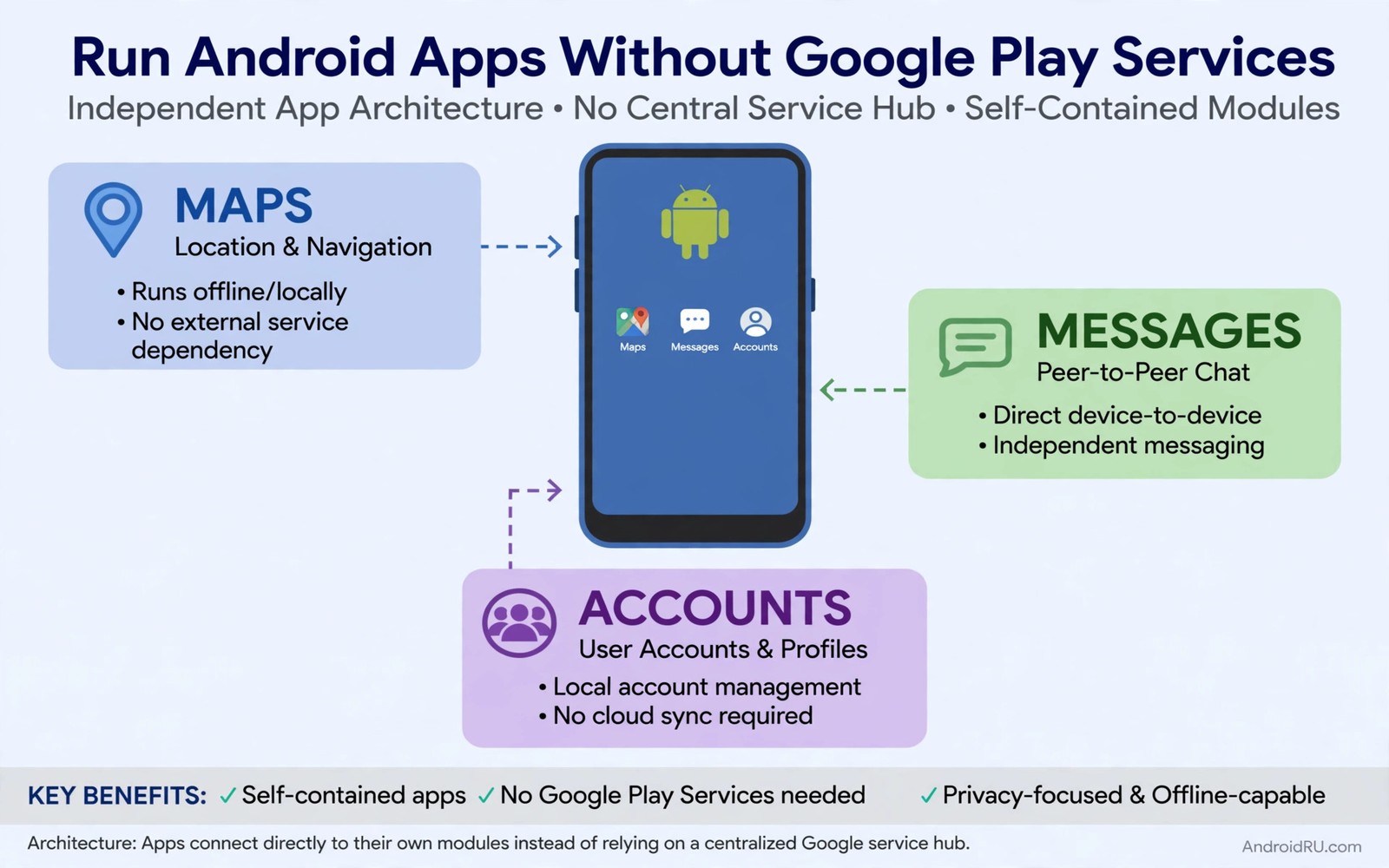
Many Android apps depend on Google Play Services for maps and push notifications and payments and account sign in. Phones without those services face a different app landscape. Some apps work fully without them. Others lose features. A few refuse to open. Running apps without Google services requires understanding those categories and choosing alternatives where needed.
Phones lack Google services for several reasons. Custom ROM users remove them for privacy. Some devices ship without Google apps due to regional rules. Test devices may run clean systems for development. Each reason leads to the same practical question. Which apps still work and how do you fill the gaps. This guide answers that question with concrete categories and workarounds.
Success without Google services starts with expectations. A phone without Google services is not a broken Google phone. It is a different platform with its own strengths. Privacy improves and background tracking drops. Some convenience features disappear. Accepting that tradeoff honestly leads to better choices than fighting it. Users who also use third party stores without Google services already accept part of that tradeoff.
Learn which apps need Google services
Apps need Google services for specific functions rather than as a general requirement. Mapping apps may need Google maps data. Messaging apps may need Google push for instant notifications. Payment apps may need Google safety checks. Games may need Google Play Games for achievements. Identifying the specific dependency helps you find a targeted workaround rather than abandoning the app entirely.
Test each important app on a phone without Google services before you commit to the setup. Install the app and try its core feature. Check notifications by sending yourself a test message. Check maps by opening a location view. A core feature test reveals dependency impact quickly. Apps that pass core tests are ready for daily use despite missing services.
Keep a list of apps by dependency level. Fully working apps need no workaround. Partially working apps need an alternative for one feature. Non working apps need a full replacement. That list guides your setup decisions and prevents repeated testing of the same apps after every change.
Use MicroG where it helps
MicroG provides open replacements for some Google service functions. It can supply location services and push notifications for apps that expect Google frameworks. MicroG does not replicate every Google service. It covers the most common functions that many apps need. That partial coverage is enough for many users to run a broad app set.
Installing MicroG requires a system that supports signature spoofing or a compatible ROM. That requirement limits MicroG to users comfortable with custom ROM setup. Check your ROM documentation before attempting MicroG install. A ROM without proper support will not run MicroG reliably no matter how carefully you follow generic guides.
Test MicroG impact app by app rather than assuming it fixes everything. Some apps work better with MicroG while others show no change. A few apps may behave worse due to partial service responses. Keep MicroG only when your important apps measurably improve with it. Remove it when it adds complexity without benefit.
Find alternatives for maps and location
Mapping is one of the hardest gaps without Google services. Open mapping apps provide maps and navigation using community data. Those apps work offline with downloaded maps in many cases. Offline maps suit travel and rural use where network coverage is poor. Test an open mapping app in your own area before relying on it for navigation.
Location accuracy without Google location services may differ. Open location providers use different data sources. Accuracy in cities is usually good. Accuracy in rural areas may vary. Test location in places you visit often. A mapping alternative that works in your city may fail on a country road you travel weekly.
Keep a second mapping option for critical trips. A web map in a browser can serve as a backup when an app fails. Browser maps need network access but they avoid app dependencies. A backup plan prevents a single app failure from ruining a journey.
Handle push notifications without Google push
Push notifications without Google push depend on each app own notification system. Some apps poll servers periodically and deliver messages with a delay. Others use alternative push frameworks. Delay tolerance matters here. A messaging app with a five minute delay may still suit casual chats. It may not suit urgent work messages.
Adjust battery settings to allow background polling for important apps. Aggressive battery optimisation can kill polling and delay messages further. Whitelist important messaging apps from battery restrictions when you need timely delivery. That setting trades some battery life for notification reliability. The tradeoff is worthwhile for apps where messages matter.
Test notification delivery over several days rather than once. Polling behaviour varies with network conditions and battery state. A single successful test does not prove reliable delivery. Multi day testing reveals patterns such as overnight delays or delays when the phone sleeps. Use those patterns to set expectations for each app.
adb shell pm list packages | grep -i gms
adb shell dumpsys package messaging.app | grep version
adb shell cmd appops get messaging.app RUN_IN_BACKGROUND
The code block above uses the standard Android Debug Bridge command pattern to check for Google service packages and confirm background behaviour for messaging. It is included so you can check for Google service packages and confirm background behaviour for a messaging app.
Manage accounts and payments without Google sign in
Account sign in without Google means using email and password or other identity providers for each app. That approach increases password management work. Use a password manager to handle many separate logins securely. A password manager becomes essential on a phone without Google sign in because single sign on convenience disappears.
Payments without Google Pay require alternative payment apps or direct card entry per service. Some services support other payment platforms that work without Google services. Others require Google Pay and will not work fully. Check payment options before you depend on a service for purchases. A service that cannot accept payment without Google Pay is a hard limit rather than a workaround problem.
Keep payment apps to a minimum on a phone without Google services. Each payment app adds security responsibility. Use payment only through services you trust and need regularly. Avoid storing card details in many apps when one trusted app covers most purchases.
Keep the setup maintainable
A phone without Google services needs more manual maintenance than a standard phone. Updates come through alternative stores. Backups need local or alternative cloud solutions. Notification settings need periodic review. Accept that maintenance as part of the privacy benefit. A monthly maintenance hour keeps the setup healthy without daily effort.
Document your setup in a short note. List stores and mapping apps and messaging workarounds and MicroG status. That note helps you rebuild the setup after a phone change. It also helps you explain the setup to others who ask why certain apps behave differently. Documentation turns a complex setup into a repeatable system.
Review the setup quarterly for new alternatives. Open source apps improve quickly and new workarounds appear regularly. A quarterly review may reveal that an app you abandoned now works without Google services. Staying current with alternatives reduces the gap over time. The platform without Google services improves steadily for patient users.
Test the setup before a trip
Travel exposes gaps in a phone without Google services more than daily use does. Maps and translation and transport apps matter more on a trip. Test those apps in advance with offline data downloaded. That preparation prevents a mapping failure in an unfamiliar city. A trip test is a practical stress test for the whole setup and it reveals which alternatives truly work under pressure.
Carry a backup device or a web access plan for critical travel tasks. A second phone with standard services can serve as a fallback for payments or transport booking when needed. That fallback does not defeat the privacy setup. It simply keeps critical tasks possible when alternatives fail far from home.
Common mistakes
The most common mistake is expecting every Google dependent app to work identically without services. That expectation leads to frustration and repeated failed installs. Categorise apps by dependency and accept partial function where it exists. Realistic expectations make the setup satisfying rather than disappointing.
Another mistake is installing MicroG without checking ROM support. Unsupported MicroG installs waste hours and create unstable behaviour. Check ROM documentation first. A supported ROM plus MicroG beats an unsupported ROM with forced MicroG every time.
A third mistake is ignoring battery settings for polling apps. Aggressive optimisation kills background polling and makes notifications unreliable. Whitelist important apps deliberately. Battery settings are part of notification reliability on this platform.
Frequently asked questions
Can I install Google Play Services later if I change my mind?
On many custom ROMs you can install a Google apps package later. On devices that shipped without Google services the process varies by device. Research your specific device before changing the setup. A backup before any major change protects you if the install fails.
Will banking apps work without Google services?
Some banking apps work while others check for Google services and safety features. Test your specific bank app on a secondary device first. Do not depend on a banking app that behaves inconsistently for daily money tasks.
Do I lose app purchases without Google services?
Purchases tied to a Google account remain in that account. You can access them again when you sign in through a compatible client or on a Google device. Purchases are not lost by using a phone without services temporarily.
Conclusion
Running Android apps without Google Play Services works when you categorise dependencies and use targeted alternatives for maps and notifications and accounts. Privacy gains come with maintenance costs that honest planning can manage. Your concrete next step is to list your ten most important apps today and test each one for core function on a setup without Google services. Keep the apps that pass and find alternatives for the rest before you switch your main phone. Related setup help includes Aurora Store without Google login and Play Store alternatives and the F-Droid guide.

