

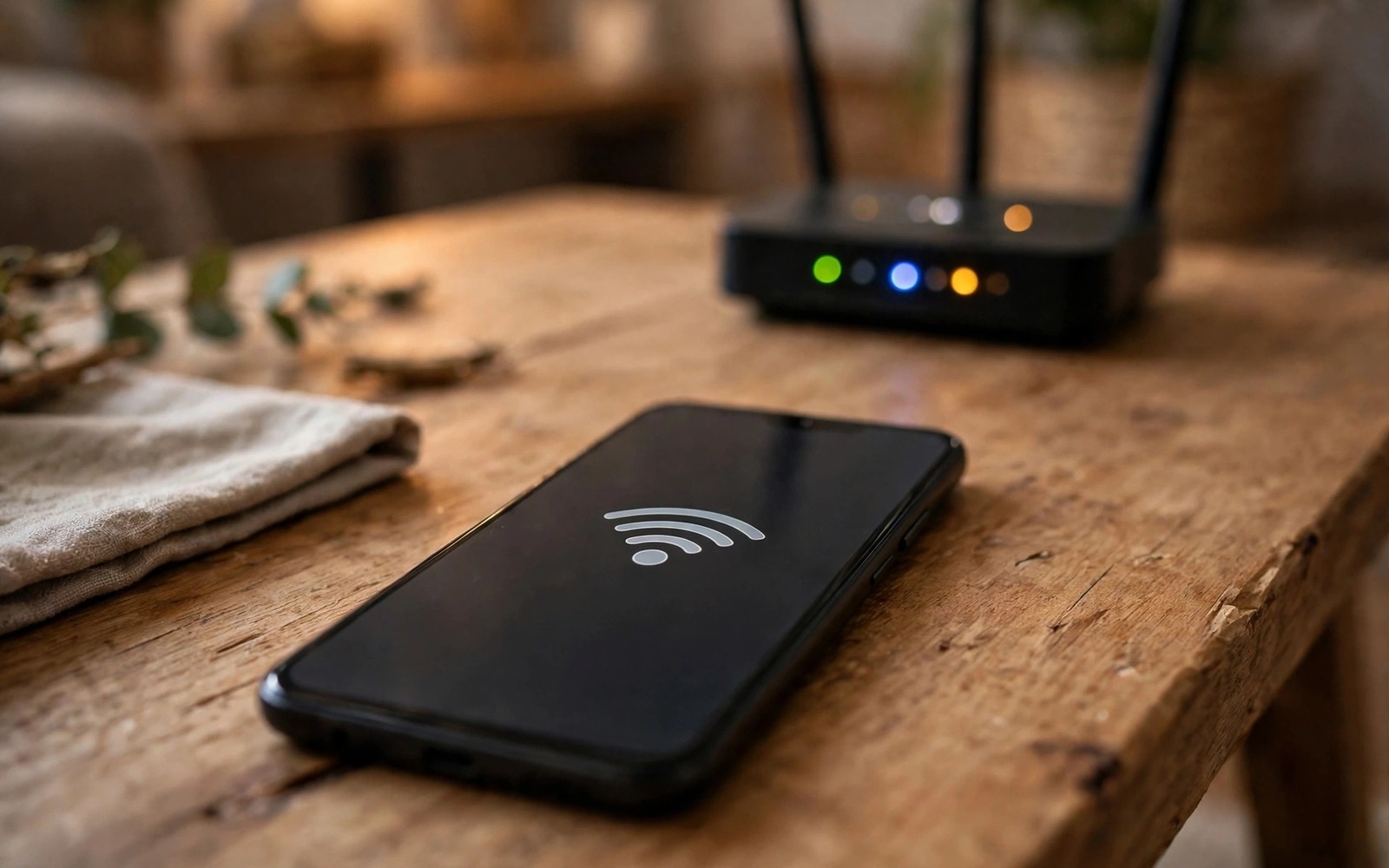
Wi-Fi connected but no internet is one of the most misleading phone errors. The Wi-Fi icon looks healthy. The signal bars look strong. Nothing loads. The fault can sit in your phone or your router or your internet provider. A fast sequence of tests tells you which one in minutes. This guide gives you that sequence from the quickest phone toggles to router and DNS fixes.
Start by checking whether other devices share the fault. Open a browser on a laptop or another phone on the same Wi-Fi network. If every device fails then the router or the provider is the fault. Your phone needs no fixing. If only your phone fails then the fault sits in your phone settings or its Wi-Fi hardware. That single comparison saves you from resetting a healthy phone for a router problem.
Also check whether mobile data works while Wi-Fi fails. Turn Wi-Fi off briefly and load a web page on mobile data. Working mobile data proves your phone apps and accounts work fine. The fault then narrows to the Wi-Fi path alone. That narrow result guides every later step in this guide.
Instant Phone Toggles That Fix Most Cases
Toggle Wi-Fi off and on from quick settings. Wait ten seconds between off and on so the radio fully resets. Reconnect and test a web page. Next toggle airplane mode on for fifteen seconds and then off. Airplane mode resets all radios together including Wi-Fi and mobile data. That combined reset clears stuck radio states that a Wi-Fi toggle alone misses. Test again after airplane mode ends.
Restart the phone if toggles fail. A full restart clears stuck network services and renews the Wi-Fi connection cleanly. After restart connect to Wi-Fi and test before opening other apps. A background app that hogs the connection can mimic a network fault. Testing immediately after restart isolates the network from app interference. If the web loads after restart then a background app or a stuck service was the cause.
Forget the network and reconnect as the next instant fix. Open Settings and then Wi-Fi and then tap the network name and then Forget. Reconnect by entering the password again. Forgetting clears a corrupted saved configuration including a stale IP address or a wrong security setting. A fresh connection negotiates clean settings from the router. Keep the Wi-Fi password handy before forgetting. Losing it mid fix creates a new problem.
IP Address And DNS Fixes
A phone can connect to Wi-Fi yet receive no valid IP address. That state shows as connected without internet access. Open Wi-Fi settings and tap the network name to view IP details. A valid home IP usually starts with 192 or 10 or 172. An address starting with 169 means the phone failed to obtain an address from the router. Forgetting and reconnecting often fixes that failure. Restarting the router fixes it when many devices show the same 169 pattern.
Switch IP settings from static to DHCP if someone set a static address manually. A static address that clashes with another device blocks internet access completely. DHCP lets the router assign a fresh valid address automatically. Most home users should use DHCP always. Only advanced users with a reason should use static addresses. Check this setting in the advanced Wi-Fi options for the network.
DNS faults form another common cause. DNS translates web names into addresses. A faulty DNS server lets the phone connect yet fail to load any named site. Change DNS to a well known public DNS in the private DNS setting or in the advanced Wi-Fi options where your phone allows it. Test a web page after changing DNS. If pages load at once then the old DNS server was the fault. Keep the working DNS setting and note it for future reference.
Router And Provider Checks
Restart the router by unplugging it for thirty seconds and plugging it back in. Wait two minutes for it to fully reconnect to the provider. Test your phone again after the router lights settle. Router restarts fix a huge share of connected without internet faults because routers accumulate stale states over weeks. A scheduled weekly router restart prevents many repeat faults. Do not reset the router to factory defaults unless the restart fails and you hold the provider settings.
Check the router lights and the provider status page on mobile data. A red internet light on the router points to a provider fault or a line fault. A provider outage page confirms a wider fault that no phone fix can solve. Wait for provider restoration in that case. Calling support early with the router light status speeds diagnosis. Tell support whether other devices fail too. That detail prevents a long phone troubleshooting script for a line fault.
Test a different Wi-Fi network if possible. A neighbour network with permission or a café network gives a clean comparison. If your phone works elsewhere then your home router configuration is the fault. Check router settings for MAC filtering or a device block list or a parental schedule that blocks your phone. A blocked device connects to Wi-Fi yet receives no internet by design. Router admin pages show block lists clearly. Remove an accidental block and test again.
Advanced Phone Fixes When Basics Fail
Reset network settings as the stronger phone fix. Open Settings and then System and then Reset options and then Reset Wi-Fi mobile and Bluetooth. This step forgets all saved networks and Bluetooth pairings. It does not erase apps or photos. Reconnect to your home Wi-Fi after the reset and test. Network resets clear corrupted configurations that forget and reconnect cannot reach. Keep all Wi-Fi passwords handy before resetting.
Check for a VPN or a private DNS app that interferes with Wi-Fi. Disable any VPN temporarily and test. A VPN server outage can block all internet while Wi-Fi looks connected. A private DNS app with a dead server behaves the same way. Disable one tool at a time and test after each change. That isolation identifies the culprit without guessing. Re-enable tools one by one after the fault clears.
Boot into safe mode if faults persist across networks. Safe mode disables third party apps. If Wi-Fi internet works in safe mode then a third party app interferes with networking. Restart normally and uninstall recently installed network tools one by one. Firewall apps and cleaner apps and aggressive battery apps often cause this pattern. Removing the culprit restores normal Wi-Fi without a factory reset. For mobile data faults that accompany Wi-Fi faults read how to resolve mobile data dropping faults and for hotspot faults read seven solutions for hotspot disconnects.
test_other_devices = true
toggle_airplane_seconds = 15
forget_network = true
restart_router_seconds = 30
# check IP for 169 pattern first
# change DNS only after router restart fails
The snippet above is an original example written for this guide. It shows generic network notes you can adapt to your own home. It does not copy code from any outside source.
Use the notes in order and test after each step. Other device testing comes first because it decides whether your phone needs fixing at all. Router restart comes before advanced phone resets because routers cause most shared faults.
Captive portals cause a special form of connected without internet. Hotels and airports and cafés redirect the first web request to a login page. A phone that blocks that redirect can show connected without internet forever. Open a browser and try loading a plain web address manually when on a public network. The portal page should appear. Complete the login or accept terms and test again. A VPN running during portal login can block the redirect entirely. Disable the VPN until after portal acceptance on public networks.
IPv6 configuration faults can also mimic a dead connection on some networks. A router that advertises IPv6 badly can stall apps that prefer IPv6 addresses. Disabling IPv6 on the router or switching the phone network to a simpler configuration sometimes restores loading instantly. Most home users never need to touch IPv6 settings. Treat this step as a router level diagnostic only after phone fixes fail. Note the original router setting before changing it so you can restore it.
Router firmware updates fix many recurring connected without internet faults. Old firmware can leak memory and drop routing tables after weeks of uptime. Check the router admin page for a firmware update on a working connection. Install updates during a quiet hour because the router restarts during the process. After updating test every device again. A router that still fails after a firmware update and a factory reset with provider settings re-entered likely needs replacement rather than another phone fix.
Common Mistakes
Many users factory reset a phone for a router fault. A second mistake is forgetting a network without noting the password. A third mistake is resetting the router to factory defaults instead of a simple restart. A fourth mistake is ignoring a VPN outage that blocks all traffic.
A fifth mistake is using a static IP address without need. A sixth mistake is testing only one device and assuming the phone is at fault. Each mistake wastes time and can create new faults. The comparison tests above avoid all six.
Frequently Asked Questions
Question: Why does Wi-Fi show connected with no internet?
Answer: Connection to the router differs from connection to the internet. Your phone can reach the router while the router cannot reach the provider. It can also hold a bad IP address or a dead DNS server while staying connected.
Question: Will forgetting the network delete anything important?
Answer: No. Forgetting removes only the saved Wi-Fi configuration. Your apps and photos stay safe. You only need the Wi-Fi password to reconnect.
Question: How often should I restart my router?
Answer: A restart every few weeks prevents stale state faults. A weekly restart suits busy homes with many devices. Restarting daily is unnecessary unless faults recur that often.
Conclusion
Wi-Fi connected without internet usually yields to comparison testing and toggles and a router restart. Check other devices first. Toggle Wi-Fi and airplane mode. Forget and reconnect. Restart the router. Check IP and DNS. Reset network settings only if basics fail. Your concrete next step is to test another device on the same network right now. If it fails too then restart your router for thirty seconds unplugged. If only your phone fails then forget the network and reconnect with a fresh password entry. For related connectivity faults read how to fix Bluetooth pairing drops and how to fix delayed notifications.

