

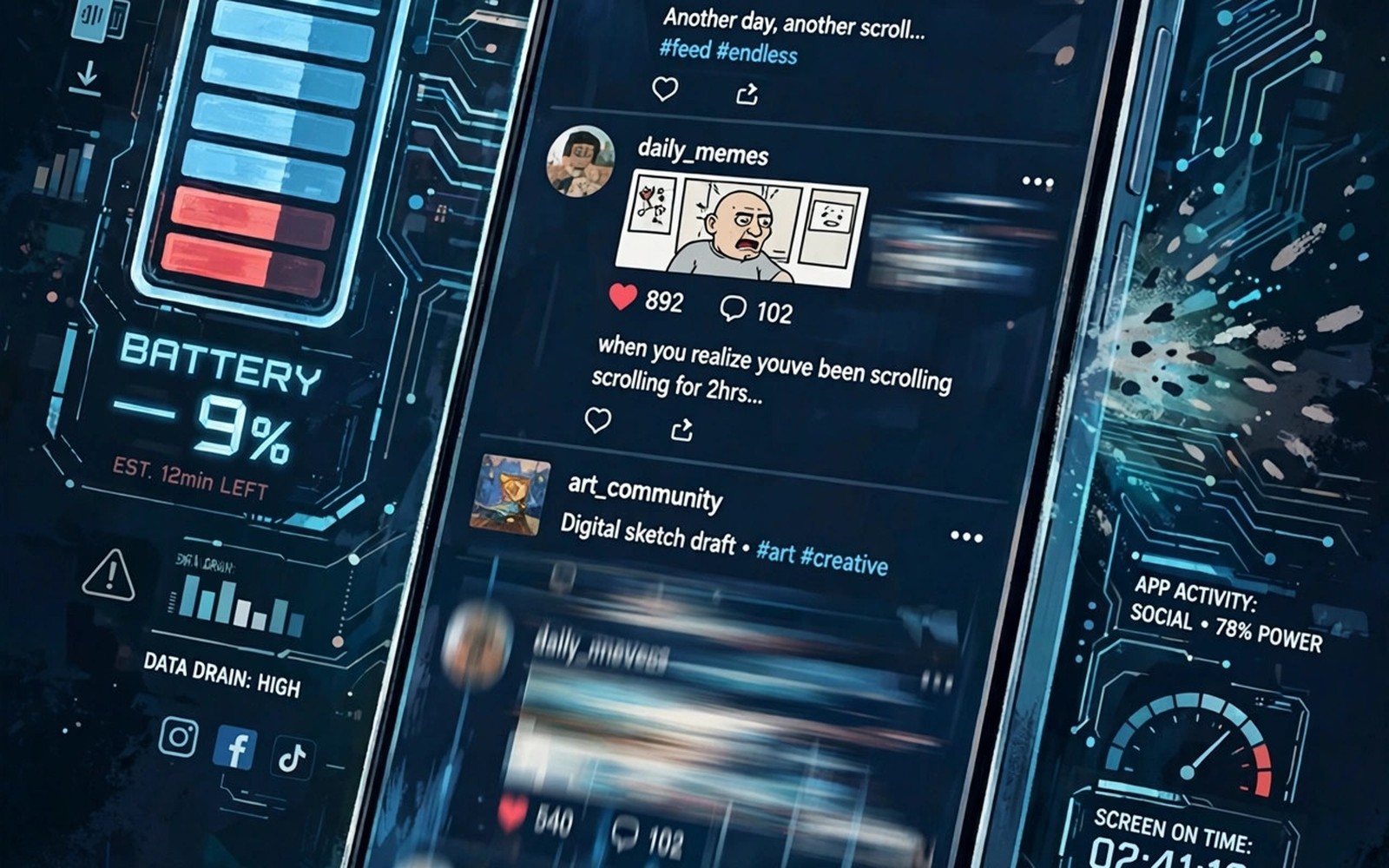
Social apps feel light because they open fast. Behind that speed they sync and preload and track constantly. That hidden work explains social media battery data consumption on many phones. This guide shows how to measure drain per app. You will learn settings that cut waste while keeping the features you love.
Start by checking battery usage for the past 24 hours in settings. Note the top three social apps by percentage. Also check managing notification overload from social networking apps because notifications trigger wakeups too. Measure before you change anything. A baseline makes every fix measurable.
Why social apps drain more than they look
Social apps preload videos as you scroll. That preload uses data and processor power even for videos you skip. Autoplay is the biggest hidden cost in feeds. Each preloaded video wakes the radio and the decoder. A ten minute scroll session can preload far more video than you watch.
Background sync adds a second cost. Apps check for new posts and messages on a schedule. Location checks and contact sync add further wakeups. Each wakeup is small alone. Hundreds of wakeups per day add up to visible battery loss. That is why a social app can top battery charts without long screen time.
Measuring drain per app honestly
Use Android battery settings for per app percentages. Compare screen time against background time for each app. High background time with low screen time signals wasteful sync. Check data usage per app in network settings as well. Compare mobile data against Wi-Fi data separately.
Test one change at a time for a full day. Changing five settings at once hides which fix worked. Note battery at the same time each evening. Keep usage patterns similar across test days. Travel days with weak signal skew results and should be excluded.
Feed settings that cut waste fast
Turn off video autoplay or set it to Wi-Fi only. That single change cuts data sharply for feed scrollers. Lower video quality in app settings where offered. Disable auto download of media in messaging linked social apps. Those media downloads fill storage and burn data silently.
Limit background data for the worst offenders. Android lets you restrict background data per app. That restriction may delay notifications slightly. Keep it off for messaging apps you need instantly. Apply it to feed only apps first. Also read managing permissions for camera and microphone in social apps for background permission waste.
Notifications and wakeups
Every notification wakes the screen and the processor. Like notifications are the worst value per wakeup. They rarely need instant action. Turn off like and suggestion notifications entirely. Keep direct messages and mentions on for real conversations.
Batch notifications where your phone allows it. A digest at set times replaces constant buzzes. That batching also batches radio wakeups. Fewer wakeups mean less battery drain and less distraction. It is a rare win for both focus and power.
Network conditions and drain
Weak signal drains battery faster than any app setting. The radio boosts power to hold a weak connection. Social apps that retry uploads on weak signal worsen the effect. Pause large uploads until signal improves. Upload on Wi-Fi for videos longer than a minute.
Roaming and crowded events create similar strain. Stadiums and conferences overload local cells. Your phone retries constantly in those crowds. Switch to offline reading or airplane mode with Wi-Fi during events. That choice saves battery and frustration together.
Long term habits for lighter social use
Move social apps off the home screen to reduce idle opening. Each idle open triggers preload and sync. Use mobile web versions for feed only browsing when possible. Web versions often use less background sync than native apps.
Review installed social apps quarterly. Uninstall apps you open less than weekly. Also check best apps for creating engaging Reels Shorts and TikTok videos if creation drives your usage. Creation apps deserve more data budget than passive feed apps. Budget data by purpose and not by habit.
adb shell dumpsys batterystats --reset
adb shell dumpsys batterystats | grep -i -A 3 'instagram'
These commands follow the standard Android developer reference pattern for reading battery statistics. They only read data and they change nothing on the phone.
A week long battery and data experiment
Day one establishes your baseline without any changes. Note battery percentage at morning and evening. Note data usage per social app in settings. Use the phone normally and avoid unusual travel. That baseline day is essential for honest comparison. Without it every later change looks either miraculous or useless. Record the numbers in a notes app with the date. A written baseline beats memory every time. Repeat baseline measurement if day one includes unusual travel or events.
Days two and three test autoplay changes alone. Set video autoplay to Wi-Fi only in your top two social apps. Keep all other settings unchanged. Note battery and data at the same times as baseline day. Compare results directly. Most users see a clear data drop within two days. Battery gains appear more slowly because other factors vary daily. Do not change notification settings during this phase. Isolating one variable proves which change actually helped. That discipline separates real fixes from placebo tweaks.
Days four and five test notification changes alone on top of autoplay. Turn off like and recommendation notifications. Keep direct messages on. Note battery and data again at the same times. Compare against days two and three. Notification gains show mainly as fewer wakeups and less distraction. Battery gains may be modest but focus gains are large. Days six and seven test background data restriction for feed apps. That final phase completes the experiment. Keep the winning combination as your permanent setup afterwards.
Social app settings worth checking quarterly
Review auto download settings every three months. Apps add new auto download features in updates. A feature that was off can turn on after a major update. Check photo and video auto download per chat type. Set videos to Wi-Fi only as a standing rule. Set photos to Wi-Fi only if data is tight. That quarterly check catches silent default changes early. It takes five minutes per app and saves data all quarter. Add the check to a calendar reminder so it actually happens.
Review background permissions and sync settings quarterly as well. An app that gained background location access may drain battery silently. Revoke background access for apps that do not need it. Check data usage rankings for new entrants to the top list. A newly popular app may have replaced an old drain source. Investigate any app that jumps into the top three unexpectedly. That investigation often reveals a new autoplay or sync feature. Quarterly reviews keep the system tuned as apps evolve.
Review installed apps quarterly for value versus cost. Uninstall social apps you opened less than five times in the quarter. Each installed app can sync and update in the background. Fewer apps mean fewer wakeups and simpler management. Keep only apps that earn their battery and data cost. That ruthless standard sounds harsh. It actually frees attention for apps you truly enjoy. A smaller app set with better settings beats a large app set with constant drain.
Your battery and data saving checklist
Apply this checklist to cut social app waste in one week. First record battery and data baselines for each social app over one normal day. Second set video autoplay to Wi-Fi only in every feed app. Third lower video quality settings where apps offer that option. Fourth turn off like and recommendation notifications entirely. Fifth keep direct message notifications on for messengers you need instantly. Sixth restrict background data for feed only apps while keeping messengers unrestricted. Seventh turn off background location access for social apps that do not need it. Eighth pause cloud uploads during important calls and during weak signal. Ninth move social apps off the home screen to reduce idle opening. Tenth review battery and data again after one week at the same time of day. Eleventh uninstall any app you opened less than five times during the week. Twelfth set a quarterly reminder to repeat the checklist after app updates. A phone that passes this checklist lasts longer between charges and uses less mobile data. Those gains appear gradually rather than overnight. Gradual gains still matter because they accumulate every day. A ten percent daily saving equals many hours over a month. Focus improves alongside battery because fewer notifications interrupt work. That combined benefit makes the checklist worth the initial effort. Keep the winning settings as your permanent baseline and resist re enabling wasteful defaults casually.
Common mistakes
Blaming one app without measuring wastes effort. Check battery and data stats first. Turning off all background data breaks messaging apps you need. Restrict feed apps first and keep messengers instant. Leaving autoplay on while complaining about data is contradictory. Set autoplay to Wi-Fi only at minimum.
Testing on a travel day skews results badly. Weak signal alone can double drain. Compare similar days only. Forgetting to check background time hides sync waste. An app with low screen time can still drain heavily in background.
Installing battery saver apps that run constantly can worsen drain. Use built in Android tools instead. They measure accurately without adding another background process.
Frequently asked questions
Which social app drains battery most?
It varies by user habits and feed style. Video heavy apps usually drain more than text apps. Check your own battery settings for a personal answer. Generic rankings ignore how you actually use each app.
Does dark mode save battery on social apps?
Yes on OLED screens dark mode can save noticeable power. LCD screens gain little from dark mode. Use dark mode for comfort regardless. Treat it as a bonus and not as the main fix.
Will restricting background data break messages?
It can delay messages for restricted apps. Keep messengers unrestricted for instant delivery. Restrict feed only apps where delay is harmless. Test for a day before you restrict a work critical app.
Conclusion
Social drain comes from preload and sync and wakeups combined. Measure per app before you fix anything. Turn off autoplay and like notifications first. Restrict background data for feed apps. Manage uploads by network quality. Review habits quarterly to keep gains.
Your concrete next step is to set video autoplay to Wi-Fi only in your top social app today. Then turn off like notifications in the same app. Check battery percentage at the same time tomorrow to measure the gain.

