

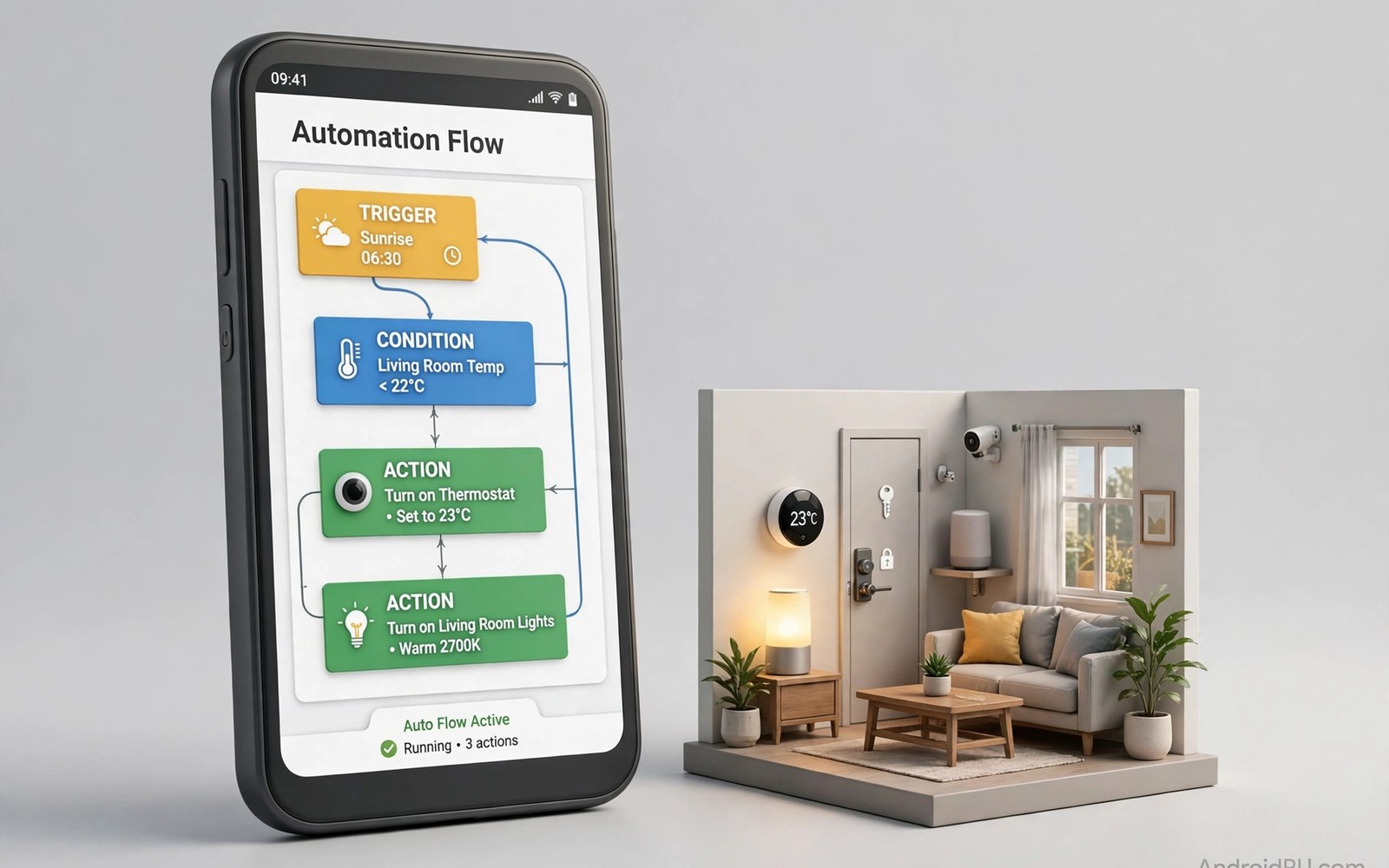
How automation apps like Tasker and MacroDroid boost efficiency comes down to one idea and that idea is rules that run themselves. A rule can silence a phone at work and turn on Wi-Fi at home and send a message at a set time. This article shows practical automation that saves daily taps without turning a phone into a fragile machine.
Many people avoid automation because the first setup looks complex. A single simple rule can prove the value in one day and complex rules can wait until that first rule feels natural. Start with a rule that fixes a daily annoyance rather than with a grand system.
Start by listing three repeated phone tasks that you do the same way every day. Volume changes and Wi-Fi toggles and message routines top most lists. A repeated task with a clear trigger is a perfect first automation candidate. A closer look at keyboard apps with text expansion can help you compare daily tools before you commit to one setup.
What matters most
A trigger must be reliable or the rule will feel random and untrustworthy. Location and time and Wi-Fi connection make strong triggers for daily routines. A trigger based on a rare event will rarely fire and it will teach you to ignore automation.
An action must be safe to run without confirmation for everyday rules. Volume and brightness and Wi-Fi changes are safe actions for automatic runs. Actions that send messages or delete files deserve a confirmation step or a narrow trigger.
A rule needs a clear exit condition so it does not stay active past its purpose. A work silence rule should end when work hours end or when you leave the office. A rule without an exit will create a new annoyance that replaces the old one.
How to choose the right setup
Tasker suits users who want deep control and many triggers and complex logic. MacroDroid suits users who want a simpler interface with templates for common rules. Both apps can handle daily routines well and the choice depends on comfort with complexity.
Templates help beginners start fast with proven rules for common needs. A template for night mode or driving mode or work mode covers most first uses. Customise a template after a week of use rather than building from scratch on day one.
Battery optimisation can kill automation apps in the background on many phones. An automation app needs an exemption from battery limits to run rules on time. Check battery settings after install and after every system update.
A practical daily routine
Start the day with a rule that sets volume and brightness for morning work. A morning rule removes five manual taps and it sets a calm tone for the day. A rule that runs at the same time daily will feel invisible within a week. A related look at mind-mapping apps can show how a second tool fits the same workday without adding clutter.
Use a location rule to switch profiles when you arrive at work or at home. A work profile can silence social apps and a home profile can restore normal alerts. Location rules work best when the location radius is wide enough to avoid flicker at the edge.
End the day with a rule that enables do not disturb and lowers brightness at bedtime. A bedtime rule protects sleep from late alerts and bright screens. A consistent bedtime rule also trains the phone to match a healthy routine.
Costs and privacy and limits
Automation apps usually cost a one time purchase or a modest subscription. A paid automation app can save hours over a year when rules run daily. Free automation tools may limit rules or triggers that serious users need.
Automation apps need broad permissions to control settings and notifications. A permission granted to a trusted automation app still deserves review. Check permissions after install and remove any permission that a rule does not actually use.
The hidden cost of automation is maintenance when apps and system updates change behaviour. A rule that worked for a year can break after one update. Review rules monthly and delete rules that no longer match daily life.
A useful example
A quick service check confirms whether an automation app is installed and running. The commands below list automation packages and check notification listener access. Use the same check when a rule stops firing after an update.
adb shell dumpsys activity services | grep -i tasker
adb shell pm list packages | grep -E "tasker|macrodroid"
adb shell settings get secure enabled_notification_listeners
This service check pattern follows the approach described in the official Android developer documentation for listing services and notification access. The same documentation explains how automation apps request access to system events.
What to check after a week
After a week check whether each rule fired at the right time and in the right place. A rule that fires late or early needs a wider location radius or a different trigger. Logs inside the automation app show firing history for each rule.
After a week check battery use for the automation app itself. An automation app that drains battery has a rule checking too often. Lengthen check intervals for location and time rules to reduce battery cost. A practical look at email client apps can help you judge whether your current setup still earns its place on your phone.
After a week check whether any rule created a new annoyance. A silence rule that stays on after work needs a better exit condition. Fix the exit first because a bad exit destroys trust in automation fast.
Deeper checks for careful users
Variables let one rule adapt to context such as time of day or battery level. A rule that dims the screen only when battery is low saves power without bothering a charged phone. Variables add power but they also add testing needs before daily use.
Multiple triggers can combine into a rule that fires only when all conditions hold. A rule that needs both work location and work hours will avoid false fires on weekends. Combined triggers reduce surprises and they make rules feel smarter.
Backup rules before a phone change or a major update to avoid rebuilding from scratch. An exported rule file can restore a whole setup in minutes. Test the backup on a second profile before you rely on it.
Making the choice stick
An automation habit sticks when the first rule solves a daily annoyance visibly. Choose a rule such as silencing the phone at work because the benefit is obvious each day. A rule with an invisible benefit will feel like extra work. A visible benefit will motivate a second rule within weeks. Keep the first rule simple and let success build confidence.
A rule library needs names that explain the trigger and the action at a glance. Name a rule work silence weekdays rather than rule one. A clear name helps you find and fix a rule months later. A vague name will confuse you during troubleshooting. Rename rules when their purpose changes rather than keeping old names.
Testing a rule needs a safe time window rather than during an important meeting. Test a new silence rule on a quiet evening first. A rule tested during a meeting could silence an urgent call. A safe test window reveals trigger problems without real consequences. Move a rule to daily use only after a safe test passes.
Automation and battery settings need a check after every system update. An update can reset battery exemptions and kill background rules. A rule that stops after an update often needs only a battery setting fix. Check the automation app log after each update for missed firings. A quick log check will catch most update problems early.
A rule that sends messages needs a confirmation step or a very narrow trigger. A message sent by mistake can embarrass you or confuse a contact. A confirmation for message actions protects against false triggers. A narrow trigger such as a specific time and location also reduces risk. Use both protections for any rule that contacts other people.
Automation earns a permanent place when rules run quietly for a month without fixes. Track rule firings weekly and note any rule that needed manual help. A rule that needs weekly fixes should be simplified or deleted. A quiet rule library will feel like a helpful assistant rather than a fragile machine. Keep only rules that run quietly and delete the rest.
A week of practice
Day one of practice should create one simple rule for a daily annoyance such as work silence. Test the rule in a safe window and check its log after firing. A rule that fires correctly on day one will build trust fast. A rule that fires late shows a trigger problem to fix. Fix the trigger before adding a second rule.
Day three of practice should test the rule exit condition carefully. Check that work silence ends at the right time or location. An exit that works proves the rule is safe for daily use. An exit that fails will create a new annoyance. Fix the exit first because a bad exit destroys trust in automation.
Day five of practice should check battery use for the automation app after several days. A low battery cost proves check intervals are well tuned. A high battery cost shows a rule checking too often. Lengthen intervals for location rules and use time triggers where possible. A well tuned app should cost little battery each day.
Day seven of practice should review rule logs and count rules that ran without manual help. A rule library that ran quietly for a week deserves a second rule. A rule that needed weekly fixes should be simplified or deleted. Add a second rule only when the first rule ran without surprises. Decide on evidence and grow automation slowly.
Common mistakes
Most automation failures come from rules that are too broad or too fragile. The list below names the mistakes that break trust in automation fastest.
- Building a grand system before one simple rule proves useful.
- Using a rare trigger that almost never fires reliably.
- Creating a rule with no exit condition for work or night modes.
- Allowing message or delete actions without a confirmation step.
- Forgetting a battery exemption so rules stop after an update.
- Keeping rules that no longer match daily life for months.
Each mistake above is easy to avoid with one simple rule and a weekly log check. Automation that runs quietly will earn trust over time. Keep rules that save daily taps and delete rules that create new work.
Frequently asked questions
Is Tasker better than MacroDroid for beginners?
MacroDroid suits beginners better because templates and a simpler interface speed the first rules. Tasker suits users who want deeper control and complex logic. Start with the simpler app and move only when a real limit appears.
Can automation drain my Android battery?
Automation can drain battery when rules check location or sensors too often. Lengthen check intervals and use time and Wi-Fi triggers where possible. A well tuned automation app should cost little battery each day.
Do automation apps need root access?
Most daily automation works without root on modern Android. Some deep system actions may need extra permissions or root on certain phones. Start with non root rules and add advanced actions only when a real need appears.
Conclusion and next step
Automation works when triggers are reliable and actions are safe and exits are clear. One simple rule that saves daily taps will prove value faster than a complex system. Build slowly and let each rule earn its place by running quietly.
Your concrete next step is to create one rule today for a daily annoyance such as work silence or bedtime mode. Test it for seven days and check its log each evening. Add a second rule only when the first rule runs without surprises.

