

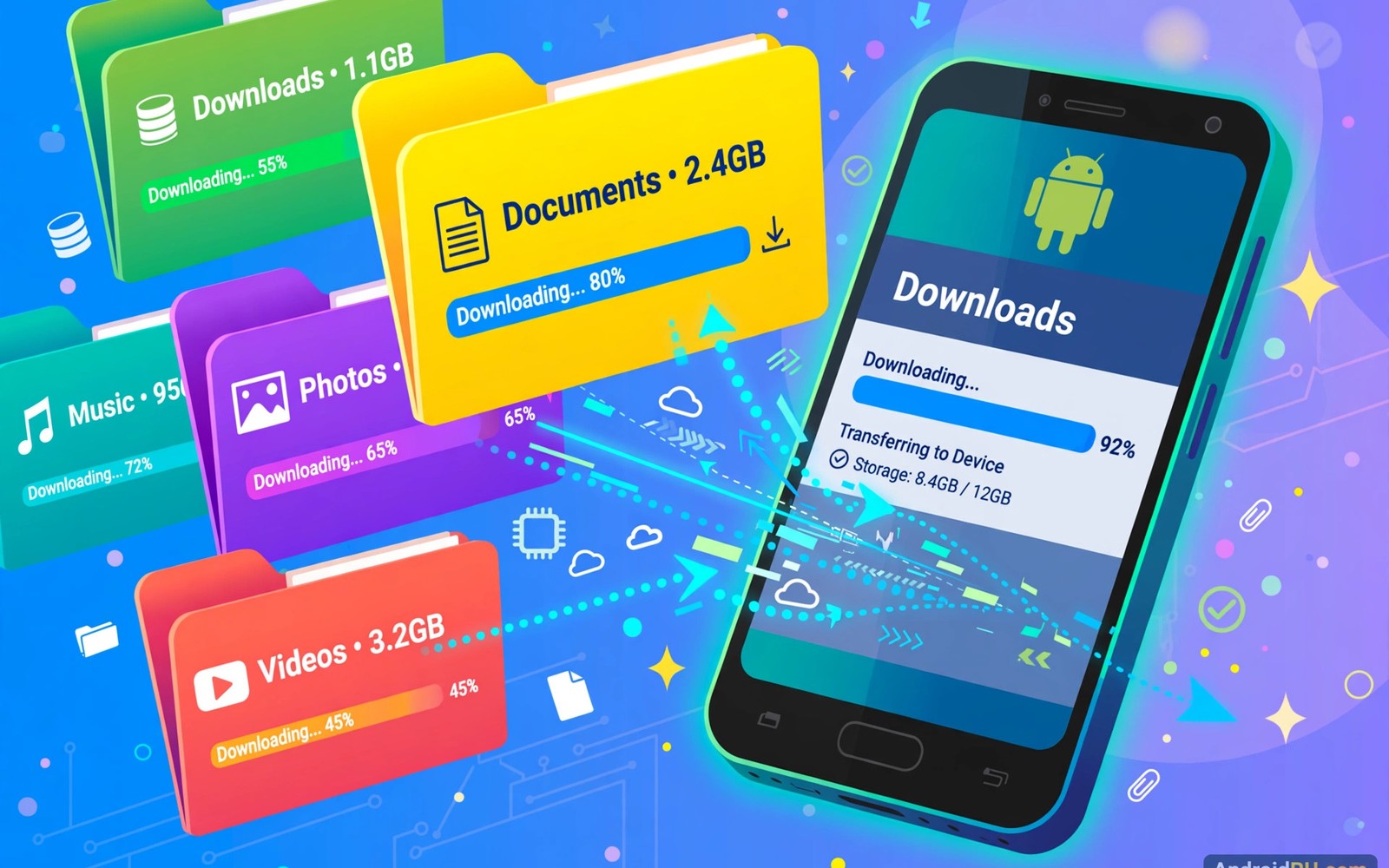
Best Android Tools for Managing Large Downloaded Files Easily
Large downloaded files solve a problem and create one. A big video, a game, or a document set can stall on a weak connection and fill storage without warning. A good download manager resumes broken downloads and organises finished files, and a good file manager keeps them findable afterwards. This guide shows how to handle big files calmly from download to archive, and names seven tools that make the job easy.
I learned this lesson downloading a 4 GB video course over a hotel connection that dropped every ten minutes. The browser restarted from zero each time, and after three hours I had nothing. A resume-capable manager finished the same file in forty minutes by retrying only the failed parts. The tool did not make the connection faster. It made the failure cheap. That is the whole point of a download manager.
Start with a resume-capable download manager that supports pause and resume for large files. Resume capability matters more than speed claims, because connections drop at the worst moment. Set a dedicated download folder so large files never scatter across storage. A planned folder beats a scattered download history every time.
How resume-capable download managers actually work
A resume-capable manager splits a large file into parts and retries a failed part without restarting the whole download. That design saves hours on slow networks. It also verifies the finished file size against the expected size, and a size match catches a truncated download before you rely on the file.
Schedule large downloads for Wi-Fi and overnight hours when the network is quiet. Scheduling avoids mobile data charges and reduces competition with daytime work. Set a notification for completion so a finished download never sits forgotten in a temp folder. Scheduled downloads feel effortless once configured, and they keep big files off your mobile data plan.
Storage and battery shape how well any app performs over time. Check storage use once a month and clear cached files that grow without adding value. A phone with free space runs smoother and updates install without errors. Owners who track device health can also use system monitoring apps for RAM and storage to watch storage during big downloads, because a download that fills the last free gigabyte can fail in confusing ways.
7 best Android tools for managing large downloaded files
These seven tools cover downloading, organising, verifying, and archiving large files. Each one includes what it does well, where it falls short, and who should use it.
1. 1DM+ (1DM Browser)
1DM+ is the most popular download manager on Android, and it handles large files with multi-part downloads, pause and resume, and speed control. It includes a built-in browser for grabbing files, supports torrent links, and lets you schedule downloads for off-peak hours. The manager shows progress per part, so you can see exactly which piece stalled.
Pros: reliable resume, multi-part speed, scheduling, and a built-in browser. Cons: the free version shows ads, and the interface is crowded with options. Verdict: the best all-round download manager for large files, and the first tool to install when downloads keep failing.
Who it is for
Anyone who downloads large files regularly and needs resume that actually works.
2. Advanced Download Manager (ADM)
ADM is a long-standing download manager with multi-threading, pause and resume, and background downloading that survives app restarts. It intercepts download links from the browser, organises files by type into folders, and handles large files without the memory problems that crash simpler managers. It also supports downloading from sites that need a login.
Pros: stable background downloads, link interception, and file organisation by type. Cons: the interface looks dated, and some advanced features need the paid version. Verdict: the most reliable manager for very large files on slow or unstable connections.
Who it is for
Users on slow or unstable networks who need downloads to survive interruptions.
3. Free Download Manager (FDM)
Free Download Manager for Android brings the desktop favourite to phones, with multi-part downloads, resume, and a clean interface. It handles large files well, supports downloads from cloud links, and includes a simple file browser for finished downloads. The app is free with no ads, which is rare in this category.
Pros: free with no ads, clean interface, and solid multi-part performance. Cons: fewer scheduling options than 1DM+, and torrent support is basic. Verdict: the best free download manager for users who want a clean experience without ads.
Who it is for
Users who want a free, ad-free manager with strong basics and no clutter.
4. Files by Google
Files by Google is not a download manager, but it is the best organiser for finished files. It finds large files, duplicates, and unused apps, shows storage by category, and cleans safely with one tap. Its share feature moves large files to nearby devices without data, which helps when a file is too big to send by message.
Pros: simple, free, excellent at finding large files, and safe cleanup suggestions. Cons: no download management, no resume, and no checksum tools. Verdict: the best companion app for organising and cleaning up after downloads.
Who it is for
Everyone, as a second tool alongside a real download manager.
5. MiXplorer Silver
MiXplorer Silver is a powerful file manager with built-in support for archives, cloud storage, and batch operations. It opens large archives, splits and joins files, and manages downloads from many sources in one place. Its tabbed interface suits power users who juggle several folders at once, and it handles files over 4 GB without trouble.
Pros: archive support, cloud integration, batch operations, and no ads. Cons: the interface is dense, and beginners may feel lost. Verdict: the best file manager for power users who treat large files as a daily job.
Who it is for
Power users who manage archives, cloud storage, and large files from one app.
6. Solid Explorer
Solid Explorer is a polished file manager with dual-pane navigation, cloud storage support, and a built-in archive tool. It makes moving large files between folders and cloud accounts simple, and its storage analyser shows which folders eat the most space. The Material Design interface is the cleanest in this list.
Pros: dual-pane navigation, clean design, cloud support, and a clear storage analyser. Cons: a two-week trial, then a paid upgrade. Verdict: the best-looking file manager for organising large files, worth the small price.
Who it is for
Users who want a beautiful, fast file manager for daily organisation.
7. Total Commander
Total Commander is a classic file manager with two panels, batch rename, archive support, and plugins for cloud storage and network shares. It is free with no ads, and it handles large files reliably, including copying files over 4 GB to external storage. Its plugin system adds FTP, LAN, and cloud access when you need it.
Pros: free with no ads, two-panel efficiency, and a deep plugin system. Cons: the interface is old-fashioned, and setup takes time. Verdict: the best free power file manager for users who value function over looks.
Who it is for
Users who want a free, powerful file manager and do not mind a classic interface.
Organise files by project, not by download date
Create a folder per project or trip and move finished downloads into it at once. A file left in the generic download folder becomes hard to find within weeks. Name files with date and topic at download time so search finds them later. Organisation at download time costs seconds and saves hours later.
Use tags or favourites inside the file manager for files you open often. A favourite shortcut beats repeated folder digging for a reference document. Review favourites monthly and remove files that lost relevance. A short favourites list stays useful, while a long one becomes another cluttered folder. A related saving comes from lightweight apps for small phones, which leave more room for the large files you actually need.
Keep the home screen focused on tools you open every day. Move seasonal or rare apps into a folder with a clear name. A focused home screen reduces taps and helps you reach the right tool without hunting. Try one change at a time when you rebuild your phone setup, and install two or three apps first and use them for real tasks before you add more.
Verify large files after download before you trust them
Large files deserve a quick integrity check before you delete the source or share the file. Compare file size and open the first and last sections of a video or document. A file that opens at both ends likely downloaded completely. For critical files, compare a checksum when the source provides one, because a checksum catches corruption that size alone misses.
You can check key details on your phone with simple commands from a computer. List the download folder with adb shell ls -lh /sdcard/Download, check sizes with adb shell du -sh /sdcard/Download/*, and verify a file against its published hash with sha256sum large-file.zip on a computer. Keep the original download until you confirm the file works in its target app. A video should play and a document should open without errors. Delete the source only after that check passes, because patience here prevents a second long download.
Notifications decide whether an app helps you or interrupts you all day. Keep alerts on for messages that need a fast reply and silence the rest. A quiet phone still delivers urgent news while it protects your focus. Set a reminder to revisit a new app after thirty days, because a month of use shows whether the app became a habit or a forgotten icon.
Move and archive big files to free storage
Move large files to cloud storage or an external drive when a project ends. Archiving frees phone storage while it preserves work for later. Label the archive with project name and date so retrieval stays simple, because an archive without labels is just another pile. Compress folders of many small files before archiving to reduce transfer time. Compression also creates a single file that is easier to verify and move. Keep an uncompressed copy of any file you edit often, because repeated compression wastes time.
Travellers can also prepare offline apps for travel for the same routine, so large files stay available without a connection. A backup turns a phone problem into a short delay instead of a lost week, so sync important notes and files to a cloud account you control and test the restore step once. A backup you never tested is only a hope and not a plan.
Review app settings after a major update, because updates sometimes reset a preference. A two-minute settings check after an update prevents silent changes to privacy or sync. Updates should improve an app and never surprise its owner, so turn on automatic updates for trusted apps and read the changelog when an update changes a feature you rely on.
Clean up safely without deleting files that still matter
Review the download folder monthly and delete installers, duplicates, and outdated versions. Delete in small batches and test the phone after each batch, because a careful cleanup protects files that still matter while it frees real space. Never bulk-delete a folder you have not inspected. Empty the trash or recycle bin inside file tools after a cleanup, because deleted files may still occupy storage until emptied. Check storage before and after to confirm the gain.
Permissions deserve a quick review before you trust a new app with daily work. Grant only the access the app truly needs for its main job and leave the rest off until a feature asks for it. You can change any permission later in system settings without losing your data. Large downloaded files are easier to manage when the apps handling them have only the permissions they need.
Test a new app with your real routine before you judge it. A demo on a quiet afternoon hides problems that appear during a busy commute or a low-battery day. Real use shows speed and reliability in a way that screenshots never can, so give every new tool a week of real tasks before you trust it with important work.
Common mistakes when managing large downloaded files
A common mistake is downloading large files over mobile data without a resume-capable manager. Another is leaving every download in one folder until storage fills. A third is deleting the source before verifying the downloaded file. Resume, organise, verify, and cleanup keeps the whole process painless.
Another mistake is keeping installer files after install. Delete installer files after a successful install and a short test period, and keep installers only for apps you may need offline soon. A simple home screen layout makes good apps easier to reach, so put daily tools on the first screen and move rarely used apps into folders. Fewer taps mean you finish tasks faster and you are less likely to open a distraction by accident.
Frequently asked questions about managing large downloaded files
What if a large download keeps failing?
Switch to a resume-capable manager like 1DM+ or ADM and download over stable Wi-Fi. Split downloads when the source offers parts, and retry only the failed part instead of starting over. If the connection is the problem, schedule the download for overnight when the network is quiet.
How much free space do large downloads need?
Keep at least twice the file size free during download when possible. Extra room covers temp files and extraction without errors. A download that fills the last free gigabyte can fail in confusing ways, so free space first and download second.
Should I keep installer files after install?
Delete installer files after a successful install and a short test period. Keep installers only for apps you may need offline soon, and clear the download folder monthly so old installers never reinstall a threat with one accidental tap.
How do I verify a downloaded file is complete?
Compare the file size with the source page, open the first and last sections of the file, and compare a checksum when the source provides one. A file that opens at both ends and matches its checksum is complete. Keep the original until the check passes.
Your next step: set up a download folder and a manager today
Your concrete next step is to set up a dedicated download folder and a resume-capable manager today. Download your next large file through that setup and verify it before you use it. One organised download proves the whole system. Start small, review your setup after one week of real use, keep what helped and remove what did not, and your phone will stay fast and useful.

