

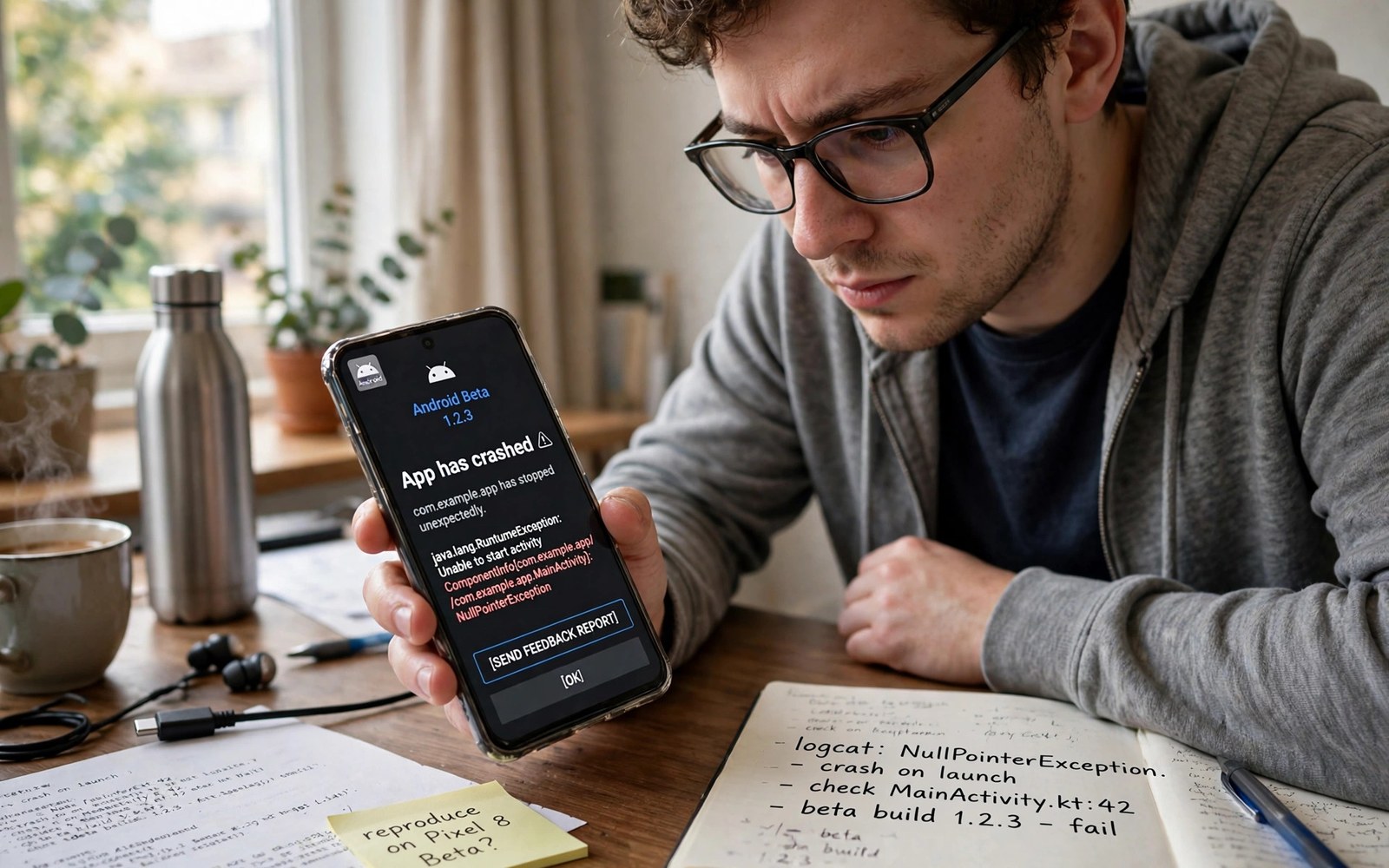
Resolving App Crashes and Instability on Android Beta Builds
Joining an Android beta feels exciting for about a day. Then your banking app closes the moment you open it, your keyboard vanishes mid-sentence, and the battery drops 20 percent before lunch. I have run beta builds on a Pixel as a second phone for three years, and that pattern repeats every single cycle: the new features are real, and so are the crashes. The difference between a miserable beta and a useful one is not luck, it is a method.
This guide gives you that method. You will learn why apps crash on beta builds, how to find the one app or setting causing the trouble, and the exact steps to fix it, from a simple cache clear to a clean reinstall, safe mode, and a rollback to stable software. It covers Android 15 and Android 16 beta builds, Pixel phones, Samsung One UI beta builds, and the tools testers actually use, including logcat and the Beta feedback app.
You do not need deep technical skill to test a beta well. You need patience, a checklist, and a willingness to report what you find. Work through the steps in order, change one thing at a time, and keep a short log. That discipline turns random crashes into a problem you can solve, or a problem you can report clearly enough for a developer to fix.
Why apps crash on Android beta builds in the first place
Beta builds sit between internal testing and public release. They reach real users while developers still fix faults and tune performance. A new system version can alter permissions, background limits, power policy, and the way apps talk to the camera, the microphone, and location services, all in one update. An app that worked perfectly on stable software can break because it expects the old rules.
The most common cause is an outdated app. Developers often ship a compatibility fix soon after a beta drop, but the fix may take days to reach everyone. The next most common cause is a corrupt cache or a settings file left over from the old version. Then come permission changes, where a beta resets a permission or asks for it in a new way, and the app closes because it cannot get what it needs.
Less common, but harder to fix, are system faults in the beta itself: a memory leak in the system interface, a graphics driver bug that only shows on certain chips, or a new privacy feature that blocks an app from running in the background. Those faults need a system update, not an app fix, and the right move is to report them and work around them until the next beta drop.
Android 15 and Android 16 beta changes that break older apps
Android 15 tightened background work, added partial screen sharing controls, and changed how apps request access to photos and media. Android 16 beta builds have continued that direction, with stricter background limits, new notification grouping, and changes to how apps handle edge-to-edge display. An app built for Android 12 or 13 may not handle those changes gracefully, especially if it has not been updated in a year.
Check the app version before you blame the beta. Open the Play listing, look at the last update date, and check whether the developer mentions beta support. If the app was last updated two years ago, the crash may be a compatibility problem that only the developer can fix, and your best move is to report it and use the web version in the meantime.
How to tell an app crash from a system crash
An app crash closes one app and returns you to the home screen, often with a short message such as the app keeps stopping. A system crash restarts the whole phone, freezes the screen, or shows the system interface crashing again and again. That distinction matters, because an app crash points to one app, while a system crash points to the beta build itself or to a faulty system component.
If only one app crashes, focus on that app. If every app crashes, or the phone restarts on its own, focus on the system: check for a system update, clear the system cache from recovery, or consider leaving the beta. Write down which pattern you see, because a developer or a support forum will ask exactly that question.
Before you install a beta: backup, build number, and rollback plan
Start with the least risky path for your situation. A secondary device or an emulator gives you room to learn without risking your main phone. A main phone deserves extra caution and a tested backup, and that backup must exist before you install the beta, not after the first crash. A backup made after a fault cannot bring back data that is already gone.
Write down your current build number before you enrol. Go to Settings, then About phone, then Build number, and note the exact string. Also note your backup status and your rollback option. That short note saves time when a problem appears later, and it is the first thing a support thread will ask for.
On a Pixel, leaving the beta usually means a factory reset, because you cannot roll back to stable software without wiping the phone. On Samsung, the beta exit path is similar. That is the single most important fact about beta testing, and many testers learn it only after they have already lost data. Back up photos, messages, authenticator codes, and banking details before you start, and test that the backup actually restores.
Backup and build number checklist
How to check your build number and backup status on a Pixel
Open Settings, tap About phone, and read the Build number at the bottom. Then open Settings, tap System, tap Backup, and check the date of the last backup and whether photos, messages, and app data are included. If the last backup is more than a day old, tap Back up now and wait for it to finish on Wi-Fi before you enrol in the beta.
What to back up that most testers forget
Authenticator apps, chat history in apps that do not back up to the cloud, saved passwords in a browser that is not synced, and files in a local folder rather than in cloud storage. Export authenticator codes, export chat backups where the app offers it, and copy local files to a computer or to cloud storage before you install the beta.
Step-by-step fix for a crashing app on a beta build
Work through these steps in order, and pause after each one to test the app. Changing five things at once makes fault finding much harder, because you will never know which change fixed it. The steps below start with the safest fix and end with the strongest one.
- Force stop the app and clear its cache. Open Settings, tap Apps, tap See all apps, tap the crashing app, tap Force stop, then tap Storage and cache, then tap Clear cache. Open the app again. Cache clearing keeps your login and it often fixes a corrupt temporary file, so always try this before you clear data.
- Check for an app update. Open the Play listing for the app, tap Update if it is offered, and restart the phone after the update. Developers often ship a beta compatibility fix within days of a new beta drop, and the update may already be waiting.
- Check permissions. In the app info page, tap Permissions and make sure the app has the permissions it needs, especially Files and media, Camera, Microphone, and Location if the app uses them. A beta can reset a permission, and an app that cannot get it may close without a clear error.
- Clear app data only after a backup. If cache clearing fails, go back to Storage and cache and tap Clear data. This removes your login and settings for that app, so only do it when you know the login details and you have a backup of anything the app holds locally.
- Uninstall and reinstall the app. A fresh install removes old files that an update may have left behind. Reinstall from the Play listing, open the app, sign in, and test the exact action that crashed before. Do not skip this step to save ten minutes.
- Restart the phone and test again. A restart clears temporary system state and finishes updates that were waiting in the background. Test the app after the restart, not before, so you judge the fix fairly.
Record the exact error message before you fix anything, because that message guides the next step and it helps a developer later. If the app shows “keeps stopping”, note the time, the build number, and what you were doing when it crashed. That check belongs in your post-install routine, and a quick note now prevents a surprise failure when you need the phone most.
Clear cache before you clear data, and why the order matters
Cache is temporary data the app can rebuild, such as thumbnails and downloaded images. Clearing it is safe and keeps your login. Data is your settings, your login, and your local files. Clearing it is a reset for that app. Testers who clear data first often lose a login they cannot get back, or a chat history that was never backed up. Always clear cache first, test, and only then consider data.
When a reinstall is the right move and when it is not
Reinstall when the app crashes on launch every time, when an update did not fix it, or when the app was installed before the beta and has never been reinstalled since. Do not reinstall when the crash is clearly a system fault, when every app crashes, or when the app holds data that has no backup, because a reinstall can delete that data. In those cases, report the fault and wait for the next beta drop.
Safe mode, app updates, and finding the faulty app
Safe mode helps you separate app faults from system faults. If the crash stops in safe mode, then a third-party app is likely involved. To enter safe mode on a Pixel, press and hold the power button, then press and hold Power off on the screen until the Reboot to safe mode prompt appears, then tap OK. On Samsung, press and hold the power button, then press and hold Power off until the Safe mode prompt appears.
In safe mode, only system apps run. Use the phone for an hour, open the apps that crashed, and see whether the fault returns. If it does not, restart the phone normally, then uninstall recently updated or recently installed apps one by one, testing after each removal. The app that, when removed, stops the crash is the faulty one.
For a wider view of beta safety, explore beta testing basics and compare the risks before you commit to a build, because battery drain and crashes often share the same cause, such as an app that keeps waking the phone in the background.
How to use safe mode without losing a day of work
Plan safe mode for a quiet hour, not during work. Tell the people who depend on you that calls or messages could hiccup for that hour, and use the time to test only the crashing app and the core functions: calls, messages, and mobile payments. A short, focused safe mode test gives you the answer faster than a whole day of guessing.
Checking for a beta-compatible app update the right way
Open the Play listing, check the version number, and compare it with the version you have in Settings, then Apps, then the app, then About. If the Play version is newer, update. If the Play version is the same, check the developer website or the app community page for a beta build of the app itself, because some developers ship a separate beta that fixes beta system changes before the stable app does.
Reading crash logs with logcat and the Beta feedback app
Commands help when menus hide the detail you need. The block below shows a short sequence that testers use to inspect a device. Run one command at a time and read its output before you run the next command, and never paste a command from an unknown source without reading it first, because a command can wipe data or change a system setting in seconds.
adb logcat --buffer=crash
adb shell pm clear com.example.app
adb shell cmd package compile -m speed com.example.app
The first command shows crash logs, the second clears an app, and the third recompiles it. Replace com.example.app with the real package name of the crashing app, which you can find in the Play listing URL or in the app info page. Check each flag against official guidance before you run it on your main phone.
On a Pixel, the Android Beta Feedback app is the easiest way to report a crash. Open it, describe the fault, attach a screenshot, and send the report. Google reads those reports, and a crash that many testers report is far more likely to be fixed in the next beta drop than a crash that nobody reports.
Capturing and writing a useful bug report
How to capture a useful crash log without a computer
Enable Developer options by tapping Build number seven times in Settings, then About phone. Then open Settings, tap System, tap Developer options, and turn on USB debugging only when you need it, and turn it off when you finish. A bug report taken from Developer options, under Bug report, includes the crash log, and you can share it with a developer or attach it to a feedback report.
What to include in a bug report so a developer can actually fix it
Include the build number, the app name and version, the exact steps that cause the crash, the exact error message, and the time it happened. A report that says “the app crashes” helps nobody. A report that says “on build AP31, app version 4.2.1, the app closes when I tap Share, then Photos, at 10:15” gives a developer a fault they can reproduce.
Performance, battery, and background limits after a beta install
Performance often dips right after a major beta install. Indexing and optimisation run in the background for a day or two, and the phone may feel slow and warm while that finishes. Judge speed after that settling period rather than in the first hour, and give a new build at least three days of normal use before you judge battery and speed.
Check storage and battery before an update starts. A beta install needs free space and enough charge to finish without a shutdown, so plug the phone in and clear old downloads first. Test your phone on both Wi-Fi and mobile data after a beta install, because a network fault can hide on one connection type and appear on the other, and test calls, texts, and mobile payments on each connection before you rely on the phone.
When you review your results, check related beta guidance for a second view on stability and recovery, because a fresh build can revive an old fault or fix a fault you had learned to work around, and that extra view can highlight a check you missed in your own routine.
Why the first 48 hours after a beta install always feel worse
After an update, Android re-optimises every app, rebuilds search indexes, and re-syncs accounts. That work uses battery and slows the phone, and it is normal. If the phone is still slow after three days, or if one app is using far more battery than the rest, open Settings, tap Battery, tap Battery usage, and look for the app at the top of the list. That app is your prime suspect.
Background limits and the apps they break most often
New background limits hit messaging apps, fitness trackers, and apps that sync in the background hardest. If a messaging app stops delivering notifications, check Settings, tap Apps, tap the app, tap Battery, and make sure it is not set to Restricted. If a fitness app stops tracking, check the same page and check Location permission, because a beta can change both without telling you clearly.
Common mistakes that make beta crashes worse
Most beta problems come from rushed steps rather than from rare bugs. Skipping a backup because the update looks small and routine is the first mistake, and installing a beta on a main phone without a rollback plan is the second. Changing many settings at once and then blaming the beta build is the third, because you will never know which change caused the fault.
Ignoring release notes that already list the fault you just found is the fourth mistake, and sharing a beta fault as a final verdict without checking a second build is the fifth. Leaving debug options on after testing ends is the sixth, because USB debugging and other developer settings can weaken security and confuse later troubleshooting.
- Skipping a backup because the update looks small and routine. A small update can still wipe data if it fails halfway.
- Installing a beta on a main phone without a rollback plan. Know the exit path before you enrol, not after the first crash.
- Changing many settings at once and then blaming the beta build. Change one variable and observe the result.
- Ignoring release notes that already list the fault you just found. A five minute read can prevent a full day of troubleshooting.
- Sharing a beta fault as a final verdict without checking a second build. Beta faults are often fixed in the next drop.
- Leaving debug options on after testing ends. Turn off USB debugging and other developer settings when you finish.
Each mistake above is easy to avoid with a short pause before you act. A pause costs seconds and it can save hours of recovery work later, and it is the habit that separates a tester who enjoys the beta from a tester who regrets it.
Security and privacy checks after every beta install
Security deserves attention during any beta period. A beta build may change permission prompts and it may reset a privacy setting. Review permissions after install, restore any setting that changed, and check Settings, then Privacy, then Privacy dashboard to see which apps used location, camera, and microphone in the last day. If an app used a permission it should not have, revoke it and report the behaviour.
When to leave the beta and go back to stable software
Leave the program when a core app fails and no fix arrives within a reasonable time. Work, payments, and emergency calls should never stay broken for convenience, and a stable build restores reliability at once. If you rely on the phone for work, for banking, or for a medical app, leave the beta the moment that app breaks, do not wait for the next drop.
To leave on a Pixel, open Settings, tap System, tap Software updates, or open the Android Beta Program page in a browser, tap Opt out, and follow the prompts. Expect a factory reset when you go back to stable software, and back up first. On Samsung, the exit path is in the Samsung Members app under the beta banner, and the same wipe applies in most cases.
Long term beta users often revisit beta feature insights when a new build changes behaviour again, because a fresh build can revive an old fault, and a feature flag that was on in one build can be off in the next. Keep a simple log during beta testing, noting the date, the build number, and the fault you saw, because a short log helps you spot patterns and helps developers fix faults faster.
How to decide between waiting for the next drop and leaving now
Ask three questions. Is a core app broken, or only a game or a secondary app? Has the developer or Google acknowledged the fault, or is it only you? Is the next beta drop days away, or weeks away? If a core app is broken, nobody has acknowledged it, and the next drop is weeks away, leave now. If only a secondary app is broken and the next drop is days away, wait and use the web version in the meantime.
Frequently asked questions about Android beta crashes
Why do apps crash more on a beta build than on stable software?
Beta builds are unfinished by design, and they change system rules that apps expect, including permissions, background limits, and power policy. An app that has not been updated for the new beta can crash because it calls a system feature that has changed or been removed. Developers usually ship a compatibility fix within days, and the next beta drop often fixes system faults as well.
Is it safe to run an Android beta on my main phone?
It can be, if you back up first, accept some instability, and have a rollback plan. Beginners should start on a secondary device when possible, because leaving the beta usually wipes the phone. If you rely on the phone for work, banking, or emergency calls, use a secondary device or wait for the stable release instead.
How long should I test a beta build before I judge it?
Give a new build at least three days of normal use before you judge battery and speed, because early indexing can distort results in the first day. For crashes, judge sooner: if a core app crashes every time you open it for two days, and no update fixes it, that is a real fault, not settling time, and you should report it or leave the beta.
Will clearing cache delete my login or my photos?
No, clearing cache keeps your login and your photos, because cache is temporary data the app can rebuild. Clearing data is different: it removes your login and settings for that app, and it can delete local files that were never backed up. Always clear cache first, test the app, and only clear data when you know the login details and you have a backup.
How do I report a beta crash so it actually gets fixed?
Use the Android Beta Feedback app on a Pixel, or the Samsung Members app on a Samsung beta, and include the build number, the app name and version, the exact steps, the exact error message, and the time it happened. A report with those details gives a developer a fault they can reproduce, while a report that only says the app crashes is unlikely to lead to a fix.
Your next step as a beta tester
Beta software rewards a careful tester with early access and useful insight, and it punishes rushed installs with lost data and broken apps. Your plan matters more than your enthusiasm for a new feature, and the plan is simple: back up today, write down your build number and your rollback option, then enrol or test only when that backup is verified and ready to restore.
Pick one crashing app, work through the steps in order, and log what you find. If the fix works, tell the developer what helped. If it does not, report the fault with the details in this guide and decide whether to wait for the next drop or go back to stable software. Clearing cache before clearing data protects your login and your local files, and a tested backup before you enrol is the one step that makes every other beta fix safe to try.

