

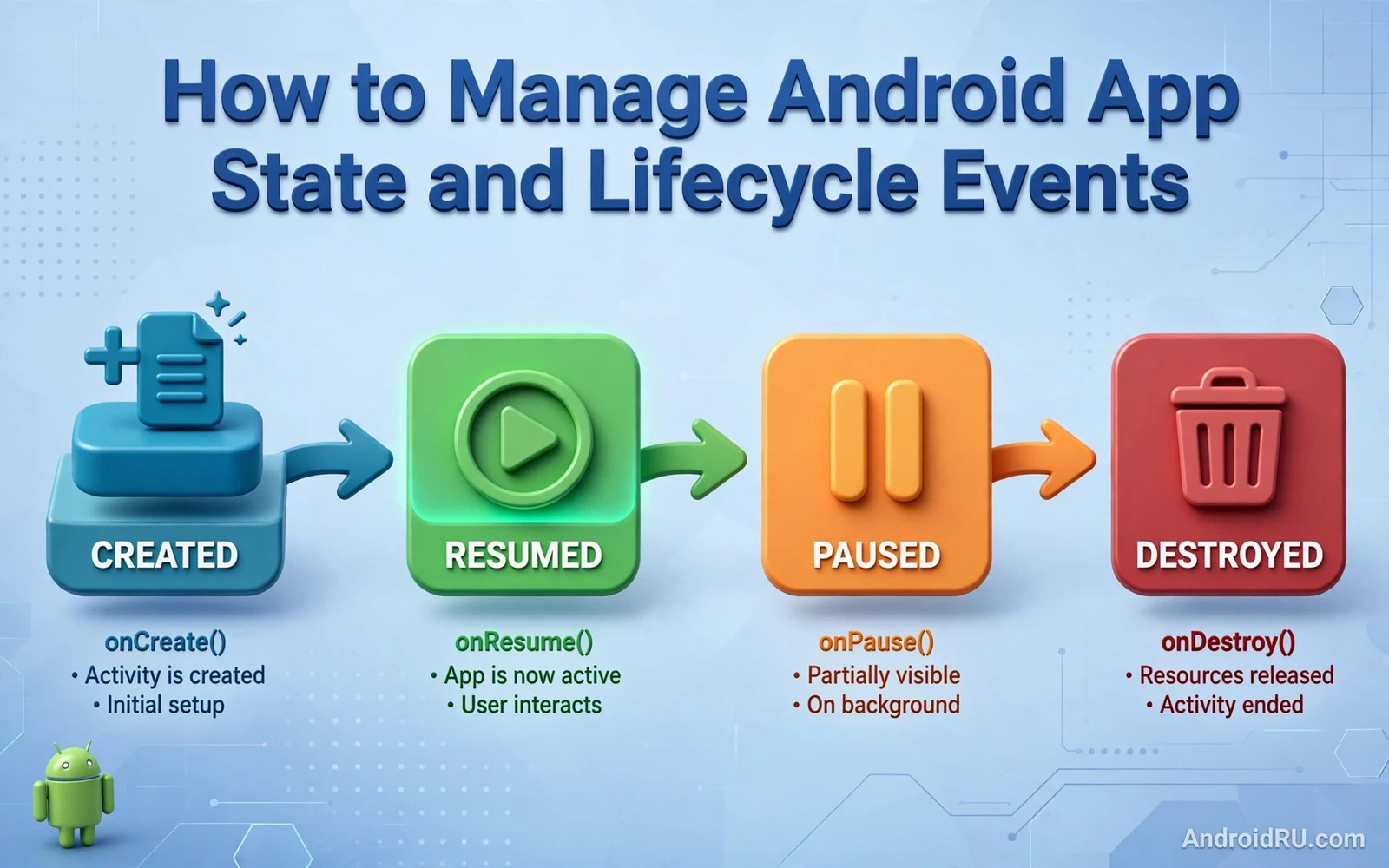
How to Manage Android App State and Lifecycle Events
State is everything an app must remember to look and behave the same after an interruption. A half-typed message holds state. A scroll position holds state. A selected tab, a filter choice, a download at 60 per cent, all of it is state. When the system destroys a screen and rebuilds it, the app must put that state back, or the user loses work. I learned this the hard way on a form screen that forgot every field on rotation, and the one-star reviews that followed taught me more about lifecycle handling than any textbook chapter.
Lifecycle events are the signals that tell an app when to save, when to restore, and when to let go. An Activity moves through creation, start, resume, pause, stop and destruction. A Fragment follows a similar path inside its host. A ViewModel survives a rotation but not process death. A SavedStateHandle survives process death for small values. Each holder has one clear job, and the design gets better the moment each job stays in its own place.
This guide walks through the lifecycle in order, shows which holder owns which kind of state, gives short Kotlin examples you can adapt, and ends with the tests that catch state bugs before users do. It is written for developers building with Activities, Fragments and Jetpack Compose, and it uses the current AndroidX APIs rather than the retired approaches.
What Android App State Really Means for Users
Users never say “the app lost my state”. They say the app is broken, or buggy, or that it deleted their message. State bugs feel personal, because the thing that vanished was the user’s own work. A shopping cart that empties on rotation, a draft that disappears after a phone call, a video that restarts from the beginning after the screen turns: each of these is a state bug, and each of them costs trust that takes months to earn back.
The fix is rarely a clever trick. It is a habit: decide where each piece of state lives before you write the screen, and write the restore path at the same time as the save path. Teams that treat restore as a feature, with its own tests, ship screens that feel solid. Teams that treat it as an afterthought ship screens that feel fragile, and no amount of polish on animations will cover it.
The four kinds of state every screen holds
First comes UI state: what the user sees right now, such as the text in a field, the selected tab, or whether a section is expanded. Second comes navigation state: where the user is in the flow, and what arguments the current screen was opened with. Third comes loaded data: the list, the profile, or the article that the screen fetched from a repository or a network call. Fourth comes one-off events: a toast, a snackbar action, or a navigation command that must happen exactly once.
Each kind belongs in a different holder. UI state belongs in a ViewModel, or in rememberSaveable in Compose. Navigation state belongs in the Navigation component back stack. Loaded data belongs in a repository behind the ViewModel. One-off events belong in a channel or a SharedFlow with no replay. Mix them up and the bugs start: a toast that repeats after rotation is UI state stored as an event, and a list that reloads on every rotation is loaded data stored in the view.
Why users notice state bugs before anything else
A crash is obvious, and so is a slow screen. A state bug is quieter, and that makes it worse. The user types a long reply, rotates the phone to read a photo, and the reply is gone. Nothing crashed. Nothing logged an error. The user simply lost work and now distrusts the app. Rotation is the most common trigger, because people rotate constantly: to watch a video, to read a long message, to show a photo to a friend. If rotation loses data, the app fails in the most ordinary moment of daily use.
A typed message lost on rotation
Take the classic case. A chat screen holds the draft in an EditText, and nothing saves it. The user rotates, the Activity is destroyed and recreated, the EditText is rebuilt empty, and the draft is gone. The fix is one line in the right place: hold the draft in the ViewModel, or save it in onSaveInstanceState, and the draft survives. The lesson is that text input is the first state to protect on every screen, because it is the state the user created with their own hands.
The Activity Lifecycle Step by Step
The Activity lifecycle is a sequence of callbacks, and each one has a job. onCreate builds the views and reads the starting arguments. onStart makes the screen visible. onResume hands it input. onPause takes input away. onStop hides it. onDestroy removes it. onRestart runs when a stopped Activity comes back. Learn the sequence once, and every state decision afterwards becomes a question of which callback owns the work.
The callbacks also pair up in a useful way. onCreate pairs with onDestroy, onStart pairs with onStop, and onResume pairs with onPause. Work started in one half of a pair should be stopped in the other half. A listener registered in onStart should be removed in onStop. An animation started in onResume should be stopped in onPause. That pairing rule prevents most leaks, and it is the first thing I check when a screen misbehaves.
onCreate, onStart and onResume in plain terms
onCreate runs once per Activity instance. It receives the savedInstanceState Bundle, which is null on a fresh launch and filled after a recreation. This is the place to set the content view, build the ViewModel, and read the arguments that describe what the screen should show. Keep onCreate light: heavy work here delays the first frame, and the user sees a blank screen while it runs.
onStart runs when the Activity becomes visible, including after a return from another screen. onResume runs when it can receive input, which is the moment the user can actually tap something. The gap between them is small but real: a dialog on top of your Activity leaves it started but not resumed. Start visible work, such as refreshing a list, in onStart, and start input-sensitive work, such as the camera preview, in onResume.
onPause, onStop and onDestroy
onPause is the first sign the user is leaving. Save lightweight UI state here, such as the current draft or the scroll position, because onPause is guaranteed to run before the Activity loses focus. Do not run heavy work here: the next Activity is waiting to appear, and a slow onPause makes the whole phone feel sluggish.
onStop runs when the Activity is no longer visible. Release anything the user cannot see, such as location updates or a video player. onDestroy runs when the Activity is removed for good, and it is the place to release anything that was created in onCreate. One trap: onDestroy is not guaranteed to run when the system kills the process, so never rely on it to save data. Saving belongs in onSaveInstanceState and in the repository, not in onDestroy.
What rotation really does to an Activity
Rotation is a configuration change, not an exit. The system destroys the Activity and creates a new one with the new orientation, calling onSaveInstanceState before destruction and passing the saved Bundle into the new onCreate. Views are rebuilt, the layout may change, and the ViewModel survives because it is tied to the Activity scope rather than to one instance. That survival is the whole reason ViewModels exist: the data stays put while the view is rebuilt around it.
The practical rule is simple. Anything the ViewModel holds survives rotation. Anything held only by the view does not, unless it is saved in the Bundle. When a screen loses data on rotation, the lost value is almost always sitting in a view field or a local variable instead of in the ViewModel, and moving it there is the fix.
onRestart and the return path
onRestart runs only when a stopped Activity comes back without being recreated, for example when the user returns from another app. It is a good place to refresh data that may have changed while the screen was away, such as a list that another screen edited. Keep the refresh cheap: check a timestamp or a version flag first, and only reload when something actually changed.
The Don’t keep activities test
Turn on Developer options, then enable “Don’t keep activities”, and every Activity is destroyed the moment it leaves the screen. Use the app normally for ten minutes. Every missing save shows up at once: a form that empties, a filter that resets, a list that jumps to the top. This single setting finds more state bugs in ten minutes than a week of casual testing, and it should be part of every developer device setup.
The Fragment Lifecycle and Its Extra Steps
Fragments add their own lifecycle inside the host Activity, and the extra steps are where most Fragment bugs live. A Fragment has onAttach, onCreate, onCreateView, onViewCreated, onStart, onResume, and then the mirror image on the way down: onPause, onStop, onDestroyView, onDestroy and onDetach. The critical difference from an Activity is onDestroyView. A Fragment can outlive its view: the Fragment object survives while its views are destroyed and rebuilt, for example when it sits on the back stack.
onAttach, onCreateView and onViewCreated
onAttach runs when the Fragment joins its host, and it is the first place the Fragment can safely reach the Activity. onCreate runs next, for non-view setup such as reading arguments. onCreateView inflates the layout, and onViewCreated runs once the view exists, which is where view setup belongs: finding views, setting adapters, and starting to observe state. Keep a clear line: Fragment-level setup in onCreate, view-level setup in onViewCreated, and nothing view-related before the view exists.
onDestroyView and why views must be released there
onDestroyView is the callback that separates good Fragment code from leaky code. When it runs, the view hierarchy is being torn down, and any reference the Fragment keeps to a view becomes a leak. View binding references must be cleared here, observers tied to the view lifecycle stop here, and adapters should drop their view references here. The Fragment itself may live on, and a new view will be built later, so everything view-shaped must be released in onDestroyView and rebuilt in onViewCreated.
Fragment view binding cleanup
The standard pattern is a nullable binding field that is set in onCreateView and cleared in onDestroyView. Access it through a non-null getter that is only used between those two callbacks. This pattern looks like boilerplate until the first time it saves you from a crash: a background result that arrives after the view is gone will hit the cleared binding instead of a dead view, and the crash never happens.
ViewModel, SavedStateHandle and Surviving Rotation
A ViewModel is the natural home for UI state that must survive rotation. It is created with the Activity or Fragment scope, it lives through configuration changes, and it is cleared when the scope is finally destroyed. The view observes state from the ViewModel and renders it, and it never owns state itself. That one-way flow, ViewModel owns state, view renders state, is the design that makes rotation boring instead of dangerous.
That said, a ViewModel has a hard limit that catches teams out: it does not survive process death. When the system kills the process to reclaim memory, the ViewModel dies with it. Anything that must come back after process death needs SavedStateHandle or persistent storage as well. A screen that handles rotation but ignores process death still loses data in the most stressful moment for the user.
What a ViewModel keeps and what it cannot keep
A ViewModel keeps UI state, loaded data references, and the in-progress work that belongs to the screen, such as a loading flag or the current filter. It should not keep views, Context objects, or anything tied to the Activity instance, because those leak when the Activity is recreated. It should not keep large data that belongs in a repository, because the repository can reload it by identifier after process death while the ViewModel cannot.
Expose state as a single immutable object where you can. One data class holding the loading flag, the loaded data and the error message means the view can never show a loading spinner and an error at the same time, because the state object cannot express that combination. A single update function in the ViewModel, taking events from the view and publishing new state, makes every change traceable and testable without a device.
SavedStateHandle for small values that must survive process death
SavedStateHandle is the ViewModel’s bridge to the saved instance state Bundle. Values written to it are saved when the process dies and handed back to the new ViewModel when the system recreates the screen. Use it for small values: the identifier of the current item, a draft identifier, a selected tab key, or a scroll key. Do not use it for large objects, lists of bitmaps, or anything that belongs in a database.
class DetailViewModel(
    savedStateHandle: SavedStateHandle,
    private val repository: ItemRepository
) : ViewModel() {
    val itemId: String? = savedStateHandle["itemId"]
    private val _uiState = MutableStateFlow(UiState(loading = true))
    val uiState: StateFlow<UiState> = _uiState
    init {
        viewModelScope.launch {
            val item = itemId?.let { repository.load(it) }
            _uiState.value = UiState(item = item, loading = false)
        }
    }
}
The pattern in this example is the one to copy: a small identifier survives in SavedStateHandle, and the repository reloads the real data by that identifier. The ViewModel never tries to save the item itself. The identifier is small, the reload is fast, and the restore path works after rotation and after process death with the same code.
When to reach for a repository instead
Reach for a repository whenever the data is larger than a few simple values, whenever it comes from a network or a database, or whenever two screens need the same data. The repository hides where the data lives: memory first, disk second, network third. The ViewModel asks for data by identifier and renders whatever comes back. That layering keeps restore logic in one place, and it is the reason a screen can show cached content instantly after process death and fresh content a moment later.
onSaveInstanceState and the Saved Instance State Bundle
onSaveInstanceState is the system callback that asks a screen to pack what it needs into a Bundle before destruction. The system keeps that Bundle and hands it back in onCreate, and in onRestoreInstanceState, when the screen is recreated. It is the oldest state mechanism on Android, and it is still the right tool for simple view state that no ViewModel holds.
The Bundle has rules. It holds primitives, Strings, Parcelable objects and small collections, and it does not hold views, Context objects, bitmaps, or open files. It also travels through Binder, which caps a transaction at roughly 1 MB, so a Bundle stuffed with a large list will crash with a TransactionTooLargeException instead of saving anything. Small values in, large data in the repository: that is the rule, and it has not changed in years.
What belongs in the Bundle and what does not
Belongs in the Bundle: the current item identifier, the selected tab index, the text of an unsent draft, the scroll position key, and the state of an expanded section. Does not belong: the loaded list itself, an image, a database cursor, a network client, or anything that can be reloaded from a repository by identifier. When in doubt, ask whether the value can be recreated from one identifier. If yes, save the identifier. If no, the value probably belongs in persistent storage.
override fun onSaveInstanceState(outState: Bundle) {
    outState.putString("draft", binding.messageInput.text.toString())
    outState.putInt("selectedTab", binding.tabs.selectedTabPosition)
    super.onSaveInstanceState(outState)
}
Two details matter here. First, save before calling the super method, so your values are in the Bundle when the framework adds its own view state. Second, save only what the ViewModel does not already hold, because saving the same value twice is harmless but saving a large value twice is how Bundles grow past the size limit.
Restoring early in onCreate
Restore in onCreate rather than in a later callback whenever you can. Early restore means the first frame already shows the right content. Late restore means the screen first shows an empty state and then jumps to the restored content, and that flicker is visible and irritating. Read the Bundle in onCreate, hand the values to the ViewModel, and let the view render from the ViewModel once. A single source of truth, restored once, removes a whole class of flicker bugs.
The size limit that catches teams out
The Binder transaction limit is the quiet killer of saved state. A team saves a list of search results “just in case”, the list grows, and one day the app crashes on rotation with TransactionTooLargeException. The crash report points at the system, not at the save call, which makes it hard to find. The defence is a code review rule: no list, no image and no large object in any Bundle, ever. Identifiers only.
Process Death and the Return Through Recents
Process death is different from rotation, and it is the case most apps handle worst. The system kills a background process to reclaim memory, the user returns later through the recent apps list, and the system recreates the process and the Activity stack from saved information. The user expects the same screen, the same item, the same draft. Only saved state and persistent storage survive this path, and the app has to rebuild everything else from them.
Low-memory phones and phones with aggressive battery management kill background processes often. A user who opens the camera, takes a photo, and returns to your app may come back to a recreated process. If that return loses their place, they blame the app, not the system. Process death is not an edge case. On a busy phone, it is a normal Tuesday.
How the system picks a process to kill
Android ranks processes by importance: a foreground app first, then a visible app, then a service, then a cached background app. When memory runs low, the system kills from the bottom of that ranking. A cached app with no visible Activity is the first to go. The system saves the Activity stack and the saved state Bundles before killing, which is what makes a return possible at all. Nothing else is preserved, and that includes every ViewModel and every in-memory cache.
Testing process death without waiting for it
Do not wait for the system to kill your app. Kill it yourself. Open the app, navigate to the screen under test, type something in a field, and press Home. Then run adb shell am kill with your package name, or swipe the app away from recents on some devices, and reopen it from recents. The screen should come back with the same item and the same draft. If it comes back empty, the restore path is broken, and the fix is a SavedStateHandle value or a repository reload that is missing.
adb shell am kill com.example.myapp
adb shell dumpsys activity processes | grep com.example.myapp
The first command asks the system to kill the process the same way low memory would. The second confirms it is gone. Reopen the app from recents and watch what restores. Run this test on every screen that holds user input before release, because it takes two minutes per screen and it finds the bugs that rotation testing never will.
SavedStateRegistry and the recreation path
Under the hood, SavedStateHandle is backed by the SavedStateRegistry, which collects saved state from every registered provider before destruction and hands it back after recreation. Custom components can register their own providers, which is how the Navigation component restores its back stack and how Compose restores rememberSaveable values. You rarely need to touch the registry directly, but knowing it exists explains why SavedStateHandle and rememberSaveable survive the same path: they are two doors into the same registry.
One-Off Events, Navigation and Background Work
One-off events are the third classic source of state bugs, after rotation and process death. A toast, a snackbar action, or a navigation command must happen exactly once. A plain state holder replays it when the view is recreated, so the user sees the same toast twice or navigates twice. The fix is a holder that does not replay: a Channel, or a SharedFlow with replay set to zero, collected once by the active view.
Navigation state has the same shape of problem. The Navigation component keeps a back stack and restores it after process death when arguments are saved correctly. Passing a large object as an argument breaks that restore, because the argument must be written into the saved state Bundle. Pass an identifier instead and let the destination load its data from the repository, and navigation stays fast and restorable. Pass an identifier, not the object itself, and the back stack stays small enough to survive.
Toasts and navigation that must fire only once
Expose events from the ViewModel as a SharedFlow with no replay, or as a Channel received as a Flow. Collect it in the view with a lifecycle-aware collector, and the event reaches the active view exactly once. A rotation recreates the view, the new view starts collecting, and the old event is gone rather than replayed. The older singleLiveEvent pattern solved the same problem, but a SharedFlow with replay zero is the current recommended approach, and it works the same way in Compose and in views.
Navigation arguments: pass IDs, not objects
Every navigation argument should be a String, an Int, or another small primitive, and it should name the thing to show rather than being the thing itself. A detail screen takes an itemId and loads the item. A profile screen takes a userId and loads the profile. This keeps the back stack small, keeps process death restore working, and keeps deep links simple, because a link can carry an identifier in its path but cannot carry an object.
Lifecycle-aware background work and WorkManager
Background work must respect lifecycle boundaries. A network request that updates a destroyed view will crash or leak. A location listener that runs after onStop will drain battery. A coroutine launched in a lifecycle scope cancels automatically when the scope ends, which is a safety net, not a design. Long work that must finish, such as an upload, belongs in WorkManager rather than in a view scope that may end at any moment. WorkManager survives process death, retries with backoff, and reports its result through observable work info.
repeatOnLifecycle and collecting flows safely
Collecting a StateFlow from a view needs a lifecycle-aware collector, or the collection keeps running while the screen is stopped. The current pattern is repeatOnLifecycle with Lifecycle.State.STARTED, inside lifecycleScope. Collection starts when the screen starts and cancels when it stops, then restarts on return. This replaces the older launchWhenStarted approach, which paused collection without cancelling it and could deliver stale values.
viewLifecycleOwner.lifecycleScope.launch {
    viewLifecycleOwner.repeatOnLifecycle(Lifecycle.State.STARTED) {
        viewModel.uiState.collect { state -> render(state) }
    }
}
Collect from the view lifecycle owner, not the Fragment itself, so collection stops when the view is destroyed rather than when the Fragment is destroyed. That distinction is the difference between a leak and a clean stop on the back stack, and it is one of the most common Fragment mistakes in real codebases.
Testing State Bugs and Debugging a Lost Value
State bugs hide because the happy path works. The developer opens the screen, sees the data, and moves on. The bug appears only on the return path: after rotation, after a phone call, after process death. Testing has to cover the return paths deliberately, or users will cover them instead, in production, with one-star reviews.
State design also touches the topics around it, and a team that gets state right usually gets the neighbours right too. Durable values need a persistent home, and the discussion of shared preferences versus Room database helps a team choose where simple settings belong and where structured data belongs. A screen that changes state may change its icon or image, and a careful reading of vector drawables versus bitmap assets helps a team keep those visuals sharp after every state change. A responsive screen must restore its layout choice as well as its data, and the guide to responsive layouts in Jetpack Compose shows how a layout can adapt while state stays intact.
Unit tests for rotation and process death
A ViewModel unit test should cover two cases separately. A rotation test keeps the ViewModel alive and recreates the view, then asserts the visible state is unchanged. A process death test recreates the ViewModel from a saved SavedStateHandle and a repository, then asserts the same visible state. Both tests should assert what the user sees, not internal fields, because visible state is the contract that must hold. A test that asserts an internal flag passed while the screen showed an empty state has tested nothing.
Manual tests that catch what unit tests miss
Manual testing should include low-memory conditions. Open ten apps, return to the app under test, and check the screen. Fill a form, rotate, background the app, return, and check the form. Kill the process from device settings and return through recents. Each step reveals a different gap. Log state transitions during manual testing, showing save, restore, and the source of each value, so a lost value can be traced to the exact transition where it vanished.
Reading a crash report that points at state
Crash reports reveal state bugs through null values after restore. A value that is always present after normal navigation may be absent after process death, because the navigation argument was never saved. Defensive code should handle the absent case by reloading from the repository rather than crashing. A fallback that reloads data costs a short delay, and the user notices a reload, but the user does not lose the whole session, which is the trade that matters.
Frequently Asked Questions About Android Lifecycle Events
Does a ViewModel survive process death?
No. A ViewModel survives configuration changes such as rotation, because it is tied to the Activity or Fragment scope rather than to one instance. It does not survive process death, because the whole process, including every ViewModel, is removed. Values that must return after process death need SavedStateHandle for small values or a repository backed by persistent storage for the real data.
How do I test process death on a real phone?
Open the app, go to the screen you want to test, and press Home. Then kill the process with adb shell am kill and your package name, or use the “Don’t keep activities” developer option for a lighter version of the same test. Reopen the app from recents and check whether the screen, the item and any draft are all back. If anything is missing, the restore path for that value is the bug.
What is the difference between onSaveInstanceState and SavedStateHandle?
onSaveInstanceState is the Activity and Fragment callback that writes values into a Bundle before destruction. SavedStateHandle is the ViewModel’s access to that same saved state, so the ViewModel can read and write values without touching the view layer. They share one storage path: values written through either one are restored after recreation. Use the callback for view state and SavedStateHandle for ViewModel state, and never save the same large value in both places.
Why does my toast show twice after rotation?
The toast is stored as plain state, and plain state replays when the view is recreated. After rotation, the new view observes the same state and shows the toast again. The fix is to expose the event through a SharedFlow with replay set to zero, or a Channel, so the event is delivered once to the active collector and never replayed. The same fix covers double navigation and double snackbar actions.
A Practical Checklist for State That Survives Everything
Before release, confirm every screen restores its visible state after rotation. Confirm every screen restores its key identifiers after process death. Confirm no large object is stored in saved state. Confirm one-off events do not replay after rotation. Confirm background work cancels when its scope ends. Confirm navigation arguments contain identifiers rather than large objects. Confirm dialogs do not duplicate after rotation. Confirm timers stop when the screen stops. Confirm cached data appears before a network refresh. Confirm error states restore as error states rather than as empty screens.
Your concrete next step is a single afternoon with the “Don’t keep activities” option switched on. Walk through your app screen by screen, type in every field, rotate, background, and return, and write down every value that vanishes. Fix the worst one first, which is usually a draft or a filter, and retest it the same day. An app that passes that walkthrough feels solid in the hand, because it respects the user’s effort at every interruption instead of only on the happy path.

