

What Extraction Means and What It Does Not Mean
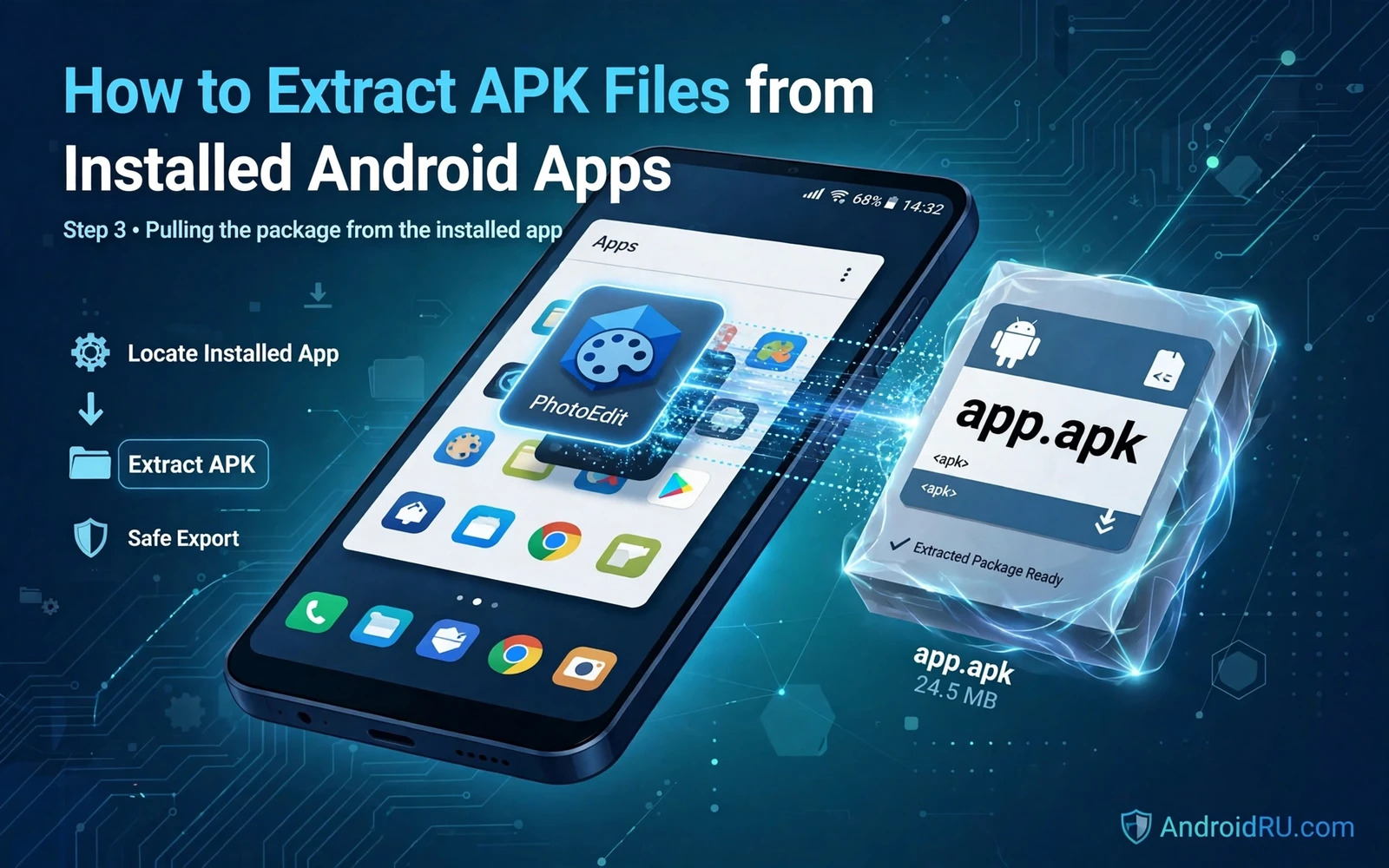
Extraction means copying the installed package file from a device to another location. The installed app stays on the device after a normal extraction. The extracted file is a copy of the package that the system installed. It is not a new build and it is not a modified app unless you deliberately change it after extraction.
Extraction does not grant access to app private data by itself. App private data lives in a separate protected area and a normal package copy does not include that data. Extraction also does not remove license checks or account checks from an app. A copied package still behaves like the same app when it is installed on another device.
People extract APK files for several legitimate reasons. A developer may extract a test build to check its size and its contents. A device owner may keep a copy of an app version before an update changes it. A support team may inspect a package to confirm a version or a package name. Each reason still requires respect for the app licence and for the rights of the developer.
Legal and Safety Boundaries Before You Start
Extract a package only when you have a lawful reason to hold that copy. Your own app and a free app on your own device are the clearest cases. Paid apps and apps with strict licence terms may restrict copying and redistribution even when extraction is technically possible. Holding a copy for personal backup is different from sharing that copy with other people.
Never redistribute an extracted package that you do not own or that you do not have permission to share. Redistribution can breach licence terms and can expose other users to a modified or outdated package. A distributor should only publish packages that come from a lawful source with clear provenance. Personal extraction is not a distribution licence.
Treat every extracted file as untrusted until you verify it. A package from a device that already carries malware may itself be a risk. Scan the extracted file and check its package name and version before you move it to another device. Verification is a safety habit and not a sign of distrust toward your own device.
Method One: ADB Pull From a Computer
ADB is the most reliable extraction method for a developer or an advanced user. Connect the device with USB debugging enabled and confirm the computer authorisation on the device. Run the package list command to find the exact package name of the app. The package name is the stable identity of the app and it matters more than the display name on the home screen.
Use the package path command to learn where the system stores the base package. The output shows a path inside the app installation area. Use the pull command with that path and a destination folder on the computer. The pull command copies the base APK to the computer without changing the installed app.
Split apps need extra care with ADB extraction. A modern app may install as a base APK plus several split APKs. Pulling only the base APK gives an incomplete package that may fail on another device. List all paths for the package and pull each split when you need a complete set. Keep the splits together and keep a note of which base they belong to.
adb devices
adb shell pm list packages
adb shell pm path com.example.app
adb pull /data/app/com.example.app/base.apk ./backup/
Method Two: On-Device Extractor Apps
On-device extractor apps copy installed packages to device storage without a computer. The app lists installed apps and lets the user pick one package to extract. The result is usually a single APK file in a folder that the extractor creates. This method is convenient for a quick backup on the same device.
On-device extraction has limits that users should understand. An extractor may only copy the base APK and may miss split APKs. An extractor may also fail on system apps or on apps with protected install paths. A failed extraction is not proof that the app is broken. It often means that the extractor lacks access to that install path.
Choose an extractor with care and check its permissions before use. An extractor that requests broad network access or broad file access deserves extra scrutiny. A simple extractor should need storage access for its output and package query access for its list. Unnecessary permissions are a warning sign for any utility app.
Method Three: Backup Tools and Device Backup
Some device backup tools include app packages as part of a wider backup. The backup may store the package in a proprietary archive rather than as a plain APK file. That archive is useful for restoring the same device but it is less useful for inspecting a single package. A user who needs a plain APK should prefer ADB pull or a dedicated extractor.
Cloud backup services often exclude app packages from user visible backups. The service may restore apps from the store instead of restoring a stored package file. A user who relies on cloud backup alone may lose access to a specific older version after an update. A local ADB copy gives more control over the exact version that is kept.
Version control matters here as much as it matters for format work. The format comparison in understanding APK and XAPK and APKS formats explains why a base APK alone may not match a complete installed app. That knowledge helps you decide whether a single extracted file is enough for your purpose.
How to Verify an Extracted Package
Start with the file size and the package name and the version information. A package tool can read the manifest and report these facts without installing the file. Compare those facts against the app that you extracted. A mismatch in package name is a strong reason to stop and check the extraction steps again.
Check the signature information when your tool can report it. The signature should match the signature of the installed app when the extraction is clean. A signature check does not prove that the app is safe. It proves that the file was not altered between installation and extraction in a way that breaks the signature.
Test an extracted package only on a device that you can afford to reset if needed. Install the copy on a test device or a test profile rather than on your main daily device. A test install confirms that the package is complete and that it launches. It does not prove that the package is suitable for redistribution.
Working With Split APKs After Extraction
A split set needs a clear folder structure after extraction. Keep the base APK and every split APK in one folder with a name that includes the package name and the version. Add a short text note that lists the split files and the device that they came from. That note prevents a later mix-up between split sets from different devices.
Installing a split set by hand is harder than installing a single APK. A split installer can install the full set as one app when it understands the split metadata. Installing splits one by one through a normal installer may fail or may produce an incomplete app. Advanced users should test split installs on a non-critical device first.
Size work often starts from an extracted package because the package shows the real installed composition. The optimisation discussion in optimising APK size with ProGuard and R8 builds on that composition view. Knowing which parts dominate the size helps you choose a reduction step that actually matters.
Common Extraction Errors and Fixes
A device not found error usually means that USB debugging is off or that the cable supports charging only. Check the developer options and try a known data cable. A device unauthorised error means that the device prompt was dismissed or that the computer key was revoked. Reconnect the device and accept the prompt on the device screen.
A path not found error often means that the package name was typed with a mistake. Copy the package name from the package list output instead of typing it from memory. Package names are case sensitive and a single wrong character changes the result. A permission denied error on a system path means that the install path is protected and that ADB pull cannot reach it without higher privileges.
An empty output file usually means that the pull destination was wrong or that the pull command was interrupted. Check the destination folder and the file size after the pull finishes. A zero byte file is not a valid package and it should be deleted and pulled again. A valid APK should open as an archive and should show a manifest inside.
Risks of Extracting From an Untrusted Device
A device that already shows signs of compromise should not be used as a source for packages that you plan to share. Malware can hide inside an app package or can alter the extraction tool itself. A clean test device is a safer source for any package that will leave the device. A compromised source undermines every later check.
Extraction tools themselves can be a risk when they come from untrusted sources. A fake extractor may copy packages and also collect device data in the background. Install extraction tools only from a trusted source and review their permissions after install. Remove an extractor when the task is done if you do not need it again.
Inspection after extraction is a separate skill from extraction itself. The techniques in basic APK reverse engineering and code inspection show how to look inside a package in a structured way. Extraction gives you the file and inspection tells you what that file actually contains.
A Safe Extraction Checklist
Confirm the lawful reason for the copy before you start. Confirm the exact package name from the device package list. Choose ADB pull for a complete and repeatable copy when a computer is available. Pull every split when the app uses split APKs. Verify package name and version and file size after the copy.
Store the extracted file in a clearly named folder with a version note. Keep personal backups separate from any package that might later be shared. Scan the file before moving it to another device. Test the file on a non-critical device when the purpose requires an install test.
Delete copies that you no longer need. Old extracted packages can become a source of confusion when a newer version exists. A tidy backup folder with clear version notes is easier to trust than a large folder of unnamed package files. Good naming is a safety practice and not only an organisation habit.
- Confirm a lawful reason before extraction
- Use the exact package name from the device list
- Pull all splits for a split app
- Verify name and version and size after the copy
- Test only on a non-critical device

