

How to Fix SIM Card “No Service” Error on Mobile Network
Your phone was working fine yesterday, and this morning the signal bars are gone. Calls will not go through, texts sit unsent, and mobile data is dead, yet Wi-Fi still works perfectly. That contrast is actually good news, because it narrows the fault down to the mobile side of the phone: the SIM card, the SIM tray, the network settings, the carrier account, or the antenna hardware. Most of the time the cause is small and fixable at home in under ten minutes.
This guide walks you through the checks in the order a repair technician would use them, from the simplest physical check to the deeper software and carrier checks. Each step tells you what to do, what result to look for, and what that result means, so you never waste time on a factory reset for a loose SIM card. Work through the steps in order, test after each one, and stop as soon as service returns.
What No Service Really Means on Android
No Service means your phone cannot register on any mobile network. Registration is the handshake where the phone presents the SIM card to a nearby cell tower and the carrier accepts it. When that handshake fails, the phone has no number on the network, so incoming calls go to voicemail, outgoing calls fail, SMS cannot send, and mobile data has no route. Wi-Fi is a separate radio with a separate connection, which is why browsing at home can feel normal while everything mobile is broken.
Android shows several related messages that look similar but point at different faults. No SIM card means the phone cannot see a card at all, which usually points at the tray or the contacts. No Service means the phone sees the SIM but cannot register it, which points at coverage, settings, the account, or the card itself. Emergency calls only means the phone can reach a tower but the carrier will not register the SIM for normal service, which often points at an account block or a deactivated card. Reading the exact message saves you from fixing the wrong thing.
Why does No Service appear suddenly on a phone that worked yesterday?
A sudden failure usually has a recent trigger, and naming it points straight at the fix. One knock or drop can shift the SIM in its tray by a fraction of a millimetre, just enough to break contact. System updates can change modem behaviour or reset a network preference. Carriers can push a settings update that fails halfway. A prepaid balance can expire overnight, or a bill can trigger a suspension. Travel can leave the phone stuck on manual network selection from another country. Think back over the last day or two before you touch any setting, because the trigger often names the cure.
No Service in one place versus everywhere
Location is the fastest clue you have. Service that fails only at home or only at work, while working fine a few streets away, points at coverage: a weak signal area, a building that blocks radio waves, or a local tower fault. Service that fails everywhere, in places where it worked before, points at the SIM, the phone, or the account instead. Ask someone nearby on the same carrier whether their phone works. A shared failure is almost certainly an outage, and no setting on your phone will fix an outage.
Quick Diagnosis Before You Change Any Setting
Two minutes of observation now can save you an hour of random fixes later. Run through these checks first and note the answers, because carrier support and repair shops will ask exactly these questions. A clear pattern also tells you which section of this guide matters and which sections you can skip entirely.
- Look at the status bar and write down the exact message: No Service, Emergency calls only, No SIM card, or a crossed-out signal icon.
- Toggle airplane mode on, wait ten seconds, then toggle it off, and watch whether the phone finds a network within a minute.
- Move to a window or step outside for a minute and see whether the signal returns in open air.
- Check whether the fault affects calls, texts, and mobile data together, or only one of them.
- On a dual SIM phone, check each SIM separately and note whether one line works while the other fails.
- Ask another phone on the same carrier nearby whether it has service right now.
Each answer narrows the field. Airplane mode toggling that restores service points at a stuck radio, which is a software glitch. A fault that follows one SIM to another phone points at the card or the account. A fault that stays with the phone whatever SIM is inside points at the phone hardware or its settings. Keep your notes handy as you move on to the physical checks.
How to Reseat the SIM Card and Test Each Slot
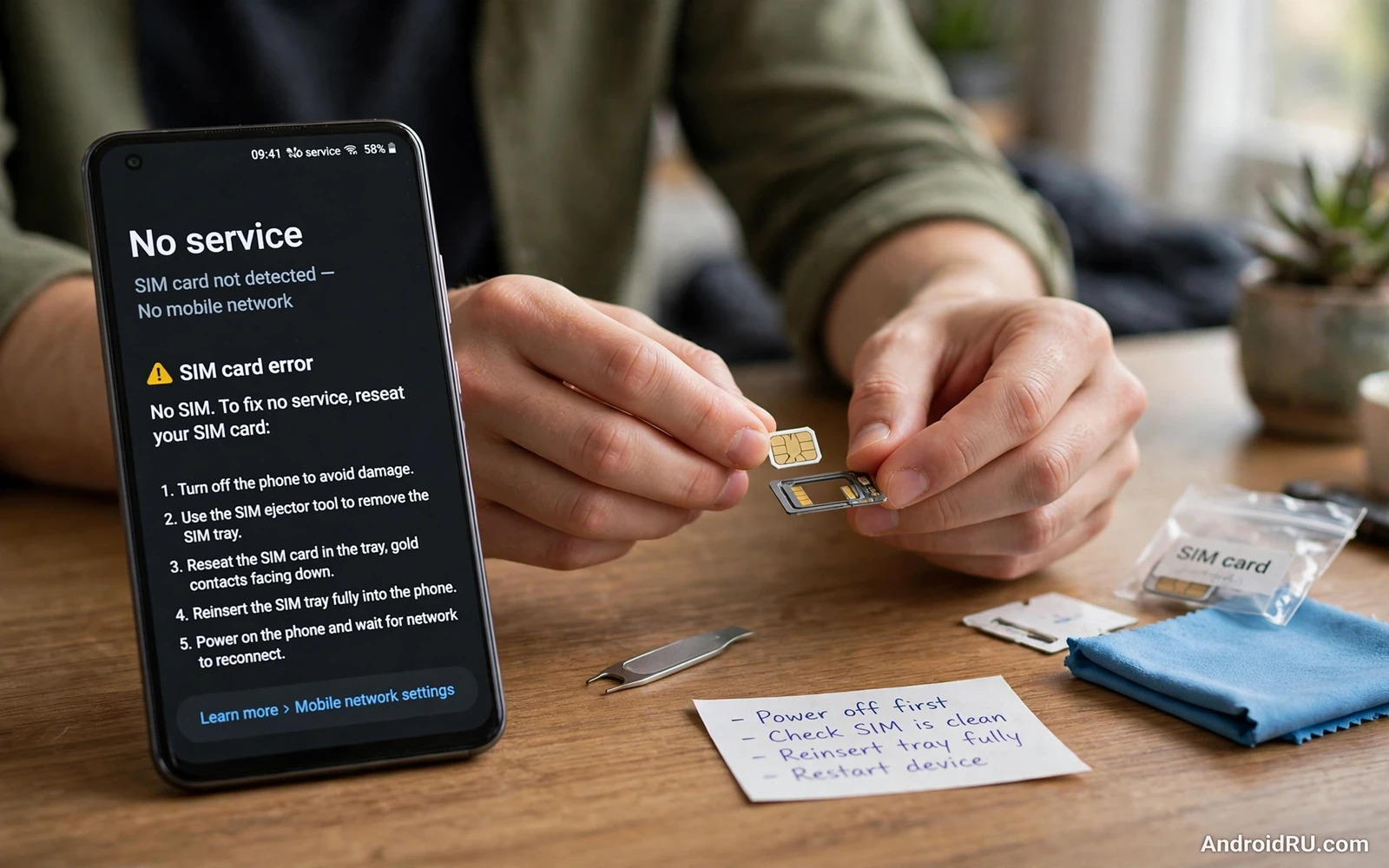
A loose or dirty SIM is the single most common cause of a sudden No Service error, and reseating it costs nothing. Vibration, heat, and tiny movements inside a pocket can shift the card just enough to break contact with the reader pins. The gold contacts can also collect a thin film of dust or skin oil over months of use. Before you change any software setting, reseat the SIM before you reset anything, because a software reset cannot fix a card that is not making contact.
- Power the phone off completely. Never pull a SIM tray from a powered-on phone if you can avoid it.
- Push the SIM ejector tool, or a straightened paper clip, gently into the tray hole until the tray pops out.
- Lift the SIM out and inspect the gold contacts for dirt, scratches, or a cracked corner.
- Inspect the tray itself for bends, cracks, or a loose frame that lets the card sit at an angle.
- Place the SIM back in the tray in the correct orientation, with the cut corner matching the tray shape.
- Push the tray fully home until it sits flush with the phone frame, with no edge sticking out.
- Power the phone on and wait a full minute for the carrier name to appear.
Two hands-on checks for the SIM and the tray
Cleaning the gold SIM contacts safely
Wipe the gold contacts gently with a soft, dry, lint-free cloth. A glasses cloth works well. Do not use water, alcohol, or any liquid cleaner, and never scrape the contacts with a metal object, because scratches on the contact surface can ruin a card that was only dirty. If the contacts look deeply scratched or the plastic is cracked, stop cleaning and ask the carrier for a replacement SIM, which usually keeps your number.
Testing the SIM in another slot or another phone
Swap tests are the fastest diagnosis in this whole guide. On a dual SIM phone, move the card to the other slot and power on. Service returning in the second slot points at a faulty first slot. When the card fails in both slots, test it in another phone if one is available. If the SIM works in a different phone, the fault sits in your handset. Failure in every phone points at the card or the carrier account, and a replacement SIM is the next step.
Settings > Network & Internet > SIMs: Network Mode and Operator Selection
Once the card is seated correctly, the next suspects live in the settings menu. Android lets each SIM be switched off entirely, and a disabled SIM shows No Service even though the card is perfect. A network mode locked to a band your carrier does not use in your area produces the same symptom. Both are quick to check and quick to fix.
- Open Settings, then tap Network & internet, then tap SIMs or Mobile network, depending on your phone.
- Tap the affected SIM and confirm the Use SIM toggle is switched on.
- Check that Mobile data is enabled for the line you expect to carry data.
- Tap Preferred network type and choose the automatic option that includes 5G, 4G, 3G, and 2G, such as 5G/4G/3G/2G auto.
- Restart the phone and wait a minute for registration.
Network mode and operator checks in detail
Preferred network type settings explained
The preferred network type setting tells the modem which radio bands to use. Locking it to 5G only in an area with no 5G coverage leaves the phone with nothing to connect to, and locking it to 3G only in an area where the carrier has switched those bands off does the same. Automatic mode lets the phone fall back to whatever the carrier actually broadcasts nearby. Leave it on automatic unless your carrier specifically tells you otherwise.
Manual operator selection as a diagnostic tool
Still on the SIM screen, tap Network operators or Choose network and switch from automatic to manual selection. The phone will scan for nearby networks, which can take a minute. If your carrier name appears in the list, tap it and watch whether the phone registers. Registration here proves the radio and the SIM can reach the network, and the fault was in automatic selection. If your carrier never appears at all, coverage, the SIM, or the account is suspect. Return the setting to automatic after the test, because manual selection can leave you stranded when you travel to a new area.
How to Reset Network Settings on Android
When reseating and operator checks both fail, a network reset is the right software step. This reset rebuilds the phone’s mobile, Wi-Fi, and Bluetooth configuration from scratch, clearing corrupted carrier settings and stale APN entries that can block registration. It is far less drastic than a factory reset, and it fixes a surprising number of stubborn No Service cases.
- Write down your saved Wi-Fi passwords first, because this reset forgets every saved Wi-Fi network and Bluetooth pairing.
- Open Settings, then tap System, then tap Reset options.
- Tap Reset Wi-Fi, mobile & Bluetooth, or Reset network settings on Samsung phones.
- Confirm the reset and let the phone restart itself.
- Reconnect to Wi-Fi, wait two minutes, and check whether the carrier name returns.
- Open Settings > Network & internet > SIMs again and confirm the SIM is enabled and the network type is automatic.
A reset network settings pass preserves your photos, apps, messages, and files, so it is safe to try before any bigger step. Do not jump to a factory reset at this stage. Factory resets erase everything and rarely fix a No Service fault that a network reset could not fix. If the reset changes nothing, the remaining suspects are the account, the SIM itself, and the hardware, and a factory reset would only waste your time while those suspects stay untested.
Outages, Account Blocks and Carrier Settings Updates
Some No Service faults have nothing to do with your phone at all. A local outage can silence every phone on one carrier in a neighbourhood, and an account problem can silently deactivate a SIM that looks perfect. Checking these two causes takes one phone call and can save you from resetting a healthy handset.
For outages, compare with neighbours and colleagues on the same carrier. A shared failure is an outage, so wait for the carrier to restore service and test again later. Carrier apps and support lines usually publish outage news, and a quick check there beats guessing. An outage explanation also tells you that Wi-Fi calling is your best bridge until the tower returns.
For the account, a suspended line, an expired prepaid balance, or a SIM that was deactivated after a number change can all present as No Service or Emergency calls only. Call the carrier from another phone or visit a shop and ask them to confirm three things: the account is active, the SIM is provisioned on the network, and the number is attached to that SIM. Carrier shops can usually issue a replacement SIM on the spot that keeps your number, so ask for that before assuming a phone fault.
What are carrier settings updates and why do they matter?
Carrier settings updates arrive quietly, often alongside system updates, and they tune how the phone registers on the network: which bands to prefer, which APN to use, and which features the carrier supports. A missed or half-applied carrier update can leave the phone trying to register with outdated instructions. Check Settings > System > System update for a pending carrier update, or check the carrier app, install anything pending, and restart. Small as they are, these updates can restore a stubborn registration.
Roaming settings left behind after travel
Travel settings cause many mysterious No Service reports at home. A phone left on manual network selection abroad may keep hunting for the foreign network after you return. A data roaming block does not stop calls, but a manual operator choice certainly can. After any trip, return network selection to automatic and check that data roaming matches your normal preference. Automatic selection lets the phone find the home carrier without manual hunting.
Wi-Fi Calling, Dual SIM and Emergency Calls During No Service
While mobile service is down, Wi-Fi calling can keep you reachable when the carrier supports it and the phone has it enabled. Open Settings > Network & internet > SIMs and look for Wi-Fi calling, then switch it on and connect to Wi-Fi. Calls and texts may then work over Wi-Fi even while mobile registration fails. This bridge does not fix the underlying fault, but it keeps communication alive while you wait for a replacement SIM or a tower repair.
Messaging apps over Wi-Fi bridge the gap too. Tell key contacts that your number is temporarily unreachable by mobile so they reach you through an internet messenger instead. Once service returns and texts still misbehave, the guide to fixing MMS and text messages that fail to send covers the next layer of message diagnosis, from APN settings to message centre numbers.
Dual SIM phones add a layer to this diagnosis. Each SIM registers separately, so a fault on one line only points at that SIM, its slot, or its account, while a fault on both lines points at the phone or at coverage. Test each SIM alone by disabling the other in Settings > Network & internet > SIMs. A SIM that fails in slot two but works in slot one points at a slot fault, while a SIM that fails in both slots points at the card. That swap distinguishes the two in minutes without any reset.
Emergency calls deserve a clear note. A phone showing No Service may still place emergency calls when any compatible network is reachable, because the phone can use another carrier network for emergency calls even without a registered SIM. That is a safety feature built into the network. Never place a test emergency call to check it. Knowing the feature exists is enough, and keeping a charged backup path such as Wi-Fi calling covers everything else.
When to Seek Repair and How to Prevent the Next Outage
A SIM that works in another phone, plus a network reset, plus good coverage, plus an active account, leaves hardware as the main suspect. A faulty SIM reader, a damaged antenna, or a modem fault after a drop or water exposure needs professional repair. Note every test result for the repair centre: which SIM failed, which slot failed, which phone the SIM worked in, and what the reset changed. A clear test history speeds diagnosis and stops the shop from repeating steps you already tried.
Before handing the phone over, back up your data, because repair may involve a reset or a board swap. Ask for a quote first. If repair costs approach the price of a replacement phone, moving the SIM to a new handset and confirming registration before recycling the old one is the practical path. Wipe the old phone fully before disposal.
Prevention is mostly preparation. Enable Wi-Fi calling where your carrier supports it, keep a messaging app path open for key contacts, know how to reseat the SIM without hunting for instructions, and save the carrier support number somewhere reachable without mobile service. A phone that loses service is frustrating enough without a scramble for basic information that could have been saved in advance. And once the signal is back, confirm that data flows too: the guide to fixing mobile data that stops working covers APN and data settings when calls return but the internet stays dead.
Frequently Asked Questions About No Service on Android
Why does my phone say No Service when I have full Wi-Fi?
Wi-Fi and mobile service use separate radios and separate networks, so one can work perfectly while the other fails. Full Wi-Fi only proves the phone and the router are fine. No Service points at the SIM, the mobile settings, the carrier account, or the local cell network, which is why this guide treats the mobile side as its own system and checks the card, the settings, and the carrier in turn.
How do I fix No Service after a system update?
Start with the cheap steps: toggle airplane mode, restart the phone, and reseat the SIM. Then check Settings > Network & internet > SIMs to confirm the SIM is enabled and the preferred network type is set to automatic. Updates sometimes reset a preference or leave a carrier settings update pending, so install any pending carrier update and restart again. A network settings reset is the next step if the update clearly broke a previously working registration.
Can a damaged SIM card cause No Service?
Yes, and it is one of the most common causes. Scratched contacts, a cracked corner, or a card that has bent slightly in the tray can all break the connection to the reader pins. Test the card in another phone: failure there confirms the card, and the carrier can usually replace it while keeping your number. Replacement SIMs are normally free or very cheap, so do not keep fighting a card that has visible damage.
Is No Service on both SIMs a phone problem?
Usually, yes. Two SIMs failing at once makes two simultaneous card faults unlikely, so the shared causes move to the top of the list: coverage or an outage, a system setting such as airplane mode or a disabled radio, a bad network reset state, or hardware such as the antenna or SIM reader. Run the single-SIM tests in this guide, then check with another phone on the same carrier before booking a repair.
Work the steps in order and you will find the fault. Reseat first, settings second, carrier third, and hardware last. That order restores service in most cases without a factory reset or a repair bill, and the notes you kept along the way make any call to the carrier or the repair shop far shorter.

