

Why Contacts Disappear Suddenly
Contacts can vanish after a phone switch or after a sync error or after an account sign-out that was not noticed. A contact list that looks empty may still exist in the cloud while the phone simply shows the wrong account. A deleted contact may still sit in a cloud trash folder for a short recovery window. A contact that was saved only on the phone and never synced has no cloud copy to restore. A calm account check separates a display problem from a true deletion problem.
Start by checking whether the missing contacts are truly gone or only hidden. Open the contacts app and tap its filter or display settings and show contacts from all accounts. A filter that shows only SIM contacts can hide Google contacts completely. A filter that shows only one Google account can hide contacts from a second account. Show every source before you conclude that contacts are lost. A hidden list is the easiest recovery of all.
Confirm The Correct Google Account
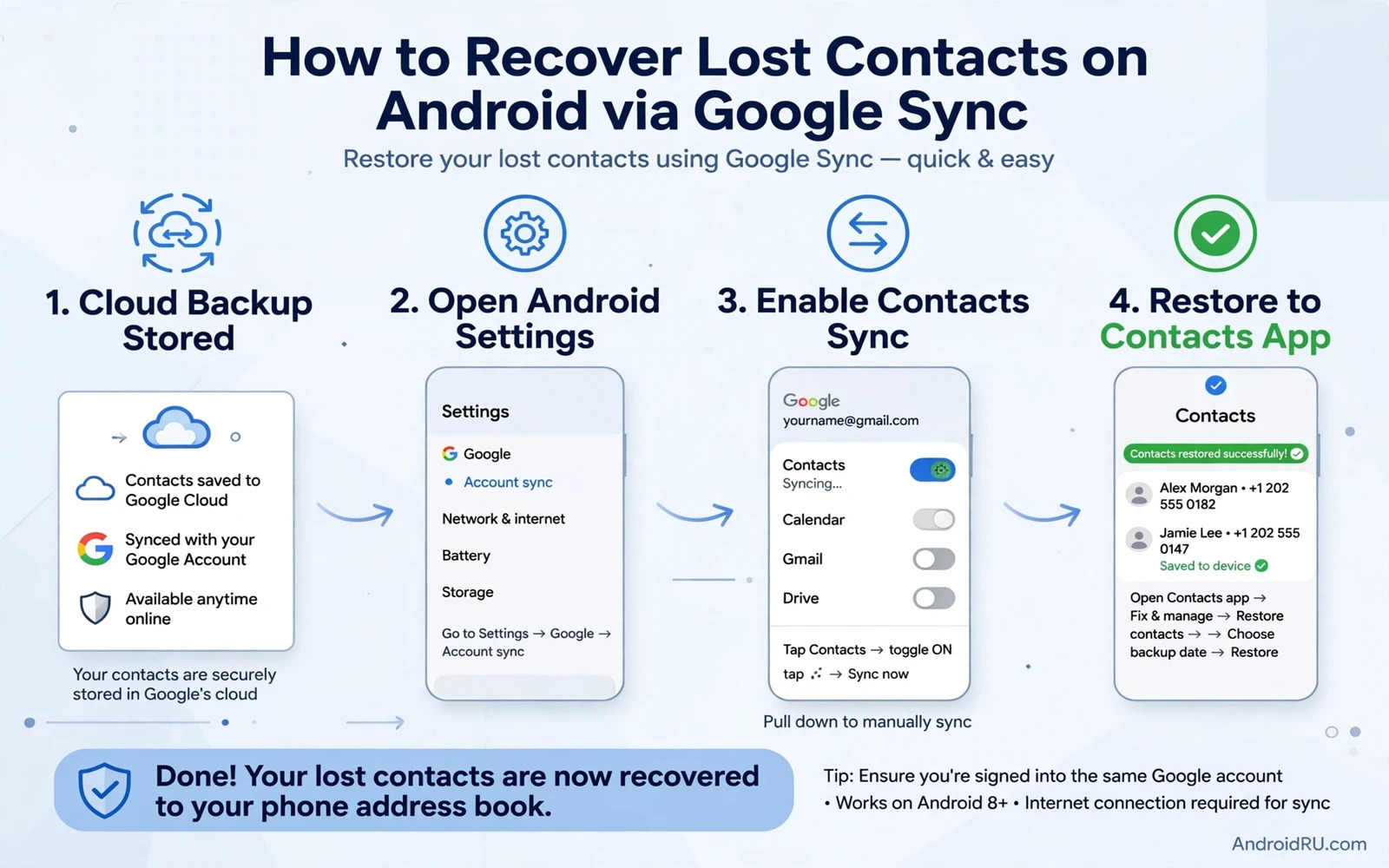
Open Settings and tap Accounts or Passwords and accounts to see which Google accounts are signed in on the phone. Open the contacts app settings and check which account is set as the default for new contacts. A new phone may have signed in with a different account than the old phone used for contacts. Sign in with the original account that held the contacts and wait for sync to complete. A correct account often restores the full list within minutes.
Check the contacts web view from a browser on a PC if you have access to one. Sign in with the same Google account and open the contacts list there. A full list in the web view proves that the cloud copy is safe and the phone only needs a sync fix. An empty list in the web view suggests a different account or a true deletion. A web check gives you a trusted second view before you change phone settings.
Turn On Contacts Sync Correctly
Open Settings and tap Accounts and tap the Google account that should hold contacts. Tap Account sync and confirm that Contacts sync is turned on. If sync is already on then turn it off and on again and wait for a fresh sync cycle. Do not delete the account from the phone before you confirm that contacts exist in the cloud. Deleting an account can remove its local contacts from the phone and complicate recovery.
Check that the phone has a working internet connection during sync because a sync cannot complete on a dead connection. Connect to stable Wi-Fi and keep the phone charging during a large sync. Open the contacts app after a few minutes and pull down to refresh the list. A sync that completes successfully should show contacts in batches as they arrive. Patience during sync prevents a premature conclusion that recovery failed.
Restore Contacts From Google Trash And History
Google contacts keeps deleted contacts in a trash folder for a limited time after deletion. Open the contacts web view and open the trash folder to see recently deleted contacts. Select the contacts that you want back and restore them from trash. Restored contacts will sync back to the phone on the next sync cycle. Act quickly because trash items expire after the retention window ends and then they cannot be restored from trash.
Google also keeps a version history for contacts that lets you roll back changes from a recent date. Open the contacts web view settings and look for the undo changes option. Choose a time before the contacts disappeared and confirm the rollback. A rollback restores the list to that earlier state and it can undo a bad sync or an accidental bulk deletion. Use rollback carefully because it can also undo recent additions that you want to keep.
Safe recovery path
Correct account > Contacts sync on > Web trash check > Undo changes > Phone sync
Recover Contacts After A Phone Switch
A new phone that shows no contacts often missed the account step during setup. Open Settings and add the original Google account if it is not present. Turn on contacts sync for that account and wait for the list to appear. Do not import a SIM contact file over the Google list before sync finishes because a duplicate import can create messy duplicates. Let sync finish first and then check for duplicates separately.
Data moves between phones follow the same backup-first rule and the transfer steps in Step-by-Step Guide: How to Transfer Data from iPhone to Android show why a verified backup matters before a wipe. Back up the new phone contacts list before you merge any imported file. A backup protects you if an import creates duplicates or overwrites a restored list. A careful merge keeps the recovered list clean.
SIM And Device-Only Contacts
Contacts saved only to the SIM card will not appear in Google sync and they need a separate import step. Open the contacts app and look for an import option from SIM card. Import SIM contacts into the Google account so they gain a cloud backup for the future. Check the imported list for duplicates and merge contacts that share the same name and number. A SIM import moves old contacts into the modern sync system.
Contacts saved only to device storage are the hardest to recover after a factory reset. A factory reset without a backup removes device-only contacts permanently in most cases. Check any old phone that still holds the device-only list before you reset it. Export device-only contacts to a file and import that file into Google contacts. A file export turns a fragile device-only list into a backed-up cloud list.
Avoid Risky Recovery Tools
Be wary of recovery apps that promise to restore deleted contacts for a fee or that ask for full account access. Many such apps cannot recover a contact that is truly gone from the cloud and some can steal account data. Use only the official contacts web view and the official phone settings for recovery. A tool that asks for your Google password outside the official sign-in page should never be trusted. Your contacts are personal data and they deserve official tools only.
Do not root the phone or install a low-level recovery tool just to chase a single contact. A risky tool can damage the phone and it can void warranty cover without restoring the contact. Try the official trash and history options first and accept a loss if those options are empty. A single lost contact is painful but a compromised account is far worse. Protect the account first and the contact list second.
Factory Reset And Backup Lessons
A reset without a backup is the most common cause of permanent contact loss and the safe reset steps in How to Factory Reset Android Phone Safely Without Losing Data explain the backup check that must come first. Back up contacts to Google before any reset and verify the web list before you start. A verified web list is proof that the backup worked. A reset that starts without that proof is a gamble with personal data.
After any recovery set the contacts app to save new contacts to the Google account by default. A default Google save gives every new contact an automatic cloud backup. Review the default save location after each new phone setup because a new phone can default to device storage. A single default setting prevents most future contact losses.
Clean Duplicates After Recovery
Recovery can create duplicate contacts when the same person exists in Google and on the SIM and on the device. Open the contacts web view and use its merge and fix option to combine duplicates. Review merged contacts carefully because two people with similar names should not be merged. A clean list after recovery is easier to use and easier to back up. Take time to tidy the list while the recovery is fresh in your mind.
Full device backups protect more than contacts and the backup steps in How to Backup and Restore Android Data Safely and Fully show how to keep photos and messages safe alongside contacts. Schedule a regular backup check once a month and confirm that contacts sync is still on. A monthly check takes a minute and it catches a sync failure before it becomes a loss. A habit of checking beats a panic recovery every time.
Final Checklist For Contact Recovery
Confirm that the contacts app shows all accounts and that the correct Google account is signed in. Confirm that contacts sync is on and that the web list matches the phone list. Confirm that trash and history options have been checked before any risky step. Confirm that new contacts save to Google by default for future protection. A short checklist covers the safest recovery path in order.
Protect Contacts For The Future
Save every new contact directly to the Google account and avoid device-only saves that have no cloud backup. A Google save syncs automatically when the phone connects to the internet. Check the save location once after each new phone setup. A correct default prevents most future losses.
Export contacts to a file once every few months and store that file in a safe cloud folder. A file export gives you an independent archive outside the sync system. A file archive can restore contacts even if a sync error damages the cloud list. A periodic export is a simple safety net.
Review contact groups and labels once a year and remove entries that are no longer needed. A tidy list is easier to search and easier to restore. Merge duplicates promptly so a restore does not create a messy list. A clean list reflects real relationships and not old clutter.
Teach family members to check the sync status on their own phones before a phone switch. A family member who verifies sync before a switch avoids the same panic that you faced. Share the simple steps of account check and web list check with them. A shared habit protects the whole family contact list.
Check the contacts list on a second device after recovery to confirm that the cloud list is consistent everywhere. A tablet or a PC signed into the same account should show the same contacts as the phone. A mismatch between devices points to a sync delay rather than a missing contact. Wait for sync to finish on all devices before you judge the recovery complete.
Keep the old phone untouched until the recovered list is verified on the new phone. Keep a file export of important contacts as an extra archive. Your contact list connects you to family and work and it deserves a backup that you can trust. A calm account check and a timely trash restore recover most lost contacts without any risky tool.

