

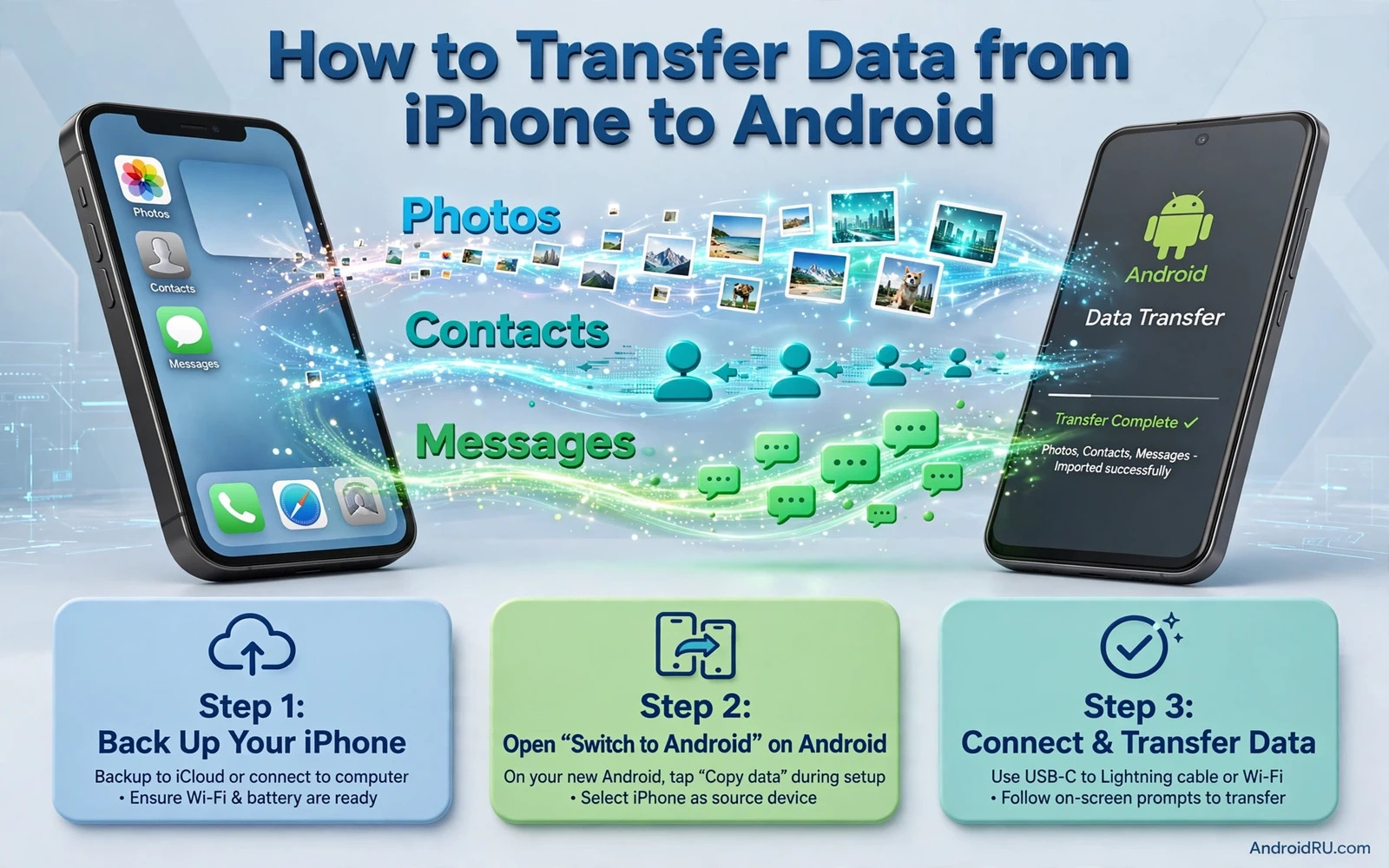
Plan The Move Before You Touch Either Phone
Moving from iPhone to Android works best when you plan the move before you start tapping through setup screens. A transfer moves many different kinds of data. Contacts and photos and messages and apps and files all travel by different paths. Some data moves automatically through an account. Some data needs a cable or a transfer app. Some data cannot move directly at all and needs a manual export. Knowing these paths in advance prevents lost photos and missing chats. Take time to list what matters most to you. Photos usually matter most. Contacts come next. Messages and notes and passwords follow close behind. A clear priority list helps you check each item at the end.
Charge both phones fully before you start. A transfer can take a long time when photo libraries are large. A phone that dies mid transfer can leave data half copied. Keep both phones plugged into power during the move. Keep both phones close together and keep the screen awake on both phones when the transfer tool asks for it. Turn off battery saver during the transfer. Battery saver can pause background work and slow the copy. A stable power supply and a stable connection matter more than speed settings.
Back up the iPhone before you start even when you plan a direct transfer. A backup gives you a safety net when a transfer step fails. Use the built in iCloud backup on the iPhone and confirm that the backup finished. Note the time of the last backup. Keep the iPhone working until you have checked the Android phone fully. Do not erase the iPhone on transfer day. Erasing too early is the most common and most painful mistake in a phone switch. The old phone is your backup until the new phone proves itself.
Prepare the Android phone by updating it first when an update is available. A newer system version supports more transfer features. Sign in with the Google account you plan to keep. This account will hold contacts and photos and app purchases later. Set a screen lock on the Android phone before you move sensitive data. A lock protects the data while you test the new phone. Skip installing many new apps until the transfer finishes. New apps can compete for storage and attention during the copy.
Use The Built In Transfer Tool First
Most Android phones offer a transfer tool during first setup. The tool may ask you to connect a cable between the phones. A cable transfer is usually faster and more complete than a wireless transfer. Use the cable that came with the phones when you can. A low quality cable can drop the connection during a large photo copy. Connect the phones and follow the prompts on the Android phone. The tool will ask what to move. Select contacts and messages and photos and videos and apps when the tool offers them. Leave out items you do not need if storage on the Android phone is tight.
Wireless transfer works when you have no cable or when the phones use different ports. Keep both phones on the same Wi-Fi network for a wireless move. Keep the phones near the router when the network is weak. Wireless transfer takes longer for large libraries. Do not start a large download on another device during the transfer. Network traffic from other devices can slow the copy and can cause timeouts. If wireless transfer stalls then switch to a cable and restart the transfer from the beginning. A partial wireless copy mixed with a cable copy can create duplicates.
Watch the progress screen and do not use either phone for other tasks during the copy. Calls and messages can interrupt the transfer tool on some phones. Put both phones in Do Not Disturb mode during the move. Do not lock the Android phone when the tool says to keep it awake. A locked phone can pause the transfer on some models. When the tool says the transfer is complete do not rush to erase the old phone. The next section explains how to verify each data type before you make any irreversible choice.
Move Contacts And Calendars Through Your Account
Contacts move most reliably through an account rather than through a single file copy. On the iPhone open Settings and check which account holds your contacts. Many iPhone contacts live in iCloud. Others live in a Google account or another mail account. Add the same Google account to the Android phone and turn on Contacts sync. Wait for the sync to finish and then open the Contacts app on Android. Compare the contact count with the iPhone count. A small difference can mean duplicate entries or contacts stored in a local phone only group.
Export contacts as a safety copy when sync leaves gaps. On a computer you can export contacts from iCloud as a file and import that file into Google Contacts. This manual path works well for contacts that never synced to any account. Check groups and labels after import. Some contact groups may import as separate lists. Merge duplicates in Google Contacts after the import finishes. Merging early prevents duplicate entries from spreading to messaging apps. Keep the exported file on the computer until you confirm the Android contacts list is complete.
Calendars follow a similar account path. Add the same calendar accounts to the Android phone. Turn on calendar sync for each account. Check a few known events on both phones. Look at birthdays and repeating events and all day events. Repeating events sometimes shift when time zones differ. Check the time zone setting on the Android phone and set it to automatic. A wrong time zone makes every event look wrong even when the data itself copied correctly. Fix the time zone before you judge the calendar transfer.
Move Photos And Videos Without Losing Quality
Photos need care because quality loss is easy to miss at first glance. A transfer tool may copy full quality photos when it uses a cable. A cloud path may copy smaller versions when the cloud account stores optimized copies. Check photo quality after transfer by opening a few large photos and zooming in. Look at faces and text in the photo. A compressed copy looks soft when zoomed. If quality dropped then copy the originals from a computer instead. Connect the iPhone to a computer and copy the original photo folder to the computer first. Then copy that folder to the Android phone or upload the originals to a cloud account that preserves full quality.
Check photo counts and dates after the move. Open the gallery on both phones and compare the total count. Look at the oldest photo and the newest photo on each phone. Look at a few albums by name. Albums may not transfer as albums. Some transfer tools flatten albums into one large camera roll. Recreate key albums by hand on Android when the tool flattens them. This manual step takes time but it preserves the organization that makes photos easy to find later. Do not delete iPhone photos until the Android gallery count and quality both check out.
Videos need extra storage space and extra time. A single long video can be larger than hundreds of photos. Check free space on the Android phone before you move videos. Move videos in batches when storage is tight. Start with the most important videos. Store older videos on a computer or an external drive as a second copy. Cloud storage can hold videos too but upload time depends on your internet speed. A slow upload is not a failure. Let uploads finish overnight when the library is large. Verify a few videos by playing them fully on Android before you erase anything.
Messages Notes And App Data
Messages are the hardest data type to move between iPhone and Android. Standard text messages may transfer through the built in tool on some phone pairs. Messages inside third party apps move only when that app offers its own transfer feature. Check each messaging app separately. Some chat apps let you back up chats to a cloud account and restore them on Android. That backup must finish on the iPhone before you install the app on Android. Install the chat app on Android and choose Restore when the app asks. Do not skip the restore prompt. Skipping it can make the backup hard to reach later.
Some chat history cannot move across platforms at all. Accept this limit early and save the most important chats another way. Export a key chat as a text file or take screenshots of essential details such as addresses or booking codes. Store those exports on the computer. This manual save is not elegant but it preserves the information that matters. Do not rely on memory for details hidden inside old chats. A short export now saves a long search later.
Notes need a similar check. Notes stored in iCloud may not appear in a Google notes app automatically. Open each note on the iPhone and check where it lives. Move important notes by sharing them to mail or to a notes app that works on both platforms. Copy long notes by hand when sharing loses formatting. Passwords need a dedicated move. Use a password manager that works on both platforms. Export passwords from the iPhone browser or manager only through its official export feature. Never send passwords through plain chat messages or unprotected files. Set up the password manager on Android and confirm that logins fill correctly before you erase the iPhone.
Apps themselves do not transfer as installed programs. The transfer tool copies a list of apps and the Android phone downloads Android versions from the store. Paid iPhone apps do not become free Android apps automatically. You may need to buy the Android version again. Check app by app for the tools you use daily. Sign in to each app on Android and confirm that your account data appears. Some apps store data only on the device. For those apps use the in app export or backup feature before you switch. A game that stores progress locally needs its own cloud save or account link to survive the move.
Files And Media Beyond Photos
Documents and downloads need a manual path when the transfer tool skips them. Connect the iPhone to a computer and copy documents and downloads to a folder on the computer. Then copy that folder to the Android phone over cable or through cloud storage. Check file names after copy. Long names with special characters can change during transfer. Open a few documents on Android to confirm they open correctly. PDF files and text files usually open without trouble. Files in a format tied to a single iPhone app may need conversion or a different Android app to open.
Music needs a check of its source. Music bought from a store may need the store app on Android or a re-download through your account. Music files copied by hand can move through a computer. Copy the music folder to the computer and then to the Android phone. Open the music app on Android and let it scan the new files. Check playlists by hand. Playlists often live inside an app and do not travel with raw music files. Recreate key playlists on Android when the app does not sync them. This step feels slow but it restores the listening setup you actually use.
The same computer bridge that moves documents also helps when you later move files between Android and a PC. A reliable cable copy avoids cloud limits and keeps large files at full quality. The habits you build now for checking file counts and opening samples will serve every later transfer. When you understand how to transfer files between Android and a PC over cable or wireless you gain a fallback whenever a phone to phone tool stalls or skips a folder. Keep the computer folder as a backup until the Android phone is fully checked. A computer copy is often the safest second copy during a big switch.
Verify Everything Before You Erase The iPhone
Verification is a separate step from transfer. Open contacts on Android and search for five people you call often. Open the gallery and check the oldest and newest photos. Open messages and check recent chats. Open notes and check the longest note. Open each daily app and confirm sign in works. Make a test call and send a test message from the Android phone. Connect to Wi-Fi and mobile data and confirm both work. A transfer is not complete when the progress bar finishes. A transfer is complete when daily tasks work on the new phone.
Back up the Android phone after verification. Turn on the built in Android backup and confirm it finishes. This new backup protects the transferred data from that point forward. Store the computer copies of photos and documents for at least a few weeks. Keep the iPhone charged and untouched during that period. If a missing item appears later you can still copy it from the iPhone. After a few weeks of normal use on Android you can erase the iPhone safely through its own erase settings. Sign out of accounts on the iPhone before erasing when you plan to sell it or give it away.
A fresh backup on the Android phone after verification protects the transferred data and the restore order for a full backup is worth reviewing before you erase the old phone so take time to understand how to backup and restore Android data safely and fully while the old phone still holds a second copy.
A factory reset on the old phone deserves the same backup first mindset as a reset on the new phone. The reset itself is simple but the data loss is permanent when no backup exists. That is why the rule to verify first and erase later matters for both directions of a switch. Anyone who plans to wipe a phone after a move should first read how to factory reset an Android phone safely without losing data and apply the same backup checks to the old device. A reset done in the right order feels boring. A reset done too early feels like a disaster. Choose the boring order every time.
Frequently Asked Questions
Can I transfer everything in one tap. No single tap moves every data type perfectly. Contacts and photos usually move well. Chat history and app data depend on each app. Plan for a few manual steps. A transfer tool handles the bulk of the work. Your checks handle the details that tools miss. Expect to spend time verifying rather than expecting a perfect one tap result.
Do I need the same phone brand for transfer. No. The built in transfer tool works across brands in most cases. Cable type matters more than brand. Use a good cable and follow the prompts. Wireless transfer works across brands too when both phones support it. Brand specific tools may add extra features but the standard tool covers the core data types.
Will my iPhone apps work on Android. Apps need Android versions. The transfer tool lists apps and the store downloads Android builds. Some iPhone only apps have no Android version. Find an Android alternative for those apps before switch day. Check paid apps separately because purchases do not always carry across platforms.
What if the transfer stalls halfway. Stop and restart the transfer from the beginning when a stall repeats. Check the cable and the power supply and the Wi-Fi signal. Free up storage on the Android phone. Remove a large video batch from the transfer and move it later by computer. A clean restart beats a half copied library with duplicates.
Should I erase the iPhone right after transfer. No. Keep the iPhone until you have used the Android phone for daily tasks for several days. Check contacts and photos and messages and apps during that period. Erase the iPhone only after the Android backup finishes and after you have a computer copy of key files. Patience at this stage prevents permanent loss.

