

What a bootloader does and why it is locked
A bootloader is the first program that runs when a phone starts. It checks the system before Android loads. It decides whether the system is trusted and whether it may start. A locked bootloader only starts a system that the device maker signed. That lock protects a stolen phone from a modified system. It also stops harmful software from replacing the boot chain at a low level. Unlocking removes that gate. The phone will then start a system that was not signed by the maker. That freedom is the whole point of unlocking. It is also the whole risk of unlocking.
Unlocking is not the same as rooting. Unlocking opens the boot chain. Rooting gives high level access inside a running system. Many root methods need an unlocked bootloader first. Some devices can be rooted without unlocking through other flaws. Those paths are rare and they change often. This tutorial treats unlocking as a separate step. It explains the gate itself before any later change. Readers who only want a rooted system should still understand this gate. The gate controls recovery and repair later.
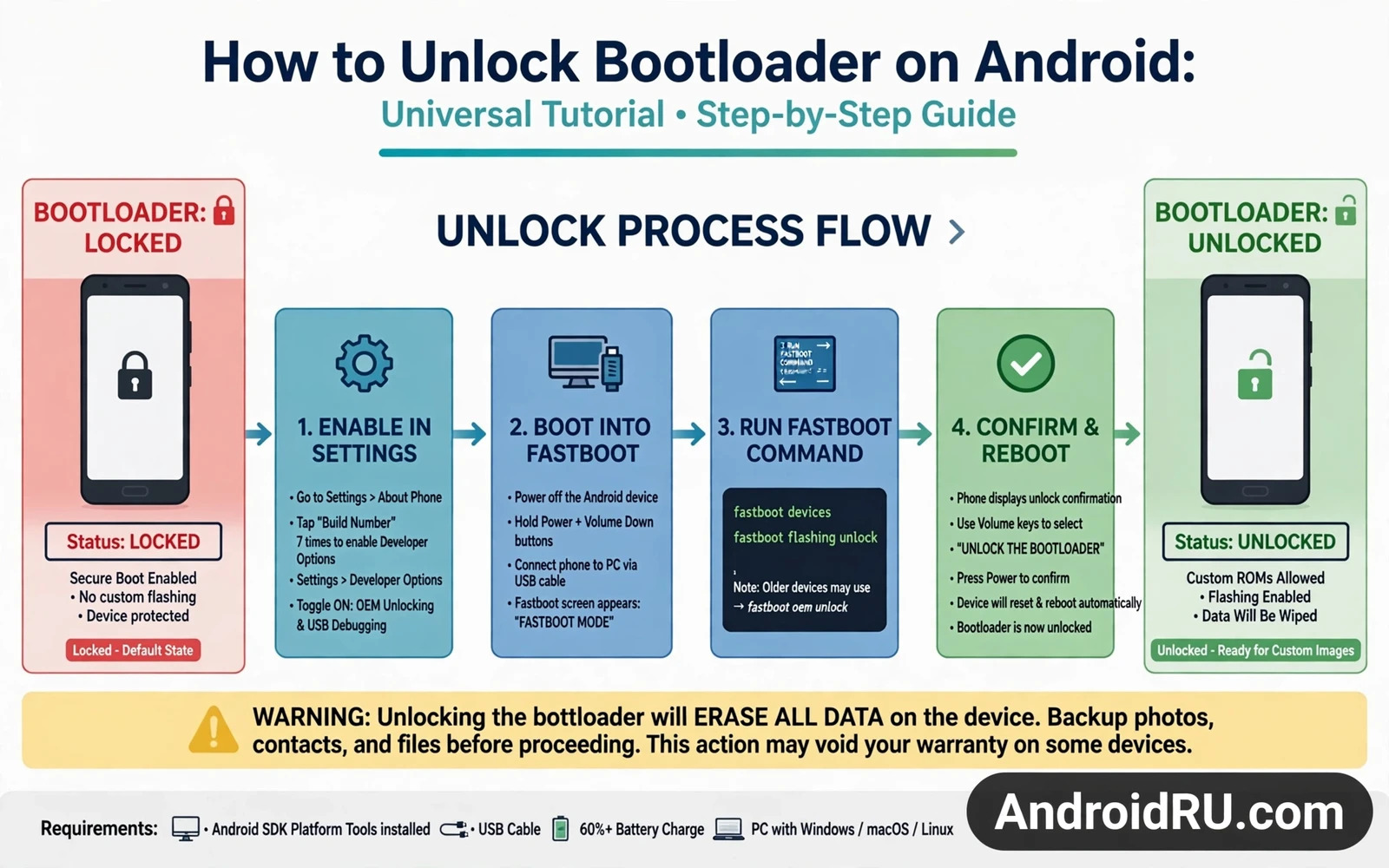
Read this warning before you touch any setting. Unlocking wipes user data on most devices. It can void the device warranty. It can cause a bootloop. It can brick the phone if the process is interrupted. Back up photos and videos and documents and accounts before you start. Do not use your only phone for this work unless you have a spare device ready. Keep the battery charged and keep a stable cable nearby. A failed unlock on a main device can leave you without a working phone. Treat every step as a point of no return until you verify the result.
Checks to finish before unlocking
Start with the exact device model and the exact software build on the phone. Device makers change unlock rules by model and by region and by carrier. A method that works on one model may fail on a sibling model. Check the maker page for that exact model in the settings menu. Write down the model name and the build number on paper. That note helps when a menu name differs from a tutorial. It also helps when you later need stock firmware for repair.
Enable developer options through the settings menu. Tap the build number repeatedly until the menu appears. Turn on the option that allows bootloader unlocking when the maker provides one. Turn on USB debugging as well so a computer can talk to the phone. Some makers require an account sign in before the unlock option appears. Some makers impose a waiting period after the option is enabled. Do not rush that waiting period. A premature unlock attempt can fail and can lock you out of retries for a time.
Back up everything in two places when possible. Copy files to a computer. Sync contacts and messages through an account backup. Save two factor recovery codes on paper. Save Wi-Fi passwords and app login details in a safe place. Unlocking wipes the internal storage on most devices. A cloud backup alone may not restore every app setting. A local copy gives you a second path when a restore fails. Verify that the backup opens before you unlock. A backup that was never tested is only a hope.
The universal unlock flow
Install the platform tools on a computer. Those tools include the fastboot program that talks to a phone in bootloader mode. Connect the phone with a good data cable. A charging only cable will not carry commands. Boot the phone into bootloader mode through the key combination for that model or through an ADB command. Confirm that the computer sees the device in fastboot mode. If the device does not appear then check the cable and the driver and the USB port before you continue. Never force a command against a device that is not detected.
adb reboot bootloader
fastboot devices
fastboot flashing unlock
fastboot reboot
Run the unlock command that matches the device maker. Some devices use a generic flashing unlock command. Others need a maker specific unlock command or a code from the maker. Read the on screen prompt with care. The phone will warn that data will be erased. Confirm only when the backup is verified and the battery is high. The phone will wipe itself and reboot. The first boot after a wipe takes longer than a normal boot. Wait patiently and do not pull the cable during that first boot.
After the reboot check the bootloader state again. Boot into bootloader mode and read the lock state shown on screen. A state that still reads locked means the unlock did not take effect. A state that reads unlocked means the gate is open. Set up the phone as a fresh device at first. Test calls and mobile data and Wi-Fi before you install any modification. A clean test proves that the unlock itself did not break basic functions. Only then should you move on to recovery or root or a custom system.
Common failures and how to respond
A common failure is a missing unlock option in developer options. That gap often means the maker or the carrier blocks unlocking on that unit. It can also mean that a waiting period has not finished. It can mean that the account sign in step is incomplete. Do not hunt for a secret bypass in that situation. A bypass that forces an unlock can damage the boot chain. Accept that some units stay locked by design. A locked phone is still a working phone. A forced unlock on a blocked unit can become a dead phone.
Another failure is a fastboot device that never appears. Try a different USB port on the computer. Try a different cable that is known to carry data. Try the platform tools from a fresh folder. Check that USB debugging was enabled before the reboot into bootloader mode. On some computers a driver install is needed before fastboot can see the phone. Work through those checks one at a time. Changing three things at once hides the real cause. A calm check list beats repeated blind attempts.
A bootloop after unlocking usually points to a wiped system that did not finish its first setup or to a damaged boot image from a later step. Boot into bootloader mode if the keys still work. Boot into recovery mode if that path is available. From there a factory reset or a stock firmware flash may restore the phone. If neither mode responds then stop and seek maker support or a repair path for that model. Repeated flashing in panic makes a soft failure worse. Keep notes on every command you ran so a helper can see the history.
When the bootloader is open and a custom kernel later tempts you then the tuning path deserves a slow read first. The custom kernel tuning walkthrough explains governors and schedulers and voltages in plain language. It also explains why a small change can beat a large change for daily stability. Read it before you chase peak speed on an unlocked phone.
Unlocking is only the first gate in a longer chain of changes. A reader who later wants to return to a clean state should study the reverse path early. The unroot and stock restore walkthrough shows how a device can be returned toward stock firmware. Knowing the way back makes the way forward safer. It also sets honest expectations about warranty and integrity checks after a return.
The final step of any unlock plan is the relock decision. Many readers unlock and never think about relocking until they sell the phone or need a warranty repair. The safe bootloader relocking walkthrough explains why relocking a modified system can brick a device. Read that warning before you ever press a relock command. A relock done in the wrong order can turn a working phone into a recovery case.
Life after unlocking
An unlocked bootloader changes how the phone is treated by secure apps. Payment apps and banking apps and some games check the bootloader state. They may refuse to run or they may limit features. That limit is a trade off for freedom at the boot level. Keep a second device for payments when possible. Do not store sole copies of sensitive accounts on an unlocked phone. Review app behaviour after unlocking and adjust your habits to match the new risk level.
Security updates still matter after unlocking. Install maker updates with care because an update can overwrite a custom recovery or a custom boot image. Read the update notes for that build before you install it. Back up again before any system update on an unlocked phone. An update that fails on a modified system can loop. A fresh backup turns that loop into an inconvenience rather than a loss. Keep the stock firmware for your exact model stored safely for repair use.
Unlock only when you have a clear reason. A reason might be a custom system that the maker no longer ships. A reason might be a repair that needs a clean flash. A reason might be learning how the boot chain works on a spare device. Curiosity alone on a main phone is a weak reason. Weigh the loss of warranty and the loss of secure app access against the gain. A deliberate unlock on a spare device teaches the same skills with far less risk.
Keeping records of an unlock
Keep a small notebook for the unlock project. Write the model name and the build number and the date of the unlock. Write every fastboot command in order. Write the result of each command in plain words. That notebook turns a vague memory into a reliable history. A helper can read the notebook and spot a missed step quickly. A future restore also benefits from that history. A phone with a documented past is easier to repair than a phone with a forgotten past.
Store the notebook away from the phone itself. A note stored only on the phone vanishes during the wipe that unlocking causes. Paper notes survive a wipe. A second device can hold a photo of the paper notes. That redundancy sounds excessive until a wipe erases the only copy. Good records cost minutes and save hours. They also prove that the unlock was deliberate rather than accidental when a warranty question arises later.
Review the unlock decision after a month of use. Ask whether the unlocked state delivered the benefit you wanted. Ask whether secure app limits caused daily friction. Ask whether updates became harder to manage. An honest review may lead you to restore stock and relock. An honest review may confirm that the unlocked state still serves a clear purpose. Either outcome is a success when it comes from evidence rather than habit. Revisit the decision rather than drifting with it.

