

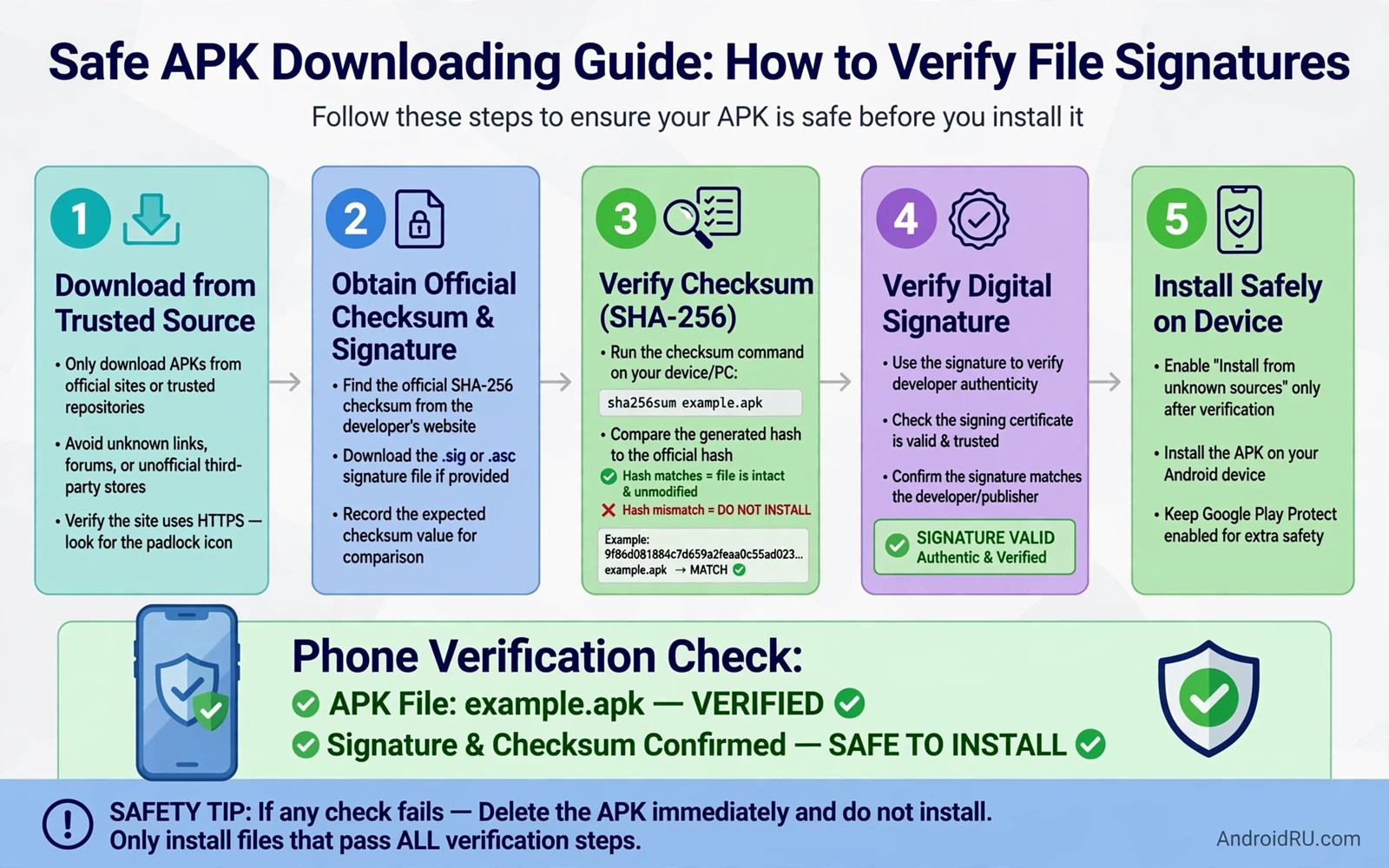
An APK file is an Android app package that can be installed outside the official store. That flexibility helps developers and testers and users in regions with limited store access. It also creates risk because a modified APK can look identical to the original while containing added code that steals data or shows ads or grants itself extra power. Verifying a file before installation is the habit that separates safe sideloading from reckless sideloading. This guide explains verification in practical steps without assuming specialist tools or specialist knowledge.
Start with a simple rule that prevents most harm. Install from the official store whenever possible and treat every outside source as untrusted until proven otherwise. Outside sources include download sites and forums and message links and file shares from strangers. A familiar site name alone proves nothing because impersonation sites copy designs closely. A file shared by a friend may have been modified before reaching you without your friend knowing. Verification matters precisely because appearance and sender reputation can both be faked.
Understand What A Signature Proves
Every APK carries a digital signature created with a private key held by the developer. Android checks that signature during installation and refuses packages whose contents were altered after signing. That check proves the file matches what the signer signed but it does not prove the signer is trustworthy. A malicious developer can sign malicious code with their own key and Android will accept it as consistently signed. Signature verification therefore answers the question of tampering rather than the question of trustworthiness. Both questions matter and neither answer alone is sufficient.
Updates add another signature rule. An update must carry the same signature as the installed version or Android will refuse it. That rule prevents an attacker from replacing a trusted app with a modified version under the same package name. It also means a legitimate app signed with a different key cannot update an existing install and must be installed fresh. If an update prompt claims to come from a known app but fails signature matching then treat that failure as a serious warning rather than as a technical annoyance. Signature mismatch is evidence of a different origin.
Check Hashes Before Installation
A hash is a fingerprint computed from file contents and even a tiny change produces a completely different fingerprint. Developers and reputable distributors sometimes publish a SHA-256 hash for a release. Compare the hash of your downloaded file against the published hash using a hash tool on your phone or computer. A match strongly suggests the file you hold is identical to the published file. A mismatch means the file differs and you should delete it and investigate the source rather than installing it hopefully.
Obtain the published hash from a channel you trust independently of the download itself. A hash shown on the same download page as the file offers limited value because an attacker who modified the file could also modify the displayed hash. Cross-check the hash against a second reputable location such as developer release notes or a well-known distribution page. Record the hash value you checked so you can repeat the check after transfer to another device. Hash checking is simple and fast and it catches corrupted downloads as well as tampered files.
Inspect Signer Details With Available Tools
Signer inspection goes beyond hash matching by revealing who signed the package and with which certificate. Developer tools on a computer can display certificate fingerprints and validity dates for an APK. Compare the fingerprint against a known good fingerprint published by the developer or against the fingerprint of an earlier trusted version from the official store. A matching fingerprint across versions supports continuity of origin. A new fingerprint for a supposedly familiar app deserves investigation before installation.
Phone-only users can still perform useful checks without developer tools. Check the package name carefully because impersonators use similar names with small changes. Check the version number and the requested permissions during installation and reject packages that demand access unrelated to their purpose. Check the install source prompt that Android shows and confirm it names the app you intentionally used to download the file. These checks do not replace signer inspection but they catch many impersonation attempts with tools already on the phone.
Control Install Unknown Apps Permission
Android requires explicit permission before any app can install packages from outside the store. That permission is granted per source app rather than globally. Grant it only to the specific browser or file manager you deliberately use for a download and revoke it immediately afterwards. Leaving the permission enabled for a browser means a malicious website could trigger an install prompt later without additional warning. Treat this permission as a temporary gate that opens for one task and closes right after.
Review install unknown apps permissions regularly in settings under special app access. Revoke permission from every app you do not recognise and from browsers you no longer use for sideloading. Be especially strict with messaging apps because links in messages are a common delivery method for malicious packages. A messaging app should almost never hold install permission. Tight control here reduces the chance that a moment of inattention turns into an installed package.
Evaluate The Source Before Trusting The File
Source evaluation precedes technical verification because a technically consistent file from a malicious source is still malicious. Ask whether the distributor has a long visible history and a clear contact channel and a policy for removing reported malicious files. Ask whether the developer themselves links to that distributor from an official channel. A distributor that appears only through search ads or message links deserves scepticism. A distributor that hosts many unrelated popular apps with identical descriptions may be scraping files without verification.
Read user comments critically because comments can be fabricated and negative comments may be removed. Look for detailed reports about version history and update timing rather than generic praise. Compare file size and version number against the official release where that information is public. Large unexplained size differences can indicate added code. Source evaluation cannot prove safety but it filters out the least trustworthy distributors before technical checks begin. Combine source judgement with hash and signer checks for a layered verdict.
Install Safely And Monitor Afterwards
Install only after hash and source checks pass and only with install permission granted temporarily to the chosen source. During installation read the permission list one final time and cancel if anything surprises you. After installation monitor the new app for unusual battery use or data use or pop-ups during the first days. Review its permissions and revoke anything unnecessary at once. Keep the original APK file for a short period so you can recheck its hash if problems appear later. Delete the file once confidence is established to avoid accidental reinstallation.
Keep the sideloaded app updated through the same trusted source rather than through random update prompts. A prompt inside the app claiming a new version may be legitimate or may be a social engineering trick. Verify updates with the same hash and signer discipline as the original install. If an app ever behaves suspiciously then the cleanup approach for removing malware and viruses from an Android phone applies equally to sideloaded apps. Early monitoring turns a bad install into a brief incident rather than a long compromise.
When Sideloading Is Not Worth The Risk
Some categories deserve a strict store-only rule regardless of verification skill. Banking and payment apps and password managers and government service apps should come only from the official store because the stakes of a modified version are extreme. Modified games that promise free premium features are a classic malware vector and the promised benefit rarely justifies the risk. Apps that request accessibility access or device administrator rights through sideloading deserve immediate rejection unless you personally know and trust the developer and the purpose.
Consider whether the sideloaded app offers a benefit unavailable through the store or through a web version. If a web version performs the same task then use the web version and avoid the package risk entirely. The safest APK is the one you never needed to install. That principle pairs with general device protection and the overview of essential Android security settings explains how store discipline fits a wider safety system. Verification skill is valuable but choosing not to sideload high-risk apps is even more valuable.
A package installed outside the store deserves a second look after installation. A careful permission review after sideloading catches requests that a store listing would have made easier to question before download. Revoke anything that does not match the app purpose at once and watch battery and data use during the first week. Early scrutiny costs minutes and it often reveals a problem before it becomes entrenched.
Keep a short record of each sideloaded package with its version and hash and install date in a note stored away from the phone. That record makes future updates easy to compare because a new version with an unexpected signer or a sudden size change stands out against the recorded baseline. Delete the record when you uninstall the app so old entries do not create confusion later. Good records turn verification from a one-time event into an ongoing habit.
- Prefer the official store and treat outside sources as untrusted by default.
- Compare SHA-256 hashes against an independently trusted published value.
- Check package name and version and permissions during installation.
- Grant install unknown apps permission temporarily and revoke it afterwards.
- Monitor new sideloaded apps for battery and data anomalies.
- Keep banking and payment apps strictly store-only.

