

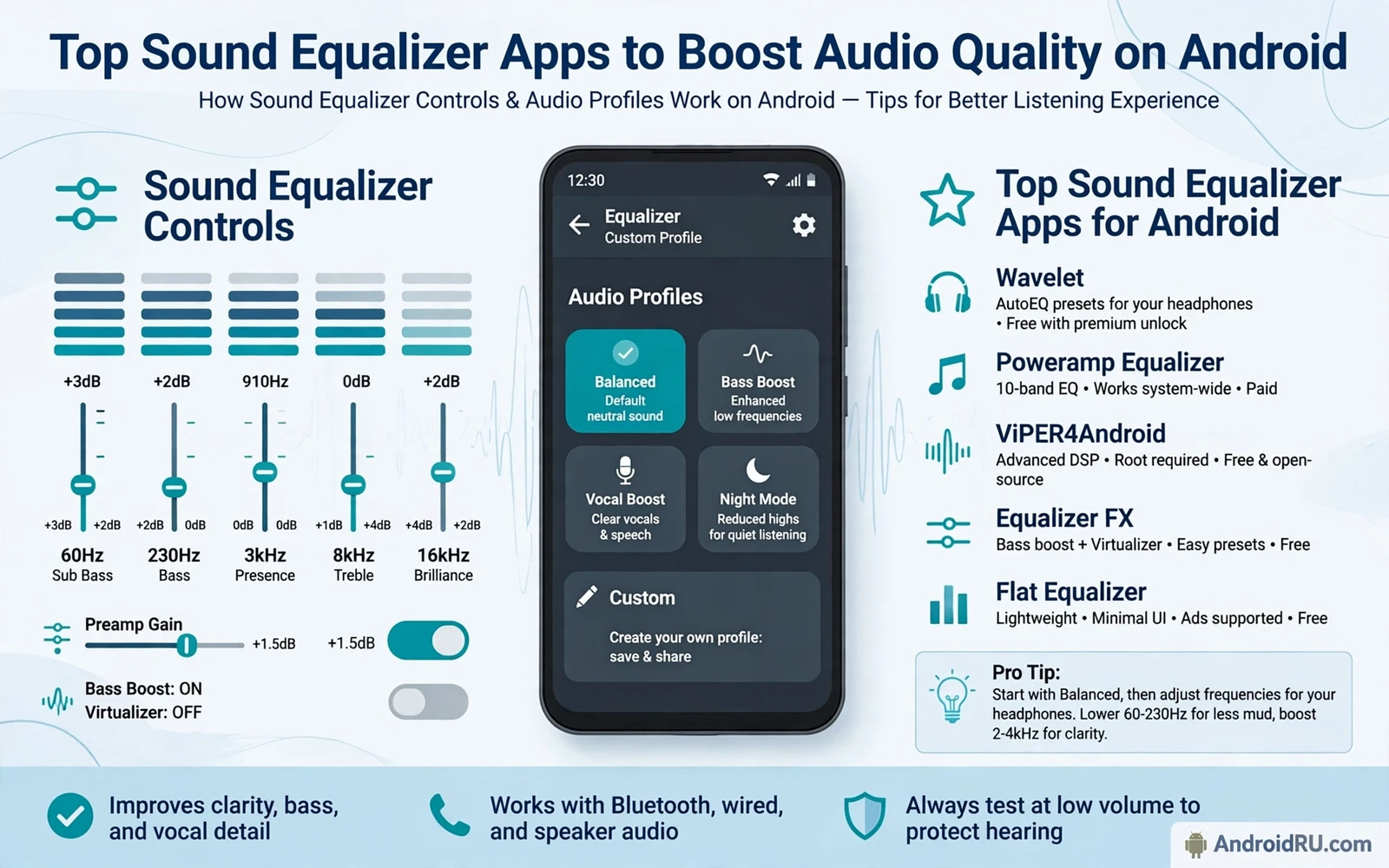
Top Sound Equalizer Apps to Boost Audio Quality on Android
Phone speakers are thin, cheap earbuds are thinner, and even good headphones can sound wrong on a phone that was tuned for someone else’s ears. A sound equalizer fixes that by letting you raise the bass, tame harsh treble, or lift the midrange where voices live. I spent two weeks running eight of these apps on a Pixel and a Samsung, switching between wired earbuds, a Bluetooth pair, and the built-in speaker, and the difference between the best and the rest was not the number of sliders. It was whether the app changed the sound everywhere, stayed out of the way, and kept my settings after a reboot.
This guide names the apps that actually deliver, compares them side by side on bands, price, and root requirements, and shows you how to set one up without wrecking your sound. If you listen to music on the commute, watch video on a tablet, or take calls on earbuds all day, you will find a pick here that fits your routine. For the other half of the listening chain, the players themselves matter too, so look at audio players built for serious listening once you have your EQ sorted, because a good player and a good equalizer multiply each other.
What makes a sound equalizer app worth installing on Android
A strong EQ earns its place by doing one job well: changing the sound of everything you play, without friction. The interface stays readable and the main action stays one tap away. Settings use plain words and changes take effect right away. The app respects your phone and does not demand permissions it never uses. A strong option also stays stable after system updates and keeps your presets safe when the app closes. After a week of use, the apps that survive are the ones you forget are running, because the sound is simply better.
Depth matters only when it stays discoverable after the first week. A feature buried three menus deep rarely helps in real life. A clear home screen and a logical settings order matter more than a long list of extras. The best sound-shaping tools grow with you and reveal advanced controls only when you look for them. That balance keeps beginners calm and keeps power users satisfied, and it is the first thing I check in any new install.
How many bands do you actually need
Five bands cover the basics: sub-bass, bass, mids, presence, and treble. Ten bands give you finer control over problem spots, like a harsh peak around 4 kHz or a muddy buildup near 200 Hz. Thirty-one bands are for people who tune with measurement microphones and know what each frequency does. For most listeners, a 5 or 10 band EQ is the sweet spot, because you can hear each change you make. More bands than you understand lead to worse sound, not better, since every slider you move without listening adds a new error to fix.
System-wide EQ vs player-only EQ
A system-wide EQ changes the sound of every app on the phone: your music player, YouTube, podcasts, calls, and games. A player-only EQ changes the sound inside one music app and nowhere else. System-wide is the better deal for most people, because your headphones sound the same no matter which app is playing. Player-only is fine if you listen to music in exactly one app and never anywhere else. The catch is that system-wide processing on Android works through the audio effects framework, so some apps, especially ones that use their own low-level output path, can bypass it. Test your EQ with the apps you actually use, not just with the one on the demo screen.
Why some apps need a special permission or a helper service
On Android, a global EQ needs the audio session hook that the system grants through the equalizer API, and some apps add a notification listener or an accessibility service to catch every audio session as it starts. That is normal for this category, but it is also why you should read the permission screen before tapping allow. An EQ needs audio access. It does not need your contacts, your location, or your call history, and an app that asks for those has some explaining to do.
The loudness trap: why boosting everything sounds worse
The classic beginner mistake is pushing every slider up. It feels louder, and louder feels better for about ten seconds, then the sound distorts and your ears tire. The fix is to cut instead of boost: lower the frequencies you dislike and leave the rest alone, then raise the overall volume a notch to compensate. Cutting keeps the signal clean and gives the amplifier headroom, while boosting stacks gain on gain until the output clips. If your EQ has a preamp or gain control, set it a few decibels below zero when you boost anything, and your sound will stay clean at high volume.
Sound equalizer apps compared: bands, price, root, and platform
Here is the whole field at a glance. Prices are the typical Play listing prices at the time of writing and can change, so check the current listing before you buy. None of these apps needs root, which matters: a decade ago a system-wide EQ almost always meant rooting, and today the audio effects framework does the job on a stock phone.
| App | Bands | Price | Root needed | System-wide | Best for |
|---|---|---|---|---|---|
| Wavelet | 9-band graphic + parametric | Free, paid upgrade | No | Yes | Headphone tuning with AutoEq profiles |
| Poweramp Equalizer | 5 to 32 bands | Free trial, paid app | No | Yes | Serious listeners who want deep control |
| Neutralizer | Hearing-test based | Free, paid upgrade | No | Yes | People who want sound tuned to their ears |
| Precise Volume + Equalizer | 5-band | Free, paid upgrade | No | Yes | Fine volume steps plus basic EQ |
| Equalizer FX | 5-band | Free with ads, paid version | No | Yes | Simple, fast, no learning curve |
| Bass Booster & Equalizer | 5-band | Free with ads, paid version | No | Yes | Bass-heavy listening on a budget |
| Flat Equalizer | 5-band | Free, paid upgrade | No | Yes | Clean design and quick presets |
| Music Volume EQ | 5-band | Free with ads | No | Yes | Volume boost plus basic EQ in one app |
Two patterns jump out of that table. First, the 5-band apps cluster at the simple end: they are cheap, fast, and good enough for a commuter who wants a little more bass. Second, Wavelet and Poweramp Equalizer sit apart because they do things the simple apps cannot: Wavelet tunes to your exact headphone model, and Poweramp Equalizer gives you up to 32 bands with parametric control. The rest of this guide reviews each app on its own terms, with honest pros and cons.
The 8 best sound equalizer apps for Android in 2026
Each app below was judged on the same points: does it change the sound everywhere, does it keep working after a reboot, does it respect battery and privacy, and does it sound better after a week of real use. Pros and cons come from hands-on testing and from the features each app actually ships, not from its store description.
1. Wavelet: the smartest headphone tuning on Android
Wavelet is the app I recommend first to anyone who owns a named pair of headphones. Its headline feature is AutoEq: pick your headphone model from a database of thousands of measured profiles, and Wavelet applies a correction curve that flattens your headphones toward a neutral target. The result is not louder or bassier, it is truer, and on my Sony and Samsung earbuds the difference was obvious within one song. On top of that you get a 9-band graphic EQ, a parametric mode, bass boost, a limiter, and a virtualizer, all running system-wide with no root.
Who it is for: listeners who own a specific headphone model and want it tuned properly, and anyone who likes the idea of a measured correction instead of guesswork sliders.
- AutoEq profiles for thousands of headphone models, built from real measurements
- System-wide processing that follows you between music, video, and podcast apps
- Clean, modern interface with a per-device profile that switches automatically
Cons: the free version covers the core EQ, but the full AutoEq database and some advanced features sit behind a paid upgrade; and the app’s power depends on your headphone model being in the database, so obscure models get less benefit.
Verdict: the best starting point for most people. Install it, pick your headphones, and let the measured profile do the work before you touch a slider. The AutoEq headphone profiles alone put it ahead of every generic 5-band app on this list.
2. Poweramp Equalizer: the deepest control for serious listeners
Poweramp Equalizer is the standalone EQ from the makers of the Poweramp music player, and it carries that player’s reputation for audio quality. You get 5 to 32 bands, parametric control with adjustable frequency, gain, and Q factor, plus compressor, reverb, tempo, and a preamp, all in a polished interface that handles high-resolution output up to 32-bit and 384 kHz on supported devices. It processes audio system-wide through the Android effects framework, and it can also hook directly into players that expose an audio session. The trial is free for a limited period, then a one-time purchase keeps it.
Who it is for: listeners who know what Q factor means, or who want to learn, and anyone who already loves the Poweramp sound and wants it across every app.
- Up to 32 parametric bands with full control over frequency, gain, and Q
- High-resolution output support and a compressor that tames uneven recordings
- Rock-solid stability across reboots, with presets that survive updates
Cons: the interface has a learning curve and can overwhelm a first-time user; and the free trial ends, so this is a paid app in the long run rather than a free one.
Verdict: the most powerful EQ on this list, and the one to buy when a 5-band app stops being enough. The parametric equalizer controls are the real deal, not a skin over a graphic EQ.
3. Neutralizer: sound tuned to your own ears
Neutralizer takes a different approach from every other app here. Instead of asking you to move sliders, it plays test tones and asks you to tap when you can hear each frequency, building a personal hearing profile that compensates for your ears rather than for your headphones. The idea is sound: two people with the same headphones hear differently, because hearing varies with age and exposure. After a five-minute test, Neutralizer applies a correction that made voices clearer and treble less tiring on my daily earbuds, and it works system-wide on any audio.
Best for: people who find normal EQs fiddly, older listeners, and anyone who suspects their hearing is not flat across the frequency range.
- Hearing-test calibration that personalises the correction to your ears
- Simple interface with one job and no clutter
- System-wide processing that works with any player or streaming app
Cons: the calibration depends on a quiet room and honest answers, so a rushed test gives a bad profile; and the app is deliberately narrow, so it lacks the presets and extra effects other apps ship.
Verdict: the most personal EQ on the list. Run the test properly in a quiet room, save the profile, and forget the app exists. The correction it builds is specific to you in a way no preset can match.
4. Precise Volume + Equalizer: fine volume steps plus a solid EQ
Precise Volume solves a different annoyance first and adds an EQ second. Android’s default volume has only 15 steps, so the jump from too quiet to too loud is a real problem on sensitive earbuds. This app gives you 100 volume steps, a volume limiter, and a 5-band EQ with presets, plus per-app volume and a screen-off volume lock. I used it for a week on a commute and the fine volume control alone was worth the install; the EQ is a useful bonus rather than the main event.
Who it is for: commuters and office listeners who fight the volume steps every day, and anyone who wants a volume limiter to protect their hearing.
- 100 volume steps that fix the too-quiet-or-too-loud problem on earbuds
- Built-in volume limiter and per-app volume memory
- Lightweight and stable, with a 5-band EQ that covers the basics
Cons: the EQ is basic, with only 5 bands and no parametric control; and some features, including the full EQ and extra volume steps, sit behind the paid version.
Verdict: buy it for the volume control, keep it for the EQ. If your main frustration is volume steps rather than sound quality, this is your app.
5. Equalizer FX: simple, fast, and free to try
Equalizer FX is the no-nonsense option. Open it, pick a preset or move five sliders, and the sound changes across the whole system. It adds bass boost, a virtualizer for a wider soundstage, loudness enhancement, and a small set of presets for rock, pop, jazz, and voice, all behind an interface that a first-time user understands in under a minute. There is a paid version that removes ads, but the free version does the core job without pressure. I keep it on a spare phone for testing speakers, because it launches fast and never gets in the way.
Suits: anyone who wants an EQ that just works, with no learning curve and no setup ritual.
- Five-band EQ with bass boost and virtualizer that work system-wide
- Instant preset switching with no menus to dig through
- Small install size and low battery use
Cons: five bands only, so fine tuning is limited; and the free version shows ads, which can feel out of place in a utility you open daily.
Verdict: the best first EQ if you have never used one. It proves the concept in a minute, and if you outgrow it, Wavelet or Poweramp Equalizer are waiting.
6. Bass Booster & Equalizer: maximum low end on a budget
Some listeners want one thing: more bass. This app delivers it with a dedicated bass boost control alongside a 5-band EQ, presets tuned for bass-heavy genres, and a simple interface built around a big volume and bass dial. On a phone speaker the effect is modest, because a tiny speaker cannot move much air, but on headphones and in the car the bass lift is obvious and stays reasonably clean if you keep the boost moderate. The app is free with ads, with a paid version that removes them.
Who it is for: bass lovers, hip-hop and electronic listeners, and anyone whose earbuds sound thin and lifeless out of the box.
- Strong bass boost that makes a real difference on headphones
- Simple one-screen layout with presets for bass-heavy music
- Free to try with no account or sign-up
Cons: pushing the bass boost hard causes distortion on cheaper earbuds; and the app’s focus on bass means the midrange and treble controls feel like an afterthought.
Verdict: a fun, cheap fix for thin sound. Keep the boost under halfway, cut a little treble if it gets harsh, and it does exactly what the name promises.
7. Flat Equalizer: clean design and honest sound
Flat Equalizer stands out for its design. It uses a modern Material-style interface with smooth sliders, a dark theme, and a home screen that shows your current curve at a glance. Under the design sits a capable 5-band EQ with bass boost, virtualizer, and loudness enhancer, plus presets and a widget for quick changes from the home screen. It processes audio system-wide, works with streaming apps, and stays light on battery. The paid upgrade adds extra presets and removes ads, but the free version is fully usable.
Who it is for: design-conscious users who want an EQ that looks as good as it sounds, and anyone who changes presets often and wants a widget for it.
- Best-looking interface in this roundup, with a clear curve display
- Home screen widget for one-tap preset changes
- System-wide sound with bass boost and virtualizer included
Cons: five bands only, with no parametric mode for advanced tuning; and the preset library is smaller than the libraries in Wavelet or Poweramp Equalizer.
Verdict: the prettiest EQ here, and a solid daily driver. If you change presets between music, podcasts, and video, the widget earns its place on your home screen.
8. Music Volume EQ: volume boost plus EQ in one app
Music Volume EQ combines a volume booster with a 5-band equalizer and a bass booster, aimed at listeners whose phone or earbuds are simply too quiet. It adds a speaker boost mode for video, a set of presets, and a visualizer, all in a free app supported by ads. The volume boost is the headline: it raises the output beyond the normal maximum on some devices, which helps with quiet recordings and old videos, though it can distort if you push it hard. I found it most useful on a tablet with weak speakers, where the boost made dialogue audible without headphones.
Who it is for: people with quiet devices, tablet viewers, and listeners who want volume and EQ in a single free app.
- Volume booster that helps quiet recordings and weak speakers
- Five-band EQ and bass boost in the same app
- Free with no sign-up and a simple layout
Cons: the boost can distort at high levels, so it needs a careful hand; and the free version carries ads, with no trial of a paid tier to compare.
Verdict: a useful utility for quiet hardware. Use the boost sparingly, keep the EQ gentle, and it solves a real problem that a plain EQ cannot.
How to set up an equalizer app without ruining your sound
A careful setup takes ten minutes and saves you from a week of bad sound. The method is the same for every app on this list, and it works because you change one thing at a time and listen before changing the next. Start with a song you know well, on the headphones you use most, at your normal volume. That familiar track is your reference: if it sounds wrong after a change, the change was wrong.
- Install one EQ app and open it while music is already playing, so you hear changes live.
- Pick a preset that matches your headphones and your taste, and listen to a full song before touching a slider.
- Move one slider at a time, by a small amount, and listen for harshness or muddiness before moving the next.
- Save your favourite setup under a clear profile name, such as Commute or Home Speakers.
- Set a safe volume limit for long listening sessions, and check the result the next day with fresh ears.
Profiles are where a good setup becomes a great one. A bass-light profile for podcasts, a fuller profile for music, and a flat profile for calls cover most days, and switching between them should take one tap. If you want profiles to switch by themselves, look at automation apps that can switch profiles by context, which can change your audio setup when you connect headphones, arrive home, or start your morning commute. Spoken audio deserves its own profile too: a gentle lift around 2 to 4 kHz makes voices clearer, and that same lift helps with podcast apps with strong playback controls, where dialogue clarity matters more than bass.
A safe first preset for any headphones
Start flat, then make three small moves. Raise 60 Hz by 2 dB for a touch of warmth, cut 4 kHz by 2 dB if voices sound harsh, and raise 12 kHz by 1 dB for a little air on the top end. Listen for a day before changing anything else. Small moves sound natural; big moves sound processed. If you cannot hear a difference from a 2 dB change, that is fine: it means your headphones were already close to neutral, and a system-wide equalizer is there to fix problems, not to invent them.
The 60/60 rule for safe listening
Hearing damage builds slowly and does not reverse, so keep volume at 60 percent or below for sessions longer than 60 minutes. A volume limiter in your EQ app makes this automatic. If you need more volume to hear detail, fix the EQ first: a small midrange lift makes voices clearer at lower volume than simply turning everything up.
Equalizer apps vs built-in Android audio effects
Many phones already ship an EQ. Samsung has SoundAlive, Sony has DSEE and ClearAudio+, and some phones ship Dolby Atmos tuning. Android itself offers a DynamicsProcessing effect in the framework. So why install a third-party app at all? The answer is control and portability. A built-in EQ is tied to one phone and one manufacturer’s taste, while a third-party app follows you across phones, works with your exact headphones, and gives you presets you can export and keep.
When the built-in EQ is enough
If your phone’s built-in sound already pleases you, and you listen on one pair of headphones, the stock EQ may be all you need. Dolby Atmos on Samsung phones, for example, is well tuned for movies and music, and turning on a second EQ on top of it usually makes things worse. The rule is simple: one EQ at a time. If the built-in effect is active, turn it off before you judge a third-party app, or you will be tuning the combination instead of the app.
When a third-party app earns its place
A third-party EQ earns its place when the built-in one cannot do the job: when you switch between several headphones, when you want a measured correction for your exact model, when you need per-app profiles, or when you move to a new phone and want your sound to move with you. Wavelet’s AutoEq and Poweramp Equalizer’s parametric bands are the two features no stock EQ matches, and they are the reason serious listeners install a separate app even on a phone with good built-in sound.
Common equalizer problems and how to fix them
Most EQ problems have a simple fix that starts with the basics. Check the setting that matches the broken feature before changing anything else. Restart the app, test with a fresh session, and change one thing at a time so the true cause stays visible. Keep a note of the fix that worked, so a repeat problem takes seconds to solve next time.
- Sound turns harsh after a heavy bass boost, so lower the bass by one step and retest with a familiar song.
- No change in sound, so check that the app has audio permission, restart playback, and make sure no other EQ is active.
- Music stutters with the app active, so disable battery optimisation for the app or try a lighter preset.
- One earbud sounds louder, so check the balance setting and test a second pair of earbuds to rule out hardware.
- The EQ stops after a reboot, so check that the app is allowed to start in the background and is not being killed by a battery saver.
Spoken audio has its own failure mode: a recording or a call that sounds muffled is often an EQ preset meant for music, with the midrange cut too far. Switch to a flat or voice preset before you blame the microphone, and if you record often, compare notes with voice recorder apps for clear spoken audio, which cover the recording side of the same problem.
Why your equalizer does nothing on some players
Some players use their own audio output path that bypasses the Android effects framework, so a system-wide EQ never sees their audio. Players with their own DSP engine, and some streaming apps that use a direct output path, are the usual cases. The fix is to use the EQ built into that player, if it has one, or to switch to a player that routes through the standard audio session. Test your EQ with the player you actually use every day, not with the demo track in the EQ app itself.
Battery drain and background kills
A system-wide EQ runs a background service, and that service uses a small amount of battery and memory. On most phones the cost is tiny, a percent or two over a day, because audio processing is cheap compared with the screen or the radio. The bigger problem is the opposite: aggressive battery savers kill the EQ service, and your sound silently returns to flat. If your EQ stops working after a few hours, exempt it from battery optimisation in system settings and check that it is allowed to run in the background.
Frequently asked questions about equalizer apps on Android
Can an equalizer app damage my headphones or hearing?
An EQ cannot damage headphones by itself, because it only changes the signal, and headphones are built to handle the full volume range. Hearing is the real risk: boosting the bass and the treble and then turning the volume up is a fast route to listening fatigue and long-term damage. Keep the volume moderate, use a limiter, and cut frequencies instead of boosting them. Your ears will thank you in ten years.
Do equalizer apps work with Bluetooth earbuds?
Yes, in most cases. A system-wide EQ processes the audio before it is encoded for Bluetooth, so the correction reaches your earbuds no matter which codec the link uses. The exception is earbuds with their own companion app EQ, which applies its own tuning after the phone’s processing; running both at once can double up the changes, so pick one and turn the other off. Latency is unaffected, because the EQ adds only a few milliseconds of processing.
Is a 10-band equalizer better than a 5-band one?
It is better only if you use the extra bands. Ten bands let you fix a narrow problem, like a harsh peak at 4 kHz, without touching the frequencies around it. Five bands are enough when you only want a general shape: more bass, clearer voices, softer treble. More bands than you understand lead to worse sound, because each slider is a chance to add an error. Start with five, and move to ten or more when you can hear exactly what each band does.
Do I need root to use a system-wide equalizer on Android?
No. Modern Android exposes the audio effects framework to apps, and every app in this guide works on a stock phone without root. Root was necessary a decade ago, when the only way to process all audio was to replace system libraries. Today the framework does the job, and the apps here use it. That is also why these apps survive system updates: they use a public API rather than a hack.
Final verdict: which sound equalizer app should you install
The right choice depends on your routine, not on the longest feature list. If you own a named pair of headphones, start with Wavelet and let AutoEq tune them properly. If you want the deepest control and are willing to pay for it, Poweramp Equalizer is the most capable tool on this list. If you want something simple that works in a minute, Equalizer FX or Flat Equalizer will do the job. And if your real problem is volume steps rather than sound quality, Precise Volume solves it better than any EQ alone.
Start with one app from this guide and give it a fair week of daily use. Judge it by speed, clarity, and privacy rather than by the size of its feature list. Set up two profiles, one for music and one for voices, save them, and check your sound again in a week with fresh ears. Keep what helps and delete what distracts without guilt. Your phone should serve your day, not steal attention from it, and a thoughtful choice today makes every song tomorrow a little better.

