

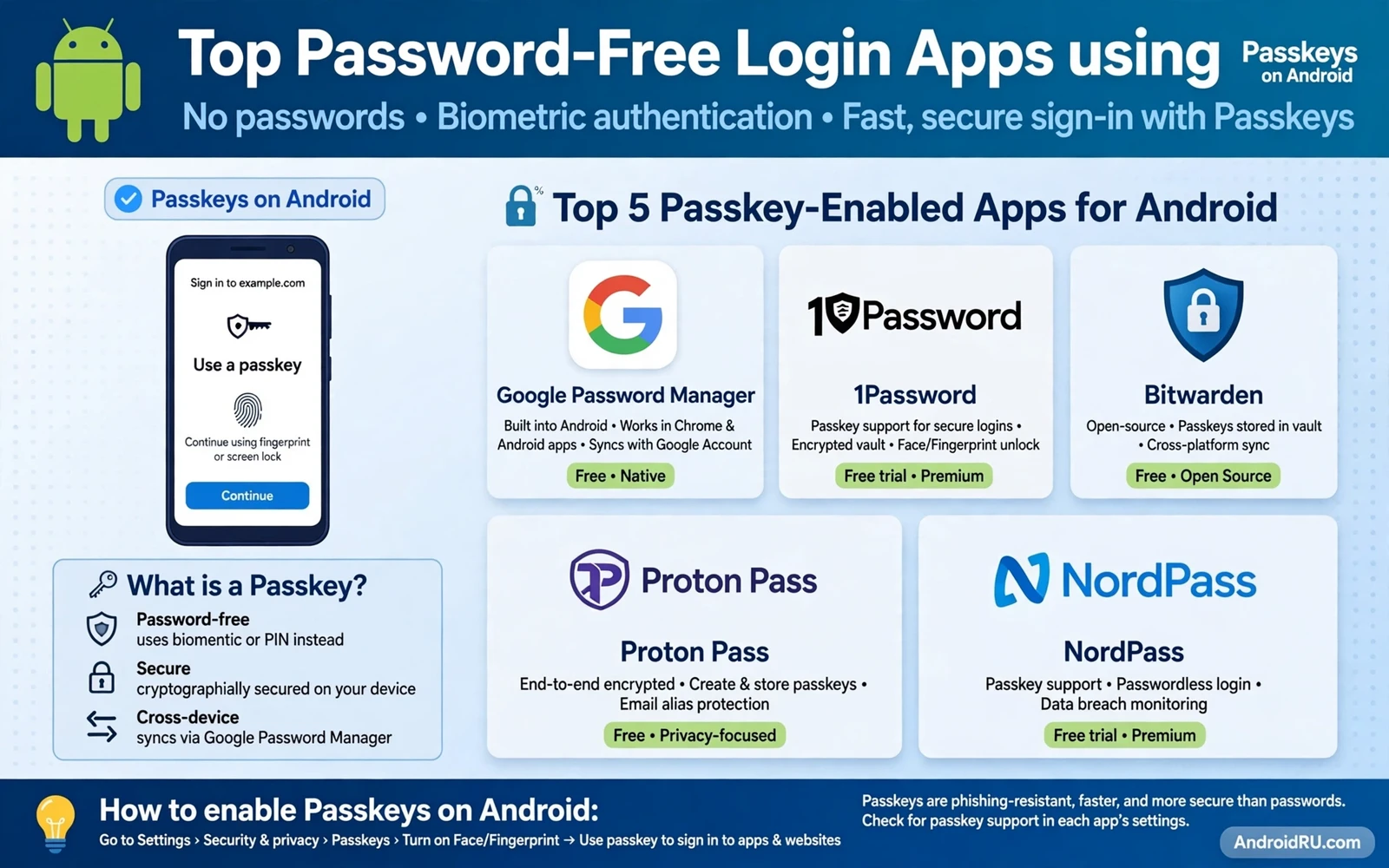
Top Password-Free Login Apps using Passkeys on Android
Passwords are hard to remember and easy to steal, and I felt that truth every time a site asked me to reset a password I had set a year earlier. A passkey offers a different path. It uses your phone to prove who you are, with a fingerprint, a face check, or a PIN, and it never asks you to type a secret that a stranger can copy. That shift makes daily sign-in faster and safer, and after three days of moving my main accounts to passkeys, I stopped missing passwords entirely. The sign-in screen changed from a memory test into a single tap and a fingerprint.
This guide names the best password-free login apps using passkeys on Android, compares them side by side, and shows you how to set them up without locking yourself out. You will get eight named apps, each with real features, honest pros and cons, and a verdict for who it fits. You will also get a comparison table, a step-by-step setup plan, and fixes for the problems that trip up most first-time passkey users. If you only read one section, read the comparison table and the setup plan, because those two pieces decide whether passkeys feel like freedom or like a headache.
How Passkeys Work on Android: Public-Key Cryptography Without Typing
A passkey has two linked parts. One part stays private on your phone, locked behind your screen lock and your biometric check. The other part stays public with the service you use, and it is useless on its own. When you sign in, your phone uses the private part to create a proof that only works for that real service, and the service checks that proof against the public part it holds. The private part never leaves your device during sign-in, a leaked database cannot reveal it, and a fake login page cannot trick you into typing it, because there is nothing to type.
That design kills the two biggest password risks at once. Reuse disappears, because a passkey is unique to one service by design, and a passkey for one site does not work on another site. Phishing loses its main weapon, because the proof your phone creates is bound to the real domain name, so a look-alike page with a slightly different address gets no valid proof. Typing risks vanish too. Shoulder surfing and keylogging both need typed secrets, and passkeys need no typing at all. The trade-off is recovery: a lost password can be reset by email, but a lost phone needs a recovery path you set up in advance. Sync across your own devices, a second device, or a trusted manager is what saves you here, and setting that up before you lose a device matters far more than any slick setup screen.
Passkeys vs passwords: what actually changes for you?
A password is a shared secret. You know it, and the service holds a scrambled copy of it. A breach can expose that copy, and a phishing page can capture the typed secret. A passkey removes that shared secret from the flow. You still need a strong device lock, because a weak PIN weakens every passkey on the phone, and you still need a tested recovery plan, because a passkey you cannot recover is a locked account. What changes is the daily experience: sign-in takes seconds, there is nothing to remember, nothing to reuse, and nothing to reset after a breach. The security gain is real, and the convenience gain is what makes people stay with passkeys after the first week.
Where passkeys live: system, browser, or password manager?
Some passkey tools live inside a password manager, some live inside a browser, and some live inside the system account on your phone. A manager gives you one place for passkeys across Android, iPhone, Windows, and Mac, and it can hold strong unique passwords for the sites that do not offer passkeys yet. A browser path feels simple for web sign-in, and a system path feels natural on one phone, but both can trap you when you switch device brands. Check export and sync options before you commit to one tool, check how it handles a new phone, and check how it handles a lost phone. Those answers matter more than a pretty setup screen, and they are the reason this guide compares managers instead of just listing them.
Top Password-Free Login Apps Using Passkeys on Android
The eight apps below all support passkeys on Android, but they suit different people. Some are free and open, some are polished and paid, some are built into the phone you already own, and some are built for families or for work. Read the verdict under each one, then check the comparison table in the next section before you pick. Do not pick by brand fame alone. Pick by sync scope, price, recovery options, and whether the app fits the devices you actually use.
1. 1Password
Features: 1Password holds passkeys alongside passwords, credit cards, secure notes, and documents in one encrypted vault. On Android it can create and use passkeys in supported apps and in Chrome, sync the vault across Android, iOS, Windows, and Mac, and fill logins with a fingerprint check. It also offers Watchtower alerts for weak or breached passwords, secure sharing with family members, and travel mode for crossing borders with a trimmed vault. The Android app supports biometric sign-in, autofill in apps and browsers, and passkey creation from the system passkey prompt when 1Password is set as the passkey provider.
- Pros: Passkeys sync across every major platform, so switching phones does not trap your logins. The vault holds passwords and passkeys together, which smooths the slow migration from passwords. Watchtower and breach alerts add real value beyond sign-in, and family sharing is simple and well designed.
- Pros: The Android autofill experience is polished, with a clean prompt and a fast fingerprint check. Support documentation is clear, and setup guides walk you through each major service step by step.
- Pros: Business and family plans scale well, with shared vaults, guest access, and admin controls that small teams actually use.
- Cons: There is no free tier beyond a short trial, so you pay from the start. The price is higher than several rivals, and the full feature set can feel like overkill if you only want passkeys.
- Cons: Some advanced settings take a while to find, and new users can feel lost in the vault, item, and collection layout for the first week.
Who it is for: People and families who want one polished vault for passkeys and passwords across every device they own, and who are happy to pay for that polish. Verdict: the most complete paid choice in this list, and the safest pick if you switch between Android, iPhone, and a computer.
2. Bitwarden
Features: Bitwarden is an open-source password manager with passkey support on Android, and it can create, sync, and use passkeys in supported apps and browsers. It holds passwords, passkeys, secure notes, cards, and identities in an encrypted vault, syncs across Android, iOS, Windows, Mac, and Linux, and offers a free tier that already includes passkey sync. Paid plans add advanced two-factor options, encrypted file attachments, emergency access, and a family plan. The code is open for inspection, and the company publishes regular security audits.
- Pros: The free tier is genuinely useful, with passkey sync included, which no other app in this list matches at this price. Open-source code and published audits build trust that closed apps cannot match.
- Pros: It works on every platform, including Linux, so a mixed-device household is covered. Import from other managers is straightforward, and export keeps your data portable.
- Pros: The premium price is low, and the family plan covers six people for a small yearly cost.
- Cons: The interface is plain and functional rather than beautiful, and first-time users may find setup less guided than in 1Password or Dashlane. Some passkey prompts feel more technical than friendly.
- Cons: Advanced features such as emergency access and file attachments sit behind the paid plan, and customer support is slower than the big paid rivals.
Who it is for: Budget-conscious users, open-source fans, and anyone who wants strong passkey support without a monthly bill. Verdict: the best free passkey manager on Android, and my first recommendation when price matters.
3. Google Password Manager
Features: Google Password Manager is built into Android and Chrome, and it creates and syncs passkeys through your Google account. On a Pixel or any Android phone signed into Google, you can create a passkey for a site in Chrome or in a supported app, confirm with your fingerprint or face, and use that passkey on any Android device or Chromebook signed into the same account. It also holds passwords, offers password checkup alerts for breached or reused passwords, and fills logins in Chrome and in Android apps. No separate app install is needed, and no extra subscription is needed either.
- Pros: It is free, built in, and already on your phone, so setup takes minutes. Passkey sync through a Google account works across Android devices and Chrome on computers without extra steps.
- Pros: The sign-in prompt is the native Android passkey sheet, which feels fast and familiar. Password checkup flags weak and breached passwords in the same place.
- Pros: It works well for people who live inside Google services and Chrome, with no new account to manage.
- Cons: Sync stays inside the Google ecosystem, so moving to an iPhone or a non-Chrome browser is harder. It lacks the advanced vault features of a full manager, such as secure notes, document storage, and family sharing.
- Cons: Recovery depends on your Google account recovery, so a locked Google account can lock your passkeys too. There is no separate emergency access feature.
Who it is for: Android and Chrome users who want passkeys with no new app, no new bill, and no learning curve. Verdict: the easiest starting point, and a fine long-term home if you stay inside Google services.
4. Dashlane
Features: Dashlane is a polished password manager with passkey support on Android, and it pairs a clean vault with a built-in VPN on paid plans, dark web monitoring, and a password health score. It can create and use passkeys in supported apps and browsers, sync across Android, iOS, Windows, and Mac, and fill logins with a fingerprint check. The Android app includes autofill, secure notes, and an in-app browser for quick sign-in, and the desktop app adds a clear dashboard for weak, reused, and breached passwords.
- Pros: The interface is one of the clearest in this list, and new users find their way around quickly. Dark web monitoring and the password health score give a clear picture of what still needs fixing.
- Pros: Passkey creation and use feel smooth on Android, with clear prompts and a fast biometric check. The built-in VPN on paid plans adds value for travellers.
- Pros: Business plans include admin controls and secure sharing that small teams use without training.
- Cons: The paid price is high, and the free tier is limited to one device, which makes it a poor fit for people with a phone and a computer. Some features vary by country and plan, so check the current plan page before you pay.
- Cons: The vault import from rivals works, but a few users report messy folders after a large import, and the app can feel heavy on older phones.
Who it is for: Users who value a clean interface and bundled extras such as dark web monitoring and a VPN, and who do not mind paying for them. Verdict: a strong paid option for design lovers, but check the free tier limits before you commit.
5. NordPass
Features: NordPass, from the makers of NordVPN, is a password manager with passkey support on Android, and it can create, sync, and use passkeys in supported apps and browsers. It holds passwords, passkeys, secure notes, and cards in an encrypted vault, syncs across Android, iOS, Windows, Mac, and browsers, and offers a free tier with passkey support on one device set. Paid plans add sync across unlimited devices, a data breach scanner, password health checks, and emergency access. The Android app supports biometric sign-in and autofill, and the interface stays simple and uncluttered.
- Pros: The interface is simple and fast, and passkey setup takes only a few taps. The free tier already includes passkeys, which makes it easy to try before you pay.
- Pros: It pairs well with other Nord products if you already use them, and the breach scanner flags accounts that need attention. Sync across platforms is reliable in daily use.
- Pros: The premium price is competitive, and family plans cover several people for one bill.
- Cons: The feature set is thinner than 1Password or Bitwarden, with fewer advanced vault tools and no built-in document storage. Some users find the free tier device limits confusing.
- Cons: Customer support and help guides are good but less deep than the biggest rivals, and a few niche passkey flows feel less polished.
Who it is for: Nord users and simplicity lovers who want a clean passkey manager without a steep learning curve. Verdict: a solid mid-priced choice, and a natural pick if you already pay for Nord services.
6. Keeper
Features: Keeper is a security-focused password manager with passkey support on Android, and it can create, sync, and use passkeys in supported apps and browsers. It holds passwords, passkeys, secure notes, files, and payment cards in an encrypted vault, syncs across Android, iOS, Windows, and Mac, and offers strong sharing controls, emergency access, and a family plan. The Android app supports biometric sign-in, autofill, and a separate private vault for sensitive items, and business plans add admin controls, auditing, and compliance tools.
- Pros: Security controls are strong, with detailed sharing permissions, emergency access, and breach alerts. The vault handles files and records as well as passwords, which suits people with documents to protect.
- Pros: Family plans are well designed, with private vaults for each person and shared folders for the household. The Android app is stable and fast in daily use.
- Pros: Business features are deep, with auditing and admin tools that larger teams actually need.
- Cons: The interface feels more business-like than friendly, and new users may need a day to learn where everything lives. The price is higher than Bitwarden and NordPass.
- Cons: Some passkey flows require a few extra taps compared with Google Password Manager, and the free tier is limited.
Who it is for: Families and small businesses that need strong sharing controls and emergency access, not just a personal vault. Verdict: a strong security-first pick, best when sharing and recovery controls matter as much as sign-in speed.
7. Enpass
Features: Enpass is a password manager with passkey support on Android, and it takes a different approach to sync: your vault can live on your own cloud account, such as Google Drive, Dropbox, or OneDrive, or on your own device with Wi-Fi sync. It holds passwords, passkeys, secure notes, cards, and identities, supports biometric sign-in and autofill on Android, and offers a one-time purchase option alongside subscriptions. The app works offline, and your data is not held on Enpass servers when you choose your own sync location.
- Pros: You control where the vault lives, which suits privacy-minded users who dislike vendor-held data. The one-time purchase option avoids a forever subscription.
- Pros: Offline use works well, and the app stays fast on older phones. Import from other managers is supported, and the vault layout is clear.
- Pros: Passkey creation and use on Android are straightforward, with a clean biometric prompt.
- Cons: Sync through your own cloud account needs setup, and a misconfigured cloud folder can confuse new users. Some advanced features sit behind the paid version, and the interface is plainer than Dashlane.
- Cons: Support is smaller than the big rivals, and a few niche sites show autofill quirks that need a manual fix.
Who it is for: Privacy-minded users who want to choose their own sync location and avoid a vendor-held vault. Verdict: the best pick when control over where your vault lives matters more than a polished cloud service.
8. Proton Pass
Features: Proton Pass, from the makers of Proton Mail and Proton VPN, is a password manager with passkey support on Android, and it can create, sync, and use passkeys in supported apps and browsers. It holds passwords, passkeys, secure notes, and cards in an encrypted vault, syncs across Android, iOS, Windows, Mac, and browsers, and offers a free tier with passkey support. Paid plans add unlimited vaults, extra email aliases through hide-my-email, and a built-in authenticator. The service is based in Switzerland, and the code is open for inspection.
- Pros: The free tier is generous, with passkeys included, and the privacy stance is clear and consistent. Hide-my-email aliases protect your real address when you sign up for new services.
- Pros: It pairs well with Proton Mail and Proton VPN if you already use them, and sync across platforms is reliable. Open-source code adds trust.
- Pros: The interface is clean and modern, and passkey prompts on Android feel fast and native.
- Cons: The feature set is younger than 1Password or Bitwarden, and a few advanced vault tools are still missing. Business features are thinner than Keeper.
- Cons: Import from rivals works, but large imports can need a tidy-up afterwards, and the free tier has vault limits.
Who it is for: Privacy-minded users and Proton fans who want a free, clean passkey manager with email aliases built in. Verdict: the best free privacy-first option here, and a strong choice if you already use Proton services.
Passkey Apps Comparison Table: Sync, Price, Platforms, and Recovery
A table makes the choice easier than eight separate reviews, because it puts the same questions side by side. Price means the typical paid plan at the time of writing, and you should check the current plan page before you pay, because prices and free tier limits change. Recovery means the main way back in after a lost phone, and sync scope means where your passkeys can travel.
| App | Passkey sync | Free tier | Platforms | Recovery help |
|---|---|---|---|---|
| 1Password | All major platforms | Trial only | Android, iOS, Windows, Mac | Emergency kit, family recovery |
| Bitwarden | All major platforms | Yes, with passkeys | Android, iOS, Windows, Mac, Linux | Emergency access on paid plan |
| Google Password Manager | Google account only | Yes, built in | Android, Chrome, Chromebook | Google account recovery |
| Dashlane | All major platforms | Yes, one device | Android, iOS, Windows, Mac | Account recovery, admin reset |
| NordPass | All major platforms | Yes, with passkeys | Android, iOS, Windows, Mac | Emergency access on paid plan |
| Keeper | All major platforms | Limited | Android, iOS, Windows, Mac | Emergency access, admin controls |
| Enpass | Your own cloud or Wi-Fi | Yes, limited items | Android, iOS, Windows, Mac, Linux | Your cloud backup, recovery key |
| Proton Pass | All major platforms | Yes, with passkeys | Android, iOS, Windows, Mac | Proton account recovery |
The wider password manager landscape helps you compare that mix, because managers differ in sync and in vault design and in recovery options. A clear comparison of manager types can guide your choice. You can start that comparison with password manager apps for Android to keep credentials safe and then check which of those managers handle passkeys in the way that you prefer. The right pick is the one whose sync scope matches the devices you own, whose price you will keep paying, and whose recovery path you have actually tested.
How to Set Up Passkeys on Android Step by Step
Start with one important account, not with all of them at once. Open the security settings of that account, look for a passkey option or a password-free option, and create a passkey on your phone. Confirm with your fingerprint or face, test sign-in with the new passkey right away, and keep the old password active until the test succeeds. That test is the step most people skip, and it is the step that saves you from a lockout. A passkey that works on the first try is a small win, and a small win builds the confidence to migrate the next account.
Create your first passkey on a low-risk account
Pick a low-risk account first, such as a forum, a shopping site, or a news app, and create a passkey there. Open the account security page in Chrome or in the app, tap the passkey or password-free option, and follow the Android passkey sheet. Choose where to save the passkey when Android asks: your Google account or your chosen manager. Confirm with your fingerprint, then sign out and sign back in with the passkey to prove it works. If the prompt offers a manager you did not expect, check which passkey provider is set in Android settings before you continue.
Test recovery before you migrate important accounts
Add a second device or a recovery method before you move email or banking. A second phone, a trusted manager, or a set of backup codes gives you a path back in. Test that path while you still have access: sign in on the second device with the passkey, or use a backup code on a test sign-in. That rehearsal reveals gaps while you can still fix them. A backup that you never tested may fail when you need it most, and a sync gap discovered early is easy to fix, while a sync gap discovered after losing a phone is a crisis.
How to choose a passkey provider in Android settings
Open Settings, search for passkeys or autofill, and look for the passkey provider or autofill service setting. Android lets you pick Google Password Manager or a third-party manager such as 1Password, Bitwarden, or Dashlane as the provider that handles passkey prompts. Pick one provider and stay with it for a while, because passkeys saved to different providers live in different vaults, and a scattered set is hard to manage. If you switch providers later, create new passkeys in the new provider and remove the old ones, rather than leaving duplicates that confuse sign-in.
Which accounts should move to passkeys first?
Move in order of importance and ease. Start with a low-risk account to learn the flow, move to email next because email guards many resets, move to shopping and social accounts after email, and move to banking last when you feel confident. A graded migration builds skill without risking key access. Keep a simple list of which accounts now use passkeys, the recovery method for each one, and the devices that hold each passkey. That note, kept in a safe place separate from your phone, prevents confusion when you switch phones later.
Google Password Manager vs Third-Party Passkey Managers
Google Password Manager wins on ease: it is free, built in, and already on your phone. Third-party managers win on freedom: they sync across Android, iPhone, Windows, and Mac, they hold secure notes and documents, they offer family sharing and emergency access, and they let you leave Google without leaving your passkeys behind. The relationship between passkeys and older password tools is worth a closer look, and a balanced view of both approaches appears in password managers versus passkeys and what is safer on Android where strengths and limits of each path are set side by side.
In practice, many people use both: Google Password Manager for quick passkeys on Android and Chrome, and a third-party manager for the full vault, for work, or for cross-platform life. That mix is fine, as long as you know which passkey lives where. A passkey saved to Google will not appear in 1Password, and a passkey saved to Bitwarden will not appear in Google. Pick a home for each account, write it down, and avoid creating the same passkey in two places, because duplicates cause the sign-in sheet to offer two choices for one account, and that confusion is easy to avoid with a little discipline.
Passkeys, Two-Factor Authentication, and App Lock: Layering Your Security
Passkeys do not replace all security habits. You still need care with app permissions, public networks, and device sharing. A passkey protects sign-in, it does not protect a phone that you hand to a stranger while it is left open. Lock your phone, review permissions, and stay alert to fake prompts. Two-factor habits still help where passkeys are not available, because a second factor can block a password attack even when a password leaks. Many accounts let you add an authenticator or a security key as a backup, and you should add at least one backup method for key accounts, keep backup codes in a safe place offline, and test one backup method before you rely on it.
App locking adds another layer for sensitive tools. A manager or a banking app can ask for a fresh biometric check each time it opens, and that check stops a casual snooper who picks up your open phone. You can learn more about that layer through how to enable two factor authentication across apps and through the app lock settings on your own device. Device lock strength matters for passkeys too: use a strong device PIN, use biometrics as a convenience layer on top of that PIN, keep your phone updated, and keep your screen lock on. A passkey is only as strong as the lock that guards it.
Common Passkey Problems on Android and How to Fix Them
A passkey that fails on one device may work on another. Check whether the passkey synced to that device, check whether biometrics are set up on that device, and check whether the browser or app supports passkeys on that platform. A missing sync step explains many failures, and a fresh sync often fixes them. A new phone can feel like a fresh start: sign into your trusted manager or Google account, wait for the vault to sync, and do not create duplicate passkeys for the same account unless you need them. Remove old passkeys for phones you no longer own, because a clean list of active passkeys reduces confusion later.
A service that offers passkeys only on the web may not offer them in its app yet. Use the web path where it exists, keep a strong password for the app path until the app catches up, and check the service settings after each app update, because passkey support often arrives quietly in an update. Shared devices need extra care: a passkey on a shared tablet belongs to whoever can open that tablet, so do not create personal passkeys on a device that others open it freely. Use a personal device for passkeys, and use a separate profile or a separate device for shared use. Family accounts need a shared recovery plan too: decide who can help recover an account, decide where backup codes live, and decide how a new device gets added, so a real loss does not turn into panic.
Frequently Asked Questions About Passkeys on Android
Are passkeys safer than passwords on Android?
Yes, for most people, because passkeys remove the shared secret, remove reuse, and resist phishing by binding the sign-in proof to the real domain. A passkey cannot be guessed, cannot be reused across sites, and cannot be typed into a fake page. That said, safety still depends on your device lock and your recovery plan. A weak PIN or a missing recovery method can undo the gain, so treat the device lock and the recovery test as part of passkey security, not as extras.
What happens to my passkeys if I lose my phone?
If your passkeys sync through Google Password Manager or a manager such as Bitwarden or 1Password, you can sign into that account on a new phone and your passkeys come back with the vault. If your passkeys lived only on the lost phone with no sync, recovery depends on the backup method you set up for each service, such as a backup code, a second device, or an email recovery flow. That is why the setup plan in this guide puts a second device and a tested recovery method before any important migration.
Can I use passkeys on iPhone and Windows as well as Android?
Yes, when your passkeys live in a manager that syncs across platforms, such as 1Password, Bitwarden, NordPass, or Proton Pass. Google Password Manager passkeys sync across Android and Chrome, and Apple passkeys sync across Apple devices through iCloud, but crossing from one ecosystem to the other needs a third-party manager or a fresh passkey created on the new device. Check the sync scope of your chosen app before you commit, and avoid a provider that traps your passkeys on one brand of device.
Do passkeys work without the internet?
Sign-in with a passkey needs the service to check the proof, so you need a connection to finish signing in to a website or an app. The biometric check itself happens on your phone, offline, and your vault can often be opened offline in a manager app. The practical point is simple: passkeys do not need a connection to prove who you are to your phone, but they do need one to prove who you are to the service, just like a password sign-in does.
Should I delete my passwords after creating passkeys?
No, not right away. Keep the old password active until you have tested the passkey on every device you use, and until you have a tested recovery method. Many services keep the password as a fallback, and removing it too early can lock you out if the passkey sync fails. After a month of smooth passkey sign-ins, you can remove passwords where the service allows it, and keep a strong unique password in your manager for the services that do not offer passkeys yet.
Final Verdict: Which Passkey App Should You Pick First?
Start with Google Password Manager if you want passkeys today with no new app and no new bill, and move to a third-party manager when you need cross-platform sync, family sharing, or emergency access. Pick Bitwarden if price matters and you want a free, open, reliable vault. Pick 1Password if you want the most polished paid vault and you switch devices often. Pick Proton Pass if privacy and email aliases matter most to you. The best passkey app is the one whose sync and recovery you have actually tested, not the one with the longest feature list, and the strong device lock plus a tested recovery plan matter more than any single app choice. Teach family members the basics too: show them the fingerprint check, show them the recovery step, and show them what a real passkey prompt looks like, because family awareness reduces support calls later and reduces the chance that a relative approves a fake prompt by mistake. Set up one passkey today, test it, add a recovery method, and then move account by account. That careful rollout gives you speed and safety together, and a passkey list reviewed once a year keeps your setup strong while support spreads to more services.

