

Download APK Pinterest New Features, Battery Consumption & Honest Review
I open Pinterest most mornings while the kettle boils, usually for no more than a few minutes. I am looking for one thing: a recipe worth cooking, a colour palette for a room I keep meaning to repaint, or a gift idea for someone whose birthday is closer than I would like to admit. The app either gives me that in the first minute or it does not, and on most days it does. That small, repeatable win is the whole reason it has stayed on my phone for years while flashier apps came and went.
This review covers the three things the title promises. First, the new features that actually changed how I use the app, including collages, visual search and the shopping tools. Second, battery consumption: what the app really costs in power, which settings drive that cost, and the five-minute fix that made the biggest difference on my own phone. Third, an honest verdict, with the weak spots left in, so you can decide whether Pinterest earns a place on your home screen or just a short trial.
If you save ideas for a living, plan projects at home, or run a small shop and need visual inspiration that turns into sales, most of this will feel directly useful. If you want fast video chat or threaded debate, you will find better tools elsewhere, and I name them below.
What Pinterest Does Today: Saving Ideas Without the Noise
Pinterest is a visual discovery app. You browse a home feed of images and short videos called Pins, tap one to open it, and save it to a Board if you want it later. A Board is simply a named collection: “Kitchen ideas”, “Bali trip”, “Wedding table settings”, “Logo inspiration”. The feed learns from what you save and search for, so after a week of use it starts to feel personal in a way a generic image search never does.
The search box is where the app earns its keep. Type “small balcony garden” and you get real photos from real homes, not a wall of stock images. Tap a Pin and the app shows related Pins underneath, which is how a two-minute look for a bookshelf turns into a saved collection of twenty bookshelf ideas. The related Pins row is, in my experience, the single most useful piece of the whole app, because it does the exploring for you.
Your profile holds your Boards, your saved Pins and your own uploads. You can make a Board secret so only you see it, invite a friend to add Pins to a shared Board, or split a big Board into sections, for example one section per room in a house renovation. That structure matters once your saved count passes a few hundred. Without sections, a Board becomes a drawer you never open again.
One habit that changed the app for me: I save first and judge later. If an image catches my eye I tap save, and I sort it on Sunday. A five-minute weekly tidy keeps the feed honest, because the algorithm watches what you save, and a messy save history teaches it the wrong lessons.
New Features in the Latest Pinterest App
Pinterest has added a steady stream of tools over the last few years. Some are genuinely useful, some are easy to ignore, and a few quietly changed how I use the app every day. Here are the ones worth your attention, in the order I would try them.
Collages: Build a Mood Board in Minutes
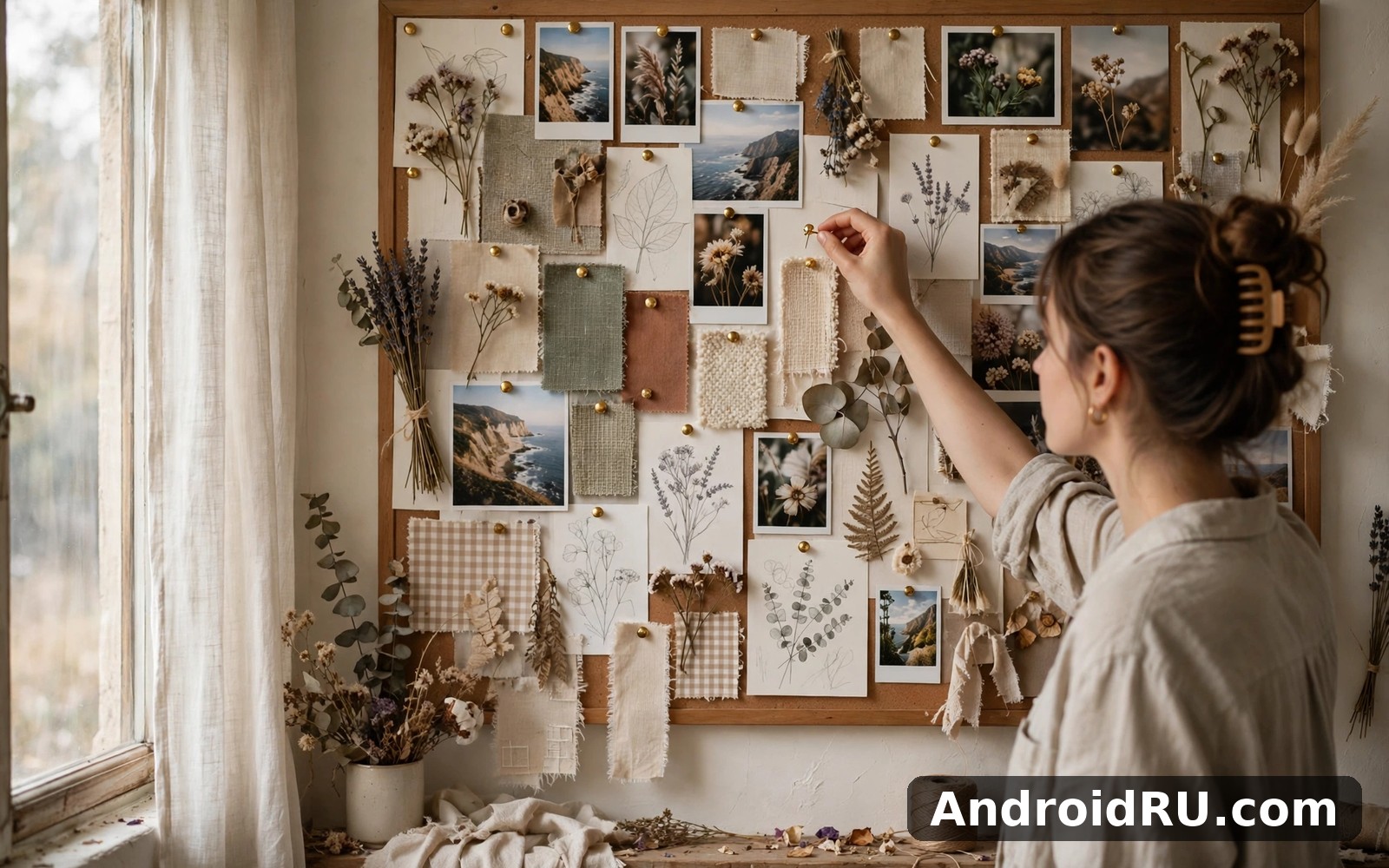
Collages let you cut out pieces of different Pins and arrange them on one canvas, like a paper mood board. You pick a background, drop in a sofa, a lamp, a rug and a paint swatch, then resize and rotate each piece until the room takes shape. I used it to plan a living room corner and it took about ten minutes to produce something clear enough to show a carpenter. The result saves as a Pin you can share, and other people can remix it into their own version.
The cut-out tool is the clever part. Tap a Pin, choose the cut-out option, and the app lifts the object off its background. It is not perfect on busy photos, and thin objects like chair legs sometimes come out rough, but for furniture, clothes and decor it works well enough for planning. If you plan outfits, interiors or event styling, collages are the first new feature to try.
Shuffles and the Collage Habit
Shuffles is Pinterest’s standalone collage app, and its ideas have fed back into the main app. The habit it teaches is simple: make something small every day instead of collecting forever. A five-minute collage of tomorrow’s outfit or next month’s garden plan turns passive saving into a decision. I found that one collage a week made my Boards far more useful, because I finally had to choose between five similar sofas instead of saving all five.
Visual Search and Lens: Search With a Photo
Visual search is the feature I now use most. Open the camera from the search bar, point it at a chair, a jacket or a plant, and Pinterest finds Pins that look like it. It also works on any Pin you already have open: tap the search icon on the image and drag the frame over the object you care about. That turns a photo of a whole room into a search for just the lamp in the corner.
The results are strongest for furniture, fashion and home decor, where the catalogue is deep. They are weaker for very unusual objects or poor lighting. A clear, well-lit photo with the object filling the frame gives the best matches. For shoppers this is the fastest route from “I like that” to “where do I buy it”.
Board Sharing, Sections and Group Boards
Boards have grown into a small collaboration tool. You can share a Board link with a friend, invite them to add Pins, and leave comments on individual Pins. Planning a trip with three friends works well this way: everyone drops hotel and restaurant Pins into one Board, and the group argues in the comments instead of in a chat thread that scrolls away.
Sections are the quiet organiser inside a Board. A “House” Board can hold sections for kitchen, bedroom and garden, each with its own cover. Sorting an old Board into sections takes a few minutes and it pays off every time you open it afterwards, because you stop scrolling past fifty Pins to find the one you want.
The Watch Tab and Video Pins
Video Pins now sit in a dedicated Watch tab, and short how-to clips have become a real part of the feed. A thirty-second clip showing how a foldable shelf is assembled tells you more than six still photos. The trade-off is battery and data, which I cover in the battery section below, because video is the single biggest reason the app’s power use has crept up.
Creators can add a link, a title and a short description to a video Pin, and viewers can save the clip to a Board like any other Pin. If you follow makers, cooks and DIY accounts, the Watch tab is worth a weekly visit. If you only want still images, you can scroll past video Pins and the feed adjusts.
Shopping Tools: Shop the Look and Price Drops
When a Pin shows a product for sale, Pinterest marks it with a shopping tag. Tapping the tag opens the product page, and “Shop the Look” lets you tap individual items inside a styled photo, such as the shoes in an outfit shot, and see where each one is sold. You can also save a product and get a notification if its price drops, which is genuinely handy for furniture and appliances that go on sale in cycles.
The catalogue is strongest in fashion, beauty and home goods, and thinner in electronics and niche hobbies. Prices come from the retailer, so the same item can show different prices in different regions. Treat the shopping features as a discovery tool, not a price comparison site, and check the retailer’s own page before you buy.
Pinterest Battery Consumption: Where the Power Actually Goes
Pinterest is not the hungriest app on my phone, but it is not a light one either. On an ordinary Android phone, an hour of active scrolling typically costs noticeably more battery than an hour of reading a text app, and the reason is simple: the app is always loading images, and increasingly video, while the screen stays bright. The good news is that most of the drain comes from a few identifiable habits and settings, and each one can be tamed.
On my own phone, a thirty-minute session of steady scrolling with video autoplay on cost roughly twice as much battery as the same thirty minutes with autoplay off and the screen one notch dimmer. Those are my own rough measurements, not laboratory figures, and your numbers will differ with your phone, your screen and your signal. The pattern is what matters: video, background activity and brightness do the damage, not the act of saving Pins.
Autoplay Video in the Home Feed
Video Pins start playing as you scroll past them, and each clip keeps the processor and the screen busy. A feed full of video is the single largest battery cost inside the app. If your feed has drifted toward video, which happens once you watch a few clips, the drain climbs without you changing anything. Turning autoplay off is the one change that made the biggest difference for me, and it costs nothing in usefulness, since you can still tap any video to play it.
Background Refresh and Notifications
Background activity is the quiet drain. Pinterest refreshes the feed, checks for price drops on saved products, and delivers notifications about new Pins from people you follow. None of this is heavy on its own, but it adds up across a day, and it is the reason the app sometimes shows up in battery stats even on days you barely opened it. Limiting background data and trimming notifications to the ones you actually read cuts this cost sharply.
Image Loading and Screen Brightness
Every Pin is a high-resolution image, and the app preloads the next few as you scroll so the feed feels instant. That preloading is why scrolling feels smooth, and it is also why a weak mobile signal costs more battery than Wi-Fi: the radio works harder and longer to fetch the same images. Brightness matters too, because a photo app is a bright-screen app. Dropping brightness by a quarter on an indoor session is a free battery win that nobody notices after a minute.
How to Check Pinterest Battery Use on Android
Open Settings, go to Apps, find Pinterest, tap Battery, and look at the usage since the last full charge. Android also shows whether the app used power in the background. Check this after a normal day of use, not after a single long session, because one session tells you about scrolling and a full day tells you about background drain.
How to Check It on iPhone
Open Settings, tap Battery, scroll to the app list, and look at Pinterest over the last 24 hours and the last 10 days. Tap the clock icon to see background activity separately from on-screen time. If background minutes are high while your screen time is low, the fix is in the notification and background refresh settings, not in how you scroll.
How to Reduce Pinterest Battery Drain in Five Minutes
You do not need to delete the app or stop using it. Five small changes, done once, cut the drain to a level where Pinterest stops appearing near the top of my battery list. Do them in order, then use the app normally for two days before judging the result.
- Open Pinterest, go to your profile, open Settings, and turn off video autoplay if your version offers the option. If the option is not there, the Android-level steps below still cover most of the cost.
- In the same settings screen, open Notifications and switch off everything except the alerts you actually act on. Price-drop alerts on saved products and replies to your comments are the two worth keeping for most people.
- On Android, open Settings, go to Apps, tap Pinterest, tap Mobile data, and switch off “Allow background data”. Then go back, tap Battery, and set battery usage to Restricted or Optimised, depending on your phone. On iPhone, open Settings, tap Pinterest, and switch off Background App Refresh.
- Turn on the dark theme, either in the Pinterest settings or by following your phone’s system setting. On phones with OLED screens this saves real power, because dark pixels draw less current. On other screens the saving is small, but the app is easier on the eyes at night either way.
- Use Wi-Fi for long browsing sessions and keep the app updated. A weak mobile signal forces the radio to work harder for every image, and updates often include the kind of quiet efficiency fixes that never make the changelog.
The Settings That Matter Most
If you only change two things, change autoplay and background data. Autoplay controls the drain while you use the app, and background data controls the drain while you do not. Everything else is a smaller win on top of those two. I checked my own battery stats a week after making both changes, and Pinterest had dropped out of the top five apps by usage, where it used to sit comfortably in third place.
Turn Off Background Data
On Android this lives in Settings, under Apps, Pinterest, Mobile data. Switching it off means the app only fetches new content while you have it open. The cost is that notifications may arrive late and the feed may take a second longer to refresh when you open it. For an app you check a few times a day, that delay is invisible in practice.
Limit Notifications to the Useful Ones
Pinterest can send a surprising number of notifications: new Pins from accounts you follow, trending ideas, price drops, board activity, and suggestions based on your recent searches. Each one wakes the screen and the radio. Keeping only price drops and direct interactions cuts the daily wake-ups from dozens to a handful, and the app feels calmer too.
Pinterest vs Reddit, Tango and Weibo: A Quick Comparison
Pinterest is not the only app for discovering ideas, and the honest way to judge it is next to the apps people actually use beside it. Reddit is the place for discussion and deep threads, Tango is built around live video chat, and Weibo mixes social posting with trending news. Each one does a different job, and the table below shows where Pinterest wins and where it does not.
| Feature | Tango | ||
|---|---|---|---|
| Main purpose | Save and discover visual ideas | Discussion and community threads | Live video chat and streaming |
| Best for | Home, fashion, recipes, planning | Opinions, news, niche hobbies | Meeting people face to face |
| Video chat | No live video chat | No live video chat | Yes, live video is the core |
| Saving ideas | Boards, sections, collages | Saved posts, no visual boards | Follows and gifts, no boards |
| Cost | Free to use, shopping links included | Free to use, paid plan optional | Free to use, coins and gifts optional |
| Battery demand | Medium, mostly images and video | Low to medium, mostly text | High, live video uses the most power |
If your main need is discussion, Reddit is a natural next app to try, because its communities go deeper on any single topic than a wall of images ever will. I use Reddit when I want to know whether a product actually lasts, and Pinterest when I want to see what it looks like in a real home. The two complement each other rather than competing.
If you want to talk to people face to face, Tango covers that need neatly, since live video is its whole reason to exist. Pinterest has comments and messages, but it will never be a video chat app, and judging it for that would be unfair. Curious readers may also enjoy the fact that Weibo is worth a look as well if you want a feed that mixes social posts with trending topics and celebrity news, a combination Pinterest does not attempt.
Features, Pros and Cons: The Honest Balance
A fair review gives both sides their due. Pinterest is excellent at what it sets out to do, and it has real weak spots that a week of use will surface. Here they are, plainly.
What Pinterest Gets Right
- Visual search that actually works: point the camera at an object and find matching Pins, which is the fastest route from seeing something to finding it.
- Boards and sections keep thousands of saved ideas organised, so a collection you started two years ago is still usable today.
- Collages turn passive saving into planning, and they are genuinely fun to make for outfits, rooms and events.
- The home feed learns quickly, and after a week of honest saving it shows you ideas you would not have searched for yourself.
- Shopping tags and price-drop alerts make it useful for real purchases, not just daydreaming.
- It respects short visits: a two-minute session still feels complete, and the app never demands a long block of your time.
Where Pinterest Falls Short
- Video autoplay and image preloading make it heavier on battery and data than a text-based app, and the settings to control this are buried.
- Search results sometimes repeat the same popular Pins, and genuinely new or small creators can be hard to find.
- Some Pins link to dead pages or to sites that have moved, and the app does not always flag a broken link before you tap it.
- Comments and messaging are thin compared with a real social app, so discussion about an idea usually happens elsewhere.
- The feed can drift toward shopping and promoted Pins if you tap a few product links, and pulling it back takes deliberate saving.
Who Pinterest Is For and Who Should Skip It
Pinterest fits people who think in pictures: home renovators, cooks, crafters, teachers planning a classroom, small shop owners looking for display ideas, and anyone planning a wedding, a trip or a wardrobe refresh. It also fits people who like short, calm sessions, because the app never pressures you to stay. A two-minute visit counts, and the app is built around that rhythm.
It fits small businesses too, within limits. A maker who sells handmade goods can use Boards as a public catalogue, and the shopping tags turn a saved Pin into a sale. That said, Pinterest is a discovery tool, not a shopfront, and it will not replace a real store page. Use it to bring people to your work, not to hold the whole transaction.
Skip it, or at least lower your expectations, if you want threaded debate, live conversation or breaking news. Reddit will serve the debate better, Tango will serve the live conversation, and a news app will serve the headlines. Pinterest is a shelf for ideas, not a town square, and that is a fair trade once you know which one you need.
My verdict by use case: for planning and inspiration, Pinterest is the best tool of its kind I have used, and I keep it installed without hesitation. For shopping discovery, it is very good, with the warning to check prices on the retailer’s own page. For socialising, it is a poor fit, and you should pair it with a proper chat or community app instead of expecting it to do that job.
Frequently Asked Questions About Pinterest
Does Pinterest drain battery faster than other social apps?
It depends on how you use it. An hour of scrolling with video autoplay on costs more battery than an hour of reading a text-heavy app, because the app is constantly loading images and playing clips. With autoplay off, background data limited and brightness reasonable, Pinterest sits in the middle of the pack, roughly level with other image apps and well below live video apps. The biggest single saving is turning autoplay off.
Can I use Pinterest without creating an account?
You can browse some public content without signing in, but saving Pins, creating Boards and getting a personalised feed all need an account. Signing up takes a couple of minutes with an email address or a Google or Apple account. If you only want a quick look at one idea, the web version lets you browse further without an account than the app does.
How do I stop autoplay videos on Pinterest?
Open your profile, go to Settings, and look for the video or autoplay option. If your version of the app does not show it, you can still limit the cost at the system level: on Android, restrict background data and set battery usage to Restricted for the app, and on iPhone switch off Background App Refresh. You can also tap any video to play it manually, so turning autoplay off never locks you out of watching.
Is Pinterest free to use?
Yes, the app is free to use, with no charge for saving Pins, creating Boards or using visual search. Pinterest earns money from advertising and from shopping links, so you will see promoted Pins in the feed. There is no paid tier you need to buy to use the core features, and the shopping tools work without any subscription.
Final Word: Keep It, Tame It, Enjoy It
Pinterest earns its place through steady everyday value. The new features that matter are collages, visual search and the shopping tools, and the battery cost is real but fixable with two settings changes that take five minutes. Try it for a week of short sessions: save ten ideas a day, make one collage, and check your battery stats after two days with autoplay off. That week will tell you more than any review can.
When you are ready, Click here to download the Pinterest app and set it up with a single Board for the project you care about most. For comparison, Click here to download the Reddit app if discussion matters more to you, or Click here to download the Tango app if live video chat is what you are really after. Whichever you pick, the habit that makes Pinterest work is the same: save a little every day, tidy once a week, and let the app stay a calm tool instead of another chore.

