

Download APK Forest Stay Focused New Features, Most Useful Functions & Honest Review
My attention was a mess the week I first tried Forest Stay Focused. Every task seemed to invite a quick scroll, and the scroll always lasted longer than planned. A message would arrive, I would check it for ten seconds, and twenty minutes later I would be watching videos I never meant to open. The idea of growing a small virtual tree while I worked sounded silly at first. It turned out to be the gentle trick my brain needed, because a living thing on the screen gave me a reason to leave the phone alone.
This review covers what the app actually does, the new features that arrived in recent versions, the functions I found most useful in daily use, and the rough edges I ran into. I tested it on a mid-range phone during normal workdays, not in a quiet lab, so the notes below come from real mornings, real deadlines and real distractions. You will also find a head-to-head comparison with other focus timers, honest pros and cons, and fixes for the problems most people meet in the first week.
If you are a student facing exams, a writer with a chapter to finish, or anyone whose work happens on a screen, this is written for you. You do not need to be a productivity expert to use Forest Stay Focused. You only need a task and a willingness to leave the phone alone for a while. Short sessions feel natural at once, and the app grows with you as your focus improves.
What Forest Stay Focused actually does and how the tree timer works
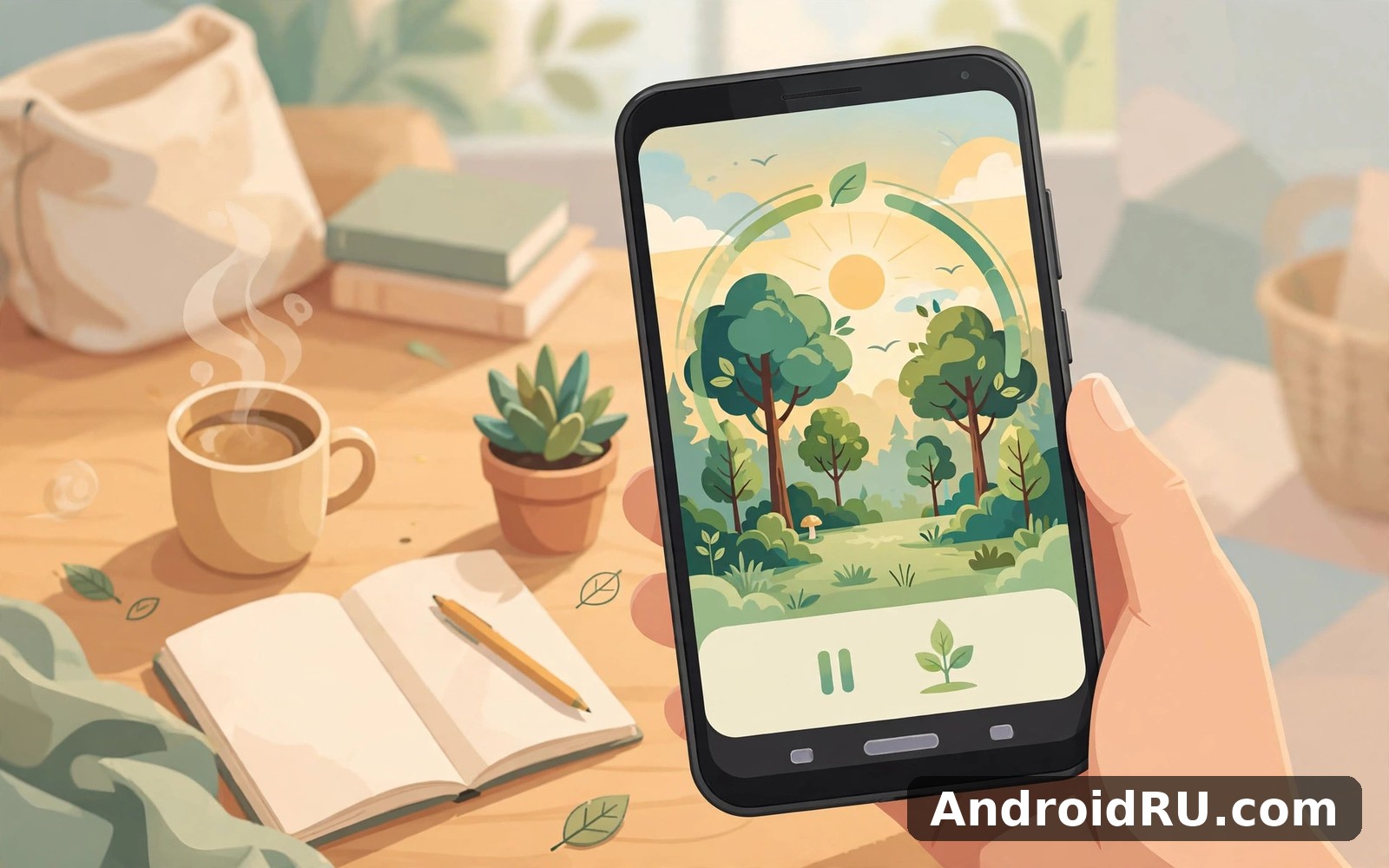
The core idea is simple and that simplicity is the whole point. You choose a length of time, you plant a seed, and a tree grows on your screen while the timer runs. If you leave the app to open social media or a game before the timer ends, the tree withers. That small stake changes behaviour in a way a plain countdown never did for me. I found myself finishing the paragraph before reaching for the phone, because the pause was the whole point of the session.
Every finished session adds a tree to your personal forest, and over a week that forest tells a story a plain timer cannot. I enjoyed looking back at a green patch that represented real work done. It felt like proof rather than a score. The app also hands out coins for completed sessions, and you can spend those coins on new tree species and ambient sounds. Nothing about the coins feels pushy. They sit quietly in the background until you want a change of scenery.
Behind the trees sits a proper statistics screen. It shows how long you focused each day, which hours of the day worked best, and how your streak is holding up. I noticed my best focus came in the morning before messages piled up, and that insight changed when I scheduled hard tasks. Data is useful when it informs a choice rather than shames you, and Forest keeps the tone encouraging instead of strict.
The 25 minute timer and why it works for most tasks
Twenty-five minutes is the default session length, and it is a sensible place to start. It is long enough to make real progress on a chapter, a report or a problem set, and short enough that the end never feels far away. I used short timers for email and admin chores and longer timers for writing and study sessions. The ticking sense of progress kept me honest without any noise, and the tree growing in front of me made the passing minutes visible.
Longer sessions of fifty or ninety minutes suit deep work, but I would not start there. A heroic two-hour session on day one usually ends in a dead tree and a bad mood. Begin with twenty-five minutes, finish it, and let the small win make the second session easy to start. That rhythm, short win after short win, is how the habit actually forms.
Your forest as a record of finished work
Each tree species looks different, and the forest view becomes a kind of diary. A week with many trees means a week with many finished sessions. A sparse week tells its own story without any lecture. I liked checking the forest on Sunday evening because it showed me, at a glance, whether the week had been focused or scattered. It never judged me. It simply showed me the truth, and that was enough to plan the next week better.
Forest Stay Focused new features in recent versions
Forest has changed a lot since its early days as a simple timer. The developers have added group features, deeper statistics, and ways to turn virtual focus into real trees planted in the world. Some of these features matter every day. Others are pleasant extras you may open once a month. Here are the ones worth knowing about, in the order I actually used them.
Deep Focus Mode for sessions that cannot be interrupted
Deep Focus Mode is the strictest option in the app, and it is the one I reach for when a deadline is close. Once a Deep Focus session starts, leaving the app kills the tree, with no second chance and no whitelist escape hatch. Normal mode lets you mark a few essential apps as allowed, but Deep Focus closes that door on purpose. It sounds harsh, and it is, but that is exactly why it works when willpower alone has already failed twice that morning.
I use Deep Focus for the first session of the day, when my attention is fresh and the most important task is waiting. Knowing I cannot duck out to check a message makes the first twenty-five minutes surprisingly calm. The trade-off is real: an urgent call or a genuine emergency will still cost you the tree. I keep Deep Focus for planned work, never for days when I am on call for family or clients.
Planting real trees with the coins you earn
Forest partners with a tree-planting organisation, and you can spend a large pile of earned coins to fund a real tree planted in the world. The number of coins needed is high, which is honest: a real tree costs real effort, and the app does not pretend otherwise. I treated it as a long-term goal rather than a weekly reward. After a month of steady use I was part of the way there, and that slow progress felt meaningful in a way a badge never would.
This feature is the best answer to the question of whether a focus app can matter beyond your own screen. Your finished sessions add up to something outside the phone. That said, do not install Forest only for this feature. It takes weeks of consistent use to earn one tree, and the daily value of the app has to carry you until then.
Focus with friends and shared rooms
You can plant trees together with friends in a shared room, where everyone starts a timer at the same time and everyone sees the shared forest grow. If one person gives up early, their tree dies in front of the group, which is a surprisingly strong motivator. I tried this with a study partner during exam week, and the social pressure did more than any reminder ever had. We both finished sessions we would have abandoned alone.
Shared rooms work best with two to five people who genuinely want to focus at the same time. A room full of strangers tends to go quiet after a day, while a room of real friends keeps its own gentle accountability. You can also send encouragement and compare weekly statistics, but the core value is simple: someone else is watching the same clock.
Detailed statistics, tags and achievements
Recent versions expanded the statistics screen with tags, so you can label sessions by task type: study, work, reading, writing, exercise. After a week of tagging, the app can show you where your hours actually went, and the answer is often different from what you guessed. I discovered I was spending far more focused time on admin than on writing, which explained why the writing kept slipping.
Achievements add small milestones along the way, such as a seven-day streak or a hundred finished trees. They are modest and they stay out of your way. I never felt pushed to chase them, and that restraint is a strength. The app rewards patience instead of speed, and many long-term users mention better study habits after a few weeks of steady use.
The most useful functions in Forest Stay Focused, ranked by daily value
Not every function in Forest earns its place on the home screen. After a month of daily use, five of them did nearly all the work. The rest are pleasant extras. If you set up only these five, the app will already serve you well, and you can explore the rest later when the habit is solid.
- The focus timer itself, with a length you can change in seconds, is the heart of the app and the reason it stays installed.
- The whitelist, which lets a few essential apps stay reachable during a session, stops the timer from feeling like a punishment.
- Session tags, which turn vague statistics into a clear picture of where your focused hours actually go each week.
- Break reminders, which tell you to stand up, drink water and rest your eyes before the next session starts.
- The forest view, which makes a week of effort visible at a glance and gives you a reason to protect tomorrow’s sessions.
Among these, the whitelist deserves special attention because it decides whether the app fits a real working day. A writer who needs a dictionary app, or a student who needs a calculator, should not have to choose between the tool and the tree. The whitelist solves that honestly: you name the exceptions in advance, and everything else stays off limits.
The whitelist that keeps essential apps reachable
Open the settings and add only the apps you truly need during work. I allow a notes app and a music player, and nothing else. The rule I set for myself is strict: if an app can wait until the break, it does not belong on the list. A whitelist with twenty apps is not a whitelist, it is a loophole. Keep it short and the timer keeps its teeth.
Detailed focus statistics and what to do with them
Focus statistics become useful only when you act on them. Check the weekly view every Sunday and ask one question: which hour of the day produced the most focused minutes? Then move your hardest task into that hour the following week. I moved my writing from late afternoon to early morning after the numbers made the pattern obvious, and my output improved within a fortnight. The numbers did not motivate me. They informed a single practical change, and that change did the work.
How to set up Forest Stay Focused for study, work and writing
Starting is as simple as planting the first tree. Pick a modest twenty-five minute session for your first try, put the phone face down, and open your notebook instead. When the timer ends the tree is complete and you will feel oddly proud. That small win makes the second session easy to start, and the second makes the third easy. Do not plan a perfect system on day one. Plant one tree, finish one task, and build from there.
- Install the app and open it, then skip the tour and go straight to the main screen to plant your first tree.
- Choose twenty-five minutes for the first session and pick one task you can actually finish in that time.
- Add your break length, five minutes after a short session and fifteen after four sessions in a row.
- Set up the whitelist with only the apps you truly need, such as a notes app or a music player.
- Turn on one daily reminder at the time you usually start work, and switch off every other notification.
- After three days, open the statistics screen, tag your sessions, and move your hardest task to your best hour.
That six-step setup takes about ten minutes and it is the whole system. I keep a plain note on my phone with my chosen lengths, something like focus twenty-five minutes, break five minutes, long break after four sessions, phone face down. It reminds me of the plan I chose and it makes it easy to restart after a busy week. A plain note often beats a fancy system.
Choosing timer lengths for different kinds of task
Short tasks such as email and admin suit ten to fifteen minute sessions, because the deadline feels close and the work is small. Study and reading suit twenty-five to fifty minutes, long enough to settle into the material. Writing and coding suit fifty to ninety minutes, because the first ten minutes are usually spent warming up. Match the timer to the task instead of using one length for everything, and the tree will feel like a fair deal rather than a cage.
Setting reminders that do not nag you
One reminder a day is enough. Pick the moment your work usually starts, set a single gentle reminder for that time, and leave the rest silent. An app that buzzes all afternoon becomes part of the noise it was meant to reduce. I set mine for the start of my morning work block and nothing else, and the silence for the rest of the day is part of what makes the app pleasant to keep.
Forest Stay Focused vs Visual Timer Countdown and other focus timers
Forest is not the only way to time a focused session, and the honest choice depends on what actually keeps you working. A plain countdown timer is lighter and faster to start. A brain-training app works on a different problem entirely. The table below compares the tools I tested side by side during the same month, so you can see where Forest wins and where a simpler tool might suit you better.
| App | Main idea | Best for | Social features | Cost pattern |
|---|---|---|---|---|
| Forest Stay Focused | Grow a tree while you focus, lose it if you quit | Students and writers who need a gentle stake | Shared rooms with friends | Paid app with optional extras |
| Visual Timer Countdown | A clear visual countdown you can read at a glance | Children, classrooms and short timed tasks | None | Simple, low cost |
| Simple Alarm Clock | Reliable alarms and reminders for timed blocks | People who need a firm start and stop time | None | Simple, low cost |
| Neuronation Brain Training | Short brain exercises for memory and attention | People who want to train focus, not just time it | Progress tracking | Free basics with a paid plan |
When people ask me what pairs well with Forest Stay Focused I usually mention Visual Timer Countdown first. It approaches a similar goal from another direction, and a visual countdown is genuinely helpful for timed classroom tasks or for younger users. On other days I reached for Neuronation Brain Training instead, because a few minutes of brain exercises before a study block warmed up my attention. Both choices taught me something about my own routine.
If one more suggestion helps then Simple Alarm Clock is the one I would add. It fits the same part of the day, and a firm alarm that ends a work block on time protects the break as surely as the tree protects the work. Keep Forest Stay Focused as your main app and treat the rest as backup. A small toolkit beats a large collection, and each of these tools earns its place by doing one job well.
Pros and cons of Forest Stay Focused after a month of use
A month of steady use changed my opinion in a quiet way. Early excitement gave way to a calmer appreciation for Forest Stay Focused. I stopped exploring every menu and settled into a simple routine that worked. The routine was not exciting to describe to friends. It was simply useful and it stayed useful. That staying power matters more than a flashy first impression, and apps that survive ordinary weeks earn a permanent place. This one survived mine.
Pros of Forest Stay Focused
- The growing tree gives you a real, visible stake in every session, and that small stake changes behaviour without any shouting or guilt.
- The statistics and tags show where your focused hours actually go, so you can move hard tasks to the hours when you concentrate best.
- Shared rooms with friends add gentle accountability that works better than reminders during exam week or a deadline push.
- Deep Focus Mode gives you a strict option for the sessions that truly cannot be interrupted, with no loophole to hide behind.
- The real-tree planting goal turns weeks of virtual effort into something that matters outside the phone.
Cons of Forest Stay Focused
- The first day feels slightly busy, with options on screen you do not need yet, and it takes a day or two before the layout feels like home.
- Deep Focus Mode is unforgiving: a genuine emergency or an urgent call will still kill the tree, so it suits planned work only.
- Planting a real tree takes a large pile of coins and weeks of steady use, so it works as a long-term goal rather than a quick reward.
- Some features, such as extra tree species and sounds, cost extra, and the free experience is simpler than the full one.
The balance is fair. The strengths are about behaviour, and they work every day. The weaknesses are about patience and price, and neither blocks the core job. A timer that keeps you off your phone for twenty-five minutes does not need to be perfect. It needs to be pleasant enough to open tomorrow, and Forest clears that bar comfortably.
Known issues in Forest Stay Focused and how to fix them
No app is free of rough edges, and Forest has a few that show up in the first week. Most of them have simple fixes, and none of them made me want to delete the app. The ones below are the problems I met myself or saw reported most often by other users, with the fix that actually worked.
The tree dies when you switch apps for a good reason
This is the most common complaint, and it is usually the app working as designed. If you leave Forest to answer a message, the timer treats it as giving up, and the tree withers. The fix is the whitelist: add the apps you genuinely need before the session starts, and keep the list short. For days when you expect interruptions, use normal mode instead of Deep Focus, so a necessary switch does not feel like a failure.
Notifications arrive late or not at all
On some phones the reminder to start a session, or the alert that a session has finished, arrives late. The usual cause is the phone’s battery optimisation putting the app to sleep in the background. Open the phone settings, find Forest in the battery section, and set it to unrestricted or allow background activity. Also check that notifications are enabled for the app. After that change, my reminders arrived on time for the rest of the month.
Battery use and the app feeling slow on older phones
Forest is light by modern standards, but the animated forest view and the background timer can use more battery than a plain clock on an older phone. Closing the forest view during a session and keeping the app updated helped on my mid-range test phone. If the app ever feels slow, restart it once and clear its cache from the phone settings. A calm restart is the best first step before you assume a serious problem.
Trees and coins seem to go missing after an update
A few users report that their forest looks smaller after a major update, or that coins seem lower than expected. In practice this is usually a sync delay rather than lost data: sign in to the same account, wait a few minutes on a stable connection, and the forest usually returns. If it does not, the support page inside the app settings is the right place to ask, and a screenshot of the statistics screen helps them answer quickly. I also make it a habit to check save and sync options in week one, because a quick check now can save frustration later.
Forest Stay Focused frequently asked questions
Is Forest Stay Focused free to use?
The core timer, the forest and the statistics are available without a subscription, though some tree species, sounds and extra features cost extra. The app follows a paid model with optional purchases rather than a monthly fee for the basics, so check the current listing before you buy. I found the free experience enough for the first two weeks, and the extras became tempting only after the habit was already formed.
Does Forest Stay Focused really plant real trees?
Yes, through its partnership with a tree-planting organisation, and you spend a large number of earned coins to fund each real tree. It takes weeks of consistent focus sessions to earn one, which is honest, because a real tree costs real effort. Treat it as a long-term goal that rewards steady use, not as a reason to install the app on its own.
Can I use Forest Stay Focused with friends?
Yes, you can create a shared room, invite friends, and start a timer together so everyone plants at the same time. If one person leaves early, their tree dies in front of the group. It works best with two to five real friends who want to focus at the same time, such as study partners during exam week, rather than a large room of strangers.
What happens if I need to use another app during a session?
In normal mode, apps on your whitelist stay reachable and everything else will kill the tree if you open it. In Deep Focus Mode there is no whitelist, so any switch away from the app ends the session. Plan around that: use normal mode on days when you expect interruptions, and save Deep Focus for planned work when you can truly be away from the phone.
Does Forest Stay Focused work offline?
The timer, the tree and your local statistics work without a connection, which makes it useful on flights and in places with weak signal. Syncing your forest to an account, joining a shared room, and spending coins on real trees need a connection. I used it offline in a waiting room during my test week and the session completed normally, then synced later when I was back online.
Who Forest Stay Focused is for and the final verdict
Forest Stay Focused fits students facing exams, writers with a chapter to finish, and anyone whose work happens on a screen and keeps getting stolen by that same screen. It also fits people who like gentle systems rather than strict ones, because the tree is a nudge, not a lock. If you want a single feature done one way, you may find the extra options distracting, and if you prefer paper and pen, you may never enjoy a screen-based routine. Neither preference is a flaw. It is simply a mismatch of style, and the honest test is whether the app makes your week easier after the novelty fades.
My verdict is warm and practical. Forest does its main job well without fuss or drama, and it does not try to be everything. The new features, especially Deep Focus Mode and shared rooms, add real value for people who already use the timer. The known issues are small and fixable. Planting real trees gives the habit a purpose beyond the screen, and the forest view gives you proof of work that a plain timer never could. Give it a week of short sessions before you judge it, because a week of real tasks shows the true character of an app.
If you decide to try it then Click here to download the Forest Stay Focused app is a good place to start. If you want to try a similar tool, Click here to download the Visual Timer Countdown app. You can also Click here to download the Neuronation Brain Training app when you are ready to compare it with this one. Start with one small tree and one clear task, and let the forest grow slowly alongside your work.

