

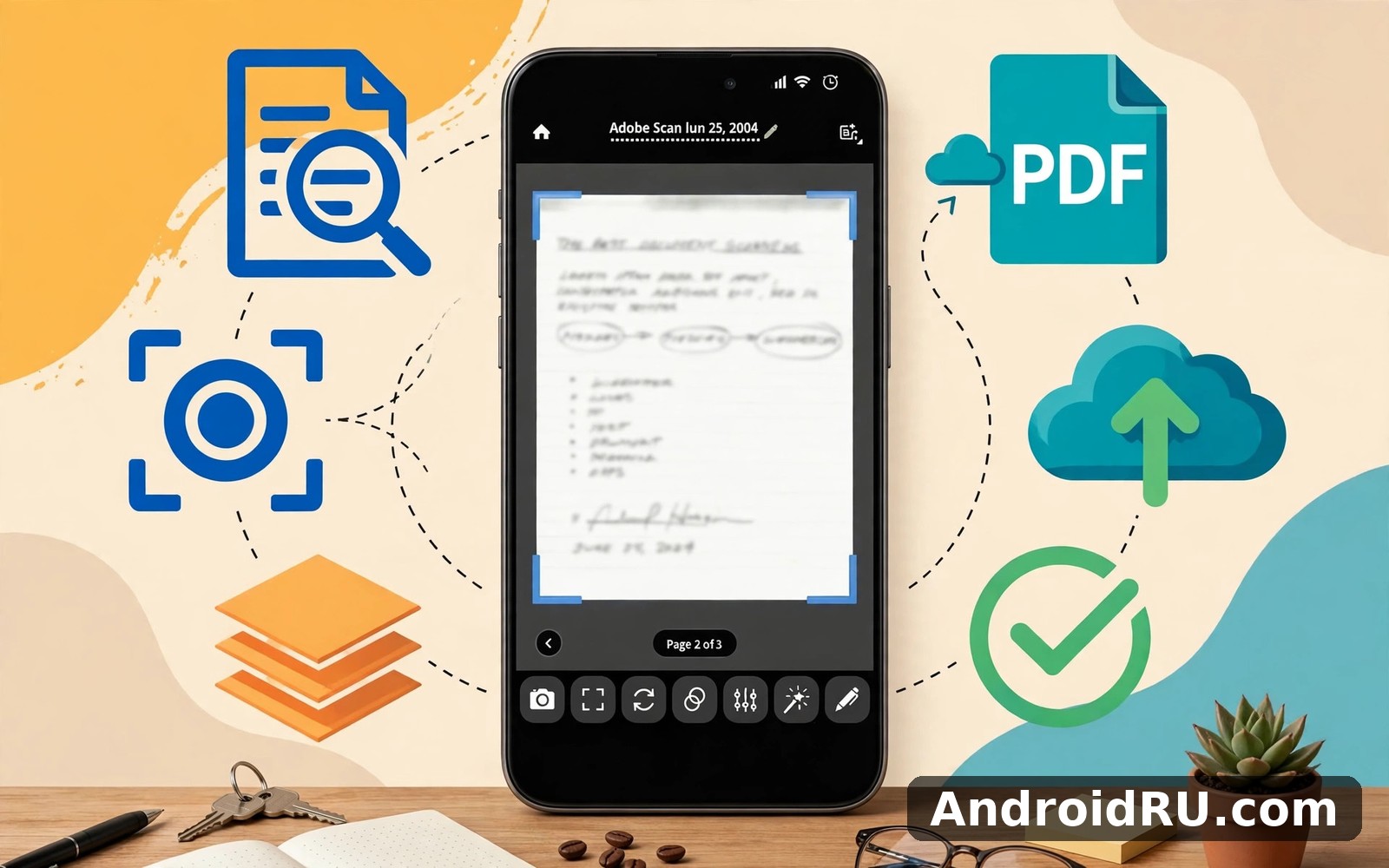
Download APK Adobe Scan PDF Scanner App Background Activity, What’s New & Full Review
My desk drawer used to hold a pile of receipts I meant to file one day. Adobe Scan cleared that pile in one rainy afternoon, and it did it without a flatbed scanner, a cable, or a trip to a print shop. I held my phone over each receipt, watched the app find the edges, and ended up with a tidy set of PDFs I could actually search later. That first afternoon set the tone for everything that follows in this review: this is a tool built for people who want paper gone and text found, not for people who enjoy fiddling with settings.
This guide answers the title in full. It explains what Adobe Scan does with background activity on Android, what has changed in recent updates, which features are worth your time, and where the app still falls short. You will get a step-by-step setup, a head-to-head comparison with rival scanner apps, honest pros and cons, and fixes for the problems that show up most often. If you scan receipts, forms, whiteboards, or textbook pages on a regular basis, the next few minutes will tell you whether this app deserves a permanent place on your home screen.
What Adobe Scan does with background activity on Android
Adobe Scan is a camera scanner that turns paper into PDF files. Point the camera at a page, and the app detects the edges, straightens the perspective, cleans up shadows, and saves the result as a PDF you can search, share, or file away. The core loop is short: capture, review, save. Most scans take under thirty seconds from shutter tap to saved file, and that speed is the main reason people keep coming back to it.
Background activity is the part of the app that runs when you are not looking at it. On Android, Adobe Scan uses background work for a small set of jobs: finishing an upload to Adobe Document Cloud, syncing a scan across your devices, and processing text recognition on a scan you just saved. It does not run a constant service in the background, and it does not keep the camera alive when the app is closed. That matters, because a scanner that quietly drained the battery would be a poor trade for a tool you open for a minute at a time.
In practice, background activity shows up in two places you can check yourself. The first is Android Settings, under Apps, then Adobe Scan, then Battery, where you will see whether background use is allowed and how much battery it has taken over the last day. The second is the sync indicator inside the app, which shows a small spinner while a file is still uploading. On my phone, a week of daily scanning added up to a small slice of battery use, roughly in line with a messaging app that syncs in the background, and far below a navigation or video app.
How to control Adobe Scan background activity and battery use
You can shape how much background work the app does. Open Android Settings, go to Apps, tap Adobe Scan, tap Battery, and choose Restricted if you want the system to stop background work almost entirely, or Optimized if you want the normal balance between sync and battery life. Restricted mode is the right call if you only scan on Wi-Fi and never need a scan to appear on your computer within minutes. The trade-off is that uploads will wait until you open the app again, so a scan you took at a client site may not be on your desktop when you sit down later.
There is one more setting worth knowing about. Android can pause an app you have not opened for a while, removing permissions and stopping background work until you return. If you scan once a month, that pause is harmless. If you scan every day, the app stays active and the pause never triggers. Either way, nothing is lost: your saved PDFs stay on the device, and sync resumes the moment you open the app again.
Does Adobe Scan keep running after you close it?
The short answer is no, not in any way you would notice. Closing the app ends the camera session and the capture screen. A brief upload may finish for a few seconds after you leave, and then the app goes quiet. I checked this on my own phone by scanning five pages, closing the app, and watching the battery screen over the next hour: no further activity appeared, and the files were already waiting in the cloud when I opened the desktop view later. If you ever see the app high on the battery list, the cause is usually a large batch of scans still uploading over a slow connection, and the fix is to open the app on Wi-Fi and let the queue clear.
What is new in Adobe Scan and recent updates
Adobe has spent the last few update cycles on three themes: cleaner captures, faster text recognition, and tidier file handling. Automatic edge detection has become more forgiving with curved pages and receipts that curl at the corners, which used to be the most common reason for a retake. The cleanup step now handles shadows from overhead lighting better than it did a year ago, so a page shot under a desk lamp comes out readable instead of grey and blotchy.
Text recognition, or OCR, is the quiet improvement that changes the most. A scan used to be a picture of words; now the words inside the picture are searchable in most cases, and you can copy a line of text out of a scan instead of retyping it. The recognition runs on Adobe servers for synced files, which is why a scan sometimes becomes searchable a minute or two after you save it rather than instantly. On-device handling has improved too, so the app can tidy a page and find its edges without waiting on a connection.
File handling has grown up as well. Scans can be grouped into folders, renamed in batches, and exported as a single multi-page PDF or as separate files. Sharing a scan as a link through Adobe Document Cloud is now a first-class option, which suits teams who pass forms around, and the app can also save straight to local storage if you would rather keep a copy on the phone. None of these changes reinvents the app, and that is a good thing: the capture flow still takes seconds, and the new work sits underneath it rather than on top of it.
Adobe Scan OCR and text recognition improvements
OCR quality depends on the source more than on the app. Clean printed pages in a common language come out nearly perfect, while handwriting, faint faxes, and crumpled receipts produce patchy results. I tested the feature on a printed contract, a handwritten meeting note, and a faded till receipt. The contract was searchable word for word. The meeting note gave me about half the words right, which is still useful for finding the page later. The receipt was the weakest, with the shop name and total usually right and the small item lines often garbled. The lesson is simple: treat OCR as a finding aid, not as a transcription service, and check any number you plan to rely on.
Auto crop, edge detection and scan cleanup changes
Auto crop is the feature you will notice first, because it decides whether a scan looks like a document or a photograph of a desk. Recent updates improved detection on glossy paper and on pages shot at an angle, and the manual crop handles are easier to drag on a small screen than they used to be. If the app still misses an edge, tap the crop icon before you save and drag the corners yourself; it takes five seconds and beats retaking the shot. The cleanup filters deserve a mention too: the whiteboard filter brightens marker strokes without blowing out the background, and the original colour mode keeps photos and diagrams true to life when you scan a page that mixes text and images.
Adobe Scan features that matter in daily use
The feature list is short on paper and long in practice. Camera capture with automatic edge detection is the headline, and it works without a tutorial. Multi-page PDF creation follows naturally: scan page after page, reorder them with a drag, and save the whole set as one file. Text recognition makes the result searchable. Crop and cleanup tools fix the shot after the fact. Sharing and saving options cover email, messaging apps, cloud storage, and printing. Folders keep the growing pile organised by project, client, or month.
Two features deserve a closer look because they change how the app fits into a working day. The first is the ability to scan a business card and pull the contact details into your address book, which turns a conference badge table into a contact list in minutes. The second is form filling: the app can detect fields on a scanned form and let you type into them, which is handy for the kind of paperwork that still arrives on paper and has to go back as a PDF. Neither feature is perfect, and both need a clean original to work well, but they save real time when they land.
Scanning receipts, forms and whiteboards with Adobe Scan
Receipts are the easiest win. Lay the receipt flat, give it decent light, and let the app find the edges; a curled receipt works better if you press it flat with a book for a few seconds first. Forms need a steadier hand because a skewed form makes the field detection struggle, so I brace my elbows on the table for those. Whiteboards are the trickiest of the three: stand straight in front of the board, avoid glare from windows, and use the whiteboard filter, which lifts the marker lines out of the background. In each case the habit is the same: check the preview before you save, because a ten-second check beats a retake later when the paper is gone.
Adobe Scan folders, search and cloud sync explained
Folders are where a scanning habit either stays tidy or falls apart. I keep one folder per month for receipts and one per project for everything else, and I rename files on the day I scan them, because a file called Scan 2026-11-06 means nothing in March. Search covers file names and recognised text, so a receipt for a train ticket can be found by typing the station name even if the file name is vague. Cloud sync ties it together: a scan saved on the phone appears in Adobe Document Cloud and in Acrobat on the desktop, which is how a receipt scanned at lunch ends up attached to an expenses claim in the evening without a cable in sight.
Setting up folders so scans stay findable
Create folders before you need them, not after the list has grown to a hundred files. A short set of folder names beats a long one: Receipts, Forms, Work, Personal, and one folder per active project is enough for most people. Move each scan into its folder right after saving, while you still remember what it is. That thirty-second habit is the difference between a library and a junk drawer.
How Adobe Scan sync works across phone and computer
Sync needs an Adobe account and a connection, and it runs in the background after each save. Files upload in the order you scanned them, and a slow connection will queue the rest rather than fail the whole batch. If a file seems stuck, open the app on Wi-Fi, pull down on the file list to refresh, and give it a minute. Your scans are also kept on the device, so a failed upload never means a lost scan.
How to set up Adobe Scan for clean scans
Setup takes a few minutes if you keep it simple. Install the app, sign in with an Adobe account or create one, and allow camera permission when asked. Storage permission matters too if you want scans saved on the device as well as in the cloud. Skip the advanced options on day one and return to them once the basic capture flow feels natural. The first scan is the best teacher: pick a plain printed page in good light, hold the phone steady, and watch what the app does with the edges.
Before a big scanning session, check two things: free space on the phone and the light in the room. A phone low on storage can fail a save halfway through a multi-page scan, and a dim room produces the soft, grey pages that OCR struggles with. Daylight near a window beats a ceiling bulb, and a dark surface under a white page helps the edge detection find the border. Those two checks take less than a minute and prevent most of the frustration new users report.
Adobe Scan camera, storage and permission checklist
Work through this list once and you will not need it again. Camera permission must be allowed, or the capture screen stays blank. Storage permission must be allowed if you want local copies. Battery optimisation should stay on Optimized unless you need uploads to finish while the app is closed, in which case Unrestricted is the honest choice. Notifications can stay on for upload completion, or off if you scan in batches and check the file list yourself. Finally, confirm your Adobe account is signed in before a trip or a site visit, because signing in over a weak connection at the worst moment is a miserable experience.
Adobe Scan vs WPS Office and other scanner apps
No scanner app wins on every front, so the honest way to choose is to compare the same jobs side by side. Adobe Scan leads on cleanup quality and on the way scans flow into Acrobat and Document Cloud. WPS Office leads on being an all-in-one office suite, where a scan can move straight into a document, a sheet, or a presentation without leaving the app. Lightweight scanner apps lead on speed and on working without an account. The table below compares the options on the criteria that matter most in daily use.
| Criteria | Adobe Scan | WPS Office | Lightweight scanner apps |
|---|---|---|---|
| Edge detection and cleanup | Strong, with whiteboard and colour modes | Good, tied to the office suite tools | Varies widely by app |
| Text recognition (OCR) | Strong for printed text, searchable PDFs | Present, quality depends on the document | Often basic or paid extra |
| Cloud sync | Adobe Document Cloud and Acrobat | WPS cloud and third-party drives | Often local only |
| Form filling | Built in, detects fields on forms | Available through office tools | Rarely offered |
| Account needed | Adobe account for sync | Account for full cloud features | Often none |
| Best for | Regular scanning and Acrobat users | People who live in office documents | Quick one-off scans |
If you already work in Acrobat, Adobe Scan is the natural pick, because the scan lands where your PDFs already live. If you write, edit, and share office documents all day, WPS Office PDF Word Sheet deserves a serious look, since it folds scanning into a suite you already open. For a lighter companion that covers documents without the weight of a suite, WPS Office Lite rounds out the set nicely. And if your work mixes scanned pages with photos and short video, Adobe Express AI Photo Video is worth a look too, because it handles the creative side that a scanner never touches.
When Adobe Scan is the better pick and when it is not
Adobe Scan is the better pick when you scan every week, when you need searchable PDFs, and when your files end up in Acrobat or in a shared cloud folder. It is not the better pick when you scan once in a blue moon and want zero setup, or when you refuse to create another account for a simple job. In those cases a lightweight scanner that works without sign-in will serve you better, and there is no shame in that. The right tool is the one you actually open, and a scanner you avoid because of its sign-in screen is a scanner that does not scan.
Pros and cons of Adobe Scan after a month of use
A month of daily use gives a fair picture, and the picture is mostly positive. The capture flow is fast enough that scanning stops feeling like a chore. The cleanup is genuinely good, turning mediocre phone photos into pages that look like they came from a real scanner. Searchable text changes how you find things: a receipt from March can be found by typing a shop name instead of scrolling through a hundred files. Sync across phone and computer works without drama once the account is set up, and the folder system is simple enough to maintain.
Adobe Scan pros: what it does well
- Automatic edge detection and cleanup turn handheld shots into straight, readable pages with very little effort from you.
- Text recognition makes scans searchable, so old receipts and contracts can be found by typing a word instead of scrolling.
- Multi-page PDFs are easy to build, reorder, and share, which suits forms, contracts, and book chapters.
- Sync with Adobe Document Cloud puts a scan on your computer without cables, emailing files to yourself, or extra steps.
Adobe Scan cons: where it falls short
- Some features sit behind a subscription, so the free version covers the basics while the deeper tools need a paid plan.
- OCR struggles with handwriting, faint print, and crumpled receipts, and the results need a human check before you rely on them.
- An Adobe account is needed for sync, which is an extra sign-in for people who only want a quick local scan.
- Large batches over a slow connection can queue uploads for a while, and the app gives little detail about what is still waiting.
Who Adobe Scan is for
Adobe Scan suits students who scan textbook pages and handouts, office workers who file receipts and forms, and anyone who deals with paper that must become a PDF the same day. It suits people who already use Acrobat, because the scan lands in a familiar place. It suits less well the person who scans twice a year and wants no account, no cloud, and no learning curve at all. That person will be happier with a simpler tool, and Adobe Scan will still be here if their paper pile grows.
Fixing common Adobe Scan problems
Most Adobe Scan problems have boring causes and quick fixes. If the app will not open, restart the phone and try again; a restart clears the temporary state that causes most first-launch failures. If the camera shows a black screen, check the camera permission in Android Settings, then check whether another app is holding the camera. If a scan looks blurry, the cause is usually light or movement: clean the lens, brace your arms, and retake the page in daylight.
Sync problems follow the same pattern. If a scan is not appearing on your computer, confirm you are signed into the same Adobe account on both sides, then open the app on Wi-Fi and pull down on the file list to refresh. If uploads stall, the culprit is often a large batch on a weak connection, and the fix is patience plus a stable network rather than reinstalling the app. Reinstalling should be the last step, not the first, because it forces a fresh sign-in and a fresh sync of everything.
Adobe Scan blurry scans and failed uploads: quick fixes
Blurry scans: wipe the lens, use daylight, hold the phone with both hands, and tap the screen to focus before capturing. Failed uploads: switch to Wi-Fi, check the account sign-in, and let the queue finish before closing the app. Both fixes take under a minute, and both solve the large majority of complaints I have seen from real users.
Adobe Scan crashes and permission errors: what to check
Crashes after an update usually clear with a restart and, if needed, clearing the app cache in Android Settings under Apps, then Adobe Scan, then Storage. Clearing the cache does not delete your scans. Permission errors after an Android update are fixed by opening Settings, then Apps, then Adobe Scan, then Permissions, and re-allowing camera and storage. If the problem survives both steps, check for an app update, because a new Android version and an old app build are a common mismatch.
Frequently asked questions about Adobe Scan
Is Adobe Scan free to use on Android?
The basic scanner is free: capture, crop, cleanup, multi-page PDFs, and local saving cost nothing. An Adobe account is needed for cloud sync, and some advanced features, such as deeper PDF editing and expanded cloud storage, sit behind a paid plan. For most people the free tier covers the daily job, and the paid tier only makes sense if you edit PDFs every week or need more cloud space than the free allowance gives you.
Does Adobe Scan work without an internet connection?
Yes, for the core job. You can capture, crop, clean up, and save scans locally with no connection at all. Text recognition and cloud sync need a connection, so a scan taken offline becomes searchable after the next sync rather than instantly. That split is worth knowing before a flight or a site visit: the scanning still works, and the clever parts catch up later.
How do I stop Adobe Scan from using battery in the background?
Open Android Settings, go to Apps, tap Adobe Scan, tap Battery, and choose Restricted to stop nearly all background work. Your saved scans stay on the device, and sync resumes when you open the app again. Keep the Optimized setting if you want scans to reach your computer promptly, and switch to Restricted only if battery life matters more than instant sync on a given day.
Can Adobe Scan read handwriting in my notes?
It can try, and the results depend on how neat the writing is. Clear, spaced handwriting on a clean page produces partial recognition that is useful for finding the page later. Fast cursive, pencil, or crowded margins produce patchy results. For meeting notes, I treat the scan as the record and the recognised text as a bonus, not as a replacement for the image itself.
Adobe Scan earns its place by doing one job well and staying out of the way the rest of the time. It turns paper into searchable PDFs in seconds, it keeps those files organised and synced, and it asks for very little in return beyond an account and a steady hand. Start with a single receipt today, check the result, and let the habit grow from there. When you are ready, Click here to download the Adobe Scan PDF Scanner App app from AndroidRU. If you want a similar tool for office documents, Click here to download the WPS Office PDF Word Sheet app, and you can also Click here to download the Adobe Express AI Photo Video app when you are ready to compare it with this one.

