

Analyzing App Battery Drain to Find Secret Background Spyware
My phone felt warm in my pocket on a Tuesday afternoon, and it had lost a fifth of its charge since lunch even though I had barely touched it. Nothing on the screen explained the drop. No long call, no video, no game. That quiet loss is the moment most people start to suspect something is running without their permission, and they are often right to ask the question. A phone that drains while it sits idle is telling you that work happened somewhere you could not see it.
The battery screen on Android records that hidden work app by app, and it is the best free detective tool you already own. Spyware has to record, track, or upload to be useful to whoever planted it, and every one of those jobs costs power. A normal app costs power too, but it costs power while you use it. The difference between honest drain and suspicious drain is timing, and this guide shows you how to read that timing from the numbers your phone already collects.
You do not need a paid scanner, a computer, or special skills to do this. You need twenty minutes, a notebook or notes app, and a willingness to compare two numbers for each app at the top of your battery list. This guide is written for anyone whose battery life changed suddenly, whose phone runs warm at night, or who simply wants a routine check that catches hidden apps early. Follow the steps in order and you will end with a named suspect, a test that proves or clears it, and a clean removal plan.
What Battery Drain Actually Tells You About Hidden Background Work
Every app on your phone spends power in two places: on the screen while you use it, and in the background while you do something else. Screen work is visible and easy to explain. You watched an hour of video, so the video app sits at the top of the battery list, and that is normal. Background work is invisible, which is exactly why it matters for spyware. A hidden app cannot show you a screen, so nearly all of its power use lands in the background column, and that column is where your investigation starts.
Think of it as a work diary. A mail app that syncs every fifteen minutes leaves a small, steady background entry, and that matches its job. A backup app leaves a large background entry once a week, and that matches its job too. A torch app, a calculator, or a simple puzzle game has almost no background job at all, so a large background entry from one of those apps does not match its job. The mismatch between the job and the cost is the signal. You are not looking for the app that used the most power in total. You are looking for the app whose power use cannot be explained by what it is supposed to do.
Why idle drain matters more than daytime drain
Daytime drain has a dozen innocent explanations: bright sun forcing the screen brighter, a long commute with weak signal, a video call, a navigation session. Night drain has almost none. Between midnight and six in the morning your phone should be nearly still, with the screen off and only a few sync jobs waking it briefly. If the battery falls ten percent or more overnight with the screen off, something worked through the night. That is why the first question I ask when a phone drains fast is always the same: how much did it lose while you slept? A phone that loses two percent overnight is healthy. A phone that loses fifteen percent overnight has a story to tell, and the battery screen will name the characters.
The three kinds of background work every phone does
Background work falls into three groups, and sorting your suspects into these groups keeps you from accusing an innocent app. The first group is syncing: mail, messages, calendar, and cloud photos checking for new items. The second group is scheduled work: backups, app updates, and photo uploads that run when the phone charges. The third group is location and sensor work: navigation, fitness tracking, and weather apps checking where you are. Spyware hides in the third group most often, because recording audio, tracking location, and uploading files all look like sensor work to the battery screen. The test is always the same: does this app have a real reason to do this kind of work, at this time, in this amount?
Recording and uploading: the most expensive hidden jobs
Recording audio, capturing location every few minutes, and uploading files over mobile data are among the most expensive things a phone can do in the background. The microphone and GPS radio draw steady power, and the mobile radio draws even more when it pushes data through a weak signal. That combination is why a spyware app often appears near the top of the battery list even when it never shows a notification. If a small utility app sits in the top three with hours of background time, ask what it could possibly be recording or sending that justifies that cost.
Sync, backup and location checks: normal background work
Normal background work is smaller, shorter, and tied to a time you can explain. A mail app wakes for thirty seconds, checks for new mail, and sleeps again. A photo app uploads new photos while the phone charges on Wi-Fi, then stops. A maps app checks location only while you navigate. When you see background time measured in minutes spread across the day, that is usually honest work. When you see background time measured in hours, every day, from an app with no sync or backup job, that is the pattern this guide is built to catch.
How to Read the Battery Screen on Android 12, 13, 14 and 15
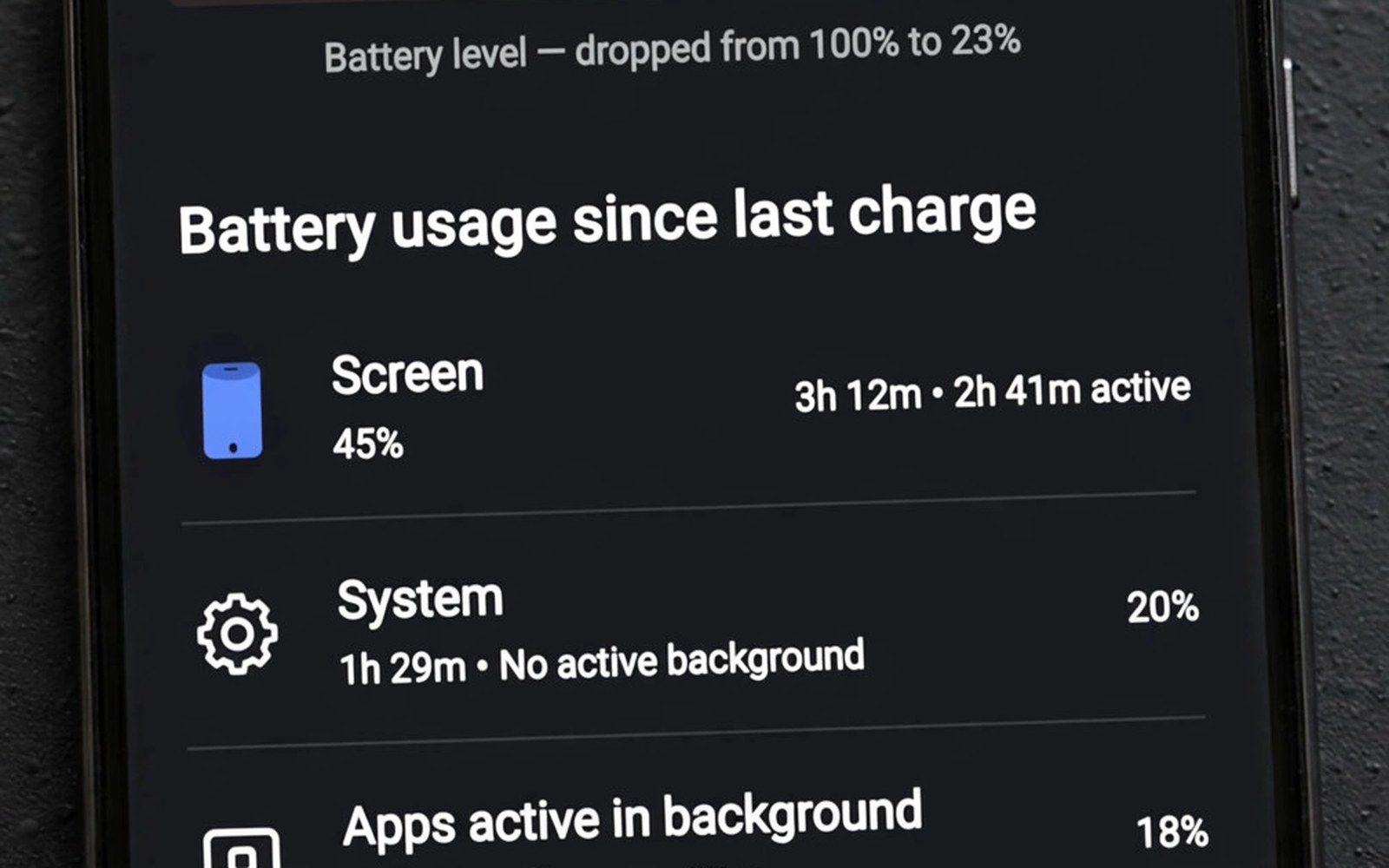
Open Settings, tap Battery, then tap Battery usage. On Samsung phones the path is Settings, then Battery and device care, then Battery, then View details. On Pixel phones it is Settings, then Battery, then Battery usage, and the list appears below a small chart. On most other brands the path is close to the stock Android one, and typing battery usage into the Settings search bar takes you straight there when the menu names differ. The screen shows a ranked list of apps since the last full charge, or for the past 24 hours on newer Android versions, and each entry can be tapped for detail.
Read the top five first and ignore the rest until you have judged those five. For each app, ask one question: did I use this app heavily today? A video app at the top after a long watch session is normal. A navigation app at the top after a road trip is normal. A torch app, a QR scanner, or a simple note app at the top after a quiet day is not normal, and it goes on your suspect list. Write the top five down with their percentages before you tap anything else, because the list changes as the day goes on and you want a fixed snapshot to compare against tomorrow.
Reading the ranking since the last full charge
The time window matters as much as the ranking itself. A list that covers the period since the last full charge can span two days, so a top app may simply reflect heavy use yesterday rather than a problem today. A list that covers the past 24 hours is easier to match against your memory of what you did. Note the window at the top of the screen before you judge any app, and charge the phone fully before you start a serious investigation so that the next window starts clean. A clean window turns the ranking into a diary of a single day, and a single day is much easier to read than a blended week.
What background time means on your phone
Tap any app in the battery list and you will see two numbers that matter more than the percentage: foreground time, sometimes labelled screen time, and background time. Foreground time is the time the app was open on your screen. Background time is the time it kept working after you left it. Some phones also show how much power each part used, and a few show the time in hours and minutes while others show only a bar. Whatever your phone shows, the comparison is the same, and it is the heart of this whole method.
Where to find per-app background time
From the battery list, tap the app, then look for a breakdown of foreground and background use on the detail page. If your phone does not show the split there, open Settings, tap Apps, tap the app name, then tap Battery, where the same foreground and background figures usually appear alongside the background restriction controls you will use later. On Samsung phones the path is Settings, then Apps, then the app, then Battery, and the usage split sits just above the Allow background activity switch. Spend a minute learning where your phone hides these numbers, because you will return to this screen for every suspect you test.
Screen Time vs Background Time: The Ratio That Exposes Spyware
Here is the comparison that does the real work. A healthy app spends most of its power while you look at it, so its foreground time is larger than its background time. A chat app might show two hours on screen and thirty minutes in the background for message sync, and that ratio is healthy. A video app might show three hours on screen and five minutes in the background, and that is even healthier. The numbers flip for spyware: minutes on screen and hours in the background, day after day, because the app only exists to work while you are not looking.
I tested this on my own phone during a week when the battery felt wrong, and the numbers told the story in one glance. My mail app showed one hour and ten minutes on screen and twenty-two minutes in the background. My maps app showed forty minutes on screen and eight minutes in the background. Then one small utility app showed three minutes on screen and four hours and forty minutes in the background, and it had done that every day that week. That app had no sync job, no backup job, and no reason to run at all while closed. The ratio alone was enough to move it to the top of the suspect list, and the tests later in this guide confirmed it.
A healthy ratio for common app types
Use these rough guides as a starting point, not as a law. Social and chat apps often run about four parts foreground to one part background. Video and music apps run closer to ten parts foreground to one part background. Mail and calendar apps can run near even, because syncing is their job. A weather widget or a fitness tracker may show more background than foreground, because checking location is their job. The question is never whether background time exists. The question is whether the amount of background time fits the job the app claims to do.
Zero screen time, high battery use: the strongest single clue
An app with zero minutes on screen and a large battery share ran entirely in the background, and that pattern fits hidden software better than any other single clue. Before you judge it, check whether the app had a legitimate one-off job that day: a backup app finishing a first backup, a photo app uploading a holiday album, a system update running overnight. Those one-off jobs explain a single day. They do not explain the same app sitting near the top of the list every morning for a week. A one-day spike is a job. A daily pattern is a habit, and a hidden app is a creature of habit.
How to note the numbers before you act
For each suspect, write down four things: the date, the app name, the foreground time, and the background time, plus the battery percentage it used. A note that reads 6 Nov, Torch Plus, screen 2 min, background 3 h 40 min, 18 percent is worth more than a vague memory that the phone felt hot. Numbers beat impressions when you decide whether to remove an app, and they protect you from deleting a useful app on a hunch. Keep these notes in one place, because the seven-day log in the next section turns them into a trend you can trust.
A 7-Day Drain Log That Separates Spyware From One-Off Spikes
One day of battery data can mislead you. A backup, an update, a long drive, or a hot afternoon can all push an innocent app to the top of the list for a single day. Seven days of data cannot mislead you in the same way, because one-off events fade while a hidden app keeps appearing. A week-long log is the difference between a suspicion and a case, and it takes about two minutes each evening. If your phone is draining fast right now, start the log tonight and read it as a whole on the seventh day.
- Charge the phone fully in the evening, then use it normally the next day without changing any settings yet.
- Each evening, open Settings, then Battery, then Battery usage, and write down the top five apps with their battery share.
- For any app in the top five that you barely opened, tap it and note its foreground time and its background time.
- Add one line about the day itself: travel, weak signal, a system update, a long video call, or a hot afternoon.
- Repeat the same four steps for seven days, keeping every evening note in one place with the date on each line.
- On the seventh day, count how many days each app appeared in the top five and how many of those days came with high background time.
- Treat an app that appears near the top on five or more days, with background time far above screen time, as your prime suspect.
- Open Settings, tap Apps, tap the suspect, tap Battery, then set background use to Restricted and confirm.
- Use the phone normally for one full day and note the evening battery level and the overnight drop.
- If battery life improves clearly, keep the restriction and move to removal; if nothing changes, set the app back to Optimized and test the next suspect.
- Before removal, open Settings, tap Security, tap Device admin apps, and switch off admin rights for the suspect if it holds any.
- Open Settings, tap Accessibility, open Downloaded apps, and switch off any accessibility service the suspect uses.
- Uninstall the suspect normally; if the button is greyed out, restart in safe mode, where third-party apps cannot run, and uninstall it there.
- After removal, restart in normal mode and watch the battery charts for two days before you declare the case closed.
What to write down each evening
Keep the log short or you will stop keeping it. Five lines are enough: the date, the top app and its percentage, the background time of any app you barely used, and one note about the day. A log that takes two minutes survives a week. A log that takes twenty minutes dies on day two. I keep mine in a plain notes app with one line per evening, and the pattern usually jumps out by day four, long before the week is finished. The log also protects you from your own memory, which will happily blame yesterday heavy video session for a drain that actually started three quiet days ago.
How to read the log after seven days
Lay the seven days side by side and look for three patterns. First, an app that appears near the top on most days while you barely opened it is a strong suspect. Second, an app whose background time climbs steadily across the week deserves a check, because a slow climb often follows an update that added a new background job. Third, an app that appears only on days with a matching event, like maps on driving days or a backup app on the day you turned on backup, is innocent. Compare your month logs with each other as well, because a new app that enters the top five in a new month, or a familiar app that climbs month after month, is an early warning worth acting on before the drain becomes severe.
Battery Suspects vs Data Suspects: Cross-Checking Two Screens
Battery drain plus data use together form a much stronger spyware signal than either one alone, because spyware must send home what it records, and sending costs both power and data. Open Settings, tap Network, then Data usage, then Mobile data usage, and read the ranked list the same way you read the battery list. A suspect that tops both lists is a prime candidate. A suspect that tops only the battery list may be a stuck task or a runaway sync. A suspect that tops only the data list may be a cloud backup or a large app update. Use both screens in every analysis, and let the overlap decide who gets tested first.
For a fuller method that pairs these two screens day by day, read the guide on tracking battery and data spikes and use its timeline alongside your own log. The timeline idea is simple: write the date and time of each spike, then check what the battery and data screens both say about that hour. When both screens point at the same app in the same hour, you have a timed event rather than a vague feeling, and a timed event is something you can test, restrict, and remove with confidence.
Checking background data for each suspect
Tap a suspect in the data usage list and look for its background data figure, which is the data it used while it was not open. A spyware app uploads in the background, so its background data will be large relative to its job. A mail app with large background data has a sync job that explains it. A torch app with large background data has no sync job at all, and that mismatch is damning. Judge background data against the job, exactly as you judged background time, and require the same standard: the job must explain the amount.
When battery and data disagree
Disagreement between the two screens is useful information, not a dead end. High battery with low data points at local work: constant location polling, audio recording stored on the phone, or a loop that keeps the processor awake without sending anything. High data with low battery points at efficient uploading: short bursts that send a lot while the radio is already awake, which is common for photo backup. Low battery and low data for a top suspect usually means the ranking window is misleading you, so charge fully and start a fresh window. Write down which screen supports the suspect and which one does not, because that note shapes the test you run next.
Ruling Out Hardware, Weak Signal and Update Spikes Before You Blame an App
Before you delete anything, rule out the three innocent causes that mimic spyware drain, because deleting good apps will not fix a tired battery or a weak signal. Old batteries drain fast for hardware reasons: a battery whose health has fallen below eighty percent loses charge quickly no matter which apps you install, and a swollen battery needs replacement at once for safety. Check battery health in Settings, then Battery, then Battery health on phones that show it, or in the diagnostics menu of your phone maker app. Do not blame apps for a hardware problem, and do not ignore a hardware problem by deleting good apps.
Weak signal is the second mimic. A phone in a basement, a lift, or a rural area boosts its radio power to stay connected, and that boost drains the battery even with no apps running at all. Check the signal conditions on your worst drain days: a day in a basement explains drain, while a day at home with full signal does not. The third mimic is updates. A system update or a large app update can reindex files and resync data for a day, draining power temporarily. A drain spike on update day is normal. A drain spike every day after the update is not. Wait two days after an update before you judge, because patience separates a temporary spike from a spyware pattern that persists.
Battery health and age
A phone that is two or three years old with its original battery will lose charge faster than it did when new, and that is chemistry, not malware. If your battery health reads below eighty percent, expect shorter life and faster drops, and treat a battery replacement as the fix rather than an app hunt. If the phone feels hot while idle and the battery looks swollen or the back cover lifts slightly, stop using it and get it checked the same day. Safety comes before any investigation, and no app analysis is worth a damaged battery.
Signal, heat and updates
Heat is a useful clue on its own. A phone that feels warm while sitting untouched on a table is working hard in the background, while a phone that only heats during a game or a video call is working hard on screen. Note the heat alongside the drain: warm at night plus high idle drain points at background work, while warm only during use points at normal load. Add the signal note and the update note to the same log line, and you will find that many scary drain days have a plain explanation written right next to them.
How to Restrict, Quarantine and Remove a Suspect Safely
Once your log names a prime suspect, test it before you delete it, because a test gives evidence and a deletion gives only hope. The safest test is a one-day background restriction, which is fully reversible and takes less than a minute to set. If the battery improves a lot during that day, the suspect was a major drain. If nothing changes, another cause remains, and you can lift the restriction and test the next app. Test one suspect at a time, because testing two at once leaves you unable to say which one mattered.
The one-day restricted test
The restricted test works because it stops the app from running in the background while leaving it usable when you open it. Some apps will complain: a mail app may delay notifications, a chat app may miss messages until you open it, and a fitness app may stop counting steps. Those side effects are temporary and they tell you something useful, because an app that breaks badly when restricted was clearly doing a lot of background work. If a feature you need breaks, lift the restriction and choose removal or a replacement app instead. A restricted test is safe and reversible, and it gives evidence without deletion, so use it before you delete a useful app on a guess.
Safe mode removal when uninstall is blocked
Some hidden apps fight removal by holding device admin rights or by restarting themselves the moment you try to delete them. Safe mode blocks that fight, because it starts the phone with only system apps running and third-party apps frozen. To enter safe mode, press and hold the power button, then press and hold the Power off option until the Reboot to safe mode prompt appears, then confirm. Uninstall the suspect in safe mode, check for partner apps while you are there, then restart normally. A spyware app may use a partner app to reinstall itself, so remove both in the same safe mode session.
Checking for partner apps after removal
After you remove the prime suspect, open Settings, tap Apps, and sort by install date or look for apps installed on the same day as the suspect. A partner app often shares a similar vague name, a generic icon, or a missing store listing, and it may sit quietly with no screen time at all. Remove any partner in the same session, then run a built-in scan with Google Play Protect, which you will find in the Play app under your profile, then Play Protect. A clean scan supports your analysis, and two days of calm battery charts confirm it.
After Removal: Passwords, Scans and a Monthly Battery Audit
Removing the app is only half the job, because a spyware app with broad access may already have taken data. Change your email and banking passwords from a clean device, not from the phone you just cleaned, and switch on two-factor authentication where it is offered. Watch your statements and your mail for strange activity for a few weeks, and check which permissions the removed app held so you know what it could have reached. For a full removal order that covers admin rights, accessibility, partner apps, and the scan that follows, follow the guide on removing spyware and adware step by step after your analysis is done, and work through it in the order it gives.
Spyware also loves sensors, so audit the camera and microphone while you are already in cleanup mode. Check for the green dot that Android shows when the camera or microphone is in use, review which apps hold camera and microphone permission in Settings, then Privacy, then Permission manager, and revoke access from any app that has no reason to hold it. The guide on signs your camera or microphone is monitored lists the sensor clues to check alongside the battery clues, and pairing the two checks catches hidden apps that drain power quietly while watching or listening.
What to change first after spyware removal
Change passwords in this order: email first, because email resets everything else; banking and payment apps second; then social and messaging accounts. Use a clean device for the changes, choose new passwords you have not used anywhere else, and turn on two-factor authentication on each account as you go. If the removed app had access to messages or contacts, tell the people who matter that your phone had a hidden app, because a short honest message beats a month of wondering why a strange link arrived from your number.
A five-minute monthly audit
Check the battery rankings once a month even when the phone feels fine, because a monthly check catches spyware early and takes five minutes. Open the battery screen, read the top five, and check the background time of any new top app. Restrict background activity for tools that do not need it, and keep the short drain log going with one line per month if a daily log feels like too much. A phone with a monthly audit is a hard target for hidden apps, and the habit costs less time than a single afternoon spent cleaning up a phone that went unchecked for a year.
Frequently Asked Questions About Battery Drain and Hidden Spyware
Why does my battery drain overnight when I am not using the phone?
Overnight drain comes from background work, and a small amount is normal: mail sync, alarms, and a few system jobs typically cost two to five percent. A larger overnight drop, ten percent or more with the screen off, means something worked through the night, and the battery screen will name it. Open the battery usage list the next morning, tap the top app, and compare its background time with its screen time. High background time with almost no screen time is the pattern to investigate, and the seven-day log in this guide turns one worrying night into a proven pattern or a one-off event.
Can a new phone have spyware already installed?
Yes, though it is rare on phones bought from major makers through official channels. Pre-installed spyware is more common on cheap devices from unknown brands, on phones bought second-hand without a factory reset, and on phones set up by someone else. If a brand-new phone drains fast from day one, check the battery list before you install anything, and look for unfamiliar apps with odd names or generic icons. A factory reset from Settings, then System, then Reset options, then Erase all data, gives you a clean start on a second-hand phone, and it is worth doing before you sign into any account.
Does restricting background activity break my apps?
Restricting an app stops it from running in the background, but it still works normally when you open it. Mail and chat apps may deliver messages late, fitness apps may miss steps, and widgets may refresh slowly, and those are the trade-offs of the test. The setting is reversible in seconds from the same Battery page, so a restriction is a safe experiment rather than a permanent change. If an app you need breaks badly when restricted, lift the restriction and decide between removing the app and accepting its background cost with your eyes open.
How long should I watch the battery before removing an app?
Watch for at least a week when the drain is mild, because a week separates a real pattern from a backup or an update. When the drain is severe, when the phone overheats, or when an app shows hours of background time with zero screen time, a single day of restricted testing is enough evidence to act. The rule is simple: mild clues get a week of logging, strong clues get a one-day test, and blocked uninstalls get safe mode. Never delete three apps at once, because you will never learn which one was guilty, and the next hidden app will hide behind the same confusion.
Conclusion: Start Tonight With One Battery Check
Open Settings, tap Battery, then Battery usage, and read the top five before you go to bed tonight. Write down the app at the top, its background time, and its screen time, and do the same tomorrow evening. That two-minute habit is the whole method in miniature, and it is the concrete next step you can take today without installing anything or paying anyone. If the same unfamiliar app tops the list all week with hours of background time and minutes on screen, run the restricted test, then remove it safely, change your passwords, and enjoy a phone that stays cool and charged through the night.
Battery drain tells a story about hidden work, and you now know how to read it. Compare screen time with background time, separate hardware and signal causes from software causes, cross-check battery against data, and remove suspects one by one while you verify with the charts. A draining phone is not a mystery and it is not a reason to buy a new one. It is a list of numbers waiting to be read, and the numbers usually name the culprit within a week.

