

Download APK Studio Free and Paid Options, Feature Highlights & Review
Studio is a social media manager for Android that helps you plan, schedule and track posts across your accounts. Instead of opening each network separately, you draft content in one place, set a time, and let the app publish it. For small creators, shop owners and anyone who posts regularly, that single queue is the whole point.
I tested it by planning a week of posts for a small project, scheduling them, and watching how the analytics reported back. This review covers the free and paid options, the feature highlights, and whether the app earns its place in a creator’s toolkit.
What Studio social manager does for your accounts
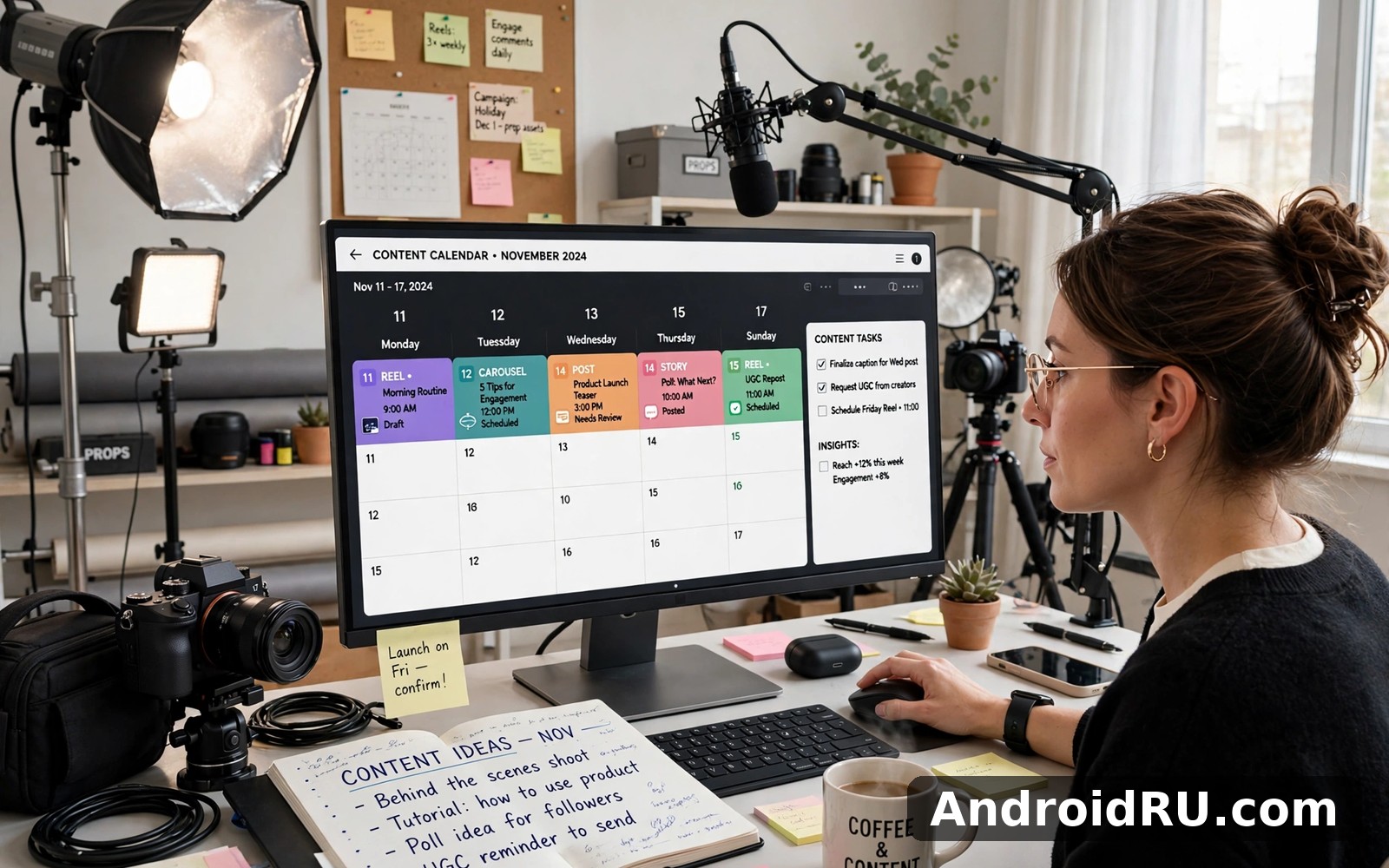
Studio connects to your social accounts and gives you one dashboard for them. You write a post once, attach images or video, pick the accounts it goes to, and choose a time. The app holds the post in a queue and publishes it at the scheduled moment. A calendar view shows the week ahead, so you can see gaps and avoid posting three things at once.
Drafts are the quiet hero. You can start a post on Monday, finish it on Wednesday, and schedule it for Friday. Ideas do not get lost in notes apps, and the queue keeps your posting steady even on busy days. For anyone who has ever forgotten to post, that reliability matters.
Studio feature highlights worth knowing about
Scheduling is the headline, but the supporting tools make it usable. The media library holds your images and videos in one place, so you reuse assets instead of hunting through your gallery. Hashtag suggestions appear as you type, and saved hashtag sets let you apply a group with one tap. The best-time hints suggest posting windows based on when your audience has engaged before.
Analytics cover the basics well: reach, likes, comments and follower growth per post and per account. The numbers are simple rather than deep, which suits small creators who want a quick read rather than a spreadsheet. Exporting a weekly summary helps if you report to a client or a partner.
Studio hashtag sets and best-time hints that save real minutes
Hashtags are where small creators waste the most time, typing the same tags post after post. Saved sets fix that: build one set for product posts, one for behind-the-scenes posts and one for announcements, then apply the right set with a tap. Review the sets monthly and drop tags that never bring engagement, since a stale set is worse than none.
Best-time hints work from your own history rather than generic advice. If your audience engages most on weekday evenings, the app will say so, and scheduling into those windows beats guessing. The three features that carry the app are scheduled posts for consistency, hashtag sets for speed, and approval flows for safety when a team is involved. Get those three right and the rest of the app stays out of your way.
Team features appear in the higher tiers. You can invite a teammate to draft posts while you approve them, which suits small shops where one person writes and another publishes. Approval flows prevent an unreviewed post from going live, and that single check has saved more than one brand from an embarrassing mistake.
Studio scheduling, calendar and queue explained
The calendar shows scheduled posts as blocks across the week, and dragging a block moves it to a new time. The queue lists everything waiting to publish, with the next post at the top. If a scheduled time passes while the phone is offline, the app retries when the connection returns, though you should check the queue after any outage.
Studio analytics: what the numbers actually tell you
Reach tells you how many people saw a post, engagement tells you how many acted on it, and follower growth tells you whether the account is moving at all. Compare the same post type across weeks rather than chasing single-day spikes. A steady upward line beats one viral post followed by silence.
How to schedule your first week of posts in Studio
Connect one account, write three posts, and schedule them for different days at different times. Attach an image to each, add a small hashtag set, and save them as drafts first. Review the calendar, fix the gaps, then confirm the schedule. Check the results after the week ends and keep the times that worked.
Studio free and paid options compared
The free plan covers the essentials: a limited number of connected accounts, a set number of scheduled posts per month, and basic analytics. It is enough to test whether scheduling fits your routine. The paid plans raise the limits: more accounts, more scheduled posts, deeper analytics, team seats and priority support. Pricing varies by plan and region, so check the current figures inside the app before you subscribe.
| Feature | Free plan | Paid plans |
|---|---|---|
| Connected accounts | Limited number | More accounts included |
| Scheduled posts | Monthly limit | Higher or unlimited allowance |
| Analytics | Basic reach and engagement | Deeper reports and exports |
| Team seats | Not included | Draft and approval flows |
| Media library | Basic storage | Larger library |
| Support | Standard | Priority support |
The honest test is a month of real posting. If you publish three or more times a week across two accounts, the free limits will pinch and the paid plan earns its cost in saved time. If you post once a week on one account, the free plan is enough and you should not pay for capacity you never use.
Studio setup: connecting accounts and staying secure
Connecting an account uses the official login flow of each network, so Studio never asks for your password directly. You grant permission through the network’s own screen, and you can revoke it from that network’s settings at any time. That separation is important: never type a social password into a third-party form.
Security habits matter here because a scheduling app holds the keys to your public voice. Turn on two-factor authentication on every connected account, review the connected apps list once a month, and remove Studio from any account you no longer manage. If a team member leaves, remove their seat at once rather than next week.
What permissions Studio needs, and what it does not
Studio needs permission to post on your behalf and to read basic analytics. It does not need your contacts, your location or your private messages. If the app asks for more than posting and analytics, deny it and check whether the request came from the app or from a fake prompt.
Studio account security checklist for creators
Two-factor authentication on every account. Unique passwords, stored in a password manager. Connected apps reviewed monthly. Team seats removed when someone leaves. Scheduled queue checked after any outage. Those five habits prevent most of the problems creators actually face.
Studio pros and cons after a week of scheduled posting
The strengths are practical. Scheduling works, the calendar is clear, and the analytics answer the questions a small creator asks. The app is light, the interface is calm, and the free plan is genuinely usable rather than a demo. For a solo creator, it removes the daily scramble to post.
| Area | Pros | Cons |
|---|---|---|
| Scheduling | Reliable queue, clear calendar | Some networks limit auto-publishing |
| Analytics | Simple, readable, exportable | Shallow compared with desktop tools |
| Accounts | One dashboard for several networks | Free plan caps the number |
| Teamwork | Draft and approval flows | Only on paid plans |
| Cost | Free plan covers the basics | Paid tiers add up across a year |
The weak spots follow from the platform rules. Some networks restrict automatic publishing, so certain posts need a manual tap to finish. Analytics are simpler than desktop tools, and the app cannot fix a weak content idea. And like any scheduler, it is only as good as the posts you put into it.
Who Studio is best for, and who should skip it
Studio suits small creators, shop owners and freelancers who post regularly on more than one account. It suits anyone who wants a steady posting rhythm without living inside each network’s app. It is a poor fit if you post rarely or manage a single personal account. If you want more reading on related apps, the Diffuse article covers a different kind of social tool. The Camsurf article looks at live chat instead. And the TikTok article covers short video and shopping.
Studio frequently asked questions
Is Studio free to use on Android?
Yes, the free plan covers basic scheduling, a limited number of accounts and basic analytics. Paid plans raise the limits and add team features and deeper reports. Check the current prices inside the app, since plans change.
Can Studio post automatically to all networks?
Mostly, but not everywhere. Some networks require a manual confirmation step before a post goes live, because their rules limit fully automatic publishing. The app tells you which posts need a tap, so check the queue after scheduling.
Does Studio store my social media passwords?
No. You log in through each network’s official flow and grant Studio permission to post. Studio holds a token, not your password. Revoke the permission from the network’s settings at any time to cut access.
What happens if my phone is offline at a scheduled time?
The app retries when the connection returns, but a long outage can delay a post. Check the queue after any outage and reschedule anything that missed its slot. For time-sensitive posts, confirm them manually.
Can I manage a team with Studio?
Yes, on the paid plans. Teammates can draft posts while you approve them, and approval flows stop unreviewed posts from going live. Remove a teammate’s seat as soon as they leave the project.
Final verdict on Studio for Android creators
Studio is a solid, honest scheduling tool. It does the job it promises: plan once, publish on time, and see what worked. The free plan is enough to learn whether scheduling helps you, and the paid plans are fair for creators who post often. The limits are the platform rules and the shallow analytics, neither of which is the app’s fault.
Try it with one account and three scheduled posts this week. If the week feels calmer, the app has earned its place. When you are ready to give it a proper try then use the link below. Click here to download the Studio app. A similar app is worth a quick look too. Click here to download the Diffuse app. For a second option, Click here to download the Camsurf app.

