

Download APK AI Studio Chat Image Video Latest Updates, Core Capabilities & App Review
I spent a full week with this app before writing a word about it, and the first thing that struck me was how little it asks of you at the start. You open it, pick chat, image, or video, and you are working within a minute. There is no long onboarding tour, no forced account wall before you can try the basics, and no maze of menus hiding the tools you actually came for. That matters, because most AI tools on Android lose people in the first sixty seconds. This one does not.
The idea behind it is simple enough to explain in one sentence: one workspace where you can talk to an AI assistant, turn a written prompt into a picture, and turn a picture or a prompt into a short video clip. Plenty of apps do one of those three things well. Far fewer try to do all three in the same place, and fewer still keep the result usable on a phone screen. After a week of daily use, I can say the combination works better than I expected, with a few rough edges that are worth knowing before you commit your time to it.
This review covers what changed in the latest updates, what each core tool can really do, how to get a good result on your first try, and how the app stacks up against the closest alternatives.
What AI Studio Chat Image Video Actually Does on Android
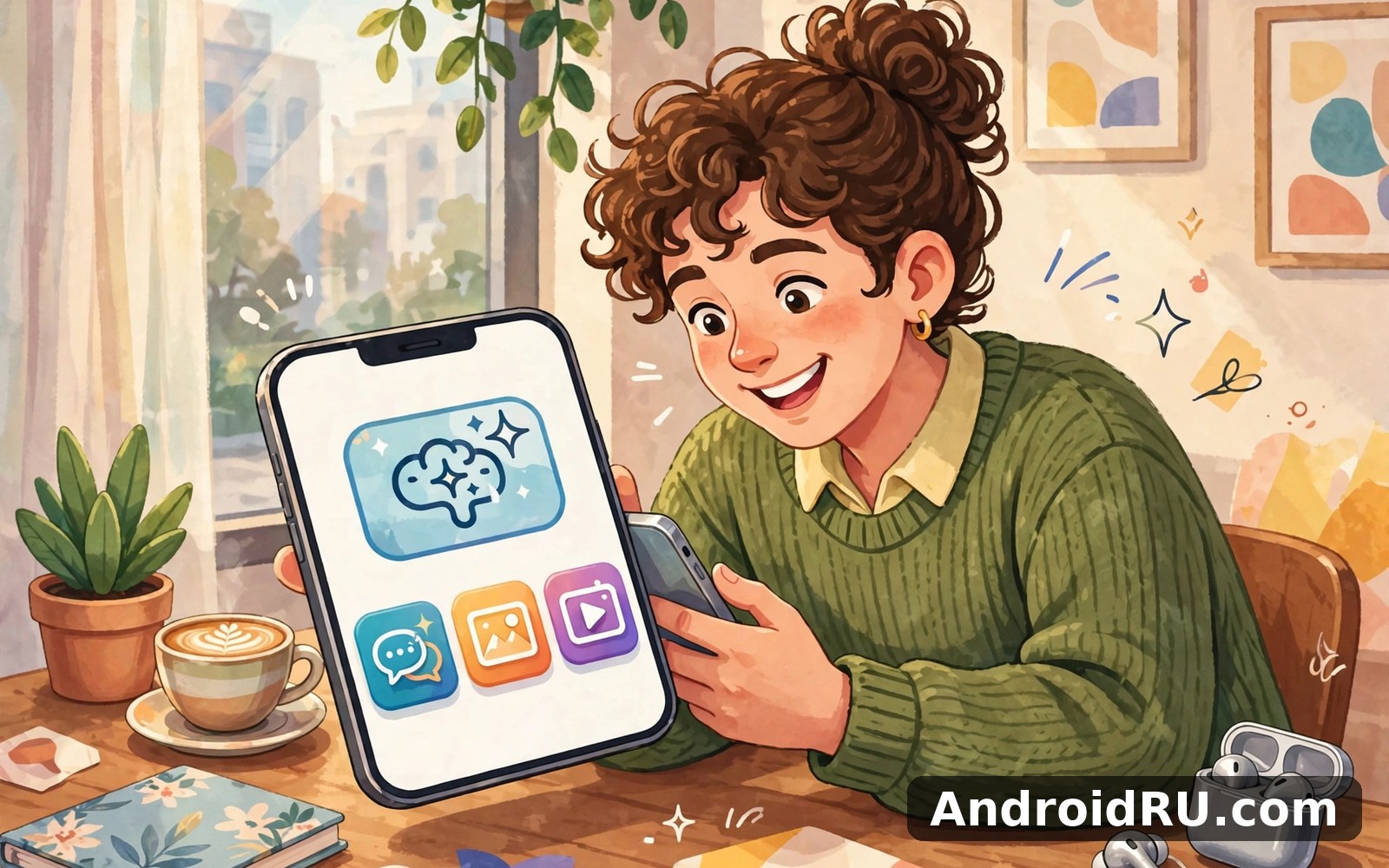
At its heart, the app is three tools sharing one account, one credit balance, and one gallery of saved work. The image tool takes a text description and returns a picture in a style you pick, from realistic photos to flat illustration, anime, and 3D render styles. The video tool takes a still image or a short prompt and animates it into a clip of a few seconds, with camera movement, simple motion, and optional text overlays.
AI chat that remembers the thread of a conversation
The chat side behaves like a competent general assistant. I asked it to draft captions, summarise long articles, plan a week of social posts, and rewrite a rough product description in three different tones, and it handled all of that without losing the thread. It keeps context across several turns, so you can say “make that shorter” or “try a friendlier tone” and it knows what “that” refers to. That sounds basic, but plenty of free chat apps on Android reset context after two or three messages. This one held a coherent conversation across a dozen turns in my testing.
Image generation from a text prompt
The image tool is the part I used most, and it is also the part where prompt wording matters most. A vague prompt such as “a cat” returns a generic cat. A specific prompt such as “a ginger cat sitting on a rainy windowsill at dusk, warm lamp light, photographic style” returns something you would actually want to post. The app offers preset styles, aspect ratios for square posts, vertical stories, and wide banners, plus a negative prompt field where you can list things to leave out, such as text, extra fingers, or a cluttered background.
Short video creation from stills and prompts
The video tool is the youngest of the three, and it shows in both good and bad ways. On the good side, turning a still image into a five-second clip with a slow zoom or a gentle pan is genuinely easy, and the results look far better than a static slideshow. On the weaker side, clips are short, motion can look wobbly when the prompt asks for complex action such as running or dancing, and faces sometimes shift shape between the first and last frame.
Latest Updates in AI Studio Chat Image Video: What Changed Recently
Recent updates have focused on speed and output quality rather than adding whole new sections. Image rendering got noticeably faster in my side-by-side checks: jobs that took close to a minute a few versions ago now finish in roughly half that time on the same phone and the same connection.
Faster image rendering and new art styles
The style list grew with several new presets, including a clean flat illustration look, a soft watercolour style, and a cinematic photo style that adds gentle depth of field.The update also added a history view, so you can return to an earlier generation, copy its prompt, and run a variation without retyping everything from scratch. That one small change saved me more time than any new style did.
Longer chat memory and better prompt help
Chat sessions now keep more context, which shows when you work on a longer piece of writing across several messages. The app also added prompt suggestions that appear as you type in the image tool: start with “a cozy reading nook” and it offers completions for lighting, mood, and camera angle. Beginners will like this, because a blank prompt box is the hardest part of image generation.
How to Set Up AI Studio Chat Image Video and Run Your First Project
Setup takes about five minutes, and most of that is deciding what you want to make first. Install the app, open it, and grant storage permission so your results can save to the gallery. You can try the core tools without creating an account, but signing in keeps your history and your saved projects synced if you switch phones.
Step-by-step: your first image, chat, and video
- Open the image tool, pick a style and a square or vertical ratio, and type one clear sentence describing the scene, the subject, and the light.
- Tap generate, wait for the preview, and save the version you like; if the result is close but not right, change one word in the prompt and run it again instead of rewriting the whole thing.
- Open the chat tool and paste your image prompt there, asking for three variations with different moods, then copy the best one back into the image tool.
- Open the video tool, pick your best still image, choose a slow zoom or pan, and generate a five-second clip to test motion before you commit credits to a longer render.
- Review the clip frame by frame, and if the face or hands shift, try a gentler motion setting rather than a dramatic one.
- Export the finished image or clip to your gallery, and keep the project in the app gallery too, so you can reuse the prompt later.
Picking the right aspect ratio for each platform
Square works for feeds, vertical 9:16 works for stories and short video apps, and wide 16:9 works for thumbnails and banners. Pick the ratio before you generate, because cropping a square image into a vertical story later throws away half the picture. The app shows the ratio clearly on the generate screen, so a quick glance before you tap is enough.
Saving and exporting your work without losing quality
Save from the preview screen rather than screenshotting the result, because screenshots compress the image and add interface elements. Exported files land in your gallery at the resolution the app generated, and the in-app gallery keeps the prompt attached to each file.
AI Studio Chat Image Video vs Pavo, Polybuzz and Hinge: Honest Comparison
No app lives alone, and the honest way to judge this one is against the tools people actually use next to it. Pavo AI Image Video Maker is a natural next app to try if image and video creation is your main goal, because it leans harder into visual tools and templates. Polybuzz Chat with AI Friends covers that need neatly if what you really want is character chat and roleplay conversations rather than productivity work. Hinge Dating App Date Chat is worth a look as well if your goal is meeting people rather than making media, since it is a dating app with a completely different purpose. The table below puts the four side by side on the points that matter in daily use.
| App | Main strength | Best for | Weak spot |
|---|---|---|---|
| AI Studio Chat Image Video | Chat, image, and video in one place | All-round creators | Short video clips only |
| Pavo AI Image Video Maker | Visual templates and effects | Image and video makers | Weaker chat features |
| Polybuzz Chat with AI Friends | Character chat and roleplay | Conversation and fun | Not a productivity tool |
| Hinge Dating App Date Chat | Meeting people nearby | Dating and social | No AI media tools |
| This app | Prompt help for beginners | First-time AI users | Credits run out fast on video |
| Pavo AI Image Video Maker | Ready-made visual styles | Quick social posts | Less control over prompts |
The takeaway is simple: pick this app when you want all three tools in one place and you are happy to trade some depth for convenience. Pick Pavo when images and video matter more than chat. Pick Polybuzz when conversation itself is the point. Pick Hinge when the goal is dating, because none of the other three does that job at all.
Full Review: Features, Pros, Cons and Who It Is For
After a week of real use, the picture is clear. This is a capable all-rounder with a friendly learning curve, held back mainly by short video limits and a credit system that rewards light use more than heavy use. The features below are the ones I actually used, not a list copied from a store page.
Core features worth your time
- AI chat with multi-turn context, so follow-up questions work naturally and you can draft, summarise, and brainstorm in one thread.
- Text-to-image generation with style presets, aspect ratios, and a negative prompt field for removing unwanted details.
- Image-to-video animation with camera moves such as slow zoom and pan, plus short prompt-based video clips.
- Prompt suggestions and a generation history that lets you copy, edit, and rerun earlier prompts.
- An in-app gallery that keeps each result attached to its prompt, so good ideas are easy to repeat.
Pros: what the app does well
- Three useful tools in one app, so you stop switching between a chat app, an image app, and a video app for a single post.
- Beginner-friendly prompts and suggestions, which make the first generation far less intimidating than a blank box.
- Fast image generation on ordinary mid-range phones, with most jobs finishing in under thirty seconds on Wi-Fi.
- Clean layout with the main tools on the home screen, so you rarely dig through menus to find anything.
Cons: where the app falls short
- Video clips are short and complex motion can look wobbly, so it suits atmosphere clips rather than action scenes.
- Video generation uses credits quickly, and heavy users will hit the free allowance sooner than they expect.
- Faces and hands still go wrong in busy scenes with several people, and fixing that costs extra generations.
Who it is for
This app fits casual creators, small business owners who need a quick product image or caption, students drafting posts, and anyone curious about AI media who wants one place to try it all. It fits less well for professional video editors, illustrators who need precise control over every pixel, and heavy users who generate dozens of videos a day. If you fall in the first group, the free allowance is enough to learn the ropes and finish real projects.
Common Problems and Quick Fixes
Most complaints I ran into have simple causes. If generation stalls, switch from mobile data to Wi-Fi and try again, because large image and video jobs time out more often on a weak signal. If a prompt keeps returning the wrong style, check that you picked the style preset before typing, since the preset and the prompt work together and a mismatch pulls the result in two directions. If the app feels slow, clear the in-app cache from settings and close background apps, because the gallery holds full-size previews that add up over a week. If credits vanish faster than expected, look at the history screen: video jobs cost more than images, and rerunning the same video prompt three times is the usual culprit.
Frequently Asked Questions About the App
What can AI Studio Chat Image Video do that a single-purpose app cannot?
It chains the three tools together in one workflow. You can brainstorm a caption in chat, generate the image from the same idea, and animate that image into a clip without exporting files between three different apps.
How many free generations do you get each day?
The free allowance changes with updates and promotions, so check the balance shown on the home screen rather than trusting a number from an old review.
Can you use the generated images for a business or a client project?
Read the licence and terms inside the app before using any generated image commercially, because AI image rights depend on the plan you are on and the rules can change with updates.
Why do faces and hands sometimes look wrong in generated images?
Image models still struggle with fine detail in hands, teeth, and faces in profile, especially when several people share a frame. Shorter prompts with one subject, a clear angle, and a negative prompt that excludes extra fingers and distorted faces reduce the problem.
Final Verdict: Who Should Try It First
I kept the app installed after the test week, and that is the strongest signal I can give. It is not the best chat app, the best image generator, or the best video tool on Android, but it is one of the most convenient combinations of all three, and convenience decides what actually gets used on a busy day.Click here to download the AI Studio Chat Image Video app. If visual creation is your main goal, Click here to download the Pavo AI Image Video Maker app, and if character chat is what you want most, Click here to download the Polybuzz Chat with AI Friends app.

