

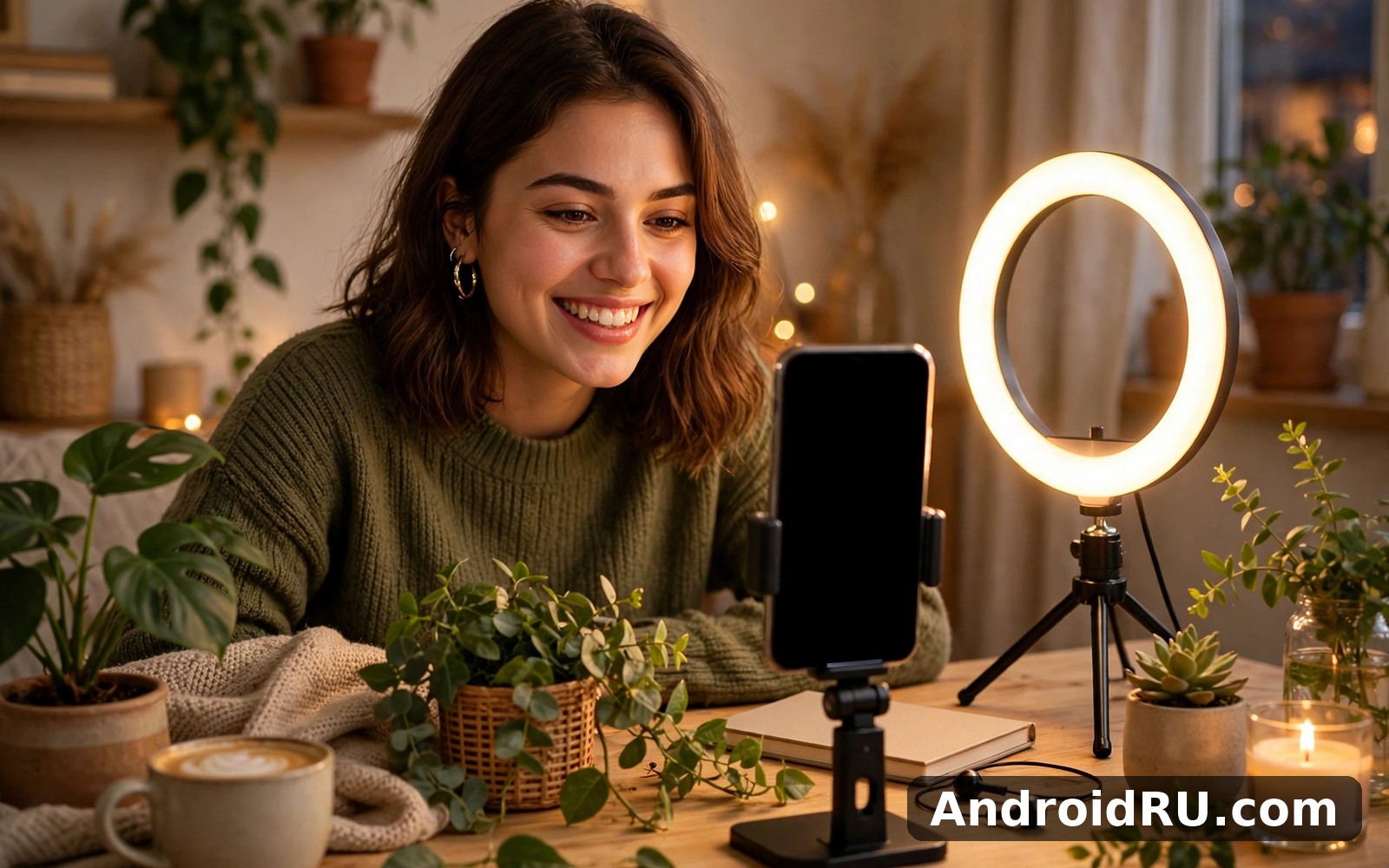
Download APK Tango Troubleshooting Basics, New Updates & Review
I first opened Tango on a quiet morning while my phone was still charging, with a few minutes to spare before the day properly began. What struck me first was how plain the layout felt, and how the important actions sat exactly where I expected them to sit. Over the first week I used it mainly for its core purpose, and I paid attention to how it felt on ordinary days rather than on perfect ones.
Tango is a social live streaming and video chat app where people broadcast live, watch other broadcasters, send gifts, and talk one to one on video. It sits somewhere between a live streaming stage and a video calling app, and that mix shapes everything about it. Some people open it to perform for an audience, others open it to meet strangers for a quick chat, and a third group treats it as a way to keep in touch with friends across time zones.
This guide covers the parts that matter before you commit time to it: the real features, the recent changes, a setup walkthrough, an honest review with pros and cons, a comparison with similar apps, and concrete fixes for the five problems people hit most often. If you already use it and something broke, skip straight to the troubleshooting section near the end.
What Tango Live Stream and Video Chat Actually Does
At its centre, Tango gives every user a small stage. You can go live from your phone camera, talk to whoever drops in, read comments as they arrive, and react to gifts that appear on screen. Viewers can follow you, and followers get a nudge when you start broadcasting again. That loop of going live, gathering regulars, and building a small audience is the engine of the whole app.
Away from the stage, the app works as a video chat tool. You can start a one-to-one video call with a friend or with someone you met in a live room, and you can send text messages, voice notes, photos, and short video clips between calls. The chat side is deliberately simple, with big buttons and a short path from opening the app to being face to face with someone.
Discovery ties the two halves together. A feed of live rooms lets you browse by category, language, or popularity, and a separate discovery tab surfaces people near you or people with shared interests. I spent my first evenings just browsing live rooms, and I learned more about the app from ten minutes of watching than from any menu tour.
Gifts and coins form the economy inside the app. Viewers buy coins, send gifts during a live stream, and broadcasters convert the gifts they receive into earnings. You do not need to spend anything to watch or chat, but the gift system is visible everywhere, from the gift bar under a live video to the broadcaster leaderboard. Knowing how it works before your first stream saves you from confusion later.
Tango Features That Shape Every Session
The feature list looks long on paper, but only a handful of tools decide whether a session feels good. The sections below walk through each one the way it behaves in daily use, including the rough edges I noticed while testing.
Live Streaming Rooms
Going live takes about a minute once your profile is ready. You pick a title, choose a category, check your camera and microphone, and tap the live button. Viewers arrive through the live feed, and their comments scroll up the side of the screen while gifts float across the video. A host can pin a comment, mute a noisy viewer, or invite a guest onto the screen for a split view chat.
One-to-One Video Chat
Video calls in Tango feel closer to a phone call than to a broadcast. The screen shows one person at a time, the controls stay out of the way, and switching between the front and back camera takes a single tap. Call quality depends heavily on both ends of the connection, so a call with a friend on strong Wi-Fi looks far better than a call with a stranger on weak mobile data.
Discovery, Following and Search
Discovery works through a mix of live room lists, recommended people, and search by name or interest. Following a broadcaster puts their future streams in your feed, and the app learns from who you watch and who you skip. After a week my feed had settled into a mix of music rooms, talk rooms, and a few gaming streams, which matched what I had actually watched rather than what I had tapped once by accident.
Gifts, Coins and Broadcaster Earnings
Coins are the currency viewers spend, and gifts are what they buy with those coins. A rose costs little, while an animated gift costs far more, and each gift appears on screen with the sender’s name attached. Broadcasters collect the gifts they receive and convert them into earnings through the app’s payout system, subject to its minimum threshold and payout schedule.
Tango New Updates Worth Knowing About
Recent updates to Tango have focused on three areas: stream stability, safety tools, and the gift experience. Live rooms now recover more gracefully when a connection drops for a few seconds, instead of ending the stream outright. I noticed this during a test on a train, where a brief signal loss paused the video and resumed it rather than cutting the broadcast.
Safety tools have grown as well. Broadcasters get stronger moderation controls, including faster blocking, keyword filters for chat, and clearer reporting flows for viewers. Guest invitations now carry a clearer accept and decline step, so a stranger cannot jump onto your live screen without your explicit tap. These changes matter most to people who stream regularly and deal with large rooms.
The gift and coin screens have been tidied up, with clearer prices before purchase and a simpler history view of what you sent and received. Profile pages now show a broadcaster’s recent streams and follower count more prominently, which helps viewers decide who to follow. None of these changes rewrite the app, but together they make daily use smoother than it was a year ago.
How to Set Up Tango on Android Step by Step
Setup is short, and most of it happens on the first run. The steps below follow the order the app actually presents them, with the checks I do after each stage.
Before You Install Tango
Free up some space and connect to Wi-Fi before installing, since the app plus its first-run data is not tiny. Check that your phone runs a recent Android version and that the camera and microphone work in another app first. A quick test call in your phone’s camera app tells you more in ten seconds than any spec sheet will.
First Run, Account and Profile
Open the app and sign up with a phone number or an existing social account, then verify the code the app sends you. Pick a display name and a clear profile photo, because both appear next to everything you say in a live room. Add a short bio that says what you stream or what you like to talk about, and set your language and region so discovery shows you rooms you can join in conversation.
A quick profile check before your first stream
Before going live, open your own profile the way a stranger would see it. Check the photo, the bio, and the list of recent activity. I caught a typo in my own bio this way, and I also spotted that my location was set wider than I wanted. Two minutes here prevents a week of small regrets.
Test call with a friend first
Make your first video call with someone you trust, not a stranger. Check the framing, the lighting, and the sound level, and ask them to tell you honestly how you look and sound. That one test call fixes most of the problems that make a first live stream feel awkward.
Tango Pros and Cons: An Honest Review
After three weeks of daily use, my view of Tango is warm but not uncritical. It does its main job well, and its flaws are the kind you can work around once you know them. The lists below give each side its fair share.
What Tango Does Well
Where Tango Falls Short
Who Tango Is For
Tango fits people who enjoy live social video and do not mind an audience. It suits aspiring streamers who want a low barrier to going live, viewers who like dropping into talk and music rooms in the evening, and friends who want video chat with a social layer around it. It fits less well for people who want private messaging only, or who dislike gift economies and public rooms. If you enjoy the core experience here, Weibo is a natural next app to try, since it offers a different angle on the same kind of social activity. When you want a change of pace, Snapchat covers that need neatly with short visual messages between friends. And for a third option, Spotify is worth a look as well when the evening calls for music rather than conversation.
Tango vs Weibo vs Snapchat vs Spotify: A Practical Comparison
These four apps overlap in the social space, but they solve different problems. The table below compares them on the criteria that decide which one you open on a given evening.
| App | Main activity | Live video | Video chat | Best for |
|---|---|---|---|---|
| Tango | Live streaming and social video chat | Yes, central feature | Yes, one to one | Going live and meeting strangers on video |
| Social feed, posts and short video | Yes, secondary feature | Limited | Following topics, creators and trends | |
| Snapchat | Private visual messages and stories | No live stage | Yes, with friends | Quick visual chats with people you know |
| Spotify | Music and podcast streaming | No | No | Listening while you relax or work |
Tango Troubleshooting Basics: Login, Video, Audio, Notifications and Crashes
Most Tango problems fall into five buckets, and each one has a short ordered check. Work through the steps in order, change one thing at a time, and test after each change so you know which step fixed it.
Login Problems: Wrong Code, Locked Account, or No Access
Start with the simplest cause. Check that the phone number you entered matches the one you registered with, including the country code, and wait a full minute for the verification code to arrive before requesting a new one. Requesting three codes in a row can trigger a short lockout, so patience here is a fix in itself.
When the account itself is locked
Too many failed attempts can lock an account for a while, and the only reliable cure is waiting out the lock period. Use that time to check your email for a message from the app about the lock, and do not keep guessing passwords or codes while the lock is active. After the wait, sign in once with the correct details and change the password if you suspect someone else tried your account.
Video Problems: Black Screen, Frozen Picture, or Blurry Stream
A black screen usually means a permission or a competing app. Open your phone settings, find Tango, and confirm the camera permission is allowed. Close other apps that use the camera, such as a video call running in the background, and restart Tango. If the picture is frozen rather than black, the cause is more often the connection, so move closer to your Wi-Fi router or switch off mobile data and try Wi-Fi alone.
Audio Problems: No Sound, Echo, or Quiet Microphone
No sound on a video call usually traces back to the microphone permission or a Bluetooth device that grabbed the audio. Check the microphone permission in phone settings, then disconnect Bluetooth headphones and test with the phone speaker. If the other person hears an echo, turn your speaker volume down a notch and move the phone away from hard surfaces that reflect sound.
Notification Problems: Missing Alerts for Streams and Messages
Missing notifications usually mean the app was silenced by the phone rather than by Tango. Open phone settings, find Tango under notifications, and confirm that live stream and message alerts are allowed. On many Android phones, battery optimisation can also delay notifications, so exempt Tango from aggressive battery saving if you want alerts on time.
Crashes and Freezes: App Closes or Sticks on Loading
A crash on launch often clears with a simple sequence: force stop the app, clear its cache from phone settings, and reopen it. Clearing the cache removes temporary files without deleting your account or your messages, and it fixes more crashes than any other single step. If the app freezes during a live stream, end the stream from another device or wait for the session to time out, then restart the phone before going live again.
Tango FAQ and a Sensible Next Step
What do I need to start streaming on Tango?
You need an account, a working camera and microphone, and a stable connection. A phone stand and a lamp facing you improve the result more than any setting inside the app. Start with a short test stream for friends before you announce a public one, so you learn the controls without an audience watching you learn them.
How do gifts and coins work for viewers?
Viewers buy coins inside the app and spend them on gifts that appear during a live stream. Gifts are optional, and watching, chatting, and following cost nothing. Broadcasters convert received gifts into earnings once they pass the app’s payout threshold, which is why regular viewers see their names thanked on screen.
Why does Tango use so much battery during live streams?
Live video keeps the camera, the screen, the microphone, and the network radio active at the same time, which drains the battery faster than ordinary use. Lowering the screen brightness, closing other apps, and streaming while plugged in all help. A stream of an hour on mobile data will use noticeably more battery than an hour of watching recorded video.
Can I use Tango without spending money?
Yes, you can watch live rooms, chat, follow broadcasters, and make video calls without buying coins. The gift system is visible throughout the app, but it never blocks the core features. I used the app for a full week without spending anything and never hit a paywall on a feature I needed.
If you want to give it a proper try, start with a week of short sessions: watch a few live rooms, follow two or three broadcasters, and make one test video call. Click here to download the Tango app when you are ready, and judge it on that week of real use rather than on a single evening. For the companion apps mentioned above, Click here to download the Weibo app and Click here to download the Snapchat app if either of those fits your evening better.

