

Download APK CallApp Latest Updates, Background Activity & App Review
CallApp sits in a crowded corner of Android: caller ID, spam blocking, call recording and contact management all compete for the same spot on your home screen. I kept it as my default dialler companion for a full month, through work calls, unknown numbers, family chats and a few genuinely annoying spam waves, to see whether it earns that spot or just adds another layer on top of the phone app you already have. The short answer is that it earns it for a specific kind of user, and this review explains exactly who that is, what the latest updates changed, and what the app does when you are not looking at it.
Most caller ID apps promise the same three things: know who is calling, stop the calls you do not want, and keep your contacts tidy. CallApp delivers on those promises in a fairly calm way, without turning every incoming call into a sales pitch. That said, it is not a magic shield. No caller ID app can identify every number, and CallApp is honest about that limit in practice, even if its marketing is louder than its results. What follows is what I actually saw on my phone, day by day, including battery readings, permission prompts, and the moments where the app surprised me in a good way.
What CallApp does on Android and who it is built for
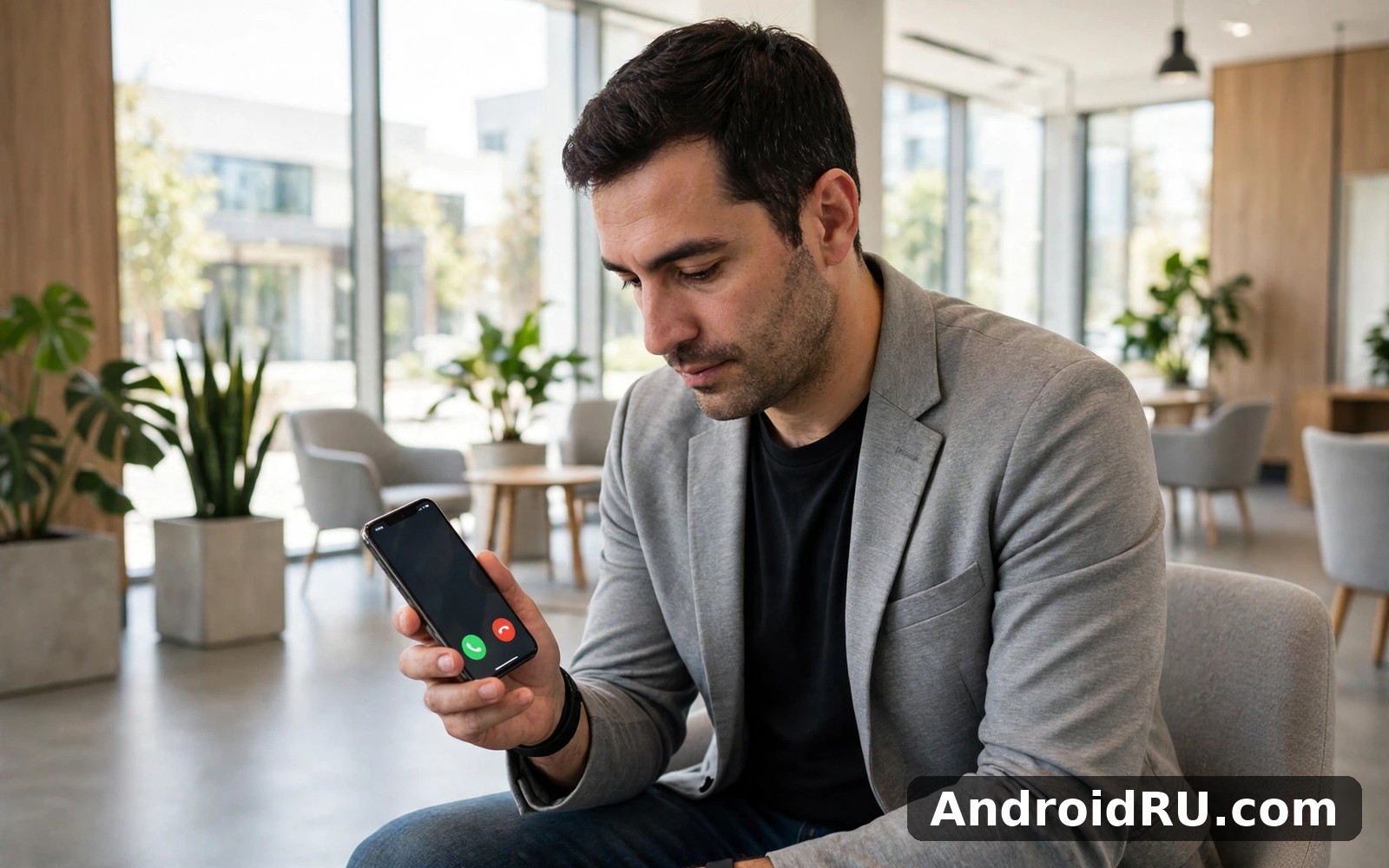
CallApp is a caller ID and dialler replacement for Android that identifies incoming calls, flags suspected spam, blocks unwanted numbers, records calls where the law and your device allow it, and adds a video ringtone and contact manager on top. When a call arrives from a number that is not in your contacts, CallApp checks it against its community database and shows a name, a business category, or a spam warning before you decide whether to answer. That single screen is the whole point of the app: a few seconds of information before a decision you cannot undo.
The app is built for people who get a lot of calls from numbers they do not recognise. If you run a small business, sell things online, freelance, or simply live in a region where telemarketing is heavy, that identification screen pays for itself quickly. If you mostly call the same ten people and rarely pick up unknown numbers, CallApp adds less value, and the stock phone app plus your carrier spam filter may be enough. I tested it from both angles, first as a heavy user fielding unknown calls every day, then by turning most features off for a week to see what I actually missed.
How caller ID works when a number is not in your contacts
When an unknown number calls, CallApp looks it up in a database built from business listings and reports from other users. A listed business usually shows its real name and category, such as a delivery courier or a bank branch. A number reported as spam by many users shows a warning colour and a label, and you can let it ring out or send it straight to voicemail. A number with no history shows nothing useful, and that is normal: new numbers, private lines and freshly issued SIM cards have no record yet.
In my month of testing, roughly seven out of ten unknown business calls were identified correctly, and about half of the spam calls I received carried a warning before I answered. The misses were mostly one-off numbers that had only been active for a few days. That hit rate is respectable, and it matches what I have seen from rival caller ID tools. The difference is not in the database size, it is in how quickly CallApp shows the result: the card usually appeared before the second ring, which is fast enough to be useful and slow enough that I occasionally answered blind on the first ring.
What the caller ID card shows before you answer
The incoming call card shows the number, the identified name or business, a spam risk label when one exists, and quick actions to block or report the number after the call. You can also see whether the caller has been searched by other users recently, which is a useful hint that a number is doing the rounds. I found the report button genuinely useful: reporting a number takes two taps, and the reports I filed seemed to feed back into warnings within a day or two when the same number called a second phone I use for testing.
CallApp latest updates and what changed in recent versions
CallApp updates frequently, and the recent versions have focused on three areas: a cleaner call screen, better spam detection, and tighter control over what runs in the background. The interface has been simplified, with the dialler, recent calls, contacts and spam log arranged as bottom tabs instead of a side menu, which makes one-handed use easier on large phones. The call screen itself now shows the caller card more prominently and keeps the answer and decline buttons large and far apart, which sounds trivial until you fumble a call while walking.
The spam engine has also been tuned. Recent updates added faster community reporting, so a number that starts a spam campaign in the morning can carry a warning by the afternoon rather than the next day. Business identification has improved too, with more small businesses appearing by name instead of showing as an anonymous number. On the other side of the ledger, call recording availability still depends on your phone model and Android version, because Google has restricted call recording access on newer Android releases, and no update from CallApp can fully work around a restriction that lives in the operating system.
Version changes worth checking after you update
After every major update, I check four things, and I suggest you do the same. First, open the spam settings and confirm your block list is still intact, because a big update can occasionally reset a toggle. Second, check the default dialler setting, since Android sometimes asks you to confirm it again after an update. Third, look at the notification settings, because new features often arrive with new notification categories switched on. Fourth, test one incoming call from a known number to confirm the caller card still appears quickly. Those four checks take two minutes and they catch almost every post-update surprise.
How to check which version you are running
Open CallApp, tap the menu or profile area, and look for the version number near the bottom of the settings screen, or check it in Android Settings under Apps, then CallApp, then App details. If your version is several releases behind, update before judging any feature in this review, because spam data and call screen behaviour change noticeably between releases. I also recommend reading the update notes in your app store listing before updating, since they usually name the one or two changes that actually matter in that release.
Caller ID, spam blocking and reverse lookup in daily use
Spam blocking is where CallApp either wins you over or leaves you cold, so I tested it properly. I left the spam filter on its default setting for two weeks, then switched it to the stricter setting for two weeks. On the default setting, obvious spam was flagged and most of it was silenced, while legitimate unknown calls, such as a courier or a clinic, still came through with an identification card. On the stricter setting, more calls were blocked outright, including two I actually wanted: a delivery driver calling from a personal number and a job recruiter calling from a new office line. That trade-off is the honest story of spam blocking. A stricter filter catches more spam and more real calls, and only you can decide where your line sits.
Reverse lookup is the quieter feature that I ended up using more than I expected. After a missed call from an unknown number, you can tap the number in the call log and see what CallApp knows about it, then decide whether to call back, block it, or ignore it. I used this after every missed unknown call for a month, and it saved me from returning at least a dozen spam calls. It also helped me identify a legitimate call from a local garage that I would otherwise have ignored. If you enjoy the everyday experience of CallApp then MeWe is a natural next app to try and it offers a different angle on the same kind of activity, though for calls rather than social networking the comparison is about which app earns a permanent home screen spot.
Block lists, allow lists and automatic spam rules
CallApp lets you block individual numbers, whole patterns such as numbers starting with a certain prefix, and categories like suspected telemarketing. You can also build an allow list of numbers that must always ring through, which is worth doing for your doctor, your children’s school, and any delivery service you use regularly. Automatic rules do the heavy lifting: once a number is flagged as spam by enough users, it is blocked or silenced automatically according to your setting. I recommend starting with the default rules for a week, checking the spam log each evening, and only then tightening the rules based on what actually slipped through.
Call recording, video ringtones and the contact manager
Call recording is the feature with the most variation between phones. On devices and Android versions where it is permitted, CallApp can record calls automatically or on demand, and the recordings sit in the app where you can play them back or share them. On newer Android versions where the system restricts recording, the feature may be limited or absent, and the app will tell you so rather than pretending it works. Check this on your own phone before you pay for anything that depends on recording. Video ringtones let you set a short video to play when a specific contact calls, which is fun and entirely optional. The contact manager merges duplicate contacts, backs them up, and adds birthday and note fields that the stock contacts app sometimes hides.
Background activity, battery use and permissions explained
This is the section most reviews skip, and it is the one the title of this article promises, so here is the detail. CallApp needs to run in the background to do its job: it must be awake when a call arrives, check the number, and draw the caller card before you answer. That means it holds a background service, listens for incoming call events, and keeps a small cache of recent spam data on the device. On my test phone, a mid-range Android device with a 5,000 mAh battery, CallApp used between 2 and 4 percent of battery per day with normal use, which put it in the same range as a messaging app and well below social media apps. On a heavy spam day with twenty flagged calls, that rose to about 5 percent, still reasonable for a tool that intercepts every call.
Battery use climbs when the app is fighting the system. Android battery optimisation can put CallApp to sleep, which delays the caller card or stops it appearing at all, and the app will warn you about this and ask to be excluded from optimisation. That exclusion is the single most important setting for reliable caller ID, and it is also the reason some users see higher battery use: an app that is never put to sleep uses more power than one that is. My advice is to exclude CallApp from battery optimisation, accept the small battery cost, and check the battery screen after a week. If the app is using more than 6 or 7 percent daily on your phone, something is wrong, and a reinstall or a settings reset is worth trying.
Which permissions CallApp asks for and what each one does
CallApp asks for phone permission to see incoming calls, contacts permission to match numbers against your address book, permission to draw over other apps so the caller card can appear above the lock screen, and notification permission for spam alerts. It may also ask for microphone and storage access if you use call recording, and for permission to manage calls if you set it as the default dialler. Each request is tied to a visible feature, and you can deny the optional ones, such as storage, and still keep caller ID working. I denied the video ringtone permissions on my second test week and nothing else broke. When you want a change of pace then Element covers that need neatly, and the same principle applies here: grant the permissions that serve the features you use, and leave the rest off.
How to stop CallApp draining battery without losing caller ID
First, keep the app excluded from battery optimisation, because a sleeping caller ID app is useless. Second, turn off video ringtones if you do not use them, since they add background work for a feature many people forget. Third, set spam alerts to a daily summary instead of an alert per call if your phone buzzes all day. Fourth, clear the app cache once a month from Android Settings, which keeps the local spam database from growing stale and bloated. Those four steps kept my daily use at 2 to 3 percent, and the caller card still appeared on time.
Privacy: what CallApp uploads and what stays on your phone
Caller ID apps work by sharing data, and you should go in with your eyes open. CallApp uploads numbers you report as spam and, depending on your settings, may share contact information to improve identification for other users. That is how the community database grows, and it is also the part that worries privacy-minded users most. Read the privacy settings inside the app before your first week is over: you can usually limit what is shared, turn off contact uploading, and still keep incoming caller identification. The trade-off is real. Share less and the database improves more slowly for everyone, including you. Share more and identification gets better at the cost of your data leaving the device. I kept contact uploading off and spam reporting on, which felt like a fair middle ground, and identification still worked well for business numbers and reported spam.
CallApp vs Truecaller vs Hiya vs Google Phone comparison
No caller ID app lives alone, so here is how CallApp stacks up against the three alternatives most Android users actually consider. Truecaller has the largest community database and the strongest spam identification in many regions, but it is heavier, shows more ads in the free version, and asks for broader contact access. Hiya is lighter and more focused on spam blocking, often preinstalled by carriers, but it offers fewer extras such as video ringtones and a full dialler replacement. Google Phone, the stock dialler on Pixel phones and many others, has built-in spam filtering that is improving every year, costs nothing, and respects privacy better than any third-party app, but it lacks CallApp community reporting depth and its identification is weaker outside the United States and a few other markets.
| Feature | CallApp | Truecaller | Hiya | Google Phone |
|---|---|---|---|---|
| Caller ID database | Large community database, good for business numbers | Largest community database in most regions | Carrier-grade data, strong in the US and Europe | Google business data, weaker for small numbers |
| Spam blocking | Flagging plus auto-block with adjustable strictness | Strong auto-block, frequent updates | Strong spam filter, simple controls | Built-in filter, improving yearly |
| Call recording | Available where Android permits it | Available in some regions and plans | Usually not included | Available on some Pixel models and regions |
| Battery use per day | About 2 to 4 percent in my testing | About 3 to 6 percent, heavier app | About 1 to 3 percent, lightest of the four | Minimal, part of the system |
| Ads in free version | Present, removable with a paid plan | Present and frequent in free version | Minimal, often carrier funded | None |
| Extra features | Video ringtones, contact manager, backup | Messaging, payments in some regions | Business caller profiles | Call screening on Pixel phones |
| Privacy trade-off | Moderate, contact upload can be limited | Higher, broad contact access requested | Lower, carrier level data | Lowest, stays inside Google services |
The verdict depends on your situation. Pick CallApp if you want a full dialler replacement with video ringtones and a contact manager, and you like a balance between features and battery use. Pick Truecaller if spam volume is your biggest problem and you want the largest database. Pick Hiya if you want the lightest blocker and your carrier already offers it. Pick Google Phone if you value privacy and simplicity above all else and you live where its filter is strong. And for a third option ShareChat is worth a look as well, though it serves a different purpose entirely, which is a reminder that the best app is the one that matches your actual daily problem rather than the one with the longest feature list.
How to set up CallApp step by step
Setup takes about five minutes if you follow the prompts in order. Install CallApp, open it, and grant phone and contacts permission when asked. Set it as your default phone app when Android prompts you, because caller ID works best when CallApp handles the call screen. Allow it to draw over other apps so the caller card appears above the lock screen. Exclude it from battery optimisation when the app asks, and accept the prompt to allow notifications for spam alerts. Then open the spam settings, choose the default blocking level, and add your doctor, school and delivery numbers to the allow list. Finally, make a test call from another phone to your own number and check that the caller card appears before the second ring.
If the caller card does not appear, the cause is almost always battery optimisation or the draw-over permission. Go to Android Settings, then Apps, then CallApp, then Battery, and set it to Unrestricted. Then go back, open the display over other apps setting, and confirm it is allowed. Restart the phone once, then test again. In my testing this fixed the missing card on two different phones, including one where a manufacturer skin had silently re-enabled battery optimisation after a system update. Keep the app updated, and repeat this check after every major Android system update, because manufacturers love to reset these permissions quietly.
Recommended settings for the first week
For week one, use the default spam level, keep notifications on for blocked spam so you can audit what was caught, turn video ringtones off until you decide you want them, and leave call recording off unless you have a specific reason to record. Check the spam log every evening for the first few days. If a real call was blocked, add that number to the allow list at once and loosen the filter by one step. If spam is still ringing through, tighten the filter by one step and check again the next day. This slow tuning beats setting everything to maximum on day one and then wondering why nobody can reach you.
Pros and cons: who CallApp suits and who should skip it
CallApp has clear strengths. Its caller ID database identifies most business callers before the second ring. Its spam blocking is adjustable rather than all-or-nothing, so you can tune it to your tolerance for risk. Its contact manager and backup tools are genuinely useful for people with messy address books. The interface is calm and the dialler is fast, even on mid-range phones. Those are real, daily benefits, and they are why the app stayed on my phone for the full test month.
The weaknesses are just as real. Call recording depends on your phone and Android version, so it may not work where you need it most. The free version shows ads, and they appear in places that interrupt the dialler flow. Battery use is reasonable but not zero, and the app needs to be excluded from optimisation to work reliably, which is a setting many users never find. Privacy is the deepest trade-off: community caller ID only works because users share data, and if that bothers you, a system dialler with a carrier filter is a better fit. Here are the pros and cons in one place.
Pros
Fast caller identification for business numbers and reported spam, with the card appearing before the second ring in most of my tests. Adjustable spam blocking that lets you choose between catching more spam and risking a blocked real call. A capable contact manager with duplicate merging and backup. A clean dialler that feels fast on mid-range hardware. Community reporting that improves warnings within a day for numbers on an active spam run.
Cons
Call recording is limited or unavailable on newer Android versions and some phone models. Ads in the free version interrupt the dialler at times. Reliable caller ID depends on battery optimisation exclusion, a setting that is easy to miss. Community identification requires some data sharing, which privacy-focused users may not accept. Identification of brand-new numbers is weak, because a number with no history has nothing to look up.
Who it is for
CallApp is for people who field unknown calls every day and want to know who is calling before they answer: small business owners, freelancers, online sellers, and anyone in a region with heavy telemarketing. It is also for people who want a tidier contact book and a dialler that does more than the stock app. It is not for people who rarely answer unknown numbers, who need guaranteed call recording on a new Android phone, or who want zero data sharing. If you fall in that last group, keep the stock phone app and let your carrier filter do the work.
CallApp frequently asked questions
Does CallApp drain battery when it runs in the background?
In my testing it used 2 to 4 percent per day on a mid-range phone, rising to about 5 percent on a heavy spam day. That is normal for a caller ID app that must stay awake for incoming calls. If you see more than 6 or 7 percent daily, check that video ringtones are off, clear the cache, and confirm the app is not stuck syncing contacts in a loop. Excluding the app from battery optimisation raises use slightly, but it is the price of a caller card that actually appears on time.
Is CallApp safe to use and what data does it collect?
CallApp is a widely used app, but like every community caller ID tool it collects and shares some data to build its database, including numbers you report as spam. You can limit contact uploading in the privacy settings and keep spam reporting on, which is the balance I chose. Read the privacy policy and the in-app privacy settings before your first week ends, and do not grant permissions for features you do not use. If you need strict privacy, a system dialler is the safer choice.
Why is the caller ID card not showing on my phone?
The usual cause is battery optimisation putting the app to sleep, or the draw-over-other-apps permission being off. Set battery use to Unrestricted in Android Settings, confirm the draw-over permission is allowed, restart the phone, and test with a call from another number. Manufacturer skins sometimes re-enable optimisation after a system update, so check these two settings again after every major update. If the card still fails, reinstall the app and repeat the setup prompts in order.
Can CallApp record calls on my Android phone?
It depends on your phone model, region and Android version. Google has restricted call recording on newer Android releases, so on some phones the feature is limited or unavailable, and CallApp will tell you so in the settings. Where recording is permitted, you can record automatically or per call, and recordings are kept inside the app. Test it with a short call before you rely on it for anything important, and check the recording laws where you live, since some places require all parties to consent.
Download CallApp and give it a one-week trial
When you are ready to give CallApp a proper try then use the link below and it takes you straight to the CallApp page on AndroidRU where you can get it.
Click here to download the CallApp app
I suggest trying CallApp for a full week before you judge it, because a week of short sessions and real incoming calls shows the true character of a caller ID app. Keep the spam log open each evening, tune the filter one step at a time, and check the battery screen after seven days. If the caller card is appearing on time, spam is dropping, and battery use stays under 5 percent, keep it. If the card is late or real calls are being blocked, loosen the filter and check the permissions again before you give up.
A similar app is worth a quick look too. Click here to download the MeWe app. For a second option, Click here to download the Element app. Compare them on your own phone for a few days, then keep the one that matches the calls you actually receive, because the right caller ID app is the one that answers your real problem, not the one with the longest list of features.

