

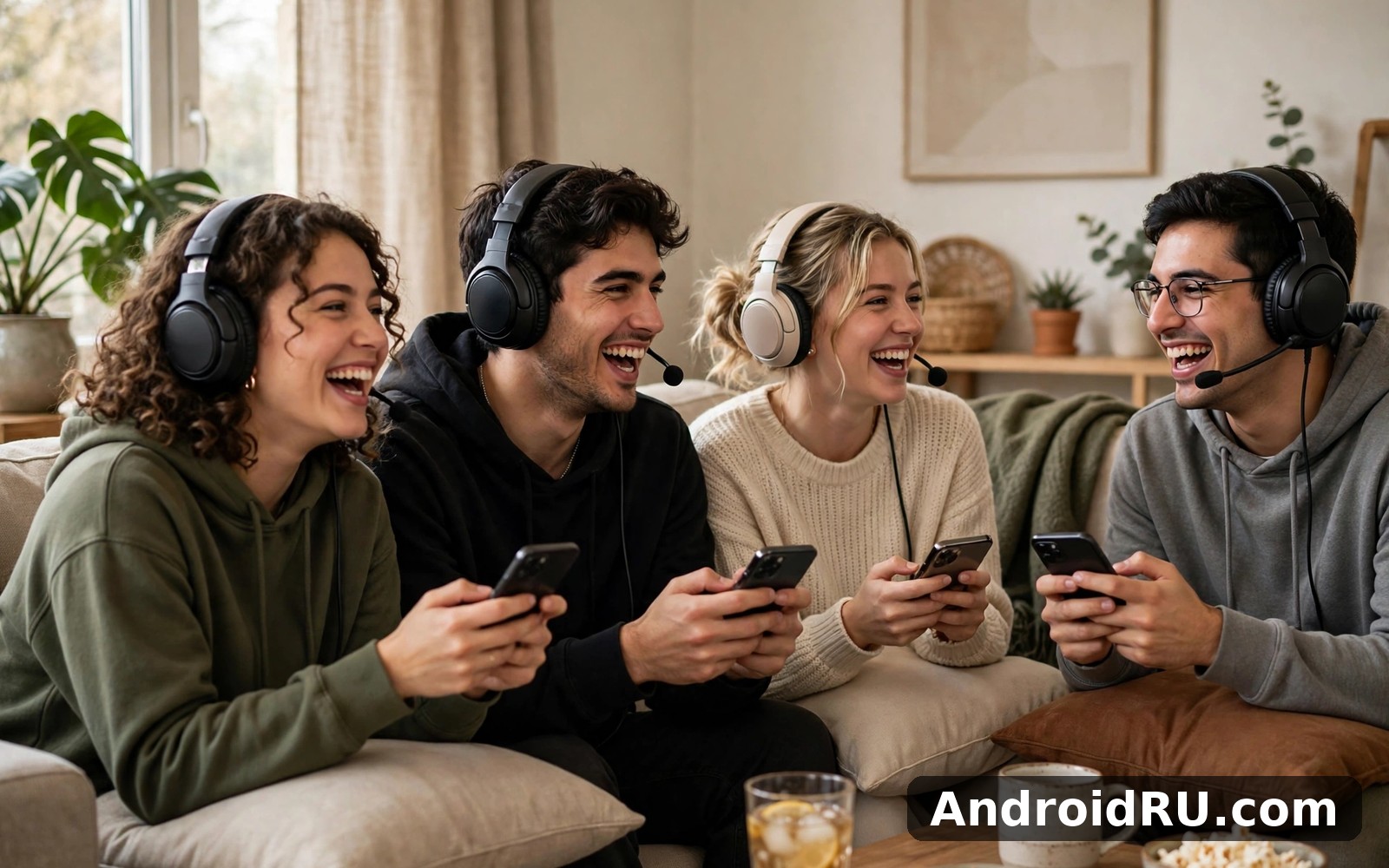
Download APK Discord New Features, Device Compatibility & Honest Review
I opened Discord expecting a chat app built only for gamers, and what I found instead was closer to a small town square that never closes. Friends drop into voice channels the way people used to drop by a living room, study groups share notes in text channels at midnight, and whole communities run book clubs, art contests, and watch parties inside servers that cost nothing to join. After several weeks of daily use on two Android phones, one mid-range and one older handset, I can say the app earns its reputation, though not for the reasons its loudest fans usually shout about.
This review covers what Discord actually does in 2026, which new features are worth your time, how it behaves on Android hardware of different ages, what Nitro really adds, and how it stacks up against WhatsApp and Telegram. I tested voice calls on Wi-Fi and on mobile data, streamed a game to three friends, joined servers with tens of thousands of members, and left the app running in the background to see what it did to my battery. Everything below comes from that use, not from a feature list copied off a product page.
What Discord Is and How Its Servers Actually Work
Discord is a free chat platform built around servers, and a server is simply a private or public community space with its own text channels, voice channels, members, and rules. You can join a server through an invite link, create one of your own in about a minute, and belong to up to 100 servers on a free account. Each server feels different because the people running it decide the channels, the tone, and the moderation style, so a knitting circle and a competitive gaming clan can run on the same app without ever resembling each other.
Servers, channels, and roles explained in plain terms
Text channels are rooms dedicated to one topic, so a server about photography might have separate channels for portraits, gear talk, and critique. Voice channels work differently from a phone call: you tap to join, you can hear everyone already there, and you leave whenever you like without ringing anyone. Roles are labels with permissions attached, which lets moderators give trusted members the power to post images or manage a channel while new members can only read. I found roles confusing for about a day, then they became the single most useful organising tool in the app, because a well-run server uses them to keep spam out and conversation on track.
Direct messages and group chats for smaller circles
Outside servers, Discord offers direct messages with one person and group DMs with up to ten people, and both support text, images, voice notes, files, and video calls. Group DMs became my default way to plan a weekend with friends, because the conversation stays in one place and anyone can jump into a voice call from inside the chat. Unlike a server, a group DM has no channels and no roles, which keeps it simple. The trade-off is that a busy group DM can bury important messages, so I pin the ones that matter, such as an address or a meeting time, and check pinned messages before asking a question that was already answered.
Discord New Features Worth Knowing in 2026
Discord changes in small steps rather than big relaunches, and the recent additions mostly make the app feel more playful and more useful in groups. Activities let people play a game or watch a video together inside a voice channel without installing anything extra, and the selection now covers card games, drawing games, poker-style party games, and shared video sessions. Soundboard lets members play short sound clips in voice channels, which sounds silly until a well-timed air horn lands during a tense game and the whole channel laughs. Polls finally arrived in text channels, so a server can settle a question such as which night to hold an event with one tap instead of twenty replies.
Activities, soundboard, and clips in everyday use
Activities work best in small groups of three to six people, where everyone can see the shared screen and talk at the same time. I played a drawing game with friends on a Friday evening and the shared canvas ran smoothly on my mid-range phone over home Wi-Fi, with voice staying clear while we sketched. Clips let you capture the last thirty seconds of a game or a stream and share the moment without recording for hours, which is handy when something funny happens and nobody was recording. The soundboard is fun in moderation and chaos in a large server, so good servers limit it to certain roles or channels, and I recommend muting it in any server where strangers can trigger sounds at will.
How I use Activities on Android without a hitch
My routine is simple: I join a voice channel first, check that my microphone works, then start the Activity from the rocket icon inside the channel. If the game stutters, I close other apps and switch from mobile data to Wi-Fi, because Activities share your connection with voice and video at the same time. I also keep my phone plugged in during long sessions, since an hour of shared play drains noticeably more battery than an hour of plain text chat.
Soundboard manners that keep big servers pleasant
A soundboard is only funny when it is rare, so I use one clip at a time and never stack three in a row. In servers I help moderate, we keep the soundboard off in the main voice channel and on in a dedicated hangout channel, which gives people a place to be noisy without ruining a study session or a serious discussion. If a server has no rules about it, a quick word with a moderator usually sorts the problem faster than a public complaint.
Forum channels, polls, and better search
Forum channels turn a server into a small message board, with one thread per topic and the ability to sort by newest or most active, which works far better than a single fast-moving chat room when a community wants lasting discussions. Polls support up to ten options and show results live, and I have used them to pick a film for a watch party and to vote on a server event date. Search has improved too: you can filter by author, channel, or date, and the jump-to-message button takes you to the exact spot in the conversation instead of showing an isolated quote. For a server with years of history, that search is the difference between finding an old answer in seconds and asking the same question again.
Discord Voice Chat, Video Calls, and Screen Share on Android
Voice is the heart of Discord, and it is also the feature where the app most clearly beats ordinary messaging apps. Voice channels stay open around the clock, so friends drift in and out without anyone sending an invitation, and the voice quality holds up well on a decent connection, with echo cancellation and noise suppression that remove most keyboard clatter and background hum. Krisp-powered noise suppression is available in the settings and I leave it on, because it cut the sound of a fan in my room to almost nothing during a test call. Video calls support up to 25 people on screen at once, and the layout adapts as people join or leave, though on a phone screen more than six video tiles becomes hard to follow.
Voice channels versus direct calls: which one to use
A voice channel suits open-ended hanging out, because nobody has to answer a ring and the conversation can run for hours while people come and go. A direct call suits a private conversation with a clear purpose, such as sorting out travel plans with one friend. I use channels for game nights and study sessions, and direct calls for anything I would not want a server member to overhear. One practical tip: if you join a voice channel and hear nothing, check that you joined the right channel and that your output device is set correctly, because Android sometimes routes Discord audio to a Bluetooth earbud that is sitting in its case.
Screen share and Go Live quality on mobile data and Wi-Fi
Screen share on Android lets you broadcast your screen or a single app to a voice channel, and Go Live adds a stream title and a live viewer count. On Wi-Fi, a shared game or video ran at a smooth frame rate for my friends, with only a short delay between my screen and theirs. On mobile data, the stream stayed watchable but dropped in sharpness, and I learned to lower the stream quality in the settings before starting rather than during a stream. Streaming for an hour used roughly 500 MB to 1 GB of data in my tests, so Wi-Fi is the sensible choice for long sessions, and a charger is almost mandatory if you stream from a phone.
Discord Nitro: What the Free Plan Misses and What Paid Plans Add
The free version of Discord is genuinely usable, and that matters, because many apps hide their best features behind a paywall. Free accounts get unlimited messages, voice channels, screen share, and server membership, which covers everything most people need. Nitro is the paid subscription, and it adds cosmetic and convenience perks rather than core chat features: animated avatars, custom emoji usable anywhere, larger file uploads up to 500 MB, HD video streaming, two server boosts, and a custom profile banner. Nitro Basic is the cheaper tier, with a smaller upload limit, custom emoji, and a Nitro badge, but no server boosts and no HD streaming.
What Nitro adds that free users actually notice
The perk I noticed most was the larger file upload limit, because sharing a long video clip or a high-resolution photo set is awkward at the free 25 MB limit. Custom emoji usable across servers is the perk my friends notice most, since a favourite reaction becomes part of how they talk. HD streaming at 1080p and 60 frames per second makes shared gameplay look far better than the free 720p stream, though on a phone screen the difference is smaller than on a desktop monitor. Server boosts, which raise a server’s upload limits and audio quality, matter mainly if you run a community, and a single Nitro subscription includes two boosts to spend on servers you care about.
Nitro Basic or full Nitro: which one pays off
Pick Nitro Basic if you only want custom emoji, a badge, and a modest upload bump, and you never stream in HD or boost servers. Pick full Nitro if you share large files weekly, stream games often, or run a server you want to boost. I would not pay for Nitro just for an animated avatar, since that is the least useful perk in the bundle. The honest test is simple: if you hit the free upload limit more than twice a month, Nitro earns its price; if you never hit it, the free plan is already enough.
Server boosts and why communities care about them
A server gains levels as members boost it, and each level raises perks such as emoji slots, audio quality, and upload limits for everyone in that server. Level 1 needs two boosts, level 2 needs seven, and level 3 needs fourteen, which means a small server can reach level 1 with a single Nitro subscriber while a large community needs coordinated boosting. Boosting is a gift to a community rather than to yourself, so I boost the two servers I spend the most time in and skip the rest. Communities that reach level 3 can offer 384 kbps audio, which is a real improvement for music listening parties and long voice sessions.
Discord vs WhatsApp vs Telegram: A Fair Comparison Table
People often ask whether Discord can replace WhatsApp or Telegram, and the honest answer is that it depends on what you use a chat app for. WhatsApp is built for private conversations with people you already know, Telegram is built for large channels and cloud-synced chats, and Discord is built for communities that mix text, voice, and video in one place. I use all three for different jobs, and the table below shows where each one stands on the points that matter most in daily use.
| Feature | Discord | Telegram | |
|---|---|---|---|
| Group voice hangouts | Always-open voice channels, up to thousands of listeners in Stage channels | Voice calls up to 32 people, no always-open rooms | Voice chats in groups, up to thousands of listeners |
| Text communities | Servers with many channels, roles, and moderation tools | Groups up to 1,024 members, Communities feature | Groups up to 200,000 members, public channels |
| End-to-end encryption | No, messages are encrypted in transit but not end-to-end by default | Yes, by default for chats and calls | Only in Secret Chats, not in cloud chats or groups |
| File sharing limit | 25 MB free, 500 MB with Nitro | 2 GB per file | 2 GB per file |
| Screen sharing | Yes, with Go Live and stream quality settings | Yes, in video calls | Yes, in video calls and live streams |
| Best for | Gaming groups, hobby communities, study servers | Family and friends, everyday private chat | Broadcast channels, large public groups, file sharing |
Where Discord clearly wins
Discord wins whenever a group needs a permanent home rather than a single chat thread. A server keeps different topics in different channels, so a conversation about a game does not bury a conversation about meeting times. Voice channels are the other clear win, because an always-open room removes the friction of calling someone and hoping they answer. For a gaming clan, a class project team, or a hobby club, that combination of organised text and drop-in voice is hard to beat, and neither WhatsApp nor Telegram offers the same mix in one place.
Where WhatsApp and Telegram win instead
WhatsApp wins for private family chat, because almost everyone already has it, messages are end-to-end encrypted by default, and a phone number is all you need to reach someone. Telegram wins for broadcasting to a large audience and for sending big files, since its 2 GB file limit and cloud-synced chats make it a better pocket archive than Discord. If your main need is a private one-to-one conversation, Discord is the wrong tool, and I would reach for WhatsApp first. Messenger is worth a look as well if your friends live on Facebook and you want a chat app tied to that social graph rather than to a phone number.
Discord Device Compatibility, Battery Use, and Mobile Data
Discord runs on Android 5.0 and newer, though in practice you want at least Android 8 or 9 for a smooth experience, because older versions miss performance improvements and some newer interface touches. The app is available through the Google Play Store and also as a direct APK, and the install size sits around 200 to 300 MB once caches build up, so a phone with limited space will feel the pinch over time. I ran it on a phone with 4 GB of RAM and a phone with 8 GB, and the difference showed up mainly when switching between a voice channel and a busy server: the older phone paused briefly, while the newer one switched instantly. Tablets work fine too, though the layout stretches rather than redesigning itself, so a phone remains the best fit.
Android versions and older phones: what to expect
On a phone running Android 10 or newer, Discord feels fast and stable, with quick channel switching and reliable notifications. On Android 8 or 9, the app still works, but you may notice slower loading in servers with heavy images and occasional stutters during screen share. My advice for an older phone is to reduce the number of servers you keep active, turn off hardware acceleration if you see graphical glitches, and clear the app cache once a month from the Android settings. If notifications arrive late on an older handset, check that battery optimisation is not putting Discord to sleep, since aggressive power saving is the most common cause of delayed messages on Android.
Battery and mobile data habits that actually help
Text chat uses very little battery and data, roughly a few megabytes per hour in a quiet server, so it is safe to leave running all day. Voice calls use more, around 30 to 60 MB per hour depending on quality, and video calls or screen share push that far higher, which is why I switch to Wi-Fi for anything longer than a quick call. I also turn off autoplay for GIFs and embedded media in busy servers, since a channel full of animated images drains battery and data for content I never asked to see. Dark mode helps a little on OLED screens, and lowering the video quality in the voice settings is the single biggest saving if you spend hours in video calls.
Discord Safety, Privacy, and Moderation Tools
Discord is a public platform with private corners, and that mix means safety settings deserve ten minutes of your time in the first week. By default, anyone in a shared server can send you a direct message, which is fine among friends but can invite spam from strangers in large public servers. I changed the setting so only friends can message me directly, and the number of unwanted messages dropped to zero. Two-factor authentication is available in the account settings and I strongly recommend turning it on, because a stolen Discord account is a fast route to scams sent in your name to every server you belong to.
Blocking, reporting, and privacy settings that matter
Blocking a user hides their messages and stops them from contacting you, and reporting a message sends it to Discord’s trust and safety team with context attached. The explicit content filter can scan direct messages from non-friends and hide anything it flags, which is a sensible default for younger users and for anyone joining large public servers. Parents should also know that Discord offers a Family Centre, which shows a summary of a teen’s activity, such as newly added friends and servers joined, without revealing message contents. That balance between oversight and privacy is reasonable, though it works best when paired with an honest conversation about who a teenager talks to online.
Server moderation tools for community owners
Server owners can set up verification levels that require new members to have a verified email or a phone number before they can post, which cuts most spam accounts at the door. AutoMod filters can block common slurs, spam links, and mass mentions automatically, and a slowmode setting limits how often each member can post in a busy channel. I run a small server for friends, and the combination of a five-minute slowmode during events and a basic AutoMod rule set keeps the chat readable without a moderator watching every minute. The lesson is that good moderation is mostly good defaults, set once and reviewed monthly.
Discord Pros and Cons, Who It Is For, and My Honest Verdict
After weeks of use, my view is that Discord is an excellent community app and a mediocre private messenger, and judging it fairly means judging it on the job it was built for. It does the community job better than any rival I have tried, and it does the private chat job adequately but without the privacy defaults or simplicity of WhatsApp. The lists below sum up what I liked and what I would change.
Discord pros: what I would miss if I left
- Always-open voice channels make hanging out effortless, because friends join and leave without calls, rings, or invitations.
- Servers keep every topic in its own channel, so a busy community stays organised instead of collapsing into one unreadable thread.
- Screen share and Activities turn a chat app into a shared room where people play games and watch videos together.
- The free plan covers the core experience, and the app runs well on mid-range Android phones.
- Moderation tools such as roles, AutoMod, and verification levels give community owners real control.
Discord cons: what still frustrates me
- No end-to-end encryption by default, which makes it a poor choice for sensitive private conversations.
- The free file upload limit of 25 MB is small, and sharing a long video usually means compressing it first or paying for Nitro.
- Large public servers can feel chaotic, with spam, noise, and notifications that need careful taming in the settings.
- Battery and data use climb fast during video calls and screen share, especially on mobile data.
- The interface hides useful settings in deep menus, so new users can take a week to find basic options such as the direct message privacy toggle.
Who Discord is for
Discord fits gamers who coordinate in voice, students who run study servers, hobby groups that need organised channels, and anyone who wants a regular place to hang out with the same people. It fits less well for people who only want private one-to-one chat, for families who need simple encrypted messaging, or for anyone who dislikes busy group environments. If you belong to even one active community, Discord earns its place; if you chat only with a partner and a handful of friends, WhatsApp will serve you better. Disney+ is a natural next app to try when the voice channel goes quiet and the group wants to watch something together, and Facebook Lite covers that need neatly if you need a lighter social app for an older phone alongside Discord.
My honest verdict on Discord
My verdict is positive with one clear condition: use Discord for communities and voice, and keep your private conversations in an encrypted messenger. On that basis, it is the best community chat app I have used on Android, because nothing else combines organised servers, drop-in voice, screen share, and free access as smoothly. I keep it installed, I open it daily, and I would recommend it to anyone joining a gaming group, a class server, or a hobby community. I would not recommend it as a replacement for WhatsApp, because that is a different job and Discord was never built to do it.
Discord Frequently Asked Questions
Is Discord free to use on Android?
Yes, Discord is free to install and use, and the free plan includes unlimited text messages, voice channels, video calls, screen share, and joining up to 100 servers. Nitro is an optional subscription that adds larger uploads, HD streaming, custom emoji, and server boosts, but none of the core chat features sit behind the paywall. I have used the free plan for months at a time without feeling blocked, and the only moment I missed Nitro was when sharing a video larger than 25 MB.
How much mobile data does Discord voice chat use?
Voice chat uses roughly 30 to 60 MB per hour, text chat uses only a few megabytes per hour, and video calls or screen share can use several hundred megabytes per hour depending on quality. To keep data use low, stick to voice-only calls on mobile data, lower the video quality in the voice settings, and turn off autoplay for GIFs and media in busy servers. Downloading the app itself and its updates is the other big data cost, so update over Wi-Fi when you can.
Can I use Discord on an older Android phone?
Yes, Discord officially supports Android 5.0 and newer, and it runs acceptably on phones with 3 or 4 GB of RAM, though channel switching and screen share will feel slower than on a newer handset. For the best experience on an older phone, keep your server list trimmed, clear the cache monthly, and exempt Discord from aggressive battery optimisation so notifications arrive on time. If the app still feels sluggish, the browser version works as a lighter fallback for text chat.
Why is Discord better than WhatsApp for gaming groups?
Discord is better for gaming groups because voice channels stay open without anyone making a call, servers keep different topics in separate channels, and screen share with Go Live lets the group watch one player in real time. WhatsApp is better for private family chat thanks to default end-to-end encryption and a simpler interface. The two apps solve different problems, so most gamers I know keep both: Discord for the group and WhatsApp for family.
If you want to try Discord for yourself, give it a full week with one community you care about, join a voice channel twice, and adjust the notification and privacy settings on day one. That week will tell you more than any review can. Click here to download the Discord app. If you want lighter social apps alongside it, Click here to download the Disney+ app for films and shows, or Click here to download the Facebook Lite app for a social feed that runs well on older hardware.

