

Download APK Hootsuite Connection Problems, What’s New & Full Review
I opened Hootsuite on a Monday morning to check a week of scheduled posts and found three of them marked as failed. Two accounts showed a red warning badge, and one stream had gone quiet overnight. Nothing had changed on my side. That was my introduction to the part of Hootsuite nobody talks about in the sales pages: the connection layer that sits between the dashboard and every social network it manages.
I spent the next three weeks running Hootsuite daily on my Android phone, reconnecting accounts, testing the scheduler, reading the analytics, and poking at the team tools. This review covers what I found, including the connection problems that kept coming back, the fixes that actually worked, and what has changed in the app recently. If you manage more than one social account, or you post for a small business, this is written for you.
What Hootsuite Does for Social Media Management in 2026
Hootsuite is a social media management platform that lets you run several social accounts from one dashboard. You connect your profiles for networks like Facebook, Instagram, X, LinkedIn, TikTok, and YouTube, then you schedule posts, watch mentions in streams, reply to comments and messages in one inbox, and read analytics without opening each network separately. The Android app carries most of that dashboard in your pocket, which matters when a post fails while you are away from your desk.
The core idea is simple: write once, schedule everywhere, and measure what happened. In practice, the value depends on how many accounts you run. With one personal account, Hootsuite feels heavy. With four or five accounts across three networks, it starts to pay for itself in saved time. I ran five profiles during this test: two Instagram accounts, one Facebook page, one X account, and one LinkedIn page. That mix exposed both the strengths and the weak points quickly.
Who Hootsuite is built for
Small business owners, social media managers, and marketing teams get the most from Hootsuite. A cafe owner scheduling a week of posts on Sunday night, a freelancer juggling six clients, or a two-person team that needs an approval step before anything goes live — those are the people this tool is shaped around. Solo creators with one account can use it too, but the free tier is limited and the paid plans are priced for people who treat posting as work.
Hootsuite sells plans by the number of social accounts and users. The entry paid plan covers a handful of accounts and one user, while team plans add extra seats, approval workflows, and more detailed reporting. Prices change often, so check the current plan page before you commit. The trade-off is clear: you pay for the dashboard, the scheduler, and the reports, not for the networks themselves, which remain free to use on their own.
How the dashboard fits together
The dashboard has four parts that you will touch every day: the composer where posts are written, the planner calendar where scheduled posts sit, streams that watch each network for mentions and keywords, and the inbox where comments and direct messages land. Analytics sits one level deeper, and the settings area holds the social accounts and team permissions. Learning the layout takes about two days of regular use. After that, the routine becomes automatic: check the inbox, glance at streams, write the next posts, and check the planner before you close the app.
A first-week routine that works
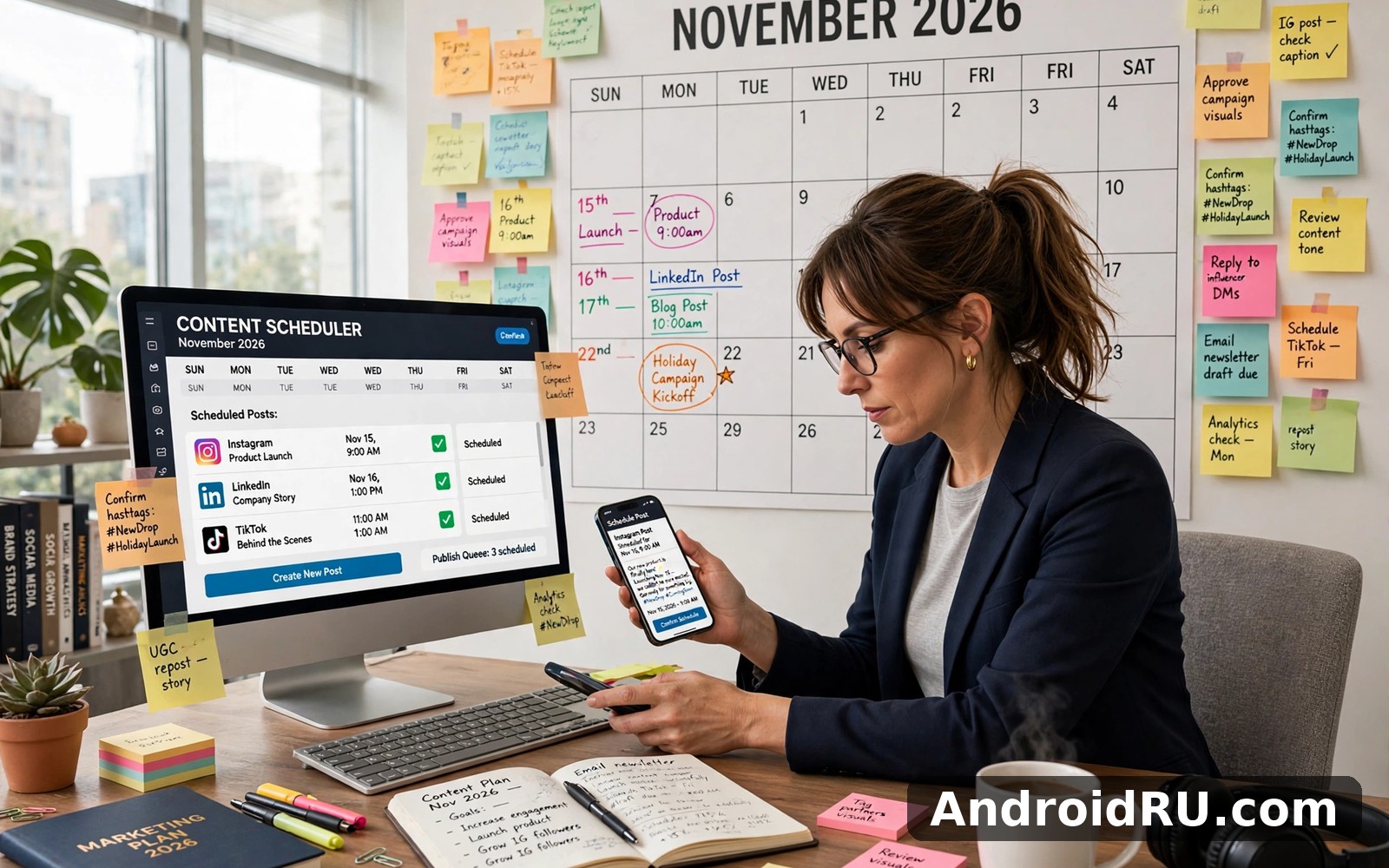
My routine settled into a shape I would suggest to any new user. Mornings were for the inbox and streams, thirty minutes at most. Midday was for writing and scheduling the next day of posts. Friday afternoon was for analytics and the next week of planning. Keeping those jobs in separate blocks stopped the app from turning into a tab I refreshed all day. The planner calendar is the part I checked most, because a missed post is the failure you notice last and regret most.
Hootsuite Connection Problems: Why Accounts Disconnect
The most common Hootsuite complaint is also the most confusing one: an account that worked yesterday shows as disconnected today, and a scheduled post fails with a vague error. I saw this four times in three weeks. Two of the four were my own fault in a sense — a password changed on Instagram, and a Facebook page role that had been removed. The other two were token expiries, which is the technical term for the permission Hootsuite holds to post on your behalf quietly lapsing.
Social networks hand Hootsuite a token when you connect an account. That token is permission, not a password. Tokens expire, and the rules differ by network. Instagram and Facebook tokens tied to Meta accounts tend to need a fresh connection every couple of months, sometimes sooner after a password change or a security alert. X tokens can break after an account setting change. LinkedIn connections are usually calmer, but they still drop after long idle periods. None of this is Hootsuite being broken. It is the price of sitting between you and five different networks, each with its own security rules.
Hootsuite failed to publish: the errors I kept seeing
The error messages Hootsuite shows are honest but short. “Failed to publish” means the post never left the queue. “Reconnect your account” means the token is dead. “Media could not be uploaded” usually means the image or video broke a network rule — too large, the wrong shape, or a format the network rejected. I learned to read the failed post entry itself, because tapping it shows more detail than the red badge on the dashboard does. The detail tells you whether the problem is the account, the media, or the timing.
One failure taught me something useful: a video I scheduled for Instagram failed twice because the file was over the size limit for that placement, and Hootsuite had accepted it in the composer without complaint. The composer checks less than you would expect. Now I check video size and length against the network limits before I schedule, and that class of failure has not returned. A failed post is rarely a mystery once you look at the detail view.
Why streams go quiet and the inbox stops updating
Streams and the inbox depend on the same tokens as publishing, so a dying token shows up there first. A stream that stops updating, or an inbox that shows messages from yesterday but nothing from today, is often the earliest warning that a reconnection is due. I started treating a quiet stream as a signal rather than a glitch. The other cause is rate limits: networks throttle how often a tool can ask for new data, and Hootsuite backs off politely when that happens. That usually clears within an hour. If it does not, the account connection is the first thing to check.
| Error you see | Likely cause | Fix that worked for me |
|---|---|---|
| Failed to publish | Expired token, or media the network rejected | Reconnect the account, then check media size and format before rescheduling |
| Reconnect your account | Token expired after a password change or security alert | Disconnect and reconnect the profile in settings, then re-authorise every permission |
| Stream not updating | Token weakening, or a network rate limit | Wait an hour, then reconnect if the stream is still frozen |
| Media could not be uploaded | File too large, wrong ratio, or unsupported format | Resize or re-export the file, then attach it to a fresh post |
| Scheduled post vanished | Post failed and moved to the failed list, or the account was removed | Check the failed posts view in the planner before rewriting anything |
How often should you expect to reconnect an account
In my three weeks, Meta accounts needed attention twice and X once. That is more often than I expected, and it matches what long-term users report: plan on reconnecting each account every 60 to 90 days, and sooner after any password change, any security alert, or any change to page roles. I now keep a small recurring reminder to open the accounts page every Monday and look for warning badges. Two minutes a week beats discovering a dead account on the morning a campaign goes live.
How to Fix Hootsuite Connection Problems Step by Step
When a connection breaks, the fix is usually boring and quick, which is good news. The steps below are the order that worked for me, from the least disruptive to the most. Do them in order and stop as soon as the account shows green again. Jumping straight to deleting and re-adding an account is the most common mistake, because it can disturb scheduled posts tied to that profile.
- Open Hootsuite, go to the accounts page in settings, and look at the status badge on the affected profile. A yellow or red badge confirms the token is the problem, not your post.
- Tap the profile and choose reconnect, then sign in to the network when asked and accept every permission Hootsuite requests. Declining one permission, such as publishing or reading messages, will break a different feature later.
- Check the failed posts view in the planner. Any post that failed while the account was down needs to be rescheduled by hand; Hootsuite does not retry failed posts on its own.
- Test with a single post before you reschedule a whole week. Publish one small post now, confirm it lands on the network, and only then rebuild the queue.
- If the reconnect fails twice, remove the account and add it again from scratch, then check that your streams and inbox assignments still point at the right profile.
Fixing Hootsuite login problems on Android
Login trouble on the Android app is usually a different animal from a dead token. If the app will not sign in at all, I check three things in order: the phone clock and date, which must be right for secure sign-in to work; the app version, because an old build can be blocked by the server; and the network itself, by switching from Wi-Fi to mobile data once. A VPN can also interfere, so I turn it off for the test. Clearing the app cache is the next step, and it has fixed a frozen login screen for me once. Reinstalling is the last resort, and it is worth doing only after the cache clear fails, because it costs you your saved preferences.
What to do when scheduled posts keep failing
Repeated failures with a healthy connection point at the content, not the account. I run through a short checklist: is the video under the network size limit, is the image ratio allowed for that placement, is the caption under the character limit, and does the post include a link the network dislikes? One of my failures came from a link shortener the network had flagged. Another came from posting the same image to three networks at once with a caption that was fine for two of them and too long for the third. Scheduling the same post per network, with a caption trimmed for the strictest one, fixed both cases.
A setting worth checking after every reconnect
After reconnecting an account, open the streams and the inbox and confirm they are still attached to the right profile. A reconnect can silently drop a stream assignment, and you will only notice when a mention goes unanswered. I also check the planner for drafts that reference the old connection. It takes two minutes, and it closes the loop on the repair instead of leaving a quiet gap that shows up a week later.
What’s New in Hootsuite: Scheduling, Streams and Analytics Updates
Hootsuite has changed steadily rather than in one big release. The recent updates I noticed during this review cluster around four areas: the composer and planner, the inbox, the analytics reports, and the AI helper that drafts post text. None of them rewrites the product. Together, they make the daily routine smoother and the reports easier to explain to a client or a boss.
The composer now handles more networks in one draft, with per-network tweaks that stay attached to the same post instead of forcing you to write the same thing three times. The planner calendar got a cleaner week view on mobile, which matters because the phone is where I check the queue most. The inbox groups conversations better, so a long comment thread no longer buries a new direct message. And the AI helper, OwlyWriter, drafts captions and hashtags from a short prompt, then lets you edit the result before scheduling.
OwlyWriter AI captions and hashtag suggestions
OwlyWriter is the feature I was most sceptical about and the one I ended up using most. Give it a topic and a tone, and it returns a few caption options plus hashtags. The drafts are usable about half the time, and the other half they need a real edit — a wrong detail, a flat line, or a hashtag that does not fit the audience. I treat it as a first draft machine, not a publisher. Used that way, it cuts the blank-page time on a week of posts from an hour to about twenty minutes. The catch is that the suggestions repeat themselves if you ask for the same topic twice, so I vary the prompt and always rewrite the opening line in my own voice.
Best time to post recommendations in the planner
The planner now suggests best time to post slots based on when your audience has engaged before. These suggestions show up as highlighted slots on the calendar. I tested them for two weeks, posting half my content at the suggested times and half at my usual times. The suggested slots performed slightly better on average, but the difference was small, and one suggested slot landed on a public holiday when engagement was dead. Treat the recommendations as a starting point grounded in your own history, not as a rule. Your audience data is real, but it cannot see the calendar.
Bulk scheduling and CSV upload for busy weeks
Bulk scheduling is the update that saves the most time for teams with a content backlog. You prepare a spreadsheet of posts with dates and times, upload it, and Hootsuite builds the queue. I tested it with twelve posts and it worked, with two warnings worth passing on. First, check the date format before you upload, because a swapped day and month will schedule a month of posts on the wrong dates. Second, review the built queue before you walk away, because a typo in the sheet becomes a live post. Used carefully, it turns a heavy scheduling afternoon into a twenty-minute job.
Hootsuite Streams, Planner and Inbox in Daily Use
Streams are Hootsuite at its best. A stream is a live column watching one thing: mentions of your brand, a hashtag, a competitor, or a saved search. I ran a mention stream, a hashtag stream, and a competitor stream side by side. The mention stream caught two customer questions that would have sat unanswered for a day if I had relied on the network apps. The hashtag stream is noisier, and I trimmed its keywords after the first week to cut the junk. Streams reward a little gardening; set them up, then prune them.
The planner is the part I trust most, because it shows the week as a calendar rather than a list. Dragging a post to a new time is quick, and the colour coding by network means a glance tells you whether Tuesday is overloaded on Instagram and empty everywhere else. The inbox is the part I trust least, and that is not a Hootsuite problem alone: direct messages arrive with a delay sometimes, and a fast-moving comment thread can feel cramped on a phone screen. For a quick reply it is fine. For a long conversation, I still open the network app itself.
Hootsuite planner calendar tips for a steady queue
A steady queue beats a busy one. I aim for one post a day per network, never more than two, and I leave one slot a week deliberately empty for something timely. The planner makes gaps visible, which is its real gift: an empty day stands out on a calendar in a way it never does in a list. I also learned to schedule the hardest post first, the one that needs a graphic or a link check, because a queue built around easy posts collapses the moment one hard post is due.
If you enjoy juggling social apps and comparing how they handle daily posting, Threads is a natural next app to try. It takes a lighter approach to short public posts, and the contrast shows what Hootsuite adds for people who manage several accounts at once. When you want a change of pace, KakaoTalk covers that need neatly as a messaging-first tool rather than a broadcast one. And for a third option, Kwai is worth a look as well, since short video behaves very differently from the text and image posts Hootsuite schedules most.
Hootsuite inbox assignments and team replies
The inbox lets a team split the work: one person takes Instagram comments, another takes Facebook messages, and a manager watches the whole board. Assignments are simple and visible, which is the point. The weakness I found is that an assigned conversation can sit quietly if the assignee is away, because there is no automatic nudge after a set time. Teams that care about reply speed should pair assignments with a daily check of the oldest unanswered item, which takes five minutes and stops a message from ageing unnoticed.
Streams worth setting up on day one
Three streams earn their place immediately: your brand mentions, your main hashtag, and one competitor or industry keyword. A fourth stream, for your own scheduled posts, sounds useful but mostly duplicates the planner. Keep the count low at first. Every extra stream is another column competing for your attention, and a dashboard with twelve columns is a dashboard you stop reading.
Hootsuite Analytics and Team Tools: What the Reports Actually Tell You
Hootsuite analytics answers three questions: which posts worked, when your audience was awake, and whether the numbers are moving in the right direction. The reports are clear and exportable, which matters when you have to show a client a monthly summary. The metrics themselves are standard: reach, engagement, clicks, and follower change. What I liked is that the reports show the numbers per post, so you can tie a spike to a specific piece of content instead of guessing.
The limit is that analytics tells you what happened, not why. A post that outperformed the rest might have had a better image, a better time, or a lucky share from a bigger account. Hootsuite shows the result but leaves the explanation to you. I keep a short note on each winning post — what made it different — because that note is worth more than the chart. Over a month, those notes build a picture of what your audience actually responds to.
Hootsuite team approval workflow explained
Approval workflows are the team feature that prevents public mistakes. A junior team member drafts a post, a manager approves it, and only then does it enter the queue. The flow is simple to set up and it works. The friction is that an approver who is slow becomes a bottleneck, and posts pile up waiting for a yes. The fix is a rule rather than a feature: approvals within one working day, or the drafter gets a backup approver. Teams that skip that rule blame the tool for a problem they built themselves.
Hootsuite reports you should export every month
Three reports are worth exporting monthly: the per-post performance report, the audience growth report, and the inbox response time report. The first tells you what to make more of. The second tells you whether the account is growing or flat. The third tells you whether replies are getting slower, which is the metric that quietly damages a brand. I export them as spreadsheets and keep a one-page summary beside them with the three numbers that mattered most that month. A client remembers the summary; nobody remembers a twenty-page chart pack.
Analytics traps that mislead new users
Two traps caught me early. First, comparing reach across networks is meaningless, because each network counts reach differently; compare a network with itself over time instead. Second, a single viral post can make a whole month look strong while the everyday posts quietly decline. I now read the median post performance alongside the average, because the median shows the typical day and the average shows the lucky one. That pair of numbers keeps the story honest.
Hootsuite Pros and Cons After Three Weeks of Daily Use
After three weeks, my view of Hootsuite is warm but not uncritical. The scheduler and planner are genuinely good, the streams save real time, and the analytics are clear enough to show a client. The connection problems are real, but they are manageable once you know the rhythm: check the accounts page weekly, reconnect promptly, and reschedule failed posts by hand. The price is the honest barrier. For a team, it is easy to justify. For one person with two accounts, it is harder.
Pros: the planner calendar makes a week of posting visible at a glance; streams catch mentions you would otherwise miss; the composer handles several networks in one draft; OwlyWriter speeds up first drafts; reports export cleanly for clients. Cons: accounts disconnect every couple of months and need a manual reconnect; failed posts are not retried automatically; the inbox can lag behind the network apps; the price climbs quickly as you add accounts and seats; the mobile app is weaker than the desktop for long report work. That said, the pros are about daily work and the cons are mostly about maintenance and money, which is a fair trade for the people this tool is built for.
Who should pick Hootsuite and who should skip it
Pick Hootsuite if you run three or more social accounts, post at least four times a week, work with another person who needs approval control, or report results to a client. Skip it if you run one personal account, post a few times a month, or only need a scheduler for a single network, because a lighter tool will do that job for less money. The middle case — two accounts, daily posting, no team — is the honest judgement call. Try the trial, run it for a full two weeks with real posts, and count the hours it saves. If the count is real, keep it. If it is not, walk away.
Hootsuite alternatives worth a quick look
Buffer suits people who want scheduling without the streams and inbox, and its interface is calmer. Later suits Instagram-first creators who care about visual planning. Sprout Social suits larger teams that need deeper reporting and can pay for it. None of them removes the connection problem, because every tool that posts on your behalf holds tokens that expire. The choice is about which daily routine you prefer, not about which tool never disconnects. I stayed with Hootsuite because the planner and the streams fit the way I work, and the reconnection habit is a small price for that fit.
How I would set up Hootsuite from scratch today
If I started over, I would connect one account first, schedule a week of posts for it, and only then add the rest. I would set up three streams on day one, turn on the best-time suggestions, and write the Monday account check into my calendar before the first post goes live. I would also decide the approval rule on day one if anyone else touches the account. That setup takes an afternoon, and it prevents the two failures that cost me the most time: a dead account discovered too late, and a queue built on a shaky connection.
Hootsuite Connection Problems FAQ and Final Verdict
Why does Hootsuite keep disconnecting my Instagram account?
Instagram connections break most often because the token Hootsuite holds expires, and Meta tightens those tokens after password changes, security alerts, or changes to page roles. Reconnecting from the accounts page and accepting every permission fixes it in most cases. If it breaks again within days, check whether the account has two-factor prompts waiting, or whether a third-party app is also holding a conflicting permission.
How do I fix a Hootsuite scheduled post that failed?
Open the planner, find the failed post, and read the detail view before you do anything else, because it tells you whether the account, the media, or the caption caused the failure. Fix that cause first, then reschedule the post by hand. Hootsuite does not retry failed posts automatically, so a post you do not reschedule simply never goes out.
Does Hootsuite work well on Android for daily posting?
Yes, for the daily routine it works well: scheduling, streams, the inbox, and the planner are all usable on a phone, and I ran my whole test from the Android app. Long report building and bulk uploads are easier on a desktop, and a big team approval chain is smoother with a keyboard. For checking the queue and replying on the move, the phone app is the right tool.
Is Hootsuite worth the price for a small business?
It is worth it when the account count and posting frequency are high enough that the hours saved cover the monthly cost. A business posting daily across three networks will usually find that maths easy. A business posting twice a week on one network will not. Run the trial with real posts, count the hours, and let that count decide rather than the feature list.
My verdict is a practical one. Hootsuite is a strong scheduler and monitoring tool with a connection layer that needs a weekly glance, and that glance is the whole secret to living with it happily. The recent updates to the composer, the planner, and the AI drafting make the routine faster, but they do not remove the maintenance. If you can spare two minutes a week to check your accounts, Hootsuite will save you hours. If you cannot, the failures will find you at the worst moment.
When you are ready to try it with a real week of posts, Click here to download the Hootsuite app. Start with one account, schedule five posts, and watch the planner for a week before you add the rest. If you want a lighter comparison first, Click here to download the Threads app to see how a single-network app feels, or Click here to download the KakaoTalk app if messaging rather than broadcasting is the job you actually need done. The Hootsuite official site has the current plan prices and the full feature list if you want to check them before you commit.

