

Download APK Signal Latest Features, Tool Highlights & Review
I first opened Signal on a quiet morning while my phone was still charging, with a few minutes to spare before the day properly began. What struck me first was the simplicity of the layout and the way the important actions sat exactly where I expected them: chats on the front screen, a compose button in reach, and settings one tap away instead of three menus deep. Over the first week I used Signal mainly for its core purpose — sending messages to the people I actually talk to — and I paid attention to how it felt on ordinary days rather than on perfect ones.
What kept me coming back was not one spectacular feature but the way the app handles everyday tasks without fuss. Menus stay where you left them, the app rarely surprises you with a moved button, and the design favours clarity over spectacle. That calm approach makes short sessions feel productive rather than rushed, and it is the main reason Signal survived the first month on my phone while louder apps came and went. This review covers the features that matter in daily use, the privacy tools that set Signal apart, and the honest limits you should know before you move your conversations here.
If you want a messenger where privacy is the default rather than a setting you have to hunt for, Signal is the strongest candidate I have used. If you want huge public channels, bots, and a giant sticker economy, you will find it thinner than its rivals. The sections below walk through the real features, a head-to-head comparison, and the setup steps that make the first week feel easy.
What Signal is and how private messaging works in Signal
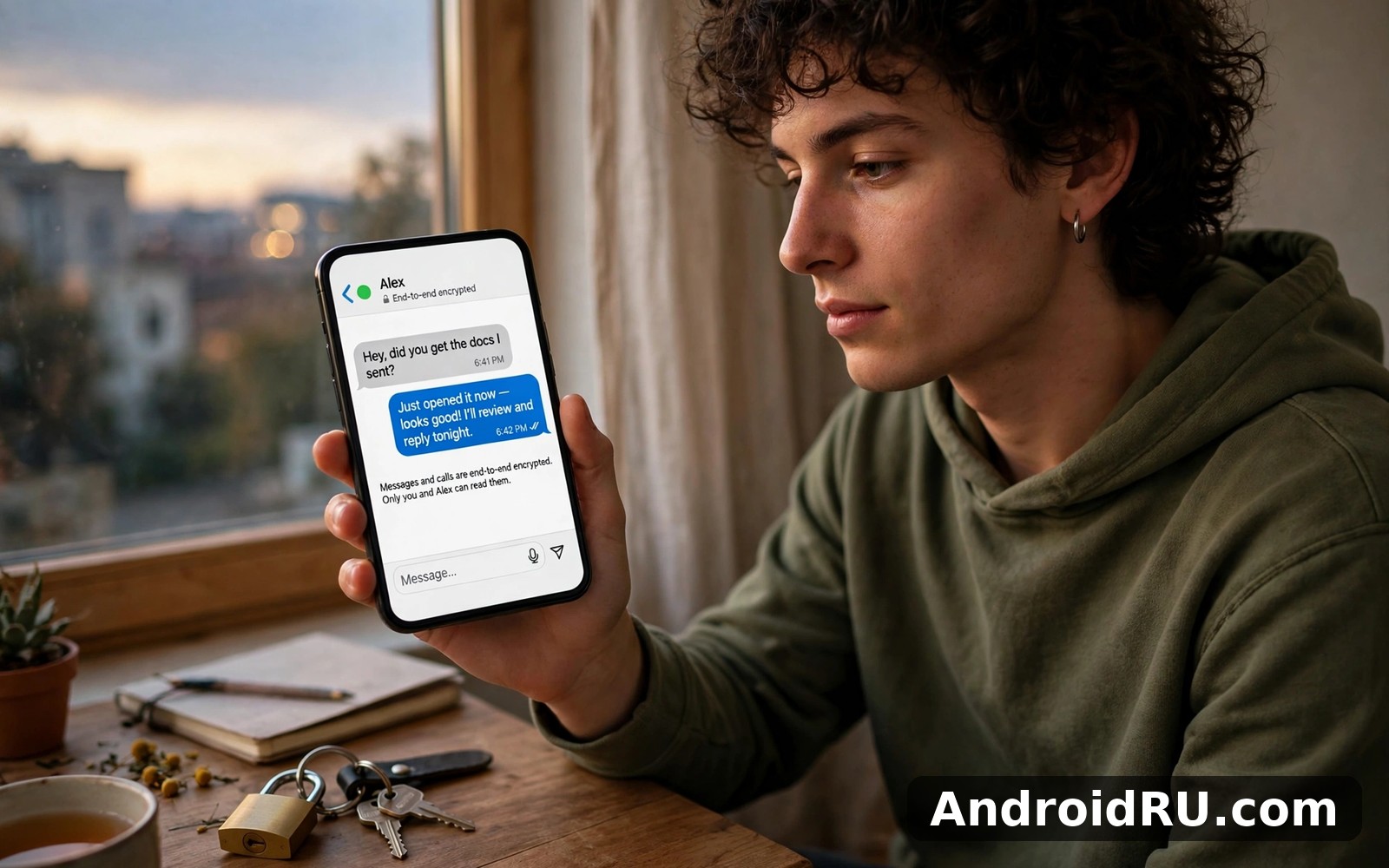
Signal is a free private messenger for one-to-one chats, group chats, voice calls, and video calls, built by the non-profit Signal Foundation. Every message, call, photo, and file sent through Signal is protected by end-to-end encryption using the Signal Protocol, which means only you and the person you are talking to can read what you send. Signal itself cannot read your messages, and neither can anyone who intercepts them on the way. That is the whole point of the app, and it is on by default — there is no secret chat mode to enable and no setting to forget.
Registration uses your phone number, and your contacts who already use Signal appear in your chat list automatically. You can also create a username now, which lets new people reach you without seeing your phone number — a change that removes the oldest complaint about Signal. Your profile can carry a name and a photo, and you control who sees each of those. The app works on Android and iPhone, and a linked desktop app lets you send messages from a computer while your phone stays the account’s home base.
End-to-end encryption and the Signal Protocol in plain terms
End-to-end encryption scrambles a message on your phone and unscrambles it only on the recipient’s phone. The keys that do this live on the two devices, not on a server, so a breach of Signal’s servers would not expose the content of your chats. The Signal Protocol is the same encryption design that other large messengers adopted for their own secret chats, which tells you how widely trusted it is. You do not need to understand the maths to benefit from it — the practical point is that encryption is always on, for every chat, with no action from you.
Safety numbers: how to check a chat is really private
Each one-to-one chat has a safety number, a long code that represents the encryption keys for that conversation. If you and a contact compare safety numbers — in person or through a QR code scan in the app — and they match, you know no one is sitting in the middle of the chat. Signal shows a warning if a safety number changes, which usually happens when a contact reinstalls the app or switches phones. Checking a safety number takes a minute, and it is worth doing for the two or three conversations that matter most to you.
Sealed sender and what Signal itself can see
Sealed sender hides even the sender’s identity from Signal’s servers, so the service routes your message without a record of who sent it to whom. Combined with encryption, that leaves Signal holding very little about your conversations: no message content, and with sealed sender, no sender metadata either. The app still needs your phone number to register, and your contact list stays on your device unless you choose to share it. That said, no messenger can promise total invisibility — your phone carrier still sees that you use data, and the person you message still sees your messages — so think of Signal as strong protection for content, not a cloak for everything.
Signal latest features and tool highlights in 2026
Signal has changed a lot since its early days as a text-only messenger. The current version keeps the same private core and adds the everyday tools people expect from a modern chat app: usernames, stories, better groups, and calls that work for a family video chat as well as a quick voice check-in. None of these features weaken the encryption — they run inside the same protected channel as a plain text message.
Usernames: chat without sharing your phone number
Usernames are the biggest recent change. You pick a username, share it instead of your number, and new contacts reach you through it while your number stays hidden from them. Your existing contacts still see your number as before, and you can change your username or turn off discovery by username at any time. For anyone who joins group chats with strangers — a hobby group, a local buy-and-sell group, a class chat — this is the feature that makes Signal practical without giving your number to a room full of people you have never met.
Disappearing messages, view once media, and screen lock
Disappearing messages delete a chat’s messages after a timer you choose, from thirty seconds to four weeks, and the timer can be set per chat or as a default for all new chats. View once media sends a photo or video that can be opened a single time before it vanishes. Screen lock adds a fingerprint or PIN check before the app opens, so a borrowed phone does not mean a readable inbox. These three tools work best together: a disappearing timer for the chat, view once for the sensitive photo, and screen lock for the phone itself.
Stories, groups, and reactions
Stories let you share a photo or short video with your contacts for twenty-four hours, with controls over who sees each story. Groups support up to a thousand members, with admin controls, invite links, group calls, and mentions that actually notify the right person. Reactions are the small emoji responses on a message that keep a group chat readable without a flood of one-word replies. None of this is new to messaging in general, but it matters here because it means you no longer have to leave Signal to do the social things other apps do.
Group calls and video calls that stay encrypted
Voice and video calls in Signal are end-to-end encrypted just like messages, including group calls. You can start a call from any chat or group, share your screen on a video call, and turn on call relaying, which routes the call through Signal’s servers so the other side never sees your network address. Call quality on a normal home connection was clear in my testing, with video holding up on Wi-Fi and dropping to a stable audio-first experience on weak mobile data.
Signal PIN, registration lock, and account recovery
Your Signal PIN is a code you create inside the app that protects your profile, your settings, and your contacts if you ever reinstall. Registration lock goes further: with it on, no one can register your number on a new device without the PIN, which blocks the classic SIM swap attack where someone takes over your number and then your account. If you forget the PIN, Signal offers a recovery path tied to your account, but the honest advice is simple — write the PIN down somewhere safe in week one, because a forgotten PIN plus a lost phone is the one combination that can lock you out of your own account.
Signal account security: settings to check in your first week
Signal is private by design, but five minutes in the settings makes it stronger in practice. The defaults are already good — encryption on, no ads, no tracking for advertisers — so the checks below are about the edges: your PIN, your screen lock, and who can find you. I did all of them on my first evening with the app, and none of them needed doing again.
Turn on registration lock and choose a PIN you will remember
Open Settings, then Account, and turn on Registration Lock. Create a PIN with at least four digits — longer is better, and a short phrase-style PIN beats a birthday every time. Signal will ask you to repeat the PIN occasionally so you do not forget it, which is a small annoyance with a real purpose. If you already have a PIN, check that registration lock is actually on, because the two settings sit next to each other and it is easy to set one and miss the other.
Screen lock, notification privacy, and disappearing messages
Turn on Screen Lock in the Privacy settings so the app asks for your fingerprint before it opens. In the same area, set notification content to hide message text on the lock screen — the notification still tells you who wrote, but a stranger glancing at your phone cannot read the message itself. Then set a default disappearing message timer for new chats if you want one; thirty days is a calm starting point that keeps recent history while letting old chats tidy themselves.
Who can find you and what your profile shows
In Privacy settings, check who can see your profile photo and your about text, and whether people can find you by phone number or only by username. If you joined Signal for privacy, set discovery to username only and limit your profile photo to contacts. These controls are the difference between Signal being private in theory and private in the way strangers actually experience it.
Linked devices and the desktop app
Signal lets you link a desktop app and an iPad, and each linked device appears in the Linked Devices list in settings. Check that list once a month: if a device you no longer use is still listed, remove it. A linked computer shows your messages on a bigger screen, which is convenient at a desk, and it is also a second place your chats live — so lock the computer itself, and unlink the desktop app before you hand a laptop to someone else.
Signal vs Telegram X vs OK vs Bigo Live: a fair comparison
The original article mentioned three other apps, and they deserve a fair comparison rather than a dismissal. These four apps are not really rivals — they answer different needs — but the table below shows where each one is strong, so you can see why someone might keep two of them on the same phone.
| App | Main purpose | Encryption | Works offline | Best for |
|---|---|---|---|---|
| Signal | Private messaging and calls | End-to-end by default, all chats | No, needs a connection | Private everyday conversations |
| Telegram X | Fast messaging, channels, large groups | End-to-end only in secret chats | No, needs a connection | Big groups and public channels |
| OK | Social network, friends, photos, video | Standard transport protection | No, needs a connection | Staying in touch with a wide circle |
| Bigo Live | Live streaming and live video chat | Standard transport protection | No, needs a connection | Watching and hosting live streams |
If you enjoy Signal then Telegram X is a natural next app to try and it offers a different angle on the same kind of everyday activity, with faster media handling, huge channels, and groups far larger than Signal’s. When you want a change of pace then OK covers that need neatly, because a social network is about keeping up with many people at once rather than private one-to-one chats. And for a third option Bigo Live is worth a look as well, if live video and streaming are what you are after rather than messaging at all. I still came back to Signal for my daily routine because the simple loop I built here suited me best — but I keep Telegram X installed too, for the two large groups that will never move.
Verdict per use case: which app fits which need
Pick Signal when the conversation itself matters and you want it private by default: family chats, work messages with sensitive details, and anything you would not want read aloud in a room. Pick Telegram X when the audience matters more than the encryption: a public channel, a hobby group with hundreds of members, or a place where you need bots and fast file sharing. Pick OK when you want a social feed and a wide circle of friends in one place. Pick Bigo Live when you want to watch or host a live stream. The honest answer for most people is two apps, not one — Signal for the people you trust, and one of the others for the crowds.
What the table cannot show: who actually uses each app
A messenger is only useful if the people you talk to are on it, and that is the real limit on Signal. Your family may be on Signal already, while your football group lives on Telegram X and your old school friends live on OK. No feature table fixes that. The practical move is to install Signal, move your two or three most important conversations first, and let the rest follow over weeks rather than forcing everyone to switch in a day.
Signal pros and cons after a month of daily use
Pros: what Signal gets right
- Private by default, not by setting — every chat is end-to-end encrypted from the first message, with no secret mode to remember and no toggle to forget.
- Non-profit and free with no ads — there are no advertisers to please, no tracking for ad targeting, and no paid tier hiding the features that matter.
- Usernames hide your phone number — new contacts can reach you without seeing your number, which fixes the oldest privacy complaint about the app.
- Strong safety tools in one place — disappearing messages, view once media, screen lock, registration lock, and safety numbers cover the real risks without extra apps.
- Clear calls and a calm design — voice and video calls are encrypted and stable, and the interface stays readable and uncluttered on small screens and in dim light.
Cons: where Signal strains
- Smaller crowd than the big messengers — if your friends and groups are elsewhere, Signal can feel quiet, and moving a whole group takes patience.
- Cloud backup is limited — chat history lives mainly on your device, so moving to a new phone needs a proper transfer step instead of a simple sign-in restore.
- Fewer fun extras — stickers, bots, giant channels, and games are thinner here than in Telegram X, so users who live for those features will feel the gap.
- Phone number still needed to register — usernames help after registration, but the first step still asks for a number, which some people would rather skip entirely.
The trade-off is plain: Signal trades crowd size and extras for privacy that is on by default. If private conversations are the point, that trade works in your favour from day one. If the crowd and the extras are the point, the trade feels thin, and the sensible answer is to keep Signal for the conversations that matter and keep the other app for the crowd.
Who Signal is for and who should look elsewhere
Signal fits people who want a calm, straightforward tool that values clarity over spectacle: journalists and their sources, doctors and patients, families sharing photos of children, and anyone who has ever wished a message could be truly private. It also fits beginners, because the app explains itself through use rather than through long instructions, and busy users, because short sessions and gentle design never ask for more time than you can spare.
Good fit: private chats, small groups, and careful users
If your most important chats are with a handful of people, Signal is at its best. A family group, a small work team, and two or three close friends cover most of what the app is built for, and every one of those chats gets the same encryption, the same disappearing message options, and the same safety number checks. Curious explorers will also find enough depth to stay interested once the basics feel comfortable, because the privacy settings reward a slow look around.
Not a good fit: huge public communities and channel owners
If you run a public channel with thousands of followers, or you live in groups with hundreds of strangers, Signal is the wrong home for that community. Groups cap at a thousand members, there is no public channel discovery, and the tools for moderating a huge crowd are thinner than in Telegram X. That is a deliberate choice by the people who build Signal, not an oversight — and knowing it before you try to move a big community saves everyone a frustrating week.
A quick self-check before you switch
Ask yourself one question: who are the three people I message most, and are they willing to install one app? If the answer is yes, switch those three chats this week and let the rest follow. If the answer is no, install Signal anyway, use it for the chats that are already there, and keep the other app for the crowd — two messengers on one phone is normal, not a failure.
Setting up Signal and making the most of it
The first run of Signal asks for little and the main screen appears quickly, so you can try the core feature before any long setup. Start with one purpose in week one — your family chat, say — and let that focus make the app feel simple rather than sprawling. Weekends are a good time to explore a new corner of the app while weekdays stay focused on the core task.
First week setup in five steps
- Install Signal, register with your phone number, and confirm the code it sends you.
- Create a username and set profile discovery to username only if you want your number hidden from strangers.
- Turn on Registration Lock and choose a PIN, then write the PIN down somewhere safe.
- Turn on Screen Lock and set lock screen notifications to hide message text.
- Move your most important chat first, set a disappearing message timer if you want one, and check the safety number with that contact.
Moving your chats to a new phone without losing history
Signal moves chat history between phones with a direct transfer: on the old phone, open Settings, then Chats, then Transfer account, and follow the prompts while both phones are nearby. Do the transfer before you wipe or sell the old phone, and keep both phones charged and on the same Wi-Fi network while it runs. A transfer takes a few minutes for most people and longer if years of photos are included, so start it when you have time rather than five minutes before you leave the house.
When a message will not send or a call drops
First check your connection before you blame the app, because a weak signal can make any messenger feel sluggish for a while. If messages sit unsent on Wi-Fi, try toggling aeroplane mode for ten seconds, then check that battery optimisation is not putting Signal to sleep in the background — the setting lives in your phone’s app settings under Battery. If a call drops repeatedly, turn on call relaying in the call settings, which routes the call through Signal’s servers and often fixes a flaky direct connection.
Notifications, storage, and keeping things tidy
Notifications deserve a quick look in week one: turn on only the ones that actually help, and keep message text off the lock screen. A quick tidy once a month keeps Signal feeling fresh — review your saved items and remove old media from large groups, because a short list you trust beats a long list you never revisit. Signal stores media on your device, so clearing a heavy group chat can free real storage, and the app tells you how much space each chat uses in its storage settings.
Signal FAQ: privacy, features, and everyday questions
Is Signal really private?
Yes, for message content: every chat is end-to-end encrypted by default, Signal cannot read your messages, and sealed sender hides who sent a message from the service itself. Your phone number is still needed to register, and the person you message still sees what you send, so think of Signal as strong protection for content rather than total invisibility.
Can I use Signal without sharing my phone number?
Partly. Registration still needs a phone number, but usernames let new contacts reach you without seeing it. Set profile discovery to username only, limit your profile photo to contacts, and your number stays hidden from strangers in group chats and new conversations.
Does Signal work on desktop?
Yes. The desktop app links to your phone account and lets you send messages and make calls from a computer, while your phone stays the account’s home base. Check the Linked Devices list in settings once a month and remove any computer you no longer use.
What happens if I forget my Signal PIN?
Signal offers a recovery path tied to your account, but it is not instant, and a forgotten PIN plus a lost phone is the hardest combination to recover from. Write the PIN down somewhere safe in week one, and let Signal’s occasional reminders confirm you still remember it.
How do disappearing messages work in Signal?
You set a timer per chat or as a default for new chats, from thirty seconds to four weeks, and messages delete themselves after that time. The timer applies to new messages after you set it, not to old ones, and both sides of the chat see the timer. For sensitive photos, use view once media instead, so the image can be opened a single time.
Final verdict on Signal
After a month of use I can say that Signal earns its place on my phone and I would keep it installed without hesitation. Friends who tried Signal on my suggestion found the main feature without my help, and that tells me more than any feature list. The experience feels steady rather than flashy, and that steadiness is exactly what I want from a daily messenger. The lasting lesson from Signal is that a calm tool used steadily beats a powerful tool that never gets opened.
When you are ready to give Signal a proper try then use the link below and it takes you straight to the Signal page on AndroidRU where you can get it. I suggest trying Signal for a full week before you judge it because a week of short sessions shows the real character of an app. Click here to download the Signal app.
A similar app is worth a quick look too. Click here to download the Telegram X app. For a second option, Click here to download the OK app. Start with your three most important chats, check the safety number on one of them, and give it a week — that is enough to know whether Signal is the messenger you keep.

