

Download APK Buffer Clean Install Tips, What’s New & Full Review
I first opened Buffer on a quiet morning while my phone was still charging, with a coffee going cold beside me and three social accounts that all needed something posted before lunch. That is the exact moment a scheduling app either earns its place or gets deleted, and Buffer earned its place because the first screen did not ask me to learn a new system. It asked me what I wanted to say, where I wanted it to go, and when I wanted it to appear. Everything else stayed out of the way until I asked for it.
Over the next three weeks I used Buffer the way a small creator or a busy shop owner would use it: short sessions in the morning, a longer planning session on Sunday evening, and a quick check after lunch to see what had actually gone out. I connected Instagram, Facebook, X, LinkedIn and a TikTok account, queued posts in batches, saved half-finished ideas as drafts, and checked the analytics overview every few days to see which posts drew replies and which ones sank without a trace. This review comes from that routine, not from a single afternoon of tapping around.
If you are here for a straight answer, here it is in one paragraph: Buffer is a calm, reliable scheduler for people who post on several channels and want a steady rhythm without living inside each app. It will not replace a full marketing suite, and it will not write your ideas for you, but it does the core job — queue, calendar, drafts, analytics — with very little friction. The rest of this article covers a clean install, what has changed lately, each feature in daily use, the pros and cons, and the fixes for the problems I actually hit.
What Buffer Is and Who It Is Built For
Buffer is a social media scheduling app that lets you write a post once, adapt it for each channel, and send it out at a time you choose instead of the moment you happen to be free. The idea is simple and it matters more than it sounds: the best time to post is rarely the time you have a free hand, and the best time to write is rarely the moment your audience is online. Buffer separates those two moments. You write when you have ideas, and the app publishes when your audience is awake.
The people who get the most from Buffer are creators posting three to five times a week, small business owners who run their own Instagram and Facebook pages, freelancers who manage two or three client accounts, and teams of two or three people who need to see the same calendar without passing screenshots around. If you post once a month, a scheduler will feel like extra work. If you post every day across three channels, the queue quickly pays for itself in saved evenings.
That said, Buffer is not a design studio and it is not a community management desk. It will not answer your comments for you, it will not build a brand strategy, and its analytics will not tell you why a post flopped — only that it did. Used with those limits in mind, it is one of the steadiest tools in its class. I kept it because every return visit felt familiar and productive, and familiarity is an underrated virtue in an app you open daily.
Buffer Scheduling Across Instagram, Facebook, X, LinkedIn and TikTok
Scheduling works the same way on each channel, with small differences that come from the networks themselves. You pick a channel, write the text, add a photo or video, pick a date and time, and the post joins the queue. For Instagram, some post types still need a reminder or a connected business profile, because Instagram limits what outside tools can publish directly. For X and LinkedIn, text posts go out cleanly, and for TikTok, video scheduling depends on the account type and the current connection. None of this is Buffer hiding a feature; it is the networks setting the rules, and Buffer is honest about which posts are published directly and which ones need a tap from you.
In practice, I found the most useful habit was to write the post for one channel first, usually LinkedIn or X for a text idea, then adapt it for the visual channels rather than copying it word for word. A caption that works on Instagram sounds stiff on X, and a short X post looks thin on Facebook. Buffer lets you tailor each version inside the same composer, so you are not juggling five drafts in five apps. That single composer is the feature I returned to most.
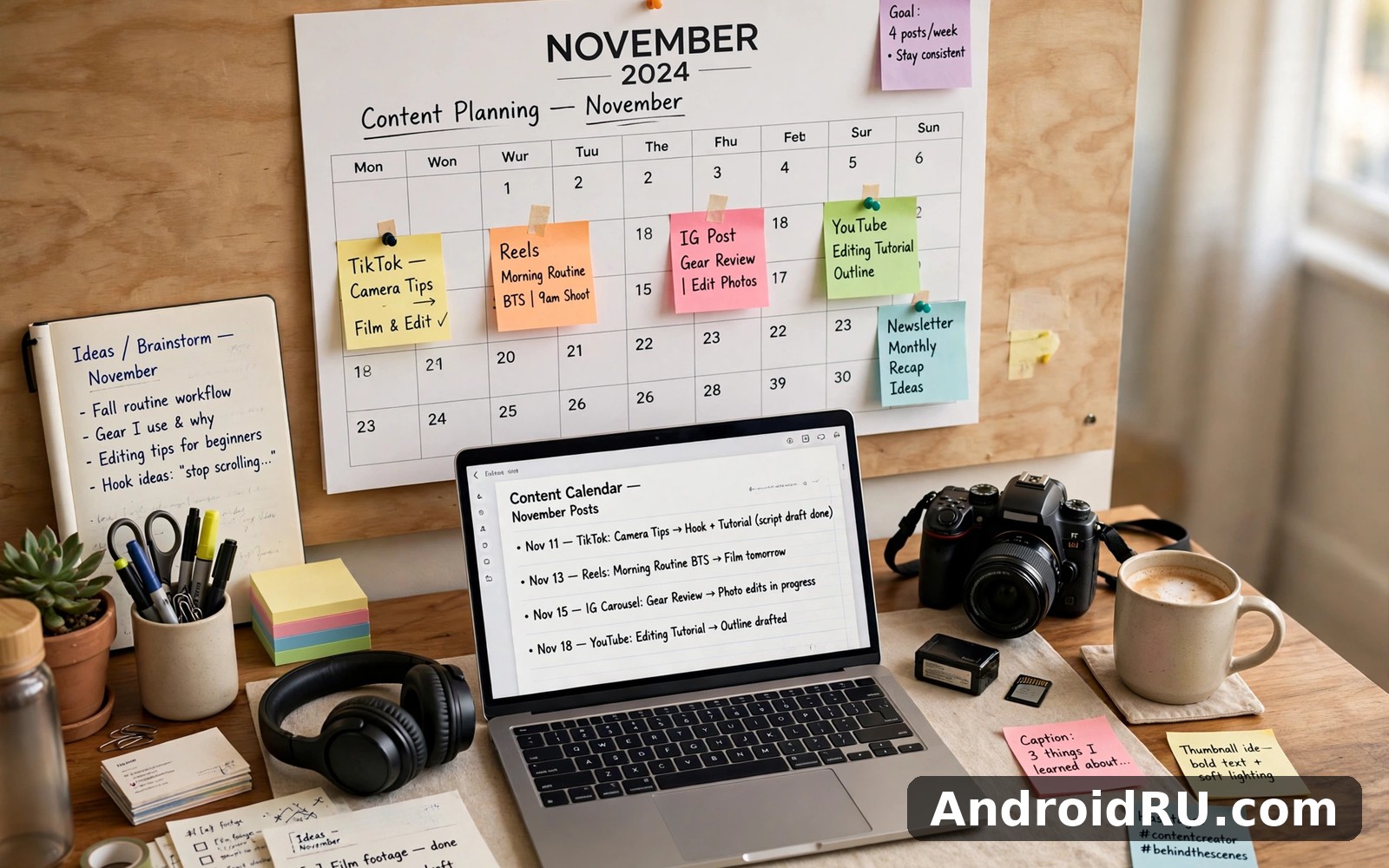
The Buffer Queue, Calendar View and Drafts Folder
The queue is the heart of the app. It is a simple list, in time order, of everything waiting to go out, and you can drag a post to a different slot when plans change. The calendar view shows the same queue as a month grid, and that view is where gaps become obvious. A week with three posts on Monday and nothing until Friday looks fine in a list and looks broken on a calendar. I checked the calendar every Sunday and moved one or two posts to fill the empty days, which took about ten minutes and kept the feed looking steady.
Drafts are where half-formed ideas live. I saved lines I liked, links I wanted to share later, and photos I had not captioned yet, and the drafts folder became a small bank of content for days when I had nothing new to say. A draft is not a failed post; it is a post waiting for a better day. The habit that worked for me was to spend twenty minutes on Sunday turning two drafts into scheduled posts, and to leave the rest for the following week.
Buffer Clean Install Tips That Keep the First Week Calm
A clean install is not about the download itself. It is about starting with a tidy setup so the app does not inherit a mess from day one. I installed Buffer fresh, signed in with the account I already used, and deliberately kept the first session short. I connected one channel first, posted one test, and only then added the second and third channels. Connecting everything at once makes it hard to tell which channel caused a problem, and a slow first week is usually a setup problem, not an app problem.
Before you connect anything, check that the phone has room to work and that Buffer has the permissions it needs to pick photos and send notifications. A scheduler that cannot reach your photo library will fail at the exact moment you want to attach an image, and a scheduler with notifications switched off will fail silently when a post needs your tap. Give it those two permissions on day one, then review the notification settings after a few days and keep only the alerts that truly help, such as a failed post or a reminder for a post that needs a manual step.
Check Buffer Permissions Before You Connect an Account
Open the phone settings, find Buffer, and confirm that photos, notifications and background activity are allowed. Photos matter because most scheduled posts carry an image or a video. Notifications matter because some Instagram posts arrive as a reminder rather than a direct publish, and a missed reminder is a missed post. Background activity matters because a queue that cannot refresh will show stale times. This check takes two minutes and it prevents the most common first-week complaint, which is a post that never appeared and no alert to explain why.
One more small check: confirm the app is not battery-optimised into silence. Some phones put unused apps to sleep aggressively, and a scheduler that is asleep cannot send a reminder on time. If your phone has a battery optimisation list, set Buffer to run without restriction, or at least exempt it from the aggressive sleep mode. I learned this after a reminder arrived forty minutes late, and the fix took less time than the confusion did.
Set Your Time Zone and Posting Windows First
The second setup step is the one most people skip: set the time zone and the posting windows before you schedule anything. Buffer lets you define the times you usually post, and the queue fills those slots for you. If the time zone is wrong, every post goes out three hours early or late, and the analytics will look confusing for weeks. Check the time zone in the channel settings, not just on the phone, because a channel connected while travelling can keep an old zone.
I set three windows — late morning, early afternoon and early evening — and let the queue use them in order. That gave each day a rhythm without me picking a time for every post. When a post needed a specific moment, such as a launch at 10 a.m., I set that one by hand and let the rest follow the windows. A small weekly review of the queue keeps this system honest, and it takes less time than choosing a time for each post from scratch.
A five-minute Buffer first-run checklist
Run this checklist in order and stop when it is done: install and sign in, allow photos and notifications, connect one channel, set the time zone, set two or three posting windows, write one short post and schedule it for an hour ahead, then check that it publishes. If that test post goes out, the setup is sound and you can add the other channels with confidence. If it does not, you have found the problem while only one channel is connected, which makes the fix far easier to trace.
What’s New in Buffer: Channels, Ideas and Analytics Updates
Buffer has changed a lot since its early days as a simple queue, and the recent direction is clear: less time inside the app, more help deciding what to post, and a clearer picture of what worked. The composer now handles more channel types in one place, the Ideas area collects half-formed thoughts and links, and the analytics overview groups results by channel so you can see at a glance whether Instagram or LinkedIn carried the week. None of these changes remove the simple queue. They sit around it, and you can ignore the ones you do not need.
The most useful recent change for a solo user is the way drafts and ideas connect. You can save a link or a line of text as an idea, then turn it into a scheduled post when you have time to finish it. That sounds small, but it removes the pressure to write a finished post in one sitting. I saved ideas during the week — a photo from a walk, a question a customer asked, a link worth sharing — and turned two or three of them into posts on Sunday. The queue stayed full without a single long writing session.
Analytics has also become easier to read at a glance. Instead of a wall of numbers, the overview now highlights reach, engagement and clicks per channel, and it lets you compare this week with the last one without exporting a spreadsheet. I do not need a deep report every day, and the overview gives me the two answers I actually want: which channel is pulling its weight, and which type of post drew replies. If you manage client accounts, the clearer overview also makes a weekly report far quicker to assemble.
Buffer Ideas, AI Assistant and the Start Page
Ideas is a simple inbox for content: paste a link, save a note, keep a photo for later. The AI assistant can turn a rough note into a first draft, suggest a shorter version for X, or rewrite a caption in a plainer tone. I tried it on a handful of drafts and the results were usable as a starting point, not as a finished post. The assistant is good at cutting a long paragraph down and at offering a second phrasing when the first one feels stiff. It is not good at knowing what your audience actually cares about, and a post it writes from nothing will sound like every other post it writes for everyone else. Use it to shape your own idea, not to replace it.
The Start Page is a simple landing page that gathers your links in one place, so a profile bio can point to one page instead of a single link. For a creator who sells, writes and posts in different places, that page saves a lot of bio juggling. It is a small feature, and it is easy to ignore if you do not need it, but for a shop owner with a shop link, a WhatsApp link and a new post to share, one page beats three separate links.
Where the new Buffer tools sit in the menu
Ideas lives near the composer, analytics lives under its own tab, and the Start Page lives in the profile area, which is why new users sometimes miss it for weeks. Spend five minutes tapping through each tab on day one and note where each tool lives. A tool you cannot find is a tool you will never use, and the new features in Buffer are only useful if you know where they are when you need them.
Buffer Features in Everyday Use: Scheduling, Multi-Account and Drafts
The feature list in Buffer is short on paper and long in daily use, because the same four tools — scheduling, multi-account handling, drafts and analytics — get used in different combinations every day. Scheduling is the tool you touch most. You write a post, choose a channel, pick a time, and move on. The queue holds it until the time comes, and the app publishes it or reminds you to publish it, depending on the channel. A week of posts can be queued in one sitting, which is the whole point: write when you have ideas, publish when your audience is online.
Multi-account handling is the second tool, and it is the one that saves the most tapping. Instead of logging out of one Instagram account and into another, you switch channels inside the composer with a tap. A freelancer managing a personal account and two client accounts can write three versions of one announcement without leaving the app. The risk is posting to the wrong account, and Buffer reduces that risk by showing the channel name and avatar clearly in the composer. I still checked the channel before every post, because a post sent to the wrong account is the kind of mistake that takes a week to live down.
Drafts and the calendar complete the set. Drafts hold unfinished work, the calendar shows the finished plan, and the analytics overview shows what happened after publishing. Together they form a loop: plan on the calendar, write in drafts, schedule in the queue, check the results, and plan the next week a little better. That loop is the real product. The buttons are simple; the loop is what keeps a feed alive for months.
How Buffer Scheduling Actually Works Day to Day
A normal day with Buffer starts with a two-minute check of the queue. I opened the app with my morning coffee, saw which posts were due that day, and edited any caption that felt stale overnight. News moves fast, and a post written on Sunday can sound out of date by Wednesday. The queue makes that edit easy: open the post, change the line, save it, and the new version goes out at the scheduled time. No re-upload, no new draft, no confusion about which version is live.
The second daily habit is to add one idea to the drafts folder whenever something worth sharing crosses my path. A photo, a question, a short observation — all of it went into drafts, and the folder grew into a small bank of content. By Sunday I had five or six ideas to choose from, and turning two of them into posts took less time than starting from a blank screen. That habit is the difference between a feed that runs steadily and a feed that depends on inspiration striking at the right moment.
Buffer Multi-Account Switching Without the Log-Out Dance
Switching accounts in Buffer is a tap on the channel picker, not a log-out and a log-in. Each connected channel keeps its own queue, its own drafts and its own analytics, so a post for a client never leaks into a personal queue by accident. The composer shows the channel avatar next to the text box, which is a small detail that prevents a large mistake. I made it a rule to read that avatar before I tapped schedule, and in three weeks I never posted to the wrong account.
For teams, the same switching works with roles: one person can draft, another can approve, and a third can check the analytics. A small team does not need a heavy approval chain, but a second pair of eyes on a post before it goes to a client account is worth the extra tap. Buffer keeps that chain light, which is why small teams stick with it instead of moving to a heavier suite that needs training to use.
Buffer Drafts, Hashtags and First Comments
Drafts in Buffer hold more than text. You can attach an image, save a set of hashtags, and add a first comment for Instagram, where hashtags in the first comment keep the caption clean. I kept a short list of hashtags per topic — one set for product posts, one for behind-the-scenes photos, one for questions — and reused them instead of typing them fresh each time. Reusing a set is faster, and it keeps the tagging consistent, which helps the analytics tell you which topic actually drew attention.
The first-comment feature is easy to overlook and worth learning early. On Instagram, a caption with twenty hashtags looks cluttered, while the same hashtags in the first comment do the same job without crowding the caption. Buffer lets you set that comment when you schedule the post, so it goes out with the post rather than needing a manual follow-up. That one setting made my Instagram captions read like a person wrote them, not like a tag list.
Buffer Analytics and Calendar View: Reading What Worked
Analytics in Buffer answers three questions and ignores the rest: which posts reached people, which ones drew replies or clicks, and which channel carried the week. The overview shows reach, engagement and clicks per post, and it sorts the best posts to the top so you can spot a pattern without reading a report. In my third week, the pattern was clear: short posts with a question drew twice as many replies as announcements, and photos of real work beat polished graphics. That pattern changed what I queued the following week, which is exactly what analytics is for.
The calendar view and the analytics view work best together. The calendar shows what you planned, the analytics shows what happened, and the gap between the two is where the learning lives. A week with five posts and one reply tells you something different from a week with two posts and twenty replies, and the calendar makes that comparison visible. I checked both views every Sunday, moved the best-performing type of post into more slots, and dropped the type that kept sinking. That weekly review took fifteen minutes and it did more for the feed than any new feature could.
One honest limit: Buffer analytics will not explain why a post worked. It will show that a Tuesday post outperformed a Friday post, but it will not tell you whether the topic, the photo or the time of day caused the difference. Treat the numbers as a hint, test the hint next week, and let the second week confirm or overturn it. That patient approach beats changing everything at once based on a single good day.
Which Buffer Numbers Deserve Your Attention
Watch engagement rate first, then clicks, then reach, in that order. Reach tells you how many people saw a post, which depends heavily on the network that day. Clicks tell you whether the post made someone act, which matters for a shop or a newsletter. Engagement tells you whether the post started a conversation, which matters for a creator building an audience. A post with modest reach and strong replies is worth repeating; a post with huge reach and no replies is worth studying once and then moving on from.
How I read Buffer analytics in ten minutes a week
My Sunday routine was simple: open analytics, sort by engagement, note the top two posts and the bottom two, open the calendar, and ask what the top two had in common. Then I queued two posts in that style for the next week and removed one post in the style of the bottom two. Ten minutes, one clear change, and a feed that improved a little each week instead of staying the same.
Buffer vs Posting by Hand vs a Full Social Suite
The honest comparison is not Buffer against one rival. It is Buffer against the two real alternatives most people consider: posting by hand in each app, or paying for a full social suite with listening, inbox management and deep reports. Posting by hand costs nothing and gives you full control, but it costs your evenings, because you must be online at the moment each audience is online. A full suite gives you everything, but it costs far more per month and needs training before a small team can use it well. Buffer sits between those two, and that middle ground is its whole case.
For a solo creator or a shop with one or two people running social, the middle ground is usually the right one. You get the queue, the calendar, the drafts and the analytics, and you keep the conversations in the native apps, where replies feel natural. For a large team handling hundreds of comments a day, the middle ground will feel thin, and a full suite with a shared inbox will be worth the price. The trade-off is clear: Buffer saves time on publishing, not on replying, and anyone who buys it expecting a full inbox will be disappointed.
| Approach | Best for | Main trade-off |
|---|---|---|
| Buffer scheduling | Creators and small teams posting across several channels | Strong queue and calendar, light comment handling |
| Posting by hand | One channel, occasional posts, no budget | Free, but ties you to each app at posting time |
| Full social suite | Large teams, shared inbox, deep reporting needs | Powerful, but higher price and a learning curve |
| Buffer free plan | Trying scheduling with one or two channels | Low cost, but limited channels and history |
| Buffer paid plan | Regular posting, analytics and more channels | Monthly cost, but saves hours each week |
| Native app reminders | Instagram posts that need a manual step | Simple, but no queue or calendar across channels |
That table is the short version of the review. If your week looks like the first row, Buffer fits. If it looks like the second, you do not need it yet. If it looks like the third, you have outgrown it. Most readers of this review will land in the first row, and the rest of the article is written for them.
Buffer Pros and Cons: An Honest Review
After three weeks of daily use, the strengths of Buffer are easy to name because they showed up every day. The queue is simple and it works the same way each morning, which is the first thing a tool must do. The calendar makes gaps visible before they become empty days, which is the second. The composer adapts one idea for several channels without forcing me to rewrite it five times, which is the third. Drafts turn spare minutes into future posts, which is the fourth. Analytics is plain enough to read in ten minutes, which is the fifth, and for a small user that plainness is a strength, not a weakness.
The weaknesses are just as real, and they matter most at the edges. Some Instagram posts still need a manual tap, which breaks the promise of a fully automatic queue. The free plan limits how many channels and posts you can manage, so a growing creator will hit the ceiling quickly. Analytics shows what happened but not why, so you must test your own hunches. There is no shared inbox for replies, so conversations still live in each native app. None of these is a reason to avoid Buffer, but each one is a reason to buy it for the right job and not for the wrong one.
- social media scheduling calendar — the queue and the calendar together keep a steady rhythm with a ten-minute weekly review.
- Simple composer: one idea adapts for several channels without rewriting it five times.
- Reliable daily rhythm: the app behaves the same way each morning, which builds trust quickly.
- Drafts bank: half-finished ideas become scheduled posts instead of being lost.
- Plain analytics: reach, engagement and clicks are easy to read without a report.
Pros: a calm queue that works daily, a calendar that shows gaps, a composer that adapts posts per channel, drafts that save ideas, and analytics that a busy person can read in ten minutes. Cons: some Instagram posts need a manual step, the free plan is limited, analytics explains what happened rather than why, and there is no shared inbox for replies. That balance is fair for a scheduler, and it is the balance I would give to a friend who asked me whether to try it.
- Some Instagram posts need a manual reminder tap instead of publishing directly.
- The free plan limits channels and scheduled posts, so growth means paying.
- Analytics is plain and will not explain why a post worked.
- No shared inbox, so replies still live in each native app.
Who Buffer Suits Best and Who Should Skip It
Buffer suits creators who post three to five times a week, shop owners who run their own pages, freelancers with two or three client accounts, and small teams who need one shared calendar. It suits people who prefer a calm tool over a flashy one, and people who want value from short sessions rather than a dashboard that demands an hour a day. If that is you, the free plan is a fair way to test it for two weeks before you pay.
Skip Buffer for now if you post on one channel once a month, if your whole job is answering hundreds of comments a day, or if you need deep listening and competitor reports. In those cases the tool will feel either unnecessary or thin, and a different tool will fit better. That is not a failure of Buffer; it is a sign that the job and the tool do not match. The Session article is a useful next read because it covers a fellow social app with a similar daily rhythm, and readers who compare options often open the Signal article next to see how a different community handles the same everyday tasks. For a third perspective the Zalo article is worth a look because it shows another approach to sharing and discovery.
Troubleshooting Buffer: Posts That Fail, Accounts That Disconnect and Drafts That Vanish
Most Buffer problems have one of three causes: a channel connection that expired, a post that broke a network rule, or a phone setting that silenced a reminder. A failed post is usually the first sign. Open the queue, read the error, and check the channel connection before you rewrite the post. A connection that expired after a password change will fail every post on that channel until you reconnect it, and reconnecting takes a minute. A post that failed for a network rule — a video that is too long, an image in a format the network rejects — will fail the same way every time until the file is changed, and no amount of rescheduling will fix it.
Drafts that seem to vanish are usually drafts saved under a different channel. Each channel keeps its own drafts, so a draft written for Instagram will not appear in the Facebook drafts list. Check the channel picker first. If a draft is truly gone, check whether you were signed in to the right Buffer account, because a second account — a personal one and a work one — will each keep its own drafts. That check sounds obvious, and it solves the problem more often than any technical fix.
Fixing a Buffer Post That Failed to Publish
Start with the error message in the queue, then check the channel connection, then check the file. Reconnect the channel if the error mentions authorisation or an expired token. Shorten the text or resize the media if the error mentions a limit. Then reschedule the post for the next open slot instead of trying the same minute again, because a network that rejected a post once may need a short pause before it accepts a retry. If the same post fails twice with the same error, change one thing — the image, the text length, or the channel — and test again, so you learn which part caused the failure.
When a Buffer channel keeps disconnecting
A channel that disconnects every few days usually points to a password change, a security check on the network side, or a second tool that is also connected to the same account and fighting for the same token. Change the password once, reconnect Buffer, and disconnect any old tool you no longer use. If the problem continues, check the account security page on the network itself, because a login from a new device can trigger a check that revokes outside access until you confirm it.
Buffer FAQ
These are the questions I asked before I kept Buffer, and the answers I would have wanted on day one. Each answer adds something the sections above did not cover, so read them even if you skimmed the rest.
Is Buffer free, and what does the free plan actually include?
Buffer offers a free plan with a small number of channels and scheduled posts, which is enough to test the queue, the calendar and the drafts for two weeks. The paid plans add more channels, more scheduled posts, longer analytics history and team features. Check the current plan page before you pay, because the limits and the price change over time, and the right plan depends on how many channels you run rather than on how many posts you write. For a solo user with two channels, the free plan is a fair test; for three or more channels, the paid plan is where the tool starts to pay for itself.
Can Buffer publish directly to Instagram, or do I need to tap a reminder?
It depends on the post type and the account. Many Instagram posts publish directly when the account is a business or creator profile connected properly, while some formats still arrive as a reminder that needs a tap in the Instagram app. Buffer labels each post clearly, so you will know before the scheduled time whether it will go out on its own or need your tap. Keep notifications on for reminders, and schedule reminder posts for times when you will actually have your phone in hand.
Does Buffer work for TikTok, YouTube Shorts and LinkedIn as well?
Yes, Buffer supports TikTok, LinkedIn, X, Facebook and Instagram, and the composer adapts each post for the channel you pick. TikTok scheduling depends on the account connection and the video format, so test one short video before you queue a week of them. LinkedIn posts go out cleanly for text and links, and YouTube Shorts support depends on the current connection options, so check the channel list in the app on the day you plan to use it rather than trusting a list from last year.
How many accounts can I manage in Buffer without losing track?
In practice, three to five channels is the comfortable limit for one person, and five to eight is workable for a small team with clear roles. Beyond that, the calendar gets crowded and the risk of posting to the wrong account grows. The fix is not a bigger plan; it is a weekly review and a rule to read the channel avatar before every post. If you manage client accounts, keep each client on its own channel and never mix a client queue with a personal queue.
Buffer Final Verdict: A Steady Scheduler Worth a Week of Your Time
Buffer does its job well without pretending to be more than it is, and that honesty is refreshing in a field full of grand promises. It will not write your posts, answer your comments, or build your audience for you. It will give you a queue that works, a calendar that shows the gaps, drafts that save your ideas, and analytics that tell you what worked, all in an app that stays calm on a busy morning. For a creator, a shop owner or a freelancer who posts across several channels, that is enough to earn a permanent place on the home screen.
Try it the way I tested it: install it cleanly, connect one channel, set your time zone and posting windows, schedule one test post, and then use it for a full week before you judge it. A week of short sessions shows the real character of an app, and Buffer shows its character quickly. Click here to download the Buffer app when you are ready, and give the queue a week to prove itself. A similar app is worth a quick look too: Click here to download the Session app. For a second option, Click here to download the Signal app. The multi-account queue and drafts are the parts I would miss first if I deleted it, and the weekly calendar review habit is the routine that made the whole tool pay off.

