

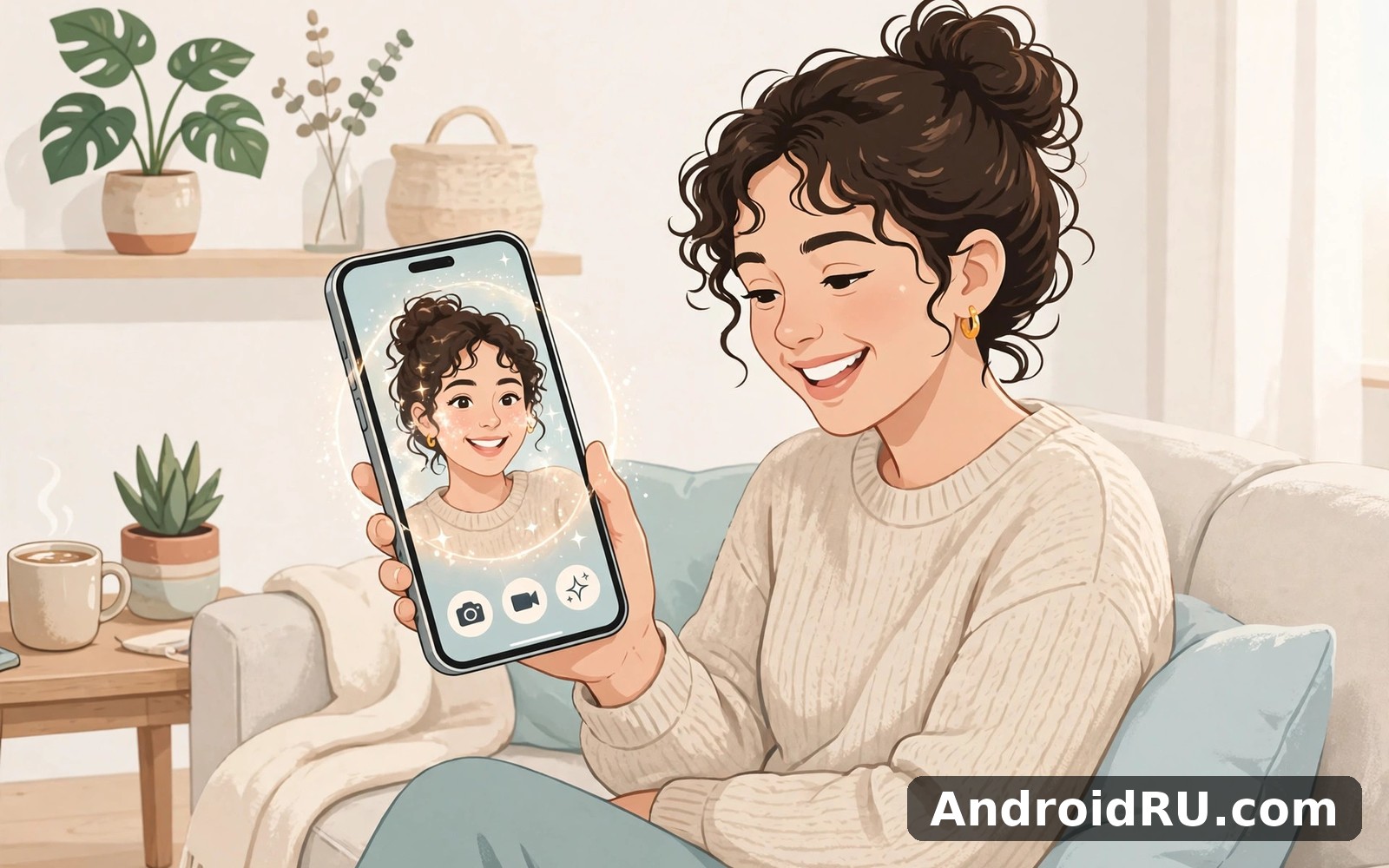
Download APK AI Mirror AI Photo Video Latest Features, Previous Version Differences & Review
I first opened AI Mirror on a dull Tuesday evening with one ordinary selfie and low expectations. Photo apps that promise to turn you into an anime character usually hand back a blurry cartoon that looks nothing like you, so I was ready to delete it within five minutes. The first result stopped me. It kept my face shape, my glasses and even the tired look in my eyes, but rebuilt everything around them in a clean anime style. I ran a second photo, then a third, and by the end of the evening I had a small gallery of versions of myself that actually felt like me.
AI Mirror is an AI photo and video editor that rebuilds your pictures in different art styles. You give it a selfie or a photo, pick a style, and the app generates a new version: anime, cartoon, oil painting, sketch, cyberpunk, pixel art, and dozens more. It also makes AI avatars, swaps faces, tries on hairstyles, and turns short video clips into stylised video. This review covers what the latest version can do, how it differs from the older builds, where it beats the editors around it, and where it still falls short.
This one is for you if you like playing with your photos but you do not want to learn a full editor. If you post a lot of profile pictures, make content for social media, or just enjoy seeing yourself drawn in ten different styles, AI Mirror earns its place. If you need precise manual editing, layered files, or print-ready output, you will still need a second app beside it.
What AI Mirror AI Photo Video actually does
At its core, AI Mirror is a style-transfer app. It does not just slap a filter over your photo. It reads the shapes in the image — your face, your hair, the background — and redraws them in the style you picked. That is why an anime result can look like a drawing of you rather than a photo with a colour wash over it. The app works best with clear, front-facing photos, and it struggles most with dark rooms, heavy shadows, and faces turned away from the camera.
The home screen is built around templates. You pick a photo from your gallery or take a new one, choose a style from a scrolling row of thumbnails, and wait a few seconds while the result renders. Most styles finish in under ten seconds on a decent connection, though the queue can slow down at busy times. You can then save the result, share it, or try the same photo in another style without starting over.
One detail I liked early on: the app keeps your recent creations in a small gallery inside the app, so you can compare styles side by side. That matters more than it sounds. The difference between two anime styles can be subtle on a small preview, and seeing them next to each other is the fastest way to pick a favourite. The gallery also makes it easy to re-export a result later without running the generation again.
Latest features in AI Mirror: anime filters, cartoon styles and AI avatars
The newest version of AI Mirror leans hard into variety. The style library is the headline: well over a hundred looks, grouped into anime, cartoon, painting, sketch, 3D render, cyberpunk, retro, and seasonal collections that rotate through the year. New styles arrive with app updates, and the seasonal sets — Halloween looks, winter portraits, festival themes — give regular users a reason to come back and try a fresh batch.
Anime and cartoon filters that keep your likeness
The anime filters are the reason most people install the app, and they are also where the latest version improved the most. Older builds often smoothed faces into a generic shape, so two different people could come out looking like cousins. The current generation holds onto more of the original: face shape, eye spacing, hairstyle, and even small details like freckles or a beard. I tested it with a group photo of three friends and each result still looked like the right person, which was not true a year ago.
Cartoon and 3D styles sit beside the anime set. The cartoon look is softer and rounder, closer to a children’s book illustration, while the 3D render style aims for the polished look of an animated film character. Both work well for profile pictures. The cartoon style is forgiving with older or lower-quality photos, while the 3D style wants a sharp, well-lit source or the result turns waxy.
AI avatars, face swap and hairstyle try-on
AI avatars are a separate mode from the one-tap filters. You upload several selfies — the app suggests around ten, with different angles and expressions — and it builds a set of avatar portraits in styles you choose. The results feel more personal than a single filter pass because the model has more of your face to work from. It takes longer, usually a few minutes, but the hit rate is higher. My best avatar from this mode looked closer to me than any single filter result.
Face swap lets you place your face into a template scene: a movie poster look, a vintage portrait, a fantasy character. It is fun, and it is also the feature most likely to produce an odd result when the lighting in your photo does not match the template. Hairstyle try-on is more practical. You can preview short cuts, long cuts, curls, and colour changes before a real haircut, and the preview is good enough to show your hairdresser as a starting point. Neither feature is perfect, but both are quick enough to try three or four times until one lands.
Photo enhancer, background changer and cleanup tools
Beside the headline AI styles, the app carries a set of quieter tools that get used more often than I expected. The photo enhancer sharpens soft or slightly blurry shots and lifts dull colours, which helps when your source photo is an old one pulled from a chat thread. The background changer cuts you out of a photo and drops you onto a new backdrop — a beach, a city street, a plain studio colour — and the edge detection is good enough for social posts, though fine hair can still look rough if you zoom in.
There is also a basic cleanup pass for small distractions and a one-tap colour fix. These tools will not replace a dedicated editor, but they save you from opening a second app for the small jobs that come up every time you generate a new image.
Getting the best result from a selfie
Good light matters more than any setting in the app. I got my best results from photos taken near a window in daylight, face toward the light, with a plain background behind me. Busy backgrounds confuse the model and dark rooms flatten the details it needs. Take the photo at arm’s length or with a timer, keep your face centred, and avoid hats or sunglasses for the first try — you can add the playful stuff after you know the base result is solid.
When the filter misses your likeness
If a result looks nothing like you, change the source photo before blaming the style. Try a different selfie with better light, or switch to a simpler style — heavy painting styles hide more of your features than clean anime styles do. If one style keeps failing, the avatar mode with several photos usually does better than a single filter pass. And if the app queues for a long time, wait rather than tapping generate again; double taps just add a second job to the same queue.
AI Mirror video tools: turning clips into stylised video
Video is the newest part of AI Mirror and the least polished, but it is also the most fun to show people. You pick a short clip — a selfie video, a pet, a street scene — choose a style, and the app redraws the video frame by frame in that style. The result looks like a moving cartoon version of your clip, and short clips of five to ten seconds work best with video-to-video styles.
Video-to-video styles and what they handle well
Anime and cartoon styles handle video best, because their smooth shapes forgive the small flicker between frames. Slow, steady clips with one main subject come out cleanest. I turned a short clip of my dog sitting in the garden into a cartoon version and it held together nicely, with only a little shimmer on the grass. Fast movement, camera pans, and crowded scenes are harder: the style can wobble from frame to frame, and faces in the background can melt into odd shapes.
Processing takes longer than photos — expect a wait of a minute or more for a short clip, depending on length and server load. The app shows progress while it works, and you can leave it running while you do something else. Export quality on the free tier is lower than on the paid tier, and that shows most in video, where compression artefacts are easier to spot than in a still image.
What video editing still needs another app for
AI Mirror is not a video editor. It cannot trim clips, add music, stitch scenes together, or add captions. It does one job — restyle the footage — and hands the result back to you. If you want a finished clip for social media, plan to pass the result through a proper editor afterwards. That is a fair trade for a tool that does its one job well, but it is worth knowing before you install it expecting a full editing suite. Adobe Express AI Photo Video is a natural next app to try if you want templates and quick video edits next to your AI images.
Previous version vs latest version of AI Mirror: what changed
The gap between the older AI Mirror and the current one is bigger than a version number suggests. A year or two ago this was a simple filter app with a small style set and a slow queue. Today it is a fuller creative toolkit, and the differences show up in five places: the style library, the speed, the export quality, the video tools, and the free tier.
Style library then and now
Early builds shipped with a modest set of looks — a handful of anime styles, a cartoon pass, and a few painting effects. You could exhaust the whole library in one evening. The current version holds well over a hundred styles, grouped by theme, with new seasonal collections added through the year. The newer styles are also more distinct from each other. In the old library, half the anime styles looked nearly identical; now the differences between styles are visible at a glance.
Speed, queue times and export quality
Speed is where long-time users will feel the change most. Older versions often queued for a minute or more per image at peak times, and a failed generation meant starting over. The latest version renders most photos in seconds and retries failed jobs more gracefully. Export quality has moved up too: where older builds topped out at modest resolution with visible compression, current exports are sharper and hold up better when you crop or zoom. Free-tier exports still carry limits, but the gap between free and paid output is narrower than it was.
Free tier and paid options then and now
The free tier used to be the main complaint: few daily generations, a watermark on some outputs, and ads between every step. The current free tier is still limited — you get a set number of free generations per day and some styles sit behind the paid plan — but the daily allowance is more generous and the watermark situation has improved on many styles. The paid plan removes the daily cap, opens the full style library, raises export quality, and cuts the ads. Whether it is worth paying for depends on how often you generate: a casual user who makes three or four images a week will be fine on free, while someone posting daily will hit the cap fast.
| Area | Older versions | Latest version |
|---|---|---|
| Style library | Small set, mostly anime and cartoon | Over 100 styles across many themes, plus seasonal sets |
| Likeness accuracy | Faces often smoothed into a generic look | Keeps face shape, hair and small details far better |
| Video tools | Not available or very basic | Video-to-video restyling for short clips |
| Render speed | Long queues at busy times | Most photos finish in seconds |
| Export quality | Modest resolution, visible compression | Sharper exports that survive cropping |
| AI avatars | Single-filter results only | Multi-photo avatar mode with higher hit rate |
| Free tier | Tight daily limits, watermarks on many outputs | More generous daily allowance, fewer watermarked styles |
AI Mirror vs Adobe Express, Lightroom and Gophotoai
AI Mirror does not live alone. Three apps cover nearby ground, and each one is better at a different job. Adobe Express is the quick-design tool: templates, text, and fast social posts with some AI image help. Lightroom is the serious photo editor: colour, light, and detail control with a mobile workflow that professionals actually use. Gophotoai is the closest rival — another AI photo and video maker with its own style library and avatar tools.
The honest split is simple. Pick AI Mirror when the AI restyle is the point — when you want yourself redrawn as anime, cartoon, or painting with one tap. Pick Adobe Express when you need a finished post with text and layout, not just a picture. Pick Lightroom when the photo itself needs careful correction. Pick Gophotoai when you want a second opinion on AI styles, because its library leans in different directions and sometimes nails a look that AI Mirror misses.
Adobe Express AI Photo Video
Adobe Express is stronger at finishing work: templates for posts and stories, text tools, and quick background removal in a design context. Its AI image tools are useful but narrower than AI Mirror’s style library, and it will not redraw you as an anime character the way AI Mirror does. If your end goal is a polished post rather than a fun portrait, Express is the better home for the finished image. Lightroom Photo Editor Video covers that need neatly when the job is careful colour and light work instead of templates.
Lightroom Photo Editor Video
Lightroom is the opposite of a one-tap toy. It gives you sliders for exposure, colour, and detail, presets from other photographers, and the control to fix a photo properly. It has no anime filters and no avatar mode, so it cannot do AI Mirror’s main trick at all. The two apps pair well: generate a stylised portrait in AI Mirror, then fix its colours or crop in Lightroom if the export needs a final polish.
Gophotoai Photo Video Maker
Gophotoai is the nearest like-for-like alternative, with AI photo generation, video tools, and avatar features of its own. Its style library has a different flavour — more emphasis on photo-realistic enhancement and video templates — so the best pick between the two often comes down to which library has the look you want this week. Running both free tiers side by side for a week is a fair way to decide. Gophotoai Photo Video Maker is worth a look as well if you want to compare AI styles before settling on one app.
| Feature | AI Mirror | Adobe Express | Lightroom | Gophotoai |
|---|---|---|---|---|
| Main job | AI restyle, avatars, face swap | Quick design and social posts | Manual photo editing | AI photo and video generation |
| Anime and cartoon styles | Very wide library, over 100 looks | Limited AI image styles | None | Good library, different flavour |
| Video tools | Video-to-video restyling | Templates and quick clips | Basic video trimming | Video templates and AI clips |
| Manual editing depth | Basic fixes only | Moderate, design-focused | Deep sliders and presets | Basic to moderate |
| Free tier | Daily generations, some styles paid | Generous free templates | Free core editing, paid extras | Daily credits, paid unlocks |
| Best for | Fun portraits and avatars | Finished social posts | Serious photo correction | AI video and photo variety |
Pros and cons of AI Mirror AI Photo Video
After three weeks of daily use, the picture is clear: AI Mirror is excellent at its core trick and honest about its limits. It will not replace your editor, and it will not make every photo beautiful. What it does well, it does fast and with a hit rate that has genuinely improved.
Pros of AI Mirror
The style library is the biggest strength. Over a hundred looks, grouped sensibly, with seasonal additions, means you can keep finding new favourites for months. The likeness accuracy in the latest version is a real step up — friends recognised themselves in results without being told who was who. The avatar mode, fed with several photos, produces the best portraits in the app. The interface stays simple: pick a photo, pick a style, wait a few seconds. And the free tier is usable for casual play, with enough daily generations to try a few ideas before hitting the cap.
Cons of AI Mirror
The free tier still gates the best styles behind the paid plan, and the daily cap arrives quickly if you are experimenting. Video restyling is fun but flickers on fast movement and takes a while to process. The app needs an internet connection for every generation, so there is no offline mode for a flight or a weak-signal day. Results vary: the same style can be brilliant on one photo and odd on the next, and there is no way to fine-tune a result beyond trying again. Ads on the free tier interrupt the flow between generations.
Who AI Mirror is for
AI Mirror fits social media users who want fresh profile pictures and fun portraits without learning an editor, parents making cartoon versions of family photos, and content creators who need a quick stylised image for a post. It fits less well for professional photographers, anyone who needs precise manual control, and people who want offline editing. If you generate images most days, the paid plan is worth a trial month; if you play with it once a week, the free tier will cover you.
How to get a good result in AI Mirror: a short workflow
A little method goes a long way with AI tools. My routine takes about five minutes and it lifted my hit rate from roughly half to most attempts landing well. The steps are simple, and each one fixes a common failure before it happens.
- Take or pick a clear, well-lit photo with your face toward the camera and a plain background.
- Open AI Mirror, upload the photo, and start with a clean anime or cartoon style rather than the heaviest painting style.
- Check the first result at full size. If the face holds up, try the same photo in two more styles and keep the best.
- If the likeness is off, switch to the avatar mode with several photos instead of retrying the same single filter.
- Save the best result, then use the enhancer once if the export looks soft.
- For video, keep clips short, slow, and centred on one subject, and expect a longer wait.
Picking the right source photo
The source photo decides most of the outcome. A sharp daylight selfie beats a clever style choice every time. Avoid backlight, which turns your face into a silhouette the model has to guess at, and avoid heavy makeup filters from other apps, which stack artefacts on top of each other. If you only have an old photo, run the enhancer first and then generate — the cleaner the input, the cleaner the output.
Lighting and framing that help the AI
Face a window or step into open shade outdoors. Keep the light even on both sides of your face, and leave a little space above your head in the frame. A plain wall behind you helps the background changer and keeps the model focused on you. These are small things, but together they are the difference between a portrait that looks like you and one that looks like a stranger.
Troubleshooting common AI Mirror problems
Most AI Mirror problems have boring causes. A generation that never finishes is usually a weak connection or a busy server queue — wait a minute, check your signal, and try once more rather than tapping generate five times. A result that looks nothing like you is usually a bad source photo, not a broken style. A style that worked yesterday and fails today may have moved behind the paid plan in an update, so check whether it now shows a lock icon.
If the app feels slow, clear its cache from your phone settings and make sure you have free space — the app stores generated images locally and a full phone slows everything down. If exports look soft, check whether you are on the free tier’s lower export quality and whether the enhancer helps. If the app crashes on launch after an update, reinstalling it fresh fixes most cases, and your generated images in the gallery are usually kept if you are signed in.
AI Mirror frequently asked questions
Does AI Mirror keep my photos private?
Your photos are uploaded to the app’s servers for processing, because the generation runs in the cloud rather than on your phone. Avoid uploading sensitive documents or photos you would not want processed remotely, and check the current privacy policy inside the app for how long uploads are kept. In practice, treat AI photo apps like any cloud service: fine for selfies and fun portraits, not the place for private documents.
Can I use AI Mirror without paying?
Yes, the free tier covers casual use with a daily set of generations, though some styles and higher-quality exports sit behind the paid plan. If you generate a few images a week, free is enough. If you hit the daily cap often, the paid plan removes it and opens the full library — try a single month before committing to a longer plan.
Why does my AI avatar look nothing like me?
Usually the source photos are the problem: dark lighting, sunglasses, heavy angles, or too few photos. Use around ten clear selfies with different expressions and angles, all in good light, and skip photos with other people in them. If the avatar mode still misses, try a simpler anime style first — heavy painting styles hide more of your features.
Does AI Mirror work offline?
No. Generation happens on remote servers, so you need an internet connection for every style, avatar, and video job. You can still browse your saved results offline, but creating anything new needs a connection. That is worth knowing before a flight or a trip with patchy signal.
Is AI Mirror better than a normal photo editor?
It is better at one thing — redrawing your photo in a new art style — and worse at almost everything else. A normal editor gives you control over light, colour, and detail; AI Mirror gives you surprise and speed. Most people who keep it installed also keep an editor beside it, and that pairing works well.
Final verdict: who should keep AI Mirror installed
AI Mirror earns its place for anyone who enjoys playful portraits and wants them fast. The latest version is a clear step up from the older builds: more styles, better likeness, quicker renders, and a video mode that is fun even if it is still rough. The free tier is fair for casual use, and the paid plan makes sense only if you generate often. Keep a real editor beside it for the careful work, and use AI Mirror for what it is best at — turning an ordinary selfie into something worth sharing.
Click here to download the AI Mirror AI Photo Video app
If AI Mirror is not quite your fit, two similar apps are worth a quick look. Click here to download the Adobe Express AI Photo Video app. For a second option, Click here to download the Lightroom Photo Editor Video app.

