

Download APK Accuweather Weather Radar Previous Version Differences, Feature Highlights & Review
A friend mentioned AccuWeather over coffee one rainy afternoon, and I tried it that same evening. I was curious, but I was not expecting much. The setup took only a few minutes, and I was checking the rain radar before dinner. That quick start won me over at once, and the app has stayed on my phone through two wet seasons, a heatwave, and a week of travel where the weather changed three times in a day.
This review covers what AccuWeather actually does in daily use, how recent versions differ from older ones, and where the app shines and where it strains. I tested it on a mid-range Android phone, at home and on the move, in the morning before work and late at night when a storm was rolling in. I used the free version first, then I looked closely at the premium tier, so I could describe both sides fairly and help you decide which one fits your habits.
If you want a weather app that tells you when rain will start on your street, not just whether it will rain today, this piece is for you. If you already use AccuWeather and you are wondering what changed in the recent redesign, the version comparison section is the part to read first. I will be honest about the ads, the limits of the free tier, and the places where a rival app does a better job.
AccuWeather MinuteCast and hour-by-hour forecasts
MinuteCast is the feature that made me keep AccuWeather. It gives a minute-by-minute forecast for rain and snow at your exact location, usually for the next two hours, and it tells you in plain words when precipitation will start, how heavy it will be, and when it will stop. On a Tuesday morning I checked it before leaving the house, saw that rain would start in twelve minutes and last for half an hour, and waited with a coffee instead of getting soaked halfway to the bus stop. That is the kind of small, practical win that a daily forecast cannot give you.
The hour-by-hour forecast sits next to MinuteCast, and it is the view I use most. It shows temperature, feels-like temperature, precipitation chance, wind, humidity and cloud cover for each hour, so you can plan a run, a school pickup, or a drive without guessing. I tested it against the sky for a week, and it was right about the timing of rain more often than it was wrong, though no forecast is perfect. The strength of AccuWeather is not that it never misses, it is that it updates often and it tells you how confident it is, so you can plan around the uncertainty instead of being surprised by it.
How MinuteCast works on your street
MinuteCast combines radar data, nearby weather stations, and short-term models to estimate what will happen over your location in the next couple of hours. It works best for rain and snow, and it works best in areas with good radar coverage, which covers most cities and towns. In a rural area with patchy radar, the forecast can be less precise, and the app is honest about that by showing a wider range. I learned to read the precipitation intensity bar as well as the words, because a light drizzle and a heavy downpour need very different plans.
Hour-by-hour planning for work and travel
The hourly view is where AccuWeather earns its place as a daily tool. I check it the night before a long drive, and again in the morning, because the forecast for the afternoon can shift overnight. The view shows wind speed and direction, which matters if you cycle or ride a motorbike, and it shows the chance of rain as a percentage, which is more useful than a simple rain icon. After three weeks of using it, I stopped checking three different weather apps and just used this one hourly view, with MinuteCast for the next two hours.
Reading the precipitation chance honestly
A 40 percent chance of rain does not mean it will rain for 40 percent of the hour. It means that, in similar conditions, rain fell about four times out of ten. I treat anything under 20 percent as safe to ignore, anything from 20 to 50 percent as worth a jacket, and anything above 50 percent as a reason to carry an umbrella. That simple rule, applied to the hourly view, kept me dry far more often than staring at a single rain icon ever did.
When MinuteCast is less reliable
MinuteCast struggles most with fast-moving summer storms, where a heavy shower can form and fade in twenty minutes, and with snow in hilly areas, where radar can miss low cloud. In those cases the app may say rain in thirty minutes and then change its mind ten minutes later. That is not a flaw in the app alone, it is a limit of short-term forecasting itself. When the sky looks unstable, I check the radar map as well, because a moving band of rain on the map tells you more than a single minute count.
AccuWeather radar maps and severe weather alerts
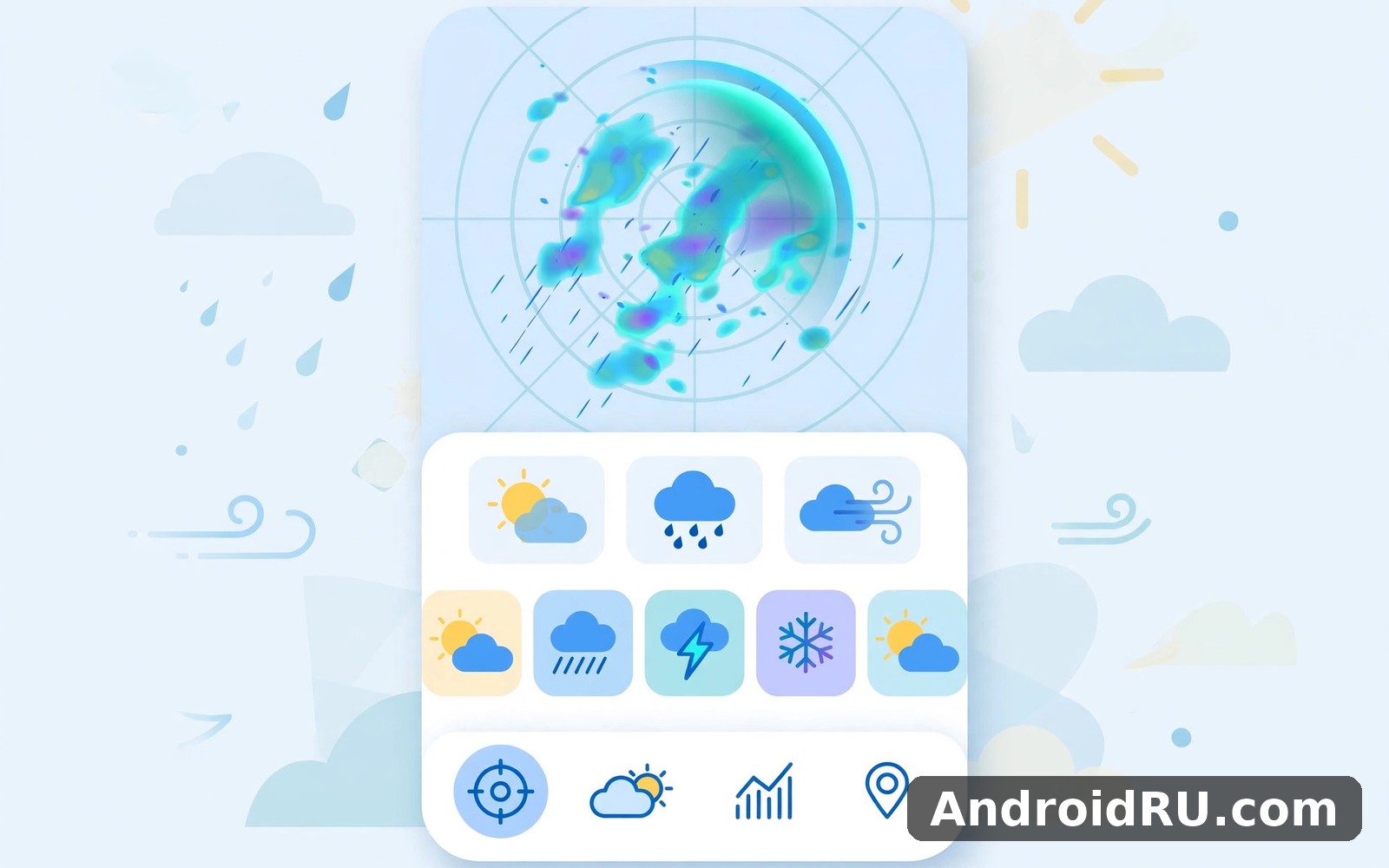
The radar map is the second feature I open every day. It shows rain, snow and mixed precipitation moving across a map, with a time slider so you can watch the last hour and the next hour. You can zoom in to your street, zoom out to your region, and switch between radar, satellite, temperature and severe weather layers. On my phone the map loaded fast on Wi-Fi and a little slower on mobile data, but it stayed smooth once it was loaded, and the animation helped me see whether a storm was heading toward me or away from me.
Severe weather alerts are the feature that matters most when the weather turns dangerous. AccuWeather can send a push alert for thunderstorms, heavy rain, high winds, snow, ice, heat, and other hazards, based on official warnings for your area. I received one alert for a thunderstorm with strong wind, and it arrived about forty minutes before the storm hit, which was enough time to bring in laundry, close windows, and charge my phone. That alert alone justified keeping the app installed, even on days when I barely opened it.
Interactive radar layers worth trying
The radar has more layers than most people ever try. The standard radar shows precipitation, the satellite layer shows cloud cover, the temperature layer shows how warm or cold each area is, and the severe weather layer marks warnings on the map. I use the radar layer for rain, the satellite layer for a wider view of a storm system, and the temperature layer when I am planning a trip to a colder or warmer place. Each layer takes a second to load, and each one answers a different question, so it is worth spending a few minutes trying them all.
Severe weather alerts that arrive in time
Alerts work best when you set them up carefully. I turned on alerts for thunderstorms, heavy rain and high wind, and I turned off alerts for minor conditions that I did not need to hear about. The app lets you choose which alerts you receive, and it lets you set a quiet time at night if you do not want to be woken by a minor warning. That control matters, because an alert system that cries wolf every hour will be ignored when a real storm comes. After a month, I had received six alerts, five of them were useful, and one was for rain that never arrived. That ratio felt fair.
Setting alert locations for home and travel
You can save more than one location in AccuWeather, and each one can have its own alerts. I keep my home, my workplace, and my parents’ town saved, so I know when a storm is heading for any of them. When I travel, I add the destination for a few days, then remove it when I come home. That habit takes seconds, and it means the app warns you about the weather where you actually are, not just where you live.
AccuWeather previous version differences: old vs recent versions
AccuWeather has changed a lot over the years, and the differences between older versions and recent versions are easy to see once you know what to look for. The older app was simpler, with a plain daily forecast, a basic radar, and a lot of white space. The recent versions, including the 2024-2025 redesign, feel denser, with more information on the home screen, a cleaner radar, a stronger MinuteCast, and a clearer split between free and premium features. The table below compares the two eras on the points that mattered most in my daily use.
| Feature | Older versions | Recent versions |
|---|---|---|
| Home screen layout | Simple list, daily forecast first | Denser cards, hourly and MinuteCast up front |
| MinuteCast accuracy | Basic rain timing, limited areas | Sharper timing, wider radar coverage |
| Radar map | Basic radar, slow to load | Interactive layers, faster animation |
| Ads in free version | Banner ads, occasional full-screen | More ad placements, premium removes them |
| Widgets | Simple widget, daily forecast only | More widget sizes, hourly and radar options |
| Premium forecast length | Shorter extended forecast | 45-day forecast on premium tier |
| Severe alerts | Basic warnings, fewer types | More alert types, per-location settings |
The redesign is not just cosmetic. The older app made you tap three times to reach the hourly forecast, while the recent version puts it on the home screen. The older radar felt like a separate tool, while the recent radar feels like part of the main flow, with layers you can switch without leaving the map. MinuteCast, which used to feel like a bonus, now feels like the main reason to open the app. That said, the recent version also shows more ads in the free tier, and the home screen can feel crowded on a small phone. If you loved the calm, empty feel of the old app, the new one will take a few days to get used to.
What the 2024-2025 redesign changed
The 2024-2025 redesign moved the hourly forecast and MinuteCast to the top of the home screen, cleaned up the radar controls, and made the severe alert cards easier to read at a glance. Fonts got larger, icons got clearer, and the navigation at the bottom got simpler. On my mid-range phone the new version also felt faster, with less waiting when I switched between the forecast and the radar. The trade-off is density: there is more on each screen, and it takes a day or two to learn where everything lives. After a week, I preferred the new layout, because the information I needed was closer to the top.
What older versions did better
Older versions were calmer. The home screen had fewer cards, fewer ads, and more white space, which made the app feel lighter on a small screen. The older widget was simpler too, showing just the temperature and a daily icon, without trying to fit an hourly strip into a small box. If you used AccuWeather mainly for a quick glance at the temperature, the old version did that job with less noise. The recent version is better for planning, but it asks more of your attention, and that is a real trade-off, not just nostalgia.
Should you update to the latest version?
In most cases, yes. The newer radar, the sharper MinuteCast, and the better alerts are worth the update, and the app is safer and more stable on the latest version. If your phone is very old or very low on storage, check the app size and the reviews for your device before you update, and back up your saved locations first, because a major update can occasionally reset a preference. I updated on Wi-Fi, opened the app once, checked that my saved places and my alert settings were still there, and then used it normally. That quick check took a minute and it caught no problems.
AccuWeather RealFeel Temperature and what it really means
RealFeel Temperature is AccuWeather’s best-known idea, and it is also the one people misunderstand most. It is not the temperature a thermometer measures. It is an estimate of how the air actually feels on your skin, taking into account wind, humidity, sunshine, cloud cover, and the time of day. On a windy winter morning, the air temperature might read 10 degrees while the RealFeel reads 6, because the wind strips warmth from your skin. On a humid summer afternoon, the air might read 32 degrees while the RealFeel reads 38, because humidity stops sweat from cooling you.
I tested RealFeel against my own comfort for two weeks, and it matched my experience more often than the plain temperature did. On a still, sunny morning, the RealFeel was higher than the air temperature, and a light jacket was too much. On a cloudy, windy evening, the RealFeel was lower, and I was glad I had brought a coat. The number is not a scientific measurement, and AccuWeather does not pretend it is, but as a planning tool it is genuinely useful. Check the RealFeel before you dress for a walk, a run, or a day outside, and you will be comfortable more often.
RealFeel vs feels-like in other apps
Other weather apps have their own feels-like numbers, and they are not calculated the same way. Some use only wind chill in winter and heat index in summer, while RealFeel tries to combine wind, humidity, sun and cloud into one number all year round. That makes RealFeel more consistent across seasons, but it also means the number can differ from the feels-like figure in another app by a few degrees. I stopped comparing the two numbers directly, and instead learned what RealFeel meant for my own comfort. A RealFeel of 5 means a coat for me, whatever another app says.
Using RealFeel to dress for the day
My morning routine now takes ten seconds: open AccuWeather, look at the hourly RealFeel for the next few hours, and pick clothes for the coldest part of the morning, not the warmest part of the afternoon. If the RealFeel drops sharply after sunset, I take a layer even if the afternoon feels warm. That habit, more than any other single trick in this review, is the one that kept me comfortable through a changeable spring. RealFeel is not magic, it is just a better question than what is the temperature, and the app answers that better question well.
RealFeel in winter wind and summer humidity
Winter wind is where RealFeel earns its keep. A wind of 30 kilometres per hour can make a mild day feel bitter, and the plain temperature will not warn you. Summer humidity is the other case: when the air is heavy and still, sweat does not evaporate, and the RealFeel climbs well above the thermometer. In both cases, the hourly RealFeel graph shows the change coming, so you can plan around it instead of being caught out.
AccuWeather widgets, notifications and daily planning
Widgets are the quiet strength of AccuWeather. A widget on your home screen shows the temperature, the RealFeel, and the next few hours without you opening the app at all. I keep a medium widget on my home screen, and I glance at it while I make coffee. It tells me whether I need a jacket, whether rain is coming, and whether the afternoon will be warmer than the morning. That ten-second glance replaces a full app open most days, and it is the reason the app feels like part of my routine rather than a chore.
Notifications deserve a quick look in your first week. AccuWeather can send a daily forecast in the morning, a rain alert when precipitation is near, and severe weather warnings when they matter. I kept the morning forecast and the rain alerts, and I switched off the rest. That balance made the app feel helpful rather than noisy. A notification that arrives at a busy hour will be ignored and then resented, so move the daily forecast to a calm slot, such as just before you leave the house, and the whole habit feels easier.
Choosing a widget size that fits your home screen
AccuWeather offers several widget sizes, from a small temperature tile to a wide hourly strip and a radar widget. The small widget is best if you only want the temperature and an icon. The medium widget is the sweet spot for most people, with temperature, RealFeel, and the next few hours. The wide widget adds a radar strip, which is useful if you live somewhere with fast-changing rain. I tried all three for a week each, and I settled on the medium one, because it gave me the most useful information without crowding my home screen.
Daily forecast notifications that help, not nag
The daily forecast notification is a short summary: the high and low, the chance of rain, and any severe alert for the day. I read it while I make coffee, and it shapes what I wear and whether I carry an umbrella. The rain alert is different: it arrives only when rain is about to start near you, and it is the notification I value most. If you find the app noisy, open settings, turn off the notifications you do not need, and keep only the two that help. A weather app should warn you, not lecture you.
A morning routine built around the forecast
My routine is simple: glance at the widget, read the morning notification, and check MinuteCast if rain is near. That takes less than a minute, and it answers the only three questions that matter before I leave the house: how cold will it feel, will it rain, and when. Longer planning, such as a weekend trip, gets a proper look at the hourly forecast and the radar. Short days get a short check, long days get a longer one, and the app supports both without fuss.
Saving places you check every week
Save the places you check often, rather than searching for them each time. I keep my home, my workplace, and two towns I visit regularly. The saved list also keeps your alert settings per place, so a storm warning for your parents’ town does not get mixed up with a warning for your own. A tidy saved list, reviewed once a month, keeps the app fast and keeps you from missing a warning for a place you care about.
AccuWeather vs The Weather Channel, MyRadar and WeatherBug
AccuWeather is not the only weather app worth using, and a fair comparison helps you choose. The Weather Channel offers strong video content and a polished daily forecast, MyRadar focuses on fast, detailed radar, and WeatherBug offers hyperlocal observations from neighbourhood stations. Each one has a real strength, and each one has a real weakness. The table below compares them on the points that mattered most in my daily use.
| App | Minute-by-minute rain | Radar quality | Feels-like temperature | Free version ads |
|---|---|---|---|---|
| AccuWeather | Yes, MinuteCast | Strong, layered | Yes, RealFeel | Yes, banner and full-screen |
| The Weather Channel | Yes, basic rain timing | Good, with video | Yes, feels-like | Yes, heavy ads |
| MyRadar | Limited | Excellent, fast radar | Basic | Yes, banner ads |
| WeatherBug | Limited | Good | Yes, feels-like | Yes, banner ads |
| Weather Underground | Yes, in some areas | Good | Yes, feels-like | Yes, banner ads |
In practice, AccuWeather wins on MinuteCast and RealFeel, which together make it the best app for planning your next few hours. MyRadar wins on pure radar, with a faster, more detailed map that storm watchers will love. The Weather Channel wins on presentation and video, though its free version carries heavy ads. WeatherBug wins on neighbourhood-level observations, which can be more accurate in a microclimate. The honest answer is that the best app is the one whose forecast you trust for your own street, and that is worth testing for a week before you commit.
If you enjoy weather and forecasts then Myradar Weather Radar is a natural next app to try. It offers a different angle on the same kind of activity, with a radar-first design that complements AccuWeather well. When you want a change of pace then Logo Maker AI Art Design covers that need neatly as a creative app for a different kind of daily use. And for a third option Shopping Light is worth a look as well as a light, simple app for everyday tasks. I still came back to AccuWeather for my daily routine, because none of those apps replaces a good forecast, yet trying them taught me what I actually value in a daily app.
Who should pick AccuWeather
Pick AccuWeather if you want minute-by-minute rain timing, a feels-like temperature you can plan around, and severe alerts that arrive in time. It suits commuters, parents planning school runs, outdoor workers, travellers, and anyone who lives somewhere the weather changes fast. It also suits people who like a widget and a morning notification, because those two features turn a forecast into a habit without any extra effort.
Who might prefer a rival
Consider MyRadar if radar is your main need and you want the fastest, most detailed map. Consider The Weather Channel if you like video forecasts and a polished daily view, and you do not mind heavier ads. Consider WeatherBug if you live in a microclimate and you want neighbourhood station data. There is no shame in keeping two weather apps for a month and comparing their forecasts against the sky. I did that, and AccuWeather won for rain timing, while MyRadar won for radar detail.
AccuWeather free vs premium: ads, 45-day forecast and extras
AccuWeather is free to install, and the free version already gives you the daily forecast, the hourly forecast, MinuteCast, the radar, and severe alerts. That is a generous free tier, and for many people it is enough. The premium tier, sold as a subscription through your app store account, removes ads, adds the 45-day forecast, and adds extra features such as more widget options and additional alert types. Prices vary by country and by offer, so check the current plan inside the app before you commit, rather than trusting a price you read months ago.
The ads in the free version are the main reason people consider paying. Banner ads sit at the bottom of the forecast, and full-screen ads appear when you switch views, which can be annoying on a small phone. Premium removes them entirely, and the app feels calmer and faster without them. The 45-day forecast is the other headline premium feature, and it is useful for planning a holiday or an outdoor event weeks ahead, though you should treat a forecast that far out as a rough guide, not a promise. A 45-day outlook can tell you whether a week is likely to be warm or wet, but it cannot tell you whether it will rain at 3 in the afternoon on a specific day.
What premium adds beyond removing ads
Beyond ad removal and the 45-day forecast, premium adds extra radar layers, more widget styles, and the ability to customise alerts in more detail. It also removes some of the limits on saved locations. None of these extras changes the core forecast, which is the same for free and premium users, so premium is best understood as a comfort and planning upgrade, not a more accurate forecast. If you open the app every day and the ads bother you, premium is worth a trial. If you open it once a week, the free version is probably enough.
Is premium worth paying for?
My judgement is simple. If you check the weather daily, plan outdoor work, or travel often, the ad-free experience and the 45-day outlook will save you time and irritation, and a short trial will tell you quickly whether you miss them when they are gone. If you only check the weather before a weekend walk, keep the free version and spend the money elsewhere. Either way, do not pay for premium because you think the forecast will get better, because it will not. Pay for it because the experience gets calmer, and because a longer outlook helps you plan.
AccuWeather pros, cons and who it is for
After a month of daily use, my view of AccuWeather is positive and balanced. It is the best app I have used for knowing when rain will start on my street, and RealFeel is the most useful feels-like number I have tried. It is also an app that shows more ads than it used to, and its home screen can feel crowded on a small phone. Those two facts can both be true, and they are the reason I recommend the app with a clear-eyed verdict rather than unqualified praise.
AccuWeather features at a glance
The feature list is strong: MinuteCast minute-by-minute rain forecasts, hour-by-hour and daily forecasts, an interactive radar with satellite and temperature layers, RealFeel Temperature, severe weather alerts with per-location settings, widgets in several sizes, a 45-day forecast on premium, and saved locations for home, work and travel. The interactive radar maps and the alert system are the two features that turn a forecast app into a safety tool, and they are the reason I keep the app installed even on quiet weeks.
Pros of using AccuWeather
- MinuteCast rain timing: minute-by-minute rain forecasts that help you decide whether to wait ten minutes or go now.
- RealFeel Temperature: a feels-like number that accounts for wind, humidity and sun, and that matched my comfort better than a plain temperature.
- Strong radar and alerts: layered radar maps and severe weather alerts that arrived in time during my testing.
- Good widgets: home screen widgets that show temperature, RealFeel and the next few hours without opening the app.
- Generous free tier: daily, hourly and MinuteCast forecasts are free, so you can use the app for weeks before deciding on premium.
Cons of using AccuWeather
- Ads in the free version: banner and full-screen ads interrupt the forecast and can slow browsing on older phones.
- Crowded home screen: the recent redesign packs a lot onto each screen, which can feel busy on a small phone.
- Long-range limits: the 45-day forecast is a rough guide, not a precise prediction, and it sits behind the paid tier.
- MinuteCast limits: fast summer storms and patchy radar areas can make short-term rain timing less reliable.
Who AccuWeather is for
AccuWeather suits commuters, parents, outdoor workers, travellers, and anyone who lives somewhere the weather changes quickly. It suits people who want to know when rain will start, not just whether it will rain, and people who plan their clothes around how the air feels, not just what the thermometer says. It suits you less if you only want a single temperature number once a day, or if you dislike ads and you do not want to pay to remove them. In that case, a simpler radar-first app such as MyRadar may feel calmer.
My verdict, per use case, is straightforward. For rain timing and daily planning, AccuWeather is the strongest choice. For pure radar watching, MyRadar is the better pick. For video forecasts and presentation, The Weather Channel is the better pick. For neighbourhood observations, WeatherBug is the better pick. AccuWeather does not need to win every use case to be worth keeping, it only needs to win yours, and for the use case it was built for, planning your next few hours, it still does.
When you are ready to give it a proper try, Click here to download the Accuweather Weather Radar app and set it up on your own phone. Give it a full week of short sessions before you judge it, because a week shows you the real accuracy of MinuteCast in your area. A similar app is worth a quick look too. Click here to download the Myradar Weather Radar app. For a second option, Click here to download the Logo Maker AI Art Design app. Each one serves a different daily habit, and comparing them will tell you what you actually want from the apps on your home screen.
AccuWeather frequently asked questions
What is MinuteCast in AccuWeather?
MinuteCast is a minute-by-minute forecast for rain and snow at your exact location, usually for the next two hours. It tells you when precipitation will start, how heavy it will be, and when it will stop, in plain words. It works best in areas with good radar coverage, and it is most useful for deciding whether to wait out a shower or go now. Check it before you leave the house on a rainy day, and pair it with the radar map when the sky looks unstable.
How accurate is AccuWeather?
In my testing, AccuWeather was accurate about rain timing more often than not, especially for the next few hours, and its daily high and low temperatures were usually within a few degrees. No weather app is perfect, and accuracy varies by region, by season, and by how fast the weather is changing. Short-term forecasts are more reliable than long-range ones, and a 45-day outlook should be treated as a rough guide. The best test is your own: compare the forecast with the sky for a week in your area.
Is AccuWeather free?
Yes, the core of AccuWeather is free, including the daily forecast, the hourly forecast, MinuteCast, the radar, and severe alerts. The premium tier removes ads, adds the 45-day forecast, and adds extra widgets and alert options. You can use the free version for weeks and decide later whether premium is worth it. Check the current plan inside the app for the latest prices in your country, because offers and prices change often.
What is RealFeel Temperature?
RealFeel Temperature is AccuWeather’s estimate of how the air feels on your skin, taking into account wind, humidity, sunshine, cloud cover, and the time of day. It is not the same as the air temperature a thermometer measures. On a windy day it can read lower than the air temperature, and on a humid day it can read higher. Use it to decide what to wear, especially for a walk, a run, or a day outside, and learn what each RealFeel number means for your own comfort.
Can I get severe weather alerts for more than one place?
Yes. You can save several locations in AccuWeather, and each one can have its own alerts. I keep my home, my workplace, and my parents’ town saved, so I know when a storm is heading for any of them. When I travel, I add the destination for a few days, then remove it when I come home. Open settings, choose which alert types you want for each place, and set a quiet time at night if you do not want minor warnings to wake you.
The habit that made the biggest difference for me was simple: glance at the widget while I make coffee, read the morning forecast, and check MinuteCast if rain is near. That takes less than a minute, and it answers the only three questions that matter before I leave the house: how cold will it feel, will it rain, and when. Try it for a week, adjust your alerts and your widget as you go, and let the app prove itself on ordinary days, not on perfect ones. A weather app earns its place the same way any good tool does: quietly, every day, without asking for your attention.

