

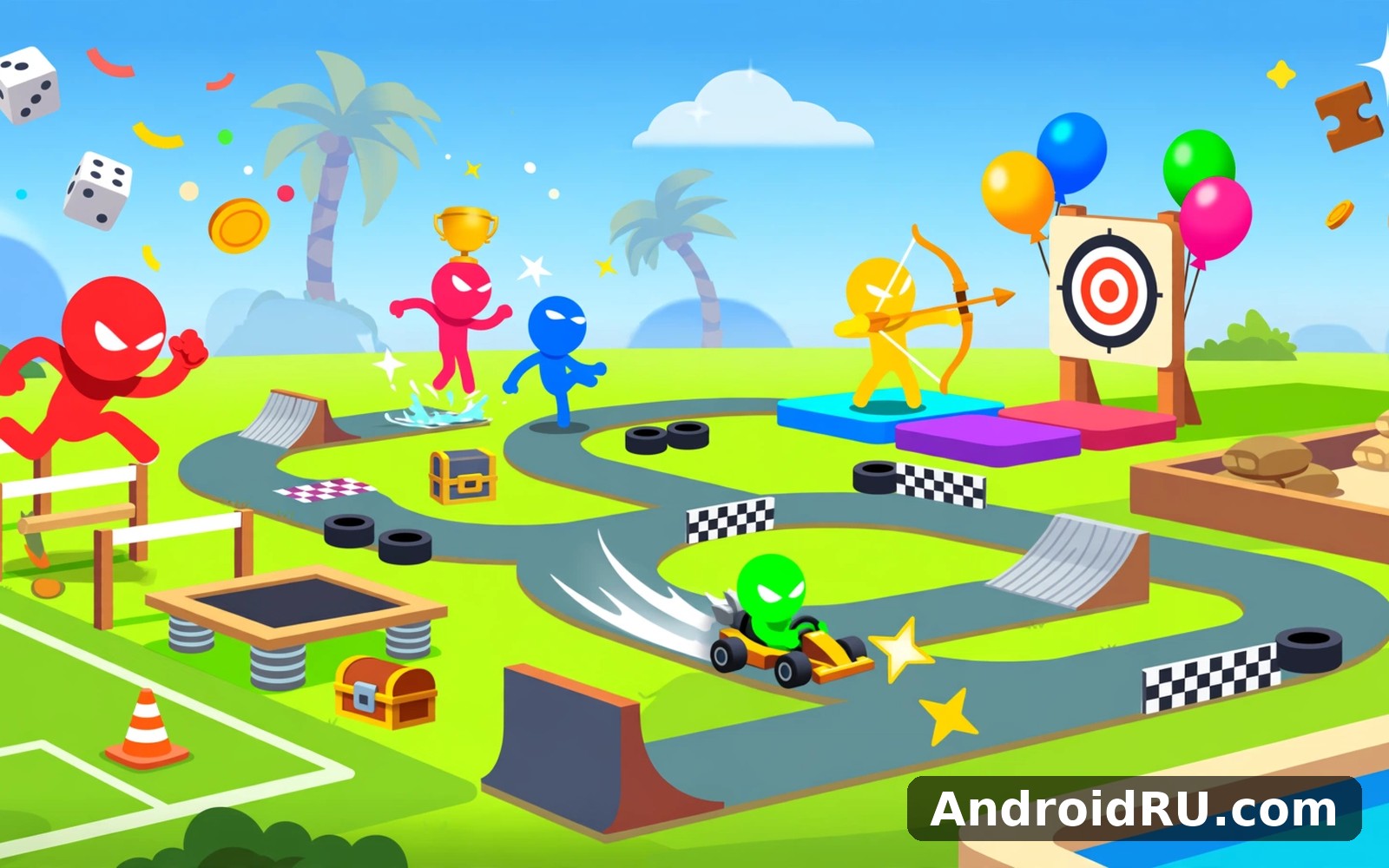
Download APK Stickman Party 234 Minigames Latest Feature Review & Notification Setup
My first session with Stickman Party 234 Minigames happened on a bus ride home, with a connection that kept dropping and coming back. I expected the game to freeze or lose my place. It did neither. I finished a racing round, jumped into a tank battle, and lost a football match to a friend sitting next to me, all before my stop. That is the promise of this app in one ride: hundreds of tiny games, none of them demanding, all of them ready in seconds, and most of them playable without a connection at all.
This review covers the latest features the way they actually play, with real minigame names, real steps for setting up notifications on Android, and an honest verdict after days of testing. You will find out which of the 234 minigames are worth your time, how the local multiplayer works on a single phone, where the ads show up, and how to make the app quiet when you need it to be. If you want a party game for the couch, a boredom killer for a queue, or something to hand to a friend for five minutes, this article answers the question properly.
A quick note on scope. Stickman Party is a collection, not a single game, so judging it means judging the collection as a whole: the variety, the quality of the best games, the number of duds, and the way the app holds it all together. A collection with 234 games will always contain a few weak ones. What matters is whether the good ones are easy to find and fun enough to return to, and on that test the app does well.
What Stickman Party Is, and Who It Is For
Stickman Party is a free Android game collection from the developers behind the Stickman Party series, built around simple stick-figure characters and one idea: a new game every few seconds. The 234 in the title is a real count, not a slogan. The lobby lists minigames by category, and each one opens instantly, with controls that fit on one screen and rules you can learn from a single round. There is no long story mode, no character levelling, and no inventory to manage. You pick a game, you play, you move on.
The audience is broad, and the app knows it. Children enjoy the bright colours and silly physics. Teenagers enjoy the competitive games against friends. Adults enjoy the five-minute sessions in a waiting room, because a minigame asks for less commitment than a full match in a bigger game. I tested it with a friend and with a younger relative, and both found games they liked within a minute, which is the real test of a collection like this. The stick-figure style keeps the download small and the graphics light, so the app runs well on older and cheaper phones that struggle with heavier games.
The collection is free with ads, and that shapes the experience. Ads appear between games rather than during them, and an optional rewarded ad can grant extra lives or bonuses in some games. You can play offline for most of the collection, which matters on a bus or a plane, though a few features such as leaderboards and some rewards need a connection. Nothing in the game requires payment to enjoy, and I played for days without spending anything.
The 234 Minigames: Real Games, Real Names, Real Variety
Two hundred and thirty-four games sounds like a marketing number until you open the lobby and start scrolling. The list is long, and it keeps going past the point where you expect it to stop. The games fall into loose families: racing, fighting, sports, shooting, puzzles, and pure chaos games that exist only to make two players laugh. I played about forty of them during testing, and the quality varies, which is honest and expected. The best ones are genuinely good. The weakest ones are forgettable, and the lobby makes them easy to skip.
Tank Battle, Racing and Football: The Games I Kept Returning To
Tank Battle is the standout for me. Two tanks on a small maze map, one tap to fire, and a shell that bounces off walls, so a careful angle beats a fast finger. I played it against a friend for ten rounds and we were still finding new angles on the tenth. Racing is simpler but just as sticky: two stickmen on motorbikes or in cars, a winding track, and a single button to accelerate, with the winner decided by timing rather than speed alone. Football, the two-on-two stickman soccer game, turns into a shouting match within seconds, because the ball bounces everywhere and a lucky deflection can score from anywhere.
These three share what makes the collection work: rules you understand in five seconds, rounds that last under a minute, and a clear winner at the end. They are also the games that work best in local multiplayer, which is where the app earns its name as a party game. I would happily open the app just for these three, and the other 231 games become a bonus rather than the reason to stay.
Bombing, Fighting and Shooting Games for Quick Rounds
Bombing games, usually listed as Bomb It or a similar name in the lobby, put two stickmen in an arena with bombs that explode in cross patterns, and the skill is in placing a bomb and escaping before it goes off. Stickman Fighter is a one-on-one brawler with punches, kicks, and a block button, and it rewards timing over button mashing, though mashing works surprisingly well against a casual opponent. The shooting games range from simple target practice to a two-player duel where each side fires across a gap, and the best of them add moving cover and bouncing bullets to keep rounds unpredictable.
These games suit short bursts. A bombing round lasts about thirty seconds, a fighting round about the same, and a shooting duel rarely runs past a minute. The trade-off is depth: none of these games will hold your attention for an hour the way a dedicated fighting or shooting game would. They are snacks, not meals, and the collection is honest about that. Play three or four, laugh, and move on to something else.
Puzzles, Skill Games and the Odd Ones Worth Trying
Between the action games sit puzzles and skill tests that slow the pace down. There is a snake game where your stickman grows with every dot eaten, a balance game where you tilt to stay on a narrow beam, a memory game with hidden cards, and a timing game where you stop a moving bar inside a shrinking target zone. My favourite odd one is a game where two stickmen race up a tower by jumping between platforms, and the screen scrolls faster the higher you climb. It looks trivial and it is not: my best run lasted eleven seconds.
The puzzle and skill games are the ones I return to alone, when there is no friend to play against. They are quiet, they need no opponent, and they suit a waiting room better than a shouting match over a football game. They also show the range of the collection: the developers clearly enjoy inventing small ideas, and even the stranger games have a clear rule and a fair challenge. A few are too easy after one try, and a few feel random rather than skilful, but the good ones are easy to favourite and find again.
How to Find the Best Games Fast in a List of 234
The lobby helps if you use it properly. Games are grouped by category, and a search box lets you type a name such as tank or football to jump straight to it. I recommend a simple routine for a new player: open the racing category first, play two games, then try the fighting category, then the sports category. Within ten minutes you will know which family you like, and you can favourite the best games so they sit at the top of your list. The recently played row is useful too, because it saves you scrolling through 234 entries to find the game you enjoyed yesterday.
One-Player, Two-Player and Four-Player Modes Explained
Most games offer a choice before they start: play alone against the computer, play against a friend on the same phone, or in some games add a third and fourth player. Two-player mode splits the screen into two control zones, one on each side, so each player has their own buttons. Four-player mode squeezes four control zones onto one screen, which works better on a tablet or a large phone than on a small one, and honestly it is chaos in the best way. I played four-player football on a tablet and nobody could keep track of their own stickman, which was the point. Solo mode is the fallback for queues and bus rides, and the computer opponent is fair without being clever.
Latest Features in the Current Version
The latest version of the collection adds more than a handful of new games, though the new games are the headline. Recent updates have added fresh minigames to the racing and fighting categories, a cleaner lobby with bigger category icons, and a favourites system that actually remembers what you liked. The developers also improved loading times: games that used to take a few seconds to open now start almost at once, which matters when you are switching games every minute. I noticed the difference on an older test phone, where the old version stuttered on category changes and the new one did not.
Another welcome change is offline play. Most of the collection now works without a connection, and the game tells you clearly which features need the internet, instead of failing silently. Leaderboards, some reward videos, and account features need a connection, but the games themselves do not. That is a genuine improvement for a game people play on buses, in lifts, and in places with patchy signal, and it was the first thing I checked after updating.
New Minigames Added in Recent Updates
Recent updates have added games across the main categories rather than in one place. The racing set gained a new motorbike game with steeper hills and a jump button, the fighting set gained a stickman wrestling game where the aim is to push your opponent out of a ring, and the sports set gained a basketball shooting game with a moving hoop. None of these is a reinvention, but each one adds a small twist to a familiar formula, which is exactly what a collection needs to stay fresh. I played the wrestling game for a solid half hour against a friend, and the ring-out rule made every round tense.
Offline Play, Faster Loading and a Cleaner Lobby
The lobby redesign is subtle but helpful. Categories now use larger icons with clear labels, the search box sits at the top where you expect it, and your favourites appear in their own row instead of hiding at the bottom. Loading is faster because the game now preloads the most popular games in the background while you browse, so tapping a favourite opens it at once. Offline play is the biggest practical change: I turned on aeroplane mode and played through a dozen games without a single error, which the older version could not manage. The game shows a small offline badge on features that need a connection, so you are never left guessing.
Notification Setup on Android, Step by Step
Notifications are the part of Stickman Party that most players never set up deliberately, and then complain about later. The app sends notifications for new minigames, special events, daily rewards, and reminders to come back and play. Some players like the nudge, especially when a new game arrives. Others find a buzzing phone at dinner annoying, and they are right to want control. The good news is that Android gives you fine control, and the setup below takes about two minutes from start to finish.
Before the steps, one decision helps: decide what you want the app to tell you. I keep event and new-game notifications on, because those are the only ones that carry information I cannot get by opening the app. I turn off generic reminders, because I do not need a game to tell me to play a game. Your answer may differ, and the steps below let you choose per category rather than all or nothing.
How to Turn Stickman Party Notifications On or Off
The fastest route runs through Android Settings. Open Settings, tap Apps, find Stickman Party in the list, and tap Notifications. You will see a single master switch at the top and a list of notification categories below it. Turn the master switch off and the app goes completely silent: no reminders, no event alerts, nothing. Turn it on and you can work through the categories one by one. I tested this on two phones running different Android versions, and the screen looked the same on both, with only the category names differing slightly.
If you prefer to start from inside the app, open Stickman Party, look for the settings gear in the lobby, and tap it. The settings screen has a notifications option that opens the same Android system screen, so both routes end in the same place. There is no separate in-app switch that overrides the system setting, which is actually good news: one screen controls everything, and you cannot end up in a state where the app says on and Android says off.
Setting Up Notification Categories One by One
Android groups the app’s notifications into notification categories, and each category has its own switch. The usual categories are daily rewards, new games and events, and general reminders. Open the Notifications screen for Stickman Party, tap a category name, and you can turn that category off while leaving the others on, change its sound, or set it to silent so it appears without buzzing. I set new games to make a sound, daily rewards to silent, and reminders to off, and that combination has worked well for weeks. If a category does not appear on your phone, it means the app has not sent that kind of notification yet, and it will appear after the first one arrives.
Silent Notifications, Do Not Disturb and Bedtime Mode
Silent notifications are the middle ground most people actually want. A silent notification appears in your notification shade and on your lock screen, but it makes no sound and does not vibrate, so it never interrupts a conversation. To set one, open the app’s Notifications screen, tap the category, and choose Silent instead of Default. Do Not Disturb adds another layer: when it is on, even default notifications stay quiet, and only your chosen exceptions get through. Bedtime mode does the same on a schedule, which is useful if the game’s evening reminders are the ones that bother you. I use Bedtime mode every night, and no game notification has ever woken me.
Fixing Notifications That Do Not Appear
Sometimes the problem is the opposite: you want notifications and they never arrive. The usual causes are simple. First, check the master switch in the app’s Notifications screen, because a single accidental tap turns everything off. Second, check battery optimisation: open Settings, tap Apps, tap Stickman Party, tap Battery, and make sure it is not set to Restricted, because restricted apps cannot wake up to send notifications. Third, check that you have not turned on a data saver or a focus mode that blocks the app. I fixed a missing-notification problem on a test phone by changing battery optimisation from Restricted to Optimised, and the daily reward alert arrived the next morning.
Playing With Friends: Local Multiplayer on One Phone
Local multiplayer is the feature that turns Stickman Party from a solo time-killer into a party game, and it works exactly as advertised: two, three, or four players share one phone or tablet, each with their own corner of the screen. The controls are big and simple, usually one or two buttons per player, so nobody needs a tutorial. I handed the phone to a friend with no explanation beyond “your buttons are on the left”, and we were playing football within thirty seconds.
The best multiplayer games are the ones where the screen stays readable with several players. Tank Battle works well because the map is small and the tanks are easy to follow. Football works well because the ball is big and the goals are obvious. Four-player games work best on a tablet or a large phone, because four sets of buttons on a small screen get cramped, and thumbs start colliding. On a small phone, stick to two players and pick games with simple controls, and save four-player chaos for a bigger screen.
One practical tip: turn the phone sideways. Most multiplayer games play better in landscape, because the controls spread out and the play area gets wider. The app handles rotation cleanly, and the game restarts the round rather than crashing, which is the right behaviour. I also recommend turning off notifications before a multiplayer session, so a message preview does not cover a player’s buttons at the worst moment.
Honest Review of Stickman Party 234 Minigames
After days of testing, my honest verdict is that Stickman Party is an excellent party collection with a huge amount of free fun, held back by ads and by the uneven quality that any 234-game list will have. The best games are genuinely good, the multiplayer works, the offline play is a real strength, and the app runs well on modest phones. The weak spots are the ads between games, a handful of games that feel like filler, and a lobby that still takes a moment to learn. I keep the app installed, and I open it whenever friends are around or a queue is long.
| Feature | What works well | What could be better |
|---|---|---|
| Game variety | 234 games across racing, fighting, sports, and puzzles | Some games feel like filler with little depth |
| Local multiplayer | Two to four players on one device, simple controls | Four-player mode is cramped on small phones |
| Offline play | Most games work without a connection | Leaderboards and some rewards need the internet |
| Performance | Fast loading, light graphics, runs on older phones | Older phones still stutter on the busiest games |
| Ads | Ads stay between games, never during a round | Full-screen ads appear often between games |
Pros of Stickman Party
- Huge variety: 234 minigames means there is always a new game to try, and the best ones, like Tank Battle, racing, and football, are genuinely fun.
- Great local multiplayer: two to four players on one phone, with controls simple enough for anyone to learn in seconds.
- Works offline: most of the collection plays without a connection, which makes it ideal for travel and waiting rooms.
- Light and fast: small download, quick loading, and smooth play on older and cheaper phones.
Cons of Stickman Party
- Frequent ads: full-screen ads between games interrupt the flow, and they appear often during a long session.
- Uneven quality: a few of the 234 games are shallow or forgettable, and finding the best ones takes some digging.
- Cramped four-player mode: four sets of controls on a small phone screen lead to accidental taps and thumb collisions.
Who is this game for? It suits families and friend groups who want a quick party game, travellers who need offline entertainment, and anyone with an older phone who wants something light. It suits people who enjoy variety over depth. It does not suit players who want a deep single game to master, or anyone who hates ads enough to delete an app over them. I fall into the first group, and on that basis the collection earns its place on my home screen.
Troubleshooting: Notifications, Lag and Crashes in Stickman Party
Most problems with Stickman Party have simple fixes, and I hit two of them during testing. The first was notifications that stopped arriving, which turned out to be battery optimisation set to Restricted, fixed in thirty seconds as described above. The second was a game that froze on a busy four-player round on an older phone, fixed by closing the app, clearing its cache in Settings under Apps and then Storage, and reopening it. Cache clearing never touched my favourites or my progress, and the game ran smoothly afterwards.
If a game lags, try two things before anything else: close other apps running in the background, and lower the screen brightness, which sounds odd but reduces the load on older phones with weak batteries. If the lobby itself feels slow, clear the cache as above, and check that you have at least a few hundred megabytes of free space, because a nearly full phone slows every app, not just this one. If a single game crashes every time you open it, skip it and report it through the app listing’s feedback option, because a crash in one game does not mean the whole collection is broken. The developers update the collection regularly, and broken games usually disappear or get fixed in the next update.
Stickman Party Frequently Asked Questions
What is Stickman Party 234 Minigames?
It is a free Android collection of 234 small games built around stick-figure characters, covering racing, fighting, sports, puzzles, and shooting games. Most games take under a minute to play, many support two to four players on one device, and most of the collection works offline. It is a party game and a time-killer in one app.
How do I turn off Stickman Party notifications on Android?
Open Settings, tap Apps, tap Stickman Party, then tap Notifications, and turn off the master switch to silence everything, or turn off individual categories such as reminders while keeping event alerts on. You can also set a category to Silent so it appears without sound. The change takes effect at once, and you can turn notifications back on from the same screen any time.
Can I play Stickman Party 234 Minigames offline?
Yes, most of the 234 minigames work without an internet connection, which I confirmed by playing in aeroplane mode. Leaderboards, some reward videos, and account features need a connection, but the games themselves, including local multiplayer, work offline. That makes the collection a good choice for flights, buses, and places with weak signal.
Is Stickman Party free, and does it have ads?
The game is free to play, with full-screen ads that appear between games rather than during them. Some games offer an optional rewarded ad for extra lives or bonuses, and you can ignore those entirely. There are optional purchases in the app, but I played for days without buying anything and never felt blocked from any game.
How many players can play Stickman Party on one phone?
Most multiplayer games support two players on one phone, and many support three or four players as well. Two-player mode works well on any phone, while four-player mode is more comfortable on a tablet or a large phone, because four sets of controls need room. Landscape orientation helps, and the app handles rotation without crashing.
Final Verdict on Stickman Party 234 Minigames
Stickman Party is the rare collection that earns its big number. The 234 games include real favourites, the multiplayer turns a phone into a party, offline play makes it useful anywhere, and the latest updates have made the lobby faster and the game list fresher. The ads and the filler games are real annoyances, but they are the price of a free collection this large, and neither one stopped me from recommending it. Keep the notifications tuned the way you like them, favourite the games you love, and hand the phone to a friend.
If you want more party-style apps after this one, the next stops are close at hand. Likee is a natural next app to try if you enjoy the social and party side of mobile apps, and Blush AI Dating Simulator covers that need neatly if you prefer a chat and simulation style of play instead. Musician Simulator Tycoon is worth a look as well for a tycoon game with the same pick-up-and-play feel. Click here to download the Stickman Party 234 Minigames app to start with the collection in this review, Click here to download the Likee app for the social party option, or Click here to download the Blush AI Dating Simulator app for the simulation alternative. Whichever you pick, start with Tank Battle, then racing, then football, and you will know within ten minutes whether the collection is for you.

