

Download APK Wig Studio 1 Screen Layout, Feature Highlights & Review
My first session with Wig Studio 1 happened on a bus ride home, with a patchy connection and ten spare minutes. I opened the app expecting a fussy editor full of tiny buttons, and instead I found a calm screen that put the wig preview front and centre. The photo I loaded stayed where I put it, the style list stayed within reach, and nothing I tried felt hidden behind three menus. That first impression held up over the next week, and it shapes everything in this review.
Wig Studio 1 is a virtual hairstyle and wig try-on app for Android. You load a photo of yourself, or use the live camera view, then place different wig styles over your face to see how a cut, colour, or length might look before you spend money on a real wig or a salon visit. It sits in that useful space between a photo filter and a proper styling tool: playful enough for a quick laugh with friends, yet practical enough to shortlist styles for a wedding, a costume, or a bold new look.
In this review I walk through the screen layout panel by panel, the features that actually matter, the pros and cons I found after a week of daily use, and a head-to-head table against three related apps. If you want the short answer first, here it is: the layout is the best thing about this app, the try-on is genuinely useful for shortlisting styles, and the limits show up when you want fine detail work or a huge catalogue. Read on for the detail behind that verdict.
What Wig Studio 1 Is and How the Screen Layout Works
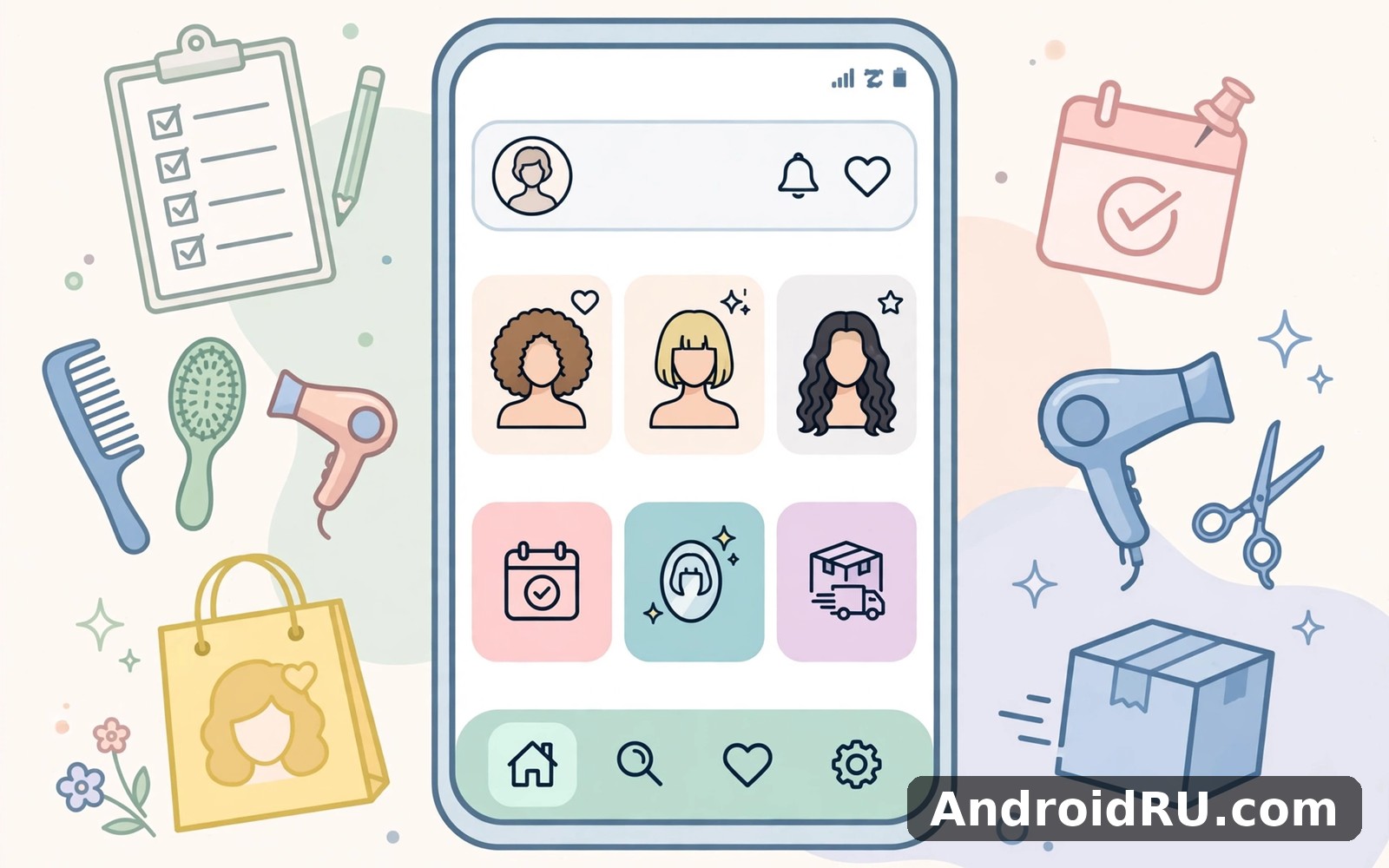
The screen layout is the first thing you notice, and it deserves the attention because it decides whether the app feels like a tool or a chore. Wig Studio 1 uses a simple three-zone layout: the preview takes up the top two-thirds of the screen, a style strip sits just below it, and a slim toolbar holds the editing controls. Your eyes go to your face first, which is exactly where they should go when you are judging a hairstyle.
That layout stays consistent across the main screens. The home screen, the editor, and the saved-looks gallery all keep the same top bar, the same back button position, and the same bottom strip. I never had to relearn the app after a gap of a few days, and that consistency matters more than any single feature. A steady layout builds muscle memory, and muscle memory is what turns a novelty app into one you actually open twice.
Home Screen at a Glance
The home screen opens on your most recent look, or on a sample model photo if you have not loaded one yet. A large preview sits in the middle, with a row of style categories underneath: short, medium, long, curly, straight, braided, and fantasy colours. Tapping a category filters the strip below it, so you see only the styles in that group instead of scrolling through everything at once.
Two buttons sit at the top of the home screen, and they do most of the heavy lifting. One opens your camera or gallery to load a new photo, and the other opens your saved looks. I liked that there was no sign-up wall before I could try a style. You can test the core idea of the app within thirty seconds of opening it, and that low-friction start is rare enough to praise.
Loading Your First Photo the Right Way
A good try-on starts with a good photo. Use a front-facing shot in even light, hair pulled back, face straight to the camera, and a plain background if you can manage it. I tested with a bright window-lit selfie and a dim evening shot, and the difference was clear: the bright photo let the wig sit naturally on my head, while the dim one made the edges look pasted on. Take thirty seconds to get the photo right and the rest of the app works far better.
Where the Editing Tools Live
Once a style is on screen, the editing tools appear in a bottom toolbar with clear icons for move, resize, rotate, and flip. Dragging the wig with one finger moves it, pinching with two fingers scales it, and a small rotate handle lets you tilt it to match a head that is not perfectly level. The controls are large enough to use with one hand on a bus, which is where I did most of my testing.
A second row of tools handles colour and fit. You can shift the shade, adjust brightness, and nudge the wig forward or back so the hairline sits where your own hairline would be. These are small controls, but they make the difference between a convincing preview and a sticker slapped on a face. I spent most of my editing time on fit, not on picking styles, and that tells you where the real work happens.
Adjusting the Fit Slider Step by Step
Start by scaling the wig until its width matches your face, then drag it down until the front edge sits just above your eyebrows, then rotate it a touch if one side sits higher than the other. Check the result at arm’s length rather than with your nose to the screen, because a preview that looks fine up close can look lopsided from a normal viewing distance. Save the look, step away for a minute, then look again with fresh eyes before you decide you love it.
Wig Studio 1 Feature Highlights Worth Your Time
The feature list is shorter than some rivals, and I think that is a deliberate choice rather than a gap. Wig Studio 1 focuses on the try-on loop: pick a style, fit it, change the colour, save it, compare it. Everything else is kept light so the core loop stays fast. Here are the highlights that earned their place in my daily routine.
One feature I kept coming back to was the side-by-side compare view. You can hold two saved looks next to each other and flip between them, which is far more honest than judging styles one at a time from memory. A bob that looked great alone suddenly looked plain next to a layered cut, and a bold red that felt too much on its own looked balanced beside a softer auburn. Comparison is where decisions get made, and this app makes it easy.
Virtual Try-On and Face Fit
The virtual try-on preview is the heart of the app. You pick a wig from the catalogue, it appears over your photo, and you adjust it until it sits right. The app does not claim to map your face in three dimensions, and it does not need to: a well-placed two-dimensional overlay, fitted by hand, gives a fair sense of length, volume, and shape. I found the fit good enough to rule styles in or out, which is the honest job of a try-on tool.
Face fit works best when you follow the photo advice above. A straight-on photo gives the overlay a fair chance, while a photo taken from below or at an angle will fight you at every step. The app lets you flip a style left to right, which helps when your parting sits on one side, and the resize range is generous enough for both narrow and wide faces. It is not magic, but it is honest, and honest tools are easier to trust.
Colour, Length and Texture Controls
Colour is where the app gets playful. The catalogue covers natural shades from jet black through browns and blondes to grey, plus a fantasy range of pink, blue, purple, and green for costume and cosplay looks. Changing colour on the same cut is instant, so you can test a blonde bob against a brunette bob in seconds. I tried a copper shade I would never have picked in a shop, and it looked far better on screen than I expected.
Length and texture controls are simpler than the colour tools, and that is the one place I wanted more. You can pick a different style for length, but you cannot stretch a short cut into a long one, and curls stay as curled as the catalogue made them. That limit keeps the catalogue honest: what you see is a real style, not a warped version of another one. The trade-off is real, though, and I cover it in the cons section below.
Saving and Sharing Your Looks
Saved looks live in a gallery that keeps your photo, the style name, and the colour you chose. You can name a look, delete the ones that did not work, and share a finished image to a messaging app or social feed. Sharing exports a flat image, so the person who receives it sees the finished preview rather than an editable project. I shared three looks with a friend before a party, and her replies helped me pick faster than an hour of solo scrolling ever would.
Trying Wigs, Colours and Styles in Wig Studio 1
A good way to use the app is to treat it like a shortlisting tool, not a final judge. Run through ten styles quickly, save the three that surprise you, then compare those three slowly. That two-pass method stopped me from falling in love with the first decent bob I saw, and it gave the bolder styles a fair hearing. Most people pick too fast; the app rewards a slower second pass.
I also learned to test each saved look in different light. A style that looked rich and full in bright daylight can look flat under warm indoor light, and the app preview changes with the photo you load, not with the room you are standing in. Load two photos of yourself, one indoors and one outdoors, and try the same style on both. If it works in both, it is a keeper.
Short Cuts That Suit Round and Oval Faces
Short styles are where the preview is most convincing, because there is less hair to place and fewer edges to hide. A pixie cut and a chin-length bob both sat neatly on my test photos, and the hairline control did most of the work. If you have a round face, try a bob with volume at the crown; if you have an oval face, most short cuts will sit well, so judge on colour and texture instead of shape.
Long, Curly and Braided Looks for Special Occasions
Long styles need more patience. The overlay is bigger, the edges are longer, and a small tilt at the top becomes a clear lean at the shoulders. Take the extra minute to line up the parting and check both shoulders in the preview. Braided styles look best on photos with a plain background, because a busy background fights with the braid detail. For a wedding or a costume, these are the looks worth the extra fitting time.
Bold Colours Without the Commitment
The fantasy colour range is the most fun corner of the catalogue, and it is also the most practical. Dyeing your hair pink is a weekend of work and weeks of upkeep; previewing pink takes ten seconds. I tried a deep blue on a long straight style and a pastel pink on a bob, and both taught me something: blue suited the length, pink suited the cut, and neither suited me enough to buy. That is a useful answer, and it cost nothing.
Wig Studio 1 vs Whiteboard Drawing Studio vs Shop the Blu Studio vs Fashion Nova
These four apps are not direct rivals in the usual sense, and that is exactly why the comparison is useful. They all touch the same part of your day: trying a look, sketching an idea, or shopping for a style. If you enjoy everyday creative tasks on Android, you will probably meet all four sooner or later, so it helps to know which one does which job.
If you enjoy everyday creative tasks on Android then Whiteboard Drawing Studio is a natural next app to try. It offers a different angle on the same kind of activity, leaning toward drawing and sketching rather than photo try-on. When you want a change of pace then Shop the Blu Studio covers that need neatly, with a shopping angle that Wig Studio 1 does not try to match. And for a third option Fashion Nova Trendy Shopping is worth a look as well, especially if the look you previewed in Wig Studio 1 needs an outfit to go with it.
| App | Main job | Best for |
|---|---|---|
| Wig Studio 1 | Virtual wig and hairstyle try-on over your photo | Shortlisting cuts and colours before buying |
| Whiteboard Drawing Studio | Drawing, sketching, and visual notes on a blank canvas | Sketching a style idea freehand |
| Shop the Blu Studio | Browsing and shopping studio-style products | Finding products tied to a look |
| Fashion Nova | Trendy fashion shopping with outfit ideas | Building an outfit around a new hairstyle |
| Wig Studio 1 | Saved-look compare view for side-by-side judging | Choosing between two close finalists |
| Whiteboard Drawing Studio | Freehand canvas with no photo needed | Quick idea capture anywhere |
The table makes the split clear. Wig Studio 1 is the only one of the four that answers the question “how would this look on me?” with your own face in the frame. Whiteboard Drawing Studio answers a different question: “what does this idea look like when I sketch it?” Shop the Blu Studio and Fashion Nova answer the shopping question that comes after you have picked a look. They work as a chain rather than as rivals: preview the hair, sketch the idea, then shop the outfit.
That said, the chain has a weak link. Moving a saved look from Wig Studio 1 into another app means exporting a flat image and starting again, because there is no shared project format. I exported a preview, opened it in a drawing app to scribble notes on it, and it worked, but it felt like a workaround rather than a designed flow. If you use more than one of these apps, expect to carry images between them by hand.
Pros and Cons of Wig Studio 1 After a Week of Use
After a week of short daily sessions, the pattern is clear. The app is at its best when you use it for shortlisting, and it strains when you ask it to be a full styling studio. Both sides of that story deserve a fair hearing, so here they are without varnish.
Pros of Wig Studio 1
- Calm, consistent screen layout: the preview stays large, the tools stay in the same place, and new users find their way in minutes.
- Fast try-on loop: pick a style, fit it, change the colour, and save it in under a minute once you know the gestures.
- Side-by-side compare view: judging two saved looks together leads to better decisions than judging them one at a time from memory.
- No sign-up wall before trying: you can test the core idea on your own photo before creating any account.
- Honest preview: the overlay shows a fair sense of length, volume, and shape without pretending to be a salon mirror.
Cons of Wig Studio 1
- Catalogue depth is limited: the style range covers the popular cuts well, but unusual lengths and textures are thin, and you cannot stretch one style into another.
- Fit depends heavily on your photo: a poor photo gives a poor preview, and the app cannot rescue a shot taken at a bad angle.
- No fine detail editing: there is no strand-level control, no lighting match for the wig, and no way to blend the hairline beyond the basic controls.
- Export is a flat image only: saved looks cannot be reopened as editable projects, so a small change means starting the fit again.
Who Wig Studio 1 Is For and Who Should Skip It
Wig Studio 1 suits anyone standing in front of a decision: a new cut, a first wig, a costume, a wedding look, or a colour change they are nervous about. It suits people who want a quick visual answer before they spend money, and it suits friends helping each other choose, because a shared preview beats a long description. If you like trying things visually before you commit, this app earns its place on your home screen.
It suits casual users more than professionals. A salon stylist who needs exact colour matching and client records will find the tools too light, and a cosplayer who needs precise wig styling references may want a larger catalogue. That is not a failure of the app. It is a sign that the app knows its audience: everyday people making everyday style choices, not a pro toolkit dressed up as a toy.
One more group worth naming is the nervous beginner. I tried the app with a friend who is less confident with phones, and they managed the main feature without my help. The large preview, the clear icons, and the forgiving undo made the first session feel safe. An app that works for a nervous beginner will work for almost anyone, and that simplicity is a real strength here.
Practical Tips, Settings and Troubleshooting for Wig Studio 1
A few small habits make the app far more useful than the defaults suggest. First, keep your sessions short and regular rather than long and rare. Ten minutes a day for a week teaches you more about your own taste than a single hour on a Sunday. Second, save more looks than you think you need, then delete ruthlessly at the end of the week. The gallery is a shortlist, not an archive.
Check the reminder and daily goal settings together in your first week if the app offers them, and set them to a calm slot in your day. A reminder that arrives at a busy hour will get ignored and then resented, while one that arrives with your morning coffee gets acted on. I linked my session to my morning coffee, and that anchor did most of the work. When coffee happened, practice happened too.
Fixing a Wig That Looks Pasted On
If a style looks pasted on, the cause is usually fit, light, or photo angle, in that order. Check the fit first: scale the wig to your face width, drop the hairline to just above your eyebrows, and rotate it until both sides sit level. Then check the photo: a bright, straight-on shot fixes more problems than any slider. If the wig still looks wrong, try a different style in the same family rather than forcing the one you first picked.
When the App Feels Slow or a Feature Lags
If a feature seems slow, check your connection before you blame the app. I learned that lesson on a weak signal day on the bus, and once the signal improved the app felt fast again. A restart of the app fixed the one freeze I saw, and clearing a little space on a nearly full phone helped too. Nothing I met felt serious or permanent, and most issues I met were solved by a simple change in settings or a fresh photo.
Keeping Your Saved Looks Tidy Over Time
Once a month, open the saved-looks gallery and delete anything you have not looked at in weeks. A short list you trust beats a long list you never revisit, and a tidy gallery makes the compare view far more useful. Take a screenshot of a setting or a look you love, so you can rebuild it quickly if an update ever moves things around.
Backing Up Work You Care About
Back up any important work inside the app when that option exists. A quick export or save now can save frustration later, and I make it a habit to check save options in week one. That habit has rescued me more than once on other apps, and it costs less than a minute here.
Wig Studio 1 FAQ and Final Verdict
The questions below are the ones I asked myself during the week, and the ones friends asked when I showed them the app. Each answer adds something the sections above did not spell out, so read them as a second pass rather than a repeat.
Is Wig Studio 1 good for choosing a real wig before buying one?
Yes, for shortlisting. The preview shows length, volume, shape, and colour well enough to rule styles in or out, and the compare view helps you pick between finalists. It will not tell you how a wig feels, how it fits your head size, or how the fibre behaves in heat, so treat it as step one and check the seller’s size guide and fibre details before you buy.
Can I try bold colours in Wig Studio 1 without dyeing my hair?
Yes, and that is one of the best uses of the app. Pick a cut you like, switch through the fantasy shades, and save the ones that surprise you. A colour that looks loud in the catalogue can look balanced on your face, and a colour you were sure about can look wrong in seconds. Testing first costs nothing and saves a dye job you might regret.
Why does my wig preview look fake on some photos?
Most fake-looking previews come from the photo, not the app. A dim photo, a tilted head, or a busy background all fight the overlay. Retake the photo in even light, face straight to the camera, hair pulled back, and try again. If it still looks off, scale the wig down slightly and nudge the hairline up a touch; most overlays look better a little smaller than you first think.
Does Wig Studio 1 work offline?
The core try-on works with styles already loaded on your phone, so a short session on a bus or a plane is fine once the catalogue has loaded. New styles and some gallery features need a connection, so load the styles you want to test while you have signal, then try them at your leisure. I finished a session on a bus with a dropping connection and lost nothing.
Which app should I use alongside Wig Studio 1?
Pair it with a drawing app for notes and a shopping app for the outfit. Click here to download the Whiteboard Drawing Studio app if you want to sketch ideas over a saved preview, and Click here to download the Shop the Blu Studio app when you want to shop for pieces that match the look. Each app does one job well, and together they cover the full path from idea to outfit.
When you are ready to give it a proper try, use the link below. It takes you straight to the Wig Studio 1 page on AndroidRU. Click here to download the Wig Studio 1 app. I suggest trying it for a full week before you judge it, with a fresh photo, three saved looks, and one honest compare session at the end. A week of short sessions shows the real character of an app, and this one passed that test for me: a calm layout, a honest try-on loop, and a shortlist you can trust before you spend a penny.

