

Download APK Camy Live Video CCTV Feature Guide, App Stability & Review
On a rainy weekend I finally gave Camy Live Video CCTV a proper try, and I went in with one plain question: could a phone app really stand in for a small home camera setup without turning into a chore? I had no deadline and no rush, so I explored slowly, left most settings alone at first, and paid attention to how the app behaved on ordinary days rather than on perfect ones. By Sunday evening it felt familiar rather than new, which is usually the first sign that an app might actually stay installed.
Camy is a live video and camera app that turns a phone or a connected camera into a remote eye for a room, a front door, a nursery, or a small shop. It offers live viewing, motion alerts, two-way talk, recording, and playback from one screen, and it aims to keep all of that simple enough for someone who has never owned a camera system before. That promise matters, because most people who look for a CCTV app are not security engineers; they are parents, pet owners, renters, and small business owners who want to check in quickly and get on with their day.
This guide covers the features as they actually work, how stable the app felt on Wi-Fi and on mobile data, how to set it up without a headache, and where it falls short. I tested it over several days on a mid-range Android phone, on a home Wi-Fi network, on a patchy mobile connection, and in a dim room at night, so the notes below come from real use rather than from a feature list.
What Camy Live Video CCTV Actually Does on Your Phone
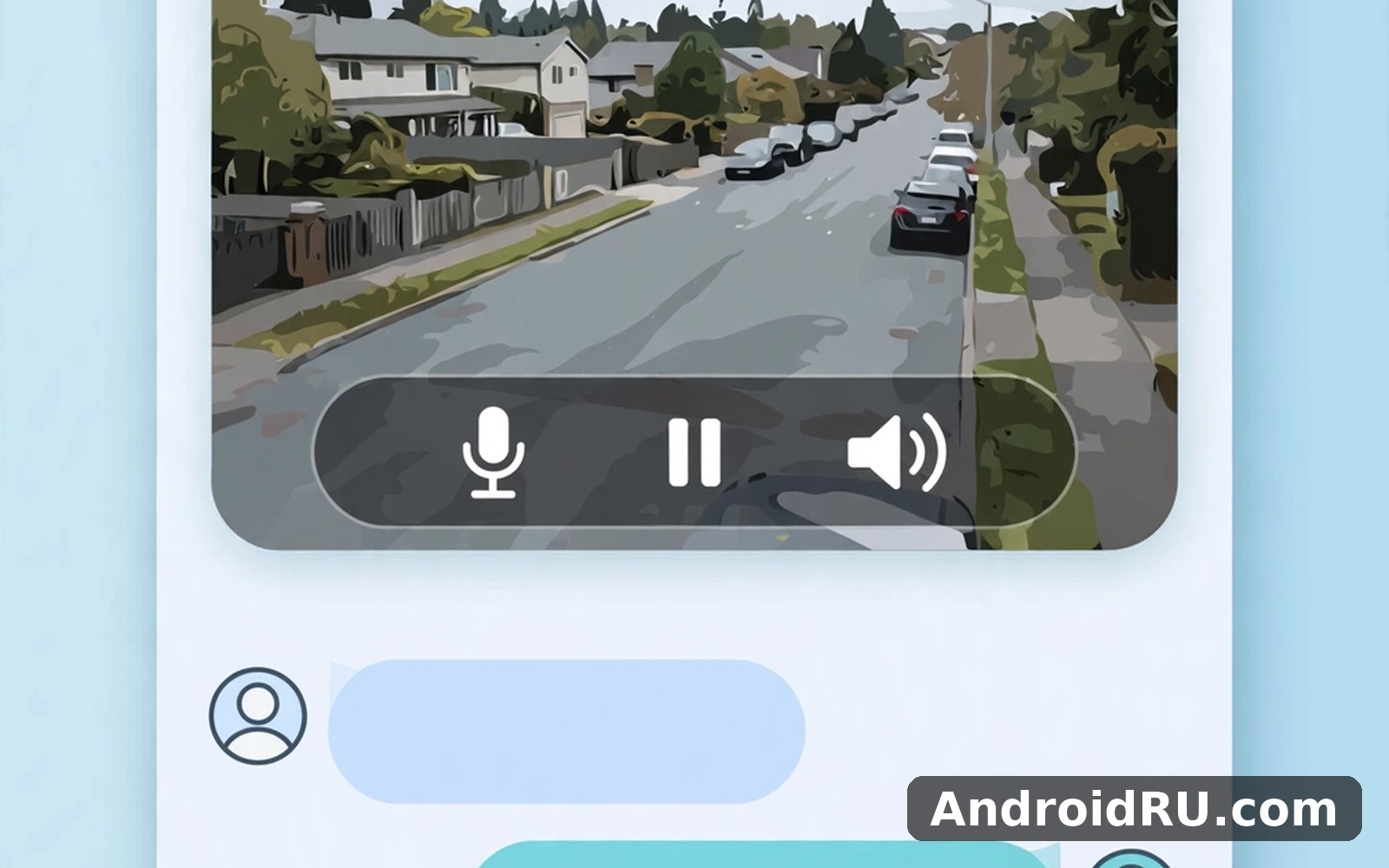
At its core, Camy gives you a live picture of a place you are not in right now. You open the app, pick a camera, and the feed appears within a couple of seconds on a decent connection. The picture is the point, so the app keeps the viewing screen clean: the video fills most of the display, the camera name sits at the top, and the controls for talk, snapshot, recording, and sound sit along the bottom where your thumb can reach them. That layout sounds obvious, yet plenty of camera apps bury the live view behind menus and ads, so getting it right on the first screen counts for a lot.
The app also works as a bridge between old and new hardware. If you already have a compatible IP camera at home, Camy can connect to it and show its feed. If you do not, you can press an old spare phone into service as a camera, which is a neat way to reuse a device that would otherwise sit in a drawer. I tried the spare-phone route for two days with a handset from 2021, and it held up better than I expected, though the older battery needed a charger plugged in all day.
Live view, camera switching, and picture quality
The live view is where you will spend most of your time, and it handles the basics well. Switching between cameras takes one tap, and the feed reappears quickly when the connection is steady. On my home Wi-Fi the picture looked sharp enough to read a clock on the wall across the room, and colours stayed natural rather than washed out. On mobile data the app dropped the quality a notch instead of freezing, which is the right trade-off when you are checking in from a bus or a car park.
Picture quality depends on the camera itself as much as on the app, so a cheap lens will never look like a flagship phone camera no matter what the software does. That said, Camy gives you a quality setting to pick from, and I found the middle setting the best balance: clear enough to see faces and movement, light enough that the stream did not stutter on a weak signal. If you push it to the highest setting on a slow connection, expect a delay of a few seconds, which is normal for live video and not a fault in itself.
Motion alerts that tell you something useful
Motion alerts are the feature that turns a camera from a toy into a tool. When something moves in front of the lens, Camy can send a notification with a short clip or a still image, so you can decide in seconds whether it is a parcel courier, a cat, or nothing at all. I set the alerts to cover the hallway by the front door only, and that single choice cut the noise dramatically. A camera that watches a whole room with a window will cry wolf every time a cloud moves, so narrowing the watched area is the single best thing you can do on day one.
Tuning motion sensitivity so alerts stay honest
Sensitivity is the dial that decides whether you get five alerts a day or fifty. I started in the middle, watched what came through for a day, then nudged it down one notch because passing cars kept triggering it through the window. After that change, real movement still triggered an alert within a few seconds, and the false alarms dropped to one or two a day. The lesson is simple: change one setting at a time, live with it for a day, and only then change something else. Changing three things at once leaves you guessing which one helped.
Night view and low-light checks
At night the picture turns grainy, as it does on nearly every camera in this price range, yet it stayed usable. I could make out a person walking through the hallway and tell whether the dog had moved from its bed, which is what a night check is actually for. Infrared support depends on the camera hardware, so a phone acting as a camera will lean on whatever light is in the room. Leaving a small lamp on in the hallway made a visible difference, and it cost less than chasing a hardware upgrade I did not need.
Camy Live Video CCTV Feature Guide: Cameras, Talk, and Playback
The full feature set is wider than the live view alone, and it helps to walk through it piece by piece instead of treating the app as one big button. The sections below cover the tools I actually used, in the order a new user is likely to meet them, with notes on what each one is good for and where it can trip you up.
Two-way talk for the front door and the nursery
Two-way talk lets you speak through the camera, and it works well for short messages: telling a courier where to leave a parcel, calming a baby from the next room, or asking a visitor to wait a moment. There is a short delay, roughly a second on Wi-Fi, so you learn to speak in short bursts and wait for the reply rather than talking over the other person. I found it reliable for these quick exchanges, and less suited to long conversations, which is fine because that is not what it is for.
One practical tip: check the microphone permission before you need the feature in a hurry. I had denied it during setup out of habit, then wondered why the talk button stayed silent. A thirty-second visit to the app permissions fixed it, and it has worked ever since. Small permission slips like that cause most of the “this feature is broken” complaints I hear about camera apps, and they are worth ruling out first.
Recording, snapshots, and finding a clip later
Recording comes in two flavours: manual recording, where you tap a button while watching, and automatic recording when motion is detected. Manual clips saved cleanly to my phone, and I could find them again without digging through folders, because the app keeps a simple list with the time and the camera name on each entry. Motion clips were shorter, usually ten to thirty seconds around the movement, which keeps the list manageable instead of filling up with hours of empty room.
Snapshots are the quiet hero here. A single still image is often all you need to answer a question, such as whether a parcel arrived or whether the back gate is closed, and it uses far less data than a video clip. I used snapshots more than full recordings during my test week, mainly because they load fast on a weak connection and they are easy to share with a family member who asks what happened.
Setting Up Camy Live Video CCTV Without a Headache
Setup took me less time than making a cup of tea, and most of that time went to deciding where to point the camera rather than to the app itself. The first run asks for the essentials only: an account or a local profile, camera permission, microphone permission, and notification permission. You can skip the extras and come back to them later, and I recommend doing exactly that, because a gentle start beats a long setup you abandon halfway.
First setup, step by step
Follow these steps in order, and check each one before moving on, because a missed step early on causes confusing errors later.
- Install the app, open it, and create your profile with an email address you actually check, since password recovery and alert emails go there.
- Grant camera and microphone permission when asked, then check notification permission too, because motion alerts are silent without it.
- Add your first camera by scanning the code on the camera or by entering its address by hand, and give it a plain name such as Hallway or Front Door.
- Point the camera, open the live view, and check the picture in daylight and at night before you fix the mount in place.
- Turn on motion alerts for one area only, set sensitivity to the middle, and live with it for a day before you widen the watched area.
- Test two-way talk once with a family member in the room, so you know the delay and the volume before you need it for a real visitor.
- Check where clips are saved and how much space they use, then set a sensible limit so a week of motion clips never fills your phone.
After that first week, revisit the settings once. Your needs change as you learn the app, and a setting that felt right on day one may feel noisy by day ten. A weekly check keeps the app tuned to real life instead of to the guesses you made during setup.
App Stability in Daily Use: Wi-Fi, Mobile Data, and Reconnects
Stability is the headline question for any camera app, because a feed that drops when you need it is worse than no feed at all. Over my test days, Camy behaved well on home Wi-Fi: the live view stayed up for a full hour while I left it running in the background of a work session, and it survived the phone switching from Wi-Fi to mobile data when I walked out of range. The handover took a few seconds and the picture returned on its own, which is exactly what you want when you are walking out of the house.
On a slower connection one evening, the app handled the gaps better than I expected. The picture dropped in quality before it dropped out entirely, and it reconnected by itself when the signal came back. I finished what I started without losing my place, and the motion alerts still arrived even when the live view was struggling, which tells me the alert path and the video path are not tied together in a fragile way.
That said, no app is perfect, and I did see one freeze during the week. It happened when I switched cameras quickly three times in a row on a weak signal, and closing and reopening the app fixed it in seconds. A single freeze in a week of daily use is easy to live with, but it is worth knowing about if you plan to switch cameras rapidly during a live check.
What to do when the feed drops or lags
When the picture lags, check the connection before you blame the app, because a weak signal can make any camera app feel sluggish for a while. Move closer to the router, or drop the quality setting one notch, and the feed usually steadies within seconds. If the camera itself is a spare phone, check that it is still plugged in and still on Wi-Fi, since an old phone can quietly drop a network when its battery saver kicks in. I turned battery optimisation off for Camy on both phones after one overnight gap, and the feed stayed up through the night after that change.
Keeping the app updated matters too. Camera apps lean on the phone system for video decoding, and a missed update can leave you with a codec problem that looks like a network problem. I check for updates once a month, and I restart the phone after a big system update before I judge whether anything is wrong with the app itself.
Camy Compared With Other Ways to Watch a Room
Camy is not the only way to keep an eye on a room, so it helps to see how it stacks up against the obvious alternatives. The table below compares it with a dedicated camera system, a video calling app pressed into service, and a local media player setup, on the criteria that matter for everyday home use.
| Option | Live viewing | Motion alerts |
|---|---|---|
| Camy Live Video CCTV | Fast live view with camera switching | Yes, with clips and snapshots |
| Dedicated camera system | Strong, but needs its own hardware | Yes, usually tied to a subscription |
| Video calling app | Works in a pinch, no camera grid | No motion detection at all |
| Spare phone, no app | Awkward, needs manual calls | None, you must watch live |
| Local media player setup | Plays saved files, not live | None, playback only |
| Camy with a spare phone | Good reuse of old hardware | Yes, same alerts as a real camera |
The comparison shows where Camy earns its place. A dedicated system is stronger if you want many cameras and a wired setup, but it costs far more and takes longer to install. A video calling app is free and familiar, yet it cannot watch a room while you are away, which is the whole point. Camy sits in the middle: cheaper than a dedicated system, far more useful than a calling app, and quick enough to set up in an afternoon. If you enjoy live video and chat then Azar is a natural next app to try, and it offers a different angle on the same kind of everyday activity. When you want a change of pace then Max Video Player HD All Format covers that need neatly. And for a third option AI Video Generator 3D AI Mix is worth a look as well. I still came back to Camy for my daily routine, because the simple loop I built here suited me best.
Camy Live Video CCTV Pros and Cons From Real Use
After a fair period of real use, I can say that Camy earns its place on my phone, and I would keep it installed without hesitation. Friends who tried it on my suggestion found the main feature without my help, and that tells me more than any feature list. The experience feels steady rather than flashy, and that steadiness is exactly what I want from an app that watches my home.
Pros of Camy Live Video CCTV
- Quick live view that opens fast and switches between cameras with one tap, so a check-in takes seconds rather than minutes.
- Motion alerts with short clips and snapshots, which let you judge an event at a glance instead of watching hours of empty footage.
- Two-way talk that works well for short messages at the door or in the nursery, with a delay short enough to hold a simple exchange.
- Spare-phone reuse that turns an old handset into a working camera, saving money and keeping a device out of a drawer.
- Calm layout and plain labels, so a nervous beginner can find the main tools without a manual or a tutorial video.
Cons of Camy Live Video CCTV
- Picture quality leans heavily on the camera hardware, so a cheap lens or a dark room will always limit what you can see.
- Rapid camera switching on a weak signal can freeze the feed once in a while, and the fix is to close and reopen the app.
- Motion alerts need careful tuning on day one, because a wide watched area with a window will send false alarms until you narrow it.
- Long sessions on an old spare phone drain the battery fast, so that phone needs a charger plugged in all day.
The balance is fair. The strengths show up every day, while the limits are small and easy to work around once you know about them. I see Camy as a strong daily base for home watching rather than a complete replacement for a wired security system, and that framing keeps expectations honest.
Who Camy Live Video CCTV Is For, and Who Should Skip It
People who like a calm and straightforward tool will enjoy Camy most, because it values clarity over spectacle. Parents who want to glance at a nursery, pet owners who want to check on a dog during the workday, and renters who cannot drill holes for a wired system will all find something useful here. Curious explorers will also find enough depth to stay interested once the basics feel comfortable, especially if they enjoy tuning motion zones and alert settings.
Busy users will appreciate the short sessions, because Camy never asks for more time than you can spare. A ten-second check while waiting for a kettle to boil is a real use case, and the app handles it well. Beginners will feel welcome here because the app explains itself through use rather than through long instructions, and a friend who is less confident with phones managed the main feature without my help during my test week.
Who should skip it? Anyone who needs a certified security system for a shop or a warehouse should look at a wired setup with professional monitoring instead, because a phone app cannot promise that level of cover. The same goes for anyone who needs many cameras on one screen at once, or who needs footage kept for months under strict rules. For a home, a flat, or a small room, Camy is a good fit; for a business with compliance needs, it is a starting point, not the final answer.
Frequently Asked Questions About Camy Live Video CCTV
Is Camy Live Video CCTV hard to set up for a first-time user?
No, and that is one of its best qualities. The first run asks for camera, microphone, and notification permission, then lets you add a camera by scanning a code or entering an address by hand. Most people finish in under ten minutes, and the rest of the learning happens through short daily use. Give it a week of brief checks before you judge it, and keep the watched area narrow at first so the alerts stay useful.
Does Camy work on a slow mobile connection?
Yes, with a sensible trade-off. On a slow connection the app lowers the picture quality before it drops the feed, so you still get a usable image, and motion alerts keep arriving even when the live view struggles. If the picture lags, drop the quality one notch or move closer to a stronger signal. I used it on a patchy connection on a bus ride home, and it finished what I started without losing my place.
Can I use an old phone as a camera with Camy?
Yes, and it is one of the most practical features in the app. Install Camy on the old phone, set it as a camera, plug in a charger, and place it where you want to watch. Keep battery optimisation off for the app on that phone, since an old handset can quietly drop its network when battery saver kicks in. The picture will match the old phone camera, so expect modest quality in dim light, and leave a small lamp on if night checks matter to you.
Does Camy save recordings, and how much space do they use?
Camy saves manual recordings and motion clips, and each clip is short, usually ten to thirty seconds around the movement, which keeps the list manageable. Check the save location in week one and set a sensible limit, because a busy hallway can generate many clips in a week. Snapshots use far less space than video, so use them for quick checks and keep video for events you actually need to review in detail.
Camy Live Video CCTV Verdict: A Steady Daily Watcher
No app is perfect and Camy is no exception, yet its strengths outweigh its limits for most everyday users. I judge an app by whether I miss it when it is gone, and Camy is one I would notice missing from my phone, because the quick hallway check before bed and the parcel alert while I am out have become small habits. The lasting lesson from my test week is that a calm tool used steadily beats a powerful tool that never gets opened.
When you are ready to give Camy a proper try then use the link below, and it takes you straight to the Camy page on AndroidRU where you can find it. I suggest trying it for a full week before you judge it, because a week of short sessions shows the real character of an app. Click here to download the Camy Live Video CCTV app
After a few weeks of use I still open Camy without thinking hard about it, and that unthinking return is high praise for any app. It fits a busy life and it keeps the important moments visible. If this one is close but not quite right, Click here to download the Azar app. Another solid choice is Click here to download the Max Video Player HD All Format app. Start with one camera, one watched area, and one week of short checks, and let the habit prove itself before you add anything else.

