

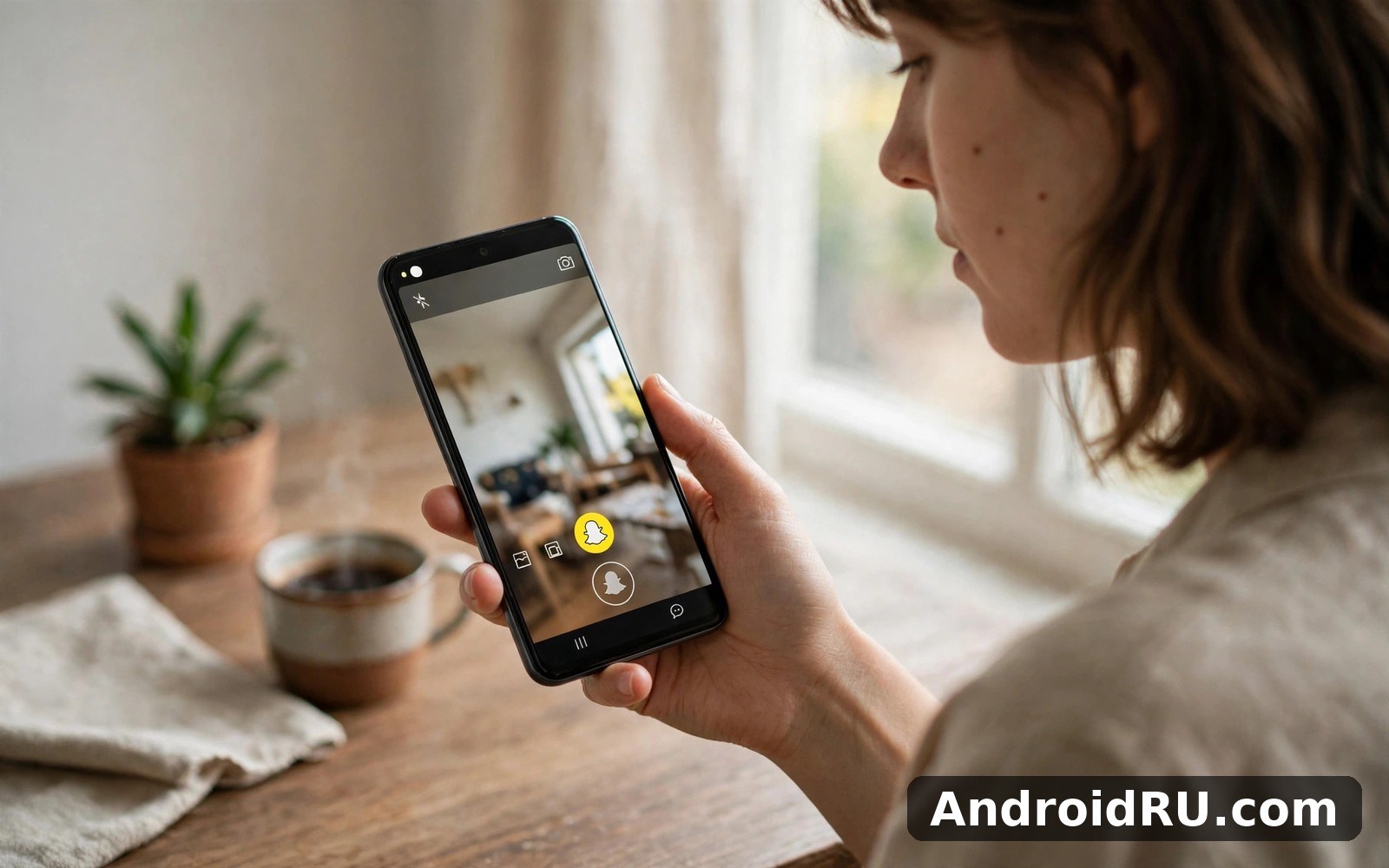
Download APK Snapchat Feature Guide, Known Issues & Review
Snapchat has been on my phone for years, and it still surprises me how often a small change in the app changes the way I talk to friends. A snap that disappears in seconds feels different from a message that sits in a chat forever, and that difference shapes everything from birthday wishes to quick questions about homework. I have used it on slow mobile data, on crowded Wi-Fi, and on a phone with almost no free space left, so I know where it shines and where it starts to fight back.
This guide walks through the features that actually matter, the problems people hit most often, and the fixes that worked for me. You will find real steps, not vague advice, and an honest review at the end that weighs what Snapchat does well against what still frustrates me. If you are new to the app, start at the top. If you are here because something broke, jump straight to the known issues section.
Snapchat is best understood as a camera-first messenger. The camera opens first, friends come second, and everything else hangs off those two ideas. That order explains why the app feels fast when you want to share a moment and slightly confusing when you want to find an old message. Keep that in mind and most of the design choices start to make sense.
Snapchat Features That Matter Most in Daily Use
The feature list looks long on paper, but only a handful of tools carry the daily load. Snaps and Chat handle most conversations, Stories handle the public side, and Memories quietly saves the things you want to keep. Lenses and filters add the playful layer, while Snap Map and Spotlight cover location and discovery. Knowing which tool does what saves you from tapping around in circles.
Snaps and Chat: The Core of Snapchat
A Snap is a photo or short video that you send to one person or a small group, and it disappears after it is viewed, unless you change the timer or save it to Chat. Chat messages work the same way by default, vanishing after 24 hours or after viewing, depending on your settings. I use Snaps for anything visual and Chat for anything that needs words, and that split keeps conversations tidy.
Inside Chat you can reply to a specific message by pressing and holding it, react with an emoji, send voice notes, and start a voice or video call without leaving the conversation. Group chats support up to 200 people, and you can name a group, add a Bitmoji for it, and mute it when it gets loud. One habit worth building: check the chat settings for each important conversation, because the delete timer is set per chat, not for the whole app.
Snapchat also shows when a friend is typing, when they opened your Snap, and when they took a screenshot. That last point matters. Nothing on Snapchat is truly private from the other person, since a screenshot or a second phone camera can capture anything. Treat disappearing messages as a tidy inbox, not as a vault.
Stories, Spotlight and Public Sharing
My Story is your public diary for the day. Snaps added to it stay visible for 24 hours, and your friends can view them, reply to them, or react with a quick emoji. I post to My Story when I want several friends to see the same thing without sending it five times. You can also create a Private Story for a smaller circle, and a Shared Story that friends can add to as well.
Spotlight is the short-video feed where anyone can go viral. It works like a scrolling reel of clips submitted by users, and Snapchat pays some creators whose clips perform well. Watching Spotlight is free and requires no posting at all, which makes it a decent way to pass ten minutes. Posting to Spotlight is worth trying if you already make short videos, since the audience is large and the format is simple.
Public Stories from publishers, celebrities and creators sit on the Discover screen. The mix there is hit and miss, and I often skip it entirely. If the Discover feed feels noisy, press and hold a tile and hide it, or simply ignore that tab and stay on the camera, Chat and Stories.
Snap Map and Location Sharing
Snap Map shows your friends on a map when they choose to share their location, and it also shows public Snaps from places and events around the world. Heat maps highlight busy spots, which can be handy before visiting a festival or a new restaurant. I check the map before meeting friends in a new part of town, since it shows who is already nearby.
Location sharing is off by default for new accounts until you choose otherwise, and you can pick who sees you: all friends, selected friends, or nobody. Ghost Mode hides your location from everyone while still letting you see the map yourself, and that is the setting I recommend for most people. Open Snap Map, tap the settings gear, and turn Ghost Mode on. You can also set it for three hours or 24 hours if you only want a short break from sharing.
Snapchat Memories and Saved Content
Snapchat Memories is the archive where Snaps and Stories you chose to save live after they disappear elsewhere. Swipe up from the camera to open it, and you will see Snaps, Stories, Camera Roll, and a section called My Eyes Only. My Eyes Only is a locked folder inside Memories that needs a passcode, and it is the only place in the app where a Snap is protected from a casual glance at your phone.
Memories backs up to your Snapchat account when you have backup turned on, which means a saved Snap can survive a phone change. Check the backup status inside Memories settings, because a Snap marked as not backed up exists only on your device. I learned this the hard way after a factory reset, and now I check the backup badge every few weeks.
Lenses, Filters and Bitmoji
Lenses are the face effects, world effects and games that appear when you tap the camera screen or press and hold on a face. Filters add colour, time, temperature, speed and location overlays after you take a Snap. The difference is simple: Lenses change the scene before you shoot, Filters decorate the result after you shoot. Both are free, and new ones appear every week.
Bitmoji is your cartoon avatar, and it appears in stickers, on Snap Map, and in Chat as a personalised reaction. Setting one up takes a few minutes and it makes the app feel like yours. You can change its outfit, hairstyle and pose later, and seasonal outfits appear around holidays.
My AI and Chat Extras Worth Knowing
My AI is the chatbot pinned at the top of Chat. It answers questions, suggests ideas, and can help plan a meal or a trip. It is handy for quick questions, but it is still a chatbot: double-check anything important, and never share passwords or financial details with it. You can unpin it or clear its conversation if you would rather not see it.
Chat also includes Cameos, where your face is pasted into short video clips, and stickers, GIFs and Bitmoji reactions. None of these are essential, but they make quick replies feel personal. If Chat feels cluttered, turn off Cameos in settings and the interface calms down at once.
How to Use Snapchat Step by Step
Getting started takes about ten minutes. Install the app, create an account with your birthday, email and a username, then verify your phone number. Your username cannot be changed easily, so pick something you can live with for years. Add friends by searching usernames, scanning a Snapcode, or syncing contacts, and remember that syncing contacts shares your address book data with Snapchat, so read the prompt before you agree.
Setting Up Your Account the Right Way
Open your profile by tapping your Bitmoji at the top left, then tap the gear to open Settings. Turn on two-factor authentication under Login Verification, set your contact preferences under Contact Me, and choose who can view your Story. These three screens take five minutes and they prevent most of the privacy headaches people complain about later.
Next, set your Chat delete timer. Open a chat, tap the name at the top, and choose Delete Chats. The options are After Viewing or 24 Hours After Viewing. I use After Viewing for most chats and 24 Hours for group chats where people read at different times. The timer applies to new messages from that point on, not to messages already sent.
Sending Your First Snap
Open the camera, tap the circle to take a photo or hold it to record a video up to 60 seconds. Swipe left or right to add a filter, tap the text icon to add words, and tap the sticker icon for Bitmoji, GIFs and emoji. Tap the blue arrow to choose who receives it, or tap My Story to post it publicly to your friends for a day.
Camera Controls Worth Learning Early
Double-tap the screen to switch between front and back cameras. Tap and hold to focus on a subject, and slide your finger up or down while recording to zoom. The flash icon toggles between on, off and automatic, and the timer icon gives you a three-second countdown for hands-free shots. These gestures work on most Android phones, though older devices can lag slightly when Lenses are active.
Chat Settings That Change How Messages Behave
Inside any chat, press and hold a message to save it, copy it, reply to it, or react to it. Saved messages stay visible in grey with a bookmark icon, and both sides can unsave them. Voice notes are recorded by holding the microphone icon, and you can swipe up while holding to lock the recording so you do not need to keep your finger down.
Snapchat Known Issues and How to Fix Them
Most Snapchat problems fall into a small set of causes: a weak connection, a full cache, an outdated app version, or a phone setting that blocks something the app needs. Work through the fixes in order, cheapest first, and test after each step instead of changing five things at once. That way you know which fix actually worked.
Login Problems and Account Locked Messages
If Snapchat says your login is temporarily disabled, it usually means too many failed attempts or a login from an unfamiliar device. Wait 24 hours before trying again, and do not keep guessing the password, since each failed attempt can extend the lock. Reset the password from the login screen using the email linked to the account, and check the spam folder if the reset email does not arrive within ten minutes.
If you see a message about a third-party app or plugin, remove any unofficial Snapchat tools from your phone and change your password. Snapchat locks accounts that use unauthorised apps, and the lock can become permanent if the behaviour continues. Two-factor authentication protects you here, because a stolen password alone is not enough to get in.
Camera Black Screen or Freezing Camera
A black camera screen on Android is usually a permission problem. Open your phone settings, go to Apps, find Snapchat, tap Permissions, and make sure Camera is set to Allow. Then force-stop the app, reopen it, and test the camera again. If the problem continues, clear the app cache from the same Apps screen, which removes temporary files without deleting your login or Memories.
On phones with heavy camera apps running in the background, another app may be holding the camera. Close the camera app and any video call app, then try Snapchat again. If the camera freezes only when a Lens is active, that Lens may be too heavy for your device, so switch to a simpler Lens or update the app to the latest version, since Lens performance improves with updates.
Snaps Not Sending or Stuck on Sending
A Snap stuck on sending almost always points to the network. Switch between Wi-Fi and mobile data and watch whether the Snap goes through on one and not the other. If it sends on Wi-Fi but not on mobile data, check that Snapchat has permission to use mobile data and that Data Saver is not blocking background data for the app.
Large video Snaps fail more often on weak connections. Try sending a photo first to test the connection, then resend the video. If a Snap stays stuck for more than a few minutes, delete it from the chat and record it again rather than waiting, since a stuck Snap can block the rest of the conversation queue.
Notifications Not Arriving
Missing notifications have three usual causes. First, check notification settings inside Snapchat: profile, gear icon, Notifications, and make sure the types you want are turned on. Second, check the phone settings for Snapchat notifications and confirm they are allowed and not set to silent. Third, check battery optimisation, because aggressive battery savers on some Android phones kill Snapchat in the background and delay notifications for hours.
On Samsung and Xiaomi phones especially, add Snapchat to the list of apps that are never put to sleep. The exact menu name differs by brand, but it is usually under Battery, Background usage limits, or Apps. After changing it, restart the phone once so the new setting takes effect cleanly.
App Crashing or Running Very Slowly
Constant crashing usually means the app data is corrupt or the version is too old for your Android version. Update Snapchat from the Play Store first. If it still crashes, clear the cache, then clear storage as a last step, knowing that clearing storage logs you out and removes downloaded Lenses that will need to download again. Memories backed up to your account are not affected, but anything marked as not backed up could be lost, so check backup status first.
Clear Cache the Safe Way on Android
Open Settings, Apps, Snapchat, then Storage, and tap Clear Cache. Do not tap Clear Data unless you have checked your Memories backup, since Clear Data wipes the local copy. Restart the phone after clearing the cache. This single step fixes more Snapchat problems than any other, and it takes less than a minute.
When the Problem Is on Snapchat Side
Sometimes the fault is not your phone at all. Snapchat has outages that stop Snaps from sending and Stories from loading for thousands of users at once. Search for reports of a Snapchat outage before you reinstall anything, and wait an hour if the problem is widespread. Reinstalling during an outage does not help and can cost you locally saved content.
Snapchat vs Instagram vs TikTok vs BeReal Comparison
These four apps overlap, but they serve different habits. Snapchat is a private camera messenger first. Instagram is a public photo and video network with messaging attached. TikTok is an entertainment feed built around short video discovery. BeReal is a small daily photo habit shared with close friends. Choosing between them is less about which is best and more about which habit you actually want.
| Feature | Snapchat | TikTok | BeReal | |
|---|---|---|---|---|
| Main habit | Private Snaps and Chat | Feed posts and Reels | Scrolling short videos | One daily photo |
| Messages disappear | Yes, by default | Only in vanish mode | No | No |
| Public discovery | Spotlight and Discover | Explore and Reels | For You feed | Discovery feed, limited |
| Location sharing | Snap Map with Ghost Mode | Location tags on posts | Location tags on videos | Optional location tag |
| Best for | Close friends, daily chat | Sharing photos publicly | Entertainment and trends | Honest daily moments |
| Biggest weakness | Finding old messages is hard | Algorithm-heavy feed | Easy to lose hours | Very small feature set |
The Spotlight feed is Snapchat answer to TikTok, but it is not the heart of the app. If you mainly want to watch short videos, TikTok does that job better. If you mainly want to keep in touch with a small group of friends, Snapchat does that job better than any of the other three. Many people keep two of these apps and use each for a different purpose, and that is a sensible setup.
Snapchat Pros and Cons After Extended Use
A fair review needs both sides. Snapchat earns its place through speed and privacy habits, and it loses points through search, discovery, and the way old content slips away. Here is how the balance looks after months of daily use.
Pros of Snapchat
-
Fast camera-first design: the camera opens at once, so capturing a moment takes one tap, not a menu hunt.
-
Disappearing messages keep chats tidy and reduce the pressure of a permanent record.
-
Strong privacy controls: Ghost Mode, Story audience settings, and two-factor authentication are all easy to reach.
-
Memories with My Eyes Only gives you a private archive that survives phone changes when backup is on.
-
Lenses and Bitmoji make everyday chats feel personal without needing any skill or editing.
Cons of Snapchat
-
Finding an old message or photo is painful, since most content disappears by design.
-
The Discover feed feels noisy and hard to tame, with too many tiles you never asked for.
-
Video quality can drop on older Android phones, especially with Lenses active.
-
Notifications can be delayed by battery optimisation on some Android brands.
-
Login locks after failed attempts can keep you out for a full day, which feels harsh when the cause was a typo.
Who Snapchat Is For
Snapchat fits people who talk to a small circle every day and prefer pictures to paragraphs. Teenagers and students use it as their main messenger, and it works just as well for families who share quick updates. It fits less well for people who need a searchable message history, for work teams who need files and records, or for creators who want a large public audience, since Spotlight is still smaller than TikTok for discovery.
If you take a lot of photos and hate cluttered inboxes, give it a week. If you need to find a message from three months ago, you will feel the limits within a day. Both reactions are honest, and they point to different needs rather than a good or bad app.
Snapchat Privacy and Safety Settings to Check Today
Privacy on Snapchat is a set of small switches, and most of them sit in the same place. Open your profile, tap the gear, and work through Contact Me, View My Story, See My Location, and Quick Add. Each one takes seconds, and together they decide who can reach you and what they can see.
Who Can Contact You and See Your Story
Set Contact Me to Friends Only unless you have a clear reason to accept messages from everyone. Set View My Story to Friends Only as well, and use Custom to exclude specific people if needed. Turn off Quick Add if you do not want strangers finding you through mutual friends. These three changes cut most unwanted contact at once.
Snap Map, Location and Two-Factor Authentication
Ghost Mode is the safest location setting, and it is the one I use. If you want friends to see you, choose Selected Friends instead of My Friends, and review that list every few months. Turn on two-factor authentication under Login Verification and save the recovery code somewhere safe, since losing both your password and your phone can lock you out for days.
Two-Factor Setup in Under Two Minutes
Open Settings, tap Login Verification, choose the SMS or authenticator app option, and follow the prompts. Save the recovery code in a password manager, not in a screenshot inside Snapchat itself. Test it once by logging out and back in, so you know it works before you actually need it.
Reporting and Blocking Without Drama
Press and hold any chat or Story, tap Manage Friendship, and choose Block or Report. Blocking is silent: the other person is not told. Reporting sends the content to Snapchat for review. Use both without hesitation when someone crosses a line, and remember that a screenshot of the offending message helps if you need to show a parent, teacher or moderator.
Snapchat Frequently Asked Questions
Why are my Snapchat messages disappearing so fast?
Messages disappear because of the delete timer on each chat. Open the chat, tap the name at the top, and check Delete Chats. After Viewing deletes messages once everyone has seen them, while 24 Hours keeps them for a day. Change the setting if you want messages to last longer, and remember that either person in a one-to-one chat can change it.
Does Snapchat notify the other person when I take a screenshot?
Yes, Snapchat notifies the sender when you screenshot a Snap or a chat message, and it shows a small icon next to the message. Screen recording is also detected in most cases. The notification is a feature, not a bug, and it is one reason people trust the app for casual sharing.
Can I recover a Snap that disappeared?
Usually not. A Snap that was viewed and deleted is gone from the chat, and Snapchat does not keep a copy you can fetch. The exception is content saved to Memories or saved in Chat by either side. If something matters, save it before it disappears, and check that Memories backup is turned on so saved content survives a phone change.
Why does Snapchat drain my battery?
The camera, location services and background refresh all use power, and Lenses add more. Turn off location when you do not need it, close the app instead of leaving the camera open, and check battery usage in your phone settings to see how much Snapchat actually uses. On most phones it settles to a normal level once background limits are set correctly.
Is Snapchat safe for younger users?
It can be, with the right settings. Turn on Ghost Mode, set Contact Me and View My Story to Friends Only, turn off Quick Add, and talk through what to do when a stranger messages. No app replaces that conversation, and the settings only work if someone checks them now and then.
Final Verdict on Snapchat
Snapchat does one thing better than almost any other app: quick, visual, low-pressure contact with close friends. The camera opens fast, the messages tidy themselves away, and the privacy switches are easy to find. The trade-off is real too. Old messages vanish, Discover feels noisy, and a few Android phones still struggle with the camera and notifications.
My advice is simple. Set up the privacy switches on day one, turn on Memories backup, and use it for a week with your closest friends. If the disappearing messages feel freeing, it will stay on your phone for years. If you keep wishing you could search last month chats, you have your answer, and another messenger will suit you better. Either way, you will know within a week.
Click here to download the Snapchat app
If you want a similar app to compare it with, Click here to download the Instagram app. For short video instead, Click here to download the TikTok app.

