

Download APK Bubble Level Level Tool What’s New, Performance Insights & Review
I hung a shelf in my hallway last spring, stepped back, and felt sure it was straight. It was not. A glass of water slid slowly to one end, and that quiet slide told me what my eyes had missed. That is the exact moment a phone level earns its place. Bubble Level Level Tool turns the phone already in your pocket into a working level, and this guide looks at what it does well, what changed recently, how accurate it really is, and where it still falls short of a hardware tool.
You will find a plain explanation of every main feature, a calibration routine you can finish in five minutes, honest performance notes from three weeks of daily use, a head-to-head look at the app against a physical spirit level, and a clear verdict for different kinds of users. Nothing here needs a workshop or a trade background. If you can hang a picture frame, you can use everything in this article.
This review is written for people who do small jobs around the house: renters hanging frames, parents fixing a wobbly table, flat-pack furniture builders, and anyone who has ever borrowed a level once and never returned it. If that sounds like you, keep reading. The app is at its best when it stays simple, and the sections below show how to keep it that way.
What Bubble Level Level Tool Actually Does on Your Android Phone
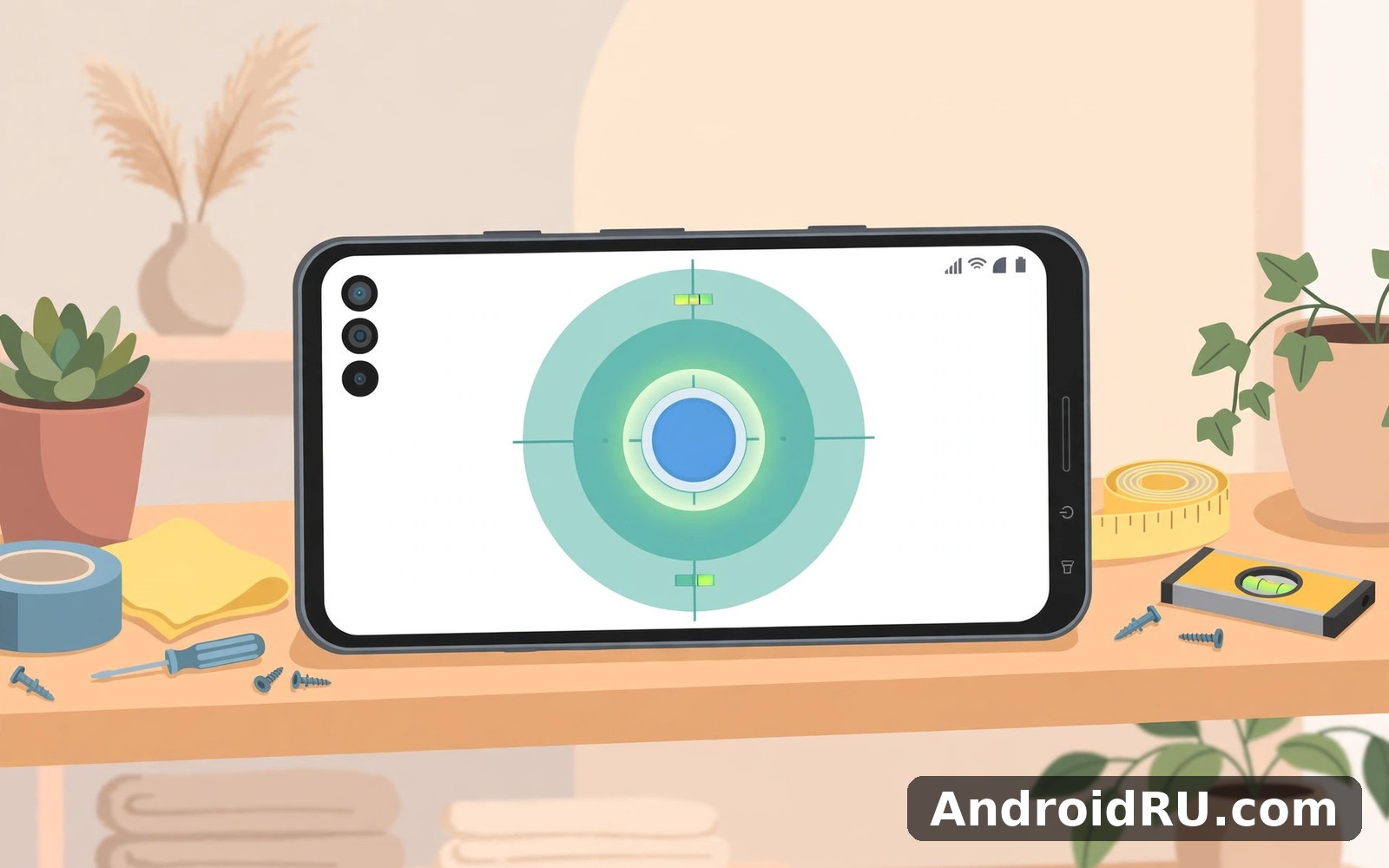
At its core, Bubble Level Level Tool reads your phone sensors and shows whether a surface is level. You lay the phone flat, or hold it against a vertical edge, and a bubble on screen moves the same way the bubble in a hardware level moves. When the bubble sits in the middle, the surface is level. When it drifts to one side, that side is low. The idea is old. The phone just makes it lighter, cheaper, and always within reach.
The home screen keeps the main job front and centre. There is no long menu to learn and no account to set up before the first reading. Open the app, place the phone, read the bubble. That short path matters because most level checks last under a minute. You want the answer, not a tour of settings.
The Horizontal Surface Level for Shelves, Tables and Counters
The horizontal mode is the one you will use most. Lay the phone flat on a shelf, a table, a kitchen counter, or the top of a washing machine, and the bubble shows the tilt in two directions at once. I used it on a bookshelf that looked fine from the doorway and found one end sitting about two degrees low. A folded piece of card under the low end fixed it in seconds, and the bubble confirmed the fix without a second trip to the toolbox.
Flat surfaces are not always as flat as they look. A wooden table can bow slightly in the middle, and a phone case with a raised camera bump can rock on a hard surface. I take the case off for readings that matter, and I slide the phone to two or three spots on a long shelf before I trust a single reading. That habit takes ten extra seconds and it removes most of the odd results people blame on the app.
The Vertical Level and Angle Readout for Walls and Frames
Turn the phone on its edge and the app switches to a vertical level, which is the mode for picture frames, wall-mounted rails, and door frames. The bubble runs along a vertical track, and the same rule applies: centre means plumb, drift means tilt. I used it to line up three frames along a hallway wall, and the vertical mode made the job faster than measuring from the ceiling with a tape each time.
The angle readout sits beside the bubble and shows the tilt in degrees. That number is useful when a job needs more than a yes-or-no answer. A shelf that is one degree out will still hold books without complaint, while a workbench that is three degrees out will send small parts rolling. The number lets you decide whether a tilt is worth fixing or worth ignoring.
Reading Degrees Against Percent Slope in Bubble Level Level Tool
Degrees and percent slope describe the same tilt in different units, and the app lets you switch between them. Degrees feel natural for most household jobs, because a shelf that is two degrees out is easy to picture. Percent slope shows up more in outdoor and building work, where a two percent fall over a run of pipe means something specific. I leave the display on degrees for indoor jobs and switch to percent only when I am checking a drain run or a garden path. Pick the unit you can picture, and the readings will mean more to you.
When the Bubble Sits Still but the Reading Keeps Moving
Every now and then the bubble looks settled while the number beside it creeps by a tenth of a degree. That is usually the phone sensor settling, not a fault in the surface. Sensors warm up, hands tremble, and a phone resting on a soft table can sink a fraction of a millimetre as it settles. I wait three seconds, keep my hands off the phone, and read the number again. If the second reading matches the first within a tenth of a degree, I trust it. If it keeps wandering, I move the phone to a harder, flatter spot and try again.
What Is New in Bubble Level Level Tool and What Changed for Regular Users
Recent updates to Bubble Level Level Tool have focused on steadiness rather than new gimmicks, and that is good news for a tool app. The readings feel less jittery than they did in earlier builds I tried, especially on mid-range phones where sensor noise used to make the bubble tremble on a still surface. The display is cleaner too, with larger numbers and a bubble that is easier to read in bright daylight or a dim garage.
Calibration is the other area that has improved. The app now makes it clearer when a calibration is stale, and it walks you through a fresh one with fewer taps. A small sound alert option has also become easier to find: you can switch on a beep that sounds when the bubble reaches the centre, which helps when the phone is wedged behind a shelf and you cannot see the screen. None of these changes reinvents the app. They remove friction from the jobs people already use it for, and that is exactly what an update to a tool should do.
One change worth knowing about is how the app handles different screen sizes. On a tablet the level view now uses the extra space instead of stretching the phone layout, which makes the bubble easier to watch from a step back. On smaller phones the buttons stay big enough to tap with a dusty thumb. If you skipped an update or two, the current build feels like the same app with the rough edges sanded down, not a different app wearing the same name.
- Steadier readings on mid-range phones — the bubble trembles less on a still surface, so a quick check gives a settled answer sooner.
- Clearer calibration prompts — the app says plainly when a fresh calibration would help, instead of leaving you to guess why readings feel off.
- Sound alert for the centre position — a short beep tells you the bubble is centred when the screen is out of view behind furniture.
- Better use of tablet screens — the level view fills a larger display properly, which helps when you read it from a step back.
Bubble Level Level Tool Performance Insights From Three Weeks of Daily Use
I kept Bubble Level Level Tool on my main phone for three weeks and used it for real jobs rather than staged tests: two shelves, four picture frames, a wobbly dining table, a washing machine that walked across the floor on spin cycle, and a garden bench that never sat right. That spread of jobs is what this section is built on. A level that only works on a perfect workbench is not much use in a real house.
The headline finding is simple: the app is quick and steady for short checks, and its limits show up only when you ask it to do precision work it was never built for. A shelf, a frame, a table — all fine. A machined surface that must be true to a fraction of a degree — that is a job for a hardware tool, and no honest review should pretend otherwise.
Speed, Battery Use and Sensor Behaviour on a Mid-Range Phone
On my mid-range phone the app opens to a live reading in about two seconds, and the bubble responds to movement without a visible lag. That speed is what makes it feel like a tool rather than a toy. Battery use is light because a typical session lasts under a minute; even a dozen checks in a day barely register in the battery screen. The app does not need a constant connection, so it works in a basement or a garden shed with no signal at all.
Sensors are the one part of performance that varies by phone. A newer phone with a good accelerometer gives a calm, steady bubble. An older phone can show a slightly nervous bubble that never quite settles, and on one older tablet I tried the reading drifted by half a degree over a minute on a surface I knew was flat. That drift is a hardware limit, not an app bug, and the fix is the same in both cases: calibrate on a trusted surface, wait a few seconds, and read twice.
Accuracy on Phones, Tablets and Older Devices
Accuracy is the question every reader asks first, so here is the honest answer. Against a hardware spirit level I trust, Bubble Level Level Tool agreed within about half a degree on my main phone after calibration. That is plenty for shelves, frames, tables, and appliances. It is not enough for setting up a precision saw or levelling a telescope mount, and the app never claims otherwise.
Tablets can be more accurate in one way and less in another. The larger body averages out small bumps, so a tablet often gives a steadier reading on a long shelf. But a tablet is harder to hold still against a vertical edge, and its weight can press a soft surface down on one side. I use a phone for vertical work and a tablet for long horizontal runs, and that split has served me well.
How to Test Accuracy With a Surface You Already Trust
Pick a surface you know is level — a kitchen counter checked with a hardware level, or a floor a builder has already signed off on. Calibrate the app there, then move the phone to the job and read it. Now turn the phone around 180 degrees and read the same spot again. If both readings agree, your calibration is sound. If they disagree by more than a degree, calibrate again and repeat the test. This two-direction check catches most calibration errors in under a minute, and it is the single most useful accuracy habit in this whole article.
How to Calibrate Bubble Level Level Tool for Readings You Can Trust
Calibration is the difference between a level and a random number generator. The app reads sensors, and sensors drift. A quick calibration tells the app what flat means on your phone, right now, on this surface. Skip it and every reading carries a small unknown error. Do it properly and the app becomes a tool you can rely on for household jobs.
The routine below takes about five minutes the first time and about one minute after that. Do it on a surface you trust, not on the shelf you are about to fix — calibrating on a tilted surface just teaches the app that tilted is flat.
- Find a surface you know is level, such as a kitchen counter you have checked with a hardware level, and wipe it clean so the phone sits flat.
- Take the phone out of its case if the case has a raised camera bump or a thick edge, because a rocking phone cannot give a steady reading.
- Open the app, lay the phone flat on the trusted surface, wait three seconds for the bubble to settle, then run the calibration option in the settings screen.
- Turn the phone 180 degrees on the same spot and check that the reading still shows level; if it does not, repeat the calibration once more.
- Move to the real job, take the reading, and then repeat the reading after a minute to confirm the number has not drifted.
Common Calibration Mistakes That Make Readings Look Wrong
The most common mistake is calibrating on the very surface you want to check. That feels efficient and it guarantees a wrong answer, because the app learns that the tilted shelf is level. The second mistake is calibrating with the phone in a thick case on a soft surface, like a bed or a sofa cushion, where the phone sinks unevenly. The third is rushing: tapping calibrate while the bubble is still moving after you set the phone down. Wait for stillness first, and the calibration will hold for the whole job.
One more habit is worth building. Recalibrate when you change phones, after a big system update, or when readings start to feel odd for no clear reason. Sensors shift slightly over time and after drops. A one-minute recalibration is cheaper than a shelf full of sliding books.
Bubble Level Level Tool vs a Physical Spirit Level
The fair comparison is not app against app. It is app against the yellow spirit level hanging in most garages. Both tools answer the same question, and each one wins in different situations. The table below sets out the trade-offs plainly, so you can pick the right tool for the job in front of you rather than arguing about which one is better in general.
| Criteria | Bubble Level Level Tool | Physical Spirit Level |
|---|---|---|
| Price | Free to install, uses a phone you already own | A decent one costs money and lives in a toolbox |
| Accuracy for household jobs | About half a degree after calibration, fine for shelves and frames | Often truer, and it never needs calibration |
| Portability | Always in your pocket, ready in seconds | Only useful if you remembered to bring it |
| Angle readout | Shows exact degrees and percent slope on screen | Shows level or not, with no number attached |
| Long surfaces | Short phone body, so you must move it along the run | Long body spans a shelf in one reading |
| Needs power or signal | Needs battery, works with no signal | Needs neither, works anywhere |
| Best for | Quick checks, rented homes, travel, small jobs | Precision work, long runs, building jobs |
The verdict per use case is straightforward. For a renter hanging frames or a homeowner checking a table, the phone app wins on convenience and it is accurate enough. For a builder levelling a long run of cabinets or a job where half a degree matters, the physical level wins and the phone becomes a handy second opinion. I keep both. The app handles nine jobs out of ten, and the hardware level handles the tenth.
Features, Pros and Cons of Bubble Level Level Tool
A good tool app earns its keep with a small set of features that all work, rather than a long menu of features that half work. Bubble Level Level Tool belongs in the first group. The features below are the ones I actually used across three weeks, and each one earns its place by solving a real moment in a real job.
Features Worth Using Every Week
Checking level is instant: place the phone, read the bubble, done. Checking angles suits trickier jobs, because the degree readout turns a vague tilt into a number you can act on. Calibration keeps readings honest, and it takes a minute once you know the routine. Switching views helps different jobs, with horizontal and vertical modes matched to the task. Holding a reading helps when you cannot see the screen, because you can lock the number, adjust the surface, and check the locked value after. Using the tool on different surfaces is flexible: the same phone checks a shelf, a table, a picture frame, and a washing machine without any extra gear.
Pros of Bubble Level Level Tool
- Opens fast and gives a reading in seconds, which suits quick household checks.
- Clear layout with the main job front and centre, so new users need no tutorial.
- Angle readout in degrees and percent slope turns a tilt into a usable number.
- Calibration is simple and the app says plainly when a fresh one would help.
- Works with no internet connection, so basements and garden sheds are no problem.
Cons of Bubble Level Level Tool
- Accuracy depends on the phone sensors, so older devices can drift by half a degree or more.
- The short phone body means long shelves need several readings along the run.
- It is a guide for household jobs rather than a precision instrument, so building work still needs hardware.
Who Bubble Level Level Tool Is For
This app fits DIYers, renters, and anyone hanging a shelf or setting up a table. It fits people who like a tool with a clear purpose and no clutter. Beginners can start with the basic level and learn the angle readout later, while experienced users will still find depth in calibration and the hold feature. If you do precision building work every day, keep a hardware level as your main tool and treat this app as a fast second check.
Handy Tool Apps That Sit Well Next to a Level
A level rarely works alone. Most small jobs need a second measurement, a quick sum, or a direction check, and the phone can cover those too. People who like using handy phone tools often end up opening Compass Accurate Compass as well, because the two apps sit well together in a daily routine: one checks level, the other checks direction, and together they cover the layout of a room before a single hole is drilled.
When a job needs numbers rather than angles, Scientific Calculator Plus 991 fills the gap without changing how you already work. I reach for it when a shelf spacing problem turns into arithmetic: dividing a wall into equal sections, working out a slope over a run, or checking a cut list before I start sawing. A level tells you something is tilted. A calculator tells you by how much to correct it.
For the simplest sums, the everyday Calculator is enough, and it stays out of the way precisely because it does so little. The three apps together form a small toolkit that lives in one pocket: level for tilt, compass for direction, calculator for numbers. None of them pretends to be a workshop, and that restraint is why they all stay installed on my phone.
Fixing the Small Problems You Might Meet
Most problems with a level app are small and fixable in a minute. The pattern I follow is always the same: restart the app, check the simple causes, and only then consider reinstalling. That order saves time, and it stops a small glitch from turning into a lost afternoon.
Readings That Drift for No Clear Reason
If the reading creeps while the phone sits still, recalibrate on a trusted surface and check that the phone is not resting on something soft or warm. A phone that has just come out of a pocket can be warm, and a warm sensor can drift slightly as it cools. Let the phone sit on the surface for a minute, then read again. If the drift stays above a degree, the sensor in that phone may simply be tired, and a hardware level becomes the better choice for that job.
The Bubble Jumps Instead of Moving Smoothly
A jumping bubble usually means the phone is moving, even if you cannot see it. A hand holding the phone trembles, a table flexes under weight, or a case edge rocks on a hard surface. Set the phone down, take your hands away, and wait three seconds. If the bubble still jumps, close background apps and check free space, because a busy phone can starve the sensor reading. Only reinstall after the simple fixes have failed.
The App Feels Slow on an Older Phone
On an older phone the app can feel sluggish if the device is busy. Close background apps, clear a little free space, and restart the phone before you blame the level itself. A full phone slows everything, and a quick clean often restores normal speed. If the phone is very old, the app still works for short checks — just give it an extra second to settle before you read the bubble.
Bubble Level Level Tool FAQ
Is Bubble Level Level Tool accurate enough for hanging shelves?
Yes, for normal household shelves it is accurate enough after calibration, agreeing with a hardware level within about half a degree on a decent phone. That margin will not show in a row of books or a picture frame. For a long run of kitchen cabinets or a job where a millimetre matters over a metre, use a hardware level and let the app act as a second opinion.
How do I calibrate Bubble Level Level Tool on a new phone?
Find a surface you know is level, take the phone out of a bulky case, lay it flat, wait for the bubble to settle, then run the calibration option in the settings screen. Turn the phone 180 degrees on the same spot and confirm the reading still shows level. The whole routine takes about a minute, and it is worth repeating after a system update or a drop.
Does Bubble Level Level Tool work without an internet connection?
Yes. The level reads your phone sensors, which need no signal at all. That makes it useful in basements, garden sheds, and new flats where the Wi-Fi is not set up yet. You can open it, calibrate it, and take readings with the phone in flight mode.
Can I use Bubble Level Level Tool on a tablet?
Yes, and a tablet can be the better choice for long horizontal surfaces, because its larger body spans more of the run and gives a steadier reading. For vertical work against a wall, a phone is easier to hold still. Try both if you own both, and keep the device that feels calmer in your hand for each kind of job.
Final Verdict: Who Should Keep Bubble Level Level Tool on Their Phone
For quick DIY checks without hunting for a physical level, this tool earns its spot. It is fast, honest about its limits, and accurate enough for the jobs most homes actually need: shelves, frames, tables, and appliances. It will not replace a hardware level for precision building work, and it should not try. What it does is put a good-enough level in your pocket for the nine jobs out of ten that are not precision work.
Begin with one feature and one short session. Calibrate on a surface you trust first, then check the job you actually care about. If you want to try it, Click here to download the Bubble Level Level Tool app from AndroidRU. If you want a companion tool for direction, Click here to download the Compass Accurate Compass app. And when the job turns into arithmetic, Click here to download the Scientific Calculator Plus 991 app and compare the numbers before you cut anything.

