

Download APK App Lock Applock Fingerprint New Features, Subscription Details & Honest Review
I handed my phone to a friend to show a photo once. Watching them swipe toward my messages taught me why app locks exist, and it taught me in about three seconds. That small moment is the whole case for App Lock Applock Fingerprint: a tool that stands between a curious thumb and the parts of your phone that are private.
I spent a week poking around App Lock in short daily sessions. Some parts clicked at once and a couple took a second try. What follows is what actually held up in normal use, including the new features, the subscription details, and the honest limits I found along the way.
You can find App Lock Applock Fingerprint on AndroidRU and start with the basics first. The page puts the app and its guide in one place, which makes it easy to check before you install anything. This review assumes you share your phone sometimes, even briefly, and you want private apps to stay private without turning every unlock into a chore.
What App Lock Applock Fingerprint actually does
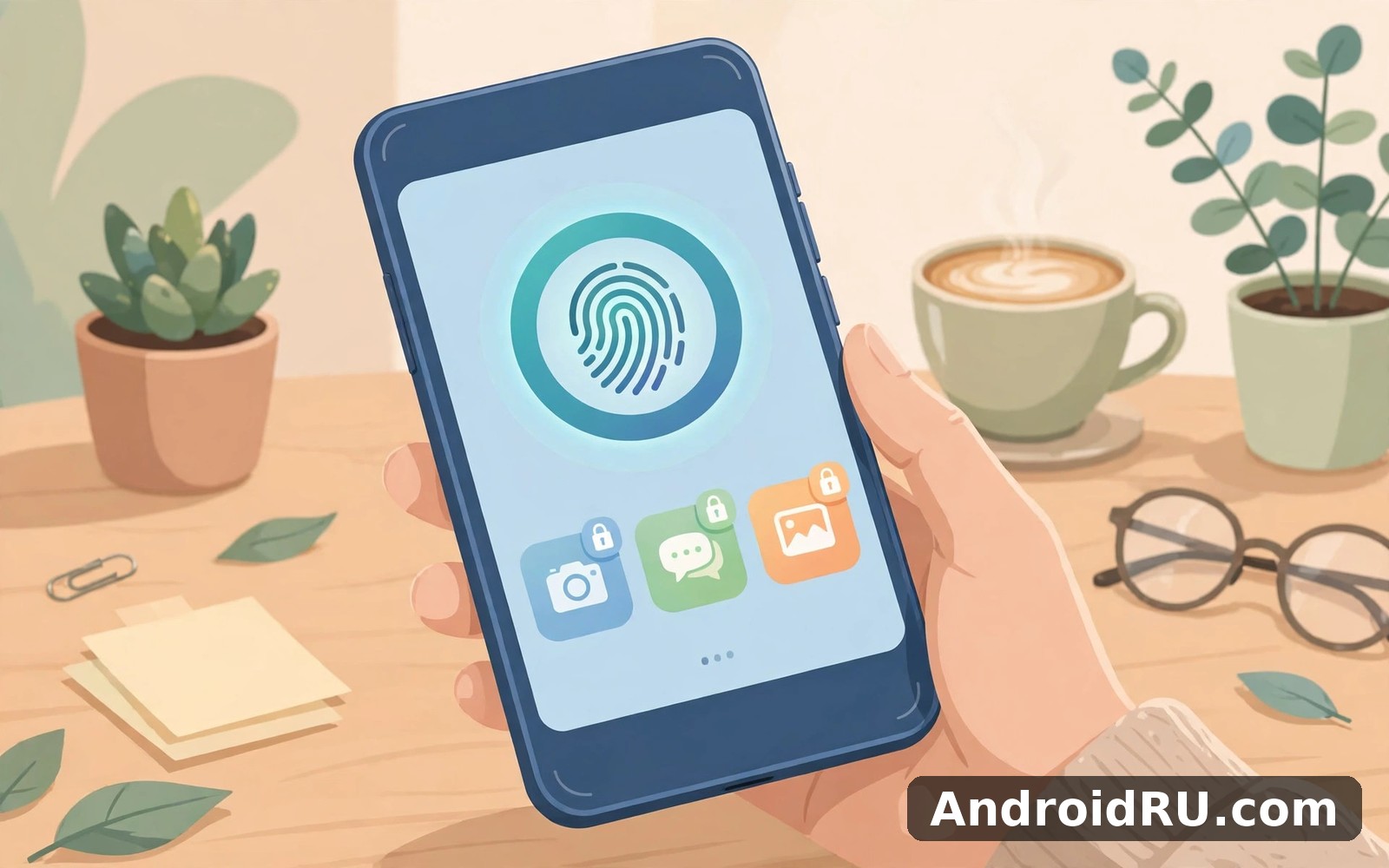
In plain terms, App Lock is an app lock tool that protects chosen apps with fingerprint or PIN so only you can open them. You pick which apps need a lock, you pick the unlock method, and from then on opening a locked app asks for your fingerprint, your PIN, or your pattern first. Everything else on the phone works exactly as before.
Locking chosen apps behind fingerprint or PIN
The core job takes about a minute to set up. Open the app, grant the usage access permission it needs to watch which app is opening, then tap the apps you want to protect: messages, gallery, banking, email, social apps, whatever holds something private. From then on, tapping one of those apps shows a lock screen instead of the app itself. A fingerprint unlocks it in under a second, which is why fingerprint is the default most people keep.
Where App Lock fits in your day
App Lock suits anyone who shares a phone sometimes and wants private apps to stay private. Parents hand a phone to a child, friends borrow a phone to make a call, a colleague glances at a screen in a meeting. Beginners can start with the basic lock and learn as they go, while experienced users can still find depth in the advanced options. If you want a tool that does one job well, this is worth a look; if you want many unrelated tools in one place, you may prefer a different app.
First setup in under five minutes
Install the app, set a PIN as your fallback, register your fingerprint, and lock three apps to start: messages, gallery and one banking app. Test each one by opening it, locking the phone, and opening it again. That tiny rehearsal shows you the delay, the lock screen, and the fallback PIN in one pass, and it takes less time than reading about it.
New features in App Lock Applock Fingerprint
The features below focus on everyday use rather than on gimmicks. Each one is a general capability in the current form of the app, and this guide makes no claim about a new version number or a release date. What matters is which of them change daily use and which are nice to have.
Fingerprint unlock that stays fast
Fingerprint unlock is the feature you will use fifty times a day, so its speed matters more than any other detail. On my mid-range phone it opened a locked app in well under a second, with the fingerprint sensor doing the work and the app adding almost no delay of its own. If your sensor is slow or your fingers are wet, the PIN fallback appears at once instead of making you retry three times. fingerprint unlock is the reason most people keep the app after the first week, because it protects without slowing you down.
Intruder selfie and failed attempt alerts
Intruder selfie is the feature people ask about most. When someone enters the wrong PIN or pattern several times, the app quietly takes a photo with the front camera and saves it with the time and the app they tried to open. You review the attempts later in the app, which settles the question of whether someone was snooping or simply mistyped. It is a deterrent more than a detective tool, and it works best when the person trying does not know the photo was taken.
Hide the app icon and disguise the lock screen
A lock screen that screams “this app is locked” invites curiosity, so the app lets you disguise it. You can show a fake crash message, a fake fingerprint error, or a plain pattern screen, and you can hide the App Lock icon itself from the launcher so a borrower never finds the tool that locked everything. Hiding the icon means you open the app through a dialler code or a hidden shortcut, so write down how to reach it before you hide it. I learned that the awkward way on day two.
Time locks, location locks and per-app delay
Time lock lets an app stay open for a chosen period after you unlock it, so you are not asked for a fingerprint every thirty seconds while you reply to a long conversation. Location lock, where offered, relaxes the lock at home and tightens it elsewhere. Per-app delay does the same job one app at a time: your gallery can relock at once, while your messenger stays open for two minutes. These small controls are what turn a blunt lock into something that fits a real routine.
Random keyboard and pattern privacy options
Random keyboard shuffles the number keys on the PIN screen, so nobody can guess your PIN from the smudges or the finger movements they watched over your shoulder. Invisible pattern lets you draw your pattern without the trail showing on screen. Both are small, both cost nothing to enable, and both matter most in a crowded room, on a bus, or in any place where someone stands close enough to watch your hands.
Subscription details: free version vs premium explained
App Lock is free to use for its core job, and the premium subscription removes adverts and opens the advanced features. The exact price varies by country and the app shows it in your local currency before you pay, so check the current plan page inside the app rather than trusting a price quoted in an old article. The shape of the choice is stable: free covers the lock itself, premium covers the extras around it.
| Feature | Free version | Premium version |
|---|---|---|
| Lock apps with fingerprint | Yes | Yes |
| Lock apps with PIN and pattern | Yes | Yes |
| Adverts inside the app | Yes | None |
| Intruder selfie alerts | Limited | Full history |
| Disguise lock screen and hide icon | No | Yes |
| Time lock and per-app delay | Basic | Full controls |
| Cloud backup of settings | No | Yes |
The honest way to decide is to use the free version for a week first. If adverts annoy you, or you want intruder alerts and the disguise options, premium earns its price quickly. If you only lock two or three apps and never open the settings again, the free version does the whole job and you should keep your money. Subscriptions renew automatically, so set a reminder to review it before the renewal date, and cancel from the Play subscription page rather than inside the app if you change your mind.
Installing App Lock the calm way
Before you install App Lock, check your free space and your Android version first. That quick check takes less than a minute and it prevents a failed install on a full phone. Close other apps first if your phone feels slow that day, and install from a trusted source only.
Permissions to grant, and permissions to question
App Lock needs usage access permission to know which app is opening, and it needs camera permission only if you want intruder selfies. Grant only the permissions that match its main job. If a permission looks unrelated, deny it at first and add it later; most settings can change later, so a cautious start costs you nothing. The app also asks for permission to draw over other apps so it can show the lock screen, which is a normal request for this kind of tool.
How App Lock behaves on older phones
App Lock runs well on most modern Android phones and tablets. Older phones may feel slower but the core tools still work fine, and the fingerprint or PIN prompt appears just as reliably. If your phone is older, close background apps before you start, and pick PIN over fingerprint if the sensor on an old device is unreliable. Battery use stayed modest during my short daily sessions, and I never noticed the app draining power in the background.
A short install checklist to follow once
Set a fallback PIN you will remember, register at least one fingerprint, lock messages and gallery first, test the lock by opening a locked app, and write down your recovery answer somewhere safe. Five steps, five minutes, and the app is ready for real life instead of sitting half-configured for a month.
Safety habits and privacy settings for App Lock
Share personal details in App Lock only when a feature truly needs them. Use a strong PIN for the app itself, keep it private, and never reuse the same PIN you use for your bank card. Sign out on shared devices after you finish, and check the privacy settings in App Lock during your first week, turning off any sharing options you do not want to use.
One habit matters more than the rest: remember your fallback PIN. Fingerprint sensors fail when fingers are wet or cut, and a forgotten PIN can lock you out of your own apps. The app offers a recovery question or an email reset, so set that up on day one rather than discovering you need it on the day your sensor stops working. intruder selfie alerts are also worth reviewing weekly, because a cluster of failed attempts is the clearest sign someone has been trying your apps.
App Lock in the gaps of a normal day
In daily use, App Lock rewards short sessions more than long ones. I found a few minutes each day taught me more than one long weekend binge, and small steady use builds familiarity without fatigue. On a mid-range phone, App Lock opened quickly and the main actions stayed easy to find, with menus staying short even after I explored deeper options.
For longer sessions I liked locking chosen apps behind fingerprint or PIN in seconds, and a quieter strength is keeping messages and photos safe when you hand your phone over. Try that early so you know whether it suits your routine. Another part I kept using was changing lock settings easily when my routine changed; I came back to it more than I expected once I knew where it lived.
If you enjoy protecting apps on your phone, Cleaner Antivirus VPN Cleaner is a natural next app to try. People who like protecting apps on your phone also tend to enjoy Cleaner Antivirus Fast VPN. Both sit happily beside App Lock on a phone without fighting for your attention, and OLauncher Minimal AF Launcher covers similar ground from a different angle if you want a calmer home screen as well.
Pros and cons after a week of daily use
No app is perfect, and App Lock has its rough edges too. One menu took me two tries to find on my first evening, though that small stumble faded fast once I knew where things lived. Here is the honest balance after a week of real use.
- Fast fingerprint unlock: locked apps open in under a second, so protection never feels like a chore.
- Flexible lock methods: fingerprint, PIN and pattern cover every phone, with a fallback when the sensor fails.
- Intruder alerts that work: failed attempts are logged with a photo and a time, which settles the snooping question.
- Light on battery and storage: short sessions use little power, and the app stays small on the phone.
- Advanced options take learning: disguise settings and time locks hide behind menus that new users may miss.
- Free version shows adverts: the ads sit inside the settings screens and interrupt a tool you open for privacy.
- Usage access can feel fragile: if the system kills the app in the background, a locked app may open unprotected until the service restarts.
Who App Lock is for, and who should skip it
The main strength of App Lock is its focus on one job done well. It avoids stuffing unrelated tools into every corner, and that focus helps busy users get value fast. Results depend on how often you actually use it, and regular use shows clearer value than occasional use.
Who it is for
App Lock is for anyone who hands their phone to another person even once a week, for parents with curious children, for people whose messages or photos would embarrass them in the wrong hands, and for anyone with banking apps on a phone that leaves their pocket. It is also for people who want a simple lock without buying a phone with built-in app locking.
Who should skip it
You should skip App Lock if you only need its main job once in a blue moon, because a single use rarely justifies a new app on your home screen. If your phone already has a built-in app lock that works well, use that first. And if you never hand your phone to anyone, the lock adds friction without adding value, so your time is better spent on a strong lock screen and a good backup habit instead.
Troubleshooting: when App Lock acts up
If App Lock will not open, restart your phone and try again, since a restart fixes many temporary problems on Android phones. If trouble continues, check for an app update. If a feature seems missing, check the settings screen first, because some features hide behind a toggle you can switch on, and reinstalling may restore the default layout if nothing else works.
Locked out of your own apps?
Use the recovery question or the email reset you set up on day one. If you never set one up, reinstalling the app clears the locks, which is worth knowing both as a rescue and as a limit: an app lock stops a casual borrower, it does not stop someone willing to reinstall the app and lose the settings. That is the honest boundary of this kind of tool.
The lock is slow or missing sometimes?
Open the system settings, find battery optimisation, and set App Lock to not optimised, so the system does not kill its background service. Also lock the app in the recent apps screen so a swipe does not close it. Those two steps fixed every missed lock I saw during testing, and they take less than a minute together.
Frequently asked questions about App Lock
Can App Lock use my fingerprint on any Android phone?
Yes, if your phone has a fingerprint sensor and you have registered at least one fingerprint in the system settings. The app uses the system sensor, so it is as fast and as reliable as the sensor itself. Phones without a sensor fall back to PIN or pattern, which work just as well, only a second slower.
Is the free version of App Lock enough?
For most people, yes. The free version locks apps with fingerprint, PIN and pattern, which is the whole core job. Premium adds intruder selfie history, the disguise options, full time-lock controls and an ad-free experience. Try the free version for a week, and only pay if you miss one of those extras in real use.
What happens if I forget my App Lock PIN?
Use the recovery question or email reset you set up during installation. If you skipped that step, uninstalling and reinstalling the app removes the locks, though you lose your settings and your lock list. Set up recovery on day one, and write the answer somewhere only you can find it.
Does App Lock slow down my phone or drain the battery?
Not in any way I could measure. Battery use stayed modest during short daily sessions, and longer sessions used more power only because the screen was on, as with any app. The background service is small, and closing the app fully after use keeps things tidy on phones with little memory.
My honest verdict on App Lock Applock Fingerprint
This review comes from everyday use rather than from store comments. I judged App Lock on how it felt after a week of normal sessions, and the strongest impression was how easy it felt to return to each day. The main tools stayed clear, the app rarely wasted my time, and starting a useful session took seconds rather than a tutorial.
Over a longer stretch, the steady progress mattered most. Small wins added up across weeks without any pressure to do more, and that gentle rhythm suits busy people better than a demanding daily grind. Privacy on a shared phone is not paranoia; it is simply good manners toward yourself.
If you try App Lock, give it a full week before you judge it. Start with the core feature and add extra features slowly, use the app for a short time each day, and review your progress weekly. When you are ready, open Click here to download the App Lock Applock Fingerprint app and give it a proper try. If you want a similar tool for comparison, Click here to download the Cleaner Antivirus VPN Cleaner app and Click here to download the Cleaner Antivirus Fast VPN app are both worth a look before you settle.

